Add rules to the policy to allow traffic through the firewall.
If you created a basic Block all traffic access control policy when you registered the firewall, then you need to add rules to the policy to allow traffic through the firewall. The access control policy can include multiple rules that are evaluated in order.
This procedure creates an access control rule to allow all traffic from the inside zone to the outside zone.
Procedure
1.
Choose Policies > Security policies > Access Control, and click Edit () for the access control policy assigned to the device.
2.
Click Add Rule, and set the following parameters.
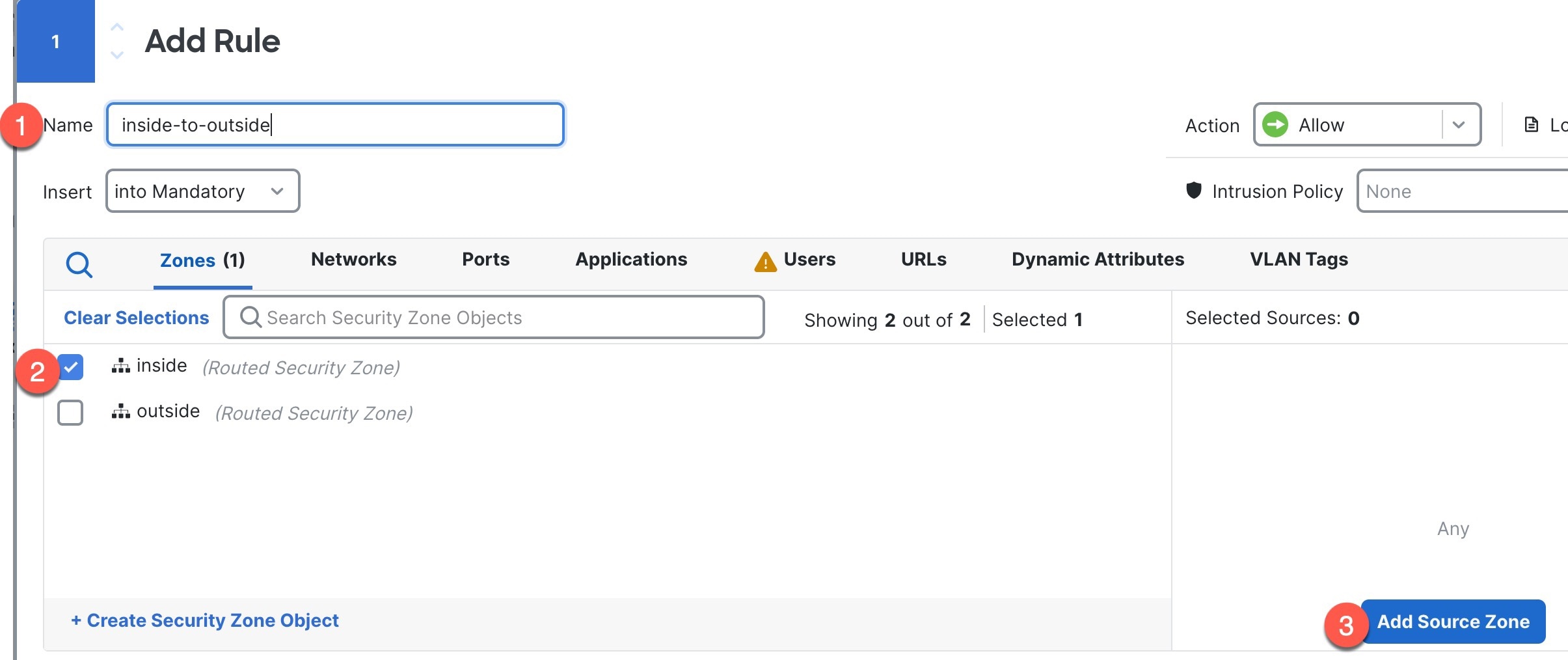
Figure 1. Source Zone
1. Name this rule, for example, inside-to-outside.
2. Select the inside zone from Zones
3. Click Add Source Zone.
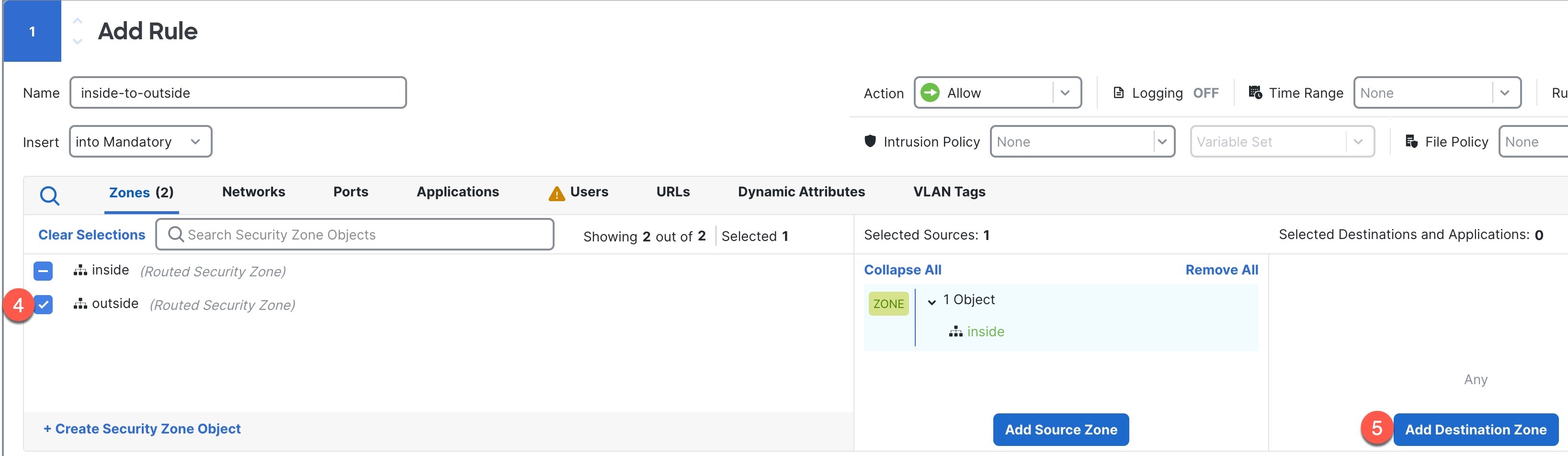
Figure 2. Destination Zone
4. Select the outside zone from Zones.
5. Click Add Destination Zone.
Leave the other settings as is.
3.
(Optional) Customize associated policies by clicking on the policy type in the packet flow diagram.
Prefilter, Decryption, Security Intelligence, and Identity policies are applied before an access control rule. Customizing these policies is not required, but after you know your network's needs, they let you improve network performance by either fastpathing trusted traffic (bypassing processing) or blocking traffic so no further processing is required.

Figure 3. Policies Applied Before Access Control
Prefilter Rules—The Default Prefilter Policy passes all traffic for the other rules to act on (analyzes). The only change to the default policy you can make is to block tunnel traffic. Otherwise, you can create a new prefilter policy to associate with the access control policy that can analyze (pass on), fastpath (bypass further checks) or block.
Prefiltering lets you improve performance by dealing with traffic before it gets any further, by either blocking or fastpathing. In a new policy, you can add tunnel rules and prefilter rules. A tunnel rule lets you fastpath, block, or rezone plaintext (non-encrypted), passthrough tunnels. A prefilter rule lets you fastpath or block non-tunneled traffic identified by IP address, port, and protocol.
For example, if you know you want to block all FTP traffic on your network, but fastpath SSH traffic from an administrator, you can add a new prefilter policy.
Decryption—Decryption is not applied by default. Decryption is a way to expose network traffic to deep inspection. In most cases, you don't want to decrypt traffic, and can only do so if it is legally allowed. For maximum network protection, a decryption policy might be a good idea for traffic going to critical servers or coming from untrusted network segments.
Security Intelligence—(Requires the IPS license) Security Intelligence is enabled by default. Security Intelligence is another early defense against malicious activity applied before passing connections to the access control policy for further processing. Security Intelligence uses reputation intelligence to quickly block connections to or from IP addresses, URLs, and domain names provided by Talos, the threat intelligence organization at Cisco. You can add or delete additional IP addresses, URLs, or domains if desired.
Note
If you do not have the IPS license, this policy will not be deployed even though it shows in your access control policy as enabled.
Identity—Identity is not applied by default. You can require a user to authenticate before allowing traffic to be processed by the access control policy.
4.
(Optional) Add an Intrusion policy that is applied after the access control rule.
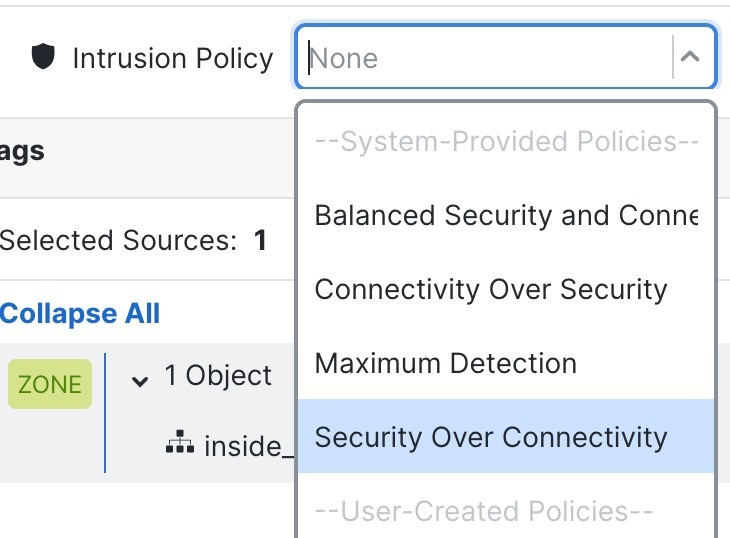
The Intrusion policy is a defined set of intrusion detection and prevention configurations that inspects traffic for security violations. The Firewall Management Center includes many system-provided policies you can enable as-is or that you can customize. This step enables a system-provided policy.
Click the Intrusion Policy drop-down list.
Figure 4. System-Provided Intrusion Policies
Choose one of the system-provided policies from the list.
We recommend Balanced Security and Connections for most use cases.
5.
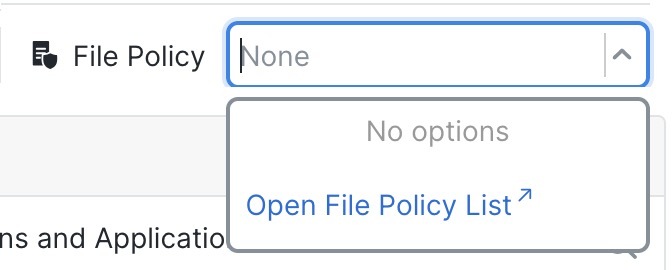
(Optional) Add a File policy that is applied after the access control rule.
Click the File Policy drop-down list and choose either an existing policy or add one by choosing the Open File Policy List.
Figure 5. File Policy
For a new policy, the Policies > Security policies > Malware & File page opens in a separate tab.