Secure Firewall 1210/20 Threat Defense Getting Started: Firewall Management Center at a Central Headquarters

PDF

Access the Firewall Threat Defense CLI

Updated: February 5, 2026

Overview

You might need to access the CLI for configuration or troubleshooting.

You might need to access the CLI for configuration or troubleshooting.

Procedure

1.

Connect to the console port using either port type.
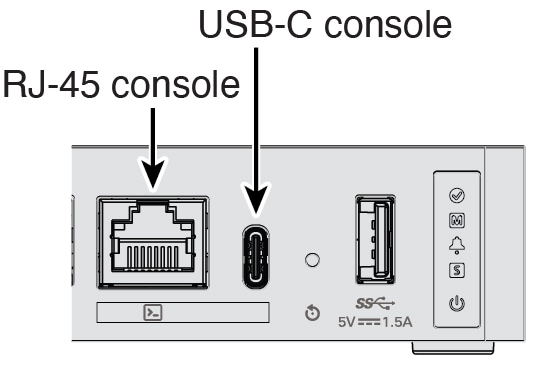
Figure 1. Console Port
Console port
2.

You connect to FXOS. Log in to the CLI using the admin username and the password (the default is Admin123). The first time you log in, you are prompted to change the password.


firepower login: admin
Password: Admin123
Successful login attempts for user 'admin' : 1

[...]

Hello admin. You must change your password.
Enter new password: ********
Confirm new password: ********
Your password was updated successfully.

[...]

firepower# 

3.

Change to the Firewall Threat Defense CLI.

Note

If you want to use the Firewall Device Manager for initial setup, do not access the Firewall Threat Defense CLI, which starts the CLI setup.

For zero-touch provisioning, if you must access the CLI and run through the setup script, answer n when prompted: Do you want to configure IPv4? (y/n) [y]: and Do you want to configure IPv6? (y/n) [y]:. You also must accept the default local manager: Manage the device locally? (yes/no) [yes]:.

connect ftd

The first time you connect to the Firewall Threat Defense CLI, you are prompted to complete initial setup.

Example:


firepower# connect ftd
>

To exit the Firewall Threat Defense CLI, enter the exit or logout command. This command returns you to the FXOS prompt.

Example:


> exit
firepower#