Use Dynamic Objects in Access Control Policies

The dynamic attributes connector enables you to configure dynamic attributes filters, seen in the as dynamic objects, in access control rules.

Dynamic objects in access control rules

You can use dynamic objects on the access control rule's Dynamic Attributes tab page. You can add dynamic objects as source or destination attributes.

Dynamic object usage examples

In an access control block rule, you can add a Finance dynamic object as a destination attribute to block access to Finance servers by whatever objects match the other criteria in the rule.

Dynamic attributes filter limitations

Create dynamic attributes filters

Create dynamic attributes filters to expose them as dynamic objects in for use in access control policies.

Dynamic attributes filters that you define using the Dynamic Attributes Connector are exposed in the as dynamic objects that can be used in access control policies. For example, restrict access to an AWS server for the Finance Department to only members of the Finance group defined in Microsoft Active Directory.

Before you begin

Complete all of the following tasks:

Procedure


Step 1

Do any of the following:

  • Add a new filter: click Add (add icon).

  • Edit or delete a filter: Click More (more icon), then click Edit or Delete at the end of the row.

Step 2

Enter the following information.

Item

Description

Name

Unique name to identify the dynamic filter (as a dynamic object) in a policy and in the Object Manager (External Attributes > Dynamic Object).

Connector

From the list, click the name of a connector to use.

Query

Click Add add icon.

Step 3

To add or edit a query, enter the following information.

Item Description

Key

Click a key from the list. Keys are fetched from the connector.

Operation

Click one of the following:
  • Equals to exactly match the key to the value.

  • Contains to match the key to the value if any part of the value matches.

Values

Click either Any or All and click one or more values from the list. Click Add another value to add values to your query.

Step 4

Click Show Preview to display a list of networks or IP addresses returned by your query.

Step 5

When you're finished, click Save.

Step 6

(Optional.) Verify the dynamic object in the .

  1. Log in to the .

  2. Click Policies > Firewall Threat Defense.

  3. Click Objects > Object Management > External Attributes > Dynamic Object.

    The dynamic attribute query you created should be displayed as a dynamic object.


Dynamic attributes rule conditions

Dynamic attributes rule conditions allow you to specify access control rules based on real-time properties such as network objects, device types, locations, and security tags. These conditions determine how access control rules match traffic based on various attributes, optimizing policy flexibility and accuracy.

Types of dynamic attributes

Dynamic attributes include:

Combining objects in rules

Dynamic attributes can be used as source criteria and destination criteria in access control rules. Use these guidelines:

  • Objects of different types are ANDd together

  • Objects of a similar type are ORd together

For example, if you choose source destination criteria SGT 1, SGT 2, and device type 1, the rule matches if device type 1 is detected on either SGT 1 or SGT 2.

If you select both a security group tag, and a dynamic object that lists IP addresses, the rule matches if traffic with the tag originating from, or destined to, one of those IP addresses.

Create access control rules using dynamic attributes filters

Create access control rules using dynamic objects that are based on dynamic attributes filters you have previously configured.

This topic discusses how to create access control rules using dynamic objects.

Before you begin

Create dynamic attributes filters as discussed in .

Follow these steps to create access control rules using dynamic attributes filters:

Procedure


Step 1

Log in to the Secure Firewall Management Center

Click Policies > Access Control heading > Access Control.

Step 2

Click Edit (edit icon) next to an access control policy.

Step 3

Click Add Rule.

Step 4

Click the Dynamic Attributes tab.

Step 5

In the Available Attributes section, from the list, click Dynamic Objects.

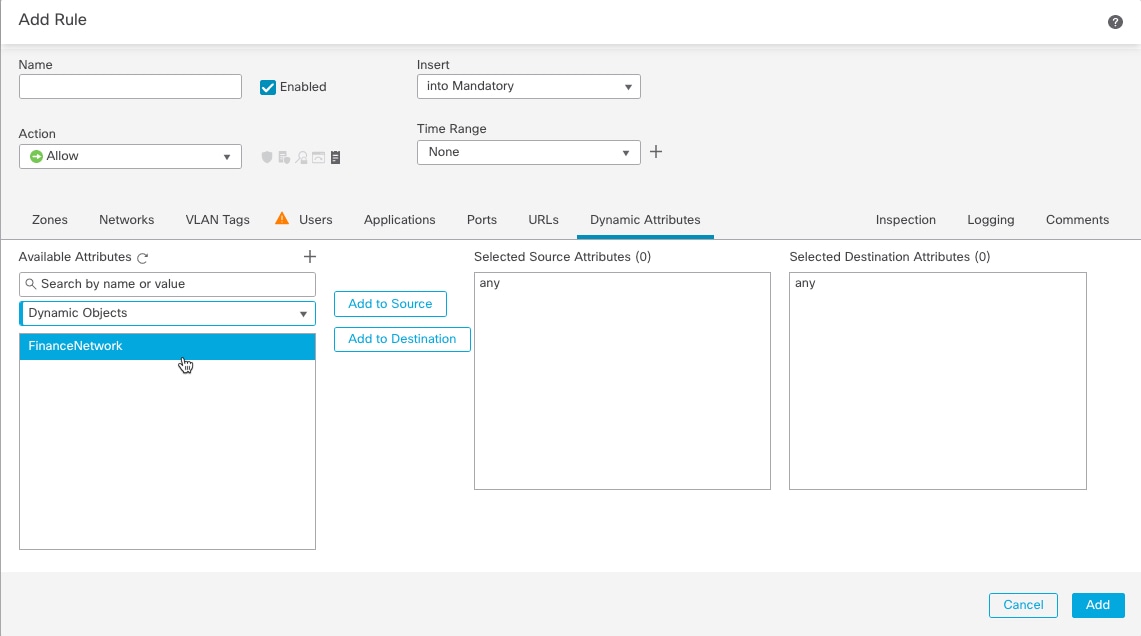
The following figure shows an example.

Configure Dynamic Attributes created using the dynamic attributes connector as dynamic objects in access control rules. Use those exactly as you would network objects.

This example shows a dynamic object named APIC Dynamic Attribute that corresponds to the dynamic attribute filter created in the dynamic attributes connector.

Step 6

Add the desired object to source or destination attributes.

Step 7

Add other conditions to the rule if desired.