Introduction to objects

An object is a reusable container of information that you can use in one or more security policies. Objects help you maintain policy consistency because you can define a value once, use it in multiple policies, and update every policy that uses the object by changing the object.

When you onboard a device, Security Cloud Control Firewall Management recognizes all the objects used by that device, saves them, and lists them on the Objects page. From the Objects page, you can edit existing objects and create new ones to use in your security policies.

Security Cloud Control Firewall Management calls an object used on multiple devices a shared object and identifies them in the Objects page with this badge .

You can use Security Cloud Control Firewall Management to manage objects in these ways:

  • Search for and filter all your objects based on a variety of criteria.

  • Find duplicate, unused, and inconsistent objects, and then consolidate, delete, resolve, ignore, or unignore object issues.

  • Find and delete unassociated objects if they are not needed.

  • Discover objects that are shared across devices.

  • Evaluate which policies and devices are affected before you commit an object change.

  • Compare a set of objects and their relationships with different policies and devices.

  • Capture objects that are in use after a device is onboarded to Security Cloud Control Firewall Management.

Sometimes a shared object develops some "issue" and is no longer perfectly shared across multiple policies or devices:

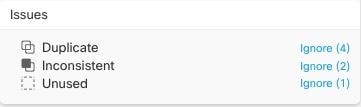
  • Duplicate objects: Two or more objects on the same device have different names but the same values. These objects usually serve similar purposes and are used by different policies. Duplicate objects are identified by this issue icon:

  • Inconsistent objects: Two or more devices have objects with the same name but different values. This issue can occur when objects start with the same name and content but later diverge. Inconsistent objects are identified by this issue icon:

  • Unused objects: An object exists in a device configuration but is not referenced by another object, an access list, or a NAT rule. Unused objects are identified by this issue icon:

You can also create objects for immediate use in rules or policies. You can create an object that is unassociated with any rule or policy. When you use that unassociated object in a rule or policy, Security Cloud Control Firewall Management creates a copy of it and uses the copy.

You can view the objects managed by Security Cloud Control Firewall Management by navigating to the Objects menu or by viewing them in the details of a network policy.

If you have issues with creating, editing, or reading objects from an onboarded device, see Troubleshoot Security Cloud Control for more information.

Introduction to objects

An object is a reusable container of information that you can use in one or more security policies. Objects help you maintain policy consistency because you can define a value once, use it in multiple policies, and update every policy that uses the object by changing the object.

When you onboard a device, Security Cloud Control Firewall Management recognizes all the objects used by that device, saves them, and lists them on the Objects page. From the Objects page, you can edit existing objects and create new ones to use in your security policies.

Security Cloud Control Firewall Management calls an object used on multiple devices a shared object and identifies them in the Objects page with this badge .

You can use Security Cloud Control Firewall Management to manage objects in these ways:

  • Search for and filter all your objects based on a variety of criteria.

  • Find duplicate, unused, and inconsistent objects, and then consolidate, delete, resolve, ignore, or unignore object issues.

  • Find and delete unassociated objects if they are not needed.

  • Discover objects that are shared across devices.

  • Evaluate which policies and devices are affected before you commit an object change.

  • Compare a set of objects and their relationships with different policies and devices.

  • Capture objects that are in use after a device is onboarded to Security Cloud Control Firewall Management.

Sometimes a shared object develops some "issue" and is no longer perfectly shared across multiple policies or devices:

  • Duplicate objects: Two or more objects on the same device have different names but the same values. These objects usually serve similar purposes and are used by different policies. Duplicate objects are identified by this issue icon:

  • Inconsistent objects: Two or more devices have objects with the same name but different values. This issue can occur when objects start with the same name and content but later diverge. Inconsistent objects are identified by this issue icon:

  • Unused objects: An object exists in a device configuration but is not referenced by another object, an access list, or a NAT rule. Unused objects are identified by this issue icon:

You can also create objects for immediate use in rules or policies. You can create an object that is unassociated with any rule or policy. When you use that unassociated object in a rule or policy, Security Cloud Control Firewall Management creates a copy of it and uses the copy.

You can view the objects managed by Security Cloud Control Firewall Management by navigating to the Objects menu or by viewing them in the details of a network policy.

If you have issues with creating, editing, or reading objects from an onboarded device, see Troubleshoot Security Cloud Control for more information.

Supported object types

The object types that you can create and manage depend on the managed device type.

Common object types

Table 1. Common Objects

Object Type

Description

Network

Network groups and network objects (collectively referred to as network objects) define the addresses of hosts or networks.

URL

Use URL objects and groups (collectively referred to as URL objects) to define the URL or IP addresses of web requests. You can use these objects to implement manual URL filtering in access control policies or blocking in Security Intelligence policies.

ASA object types

Table 2. Adaptive Security Appliance (ASA) Object Types

Object

Description

Address Pool

Matches an individual IPv4 or IPv6 address or an IP address range.

AnyConnect Client Profile

Represents files used in configurations, typically for remote access VPN policies. These objects can contain AnyConnect Client Profile and AnyConnect Client Image files.

Network

Defines host or network addresses. This category includes network objects and network groups.

Service

Defines protocols or ports that are part of the TCP/IP protocol suite. This category includes service objects, service groups, and port groups.

Time Range

Defines a start time, an end time, and optional recurring entries for time-based access to features or assets.

Trustpoints

Manages and tracks digital certificates in ASA.

FDM-managed device object types

Table 3. FDM-Managed Device Object Types

Object

Description

AnyConnect Client Profile

Represents files used in configurations, typically for remote access VPN policies. These objects can contain AnyConnect Client Profile and AnyConnect Client Image files.

Certificate Filter

Provides digital identification for authentication. Certificates are used for SSL, TLS, and DTLS connections, such as HTTPS and LDAPS.

DNS Group

Defines DNS servers that resolve fully qualified domain names (FQDNs), such as www.example.com, to IP addresses. You can configure different DNS group objects for management and data interfaces.

Geolocation

Defines countries and continents that host the source or destination of traffic. You can use geolocation objects in policies instead of IP addresses.

IKEv1 Policy

Contains the parameters required for IKEv1 policies when defining VPN connections.

IKEv2 Policy

Contains the parameters required for IKEv2 policies when defining VPN connections.

IKEv1 IPSEC Proposal

IPsec Proposal objects configure the IPsec proposal used during IKE Phase 1 negotiations. The IPsec proposal defines the combination of security protocols and algorithms that secure traffic in an IPsec tunnel.

IKEv2 IPSEC Proposal

IPsec Proposal objects configure the IPsec proposal used during IKE Phase 2 negotiations. The IPsec proposal defines the combination of security protocols and algorithms that secure traffic in an IPsec tunnel.

Network

Defines host or network addresses. This category includes network objects and network groups.

Security Zone

Groups interfaces into network segments that help classify and manage traffic.

Service

Defines protocols or ports that are part of the TCP/IP protocol suite. This category includes service objects, service groups, and port groups.

SGT Group

Identifies source or destination addresses based on a security group tag (SGT) assigned by Cisco ISE.

Syslog Server

Identifies a server that can receive connection-oriented or diagnostic syslog messages.

URL

Defines URLs or IP addresses for web requests. URL objects and URL groups can be used for manual URL filtering in access control policies or blocking in Security Intelligence policies.

On-Premises Firewall Management Center object types

Table 4. On-Premises Secure Firewall Management Center Object Types

Object

Description

Network

Defines host or network addresses. This category includes network objects and network groups.

Service

Defines protocols or ports that are part of the TCP/IP protocol suite. This category includes service objects, service groups, and port groups.

Shared objects

A shared object is an object on multiple devices that has the same name and the same contents. Shared objects help you maintain policies because one object change affects every policy that uses that shared object.

Shared objects are identified by this icon
on the Objects page. Shared objects make it easy to maintain policies because you can modify an object in one place and that change affects all the other policies that use that object. Without shared objects, you would need to modify all the policies individually that require the same change.

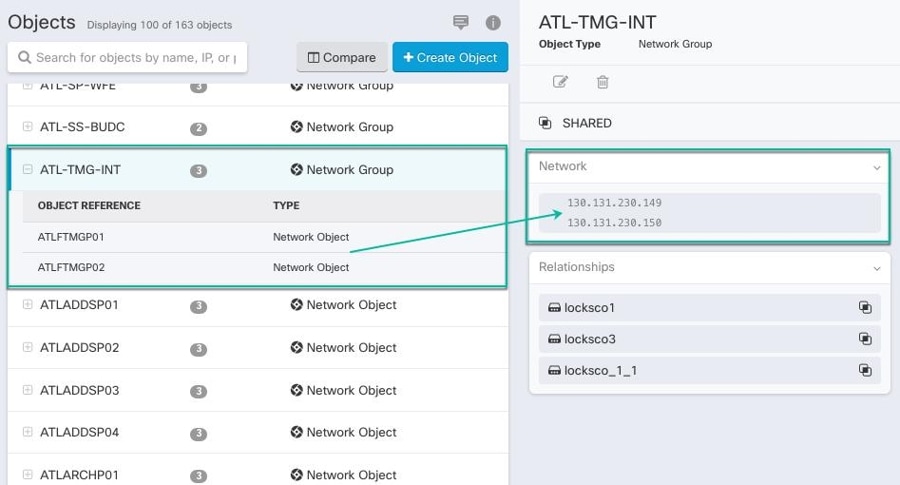
When looking at a shared object, Security Cloud Control shows you the contents of the object in the object table. Shared objects have exactly the same contents. Security Cloud Control shows you a combined or "flattened" view of the elements of the object in the details pane. Notice that in the details pane, the network elements are flattened into a simple list and not directly associated with a named object.
Object Overrides

An object override lets you customize a shared object for specific devices. When a device has an override, Security Cloud Control Firewall Management uses the override value for that device instead of the object's default value.

Overrides allow you to maintain a single shared policy across devices while tailoring individual object values where needed.

Use overrides when you want to maintain one shared policy across devices but need specific devices to use different object values. For example, a shared print-server object can use the default value 10.1.1.100 for most offices, while Office B uses an override value of 10.2.1.100.

Overrides on network object groups

For network object groups, overrides fully replace the default values for the devices that are assigned to the override. A device with an override receives only the override values, not the default values.

This replacement behavior has these effects:

  • Changes to default values affect only devices without overrides.

  • Changes to an override affect only the devices assigned to that override.

  • If a device needs the default values plus a local value, add all required values to the override.

For example, a shared dns-servers network group contains default values primary-dns (10.0.1.53) and secondary-dns (10.0.2.53) for Branch A, Branch B, and Branch C. Branch C also needs local-dns-cache (10.30.1.53). Because a network group override replaces the defaults, the Branch C override must contain primary-dns, secondary-dns, and local-dns-cache.

If you later add a default value, such as tertiary-dns, Branch A and Branch B receive the new default value automatically. Branch C does not receive it until you add tertiary-dns to the Branch C override.

Note


Security Cloud Control allows you to override objects associated with the rules in a ruleset. When you add a new object to a rule, you can override it only after you attach a device to the ruleset and save the changes. See Configure Rulesets for an FTD for more information.


Unassociated objects

An unassociated object is not associated with any rule or policy. When you use an unassociated object in a rule or policy, Security Cloud Control Firewall Management creates and uses a copy of that object. The original unassociated object remains available until a nightly maintenance job deletes it or you delete it manually.

Security Cloud Control Firewall Management keeps unassociated objects as a copy so that configuration data is not lost if the related rule or policy is deleted accidentally.

To view unassociated objects, choose Objects > , and check Unassociated.

Compare objects

Use object comparison to review up to three objects side by side and inspect their details and relationships.

Procedure


Step 1

In the left pane, click Objects and choose an option.

Step 2

Filter the objects on the page to find the objects you want to compare.

Step 3

Click the Compare button .

Step 4

Select up to three objects.

Step 5

Review the objects side-by-side at the bottom of the screen.

Step 6

(Optional) In Relationships, select a device name, and then select View Configuration to view the device configuration with the object entry highlighted.


Object filters

Use filters on the Objects page to find objects by device, issue, shared state, association state, object type, or search value. You can also include or exclude system-defined objects.

The object type filter lets you filter by object types such as network object, network group, URL object, URL group, service object, and service group. The shared objects filter lets you filter objects that have default values, override values, or additional values.

You can combine device and object filters to create focused search strategies. For example, you can search for objects that match this logic: Issues is Unused OR Inconsistent, AND Shared Objects has Default Values OR Additional Values, AND Unassociated Objects is selected.
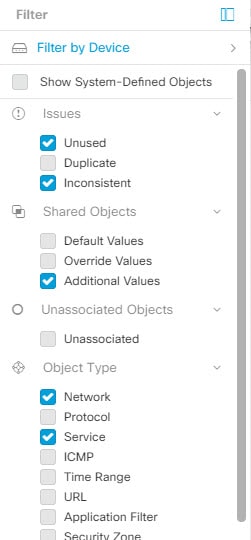
To filter, click in the left-hand pane of the Objects tab:

  • Filter by Device: Shows objects found on selected devices.

  • Show System-Defined Objects: Includes predefined system objects in search and filter results. System objects cannot be edited or deleted. Some devices come with predefined objects for common services. These system objects are convenient because they are already made for you and you can use them in your rules and policies. There can be many system objects in the objects table. System objects cannot be edited or deleted.

  • Issues: Shows unused, duplicate, or inconsistent objects. If you select more than one issue, objects in any selected issue category are included.

  • Ignored Issues: Shows objects whose issues were ignored by an administrator.

  • Shared Objects: Shows shared objects. You can filter by default values, override values, additional values, or a combination.

  • Unassociated Objects: Shows objects that are not associated with any rule or policy.

  • Object Type: Shows selected object types, such as network objects, network groups, URL objects, URL groups, service objects, and service groups.

Within a main filter, subfilters can further narrow the results by object type, such as Network, Service, or Protocol. Filters across categories combine with an AND relationship. Multiple selections within a category can combine with an OR relationship.

For example, a filter set can search for objects that match this logic: objects on selected devices AND inconsistent objects AND network objects or service objects AND object names that contain group.

Configure object filters

You can filter on as few or as many criteria as you want. The more categories you filter by, the fewer results you should expect.

Procedure

Step 1

In the left pane, click Objects.

Step 2

Open the filter panel by clicking the filter icon at the top of the page. Uncheck any filters that have been checked to make sure no objects are inadvertently filtered out.

Step 3

If you want to restrict your results to those found on particular devices:

  1. Click Filter By Device.

  2. Search all the devices or click a device tab to search for only devices of a certain kind.

  3. Check the device you want to include in your filter criteria.

  4. Click OK.

Step 4

Check Show System Objects to include system objects in your search results. Uncheck Show System Objects to exclude system objects from your search results.

Step 5

Check the object Issues you want to filter. If you check more than one issue, objects in any of the categories you check are included in your filter results.

Step 6

Check Ignored issues if you want to see the object that had issues but was ignored by the administrator.

Step 7

Check the required filter in Shared Objects if you are filtering for objects shared between two or more devices.

  • Default Values: Filters objects having only the default values.

  • Override Values: Filters objects having overridden values.

  • Additional Values: Filters objects having additional values.

Step 8

Check Unassociated if you are filtering for objects that are not part of any rule or policy.

Step 9

Check the Object Types you want to filter.

Step 10

You can also add an object name, IP address, or port number to the Objects search field to find objects with your search criteria among the filtered results.


Exclude device filters when you need full relationships

When you filter by device, Security Cloud Control Firewall Management shows objects on that device but does not show the object's relationships to all other devices.

For example, if ObjectA is shared between ASA1 and ASA2, and you filter for shared objects on ASA1, Security Cloud Control Firewall Management shows `ObjectA`, but the Relationships pane shows only that ObjectA is on ASA1.

To view every device and policy relationship for an object, do not specify a device in the filter criteria. Filter by other criteria, select the object, and review the Relationships pane.

Unignore objects

Unignore Objects refers to the process of reversing the action of ignoring certain objects that have been marked as unused, duplicate, or inconsistent. Ignoring objects is a way to temporarily leave unresolved issues with these objects when there are valid reasons. However, if you later decide to address these ignored objects, you can unignore them to bring them back into view and take action.

Procedure


Step 1

In the left pane, click Objects and choose an option.

Step 2

In the Object table, select the object you want to unignore. You can unignore one object at a time.

Step 3

Click Unignore in the details pane.

Step 4

Confirm your request. Now, when you filter your objects by issue, you should find the object that was previously ignored.


Delete objects

You can delete a single object or mulitple objects.

Delete a single object


Note


If Cloud-Delivered Firewall Management Center is deployed on your tenant:

Changes you make to the ASA, FDM, and FTD network objects and groups are reflected in the corresponding Cloud-Delivered Firewall Management Center network object or group. In addition, an entry is created in the Devices with Pending Changes page for each on-premises Firewall Management Center with Discover & Manage Network Objects enabled, from which you can choose and deploy the changes to the on-premises Firewall Management Center on which you have these objects.

Deleting a network object or group from either page deletes the object or group from both pages.


Procedure

Step 1

In the left pane, click Objects.

Step 2

Locate the object you want to delete by using object filters and the search field, and select it.

Step 3

Review the Relationships pane. If the object is used in a policy or in an object group, you cannot delete the object until you remove it from that policy or group.

Step 4

In the Actions pane, click the Remove icon .

Step 5

Confirm that you want to delete the object by clicking OK.

Step 6

Review and deploy the changes you made, or wait and deploy multiple changes at once.


Delete a group of unused objects

As you onboard devices and start resolving object issues, you find many unused objects. You can delete up to 50 unused objects at a time.

Procedure

Step 1

Use the Issues filter to find unused objects. You can also use the Device filter to find objects that are not associated with a device by selecting No Device.

Step 2

Check the Select all checkbox in the object table header to select all the objects found by the filter that appear in the object table; or, check individual checkboxes for individual objects you want to delete.

Step 3

In the Actions pane, click the Remove icon .

Step 4

Review and deploy now the changes you made, or wait and deploy multiple changes at once.


Network objects

A network object can contain a host name, a network IP address, a range of IP addresses, a fully qualified domain name (FQDN), or a subnetwork expressed in CIDR notation. Network groups are collections of network objects and other individual addresses or subnetworks that you add to the group. Network objects and network groups are used in access rules, network policies, and NAT rules.

Not all platforms support network objects, such as Cisco Meraki and Multicloud Defense; when you share dynamic objects, Security Cloud Control Firewall Management automatically translates the appropriate information from the originating platform or device into a set of usable information that Security Cloud Control Firewall Management can use.

Table 5. Permitted Values of Network Objects

Device type

IPv4 / IPv6

Single Address

Range of addresses

Fully Qualified Domain Name

Subnet using CIDR Notation

ASA

IPv4 and IPv6

Yes

Yes

Yes

Yes

FTD

IPv4 and IPv6

Yes

Yes

Yes

Yes

Multicloud Defense

IPv4 and IPv6

Yes

Yes

Yes

Yes

Table 6. Permitted Contents of a Network Group

Device type

IP Value

Network Object

Network Groups

ASA

Yes

Yes

Yes

FTD

No

Yes

Yes

Multicloud Defense

Yes

Yes

Yes

Reuse network objects across products

If you have a Security Cloud Control tenant with a Cloud-Delivered Firewall Management Center and one or more on-premises Firewall Management Centers onboarded to your tenant:

  • When you create a Secure Firewall Threat Defense, FDM-managed Firewall Threat Defense, ASA, or Meraki network object or group, a copy of the object is also added to the objects list on the Objects page used when configuring Cloud-Delivered Firewall Management Center, and vice versa.

  • When you create a Secure Firewall Threat Defense, FDM-managed Firewall Threat Defense, or ASA network object or group, an entry is created in the Devices with Pending Changes page for each On-Premises Firewall Management Center for which Discover & Manage Network Objects is enabled. From this list, you can choose and deploy the object to the on-premises Firewall Management Center on which you want to use the object and discard the ones that you do not want. Navigate Tools & Services > Firewall Management Center, Administration > Firewall Management Center select the on-premises Firewall Management Center, and click Objects to see your objects in the On-Premises Firewall Management Center user interface and assign them to policies.

Changes you make to network objects or groups on either page apply to the object or group instance on both pages. Deleting an object from one page also deletes the corresponding copy of the object from the other page.

The following exceptions apply:

  • If a network object of the same name already exists for Cloud-Delivered Firewall Management Center, the new Secure Firewall Threat Defense, FDM-managed Firewall Threat Defense, ASA, or Meraki network object will not be replicated on the Objects page of Security Cloud Control.

  • Network objects and groups in onboarded Firewall Threat Defense devices that are managed by on-premises Secure Firewall Management Center are not replicated and cannot be used in Cloud-Delivered Firewall Management Center.

    Note that for on-premises Secure Firewall Management Center instances that have been migrated to Cloud-Delivered Firewall Management Center, network objects and groups are replicated to the Security Cloud Control objects page if they are used in policies that were deployed to FTD devices.

  • Sharing Network Objects between Security Cloud Control and Cloud-Delivered Firewall Management Center is automatically enabled on new tenants but must be requested for existing tenants. If your network objects are not being shared with Cloud-Delivered Firewall Management Center, contact TAC to have the features enabled on your tenant.

  • Sharing network objects between Security Cloud Control and On-Premises Firewall Management Center is not automatically enabled on Security Cloud Control for new on-premises Firewall Management Centers onboarded to Security Cloud Control. If your network objects are not being shared with On-Premises Firewall Management Center, ensure the Discover & Manage Network Objects toggle button is enabled for the on-premises Firewall Management Center in Settings or contact TAC to have the features enabled on your tenant.

Viewing network objects

Network objects that you create in Security Cloud Control Firewall Management, and network objects that Security Cloud Control Firewall Management recognizes in onboarded device configurations, appear on the Objects page. They are labeled with their object type. This allows you to filter by object type to quickly find the object you are looking for.

When you select a network object, the Details pane shows the object values. The Relationships pane shows whether the object is used in a policy and which device stores the object.

When you select a network group, Security Cloud Control Firewall Management shows the contents of the group as the combined values from the network objects in that group.

Create or Edit ASA Network Objects and Network Groups

An ASA network object can contain a hostname, an IP address, or a subnet address expressed in CIDR notation. Network groups are conglomerates of network objects, network groups, and IP addresses that are used in access rules, network policies, and NAT rules. You can create, read, update, and delete network objects and network groups using Security Cloud Control.

Table 7. Permitted Values of ASA Network Objects and Groups

Device type

IPv4 / IPv6

Single Address

Range of addresses

Partially Qualified Domain Name (PQDN)

Subnet using CIDR Notation

ASA

IPv4 / IPv6

Yes

Yes

Yes

Yes


Note


If Cloud-Delivered Firewall Management Center is deployed on your tenant:

When you create an FTD, FDM, or ASA network object or group on the Objects page, a copy of the object is automatically added to the Cloud-Delivered Firewall Management Center and vice-versa. In addition, an entry is created in the Devices with Pending Changes page for each on-premises Firewall Management Center with Discover & Manage Network Objects enabled, from which you can choose and deploy the objects to the on-premises Firewall Management Center on which you want these objects.


Note


If Cloud-Delivered Firewall Management Center is deployed on your tenant:

Changes you make to the ASA, FDM, and FTD network objects and groups are reflected in the corresponding Cloud-Delivered Firewall Management Center network object or group. In addition, an entry is created in the Devices with Pending Changes page for each on-premises Firewall Management Center with Discover & Manage Network Objects enabled, from which you can choose and deploy the changes to the on-premises Firewall Management Center on which you have these objects.

Deleting a network object or group from either page deletes the object or group from both pages.


Create an ASA Network Object

A network object can contain a host name, a network IP address, a range of IP addresses, a fully qualified domain name (FQDN), or a subnetwork expressed in CIDR notation. Network objects are used in access rules, network policies, and NAT rules. You can create, update, and delete network objects and network groups using Security Cloud Control.


Note


If Cloud-Delivered Firewall Management Center is deployed on your tenant:

When you create an FTD, FDM, or ASA network object or group on the Objects page, a copy of the object is automatically added to the Cloud-Delivered Firewall Management Center and vice-versa. In addition, an entry is created in the Devices with Pending Changes page for each on-premises Firewall Management Center with Discover & Manage Network Objects enabled, from which you can choose and deploy the objects to the on-premises Firewall Management Center on which you want these objects.


Procedure

Step 1

In the left pane, click Objects.

Step 2

Click the blue plus button to create an object.

Step 3

Click ASA > Network.

Step 4

Enter an object name.

Step 5

Select Create a network object.

Step 6

(optional) Enter an object description.

Step 7

In the Value section, add the IP address information in one of these ways:

  • Select eq and then enter a single IP address, a subnet address using CIDR notation, or a Partially Qualified Domain Name (PQDN).

  • Select range and then enter a range of IP addresses. Enter the range with the beginning and ending address in the range separated by a space. For example, 10.1.1.1 10.1.1.255 or 2001:DB8:1::1 2001:DB8:1::3

Step 8

Click Add.

Important


The newly created network objects aren't associated with any ASA device as they aren't part of any rule or policy. To see these objects, select the Unassociated objects category in object filters.


Create an ASA Network Group

A network group can contain IP address values, network objects, and network groups. When you are creating a new network group, you can search for existing objects by their name, IP addresses, IP address range, or FQDN and add them to the network group. If the object isn't present, you can instantly create that object in the same interface and add it to the network group. Network groups can contain both IPv4 and IPv6 addresses.


Note


If Cloud-Delivered Firewall Management Center is deployed on your tenant:

When you create an FTD, FDM, or ASA network object or group on the Objects page, a copy of the object is automatically added to the Cloud-Delivered Firewall Management Center and vice-versa. In addition, an entry is created in the Devices with Pending Changes page for each on-premises Firewall Management Center with Discover & Manage Network Objects enabled, from which you can choose and deploy the objects to the on-premises Firewall Management Center on which you want these objects.


Procedure

Step 1

In the left pane, click Objects.

Step 2

Click the blue plus button to create an object.

Step 3

Click ASA > Network.

Step 4

Enter an Object Name.

Step 5

Select Create a network group.

Step 6

(optional) Enter an object description.

Step 7

In the Values field, enter a value or object name. When you start typing, Security Cloud Control provides object names or values that match your entry.

Step 8

You can choose one of the existing objects shown or create a new one based on the name or value that you have entered.

Step 9

If Security Cloud Control finds a match, to choose an existing object, click Add to add the network object or network group to the new network group.

Step 10

If you have entered a value or object that is not present, you can perform one of the following:

  • Click Add as New Object With This Name to create a new object with that name. Enter a value and click the check mark to save it.

  • Click Add as New Object to create a new object. The object name and value are the same. Enter a name and click the check mark to save it.

  • Click Add Value to create an inline value without using an object. Enter a value and click the check mark to save it.

It is possible to create a new object even though the value is already present. You can make changes to those objects and save them.

Note


You can click the edit icon to modify the details. Clicking the delete button doesn't delete the object itself; instead, it removes it from the network group.

Step 11

After adding the required objects, click Add to create a new network group.

Step 12

Preview and deploy configuration changes for all devices.


Edit an ASA Network Object


Note


If Cloud-Delivered Firewall Management Center is deployed on your tenant:

Changes you make to the ASA, FDM, and FTD network objects and groups are reflected in the corresponding Cloud-Delivered Firewall Management Center network object or group. In addition, an entry is created in the Devices with Pending Changes page for each on-premises Firewall Management Center with Discover & Manage Network Objects enabled, from which you can choose and deploy the changes to the on-premises Firewall Management Center on which you have these objects.

Deleting a network object or group from either page deletes the object or group from both pages.


Procedure

Step 1

In the left pane, click Objects.

Step 2

Locate the object you want to edit by using object filters and search field.

Step 3

Select the network object and click the edit icon in the Actions pane.

Step 4

Edit the values in the dialog box in the same fashion that you created in the procedures above.

Note


Click the delete icon next to remove the object from the network group.

Step 5

Click Save. Security Cloud Control displays the devices that will be affected by the change.

Step 6

Click Confirm to finalize the change to the object and any devices affected by it.


Edit an ASA Network Group


Note


If Cloud-Delivered Firewall Management Center is deployed on your tenant:

Changes you make to the ASA, FDM, and FTD network objects and groups are reflected in the corresponding Cloud-Delivered Firewall Management Center network object or group. In addition, an entry is created in the Devices with Pending Changes page for each on-premises Firewall Management Center with Discover & Manage Network Objects enabled, from which you can choose and deploy the changes to the on-premises Firewall Management Center on which you have these objects.

Deleting a network object or group from either page deletes the object or group from both pages.


Procedure

Step 1

In the left pane, click Objects.

Step 2

Locate the network group you want to edit by using object filters and search field.

Step 3

Select the network group and click the edit icon in the Actions pane.

Step 4

If you want to change the objects or network groups that are already added to the network group, perform the following steps:

  1. Click the edit icon appearing beside the object name or network group to modify them.
  2. Click the checkmark to save your changes.

Note


You can click the remove icon to delete the value from a network group.

Step 5

If you want to add new network objects or network groups to this network group, you have to perform the following steps:

  1. In the Values field, enter a new value or the name of an existing network object. When you start typing, Security Cloud Control provides object names or values that match your entry. You can choose one of the existing objects shown or create a new one based on the name or value that you have entered.

  2. If Security Cloud Control finds a match, to choose an existing object, click Add to add the network object, or network group to the new network group.

  3. If you have entered a value or object that is not present, you can perform one of the following:

    • Click Add as New Object With This Name to create a new object with that name. Enter a value and click the checkmark to save it.

    • Click Add as New Object to create a new object. The object name and value are the same. Enter a name and click the checkmark to save it.

    • Click Add Value to create an inline value without using an object. Enter a value and click the checkmark to save it.

It is possible to create a new object even though the value is already present. You can make changes to those objects and save them.

Step 6

Click Save. Security Cloud Control displays the policies that will be affected by the change.

Step 7

Click Confirm to finalize the change to the object and any devices affected by it.

Step 8

Preview and deploy configuration changes for all devices.


Add Additional Values to a Shared Network Group in Security Cloud Control

The values in a shared network group that are present on all devices associated with it are called "default values." Security Cloud Control allows you to add "additional values" to the shared network group and assign those values to some devices associated with that shared network group. When Security Cloud Control deploys the changes to the devices, it determines the contents and pushes the "default values" to all devices associated with the shared network group and the "additional values" only to the specified devices.

For example, consider a scenario where you have four AD main servers in your head office that should be accessible from all your sites. Therefore, you have created an object group named "Active-Directory" to use it in all your sites. Now you want to add two more AD servers to one of your branch offices. You can do this by adding their details as additional values specific to that branch office on the object group "Active-Directory." These two servers do not participate in determining whether the object "Active-Directory" is consistent or shared. Therefore, the four AD main servers are accessible from all your sites, but the branch office (with two additional servers) can access two AD servers and four AD main servers.


Note


If there are inconsistent shared network groups, you can combine them into a single shared network group with additional values. See Resolve Inconsistent Object Issues for more information.


Note


If Cloud-Delivered Firewall Management Center is deployed on your tenant:

Changes you make to the ASA, FDM, and FTD network objects and groups are reflected in the corresponding Cloud-Delivered Firewall Management Center network object or group. In addition, an entry is created in the Devices with Pending Changes page for each on-premises Firewall Management Center with Discover & Manage Network Objects enabled, from which you can choose and deploy the changes to the on-premises Firewall Management Center on which you have these objects.

Deleting a network object or group from either page deletes the object or group from both pages.


Procedure

Step 1

In the left pane, click Objects.

Step 2

Locate the shared network group that you want to edit by using object filters and search field.

Step 3

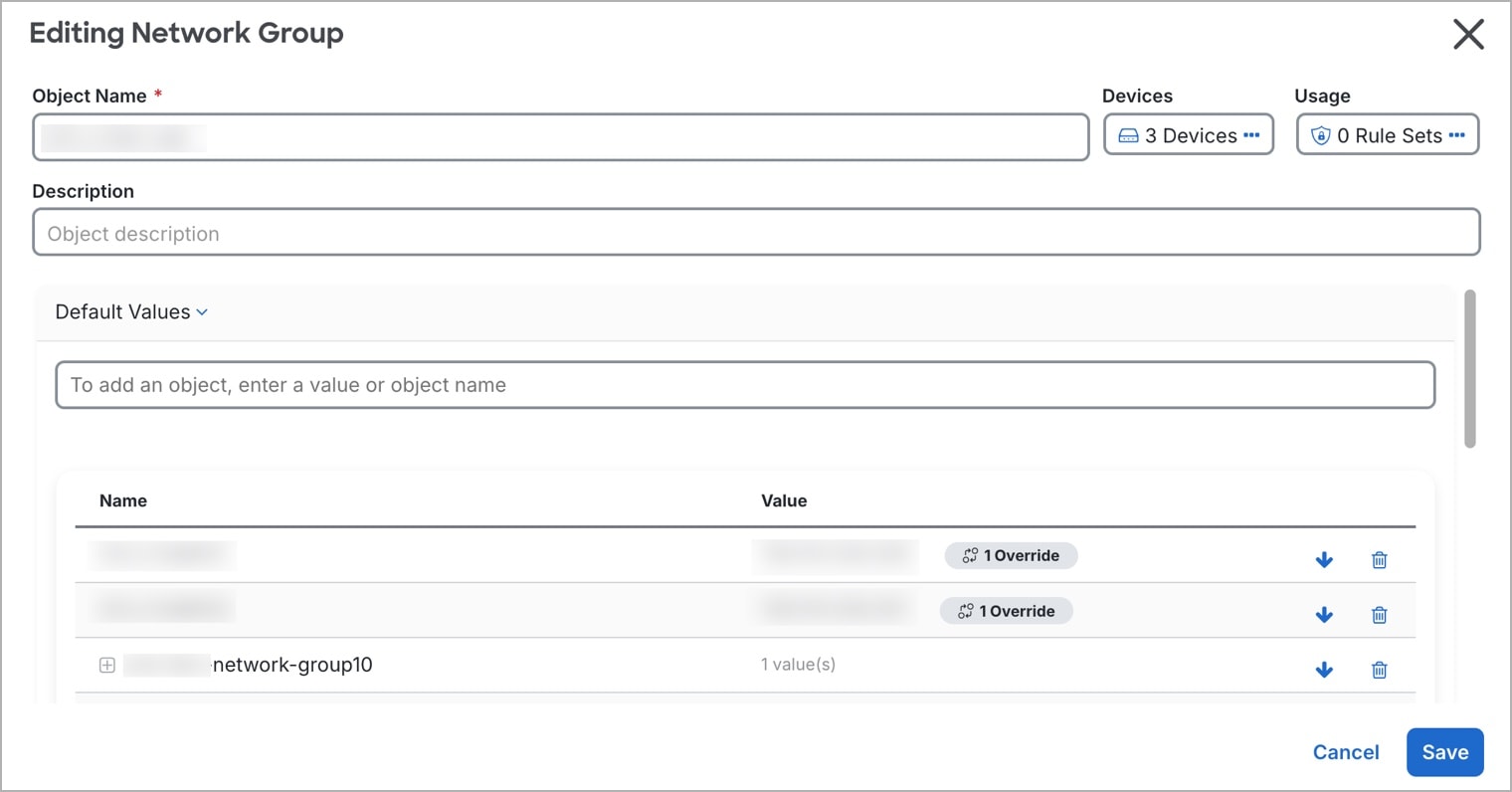
Click the edit icon in the Actions pane.

  • The Devices field shows the devices that the shared network group is present.

  • The Usage field shows the rulesets associated with the shared network group.

  • The Default Values field specifies the default network objects and their values associated with the shared network group that was provided during their creation. Next to this field, you can see the number of devices that contain this default value, and you can click to see their names and device types. You can also see the rulesets associated with this value.

Step 4

In the Additional Values field, enter a value or name. When you start typing, Security Cloud Control provides object names or values that match your entry.

Step 5

You can choose one of the existing objects shown or create a new one based on the name or value that you have entered.

Step 6

If Security Cloud Control finds a match, to choose an existing object, click Add to add the network object or network group to the new network group.

Step 7

If you have entered a value or object that is not present, you can perform one of the following:

  • Click Add as New Object With This Name to create a new object with that name. Enter a value and click the checkmark to save it.

  • Click Add as New Object to create a new object. The object name and value are the same. Enter a name and click the checkmark to save it.

  • Click Add Value to create an inline value without using an object. Enter a value and click the checkmark to save it.

It is possible to create a new object even though the value is already present. You can make changes to those objects and save them.

Step 8

In the Devices column, click the cell associated with the newly added object and click Add Devices.

Step 9

Select the devices that you want and click OK.

Step 10

Click Save. Security Cloud Control displays the devices that will be affected by the change.

Step 11

Click Confirm to finalize the change to the object and any devices affected by it.

Step 12

Preview and deploy configuration changes for all devices.


Edit Additional Values in a Shared Network Group in Security Cloud Control


Note


If Cloud-Delivered Firewall Management Center is deployed on your tenant:

Changes you make to the ASA, FDM, and FTD network objects and groups are reflected in the corresponding Cloud-Delivered Firewall Management Center network object or group. In addition, an entry is created in the Devices with Pending Changes page for each on-premises Firewall Management Center with Discover & Manage Network Objects enabled, from which you can choose and deploy the changes to the on-premises Firewall Management Center on which you have these objects.

Deleting a network object or group from either page deletes the object or group from both pages.


Procedure

Step 1

In the left pane, click Objects.

Step 2

Locate the object having the override you want to edit by using object filters and search field.

Step 3

Click the edit icon in the Actions pane.

Step 4

Modify the override value:

  • Click the edit icon to modify the value.

  • Click the cell in the Devices column to assign new devices. You can select an already assigned device and click Remove Overrides to remove overrides on that device.

  • Click arrow in Default Values to push and make it an additional value of the shared network group. All devices associated with the shared network group are automatically assigned to it.

  • Click arrow in Override Values to push and make it as default objects of the shared network group.

  • Click the delete icon next to remove the object from the network group.

Step 5

Click Save. Security Cloud Control displays the devices that will be affected by the change.

Step 6

Click Confirm to finalize the change to the object and any devices affected by it.

Step 7

Preview and deploy configuration changes for all devices.


Deleting Network Objects and Groups in Security Cloud Control

If Cloud-Delivered Firewall Management Center is deployed on your tenant:

Deleting a network object or group from the Objects page deletes the replicated network object or group from the Objects page on the Cloud-Delivered Firewall Management Center and vice-versa.

Create or Edit a Firepower Network Object or Network Groups

A Firepower network object can contain a hostname, an IP address, or a subnet address expressed in CIDR notation. Network groups are conglomerates of network objects and network groups that are used in access rules, network policies, and NAT rules. You can create, read, update, and delete network objects and network groups using Security Cloud Control.

Firepower network objects and groups can be used by ASA, Firewall Threat Defense, FDM-managed, and Meraki devices. See Reuse network objects across products.


Note


If Cloud-Delivered Firewall Management Center is deployed on your tenant:

When you create an FTD, FDM, or ASA network object or group on the Objects page, a copy of the object is automatically added to the Cloud-Delivered Firewall Management Center and vice-versa. In addition, an entry is created in the Devices with Pending Changes page for each on-premises Firewall Management Center with Discover & Manage Network Objects enabled, from which you can choose and deploy the objects to the on-premises Firewall Management Center on which you want these objects.


Note


If Cloud-Delivered Firewall Management Center is deployed on your tenant:

Changes you make to the ASA, FDM, and FTD network objects and groups are reflected in the corresponding Cloud-Delivered Firewall Management Center network object or group. In addition, an entry is created in the Devices with Pending Changes page for each on-premises Firewall Management Center with Discover & Manage Network Objects enabled, from which you can choose and deploy the changes to the on-premises Firewall Management Center on which you have these objects.

Deleting a network object or group from either page deletes the object or group from both pages.


Table 8. IP addresses that can be added to network objects

Device type

IPv4 / IPv6

Single Address

Range of addresses

Partially Qualified Domain Name (PQDN)

Subnet using CIDR Notation

Firepower IPv4 / IPv6 Yes Yes Yes Yes

Create a Firepower Network Object


Note


If Cloud-Delivered Firewall Management Center is deployed on your tenant:

When you create an FTD, FDM, or ASA network object or group on the Objects page, a copy of the object is automatically added to the Cloud-Delivered Firewall Management Center and vice-versa. In addition, an entry is created in the Devices with Pending Changes page for each on-premises Firewall Management Center with Discover & Manage Network Objects enabled, from which you can choose and deploy the objects to the on-premises Firewall Management Center on which you want these objects.


Procedure

Step 1

In the left pane, click Objects.

Step 2

Click the blue plus button to create an object.

Step 3

Click FTD > Network.

Step 4

Enter an Object Name.

Step 5

Select Create a network object.

Step 6

In the Value section:

  • Select eq and enter a single IP address, a subnet address expressed in CIDR notation, or a Partially Qualified Domain Name (PQDN).

  • Select range and enter an IP address range.

Note


Do not set a host bit value. If you enter a host bit value other than 0, Security Cloud Control unsets it while creating the object, because the Cloud-Delivered Firewall Management Center only accepts IPv6 objects with host bits not set.

Step 7

Click Add.

Attention: The newly created network objects aren't associated with any FDM-managed device as they aren't part of any rule or policy. To see these objects, select the Unassociated objects category in object filters. For more information, see Object Filters. Once you use the unassociated objects in a device's rule or policy, such objects are associated with that device.


Create a Firepower Network Group

A network group can contain network objects and network groups. When you create a new network group, you can search for existing objects by their name, IP addresses, IP address range, or FQDN and add them to the network group. If the object isn't present, you can instantly create that object in the same interface and add it to the network group.


Note


If Cloud-Delivered Firewall Management Center is deployed on your tenant:

When you create an FTD, FDM, or ASA network object or group on the Objects page, a copy of the object is automatically added to the Cloud-Delivered Firewall Management Center and vice-versa. In addition, an entry is created in the Devices with Pending Changes page for each on-premises Firewall Management Center with Discover & Manage Network Objects enabled, from which you can choose and deploy the objects to the on-premises Firewall Management Center on which you want these objects.


Procedure

Step 1

In the left pane, click Objects.

Step 2

Click the blue plus button to create an object.

Step 3

Click FTD > Network.

Step 4

Enter an Object Name.

Step 5

Select Create a network group.

Step 6

In the Values field, enter a value or name. When you start typing, Security Cloud Control provides object names or values that match your entry.

Step 7

You can choose one of the existing objects shown or create a new one based on the name or value that you have entered.

Step 8

If Security Cloud Control finds a match, to choose an existing object, click Add to add the network object or network group to the new network group.

Step 9

If you have entered a value or object that is not present, you can perform one of the following:

  • Click Add as New Object With This Name to create a new object with that name. Enter a value and click the checkmark to save it.

  • Click Add as New Object to create a new object. The object name and value are the same. Enter a name and click the checkmark to save it.

It is possible to create a new object even though the value is already present. You can make changes to those objects and save them.

Note: You can click the edit icon to modify the details. Clicking the delete button doesn't delete the object itself; instead, it removes it from the network group.

Step 10

After adding the required objects, click Save to create a new network group.

Step 11

Preview and Deploy Configuration Changes for All Devices.


Edit a Firepower Network Object


Note


If Cloud-Delivered Firewall Management Center is deployed on your tenant:

Changes you make to the ASA, FDM, and FTD network objects and groups are reflected in the corresponding Cloud-Delivered Firewall Management Center network object or group. In addition, an entry is created in the Devices with Pending Changes page for each on-premises Firewall Management Center with Discover & Manage Network Objects enabled, from which you can choose and deploy the changes to the on-premises Firewall Management Center on which you have these objects.

Deleting a network object or group from either page deletes the object or group from both pages.


Procedure

Step 1

In the left pane, click Objects.

Step 2

Locate the object you want to edit by using object filters and search field.

Step 3

Select the network object and click the edit icon in the Actions pane.

Step 4

Edit the values in the dialog box in the same fashion that you created them in "Create a Firepower Network Group".

Note

 
Click the delete icon next to remove the object from the network group.

Step 5

Click Save. Security Cloud Control displays the devices that will be affected by the change.

Step 6

Click Confirm to finalize the change to the object and any devices affected by it.


Edit a Firepower Network Group


Note


If Cloud-Delivered Firewall Management Center is deployed on your tenant:

Changes you make to the ASA, FDM, and FTD network objects and groups are reflected in the corresponding Cloud-Delivered Firewall Management Center network object or group. In addition, an entry is created in the Devices with Pending Changes page for each on-premises Firewall Management Center with Discover & Manage Network Objects enabled, from which you can choose and deploy the changes to the on-premises Firewall Management Center on which you have these objects.

Deleting a network object or group from either page deletes the object or group from both pages.


Procedure

Step 1

In the left pane, click Objects.

Step 2

Locate the network group you want to edit by using object filters and search field.

Step 3

Select the network group and click the edit icon in the Actions pane.

Step 4

Change the object name and description if needed.

Step 5

If you want to change the objects or network groups that are already added to the network group, perform the following steps:

  1. Click the edit icon appearing beside the object name or network group to modify them.

  2. Click the checkmark to save your changes. Note: You can click the remove icon to delete the value from a network group.

Step 6

If you want to add new network objects or network groups to this network group, you have to perform the following steps:

  1. In the Values field, enter a new value or the name of an existing network object. When you start typing, Security Cloud Control provides object names or values that match your entry. You can choose one of the existing objects shown or create a new one based on the name or value that you have entered.

  2. If Security Cloud Control finds a match, to choose an existing object, click Add to add the network object or network group to the new network group.

  3. If you have entered a value or object that is not present, you can perform one of the following:

    • Click Add as New Object With This Name to create a new object with that name. Enter a value and click the checkmark to save it.

    • Click Add as New Object to create a new object. The object name and value are the same. Enter a name and click the checkmark to save it.

It's is possible to create a new object even though the value is already present. You can make changes to those objects and save them.

Step 7

Click Save. Security Cloud Control displays the policies that will be affected by the change.

Step 8

Click Confirm to finalize the change to the object and any devices affected by it.

Step 9

Preview and Deploy Configuration Changes for All Devices.


Add an Object Override


Note


If Cloud-Delivered Firewall Management Center is deployed on your tenant:

Changes you make to the ASA, FDM, and FTD network objects and groups are reflected in the corresponding Cloud-Delivered Firewall Management Center network object or group. In addition, an entry is created in the Devices with Pending Changes page for each on-premises Firewall Management Center with Discover & Manage Network Objects enabled, from which you can choose and deploy the changes to the on-premises Firewall Management Center on which you have these objects.

Deleting a network object or group from either page deletes the object or group from both pages.


Procedure

Step 1

In the left pane, click Objects.

Step 2

Locate the object to which you want to add an override, using object filters and search field.

Step 3

Select the network object and click the edit icon in the Actions pane.

Step 4

Enter the value in the Override Values dialog box and click + Add Value.

Important

 
The override you are adding must have the same type of value that the object contains. For example, to a network object, you can configure an override only with a network value and not a host value.

Step 5

Once you see that the value is added, click the cell in the Devices column in Override Values.

Step 6

Click Add Devices, and choose the device to which you want the override to be added. The device you select must contain the object to which you are adding the override.

Step 7

Click Save. Security Cloud Control displays the devices that will be affected by the change.

Step 8

Click Confirm to finalize the addition of the override to the object and any devices affected by it.

Note

 
You can add more than one override to an object. However, you must select a different device, which contains the object, each time you are adding an override.

Step 9

See Object Overrides to know more about object overrides and Edit Object Overrides to edit an existing override.


Edit Object Overrides

You can modify the value of an existing override as long as the object is present on the device.

Procedure

Step 1

Navigate to Objects.

Step 2

Locate the object having override you want to edit by using object filters and search field.

Step 3

Select the object having override and click the edit icon in the Actions pane.

Step 4

Modify the override value:

  • Click the edit icon to modify the value.

  • Click on the cell in the Devices column in Override Values to assign new devices. You can select an already assigned device and click Remove Overrides to remove overrides on that device.

  • Click arrow in Override Values to push and make it as the default value of the shared object.

  • Click the delete icon next to the override you want to remove.

Step 5

Click Save. Security Cloud Control displays the devices that will be affected by the change.

Step 6

Click Confirm to finalize the change to the object and any devices affected by it.

Step 7

Preview and Deploy Configuration Changes for All Devices.


Add Additional Values to a Shared Network Group

The values in a shared network group that are present on all devices associated with it are called "default values." Security Cloud Control allows you to add "additional values" to the shared network group and assign those values to some devices associated with that shared network group. When Security Cloud Control deploys the changes to the devices, it determines the contents and pushes the "default values" to all devices associated with the shared network group and the "additional values" only to the specified devices.

For example, consider a scenario where you have four AD main servers in your head office that should be accessible from all your sites. Therefore, you have created an object group named "Active-Directory" to use in all your sites. Now you want to add two more AD servers to one of your branch offices. You can do this by adding their details as additional values specific to that branch office on the object group "Active-Directory." These two servers do not participate in determining whether the object "Active-Directory" is consistent or shared. Therefore, the four AD main servers are accessible from all your sites, but the branch office (with two additional servers) can access two AD servers and four AD main servers.


Note


If there are inconsistent shared network groups, you can combine them into a single shared network group with additional values. See Resolve Inconsistent Object Issues for more information.


Note


If Cloud-Delivered Firewall Management Center is deployed on your tenant:

Changes you make to the ASA, FDM, and FTD network objects and groups are reflected in the corresponding Cloud-Delivered Firewall Management Center network object or group. In addition, an entry is created in the Devices with Pending Changes page for each on-premises Firewall Management Center with Discover & Manage Network Objects enabled, from which you can choose and deploy the changes to the on-premises Firewall Management Center on which you have these objects.

Deleting a network object or group from either page deletes the object or group from both pages.


Procedure

Step 1

In the left pane, click Objects.

Step 2

Locate the shared network group you want to edit by using object filters and search field.

Step 3

Click the edit icon in the Actions pane.

  • The Devices field shows the devices the shared network group is present.

  • The Usage field shows the rulesets associated with the shared network group.

  • The Default Values field specifies the default network objects and their values associated with the shared network group that was provided during their creation. Next to this field, you can see the number of devices that contain this default value, and you can click to see their names and device types. You can also see the rulesets associated with this value.

Step 4

In the Additional Values field, enter a value or name. When you start typing, Security Cloud Control provides object names or values that match your entry.

Step 5

You can choose one of the existing objects shown or create a new one based on the name or value that you have entered.

Step 6

If Security Cloud Control finds a match, to choose an existing object, click Add to add the network object or network group to the new network group.

Step 7

If you have entered a value or object that is not present, you can perform one of the following:

  • Click Add as New Object With This Name to create a new object with that name. Enter a value and click the checkmark to save it.

  • Click Add as New Object to create a new object. The object name and value are the same. Enter a name and click the checkmark to save it.

It is possible to create a new object even though the value is already present. You can make changes to those objects and save them.

Step 8

In the Devices column, click the cell associated with the newly added object and click Add Devices.

Step 9

Select the devices that you want and click OK.

Step 10

Click Save. Security Cloud Control displays the devices that will be affected by the change.

Step 11

Click Confirm to finalize the change to the object and any devices affected by it.

Step 12

Preview and Deploy Configuration Changes for All Devices.


Edit Additional Values in a Shared Network Group


Note


If Cloud-Delivered Firewall Management Center is deployed on your tenant:

Changes you make to the ASA, FDM, and FTD network objects and groups are reflected in the corresponding Cloud-Delivered Firewall Management Center network object or group. In addition, an entry is created in the Devices with Pending Changes page for each on-premises Firewall Management Center with Discover & Manage Network Objects enabled, from which you can choose and deploy the changes to the on-premises Firewall Management Center on which you have these objects.

Deleting a network object or group from either page deletes the object or group from both pages.


Procedure

Step 1

In the left pane, click Objects.

Step 2

Locate the object having the override you want to edit by using object filters and search field.

Step 3

Click the edit icon in the Actions pane.

Step 4

Modify the override value:

  • Click the edit icon to modify the value.

  • Click the cell in the Devices column to assign new devices. You can select an already assigned device and click Remove Overrides to remove overrides on that device.

  • Click arrow in Default Values to push and make it an additional value of the shared network group. All devices associated with the shared network group are automatically assigned to it.

  • Click arrow in Override Values to push and make it as default objects of the shared network group.

  • Click the delete icon next to remove the object from the network group.

Step 5

Click Save. Security Cloud Control displays the devices that will be affected by the change.

Step 6

Click Confirm to finalize the change to the object and any devices affected by it.

Step 7

Preview and Deploy Configuration Changes for All Devices.


Deleting Network Objects and Groups in Security Cloud Control

If Cloud-Delivered Firewall Management Center is deployed on your tenant:

Deleting a network object or group from the Objects page deletes the replicated network object or group from the Objects page on the Cloud-Delivered Firewall Management Center and vice-versa.

Discover and manage On-Premises Firewall Management Center network objects

If you have an on-premises Firewall Management Center that you manage using Security Cloud Control and you want to share and manage its objects, perform this procedure:

Procedure


Step 1

Choose Tools & Services > Firewall Management CenterAdministration > Integrations > Firewall Management Center to view the Services page.

Step 2

If you have already onboarded an on-premises Firewall Management Center to Security Cloud Control, select it.

If you want to onboard a new on-premises Firewall Management Center, see Onboard an On-Prem Firewall Management Center.

Step 3

Choose Settings from the Actions pane. The Actions pane does not appear when you select more than one on-premises Firewall Management Center.

Note


You must be an admin or super admin to use Settings.

Step 4

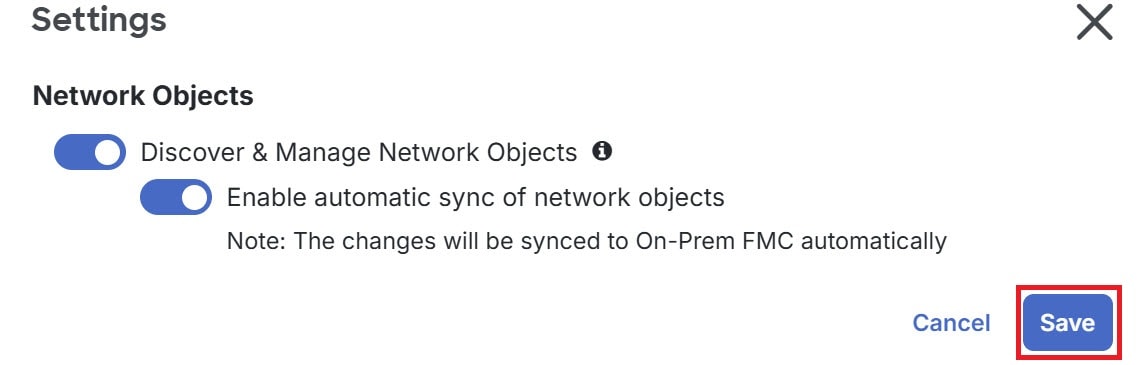
Enable the Discover & Manage Network Objects toggle button. To automatically synchronize your changes with on-premises Firewall Management Center instead of staging them for review, turn on the Enable automatic sync of network objects toggle button. Then, click Save.

Settings menu displaying Network Objects discovery and automatic sync options are enabled. A Save button is also visible.

Note

 
  • You cannot enable the Discover & Manage Network Objects toggle button if the selected on-premises Firewall Management Center has one or more child domains or if it has the Change Management workflow enabled.

  • You cannot enable the Enable automatic sync of network objects toggle button if the Discover & Manage Network Objects toggle button is disabled.

For every new on-premises Firewall Management Center onboarded to Security Cloud Control, this toggle button needs to be enabled manually. After you enable this option, Security Cloud Control discovers objects from your on-premises Firewall Management Center. You can then share and manage these objects, and use them to set consistent object definitions across other platforms managed by Security Cloud Control.

In Security Cloud Control, when you add overrides to objects that are discovered from an on-premises Firewall Management Center and push the changes back, these objects can now be overridden, even if overrides were not allowed previously. The Allow Overrides check box in the View Network Object window is selected automatically when an override is added from Security Cloud Control.

Note


If you want to assign already-existing objects in Security Cloud Control to your on-premises Firewall Management Center, choose the on-premises Firewall Management Center and click Assign Objects from the Actions pane.


URL objects

URL objects and URL groups are used by Firepower devices. Use URL objects and groups (collectively referred to as URL objects) to define the URL or IP addresses of web requests. You can use these objects to implement manual URL filtering in access control policies or blocking in Security Intelligence policies. A URL object defines a single URL or IP address, whereas a URL group defines more than one URL or IP address.

When creating URL objects, keep the following points in mind:

  • If you do not include a path, meaning the URL has no / character, Security Cloud Control matches by the server host name only. The host name matches if it appears after the :// separator or after any dot in the host name. For example, ign.com matches ign.com and www.ign.com, but not verisign.com.

  • If you include one or more `/` characters, Security Cloud Control uses the entire URL string for substring matching, including the server name, path, and query parameters.

  • Do not use manual URL filtering to block or allow individual web pages or parts of sites unless you accept the risk of unexpected matches. Server paths can change, and substring matching can match unintended servers, paths, or query parameter strings.

  • Security Cloud Control disregards the encryption protocol. If you block a website, HTTP and HTTPS traffic to that website is blocked unless you use an application condition to target a specific protocol.

  • Do not include the protocol when you create a URL object. For example, use example.com, not http://example.com.

  • If you use a URL object to match HTTPS traffic in an access control rule, create the object with the subject common name in the public key certificate used to encrypt the traffic. Do not include subdomain information. For example, use example.com, not www.example.com.

  • The subject common name in a certificate might not match the website domain name. For more consistent HTTPS URL filtering, use SSL Decryption policy so that URL filtering rules evaluate decrypted traffic.


    Note


    URL objects do not match HTTPS traffic if the browser resumes a TLS session, because certificate information is no longer available. HTTPS connection matching can therefore be inconsistent.


Create or Edit an FDM-Managed URL Object

URL objects are reusable components that specify a URL or IP address.

To create a URL object, follow these steps:

Procedure


Step 1

In the left pane, click Objects.

Step 2

Click > FTD > URL.

Step 3

Enter an object name and description.

Step 4

Select Create a URL object.

Step 5

Enter the specific URL or IP address for your object.

Step 6

Click Add.


Create a Firepower URL Group

A URL group can be made up of one or more URL objects representing one or more URLs or IP addresses. The Firepower Device Manager and Firepower Management Center also refer to these objects as "URL Objects."

Procedure


Step 1

In the left pane, click Objects.

Step 2

Click > FTD > URL.

Step 3

Enter an object name and description.

Step 4

Select Create a URL group.

Step 5

Add an existing object by clicking Add Object, selecting an object, and clicking Select. Repeat this step to add more objects.

Step 6

Click Add when you are done adding URL objects to the URL group.


Edit a Firepower URL Object or URL Group

Procedure

Step 1

In the left pane, click Objects.

Step 2

Filter the objects to find the object you want to edit and then select the object in the object table.

Step 3

In the details pane, click to edit.

Step 4

Edit the values in the dialog box in the same fashion that you created them in the procedures above.

Step 5

Click Save.

Step 6

Security Cloud Control displays the policies that will be affected by the change. Click Confirm to finalize the change to the object and any policy affected by it.


Geolocation objects

A geolocation object defines countries and continents that host the device that is the source or destination of traffic. You can use these objects in policies to control traffic instead of using IP addresses. For example, using geographical location, you could easily restrict access to a particular country without needing to know all of the potential IP addresses used there.

You can usually select geographical locations directly in a policy without using geolocation objects. Use an object when several policies need the same countries or continents.

Update the geolocation database

To use current geographical location data to filter traffic, Cisco recommends that you regularly update the geolocation database (GeoDB). You cannot update the GeoDB in Security Cloud Control. Refer to the following sections of the Cisco Firepower Threat Defense Configuration Guide for Firepower Device Manager for the version your device is running to learn more about the GeoDB and how to update it.

  • Updating System Databases and Feeds

  • Updating System Databases

Create and Edit a Firepower Geolocation Filter Object

You can create a geolocation object by itself on the object page or when creating a security policy. This procedure creates a geolocation object from the object page.

To create a geolocation object, follow these steps:

Procedure


Step 1

In the left pane, click Objects.

Step 2

Click > FTD > Geolocation.

Step 3

Enter an object name for the object and optionally, a description.

Step 4

In the filter bar, start typing the name of a country or a region and you are presented with a list of possible matches.

Step 5

Check the country, countries, or regions that you want to add to the object.

Step 6

Click Add.


Edit a Geolocation Object

Procedure

Step 1

In the left pane, choose Objects.

Step 2

Use the filter panes and search field to locate your object.

Step 3

In the Actions pane, click Edit.

Step 4

You can change the name of the object and add or remove countries and regions to your object.

Step 5

Click Save.

Step 6

You will be notified if any devices are impacted. Click Confirm.

Step 7

If a device or policy was impacted, open the Security Devices page and Preview and Deploy the changes to the device.


DNS group objects

A DNS group defines a list of DNS servers and associated attributes. DNS servers resolve FQDNs, such as www.example.com, to IP addresses. You can configure different DNS group objects for management and data interfaces.

Create a DNS Group Object

Use the following procedure to create a new DNS group object in Security Cloud Control:

Procedure


Step 1

In the left pane, click Objects.

Step 2

Click > FTD > DNS Group.

Step 3

Enter an Object Name.

Step 4

(Optional) Add a description.

Step 5

Enter the IP address of a DNS server. You can add up to six DNS servers; click the Add DNS Server. If you want to remove a server address, click the delete icon.

Note


The list is in priority order: the first server in the list is always used, and subsequent servers are used only if a response is not received from the servers above it. Although you can add up to six servers, only the first 3 servers listed will be used for the management interface.

Step 6

Enter the Domain Search Name. This domain is added to hostnames that are not fully qualified; for example, serverA instead of serverA.example.com.

Step 7

Enter the number of Retries. The number of times, from 0 to 10, to retry the list of DNS servers when the system does not receive a response. The default is 2. This setting applies to DNS groups used on the data interfaces only.

Step 8

Enter the Timeout value. The number of seconds, from 1 to 30, to wait before trying the next DNS server. The default is 2 seconds. Each time the system retries the list of servers, this timeout doubles. This setting applies to DNS groups used on the data interfaces only.

Step 9

Click Add.


Edit a DNS Group Object

You can edit a DNS group object that was created in Security Cloud Control or in Firewall Device Manager. Use the following procedure to edit an existing DNS group object:

Procedure


Step 1

In the Security Cloud Control navigation bar on the left, click Objects.

Step 2

Locate the DNS Group Object you want to edit by using object filters and search field.

Step 3

Select the object and click the edit icon in the Actions pane.

Step 4

Edit any of the following entries:

  • Object Name.

  • Description.

  • DNS Server. You can edit, add, or remove DNS servers from this list.

  • Domain Search Name.

  • Retries.

  • Timeout.

Step 5

Click Save.

Step 6

Preview and Deploy Configuration Changes for All Devices.


Delete a DNS Group Object

Use the following procedure to delete a DNS Group Object from Security Cloud Control:

Procedure


Step 1

In the left pane, click Objects.

Step 2

Locate the DNS Group Object you want to edit by using object filters and search field.

Step 3

Select the object and click the Remove icon .

Step 4

Confirm you want to delete the DNS group object and click Ok.

Step 5

Preview and Deploy Configuration Changes for All Devices.


Add a DNS Group Object as an FDM-Managed DNS Server

You can add a DNS group object as the preferred DNS Group for either the Data Interface or the Management Interface.

Certificate objects

Digital certificates provide digital identification for authentication. Certificates are used for SSL (Secure Socket Layer), TLS (Transport Layer Security), and DTLS (Datagram TLS) connections, such as HTTPS and LDAPS.

See the About Certificates and Configuring Certificates following sections of the Resuable Objects chapter of the Cisco Firepower Threat Defense Configuration Guide for Firepower Device Manager for the version your device is running.

About certificates

Digital certificates provide digital identification for authentication. Certificates include information that identifies a device or user, such as a name, serial number, company, department, or IP address. Certificates also include a copy of the public key for the user or device. Certificates are used for SSL (Secure Socket Layer), TLS (Transport Layer Security), and DTLS (Datagram TLS) connections, such as HTTPS and LDAPS.

You can create the following types of certificate:

  • Internal certificates—Internal identity certificates are certificates for specific systems or hosts. You can generate these yourself using the OpenSSL toolkit or get them from a certificate authority (CA). You can also generate a self-signed certificate.

    The system comes with the following pre-defined internal certificates, which you can use as is or replace: DefaultInternalCertificate and DefaultWebServerCertificate

  • Internal Certificate Authority (CA) certificates—Internal CA certificates are certificates that the system can use to sign other certificates. These certificates differ from internal identity certificates with respect to the basic constraints extension and the CA flag, which are enabled for CA certificates but disabled for identity certificates. You can generate these yourself using the OpenSSL toolkit or get them from a certificate authority. You can also generate a self-signed internal CA certificate. If you configure self-signed internal CA certificates, the CA runs on the device itself.

    The system comes with the following pre-defined internal CA certificate, which you can use as is or replace: NGFW-Default-InternalCA

  • Trusted Certificate Authority (CA) certificates—A trusted CA certificate is used to sign other certificates. It is self-signed and called a root certificate. A certificate that is issued by another CA certificate is called a subordinate certificate.

    Certificate Authorities (CAs) are trusted authorities that "sign" certificates to verify their authenticity, thereby guaranteeing the identity of the device or user. CAs issue digital certificates in the context of a PKI, which uses public-key or private-key encryption to ensure security. A CA can be a trusted third party, such as VeriSign, or a private (in-house) CA that you establish within your organization. CAs are responsible for managing certificate requests and issuing digital certificates.

    The system includes many trusted CA certificates from third-party certificate authorities. These are used by SSL decryption policies for Decrypt Re-Sign actions.

For more information, see the Certificate Types Used by Feature section of the Reusable Objects chapter of the Cisco Firepower Threat Defense Configuration Guide for Firepower Device Manager for the version your device is running.

Certificate Types Used by Feature

You need to create the right type of certificate for each feature. The following features require certificates.

Identity Policies (Captive Portal)—Internal Certificate

(Optional.) Captive portal is used in identity policies. Users must accept this certificate when authenticating to the device for purposes of identifying themselves and receiving the IP address associated with their usernames. If you do not supply a certificate, the device uses an automatically generated certificate.

SSL Decryption Policy—Internal, Internal CA, and Trusted CA Certificates.

(Required.) The SSL decryption policy uses certificates for the these purposes:

  • Internal certificates are used for known key decryption rules.

  • Internal CA certificates are used for decrypt re-sign rules when creating the session between the client and FDM-managed device.

  • Trusted CA certificates

    • They are used indirectly for decrypt re-sign rules when creating the session between the FDM-managed device and server. Unlike the other certificates, you do not directly configure these certificates in the SSL decryption policy; they simply need to be uploaded to the system. The system includes a large number of trusted CA certificates, so you might not need to upload any additional certificates.

    • When creating an Active Directory Realm object and configuring the directory server to use encryption.

Configuring Certificates

Certificates used in identity policies or SSL decryption policies must be an X509 certificate in PEM or DER format. You can use OpenSSL to generate certificates if needed, obtain them from a trusted Certificate Authority, or create self-signed certificates.

Use these procedures to configure certificate objects:

Uploading Internal and Internal CA Certificates

Internal identity certificates are certificates for specific systems or hosts. You can generate these yourself using the OpenSSL toolkit or get them from a Certificate Authority. You can also generate a self-signed certificate.

Internal Certificate Authority (CA) certificates (Internal CA certificates) are certificates that the system can use to sign other certificates. These certificates differ from internal identity certificates with respect to the basic constraints extension and the CA flag, which are enabled for CA certificates but disabled for identity certificates. You can generate these yourself using the OpenSSL toolkit or get them from a Certificate Authority. You can also generate a self-signed internal CA certificate. If you configure self-signed internal CA certificates, the CA runs on the device itself.

For information on the features that use these certificates, see Certificate Type Used by Feature.

Procedure

This procedure creates an internal or internal CA certificate by uploading a certificate file or pasting existing certificate text into a text box. If you want to generate a self-signed certificate, see Generating Self-Signed Internal and Internal CA Certificates.

To create an internal or internal CA certificate object, or when adding a new certificate object to a policy, follow this procedure:

Procedure

Step 1

Do one of the following:

  • Create the certificate object in the Objects page:

    1. In the left pane, click Objects.

    2. Click the plus button and select FTD > Certificate

  • Click Create New Object when adding a new certificate object to a policy.

Step 2

Enter a Name for the certificate. The name is used in the configuration as an object name only, it does not become part of the certificate itself.

Step 3

In step 1, select Internal Certificate or Internal CA.

Step 4

In step 2, select Upload to upload the certificate file.

Step 5

In step 3, in the Server Certificate area, paste the certificate contents in the text box or upload the certificate file as explained in the wizard. If you paste the certificate into the text box, the certificate must include the BEGIN CERTIFICATE and END CERTIFICATE lines. For example:

-----BEGIN CERTIFICATE-----
 MIICMTCCAZoCCQDdUV3NGK/cUjANBgkqhkiG9w0BAQsFADBdMQswCQYDVQQGEwJV
UzETMBEGA1UECAwKU29tZS1TdGF0ZTEhMB8GA1UECgwYSW50ZXJuZXQgV2lkZ2l0
(...5 lines removed...)
shGJDReRYJQqilhHZrYTWZAYTrD7NQPHutK+ZiJng67cPgnNDuXEn55UwMOQoHBp
HMUwmhiGZlzJM8BpX2Js2yQ3ms30pr8rO+gPCPMCAwEAATANBgkqhkiG9w0BAQsF
AAOBgQCB02CebA6YjJCGr2CJZrQSeUwSveRBpmOuoqm98o2Z+5gJM5CkqgfxwCUn
RV7LRfQGFYd76V/5uor4Wx2ZCjqy6+zuQEm4ZxWNSZpA9UBixFXJCs9MBO4qkG5D
vlk3WYJfcgyJ10h4E4b0W2xiixBU+xoOTLRATnbKY36EWAG5cw==
-----END CERTIFICATE-----

Step 6

In step 3, in the Certificate Key area, paste the key contents into the Certificate Key text box or upload the key file as explained in the wizard. If you paste the key into the text box, the key must include the BEGIN PRIVATE KEY or BEGIN RSA PRIVATE KEY and END PRIVATE KEY or END PRIVATE KEY lines.

Note


The key cannot be encrypted.

Step 7

Click Add.


Uploading Trusted CA Certificates

A trusted Certificate Authority (CA) certificate is used to sign other certificates. It is self-signed and called a root certificate. A certificate that is issued by another CA certificate is called a subordinate certificate.

For information on the features that use these certificates, see Certificate Type Used by Feature.

Obtain a trusted CA certificate from an external certificate authority, or create one using your own internal CA, for example, with OpenSSL tools. Then, use the following procedure to upload the certificate.

Procedure

Procedure

Step 1

Do one of the following:

  • Create the certificate object in the Objects page:

    1. In the left pane, click Objects.

    2. Click > FTD > Certificate.

  • Click Create New Object when adding a new certificate object to a policy.

Step 2

Enter a Name for the certificate. The name is used in the configuration as an object name only; it does not become part of the certificate itself.

Step 3

In step 1, select External CA Certificate and click Continue. The wizard advances to step 3.

Step 4

In step 3, in the Certificate Contents area, paste the certificate contents in the text box or upload the certificate file as explained in the wizard.

The certificate must adhere to these guidelines:

  • The name of the server in the certificate must match the server Hostname / IP Address. For example, if you use 10.10.10.250 as the IP address but ad.example.com in the certificate, the connection fails.

  • The certificate must be an X509 certificate in PEM or DER format.

  • The certificate you paste must include the BEGIN CERTIFICATE and END CERTIFICATE lines. For example:

    -----BEGIN CERTIFICATE-----
    MIIFgTCCA2mgAwIBAgIJANvdcLnabFGYMA0GCSqGSIb3DQEBCwUAMFcxCzAJBgNV
    BAYTAlVTMQswCQYDVQQIDAJUWDEPMA0GA1UEBwwGYXVzdGluMRQwEgYDVQQKDAsx
    OTIuMTY4LjEuMTEUMBIGA1UEAwwLMTkyLjE2OC4xLjEwHhcNMTYxMDI3MjIzNDE3
    WhcNMTcxMDI3MjIzNDE3WjBXMQswCQYDVQQGEwJVUzELMAkGA1UECAwCVFgxDzAN
    BgNVBAcMBmF1c3RpbjEUMBIGA1UECgwLMTkyLjE2OC4xLjExFDASBgNVBAMMCzE5
    Mi4xNjguMS4xMIICIjANBgkqhkiG9w0BAQEFAAOCAg8AMIICCgKCAgEA5NceYwtP
    ES6Ve+S9z7WLKGX5JlF58AvH82GPkOQdrixn3FZeWLQapTpJZt/vgtAI2FZIK31h
    (...20 lines removed...)
    hbr6HOgKlOwXbRvOdksTzTEzVUqbgxt5Lwupg3b2ebQhWJz4BZvMsZX9etveEXDh
    PY184V3yeSeYjbSCF5rP71fObG9Iu6+u4EfHp/NQv9s9dN5PMffXKieqpuN20Ojv
    2b1sfOydf4GMUKLBUMkhQnip6+3W
    -----END CERTIFICATE-----

Step 5

Click Add.


Generating Self-Signed Internal and Internal CA Certificates

Internal identity certificates are certificates for specific systems or hosts. You can generate these yourself using the OpenSSL toolkit or get them from a Certificate Authority. You can also generate a self-signed certificate.

Internal Certificate Authority (CA) certificates (Internal CA certificates) are certificates that the system can use to sign other certificates. These certificates differ from internal identity certificates with respect to the basic constraints extension and the CA flag, which are enabled for CA certificates but disabled for identity certificates. You can generate these yourself using the OpenSSL toolkit or get them from a Certificate Authority. You can also generate a self-signed internal CA certificate. If you configure self-signed internal CA certificates, the CA runs on the device itself.

You can also create these certificates using OpenSSL, or obtain them from a trusted CA, and upload them. For more information, see Uploading Internal and Internal CA Certificates.

For information on the features that use these certificates, see Certificate Type Used by Feature.


Note


New self-signed certificates are generated with a 5-year validity term. Be sure to replace certificates before they expire.


Warning


Upgrading devices that have self-signed certificates may experience issues; see New Certificate Detected for more information.


Procedure

This procedure generates a self-signed certificate by entering the appropriate certificate field values in a wizard. If you want to create an internal or internal CA certificate by uploading a certificate file, see Uploading Internal and Internal CA Certificates.

To generate a self-signed certificate, follow this procedure:

Procedure

Step 1

Do one of the following:

  • Create the certificate object in the Objects page:

    1. In the left pane, click Objects.

    2. Click > FTD > Certificate.

  • Click Create New Object when adding a new certificate object to a policy.

Step 2

Enter a Name for the certificate. The name is used in the configuration as an object name only, it does not become part of the certificate itself.

Step 3

In step 1, select Internal Certificate or Internal CA.

Step 4

In step 2, select Self-Signed to create the self-signed certificate in this step.

Step 5

Configure at least one of the following for the certificate subject and issuer information.

  • Country (C)— Select the country code from the drop-down list.

  • State or Province (ST)— The state or province to include in the certificate.

  • Locality or City (L)— The locality to include in the certificate, such as the name of the city.

  • Organization (O)— The organization or company name to include in the certificate.

  • Organizational Unit (Department) (OU)— The name of the organization unit (for example, a department name) to include in the certificate.

  • Common Name (CN)— The X.500 common name to include in the certificate. This could be the name of the device, web site, or another text string. This element is usually required for successful connections. For example, you must include a CN in the internal certificate used for remote access VPN.

Step 6

Click Add.


ASA trustpoint objects

A trustpoint object lets you add digital certificates and install them on one or more managed ASA devices. A trustpoint object can contain an identity pair, an identity certificate only, or a CA certificate only. An identity pair includes an identity certificate and the issuer CA certificate.

You can configure many trustpoints in an ASA device. Supported certificate formats are PKCS12, PEM, and DER.

Add an identity certificate object by using PKCS12

This procedure creates an internal certificate identity or internal identity certificate by uploading a certificate file or pasting existing certificate text into a text box. You can generate as many identity certificates as you want.

You can upload a file encoded in PKCS12 format. A PKCS12 is a single file that holds the CA server certificate, any intermediate certificates, and the private key in one encrypted file. A PKCS#12, or PFX, file holds a server certificate, intermediate certificates, and a private key in one encrypted file. Enter the Passphrase value for decryption.

Procedure


Step 1

In the left pane, click Objects.

Step 2

Click and select ASA > Trustpoints.

Step 3

Enter an Object Name for the certificate. The name is used in the configuration as an object name only, it does not become part of the certificate itself.

Step 4

In the Certificate Type step, select Identity Certificate.

Step 5

In the Import Type step, select Upload to upload the certificate file.

The Enrollment step is set to Terminal.

Step 6

In the Certificate Contents step, enter the PKCS12 format details.

A PKCS#12, or PFX, file holds a server certificate, intermediate certificates, and a private key in one encrypted file. Enter the Passphrase value for decryption.

Step 7

Click Continue.

Step 8

In the Advanced Options step, you can configure the following:

In the Revocation tab, you can configure the following:

  • Enable Certificate Revocation Lists (CRL) — Check to enable CRL checking.

    By default the Use CRL distribution point from the certificate check box is selected to obtain the revocation lists distribution URL from the certificate.

    Cache Refresh Time (in minutes) — Enter the number of minutes between cache refreshes. The default is 60 minutes. The range is 1-1440 minutes. To avoid having to retrieve the same CRL from a CA repeatedly, the ASA can store retrieved CRLs locally, which is called CRL caching. The CRL cache capacity varies by platform and is cumulative across all contexts. If an attempt to cache a newly retrieved CRL would exceed its storage limits, the ASA removes the least recently used CRL until more space becomes available.

  • Enable Online Certificate Status Protocol (OCSP) — Check to enable OCSP checking.

    OCSP Server URL—The URL of the OCSP server checking for revocation if you require OCSP checks. This URL must start with http://.

    Disable Nonce Extension — Enable the check box which cryptographically binds requests with responses to avoid replay attacks. This process works by matching the extension in the request to that in the response, ensuring that they are the same. Uncheck the Disable Nonce Extension check box if the OCSP server you are using sends pregenerated responses that do not include this matching nonce extension.

    Evaluation Priority — Specify whether to evaluate the revocation status of a certificate first in CRL or OSCP.

  • Consider the certificate valid if revocation information cannot be reached— Select this check box to consider the certificate to be a valid certificate if revocation information is unreachable.

    For more information on revocation check, see the "Digital Certificates" chapter in the "Basic Settings" book of the Cisco ASA Series General Operations ASDM Configuration, X.Y document.

Click the Others tab:

  • Use CA Certificate for the Validation of — Specify the type of connections that can be validated by this CA.

    • IPSec Client — Validates certificate presented by remote SSL servers.

    • SSL Client — Validates certificates presented by incoming SSL connections.

    • SSL Server — Validates certificates presented by incoming IPSec connections.

  • Use Identity Certificate for — Specify how the enrolled ID certificate can be used.

    • SSL & IPSec — Use for authenticating SSL & IPSec connections

    • Code Signer — Code signer certificates are special certificates whose associated private keys are used to create digital signatures. The certificates used to sign code are obtained from a CA, with the signed code itself revealing the certificate origin.

  • Other Options:

    • Enable CA flag in basic constraints extension — Select this option if this certificate should be able to sign other certificates. The basic constraints extension identifies whether the subject of the certificate is a Certificate Authority (CA), in which case the certificate can be used to sign other certificates. The CA flag is part of this extension.

    • Accept certificates issued by this CA — Select this option to indicate that the ASA should accept certificates from the specified CA.

    • Ignore IPSec Key Usage — Select this option if you do not want to validate values in the key usage and extended key usage extensions of IPsec remote client certificates. You can suppress key usage checking on IPsec client certificates. By default, this option is not enabled.

Step 9

Click Add.


Create a self-signed ASA identity certificate object

This procedure describes steps for generating a self-signed certificate for your ASA by entering the appropriate certificate field values in a wizard. You can generate as many self-signed certificates as you want.

To create a Self-Signed identity certificate object, perform these steps:

Procedure


Step 1

In the left pane, click Objects.

Step 2

Click and select ASA > Trustpoints.

Step 3

Enter an Object Name for the certificate.

The name is used in the configuration as an object name only; it does not become part of the certificate itself.

Step 4

In the Identity Certificate step, select Identity Certificate.

Step 5

In the Import Type step, select New to upload the certificate file and click Continue.

Step 6

In the Enrollment step, select Self-Signed and click Continue.

The Certificates Content step appears. Read Self-Signed and CSR Certificate Generation Based on Certificate Contents to understand the CN and SANS content in the Self-Signed certificate that is being generated.

Step 7

In the Certificate Contents step, configure the following:

  • Country (C)— Select the country code from the drop-down list.

  • State or Province (ST)—The state or province to include in the certificate.

  • Locality or City (L)—The locality to include in the certificate, such as the name of the city.

  • Organization (O)—The organization or company name to include in the certificate.

  • Organizational Unit (Department) (OU)—The name of the organization unit (for example, a department name) to include in the certificate.

  • Common Name (CN)—The X.500 common name to include in the certificate. This could be the name of the device, web site, or another text string. This element is usually required for successful connections. For example, you must include a CN in the internal certificate used for remote access VPN.

  • Email Address (EA)— The e-mail address associated with the identity certificate.

  • IP Address— The ASA IP address on the network in four-part dotted-decimal notation.

  • Device's FQDN— An unambiguous domain name, to indicate the position of the node in the DNS tree hierarchy.

  • Include Device's Serial Number— Select the check box if you want to add the ASA serial number to the certificate parameters.

  1. Click the Key tab.

    • Choose the RSA or ECDSA key type.

    • Key Size: If the key pair does not exist, defines the desired key size (modulus), in bits. The recommended key size for RSA is 1024 and for ECDSA is 348. The larger the modulus size, the more secure the key. However, keys with larger modulus sizes take longer to generate (a minute or more when larger than 512 bits) and longer to process when exchanged.

    • Click Continue.

Step 8

In the Advanced Options step, you can configure the following:

In the Revocation tab, you can configure the following:

  • Enable Certificate Revocation Lists (CRL) — Check to enable CRL checking.

    By default the Use CRL distribution point from the certificate check box is selected to obtain the revocation lists distribution URL from the certificate.

    Cache Refresh Time (in minutes) — Enter the number of minutes between cache refreshes. The default is 60 minutes. The range is 1 to 1440 minutes. To avoid having to retrieve the same CRL from a CA repeatedly, the ASA can store retrieved CRLs locally, which is called CRL caching. The CRL cache capacity varies by platform and is cumulative across all contexts. If an attempt to cache a newly retrieved CRL would exceed its storage limits, the ASA removes the least recently used CRL until more space becomes available.

  • Enable Online Certificate Status Protocol (OCSP) — Check to enable OCSP checking.

    OCSP Server URL — The URL of the OCSP server checking for revocation if you require OCSP checks. This URL must start with http://.

    Disable Nonce Extension — Enable the check box which cryptographically binds requests with responses to avoid replay attacks. This process works by matching the extension in the request to that in the response, ensuring that they are the same. Uncheck the Disable Nonce Extension check box if the OCSP server you are using sends pregenerated responses that do not include this matching nonce extension.

    Evaluation Priority — Specify whether to evaluate the revocation status of a certificate first in CRL or OSCP.

  • Consider the certificate valid if revocation information cannot be reached — Select this check box to consider the certificate to be a valid certificate if revocation information is unreachable.

    For more information on revocation check, see the "Digital Certificates" chapter in the "Basic Settings" book of the Cisco ASA Series General Operations ASDM Configuration, X.Y document.

Click the Others tab:

  • Use CA Certificate for the Validation of — Specify the type of connections that can be validated by this CA.

    • IPSec Client — Validates certificate presented by remote SSL servers.

    • SSL Client — Validates certificates presented by incoming SSL connections.

    • SSL Server — Validates certificates presented by incoming IPSec connections.

  • Use Identity Certificate for — Specify how the enrolled ID certificate can be used.

    • SSL & IPSec — Use for authenticating SSL & IPSec connections

    • Code Signer — Code signer certificates are special certificates whose associated private keys are used to create digital signatures. The certificates used to sign code are obtained from a CA, with the signed code itself revealing the certificate origin.

  • Other Options:

    • Enable CA flag in basic constraints extension — Select this option if this certificate should be able to sign other certificates. The basic constraints extension identifies whether the subject of the certificate is a Certificate Authority (CA), in which case the certificate can be used to sign other certificates. The CA flag is part of this extension. The presence of these items in a certificate i

    • Accept certificates issued by this CA — Select this option to indicate that the ASA should accept certificates from the specified CA.

    • Ignore IPSec Key Usage — Select this option if you do not want to validate values in the key usage and extended key usage extensions of IPsec remote client certificates. You can suppress key usage checking on IPsec client certificates. By default, this option is not enabled.

Step 9

Click Add.


Add an ASA identity certificate object for a Certificate Signing Request (CSR)

The Certification Authority (CA) server information and enrollment parameters are required to generate Certificate Signing Requests (CSRs) and obtain Identity Certificates from the specified CA. You need to select either Rivest-Shamir-Adleman (RSA) or Elliptic Curve Digital Signature Algorithm (ECDSA) key type to generate the request.

Create a trustpoint object by providing identification information and optionally uploading a CA certificate obtained from a CA.

Procedure


Step 1

In the left pane, click Objects.

Step 2

Click and select ASA > Trustpoints.

Step 3

Enter an Object Name for the certificate.

The name is used in the configuration as an object name only; it does not become part of the certificate itself.

Step 4

In the Identity Certificate step, select Identity Certificate.

Step 5

In the Import Type step, select New to upload the certificate file and click Continue.

Step 6

In the Enrollment step, select Manual.

Step 7

(optional) You can paste or upload the CA certificate obtained from your CA. You can leave the field empty.

Step 8

Click Continue.

The Certificates Content step appears. Read Self-Signed and CSR Certificate Generation Based on Certificate Contents to understand the CN and SANS content in the Signed certificate that is being generated.

Step 9

In the Certificate Contents step, configure the following:

  • Country (C)— Select the country code from the drop-down list.

  • State or Province (ST)—The state or province to include in the certificate.

  • Locality or City (L)—The locality to include in the certificate, such as the name of the city.

  • Organization (O)—The organization or company name to include in the certificate.

  • Organizational Unit (Department) (OU)—The name of the organization unit (for example, a department name) to include in the certificate.

  • Common Name (CN)—The X.500 common name to include in the certificate. This could be the name of the device, web site, or another text string. This element is usually required for successful connections. For example, you must include a CN in the internal certificate used for remote access VPN.

  • Email Address (EA)— The e-mail address associated with the identity certificate.

  • IP Address— The ASA IP address on the network in four-part dotted-decimal notation.

  • Subject Alternative Name (SAN)— This field will be part of Certificate Subject DN as 'unstructuredName' as well. We recommend you use this field if the certificate is used for multiple domains or IP addresses.

    • Use Device Host Name: Host name of the device is used.

    • Custom: Device's FQDN— An unambiguous domain name, to indicate the position of the node in the DNS tree hierarchy.

      Note


      We recommend the values specified in CN and Custom FQDN are the same.

  • Include Device's Serial Number— Select the check box if you want to include the serial number of ASA in the certificate. The CA uses the serial number to either authenticate certificates or to later associate a certificate with a particular device. If you are in doubt, include the serial number, as it is useful for debugging purposes.

  1. Click the Key tab.

    • Choose the RSA or ECDSA key type.

    • Key Size: If the key pair does not exist, defines the desired key size (modulus), in bits. The recommended key size for RSA is 1024 and for ECDSA is 348. The larger the modulus size, the more secure the key. However, keys with larger modulus sizes take longer to generate (a minute or more when larger than 512 bits) and longer to process when exchanged.

    • Click Continue.

Step 10

In the Advanced Options step, you can configure the following:

In the Revocation tab, you can configure the following:

  • Enable Certificate Revocation Lists (CRL) — Check to enable CRL checking.

    By default, the Use CRL distribution point from the certificate check box is selected to obtain the revocation lists distribution URL from the certificate.

    Cache Refresh Time (in minutes) — Enter the number of minutes between cache refreshes. The default is 60 minutes. The range is 1 to 1440 minutes. To avoid having to retrieve the same CRL from a CA repeatedly, the ASA can store retrieved CRLs locally, which is called CRL caching. The CRL cache capacity varies by platform and is cumulative across all contexts. If an attempt to cache a newly retrieved CRL would exceed its storage limits, the ASA removes the least recently used CRL until more space becomes available.

  • Enable Online Certificate Status Protocol (OCSP) — Check to enable OCSP checking.

    OCSP Server URL—The URL of the OCSP server checking for revocation if you require OCSP checks. This URL must start with http://.

    Disable Nonce Extension — Enable the check box which cryptographically binds requests with responses to avoid replay attacks. This process works by matching the extension in the request to that in the response, ensuring that they are the same. Uncheck the Disable Nonce Extension check box if the OCSP server you are using sends pregenerated responses that do not include this matching nonce extension.

    Evaluation Priority — Specify whether to evaluate the revocation status of a certificate first in CRL or OSCP.

  • Consider the certificate valid if revocation information cannot be reached— Select this check box to consider the certificate to be a valid certificate if revocation information is unreachable.

    For more information on revocation check, see the "Digital Certificates" chapter in the "Basic Settings" book of the Cisco ASA Series General Operations ASDM Configuration, X.Y document.

Click the Others tab:

  • Use CA Certificate for the Validation of — Specify the type of connections that can be validated by this CA.

    • IPSec Client — Validates certificate presented by remote SSL servers.

    • SSL Client — Validates certificates presented by incoming SSL connections.

    • SSL Server — Validates certificates presented by incoming IPSec connections.

  • Use Identity Certificate for — Specify how the enrolled ID certificate can be used.

    • SSL & IPSec — Use for authenticating SSL & IPSec connections

    • Code Signer — Code signer certificates are special certificates whose associated private keys are used to create digital signatures. The certificates used to sign code are obtained from a CA, with the signed code itself revealing the certificate origin.

  • Other Options:

    • Enable CA flag in basic constraints extension — Select this option if this certificate should be able to sign other certificates. The basic constraints extension identifies whether the subject of the certificate is a Certificate Authority (CA), in which case the certificate can be used to sign other certificates. The CA flag is part of this extension. The presence of these items in a certificate i

    • Accept certificates issued by this CA — Select this option to indicate that the ASA should accept certificates from the specified CA.

    • Ignore IPSec Key Usage — Select this option if you do not want to validate values in the key usage and extended key usage extensions of IPsec remote client certificates. You can suppress key usage checking on IPsec client certificates. By default, this option is not enabled.

Step 11

Click Add.

This creates a trustpoint certificate object.


Add a trusted CA certificate object for ASA

Obtain a trusted CA certificate from an external certificate authority, or create one using your own internal CA, for example, with OpenSSL tools. You can upload a file encoded in one of the following supported formats:

  • Distinguished Encoding Rules (DER)

  • Privacy-enhanced Electronic Mail (PEM)

Procedure


Step 1

In the left pane, click Objects.

Step 2

Click and select ASA > Trustpoints.

Step 3

Enter an Object Name for the certificate.

The name is used in the configuration as an object name only; it does not become part of the certificate itself.

Step 4

In the Certificate Type step, select Trusted CA Certificate.

Step 5

In the Certificate Contents step, paste the certificate contents in the text box or upload the CA certificate file as explained in the wizard.

Step 6

Click Continue. The wizard advances to step 4.

The certificate must follow these guidelines:

  • The name of the server in the certificate must match the server Hostname / IP Address. For example, if you use 10.10.10.250 as the IP address but ad.example.com in the certificate, the connection fails.

  • The certificate must be an X509 certificate in PEM or DER format.

  • The certificate you paste must include the BEGIN CERTIFICATE and END CERTIFICATE lines. For example:

    -----BEGIN CERTIFICATE-----
    MIIFgTCCA2mgAwIBAgIJANvdcLnabFGYMA0GCSqGSIb3DQEBCwUAMFcxCzAJBgNV
    BAYTAlVTMQswCQYDVQQIDAJUWDEPMA0GA1UEBwwGYXVzdGluMRQwEgYDVQQKDAsx
    OTIuMTY4LjEuMTEUMBIGA1UEAwwLMTkyLjE2OC4xLjEwHhcNMTYxMDI3MjIzNDE3
    WhcNMTcxMDI3MjIzNDE3WjBXMQswCQYDVQQGEwJVUzELMAkGA1UECAwCVFgxDzAN
    BgNVBAcMBmF1c3RpbjEUMBIGA1UECgwLMTkyLjE2OC4xLjExFDASBgNVBAMMCzE5
    Mi4xNjguMS4xMIICIjANBgkqhkiG9w0BAQEFAAOCAg8AMIICCgKCAgEA5NceYwtP
    ES6Ve+S9z7WLKGX5JlF58AvH82GPkOQdrixn3FZeWLQapTpJZt/vgtAI2FZIK31h
    (...20 lines removed...)
    hbr6HOgKlOwXbRvOdksTzTEzVUqbgxt5Lwupg3b2ebQhWJz4BZvMsZX9etveEXDh
    PY184V3yeSeYjbSCF5rP71fObG9Iu6+u4EfHp/NQv9s9dN5PMffXKieqpuN20Ojv
    2b1sfOydf4GMUKLBUMkhQnip6+3W
    -----END CERTIFICATE-----

Step 7

In the Advanced Options step, you can configure the following:

In the Revocation tab, you can configure the following:

  • Enable Certificate Revocation Lists (CRL) — Check to enable CRL checking.

    By default, the Use CRL distribution point from the certificate check box is selected to obtain the revocation lists distribution URL from the certificate.

    Cache Refresh Time (in minutes) — Enter the number of minutes between cache refreshes. The default is 60 minutes. The range is 1 to 1440 minutes. To avoid having to retrieve the same CRL from a CA repeatedly, the ASA can store retrieved CRLs locally, which is called CRL caching. The CRL cache capacity varies by platform and is cumulative across all contexts. If an attempt to cache a newly retrieved CRL would exceed its storage limits, the ASA removes the least recently used CRL until more space becomes available.

  • Enable Online Certificate Status Protocol (OCSP) — Check to enable OCSP checking.

    OCSP Server URL—The URL of the OCSP server checking for revocation if you require OCSP checks. This URL must start with http://.

    Disable Nonce Extension — Enable the check box which cryptographically binds requests with responses to avoid replay attacks. This process works by matching the extension in the request to that in the response, ensuring that they are the same. Uncheck the Disable Nonce Extension check box if the OCSP server you are using sends pregenerated responses that do not include this matching nonce extension.

    Evaluation Priority — Specify whether to evaluate the revocation status of a certificate first in CRL or OSCP.

  • Consider the certificate valid if revocation information cannot be reached— Select this check box to consider the certificate to be a valid certificate if revocation information is unreachable.

    For more information on revocation check, see the "Digital Certificates" chapter in the "Basic Settings" book of the Cisco ASA Series General Operations ASDM Configuration, X.Y document.

Click the Others tab:

  • Use CA Certificate for the Validation of — Specify the type of connections that can be validated by this CA.

    • IPSec Client — Validates certificate presented by remote SSL servers.

    • SSL Client — Validates certificates presented by incoming SSL connections.

    • SSL Server — Validates certificates presented by incoming IPSec connections.

  • Other Options:

    • Enable CA flag in basic constraints extension — Select this option if you want to validate if the subject of the certificate is a CA using the basic constraints extension.

    • Accept certificates issued by this CA — Select this option to indicate that the ASA should accept certificates from the specified CA.

    • Accept certificates issued by the subordinates CAs of this CA — Select this option to indicate that the ASA should accept certificates from the subordinate CA.

    • Ignore IPSec Key Usage — Select this option if you do not want to validate values in the key usage and extended key usage extensions of IPsec remote client certificates. You can suppress key usage checking on IPsec client certificates. By default, this option is not enabled.

Step 8

Click Add.

This creates a trustpoint certificate object.


Self-Signed and CSR certificate generation based on certificate contents

You need to have an idea of the CN and SANS content in the Self-Signed and CSR certificates. The content is based on the parameters you specify during their creation. You need to configure the parameters precisely for the AnyConnect clients to connect to the intended VPN headends of your organization.

This section provides different use cases with examples to give you an idea of the content of Self-Signed and CSR certificates based on the parameters specified.

Usecase 1: Different CN and FQDN values

Example:

  • Common Name (CN): mywebsite.com

  • FQDN: mysan.com

Table 9. Example: Different CN and FQDN values

Common Name

unstructuredName

SANS

Self-Signed

mywebsite.com

mysan.com

mysan.com

CSR

mywebsite.com

mysan.com

-

Usecase 2: FQDN field set to None

Example:

  • Common Name (CN): mywebsite.com

  • FQDN: None

Table 10. Example: FQDN field set to None

Common Name

SANS

Self-Signed

Host Name

-

CSR

mywebsite.com

-

Usecase 3: No FQDN (Default FQDN)

Example:

  • Common Name (CN): mywebsite.com

Table 11. Example: No FQDN (Default FQDN)

Common Name

unstructuredName

SANS

Self-Signed

mywebsite.com

Host Name

-

CSR

mywebsite.com

Host Name

Host Name

Usecase 4: IP Address is specified in FQDN

Example:

  • Common Name (CN): mywebsite.com

  • FQDN: 4.5.6.7

Table 12. Example: IP Address is specified in FQDN

Common Name

unstructuredName

SANS

Self-Signed

mywebsite.com

4.5.6.7

-

CSR

mywebsite.com

4.5.6.7

4.5.6.7

Usecase 5: IP Address is Specified

Example:

  • IP Address: 4.5.6.7

  • Common Name (CN): mywebsite.com

  • FQDN: fqdn.com

Table 13. Example: IP Address is specified

Common Name

unstructuredAddress

unstructuredName

SANS

Self-Signed

mywebsite.com

4.5.6.7

fqdn.com

-

CSR

mywebsite.com

4.5.6.7

fqdn.com

fqdn.com

Usecase 6: Serial Number Check box is Selected

Example:

  • Serial Number: 9AQXMWOKDT9

Table 14. Example: IP Serial Number Check box is Selected

serialNumber

SANS

Self-Signed

9AQXMWOKDT9

-

CSR

9AQXMWOKDT9

fqdn.com

Usecase 7: Email Address is Specified

Example:

  • EA: abc@xyz.com

Table 15. Example: Email Address is Specified

unstructredName

emailAddress

SANS

Self-Signed

Host Name

abc@xyz.com

Host Name

CSR

Host Name

abc@xyz.com

-

IPsec proposal and IKE policy objects

IPsec is one of the most secure methods for setting up a VPN. IPsec provides data encryption at the IP packet level, offering a robust security solution that is standards-based. With IPsec, data is transmitted over a public network through tunnels. A tunnel is a secure, logical communication path between two peers. Traffic that enters an IPsec tunnel is secured by a combination of security protocols and algorithms called a transform set. During the IPsec security association (SA) negotiation, peers search for a transform set that is the same at both peers.

There are separate IPsec proposal objects based on the IKE version, IKEv1, or IKEv2:

  • When you create an IKEv1 IPsec proposal, you select the mode in which IPsec operates, and define the required encryption and authentication types. You can select single options for the algorithms. If you want to support multiple combinations in a VPN, create and select multiple IKEv1 IPsec Proposal objects.

  • When you create an IKEv2 IPsec proposal, you can select all of the encryption and hash algorithms allowed in a VPN. The system orders the settings from the most secure to the least secure and negotiates with the peer until a match is found. This allows you to potentially send a single proposal to convey all the allowed combinations instead of the need to send each allowed combination individually as with IKEv1.

The Encapsulating Security Protocol (ESP) is used for both IKEv1 and IKEv2 IPsec proposals. It provides authentication, encryption, and antireplay services. ESP is IP protocol type 50.


Note


We recommend using both encryption and authentication on IPsec tunnels.


Create or edit an IKEv1 IPsec proposal object

IPsec Proposal objects configure the IPsec proposal used during IKE Phase 2 negotiations. The IPsec proposal defines the combination of security protocols and algorithms that secure traffic in an IPsec tunnel. There are separate objects for IKEv1 and IKEv2. Currently, Security Cloud Control supports IKEv1 IPsec proposal objects.

The Encapsulating Security Protocol (ESP) is used for both IKEv1 and IKEv2 IPsec proposals. It provides authentication, encryption, and anti-replay services. ESP is IP protocol type 50.


Note


We recommend using both encryption and authentication on IPsec tunnels.


There are several pre-defined IKEv1 IPsec proposals. You can also create new proposals to implement other combinations of security settings. You cannot edit or delete system-defined objects.

This procedure explains how you can create and edit objects directly through the Objects page. You can also create IKEv1 IPsec Proposals objects while editing the IKEv1 IPsec settings in a Site-to-Site VPN connection by clicking the Create New IKEv1 Proposal link shown in the object list.

Procedure


Step 1

From the left pane, click Objects.

Step 2

Do one of these things:

  • Click , and select FTD > IKEv1 IPsec Proposal to create the new object.

  • On the object page, select the IPsec proposal you want to edit and click Edit in the Actions pane at the right.

Step 3

Enter an object name for the new object.

Step 4

Select the Mode in which the IKEv1 IPsec Proposal object operates.

  • Tunnel mode encapsulates the entire IP packet. The IPSec header is added between the original IP header and a new IP header. This is the default. Use tunnel mode when the firewall is protecting traffic to and from hosts positioned behind the firewall. Tunnel mode is the normal way regular IPSec is implemented between two firewalls (or other security gateways) that are connected over an untrusted network, such as the Internet.

  • Transport mode encapsulates only the upper-layer protocols of an IP packet. The IPSec header is inserted between the IP header and the upper-layer protocol header (such as TCP). Transport mode requires that both the source and destination hosts support IPSec, and can only be used when the destination peer of the tunnel is the final destination of the IP packet. Transport mode is generally used only when protecting a Layer 2 or Layer 3 tunneling protocol such as GRE, L2TP, and DLSW.

Step 5

Select the ESP Encryption (Encapsulating Security Protocol encryption) algorithm for this proposal. For an explanation of the options, see Deciding Which Encryption Algorithm to Use.

Step 6

Select the ESP Hash or integrity algorithm to use for authentication. For an explanation of the options, see Deciding Which Hash Algorithms to Use.

Step 7

Click Add.


Create or edit an IKEv2 IPsec proposal object

IPsec Proposal objects configure the IPsec proposal used during IKE Phase 2 negotiations. The IPsec proposal defines the combination of security protocols and algorithms that secure traffic in an IPsec tunnel.

When you create an IKEv2 IPsec proposal, you can select all of the encryption and hash algorithms allowed in a VPN. The system orders the settings from the most secure to the least secure and negotiates with the peer until a match is found. This allows you to potentially send a single proposal to convey all the allowed combinations instead of the need to send each allowed combination individually as with IKEv1.

There are several pre-defined IKEv2 IPsec proposals. You can also create new proposals to implement other combinations of security settings. You cannot edit or delete system-defined objects.

The following procedure explains how you can create and edit objects directly through the Objects page. You can also create IKEv2 IPsec Proposals objects while editing the IKEv2 IPsec settings in a VPN connection by clicking the Create New IPsec Proposal link shown in the object list.

Procedure


Step 1

In the left pane, click Objects.

Step 2

Do one of these things:

  • Click and select FTD > IKEv2 IPsec Proposal to create the new object.

  • In the object page, select the IPsec proposal you want to edit and click Edit in the Actions pane at the right.

Step 3

Enter an object name for the new object.

Step 4

Configure the IKE2 IPsec proposal objects:

  • Encryption—The Encapsulating Security Protocol (ESP) encryption algorithm for this proposal. Select all the algorithms that you want to allow. The system negotiates with the peer, starting from the strongest to the weakest algorithm until a match is agreed upon. For an explanation of the options, see Deciding Which Encryption Algorithm to Use.

  • Integrity Hash—The hash or integrity algorithm to use for authentication. Select all the algorithms that you want to allow. The system negotiates with the peer, starting from the strongest to the weakest algorithm until a match is agreed upon. For an explanation of the options, see Deciding Which Hash Algorithms to Use.

Step 5

Click Add.


Global IKE policies

Internet Key Exchange (IKE) is a key management protocol that is used to authenticate IPsec peers, negotiate and distribute IPsec encryption keys, and automatically establish IPsec security associations (SAs).

The IKE negotiation comprises two phases. Phase 1 negotiates a security association between two IKE peers, which enables the peers to communicate securely in Phase 2. During Phase 2 negotiation, IKE establishes SAs for other applications, such as IPsec. Both phases use proposals when they negotiate a connection. An IKE proposal is a set of algorithms that two peers use to secure the negotiation between them. IKE negotiation begins by each peer agreeing on a common (shared) IKE policy. This policy states which security parameters are used to protect subsequent IKE negotiations.

IKE policy objects define the IKE proposals for these negotiations. The objects that you enable are the ones used when the peers negotiate a VPN connection: you cannot specify different IKE policies per connection. The relative priority of each object determines which of these policies are tried first, with the lower number being a higher priority. The connection is not established if the negotiation fails to find a policy that both peers can support.

To define the global IKE policy, you select which objects to enable for each IKE version. If the pre-defined objects do not satisfy your requirements, create new policies to enforce your security policy.

Create or edit an IKEv1 policy

Internet Key Exchange (IKE) version 1 policy objects contain the parameters required for IKEv1 policies when defining VPN connections. IKE is a key management protocol that facilitates the management of IPsec-based communications. It is used to authenticate IPsec peers, negotiate and distribute IPsec encryption keys, and automatically establish IPsec security associations (SAs).

There are several pre-defined IKEv1 policies. If any suit your needs, simply enable them by clicking the State toggle. You can also create new policies to implement other combinations of security settings. You cannot edit or delete system-defined objects.

The following procedure explains how you can create and edit objects directly through the Objects page. You can also create an IKEv1 policy while editing the IKE settings in a Site-to-Site VPN connection by clicking the Create New IKEv1 Policy link shown in the object list.

Procedure


Step 1

In the left pane, click Objects.

Step 2

Do one of these things:

  • Click and select FTD > IKEv1 Policy to create a new IKEv1 policy.

  • In the object page, select the IKEv1 policy you want to edit and click Edit in the Actions pane at the right.

Step 3

Enter an object name, up to 128 characters.

Step 4

Configure the IKEv1 properties.

  • Priority: The relative priority of the IKE policy, from 1 to 65,535. The priority determines the order of the IKE policy compared by the two negotiating peers when attempting to find a common security association (SA). If the remote IPsec peer does not support the parameters selected in your highest priority policy, it tries to use the parameters defined in the next lowest priority. The lower the number, the higher the priority.

  • Encryption: The encryption algorithm used to establish the Phase 1 security association (SA) for protecting Phase 2 negotiations. For an explanation of the options, see Deciding Which Encryption Algorithm to Use.

  • Diffie-Hellman Group: The Diffie-Hellman group to use for deriving a shared secret between the two IPsec peers without transmitting it to each other. A larger modulus provides higher security but requires more processing time. The two peers must have a matching modulus group. For an explanation of the options, see Deciding Which Diffie-Hellman Modulus Group to Use.

  • Lifetime: The lifetime of the security association (SA), in seconds, from 120 to 2147483647 or blank. When the lifetime is exceeded, the SA expires and must be renegotiated between the two peers. As a general rule, the shorter the lifetime (up to a point), the more secure your IKE negotiations will be. However, with longer lifetimes, future IPsec security associations can be set up more quickly than with shorter lifetimes. The default is 86400. To specify an unlimited lifetime, enter no value (leave the field blank).

  • Authentication: The method of authentication to use between the two peers. For more information, see Deciding Which Authentication Method to Use.

    • Preshared Key: Use the preshared key that is defined on each device. These keys allow for a secret key to be shared between two peers and to be used by IKE during the authentication phase. If the peer is not configured with the same preshared key, the IKE SA cannot be established.

    • Certificate: Use the device identity certificates for the peers to identify each other. You must obtain these certificates by enrolling each peer in a Certificate Authority. You must also upload the trusted CA root and intermediate CA certificates used to sign the identity certificates in each peer. The peers can be enrolled in the same or a different CA. You cannot use self-signed certificates for either peer.

  • Hash: The hash algorithm for creating a message digest, which is used to ensure message integrity. For an explanation of the options, see Encryption and Hash Algorithms Used in VPN.

Step 5

Click Add.


Create or edit an IKEv2 policy

Internet Key Exchange (IKE) version 2 policy objects contain the parameters required for IKEv2 policies when defining VPN connections. IKE is a key management protocol that facilitates the management of IPsec-based communications. It is used to authenticate IPsec peers, negotiate and distribute IPsec encryption keys, and automatically establish IPsec security associations (SAs).

There are several pre-defined IKEv2 policies. If any suit your needs, simply enable them by clicking the State toggle. You can also create new policies to implement other combinations of security settings. You cannot edit or delete system-defined objects.

The following procedure explains how you can create and edit objects directly through the Objects page. You can also create an IKEv2 policy while editing the IKE settings in a Site-to-Site VPN connection by clicking the Create New IKEv2 Policy link shown in the object list.

Procedure


Step 1

In the Security Cloud Control navigation bar on the left, click Objects.

Step 2

Do one of these things:

  • Click and select FTD > IKEv2 Policy to create a new IKEv2 policy.

  • In the object page, select the IKEv2 policy you want to edit and click Edit in the Actions pane at the right.

Step 3

Enter an object name, up to 128 characters.

Step 4

Configure the IKEv2 properties.

  • Priority: The relative priority of the IKE policy, from 1 to 65,535. The priority determines the order of the IKE policy compared by the two negotiating peers when attempting to find a common security association (SA). If the remote IPsec peer does not support the parameters selected in your highest priority policy, it tries to use the parameters defined in the next lowest priority. The lower the number, the higher the priority.

  • State: Whether the IKE policy is enabled or disabled. Click the toggle to change the state. Only enabled policies are used during IKE negotiations.

  • Encryption: The encryption algorithm used to establish the Phase 1 security association (SA) for protecting Phase 2 negotiations. Select all algorithms that you want to allow, although you cannot include both mixed-mode (AES-GCM) and normal mode options in the same policy. (Normal mode requires that you select an integrity hash, whereas mixed-mode prohibits a separate integrity hash selection.) The system negotiates with the peer, starting from the strongest to the weakest algorithm until a match is agreed upon. For an explanation of the options, see Deciding Which Encryption Algorithm to Use.

  • Diffie-Hellman Group: The Diffie-Hellman group to use for deriving a shared secret between the two IPsec peers without transmitting it to each other. A larger modulus provides higher security but requires more processing time. The two peers must have a matching modulus group. Select all the algorithms that you want to allow. The system negotiates with the peer, starting from the strongest to the weakest group until a match is agreed upon. For an explanation of the options, see Deciding Which Diffie-Hellman Modulus Group to Use.

  • Integrity Hash: The integrity portion of the hash algorithm for creating a message digest, which is used to ensure message integrity. Select all the algorithms that you want to allow. The system negotiates with the peer, starting from the strongest to the weakest algorithm until a match is agreed upon. The integrity hash is not used with the AES-GCM encryption options. For an explanation of the options, see Encryption and Hash Algorithms Used in VPN.

  • Pseudo-Random Function (PRF) Hash: The pseudo-random function (PRF) portion of the hash algorithm, which is used as the algorithm to derive keying material and hashing operations required for the IKEv2 tunnel encryption. In IKEv1, the Integrity and PRF algorithms are not separated, but in IKEv2, you can specify different algorithms for these elements. Select all the algorithms that you want to allow. The system negotiates with the peer, starting from the strongest to the weakest algorithm until a match is agreed upon. For an explanation of the options, see Encryption and Hash Algorithms Used in VPN.

  • Lifetime: The lifetime of the security association (SA), in seconds, from 120 to 2147483647 or blank. When the lifetime is exceeded, the SA expires and must be renegotiated between the two peers. As a general rule, the shorter the lifetime (up to a point), the more secure your IKE negotiations will be. However, with longer lifetimes, future IPsec security associations can be set up more quickly than with shorter lifetimes. The default is 86400. To specify an unlimited lifetime, enter no value (leave the field blank).

Step 5

Click Add.


Remote access VPN objects

Remote access VPN (RA VPN) objects include identity sources, RADIUS servers and groups, and group policy objects for ASA and FDM-managed devices.

Identity sources for FDM-Managed devices

Identity sources for FDM-managed devices include Microsoft AD realms and RADIUS servers. You can use identity source information to associate user identity with an IP address, authenticate RA VPN connections, or authenticate access to Security Cloud Control Firewall Management.

Click Objects, then click and choose > RA VPN Objects (ASA & FTD) > Identity Source to create your sources. You would then use these objects when you configure the services that require an identity source. You can apply appropriate filters to search existing sources and manage them.

Active Directory realms for FDM-Managed devices

Active Directory provides user account and authentication information. When you deploy a configuration that includes an AD realm to an FDM-managed device, Security Cloud Control Firewall Management fetches users and groups from the AD server.

You can use AD realms for these purposes:

  • Remote Access VPN, as a primary identity source. You can use AD in conjunction with a RADIUS server.

  • Identity policy active authentication and passive authentication user identity source.

  • Identity rule active authentication for a user.

Security Cloud Control Firewall Management requests an updated list of user groups once every 24 hours. Because you can add a maximum of 50 users or groups to a rule, selecting groups usually makes more sense than selecting individual users.

If you create an AD realm in Security Cloud Control Firewall Management, Security Cloud Control Firewall Management remembers the AD password when you create related identity source objects and add those objects to an identity rule.

If you use an AD realm object that was created in Firewall Device Manager, Security Cloud Control Firewall Management does not read the AD password. You must manually enter the correct AD password in Security Cloud Control Firewall Management.

You can use AD on Windows Server 2008 and 2012.

Metadata

Active Directory field

LDAP user name samaccountname
First name givename
Last Name sn
email address

mail

userprincipalname (if mail has no value)

Department

department

distinguishedname (if department has no value)

Telephone number telephonenumber

Determining the Directory Base DN

When you configure directory properties, you need to specify the common base Distinguished Name (DN) for users and groups. The base is defined in your directory server and differs from network to network. You must enter the correct bases for identity policies to work. If the base is wrong, the system cannot determine user or group names, and thus identity-based policies will be inoperable.


Note


To get the correct bases, consult the administrator who is responsible for the directory servers.


For an active directory, you can determine the correct bases by logging into the AD server as a domain administrator, and using the dsquery command at a command prompt as follows to determine the bases:

User search base

Enter the dsquery user command with known username (partial or complete) to determine the base distinguished name. For example, the following command uses the partial name "John*" to return information for all users that start with "John."

C:\Users\Administrator>dsquery user -name "John*"

"CN=John Doe,CN=Users,DC=csc-lab,DC=example,DC=com"

The base DN would be "DC=csc-lab,DC=example,DC=com."

Group search base

Enter the dsquery group command with a known group name to determine the base DN. For example, the following command uses the group name Employees to return the distinguished name:

C:\>dsquery group -name "Employees"

"CN=Employees,CN=Users,DC=csc-lab,DC=example,DC=com"

The group base DN would be "DC=csc-lab,DC=example,DC=com."

You can also use the ADSI Edit program to browse the AD structure (Start > Run > adsiedit.msc). In ADSI Edit, right click any object, such as an organizational unit (OU), group, or user, and choose Properties to view the distinguished name. You can then copy the string of DC values as the base.

To verify that you have the correct base:

Procedure

Step 1

Click the Test Connection button in the directory properties to verify connectivity. Resolve any problems, and save the directory properties.

Step 2

Commit changes to the device.

Step 3

Create an access rule, select the Users tab, and try to add known user and group names from the directory. You should see auto-complete suggestions as you type for matching users and groups in the realm that contains the directory. If these suggestions appear in a drop-down list, then the system was able to query the directory successfully. If you see no suggestions, and you are certain the string you typed should appear in a user or group name, you need to correct the corresponding search base.


What to do next

See Create and Edit a Firepower Threat Defense Active Directory Realm Object for more information.

RADIUS servers and groups

You can use RADIUS servers to authenticate and authorize administration users.

When you configure a feature to use RADIUS servers, you select a RADIUS group instead of individual servers. A RADIUS group is a collection of RADIUS servers that are copies of each other. If a group has more than one server, they form a chain of backup servers to provide redundancy in case one server becomes unavailable. But even if you have only one server, you must create a one-member group to configure RADIUS support for a feature.

You can use this source for the following purposes:

  • Remote Access VPN, as an identity source for authentication, and for authorization and accounting. You can use AD in conjunction with a RADIUS server.

  • Identity policy, as a passive identity source to collect user identity from remote access VPN logins.

See Create and Edit a Firepower Threat Defense RADIUS Server Object or Group for more information.

Create or edit an Active Directory realm object

When you create or edit an identity source object such as an AD realm object, Security Cloud Control sends the configuration request to the FDM-managed devices through the SDC. The FDM-managed device then communicates with the configured AD realm.

Note that Security Cloud Control does not read the Directory Password for AD realms that are configured through the Firewall Device Manager console. If you use an AD realm object that was originally created in Firewall Device Manager, you must manually enter the Directory Password.

Create an FTD Active Directory realm object

Use the following procedure to create an object:

Procedure

Step 1

In the left pane, click Objects.

Step 2

Click , then click RA VPN Objects (ASA & FTD) > Identity Source.

Step 3

Enter an Object Name for the object.

Step 4

Select the Device Type is as FTD.

Step 5

In the first part of the wizard, select Active Directory Realm as the Identity Source Type. Click Continue.

Step 6

Configure the basic realm properties.

  • Directory Username, Directory Password - The distinguished username and password for a user with appropriate rights to the user information you want to retrieve. For AD, the user does not need elevated privileges. You can specify any user in the domain. The username must be fully qualified; for example, Administrator@example.com (not simply Administrator).

    Note


    The system generates ldap-login-dn and ldap-login-password from this information. For example, Administrator@example.com is translated as cn=administrator,cn=users,dc=example,dc=com. Note that cn=users is always part of this translation, so you must configure the user you specify here under the common name "users" folder.

  • Base Distinguished Name - The directory tree for searching or querying user and group information, that is, the common parent for users and groups. For example, cn=users,dc=example,dc=com.

  • AD Primary Domain - The fully qualified AD domain name that the device should join. For example, example.com.

Step 7

Configure the directory server properties.

  • Hostname/IP Address - The hostname or IP address of the directory server. If you use an encrypted connection to the server, you must enter the fully-qualified domain name, not the IP address.

  • Port - The port number used for communications with the server. The default is 389. Use port 636 if you select LDAPS as the encryption method.

  • Encryption - To use an encrypted connection for downloading user and group information, select the desired method,STARTTLS or LDAPS. The default is None, which means that user and group information is downloaded in clear text.

    • STARTTLS negotiates the encryption method and uses the strongest method supported by the directory server. Use port 389. This option is not supported if you use the realm for remote access VPN.

    • LDAPS requires LDAP over SSL. Use port 636.

  • Trusted CA Certificate - If you select an encryption method, upload a Certificate Authority (CA) certificate to enable a trusted connection between the system and the directory server. If you are using a certificate to authenticate, the name of the server in the certificate must match the server Hostname / IP Address. For example, if you use 10.10.10.250 as the IP address but ad.example.com in the certificate, the connection fails.

Step 8

(Optional) Use the Test button to validate the configuration.

Step 9

(Optional) Click Add another configuration to add multiple AD servers to the AD realm. The AD servers need to be duplicates of each other and support the same AD domain. Therefore, the basic realm properties such as Directory name, Directory Password, and Base Distinguished Name must be the same across all AD servers associated with that AD realm.

Step 10

Click Add.

Step 11

Review and deploy now the changes you made, or wait and deploy multiple changes at once.


Edit an FTD Active Directory realm object

Note that you cannot change the Identity Source Type when editing an Identity source object. You must create a new object with the correct type.

Procedure

Step 1

In the left pane, click Objects.

Step 2

Locate the object you want to edit by using object filters and search field.

Step 3

Select the object you want to edit.

Step 4

Click the edit icon in the Actions pane of the details panel.

Step 5

Edit the values in the dialog box in the same fashion that you created in the procedures above. Expand the configuration bar listed below to edit or test the hostname/IP address or encryption information.

Step 6

Click Save.

Step 7

Security Cloud Control displays the policies that will be affected by the change. Click Confirm to finalize the change to the object and any policy affected by it.

Step 8

Review and deploy now the changes you made, or wait and deploy multiple changes at once.


Create or edit a RADIUS server object or group

When you create or edit an identity source object such as a RADIUS server object or a group of RADIUS server objects, Security Cloud Control sends the configuration request to the FDM-managed devices through the SDC. The FDM-managed device then communicates with the configured AD realm.

Create a RADIUS server object

RADIUS servers provide AAA (authentication, authorization, and accounting) services.

Use the following procedure to create an object:

Procedure

Step 1

In the left pane, click Objects.

Step 2

Click , then click RA VPN Objects (ASA & FTD) > Identity Source.

Step 3

Enter an Object name for the object.

Step 4

For the Device Type, select FTD.

Step 5

For the Identity Source type, select RADIUS Server. Click Continue.

Step 6

Edit the Identity Source configuration with the following properties:

  • Server Name or IP Address - The fully-qualified host name (FQDN) or IP address of the server.

  • Authentication Port (Optional) - The port on which RADIUS authentication and authorization are performed. The default is 1812.

  • Timeout - The length of time, 1-300 seconds, that the system waits for a response from the server before sending the request to the next server. The default is 10 seconds.

  • Enter the Server Secret Key(Optional) - The shared secret that is used to encrypt data between the Firepower Threat Defense device and the RADIUS server. The key is a case-sensitive, alphanumeric string of up to 64 characters, with no spaces. The key must start with an alphanumeric character or an underscore, and it can contain the special characters: $ & - _ . + @. The string must match the one configured on the RADIUS server. If you do not configure a secret key, the connection is not encrypted.

Step 7

If you have Cisco Identity Services Engine (ISE) already configured for your network and are using the server for remote access VPN Change of Authorization configuration, click the RA VPN Only link and configure the following:

  • Redirect ACL - Select the extended Access Control List (ACL) to use for the RA VPN redirect ACL. If you do not have an extended ACL you must create the required extended ACL object from a Smart CLI template in the FDM-managed device console. See the Configuring Smart CLI Objects section of the Advanced Configuration chapter of the Cisco Firepower Threat Defense Configuration Guide for Firepower Device Manager for the version your device is running. The purpose of the redirect ACL is to send initial traffic to ISE to assess the client posture. The ACL should send HTTPS traffic to ISE, but not traffic that is already destined for ISE, or traffic that is directed to a DNS server for name resolution. See the Configure Change of Authorization section of the Virtual Private Networks (VPN) chapter of the Cisco Firepower Threat Defense Configuration Guide for Firepower Device Managerfor the version your device is running.

  • Diagnostic Interface -Enabling this option allows the system to always use the "Diagnostic" interface to communicate with the server. If you leave this disabled, Security Cloud Control will default to using the routing table to determine the which interface to use.

Step 8

Click Add.

Step 9

Review and deploy now the changes you made, or wait and deploy multiple changes at once.


Create a RADIUS server group

A RADIUS server group contains one or more RADIUS server objects. The servers within a group must be copies of each other. These servers form a chain of backup servers, so that if the first server is unavailable, the system can try the next server in the list.

Use the following procedure to create an object group:

Procedure

Step 1

In the left pane, click Objects.

Step 2

Click , then click FTD > Identity Source.

Step 3

Enter an Object name for the object.

Step 4

Select the Device Type as FTD.

Step 5

Select RADIUS Server Group as the Identity Source Type. Click Continue.

Step 6

Edit the Identity Source configuration with the following properties:

  • Dead Time - Failed servers are reactivated only after all servers have failed. The dead time is how long to wait after the last server fails before reactivating all servers.

  • Maximum Failed Attempts - The number of failed requests (that is, requests that do not get a response) sent to a RADIUS server in the group before trying the next server. When the maximum number of failed attempts is exceeded, the system marks the server as Failed. For a given feature, if you configured a fallback method using the local database, and all the servers in the group fail to respond, then the group is considered to be unresponsive, and the fallback method is tried. The server group remains marked as unresponsive for the duration of the dead time, so that additional AAA requests within that period do not attempt to contact the server group, and the fallback method is used immediately.

  • Dynamic Authorization/Port (Optional) - If you enable RADIUS dynamic authorization or change of authorization (CoA) services for this RADIUS server group, the group will be registered for CoA notification and listen on the specified port for CoA policy updates from Cisco Identity Services Engine (ISE). Enable dynamic authorization only if you are using this server group in a remote access VPN in conjunction with ISE.

Step 7

Select an AD realm that supported the RADIUS server from the drop-down menu. If you have not already created an AD realm, click Create from inside the drop-down menu.

Step 8

Click the Add button to add existing RADIUS server objects. Optionally, you can create a new RADIUS server object from this window is necessary.

Note


Add these objects in priority, as the first server in the list is used until it is unresponsive. FDM-managed device then defaults to the next server in the list.

Step 9

Review and deploy now the changes you made, or wait and deploy multiple changes at once.


Edit a Radius server object or group

Use the following procedure to edit a Radius server object or Radius server group:

Procedure

Step 1

In the left pane, click Objects.

Step 2

Locate the object you want to edit by using object filters and search field.

Step 3

Select the object you want to edit.

Step 4

Click the edit icon in the Actions pane of the details panel.

Step 5

Edit the values in the dialog box in the same fashion that you created them in the procedures above. To edit or test the hostname/IP address or encryption information, expand the configuration bar.

Step 6

Click Save.

Step 7

Security Cloud Control displays the policies that will be affected by the change. Click Confirm to finalize the change to the object and any policy affected by it.

Step 8

Review and Deploy now the changes you made, or wait and deploy multiple changes at once.


Security zone object

A security zone is a grouping of interfaces. Zones divide the network into segments to help you manage and classify traffic. You can define multiple zones, but a given interface can be in one zone only.

The Firepower system creates the following zones during initial configuration and they are displayed in Security Cloud Control's object page. You can edit zones to add or remove interfaces, or you can delete the zones if you no longer use them.

  • inside_zone: Includes the inside interface. This zone is intended to represent internal networks.

  • outside_zone: Includes the outside interface. This zone is intended to represent networks external to your control, such as the internet.

Typically, you would group interfaces by the role they play in your network. For example, you would place the interface that connects to the internet in the outside_zone security zone, and all of the interfaces for your internal networks in the inside_zone security zone. Then, you could apply access control rules to traffic coming from the outside zone and going to the inside zone.

Before creating zones, consider the access rules and other policies you want to apply to your networks. For example, you do not need to put all internal interfaces into the same zone. If you have 4 internal networks, and you want to treat one differently than the other three, you can create two zones rather than one. If you have an interface that should allow outside access to a public web server, you might want to use a separate zone for the interface.

Create a security zone object

To create a security zone object, follow these instructions:

Procedure


Step 1

In the left pane, click Objects.

Step 2

Click > FTD > Security Zone to create the object.

Step 3

Enter an object name and, optionally, a description.

Step 4

Select a mode:

  • Routed : Routed interfaces are the normal interfaces used for through traffic that can apply security policies.

  • Passive: Passive interfaces operate as packet sniffers and do not affect the traffic flow through the device.

Step 5

Select the interfaces to put in the security zone.

Step 6

Click Add.


Edit a security zone object

After onboarding an FDM-managed device, you will find there are already at least two security zones, one is the inside_zone and the other is the outside_zone. These zones can be edited or deleted. To edit any security zone object, follow these instructions:

Procedure


Step 1

In the left pane, click Objects.

Step 2

Find the object you want to edit:

  • If you know the name of the object, you can search for it in the Objects page:

    • Filter the list by security zone.

    • Enter the name of the object in the search field.

    • Select the object.

  • If you know the object is associated with a device, you can search for it starting on the Security Devices page.

    • In the left pane, click Security Devices.

    • Click the Devices tab.

    • Click the apporpriate tab.

    • Use the device filter and search bar to locate your device.

    • Select the device.

    • In the Management pane at the right, click Objects.

    • Use the object filter and search bar to locate the object you are looking for.

Note


If the security zone object you created is not associated with a rule in a policy for your device, it is considered "unassociated" and you will not see it among the search results for a device.

Step 3

Select the object.

Step 4

Click the Edit icon in the Actions pane at the right.

Step 5

After editing any of the attributes of the object. Click Save.

Step 6

After clicking Save you receive a message explaining how these changes will affect other devices. Click Confirm to save the changes or Cancel.


Create or edit a Firepower security zone object

A security zone is a grouping of interfaces. Zones divide the network into segments to help you manage and classify traffic. You can define multiple zones, but a given interface can be in one zone only.

A security zone object is not associated with a device unless it is used in a rule for that device.

Service objects

ASA service objects

ASA service objects, service groups, and port groups are reusable components that contain protocols or ports considered part of the IP protocol suite. In a service object you can specify a single protocol and assign it to a source port, destination port, or both source and destination ports. A service group contains many service objects and can include a mix of protocols.

A port group is a kind of ASA service object. Port groups contain port objects that pair a service type, such as TCP or UDP, and a port number or a range of port numbers. You can then use the objects in security policies for the purposes of defining traffic matching criteria. For example, you can use them in access control rules to allow traffic to a specific range of TCP ports.

See Create and Edit ASA Service Objects for more information.

Firepower service objects

FTD service objects, service groups, and port groups are reusable components that contain protocols or ports considered part of the IP protocol suite.

FTD service groups are collections of service objects. A service group may contain objects for one or more protocols. You can use the objects and groups in security policies for purposes of defining network traffic matching criteria, for example, to use access rules to allow traffic to specific TCP ports. The system includes several pre-defined objects for common services. You can use these objects in your policies; however, you cannot edit or delete system-defined objects.

Firepower Device Manager and Firepower Management Center refer to service objects as port objects and service groups and port groups.

See Create and Edit Firepower Threat Defense Service Objects for more information.

Protocol objects

Protocol objects are a type of service object that contain less-commonly used or legacy protocols. Protocol objects are identified by a name and protocol number. Security Cloud Control recognizes these objects in ASA and Firepower (FDM-managed device) configurations and gives them their own filter of "Protocols" so you can find them easily.

See Create and Edit Firepower Threat Defense Service Objects for more information.

ICMP objects

An Internet Control Message Protocol (ICMP) object is a service object specifically for ICMP and IPv6-ICMP messages. Security Cloud Control recognizes these objects in ASA and Firepower configurations when those devices are onboarded and Security Cloud Control gives them their own filter of "ICMP" so you can find the objects easily.

Using Security Cloud Control, you can rename or remove ICMP objects from an ASA configuration. You can use Security Cloud Control to create, update, and delete ICMP and ICMPv6 objects in a Firepower configuration.


Note


For the ICMPv6 protocol, AWS does not support choosing specific arguments. Only rules that allow all ICMPv6 messages are supported.

See Create and Edit Firepower Threat Defense Service Objects for more information.


Create and Edit ASA Service Objects

In a service object, you can specify a single protocol and assign it to a source port, destination port, or both source and destination ports.

Procedure


Step 1

In the left pane, click Objects.

Step 2

Click Create Object > ASA > Service.

Step 3

Enter an object name.

Step 4

Select Create a service object

Step 5

Click the Service Type button and select the protocol for which you want to make an object.

  • For TCP, UDP, and TCP-UDP service types, enter a source port, destination port, or both:

    • The source port identifier allows you to match traffic originating from a particular numbered port. In the source port identifier, select an operator: equal to, range, less than, greater than, or not equal to and provide the appropriate port number or range.

    • The destination port identifier allows you to match traffic arriving at a particular numbered port. In the destination port identifier, select an operator: equal to, range, less than, greater than, or not equal to and provide the appropriate port number or range.

  • For Protocol service types, enter a protocol number between 0-255, or a well-known name, such as ip, tcp, udp, gre, and so forth.

Step 6

Click Add.


Examples

  • A service object that identifies incoming FTP traffic would be one with a TCP Service type and a destination port range of 21.

  • A service object that identifies outgoing DNS and DNS over TCP traffic would be one with a tcp-udb service type and a source port equal to 53.

Create an ASA Service Group

A service group can be made up of one or more service objects representing one or more protocols.

Procedure

Step 1

Choose Objects.

Step 2

Choose Create Object > ASA > Service.

Step 3

Enter an object name.

Step 4

Select Create a service group.

Step 5

Add an existing object by clicking Add Object, selecting an object, and clicking Select. Repeat this step to add more objects.

Step 6

If needed, add an extra individual service type value to the service group

  • For TCP, UDP, and TCP-UDP service types, enter a source port, destination port, or both:

    • The source port identifier allows you to match traffic originating from a particular numbered port. In the source port identifier, select an operator: equal to, range, less than, greater than, or not equal to and provide the appropriate port number or range.

    • The destination port identifier allows you to match traffic arriving at a particular numbered port. In the destination port identifier, select an operator: equal to, range, less than, greater than, or not equal to and provide the appropriate port number or range.

  • For Protocol service types, enter a protocol number between 0-255, or a well-known name, such as ip, tcp, udp, gre, and so forth.

Step 7

To add more individual port values, click Add Another Value and repeat step 6.

Step 8

Click Add when you are done adding service objects and service values to the service group.


Edit an ASA Service Object or Service Group

Procedure

Step 1

In the left pane, click Objects.

Step 2

Filter the objects to find the object you want to edit and then select the object in the object table.

Step 3

In the details pane, click edit .

Step 4

Edit the values in the dialog box in the same fashion that you created them in the procedures above.

Step 5

Click Save.

Step 6

Security Cloud Control displays the policies that will be affected by the change. Click Confirm to finalize the change to the object and any policy affected by it.


Create and edit Firepower service objects

To create a firepower service object, follow these steps:

Firewall Device Manager (FDM-managed) service objects are reusable components that specify a TCP/IP protocol and a port. The Firewall Device Manager, On-Premises Firewall Management Center and Cloud-Delivered Firewall Management Center refer to these objects as "Port Objects."

Procedure


Step 1

In the left pane, click Objects.

Step 2

Click > FTD > Service.

Step 3

Enter an object name and description.

Step 4

Select Create a service object.

Step 5

Click the Service Type button and select the protocol for which you want to create an object.

Step 6

Configure the protocol as follows:

Step 7

Click Add.

Step 8

Review and deploy the changes you made now, or wait and deploy multiple changes at once.


Create a Firepower Service Group

A service group can be made up of one or more service objects representing one or more protocols. The service objects need to be created before they can be added to the group. The Firepower Device Manager and Firepower Management Center refer to these objects as "Port Objects."

Procedure

Step 1

In the left pane, click Objects.

Step 2

Click > FTD > Service.

Step 3

Enter an object name and description.

Step 4

Select Create a service group.

Step 5

Add an object to the group by clicking Add Object.

  • Click Create to create a new object as you did above in Create a Firepower Service Object above.

  • Click Choose to add an existing service object to the group. Repeat this step to add more objects.

Step 6

Click Add when you are done adding service objects to the service group.

Step 7

Review and deploy the changes you made now, or wait and deploy multiple changes at once.


Edit a Firepower service object or service group

Procedure

Step 1

In the left pane, click Objects.

Step 2

Filter the objects to find the object you want to edit and then select the object in the object table.

Step 3

In the Actions pane, click Edit .

Step 4

Edit the values in the dialog box in the same fashion that you created them in the procedures above.

Step 5

Click Save.

Step 6

Security Cloud Control displays the policies that will be affected by the change. Click Confirm to finalize the change to the object and any policy affected by it.

Step 7

Review and deploy the changes you made now, or wait and deploy multiple changes at once.


Security group tag group

Security Group Tags

About Security Group Tags

If you use Cisco Identity Services Engine (ISE) to define and use security group tag (SGT) for classifying traffic in a Cisco TrustSec network, you can write access control rules that use SGT as matching criteria. Thus, you can block or allow access based on security group membership rather than IP addresses.

In ISE, you can create a SGT and assign host or network IP addresses to each tag. If you assign an SGT to a user's account, the SGT is assigned to the user's traffic. After you configure FDM-managed device to connect to an ISE server and create the SGT, you can create SGT groups in Security Cloud Control and build access control rules around them. Note that you must configure ISE's SGT Exchange Protocol (SXP) mapping before you can associate an SGT to an FDM-managed device. See Security Group Tag Exchange Protocol in the Cisco Identity Services Engine Administrator Guide of the version you are currently running for more information.

When an FDM-managed device evaluates SGT as a traffic matching criteria for an access control rule, it uses the following priority:

  1. The source SGT defined in the packet, if any. No destination matching is done using this technique. For the SGT to be in the packet, the switches and routers in the network must be configured to add them. See the ISE documentation for information on how to implement this method.

  2. The SGT assigned to the user session, as downloaded from the ISE session directory. You need to enable the option to listen to session directory information for this kind of SGT matching, but this option is on by default when you first create the ISE identity source. The SGT can be matched to source or destination. Although not required, you would also normally set up a passive authentication identity rule, using the ISE identity source along with an AD realm, to collect user identity information.

  3. The SGT-to-IP address mapping downloaded using SXP. If the IP address is within the range for an SGT, then the traffic matches the access control rule that uses the SGT. The SGT can be matched to source or destination.


    Note


    You cannot use the information retrieved from ISE directly in an access control rule. Instead, you need to create SGT groups, which refer to the downloaded SGT information. Your SGT groups can refer to more than one SGT, so you can apply policy based on a relevant collections of tags if that is appropriate.


Version Support

Security Cloud Control currently supports SGT and SGT groups on FDM-managed devices running Version 6.5 and later. an FDM-managed device allows you to configure and connect to an ISE server in Version 6.5 and later but not does not support SGT configuration in the UI until Version 6.7.

From the FDM-managed UI, this means that an FDM-managed device running Version 6.5 or later can download SXP mappings of SGTs but cannot be manually added to objects or access control rules. To make changes to the SGTs for devices running Version 6.5 or Version 6.6, you must use the ISE UI. If the device running Version 6.5 is onboarded to Security Cloud Control, however, you can see the current SGTs associated with the device and create SGT groups.

SGT in Security Cloud Control

Security Group Tags

SGTs are read-only in Security Cloud Control. You cannot create or edit an SGT in Security Cloud Control. To create an SGT, see the Cisco Identity Services Engine Administrator Guide of the version your are currently running.

SGT Groups


Note


An FDM-managed device refers to groups of SGTs as SGT dynamic objects. In Security Cloud Control, these lists of tags are currently called SGT groups. You can create an SGT group in Security Cloud Control without referring to the FDM-managed device or ISE UI.


Use SGT groups to identify source or destination addresses based on an SGT assigned by ISE. You can then use the objects in access control rules for purposes of defining traffic matching criteria. You cannot use the information retrieved from ISE directly in an access control rule. Instead, you need to create SGT groups, which refer to the downloaded SGT information.

Your SGT groups can refer to more than one SGT, so you can apply policy based on relevant collections of tags if that is appropriate.

In order to create an SGT group in Security Cloud Control, you must have at least one SGT already configured and SGT mappings from an ISE server configured for the FDM-managed console of the device you want to use. Note that if more than one FDM-managed device is associated with the same ISE server, an SGT or SGT group can be applied to more than one device. If a device is not associated with an ISE server, you cannot include SGT objects in your access control rule, or apply an SGT group to that device configuration.

SGT Groups in Rules

SGT groups can be added to access control rules; they appear as source or destination network objects.

You can create an SGT group from the Objects page. See Create an SGT Group for more information.

Create an SGT Group

To create an SGT group that can be used for an access control rule, use the following procedure:

Before you begin

You must have the following configurations or environments configured prior to creating a security group tag (SGT) group:

  • FDM-managed device must be running at least Version 6.5.

  • You must configure the ISE identity source to subscribe to SXP mappings and enable deploy changes. To manage SXP mappings, see Configure Security Groups and SXP Publishing in ISE of the Firepower Device Manager Configuration Guide for the version you're using, Version 6.7 and later.

  • All SGTs must be created in ISE. To create an SGT, see the Cisco Identity Services Engine Configuration Guide of the version your are currently running.

Edit an SGT Group

To edit an SGT group, use the following procedure:

Procedure


Step 1

In the left pane, click Objects.

Step 2

Locate the SGT group you want to edit by using object filters and search field.

Step 3

Select the SGT group and click the edit icon in the Actions pane.

Step 4

Modify the SGT group. Edit the name, description, or the SGTs associated with the group.

Step 5

Click Save.

Note


You cannot create or edit SGTs in Security Cloud Control, you can only add or remove them from an SGT group. To create or edit an SGT, see the Cisco Identity Services Engine Configuration Guide of the version you are currently running.


Add an SGT Group to an Access Control Rule

To add an SGT group to an access control rule, use the following procedure:

Procedure


Step 1

In the left pane, click Inventory.

Step 2

In the left pane, click Security Devices.

Step 3

Click the Devices tab to locate the device or the Templates tab to locate the model device.

Step 4

Click the FTD tab and select the device you want to add the SGT group to.

Step 5

In theManagement pane, select Policy.

Step 6

Click the blue plus button for either the Source or Destination objects and select SGT Groups.

Step 7

Locate the SGT group(s) you want to edit by using object filters and search field.

Step 8

Click Save.

Step 9

Preview and Deploy Configuration Changes for All Devices.

Note


If you need to create an additional SGT group, click Create New Object. Fill in the required information mentioned in Create an FTD SGT Group and Add the SGT group to the rule.


Syslog server objects

FDM-managed devices have a limited capacity to store events. To maximize storage for events, you can configure an external server. A system log (syslog) server object identifies a server that can receive connection-oriented or diagnostic syslog messages. If you have a syslog server set up for log collection and analysis, you can use the Security Cloud Control to create objects to define them and use the objects in the related policies.

Create and Edit Syslog Server Objects

To create a new syslog server object, follow these steps:

Procedure


Step 1

In the left pane, click Objects.

Step 2

Click the Create Object button .

Step 3

Select Syslog Server under FDM-managed device object types

Step 4

Configure the syslog server object properties:

  • IP Address—Enter the IP address of the syslog server.

  • Protocol Type—Select the protocol that your syslog server uses to receive messages. If you select TCP, the system can recognize when the syslog server is not available, and stops sending events until the server is available again.

  • Port Number—Enter a valid port number to use for syslog. If your syslog server uses default ports, enter 514 as the default UDP port or 1470 as the default TCP port. If the server does not use default ports, enter the correct port number. The port must be in the range 1025 to 65535.

  • Select an interface—Select which interface should be used for sending diagnostic syslog messages. Connection and intrusion events always use the management interface. Your interface selection determines the IP address associated with syslog messages. Note that you can only select one of the options listed below. You cannot select both. Select one of the following options:

    • Data Interface—Use the data interface you select for diagnostic syslog messages. Select an interface from the generated list. If the server is accessible through a bridge group member interface, select the bridge group interface (BVI). If it is accessible through the Diagnostic interface (the physical management interface), we recommend that you select Management Interface instead of this option. You cannot select a passive interface. For connection and intrusion syslog messages, the source IP address will either be for the management interface, or for the gateway interface if you route through data interfaces.

    • Management Interface—Use the virtual management interface for all types of syslog messages. The source IP address will either be for the management interface, or for the gateway interface if you route through data interfaces.

Step 5

Click Add.

Step 6

Review and deploy now the changes you made, or wait and deploy multiple changes at once.


Edit Syslog Server Objects

To edit an existing syslog server object, follow these steps:

Procedure

Step 1

In the left pane, click Objects.

Step 2

Locate the desired syslog server object and select it. You can filter the object list by the syslog server object type.

Step 3

In the Actions pane, click Edit.

Step 4

Make the desired edits and click Save.

Step 5

Confirm the changes you made.

Step 6

Review and deploy now the changes you made, or wait and deploy multiple changes at once.


Create a Syslog Server Object for Secure Logging Analytics (SaaS)

Create a syslog server object with the IP address, TCP port, or UDP port of the Secure Event Connector (SEC) you want to send events to. You would create one syslog object for every SEC that you have onboarded to your tenant but you would only send events from one rule to one syslog object representing one SEC.

Procedure

Procedure

Step 1

In the left pane, click Objects.

Step 2

Click the Create Object button .

Step 3

Select Syslog Server under FDM-managed device object types.

Step 4

Configure the syslog server object properties. To find these properties of the SEC, from the navigation pane on the left, choose Tools & Services > Secure Connectors. Then select the Secure Event Connector you want to configure the syslog object for and look in the Details pane on the right.

  • IP Address—Enter the IP address of the SEC.

  • Protocol Type—Select TCP or UDP.

  • Port Number—Enter port 10125 if you selected TCP or 10025 if you selected UDP.

  • Select an interface—Select the interface configured to reach the SEC.

Note


FDM-managed device supports one syslog object per IP address so you will have to choose between using TCP and UDP.

Step 5

Click Add.


ASA time range objects

A time range object defines a specific time that consists of a start time, an end time, and optional recurring entries. You use time range objects in network policies to provide time-based access to features or assets. Creating a time range object does not restrict access to the device. The configured times are local to the device.

You can add absolute or recurring time ranges to a time range object. Recurring ranges are periodic time ranges.


Note


If a time range has both absolute and periodic values, Security Cloud Control evaluates the periodic values only after the absolute start time is reached and stops evaluating them after the absolute end time is reached.


Create an ASA time range object

Use the following procedure to create a time range object for an ASA device:

Procedure


Step 1

In the left pane, click Objects.

Step 2

Click > ASA > Time Range.

Step 3

Enter an object name.

Step 4

Define a time range.

  • Absolute Time Range: Enter a start time and an end time. A time range object can have only one absolute time range.

  • Recurring Time Ranges: Click the icon to add a periodic time range that repeats during the week. Select the frequency, days of the week, start time, and end time. A time range object can have multiple periodic ranges.

Note


Start and end times are optional. If no start time is configured, the time range starts immediately. If no end time is configured, the time range lasts indefinitely.

Step 5

Click Add to create the object.


Edit an ASA time range object

Use the following procedure to edit a time range object for an ASA device:

Procedure


Step 1

In the left pane, click Objects.

Step 2

Filter the objects to find the object you want to edit and then select the object in the object table.

Step 3

In the details pane, click edit .

Step 4

Edit the values as needed and click Save.

Step 5

If the object is currently used by any policies, Security Cloud Control displays the policies that will be affected by the change. Click Confirm to finalize the change to the object and any policy affected by it.

Step 6

If the object is used in a policy on a device, review and deploy now the changes you made, or wait and deploy multiple changes at once.