View live events
View live events to monitor the most recent activity including event details, device status, and reporting views for follow-up actions.
The Live events page shows the most recent 500 events that match the filter and search criteria you entered. If the Live events page displays the maximum of 500 events, and more events stream in, Security Cloud Control displays the newest live events, and transfers the oldest live events to the Historical events page, keeping the total number of live events at 500. That transfer takes roughly a minute to perform. If no filtering criteria is added, you will see all the latest Live 500 events generated by rules configured to log events.
The event timestamps are shown in UTC.
Changing the filtering criteria, whether live events are playing or paused, clears the events screen and restarts the collection process.
Procedure
|
Step 1 |
In the left pane, choose . |
|
Step 2 |
Click the Live tab. |
The Live events page displays the most recent 500 events matching your criteria, with event timestamps shown in UTC.
Play/pause live events
A play/pause live events feature is a streaming control mechanism that
-
allows users to "play"
 or "pause"
  live events as they stream in
-
displays events matching filtering criteria in the Events viewer when playing, and
-
stops updating the Live events page when paused until restarted.
Live event streaming behavior
If live events are "playing," Security Cloud Control displays events that match the filtering criteria specified in the Events viewer in the order they are received. If events are paused, Security Cloud Control does not update the Live events page until you restart playing live events. When you restart playing events, Security Cloud Control begins populating events in the Live page from the point at which you restarted playing events. It doesn't back-fill the ones you missed.
To view all the events that Security Cloud Control received whether you played or paused live event streaming, click the Historical tab.
Auto-pause live events: After displaying events for about 5 consecutive minutes, Security Cloud Control warns you that it is about to pause the stream of live events. At that time, you can click the link to continue streaming live events for another 5 minutes or allow the stream to stop. You can restart the live events stream when you are ready.
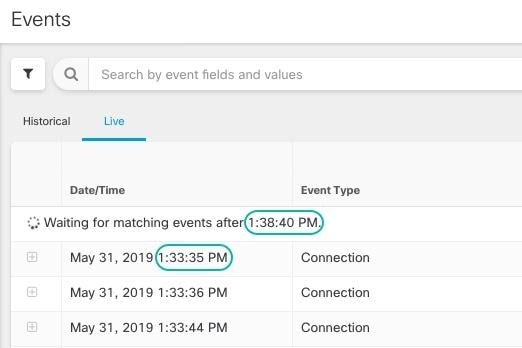
Receiving and reporting events: There may be a small lag between the Secure Event Connector or the Security Service Exchange receiving events and Security Cloud Control posting events in the Live events viewer. You can view the gap on the Live page. The time stamp of the event is the time it was received by Secure Event Connector or the Security Service Exchange.

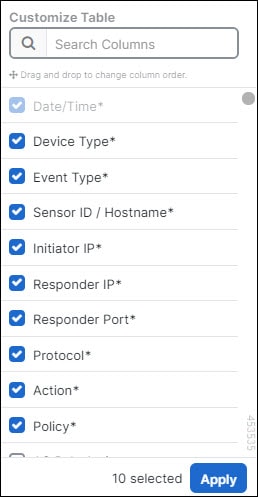
 located to the right of the columns.
 .
.

 ). Click the pin icon (
 ) to pin the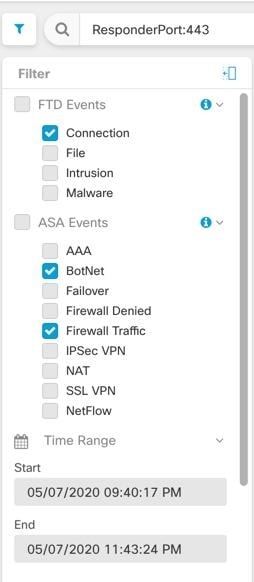
 Feedback