Cisco Catalyst SD-WAN Solution Integrations Guide, Releases 26.x and Later

PDF

Configure Cisco secure equipment access integration, high level

Want to summarize with AI?

Log in

Configure Cisco Secure Equipment Access integration with this high level overview of the required steps.


This task provides a high level overview of the steps required to integrate Cisco Secure Equipment Access with your SD-WAN deployment.

Use this workflow when you need to set up Cisco Secure Equipment Access integration from start to finish. Complete each step in the specified order to ensure proper configuration.

Procedure

1.

Configure a connection to a Cisco secure equipment access portal in the network hierarchy

2.

Upload the Cisco SEA application to Cisco SD-WAN Manager

3.

Create a configuration group profile with an SEA feature

4.

Add a Cisco SEA feature to a configuration group

5.

Deploy a configuration group with a Cisco SEA feature

You have completed the high level configuration steps for Cisco Secure Equipment Access integration.

What to do next

After the configuration steps, you can monitor the activity of the Cisco SEA application operating on a device. See Monitor the Cisco secure equipment access application on devices.

Configure a connection to a Cisco secure equipment access portal in the network hierarchy

Configure a secure connection between your network devices and the Cisco Secure Equipment Access (SEA) cloud portal within the Network Hierarchy using Cisco SD-WAN Manager.

This configuration enables devices to establish a secure link with the Cisco SEA cloud portal for enhanced security and access management.

Before you begin

API key

  1. In the Cisco SEA cloud portal, create an API key to enable devices to establish a secure link with the Cisco SEA cloud portal.

    For information about creating an API key, see the Cisco Secure Equipment Access documentation on the Cisco DevNet site. When you generate the API key, if there is an option to enable the key for external controller integration, choose that option.

  2. Copy the API key and have it ready for the procedure.

Connectivity

The devices in your network that operate with Cisco SEA require network reachability to the Cisco SEA cloud portal. Ensure that your network topology provides this reachability.

Remote server

In Cisco Catalyst SD-WAN Manager Release 20.16.x, set up a remote server. This is a locally hosted file server, required to host the Cisco SEA Agent image. Refer to the Register Remote Server section of the Cisco Catalyst SD-WAN Monitor and Maintain Configuration Guide for setup instructions.

Follow these steps to configure a connection to a Cisco Secure Equipment Access portal in the Network Hierarchy:

Procedure

SUMMARY STEPS

  1. From the Cisco SD-WAN Manager menu, choose Configuration > Network Hierarchy.
  2. Click External Services.
  3. In the Secure Equipment Access Cloud pane, enter these:
  4. Click Save.
  5. If you are using Cisco Catalyst SD-WAN Manager Release 20.16.x, do this:

DETAILED STEPS

1.

From the Cisco SD-WAN Manager menu, choose Configuration > Network Hierarchy.

2.

Click External Services.

3.

In the Secure Equipment Access Cloud pane, enter these:

Table 1. Secure equipment access cloud pane

Field

Description

Cluster access type

Choose an API key option:

  • Manual: Enter the API key manually by copying it from the Cisco SEA cloud portal.

  • Auto: Retrieve the API key automatically from the Cisco SEA cloud portal.

API Key

(This field appears if you choose Manual in Cluster access type.)

Enter the API key that you generated in the Cisco SEA cloud portal.

Note

Starting from SD-WAN Manager 26.1.1.1, you can edit the Secure Equipment Access (SEA) API key in the Secure Equipment Access Cloud window for external services. Updating the API key does not require stopping any running configurations. You must re-deploy the configuration groups after updating the SEA API key.

Select Secure Equipment Access Cluster

(This field appears if you choose Auto in Cluster access type.)

Choose the cluster name associated with your Cisco SEA cloud portal account. Click Connect and log in with your Cisco SEA cloud portal credentials.

VPN

VPN providing reachability between devices and the Cisco SEA cloud portal.

Note

If you later edit this field, see the restriction regarding editing Secure Equipment Access Cloud fields, in Restrictions for Cisco secure equipment access integration.

Proxy

If devices in your network require a proxy for connectivity between devices and the Cisco SEA cloud portal, enter the IP address of the proxy.

Note

If you later edit this field, see the restriction regarding editing Secure Equipment Access Cloud fields, in Restrictions for Cisco secure equipment access integration.

4.

Click Save.

5.

If you are using Cisco Catalyst SD-WAN Manager Release 20.16.x, do this:

  1. Open Maintenance > Software Repository > Remote server.

  2. Edit the automatically created remote server called: SEA-RemoteServer to use the locally hosted remote server that you have configured.

  3. Change the IP address to use the locally hosted remote server that hosts the SEA Agent image.

Note

From Cisco Catalyst SD-WAN Manager Release 20.18.1 or later, SD-WAN Manager does not automatically create a remote server entry.

A secure connection is established between your network devices and the Cisco Secure Equipment Access cloud portal through the Network Hierarchy configuration.

What to do next

From Cisco Catalyst SD-WAN Manager Release 20.18.1 or later, upload the Cisco SEA application to SD-WAN Manager to connect to the Cisco SEA cloud.


Upload the Cisco SEA application to Cisco SD-WAN Manager

This task enables you to host a Cisco SEA application in SD-WAN Manager for deployment across your network infrastructure.

You can host a Cisco SEA application in one of the two ways:

  • Upload the Cisco SEA application to the SD-WAN Manager local repository, or

  • Upload the Cisco SEA application to a remote repository.

Before you begin

Minimum supported release: Cisco Catalyst SD-WAN Manager Release 20.18.1 and later

Download the Cisco SEA application image.

Download the ARM image file for the Cisco SEA application. Note that the App type should be seaAgent.

Procedure

SUMMARY STEPS

  1. Method 1: If you choose to host the SEA Agent image in the SD-WAN Manager local repository, follow these steps.
  2. Method 2: If you choose to host the SEA Agent image on a remote repository server, follow these steps.

DETAILED STEPS

1.

Method 1: If you choose to host the SEA Agent image in the SD-WAN Manager local repository, follow these steps.

This option is available in a single-tenant environment, or for a service provider operating a multitenant environment.

  1. From the Cisco SD-WAN Manager menu, choose Maintenance > Software Repository.

  2. Click Virtual Images.

  3. Click Add New Virtual Image and select Manager.

  4. Choose the SEA image that you have downloaded and click Upload.

    SD-WAN Manager creates an entry in Virtual Images for the locally hosted SEA image.

2.

Method 2: If you choose to host the SEA Agent image on a remote repository server, follow these steps.

This option is available in a single-tenant environment, or for tenants in a multitenant environment. Tenants in a multitenant environment can use this option if the SEA Agent image is not available in the local SD-WAN Manager repository.

  1. Set up a file server and register it in SD-WAN Manager. Refer to the Register Remote Server section of the Cisco Catalyst SD-WAN Monitor and Maintain Configuration Guide for setup instructions.

  2. From the Cisco SD-WAN Manager menu, choose Maintenance > Software Repository > Virtual Images.

  3. Click Add New Virtual Image and select Remote Server.

  4. Enter the SEA image file name.

  5. For Select service type, choose App-Hosting.

  6. For Select app type, choose SEA-Enterprise-Agent.

  7. Enter the version of the downloaded app.

    You can see the software version on the software download page and in the package.yaml that is extracted from the SEA Agent image file (a tar file).

  8. For Select architecture, choose aarch64.

  9. In the Remote Server section, select the name of the remote server that you have registered.

    The Remote Server Details shows the details of the locally hosted server.

  10. Click Save.

SD-WAN Manager creates an entry in Virtual Images for the remotely hosted SEA Agent image.

The Cisco SEA application is successfully uploaded to SD-WAN Manager and appears as an entry in Virtual Images, ready for deployment to your network devices.


Create a configuration group profile with an SEA feature

Create and configure a Configuration Group Profile that includes an SEA feature to establish communication between the Cisco SEA agent and the host device interface, enabling access to the Cisco SEA cloud portal.

The Secure Equipment Access (SEA) feature enables secure remote access to network equipment through the Cisco SEA cloud portal. This configuration establishes the necessary connection between the SEA agent and the physical interface using virtual port group (VPG) 7.

Before you begin

On the Configuration > Configuration Groups page, choose either

  • SD-WAN, or

  • SD-Routing

as the solution type.

Follow these steps to create a Configuration Group Profile with an SEA feature:

Procedure

1.

From the Cisco SD-WAN Manager menu, choose Configuration > Configuration Groups.

2.

Create and configure an SEA feature in an Other profile.

  1. Enter a name and description for the feature.

    Table 2. Name and Description

    Field

    Description

    Name

    Name for the feature.

    Description

    Optionally, add a description.

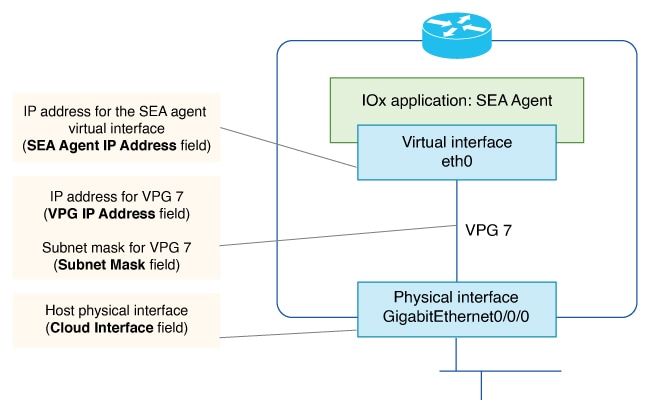
  2. Configure the connection between the Cisco SEA agent and the physical interface of the host device, using virtual port group (VPG) 7. This is necessary to enable the Cisco SEA agent to reach the Cisco SEA cloud portal.

    The configuration diagram illustrates the connection setup between the Cisco SEA agent and the physical interface of the host device, highlighting the use of virtual port group 7 for enabling access to the Cisco SEA cloud portal.
    Table 3. Base Configuration

    Field

    Description

    VPG IP Address

    IP address to assign to virtual port group (VPG) 7. This VPG is a virtual link between the Cisco SEA agent and a physical interface of the host device.

    Example: 10.100.1.1

    Subnet Mask

    Subnet mask for VPG interface 7, which connects to the Cisco SEA cloud portal. Together with VPG IP Address, this defines the address space for the VPG 7 network.

    Example: 255.255.252.0

    SEA Agent IP Address

    IP address to assign to the Cisco SEA cloud agent to map it to VPG 7. Enter an address within the address space defined by VPG IP Address and Subnet Mask.

    Example: 10.100.1.2

    Cloud Interface

    This field appears when configuring an SEA feature for use with the SD-Routing solution.

    Enter the physical interface that the device uses to connect to the Cisco SEA cloud portal. The interface type can include cellular.

    Example: GigabitEthernet0/0/0

    Example: Cellular0/1/0

    Note

    For a device that you are configuring for the SD-WAN solution (not the SD-Routing solution), the VPG automatically connects to the host interface used for the control connection between the host device and Cisco SD-WAN Manager.

  3. Optionally, configure one or more asset networks for connectivity to assets.

    Table 4. Asset Access Networks (optional)

    Field

    Description

    Add Access Network

    Configure connectivity for up to three asset networks, each of which can include more than one asset.

    Service VPN

    (This field appears when configuring an SEA feature for use with the SD-WAN solution.)

    If your assets are distributed across multiple different service VPNs, you may need to add each of the service VPNs here.

    Note

    Configure route leaking to provide connectivity between (a) the service VPN used for connectivity with the Cisco SEA cloud portal, and (b) each service VPN that you configure here.

    Asset Interface

    (This field appears when configuring an SEA feature for use with the SD-Routing solution.)

    Physical interface that the device is using to connect to the asset network.

    VPG IP Address

    IP address to assign to the VPG interface on the router.

    SEA Agent IP Address

    IP address to assign to the SEA asset agent for mapping to the respective VPG interface on the router. The address must be within the same network as the asset VPG interface.

    Subnet Mask

    VPG subnet mask.

    Action

    A delete option removes a row of the table, removing an asset network configuration.

  4. Configure a DNS server within your network, capable of resolving Cisco SEA portal domain names.

    Table 5. Name Servers

    Field

    Description

    Add Name Server

    Configure a DNS server within your network, capable of resolving Cisco SEA portal domain names. Click Add Name Server to add a name server.

    For information about the Cisco SEA portal domain names, see Network ports and protocols.

    This is a mandatory field. If you do not configure a name server, you cannot save the configuration.

    Maximum number of name servers: 5

    Name Server

    IP address of a domain name server.

    Action

    A delete option removes a row of the table, removing a name server.

You have successfully created a Configuration Group Profile with an SEA feature. The profile enables secure communication between the Cisco SEA agent and the host device interface through virtual port group 7, providing access to the Cisco SEA cloud portal.

What to do next

Also see Deploy a configuration group.


Add a Cisco SEA feature to a configuration group

Add a Cisco SEA feature to a configuration group to enable security enforcement and analytics capabilities within your SD-WAN deployment.

Use this procedure when you need to integrate Cisco SEA functionality into your existing SD-WAN or SD-Routing configuration groups. This allows you to apply security policies and analytics features to your network devices.

Before you begin

Follow these steps to add a Cisco SEA feature to a configuration group:

Procedure

1.

From the Cisco SD-WAN Manager menu, choose Configuration > Configuration Groups.

2.

In the solution drop-down list, choose either

  • SD-WAN, or

  • SD-Routing

as the solution type to display configuration groups only for this solution.

3.

Click the Configuration Groups tab.

4.

If you need to create a configuration group, follow the steps described in the Using Configuration Groups section of the Cisco Catalyst SD-WAN Configuration Groups Reference Guide.

5.

For an existing configuration group, click Add Profile and add an Other Profile to the configuration group.

6.

In the configuration group, locate the Other Profile drop-down list and choose a Cisco SEA profile.

The Cisco SEA feature is successfully added to the configuration group and can be applied to devices within your network deployment.


Deploy a configuration group with a Cisco SEA feature

Deploy a configuration group that includes the Cisco SEA feature to enable Cisco SEA functionality on devices in your SD-WAN network. This enables devices to operate as part of the Cisco SEA solution and connect to the Cisco SEA cloud portal.

When deploying a configuration group with the Cisco SEA feature, devices must have network reachability to the Cisco SEA cloud portal before deployment. The deployment process triggers the installation of the Cisco SEA application on devices, which takes several minutes to complete.

Before you begin

  • See Supported platforms for Cisco secure equipment access integration before deploying a configuration group with the Cisco SEA feature.

  • For each device that will be running the Cisco SEA agent, ensure that device has network reachability to the Cisco SEA cloud portal before deploying a configuration group that includes the Cisco SEA feature. This requires two steps:

    1. Deploy a configuration group to establish reachability to a Cisco SEA cloud portal.

    2. Deploy a configuration group to enable Cisco SEA on the devices.

      After you confirm reachability in the previous step, you can modify the same configuration group that you used in that step, adding the Cisco SEA feature, and deploy the configuration group to the devices.

    See Requirements for Cisco secure equipment access integration.

    Note

    This same requirement applies when you add devices to a configuration group that has the Cisco SEA feature and that you have deployed to devices already. If you want to deploy the configuration group to additional devices, make note of the above and first establish reachability to the Cisco SEA cloud portal for the additional devices.

Follow these steps to deploy a configuration group with a Cisco SEA feature:

Procedure

1.

Use the configuration group deployment procedure in the Cisco Catalyst SD-WAN Configuration Groups Reference Guide to deploy a configuration group to devices in the network.

2.

If you are deploying to devices of the SD-WAN solution type, during deployment, enter any device-specific variables, as required, for each router.

If you are deploying to devices of the SD-Routing solution type, skip this step.

3.

If you want to monitor the progress of installing the Cisco SEA application on a device, view the log messages for the installation.

  1. Click the task list button near the top right.

  2. Click the Deploy configuration group task.

    This opens a page showing the deployment progress for each device.

  3. Adjacent to a device, click the log icon in the Action column.

    The View Logs pane opens, showing the deployment progress for the device. When the deployment is complete, and when the devices have established a connection to the Cisco SEA cloud portal, a success message, such as "Config Group successfully deployed to device," appears in the log.

    When you first deploy a configuration group with the Cisco SEA feature to a device, it triggers the device to install the Cisco SEA application. It takes several minutes for a device to install the Cisco SEA application. After a successful installation, the device operates as part of the Cisco SEA solution.

The configuration group with the Cisco SEA feature is deployed to the selected devices. Devices install the Cisco SEA application and establish a connection to the Cisco SEA cloud portal. After successful deployment, devices operate as part of the Cisco SEA solution.