Important.
Results generated by AI. Before using results, verify accuracy and completeness.
Copy
Reimages Cisco NCS 1014 for system upgrade or recovery from boot failure by preparing a bootable USB drive and booting the chassis from it.
Boot Cisco NCS 1014 using a bootable USB drive to reimage the system for upgrade or recovery.
A bootable USB drive allows you to reimage Cisco NCS 1014 for a system upgrade or to recover from a boot failure. The drive is prepared by copying a compressed boot file onto it and extracting the contents. Preparation steps can be performed with Windows, Linux, or Mac operating systems.
Before you begin
Obtain a USB drive with a minimum storage capacity of 4 GB.
Make sure the USB drive has a single partition.
Copy the compressed boot file from the software download page at Cisco.com to your local machine. The filename for the compressed boot file is in the format ncs1010-x64-usb-(release_number).zip.
Procedure
Prepare a bootable USB drive on your local machine:
Connect the USB drive to your local machine and format it with the FAT32 file system.
Copy the compressed boot file to the USB drive.
Verify that the copy operation is successful.
To verify, compare the file size at source and destination. Also, verify the MD5 checksum value.
Extract the content of the compressed boot file by unzipping it in the USB drive.
Extracting the content makes the USB drive a bootable drive.
Note
You must extract the contents of the zipped file ("EFI" and "boot" directories) directly in the root folder of the USB drive. If the unzipping application places the extracted files in a new folder, move the "EFI" and "boot" directories to the root folder of the USB drive.
Boot Cisco NCS 1014 from the bootable USB drive.
Insert the USB drive in one of the USB ports of Cisco NCS 1014.
Reboot Cisco NCS 1014 using power cycle or console.
Note
Use the reload bootmedia usb noprompt command to boot the Cisco NCS 1014 from the USB. If you are using the reload bootmedia usb noprompt command, then you can skip the remaining steps.
Press Esc to enter BIOS.
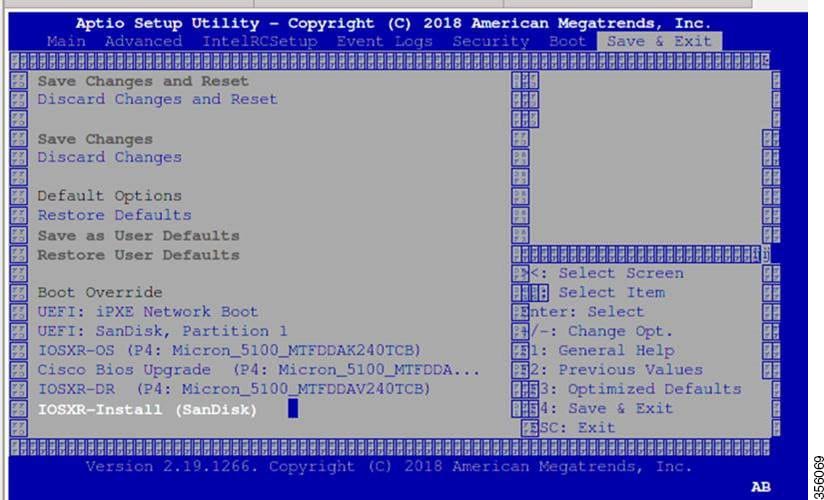
Select the Save & Exit tab of BIOS.
Figure 1. BIOS page
Select IOS -XR Install.
The BIOS UI displays the USB drive vendor in the brackets, in this case, SMART USB 1084.
The system detects USB and boots the image from USB.
Booting from USB..
Loading Kernel..
Verifying (loop)/boot/bzImage...
(loop)/boot/bzImage verified using attached signature.
Loading initrd..
Verifying (loop)/boot/initrd.img...
Remove the USB drive after the Rebooting the system after installation message is displayed.
Cisco NCS 1014 reboots automatically.
Note
The USB must be removed only after the image is loaded successfully.
Cisco NCS 1014 boots from the USB drive and starts the IOS XR installation.