Proxy

Configure a Proxy

You can set up a proxy to connect the Connector to Cisco Spaces, if the infrastructure hosting the Connector is behind a proxy. Without this proxy configuration, the Connector is unable to communicate with Cisco Spaces

To configure proxy on the Connector, you must do the following:

Procedure


Step 1

In the Connector GUI left navigation pane, click Configure HTTP Proxy. Enter your proxy address in the dialog box that is displayed.
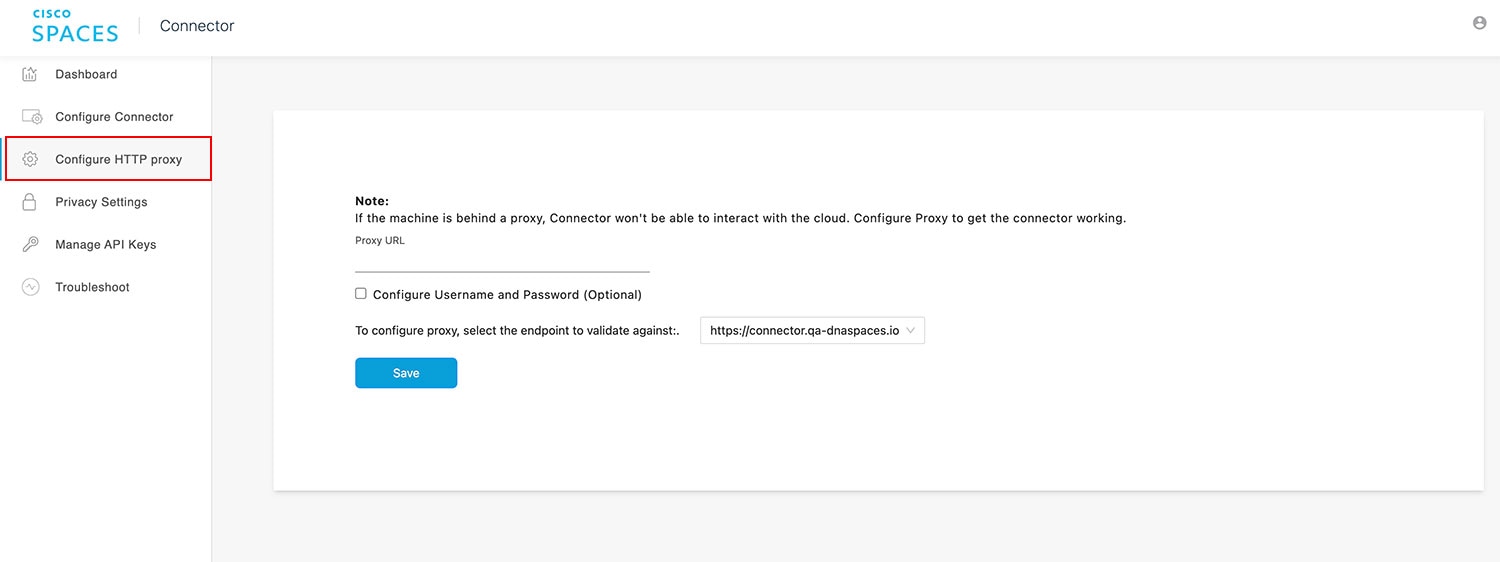
Figure 1. Setup Proxy
setuporoxy

Note


Choose the endpoint based on your Cisco Spaces Account. For information on how to choose endpoints, see the Table 1.

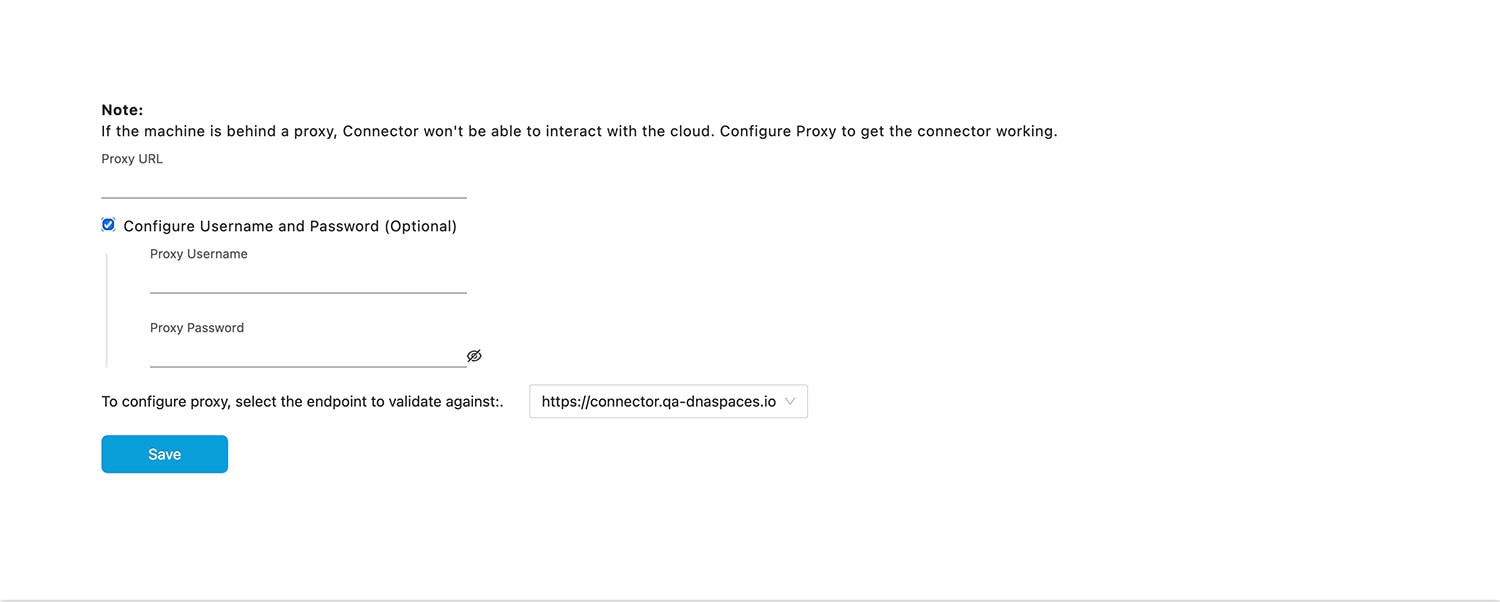
Figure 2. Configure Basic Authentication for Proxy (Optional)

Setup Proxy

To configure the proxy's basic authentication credentials, click Configure Username and Password.

Step 2

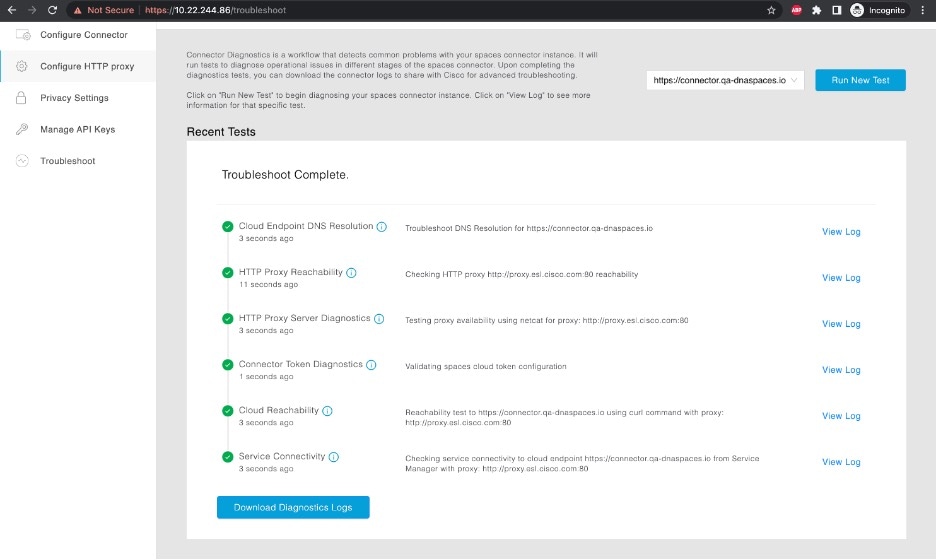
You can troubleshoot any issues in proxy configuration. Click Troubleshoot and select the Cisco Spaces URL.
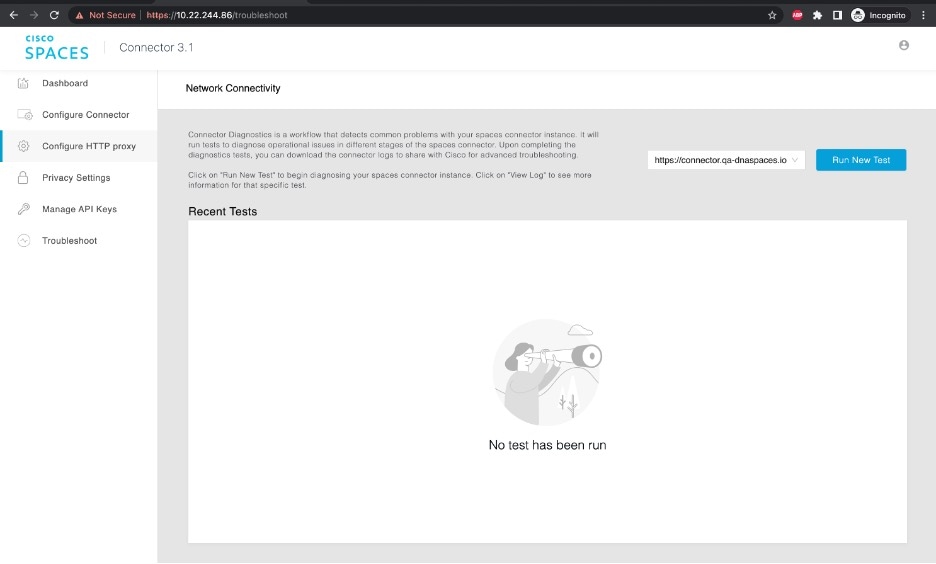
Figure 3. Troubleshoot Proxy Issues
setuporoxy
Figure 4. Sample Run Test Results
setuporoxy

Configure a Transparent Proxy

To configure a transparent proxy on the Connector, you must do the following:

  1. Copy the proxy server certificate and the proxy server certification authority (CA) bundle to the Connector.

  2. From the Connector CLI, validate the proxy certificate.

  3. From the Connector CLI, import proxy certificates.

  4. From the Connector GUI, configure the proxy URL.

Procedure


Step 1

Copy the proxy certificate to the Connector using scp.

The following is a sample command.
scp proxy-ca-bundle.pem spacesadmin@[connector-ip]:/home/spacesadmin/
scp proxy-server-cert.pem spacesadmin@[connector-ip]:/home/spacesadmin/

Step 2

Log in to the Connector CLI, and validate the copied proxy certificate using the connectorctl cert validate command.

The following is a sample output of the command:
[spacesadmin@connector ~]$ connectorctl cert validate -c /home/spacesadmin/proxy-ca-bundle.pem -s /home/spacesadmin/proxy-server-cert.pem
Executing command:cert
Command execution status:Success
-----------------------
/home/spacesadmin/proxy-ca-bundle.pem and /home/spacesadmin/proxy-server-cert.pem exists
/home/spacesadmin/proxy-server-cert.pem: OK
Validation of certificate is successful
For more information on this command, see connectorctl cert validate.

Step 3

Import the proxy certification authority (CA) certificates along with other certificates using the connectorctl cert updateca-bundle command.

The following is a sample output of the command:
[spacesadmin@connector ~]$ connectorctl cert updateca-bundle -c /home/spacesadmin/proxy-ca-bundle.pem -s /home/spacesadmin/proxy-server-cert.pem
Executing command:cert
Command execution status:Success
-----------------------
/home/spacesadmin/proxy-ca-bundle.pem and /home/spacesadmin/proxy-server-cert.pem exist
/home/spacesadmin/proxy-server-cert.pem: OK
CA trust bundle updated successfully
System reboot will happen in 10 seconds. Do not execute any other command.
For more information on this command, see connectorctl cert updateca-bundle.

Step 4

In the Connector GUI left navigation pane, click Configure HTTP Proxy. Enter your proxy address in the dialog box that is displayed.

Figure 5. Setup Proxy
setuporoxy

Note


Choose the endpoint based on your Cisco Spaces Account. For information on how to choose endpoints, see the Table 1.

Figure 6. Configure Basic Authentication for Proxy (Optional)

Setup Proxy

To configure the proxy's basic authentication credentials, click Configure Username and Password.

Step 5

You can troubleshoot any issues in proxy configuration. Click Troubleshoot and enter the Cisco Spaces URL.

Figure 7. Troubleshoot Proxy Issues
setuporoxy
Figure 8. Sample Run Test Results
setuporoxy