Troubleshooting Scenarios

Connectivity Issues Between Connector and Cisco Spaces

This task allows you to troubleshoot connectivity issues between your connector and Cisco Spaces. You can troubleshoot this connection both before and after the configuration of the connector token on Cisco Spaces.

Procedure


Step 1

Log in to the connector GUI.

Step 2

In the connector left navigation pane, click Troubleshoot and do one of the following:

  • If you have configured the token for this connector in Cisco Spaces, the text field beside the Run New Test button is automatically populated with the Cisco Spaces URL.
  • If you have not configured the token for this connector on Cisco Spaces, then from the Run New Test drop-down, choose from one of the Cisco Spaces region-dependent URLs. 

Step 3

Click Run New Test to initiate troubleshooting the connectivity.

Step 4

Observe the running tests for the following:

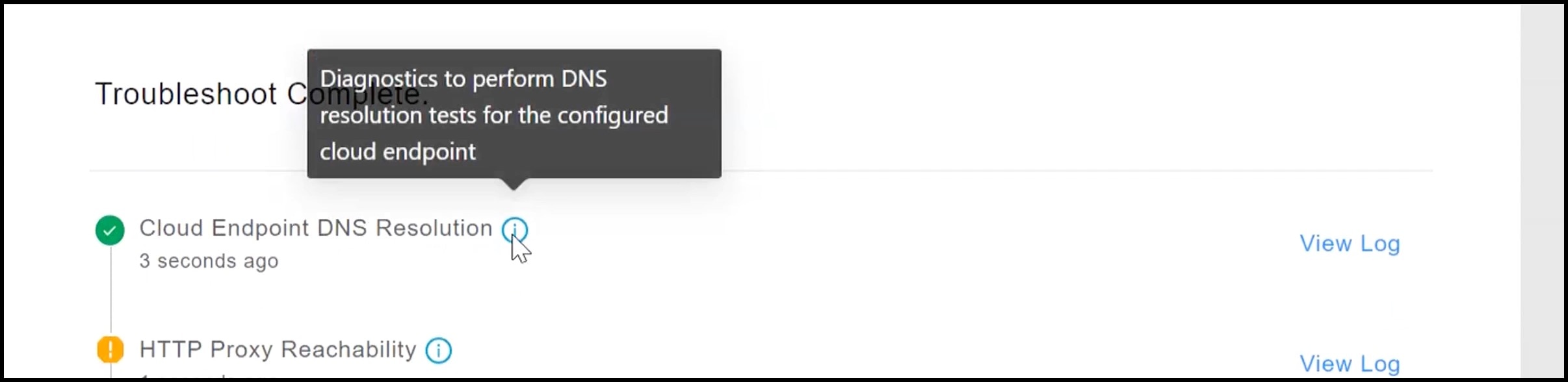
Click to view further information about the test.

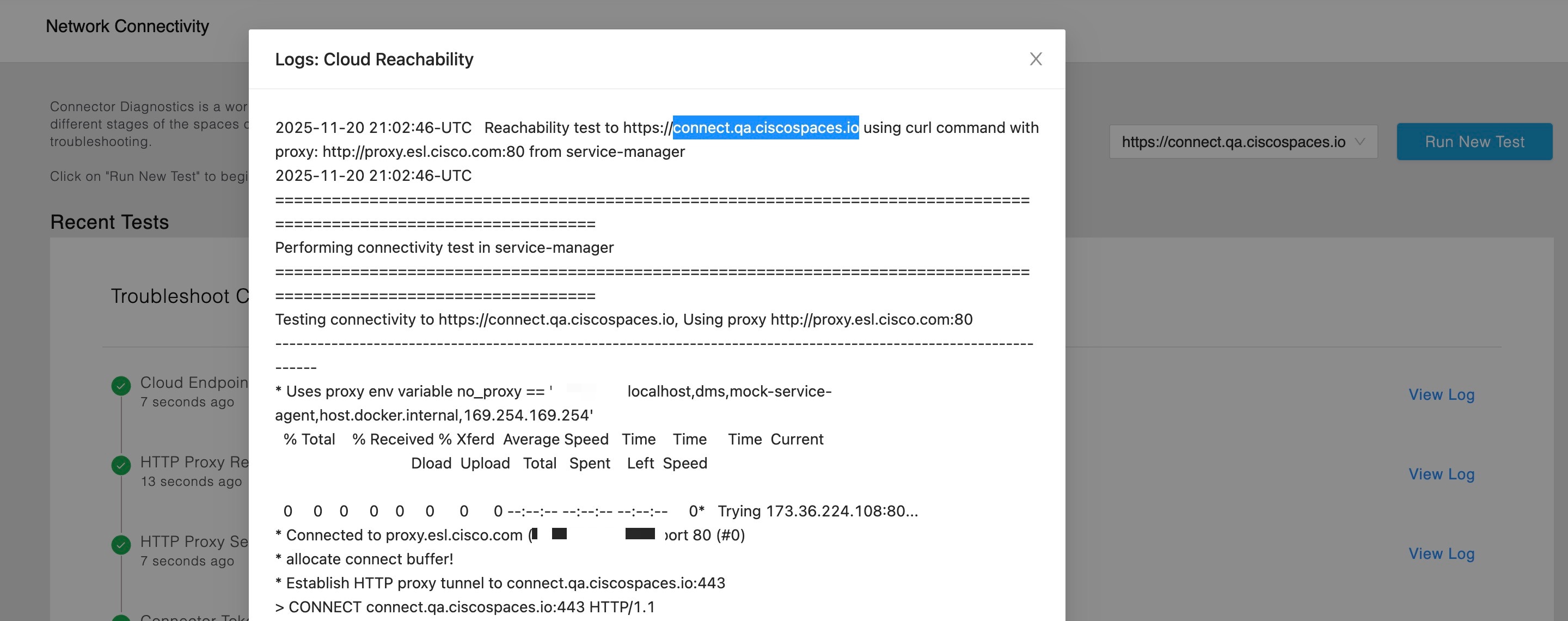
Click View Logs to view further information.

Figure 1. View Logs
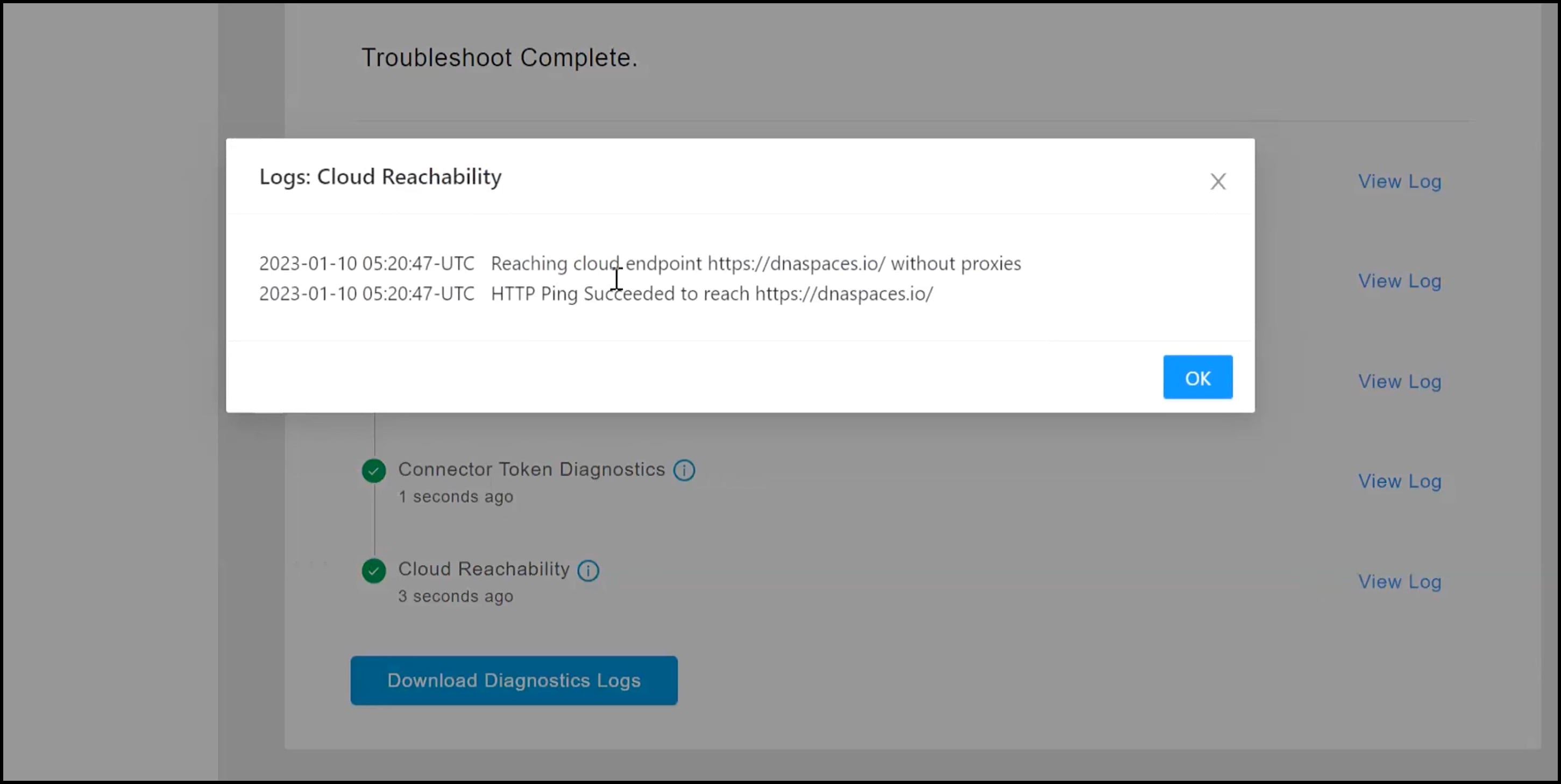
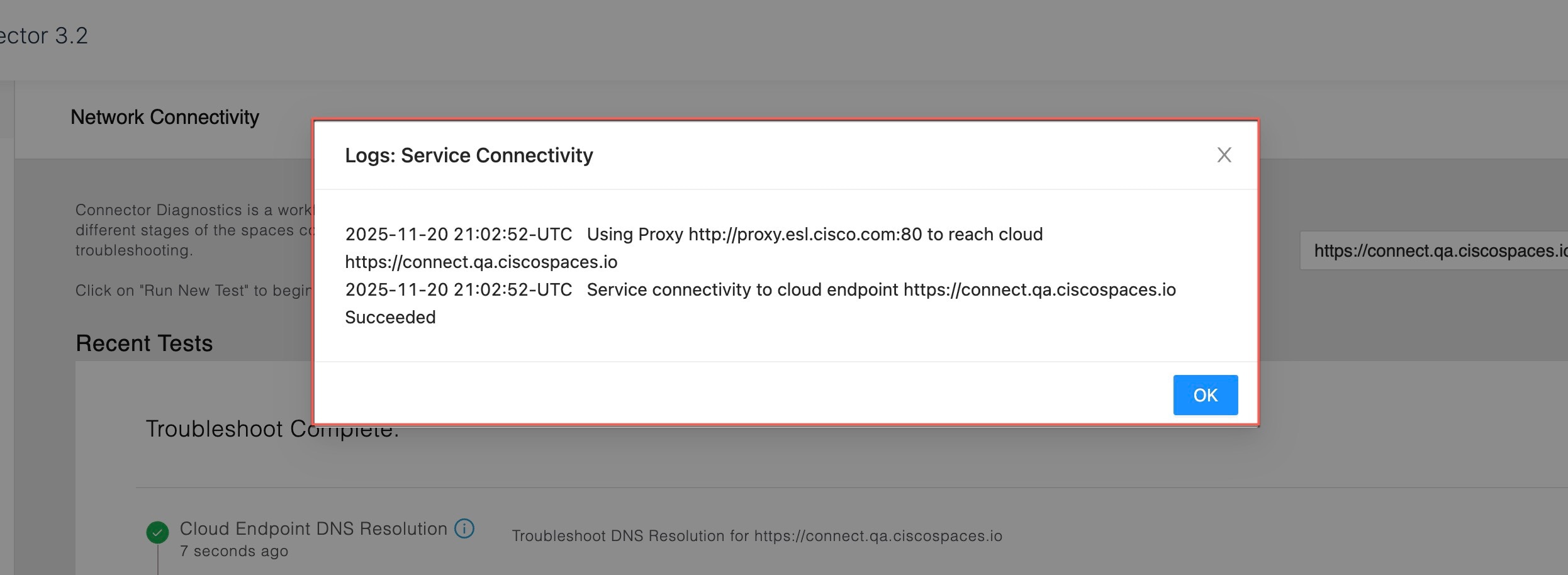
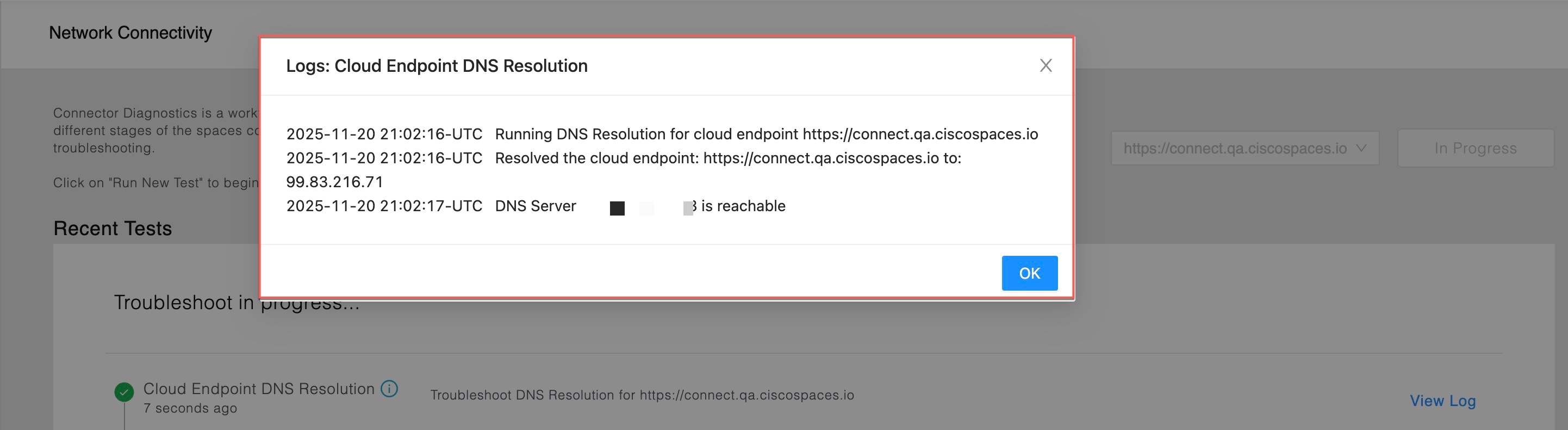
Represents a successful test. Click to view additional information about this successful test.
Figure 2. View Logs for a Successful Test
Represents a warning. Click to view additional information about this warning.
Figure 3. View Logs for a Warning
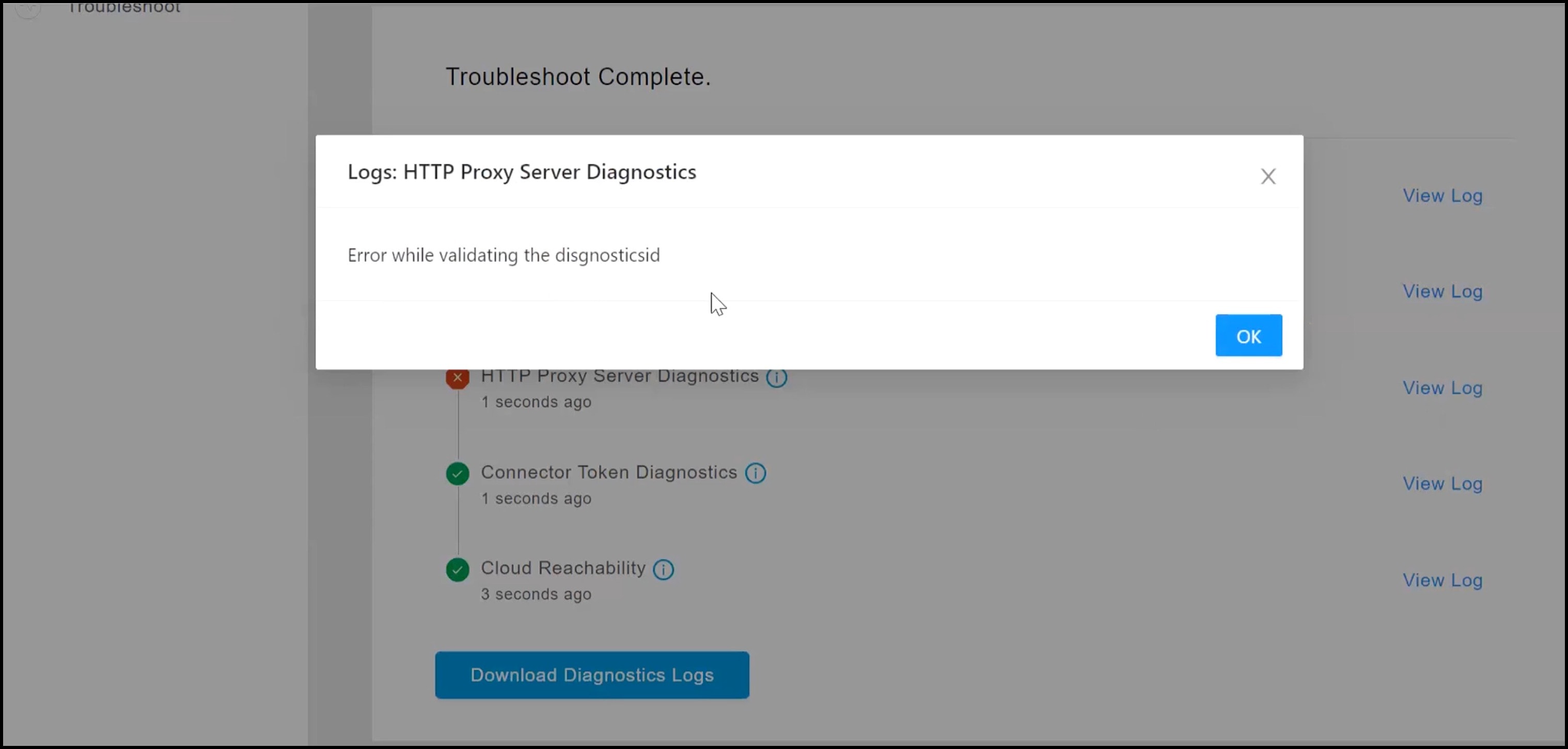
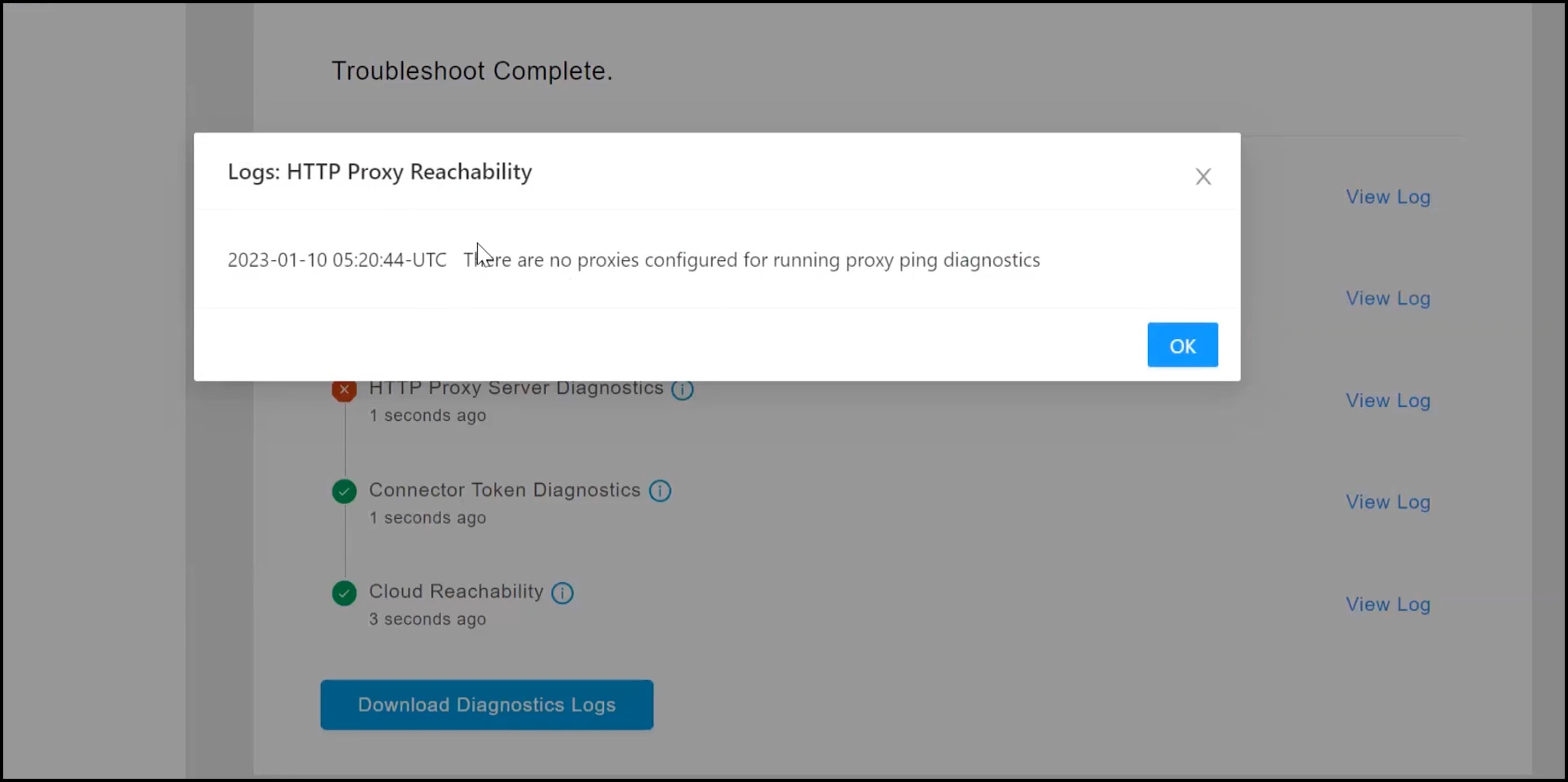
Represents a failure in the diagnostic test. Click View Logs to see additional details.
Figure 4. View Logs for a Successful Test

Step 5

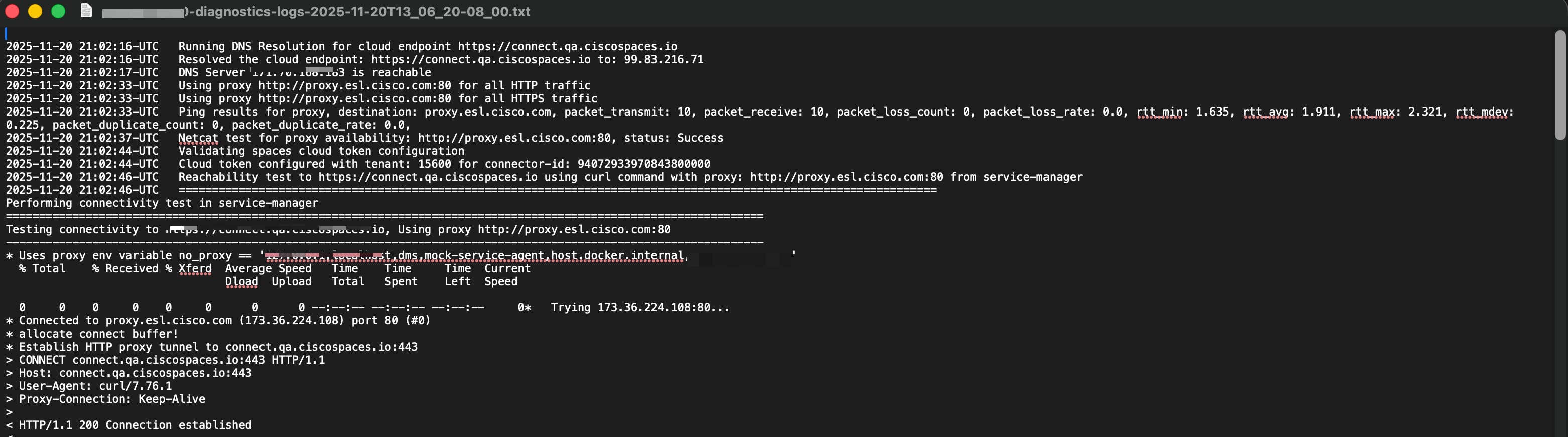
Click Download Diagnostic Logs to download a text file with details of logs, including diagnostic information.
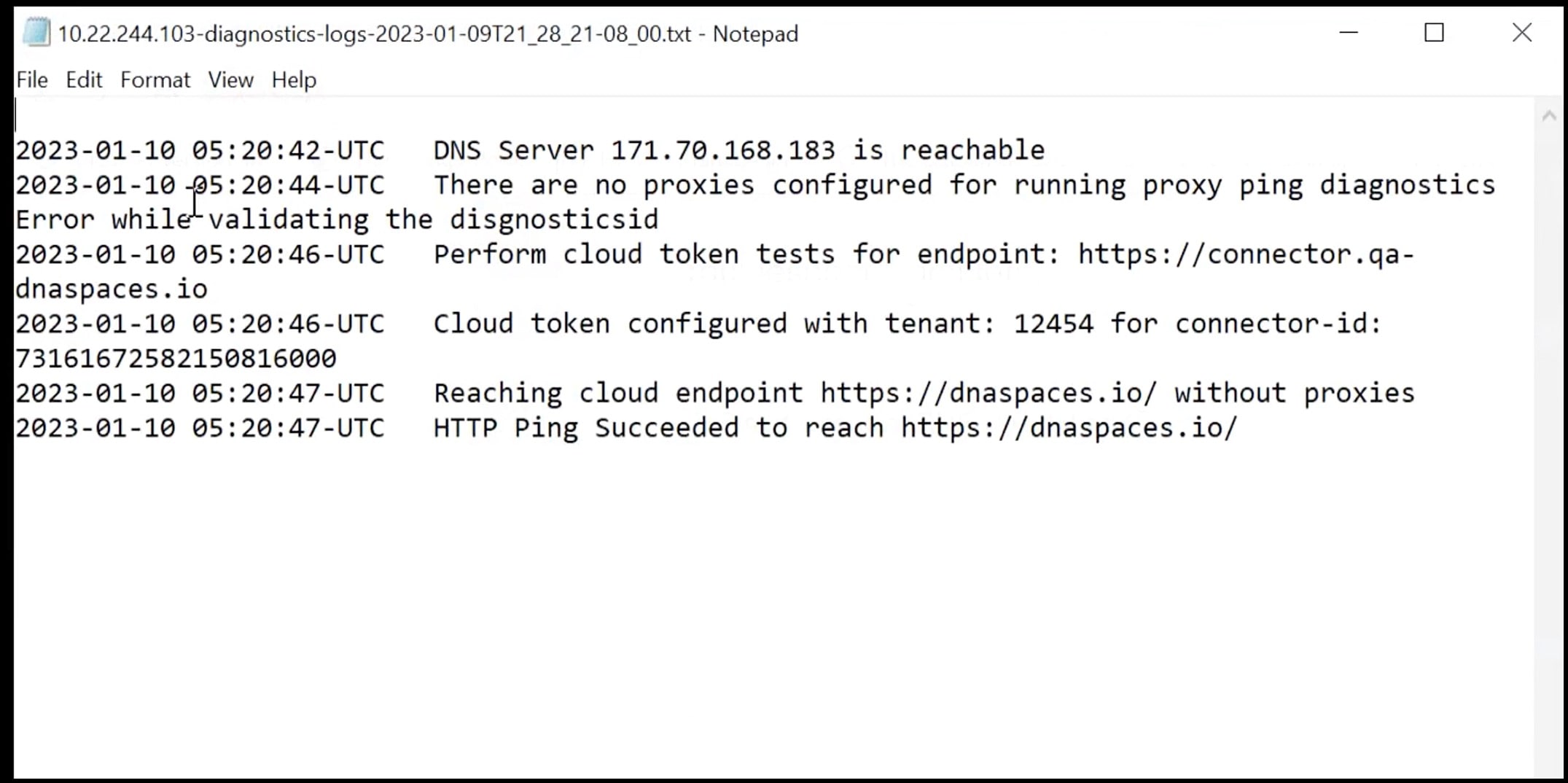
Figure 5. ownload Diagnostic Logs

What to do next

You can also use the connector CLI to troubleshoot connectivity issues between the connector and the Cisco Spaces dashboard. See the command connectorctl troubleshooting connectivity in the Cisco Spaces: Connector 3 Command Reference Guide.

Unresponsive Connector, or Failure of SSH to Connector

If a connector is unresponsive to SSH requests, reboot the device on which the connector OVA is installed. You can do this from the Cisco Spaces dashboard .

Procedure


Step 1

Log in to Cisco Spaces.

Note


The Cisco Spaces URL is region-dependent.

Step 2

From the left navigation pane, choose Setup > Wireless Networks.

Step 3

In the 2. Configure Spaces Connector area, click View Connectors.

Step 4

Click a connector from the list of connectors that are displayed, and then click the Instances tab.

Step 5

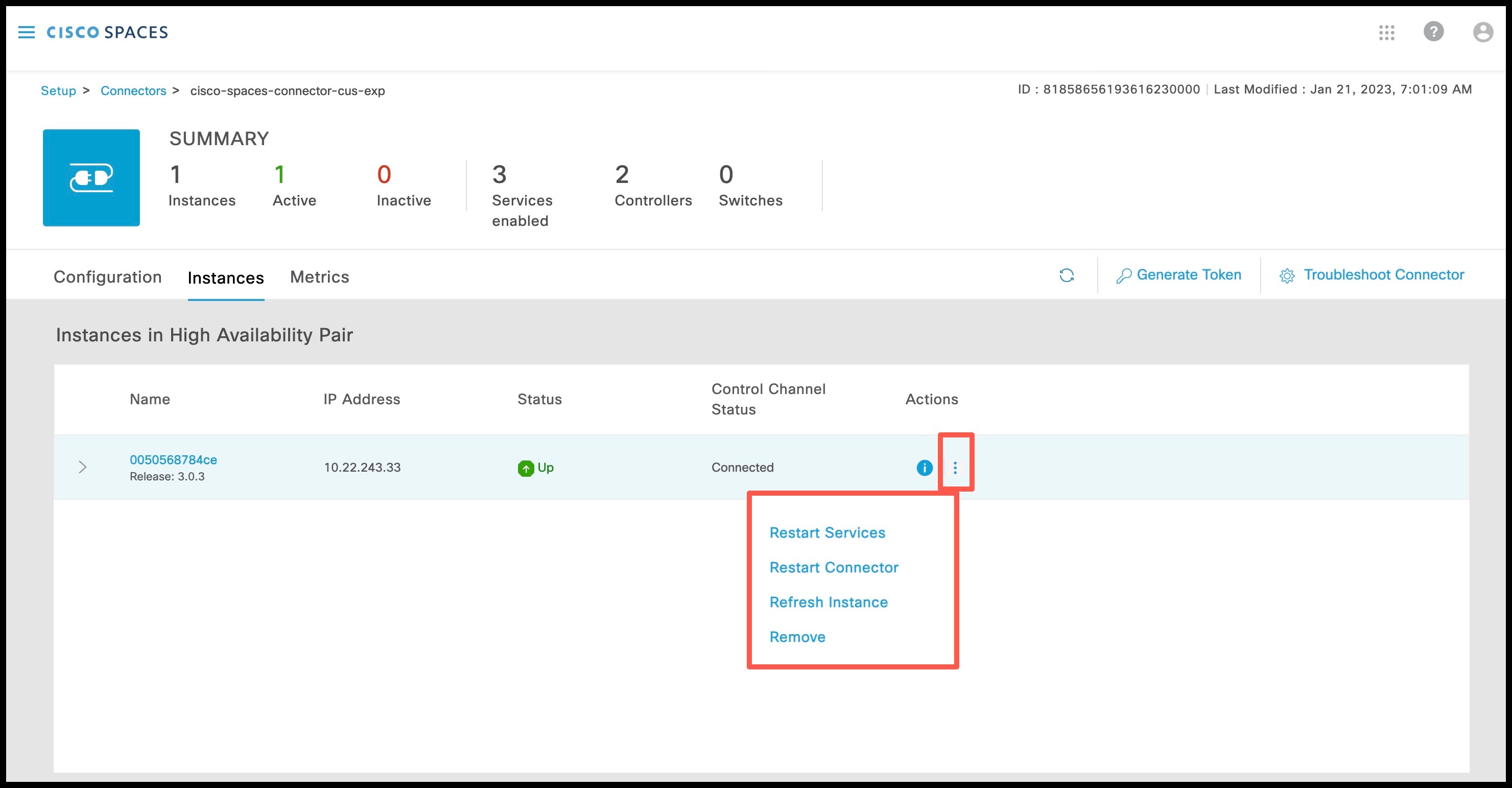
In the Actions column, click the three-dot icon to open a list of options for the connector instance, and choose Restart Connector.

Figure 6. Restart Connector

Instance is Corrupted or Deleted

You may have to delete a connector instance for one of the following reasons:
  • An instance is not required anymore.

  • An instance is corrupted or invalid.

Procedure


Step 1

Log in to Cisco Spaces.

Note


The Cisco Spaces URL is region-dependent.

Step 2

In the left navigation pane of the Cisco Spaces dashboard, choose Setup > Wireless Networks.

Step 3

In the 2. Configure Spaces Connector area, click View Connectors.

Step 4

Click a connector from the list of connectors that are displayed and then click the Instances tab.

Step 5

In the Actions column, click the three-dot icon to open a list of options for the connector instance, and choose Remove.

To create a new instance, do the following.
  1. In the Cisco Spaces dashboard, reissue a token. 

  2. Configure the new token on the installed connector.

See Activating Connector 3 on Cisco Spaces.


Service Crash, or Restart Services

This task shows you how to restart a service on a connector when the service crashes or hangs.

Procedure


Step 1

Log in to Cisco Spaces.

Note


The Cisco Spaces URL is region-dependent.

Step 2

From the left navigation pane of the Cisco Spaces dashboard, choose Setup > Wireless Networks.

Step 3

In the 2. Configure Spaces Connector area, click View Connectors.

Step 4

Click a connector from the list of connectors that are displayed, and then click the Instances tab.

Step 5

In the Actions column, click the three-dot icon to open a list of options for the connector instance, and choose Restart Services.

Figure 7. Restart Services

Upgrade has Failed, or How To Forcibly Push Configurations to Instances

If a service upgrade fails and a connector instance does not receive Cisco Spaces configurations, you can forcibly push configurations to the instance using this procedure.

Procedure


Step 1

Log in to Cisco Spaces.

Note


The Cisco Spaces URL is region-dependent.

Step 2

From the left-navigation pane, choose Setup > Wireless Networks.

Step 3

In the 2. Configure Spaces Connector area, click View Connectors.

Step 4

Click a connector from the list of connectors that are displayed, and then click the Instances tab.

Step 5

In the Actions column, click the three-dot icon to open a list of options for the connector instance, and choose Refresh Instance.


Managing Weak Algorithms from SSHD Configurations

Weak SSHD Key Exchange (kex) Algorithms

Key exchange algorithms are used to securely exchange cryptographic keys between the client and the server over an insecure network. This ensures that the communication remains private and secure.

However, some SSHD Key Exchange algorithms are considered weak for many reasons.

Here are a few reasons:

  • Older key exchange methods using smaller key sizes (768 bits).

  • Some key exchange algorithms do not support perfect forward secrecy. This means that if a private key is compromised, past communications encrypted with that key could potentially be decrypted.

Disabling weak SSHD Key Exchange algorithms is essential to improve the security of your SSH server.

Disable Weak SSHD Key Exchange (kex) Algorithms

Procedure


Step 1

Display the list of Key Exchange algorithms using the connectorctl sshd kex show command. Observe that this list includes SSHD Key Exchange (kex) algorithms that may be considered weak (weak SSHD Key Exchange algorithms) for different reasons.

[spacesadmin@connector ~]$ connectorctl sshd kex show
Executing command:sshd
Command execution status:Success
-----------------------
List of supported Key Exchange algorithms is:
kexalgorithms 
ecdh-sha2-nistp256,
ecdh-sha2-nistp384,
ecdh-sha2-nistp521,
diffie-hellman-group14-sha1,
diffie-hellman-group14-sha256,
diffie-hellman-group16-sha512

Step 2

To remove support for weak SSHD Key Exchange algorithms from this device, use the connectorctl sshd kex remove command. Run the connectorctl sshd kex show command to verify that weak SSHD Key Exchange algorithms are removed from the supported algorithm list.


[spacesadmin@connector ~]$ connectorctl  sshd kex remove -a
Executing command:sshd
Command execution status:Success
-----------------------
Removing all unsupported weak algorithms
Successfully removed -diffie-hellman-group-exchange-sha1,diffie-hellman-group1-sha1 key exchange algorithm(s)

[spacesadmin@connector ~]$ connectorctl  sshd kex show
Executing command:sshd

Step 3

To reinstate support for weak SSHD Key Exchange algorithms on this device, use the connectorctl sshd kex reset command. Run the connectorctl sshd kex show command to verify that weak SSHD Key Exchange algorithms are added back to the supported algorithm list.

[spacesadmin@connector ~]$ connectorctl  sshd kex reset
Executing command:sshd
Command execution status:Success
-----------------------
Successfully reset Key Exchange algorithms configuration

[spacesadmin@connector ~]$ connectorctl  sshd kex show
Executing command:sshd
Command execution status:Success
-----------------------
List of supported Key Exchange algorithms is:
kexalgorithms 
ecdh-sha2-nistp256,
ecdh-sha2-nistp384,
ecdh-sha2-nistp521,
diffie-hellman-group14-sha1,
diffie-hellman-group14-sha256,
diffie-hellman-group16-sha512

Weak Host Key (hostkey) Algorithms

Host key algorithms are used to verify the server's identity to the client. The server uses its private key to authenticate itself, and the client uses the server's public key to verify this identity.

However, some Host Key algorithms are considered weak for many reasons. Here are a few reasons:

  • Short key length (RSA keys that are less than 2048 bits).

  • Outdated algorithms (Digital Signature Algorithms [DSA] is limited to a maximum key size of 1024 bits).

  • Weak hash functions (MD5 or SHA-1) can compromise the security of the entire key exchange process.

Disabling weak Host Key algorithms is essential to secure SSH connections and prevent potential vulnerabilities.

Disable Weak Host Key (hostkey) Algorithms

Procedure


Step 1

Display the list of Host Key algorithms using the connectorctl sshd hostkey show command.

[spacesadmin@connector ~]$ connectorctl  sshd hostkey show
Executing command:sshd
Command execution status:Success
-----------------------
List of supported host Key algorithms is:
hostkeyalgorithms *

Step 2

To remove support for weak Host Key algorithms from this device, use the connectorctl sshd hostkey remove command. Run the connectorctl sshd hostkey show command to verify that weak Host Key algorithms are removed from the supported algorithm list.


[spacesadmin@connector ~]$ connectorctl  sshd hostkey remove -a
Executing command:sshd
Command execution status:Success
-----------------------
Removing all unsupported weak algorithms
Successfully removed 
x509v3-ecdsa-sha2-nistp256,
x509v3-ecdsa-sha2-nistp384,
x509v3-ecdsa-sha2-nistp521,
x509v3-ssh-rsa,
x509v3-rsa2048-sha256,
x509v3-sign-rsa,,,
ssh-ed25519,,
ecdsa-sha2-nistp256,
ecdsa-sha2-nistp384,
ecdsa-sha2-nistp521,
ssh-rsa key exchange algorithm(s)

Step 3

To reinstate support for weak Host Key algorithms on this device, use the connectorctl sshd hostkey reset command. Run the connectorctl sshd hostkey show command to verify that weak Host Key algorithms are added back to the supported algorithm list.

[spacesadmin@connector ~]$ connectorctl  sshd hostkey reset
Executing command:sshd
Command execution status:Success
-----------------------
Successfully reset key exchange algorithms configuration

Weak Cipher Algorithms

Cipher algorithms are used to encrypt data transmitted between the client and the server, ensuring confidentiality.

However, some cipher algorithms are considered weak for many reasons. Here are a few reasons:

  • Ciphers with short key lengths are susceptible to force attacks.

  • Some ciphers (such as RC4) have biases in the output that make it susceptible to cryptanalysis.

  • Weak algorithm structure (use of small block sizes can lead to vulnerabilities when encrypting large amount of data).

  • Even strong ciphers can be rendered weak, if they are implemented poorly.

Disabling weak cipher algorithms is essential to ensure secure communications.

Disable Cipher Algorithms

Procedure


Step 1

Display the list of cipher algorithms using the connectorctl sshd cipher show command.

[spacesadmin@connector ~]$ connectorctl  sshd cipher show
Executing command:sshd
Command execution status:Success
-----------------------
List of supported Cipher algorithms is:
ciphers chacha20-poly1305@openssh.com,
aes128-ctr,
aes192-ctr,
aes256-ctr,
aes128-gcm@openssh.com,
aes256-gcm@openssh.com

Step 2

To remove support for weak cipher algorithms from this device, use the connectorctl sshd cipher remove command. Run the connectorctl sshd cipher show command to verify that weak cipher algorithms are removed from the supported algorithm list.


[spacesadmin@connector ~]$ connectorctl  sshd cipher remove -a
Executing command:sshd
Command execution status:Success
-----------------------
Removing all unsupported cipher algorithms
Successfully removed -3des-cbc key exchange algorithm(s)

Step 3

To reinstate support for weak cipher algorithms on this device, use the connectorctl sshd cipher reset command. Run the connectorctl sshd cipher show command to verify that weak cipher algorithms are added back to the supported algorithm list.

[spacesadmin@connector ~]$ connectorctl  sshd cipher reset
Executing command:sshd
Command execution status:Success
-----------------------
Successfully reset Cipher algorithms configuration

Weak Message Authentication Code (MAC) Algorithms

Message Authentication Code (MAC) algorithms are used to ensure the integrity and authenticity of the transmitted data, protecting it against tampering.

However, some MAC algorithms are considered weak for many reasons. Here are a few reasons:

  • Many MAC algorithms, like HMAC, rely on hash functions to generate message digests. If the underlying hash function is weak (such as MD5 or SHA-1), the MAC algorithm inherits these weaknesses.

  • Insufficient key length (shorter keys are more susceptible to attacks).

  • Predictable key management (security of MAC algorithm is compromised with predictable keys).

Disabling weak MAC algorithms is essential to maintain the integrity and authenticity of communications.

Disable Message Authentication Code (MAC) Algorithms

Procedure


Step 1

Display the list of MAC algorithms using the connectorctl sshd mac show command.

[spacesadmin@connector ~]$ connectorctl sshd mac show
Executing command:sshd
Command execution status:Success
-----------------------
List of supported MAC algorithms is:
macs hmac-sha2-256-etm@openssh.com,
hmac-sha2-512-etm@openssh.com,
hmac-sha2-256,
hmac-sha2-512,
hmac-sha1

Step 2

To remove support for weak MAC algorithms from this device, use the connectorctl sshd mac remove command. Run the connectorctl sshd mac show command to verify that weak MAC algorithms are removed from the supported algorithm list.


[spacesadmin@connector ~]$ connectorctl sshd mac remove -a
Executing command:sshd
Command execution status:Success
-----------------------
Removing all unsupported weak mac algorithms
Successfully removed -umac-64-etm@openssh.com,
hmac-sha1-etm@openssh.com,
umac-64@openssh.com,
hmac-sha1 key exchange algorithm(s)
 
Successfully removed weak MAC configuration

Step 3

To reinstate support for weak MAC algorithms on this device, use the connectorctl sshd mac reset command. Run the connectorctl sshd mac show command to verify that weak MAC algorithms are added back to the supported algorithm list.

[spacesadmin@connector ~]$ connectorctl sshd mac reset
Executing command:sshd
Command execution status:Success
-----------------------
Successfully reset weak MAC configuration

Weak Public Key (pubkey) Algorithms

Public Key algorithms are used for user authentication, allowing users to log in without a password by proving ownership of a private key.

However, some Public Key algorithms are considered weak for many reasons. Here are a few reasons:

  • Insufficient key length (RSA keys less than 2048 bits are considered insecure).

  • Random number generation process can lead to predictable keys that are easier to attack.

Disable Public Key (pubkey) Algorithms

Procedure


Step 1

Display the list of Public Key algorithms using the connectorctl sshd pubkey show command.

[spacesadmin@connector ~]$ connectorctl  sshd pubkey show
Executing command:sshd
Command execution status:Success
-----------------------
List of supported Public key algorithms is:
pubkeyalgorithms *

Step 2

To remove support for weak Public Key algorithms from this device, use the connectorctl sshd pubkey remove command. Run the connectorctl sshd pubkey show command to verify that weak Public Key algorithms are removed from the supported algorithm list.


[spacesadmin@connector ~]$ connectorctl  sshd pubkey remove -a
Executing command:sshd
Command execution status:Success
-----------------------
Removing all unsupported weak algorithms
Successfully removed x509v3-ecdsa-sha2-nistp256,
x509v3-ecdsa-sha2-nistp384,
x509v3-ecdsa-sha2-nistp521,
x509v3-ssh-rsa,
x509v3-rsa2048-sha256,
x509v3-sign-rsa,,,
ssh-ed25519,
ssh-ed25519-cert-v01@openssh.com,,
ecdsa-sha2-nistp256,
ecdsa-sha2-nistp384,
ecdsa-sha2-nistp521,
ssh-rsa-cert-v01@openssh.com,
rsa-sha2-256-cert-v01@openssh.com,
rsa-sha2-512-cert-v01@openssh.com,
-cert-v01@openssh.com,
ecdsa-sha2-nistp256-cert-v01@openssh.com,
ecdsa-sha2-nistp384-cert-v01@openssh.com,
ecdsa-sha2-nistp521-cert-v01@openssh.com,
ssh-rsa,
rsa-sha2-256,
rsa-sha2-512 key exchange algorithm(s)

Step 3

To reinstate support for weak Public Key algorithms on this device, use the connectorctl sshd pubkey reset command. Run the connectorctl sshd pubkey show command to verify that weak Public Key algorithms are added back to the supported algorithm list.

[spacesadmin@connector ~]$ connectorctl  sshd pubkey reset
Executing command:sshd
Command execution status:Success
-----------------------
Successfully reset key exchange algorithms configuration