Cisco Spaces: Connector VM on Nutanix Environment

Cisco Spaces: Connector Nutanix cloud platform support

The Cisco Spaces: Connector 3.2 June, 2025 release supports the Nutanix cloud platform. To deploy the Nutanix Connector virtual machine (VM), you need the necessary Nutanix setup, which includes Nutanix-supported hardware and PRISM software.

Set Up Connector VM on Nutanix Environment

Follow the steps to setup a connector VM.

Before you begin

Ensure that Nutanix Prism is setup before you configure the connector virtual machine (VM).

Procedure


Step 1

Download the June 2025 OVA file available on the Software Download page.

Step 2

Unzip the downloaded OVA to extract the Virtual Machine Disk (VMDK) file.

Step 3

Log in into Nutanix Prism > Settings > Image Configuration tab.

The Image Configuration dialog box is displayed.

Figure 1. Image Configuration

Step 4

Click Upload Image.

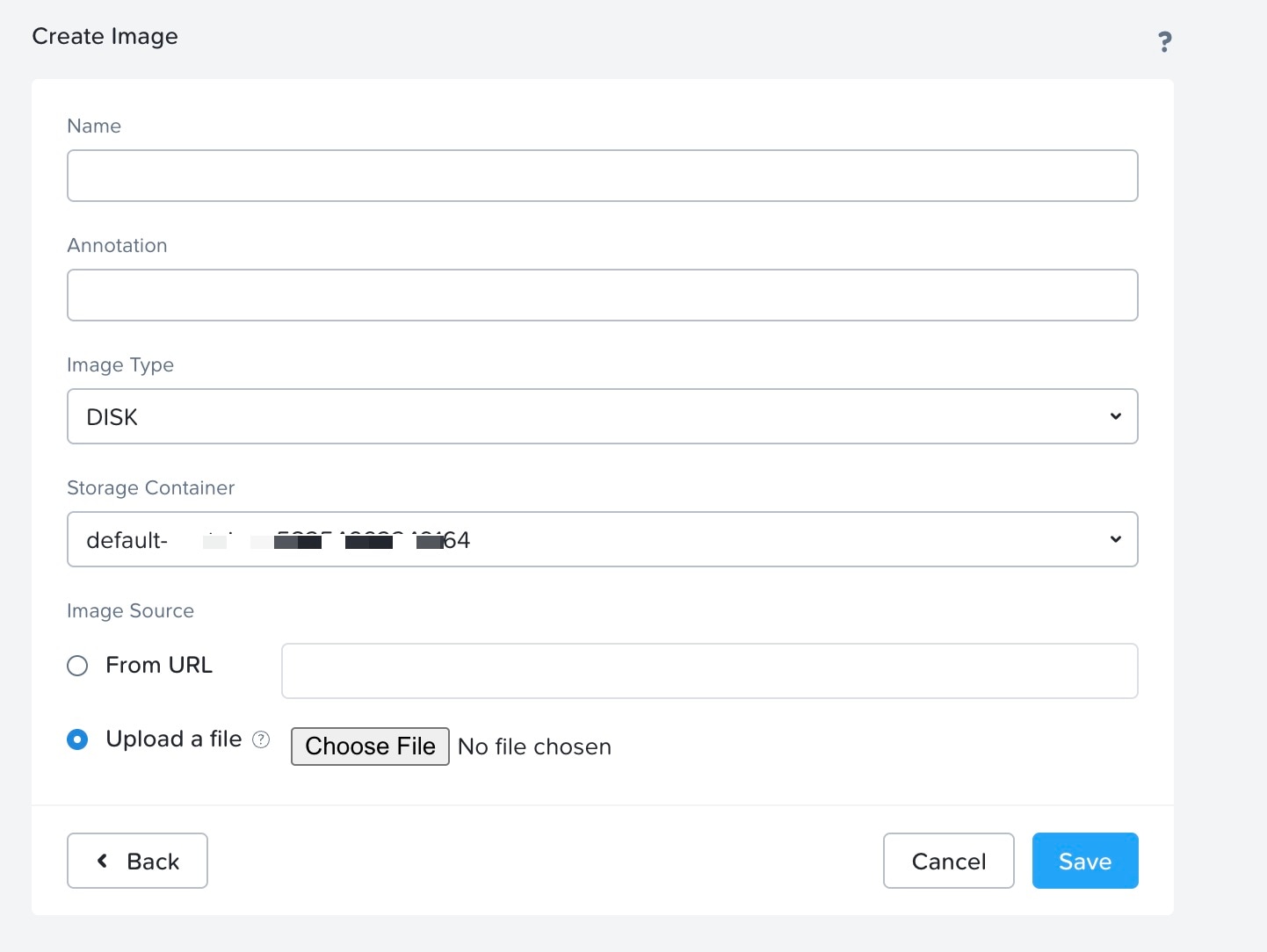
The Create Image dialog box is displayed.

Figure 2. Create Image

Step 5

In the Create Image dialog box, enter the details.

  1. Name: Enter name for the image.

  2. Annotation: Enter annotation for the image.

  3. Image Type: From the drop-down list, select image type as DISK.

  4. Storage Container: From the drop-down list, select the preferred storage container.

  5. Image Source: Select Upload a file and click Choose File to add the extracted VMDK File.

  6. Click Save.

Step 6

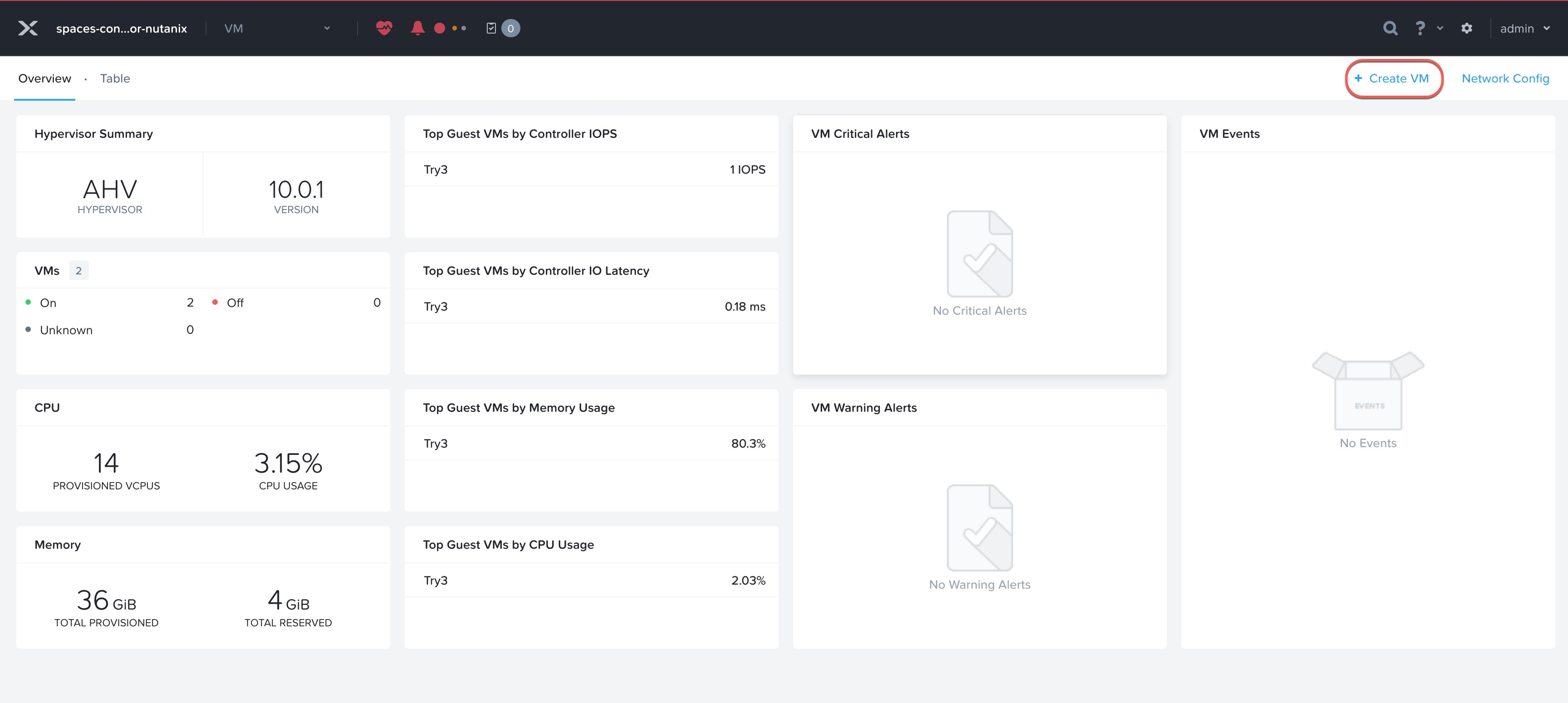
Navigate to the VM > Overview tab and click Create VM.

Figure 3. VM Overview

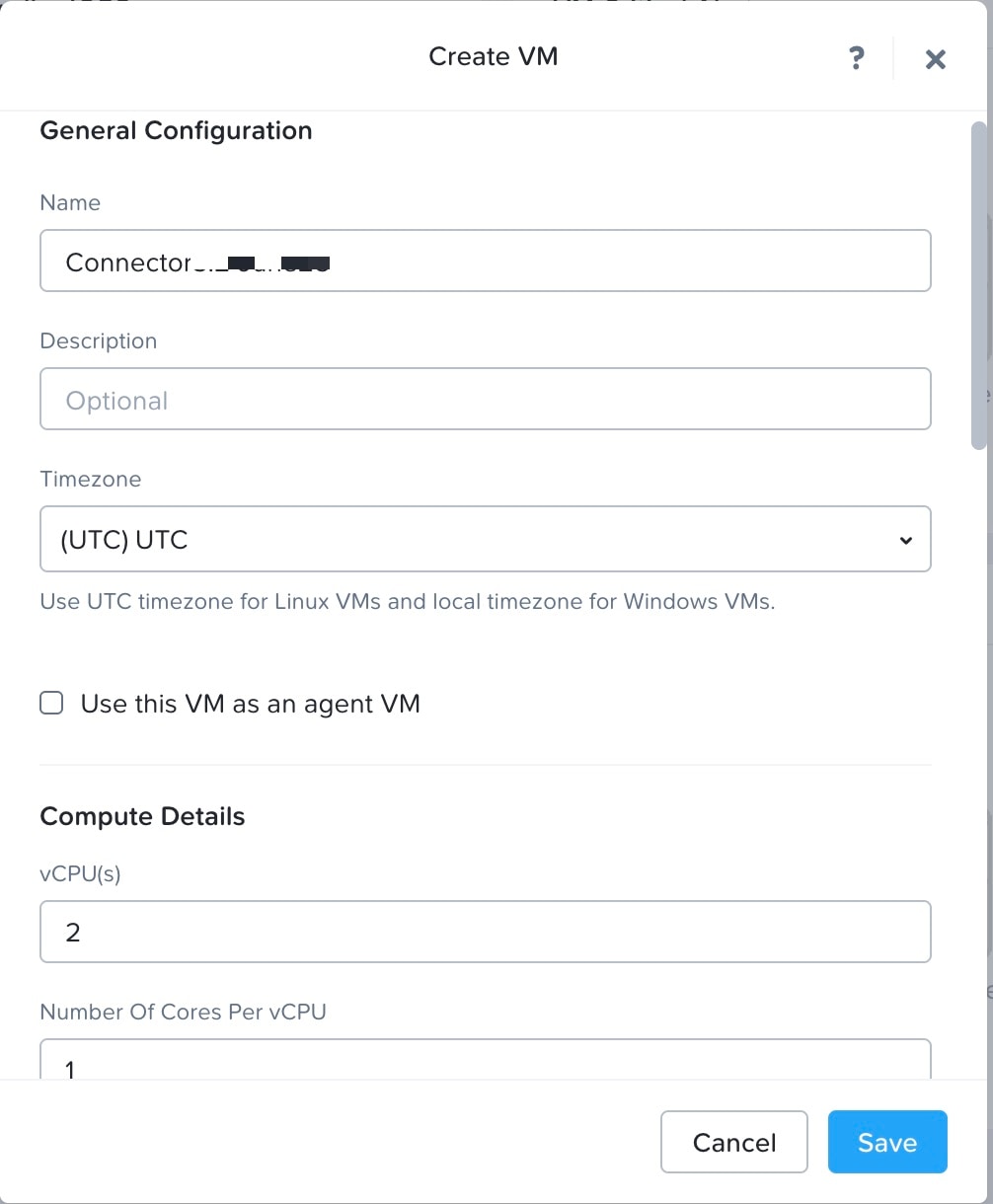
The Create VM dialog box is displayed.

Figure 4. Create VM
  1. In the Create VM dialog box, under General Configuration section, enter the details.

    • Name: Enter the name for the new VM.

    • (Optional) Description: Enter the description for the new VM.

    • Timezone: From the drop-down list, select the timezone.

    • (Optional) Use this VM as an agent VM: Check this option to use the VM as an agent.

    • Compute Details: Enter the vCPU(s), No of Cores per vCPU details and Memory.

    • Boot Configuration Mode: From the drop-down list, select UEFI as the boot configuration mode.

  2. Click Add Disk.

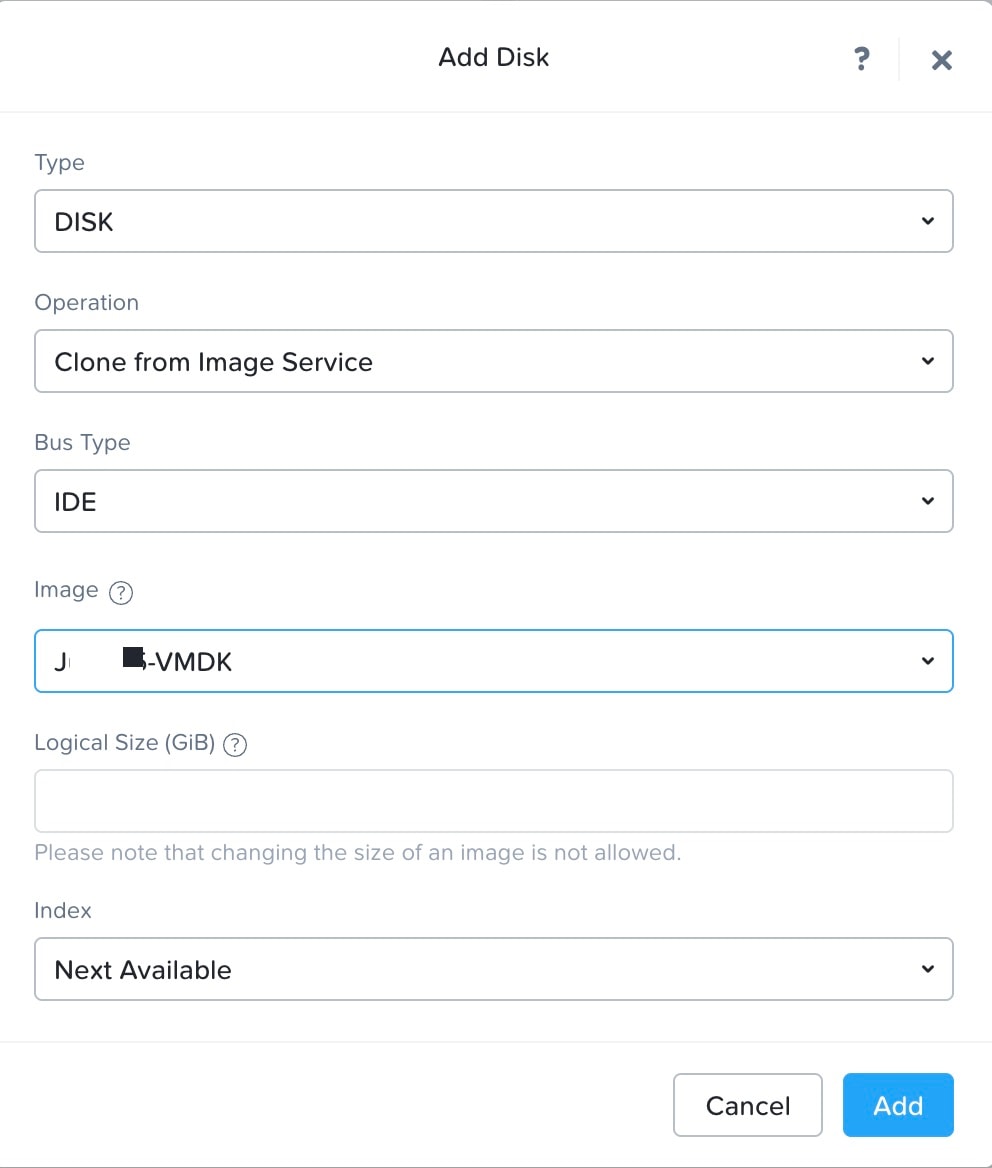
    The Add Disk dialog box is displayed.

    Figure 5. Add Disk
  3. In the Add Disk dialog box, enter the details.

    • Type: From the drop-down list, select DISK as type.

    • Operation: From the drop-down list, select Clone from Image Service as operation.

    • Bus Type: From the drop-down list, select, IDE as the bus type.

    • Image: From the drop-down list, select the VMDK image uploaded previously.

    • Logical Size (GiB): Displays the VMDK file size. You cannot edit the image logical size value.

    • Index: From the drop-down list, select Next Available as index option.

  4. Click Add.

Step 7

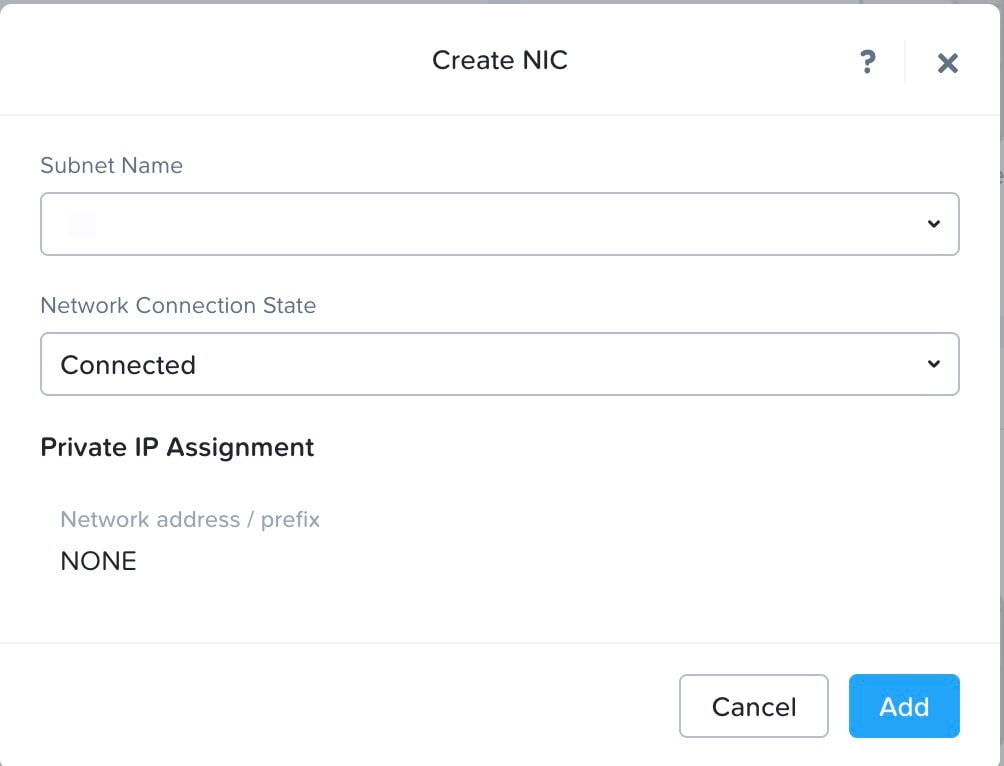
Click Add New NIC.

The Create NIC dialog box is displayed.

Figure 6. Create NIC
  1. In the Create NIC dialog box, enter the details.

    • Subnet Name: From the drop-down list, select the appropriate subnet.

    • Network Connection State: From the drop-down list, select Connected as the network connection state.

    • Private IP Assignment: Enter Network address / prefix as required.

  2. Click Add.

Step 8

Click Save to save and store the new VM configuration.


What to do next

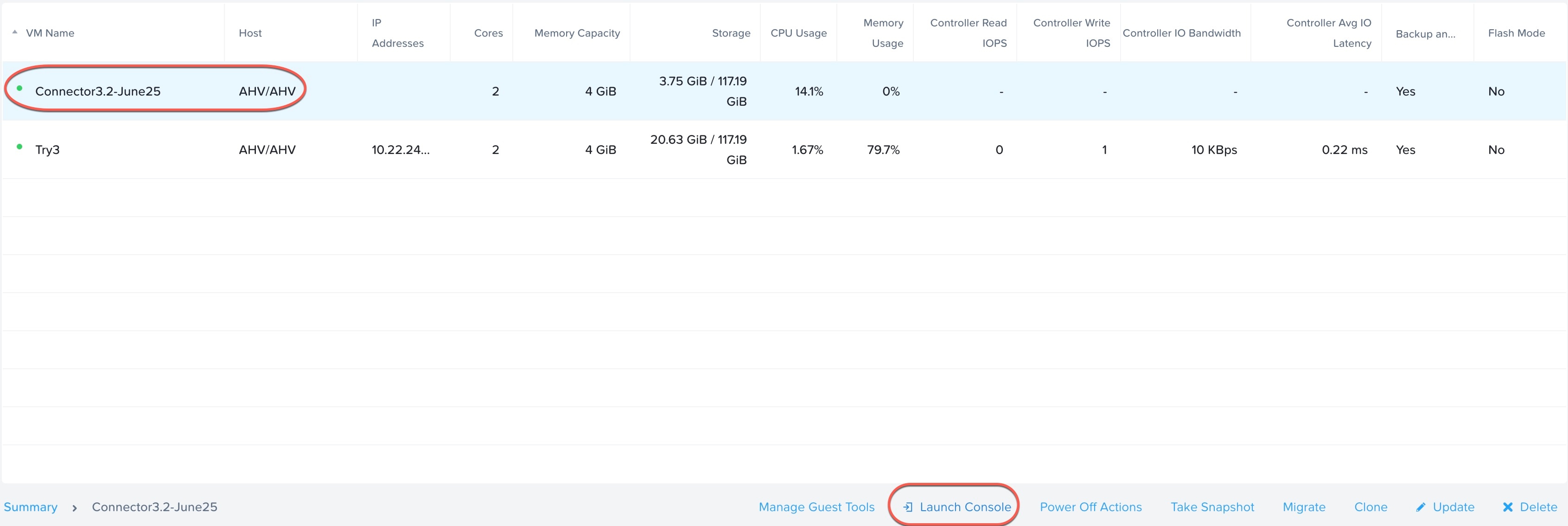
To power on the new VM, navigate to VM > Table tab > Power on the created VM. After the VM is powered on, select the VM and click Launch Console.
Figure 7. Launch Console

Note


For more information, see step 12 onwards in the Deploying the Connector 3 OVA (Single Interface).