Troubleshooting Tools

Enable Debug Logs

This task shows you how to enable debug logs for connector. The task also shows you how to upload these logs to Cisco Spaces, if necessary.

Note


You can also enable debug log using the connectorctl service restart command.

Procedure


Step 1

Log in to Cisco Spaces.

Note


The Cisco Spaces URL is region-dependent.

Step 2

From the left navigation pane, choose Setup > Wireless Networks.

Step 3

In the 2. Configure Spaces Connector area, click View Connectors.

Step 4

Click a connector from the list of connectors that are displayed.

Step 5

In the SUMMARY window that is displayed, click Troubleshoot Connector.

Step 6

In the Troubleshoot Connector window that is displayed, you can see that logs can be enabled by a service. Click the respective Enable Debug Mode of a service if not enabled already.

After being enabled, connector starts collecting debug logs for that service, and these logs are stored locally on connector.

Step 7

(Optional) To upload the logs to the Cisco Spaces dashboard, click Upload Logs to Cloud.


Resetting the Password

This task shows you how to recover your connector GUI password.

Procedure


Step 1

Log in to Cisco Spaces.

Note


The Cisco Spaces URL is region-dependent.

Step 2

From the left navigation pane of the Cisco Spaces dashboard, choose Setup > Wireless Networks.

Step 3

In the 2. Configure Spaces Connector area, click View Connectors.

Step 4

Click a connector from the list of connectors that are displayed.

Step 5

In the SUMMARY window that is displayed, click Troubleshoot Connector.

Step 6

In the Troubleshoot Connector window that is displayed, click Password Reset Key .

Step 7

In the Password Reset Key window that is displayed, click Copy The Key.

Save the copied key on a notepad.

Step 8

Open the connector GUI, and click Forgot Password.

Step 9

In the Password Reset Key field, enter the key copied in theprevious step.

Step 10

In the New Password field, enter a new password.


Monitor Service Metrics

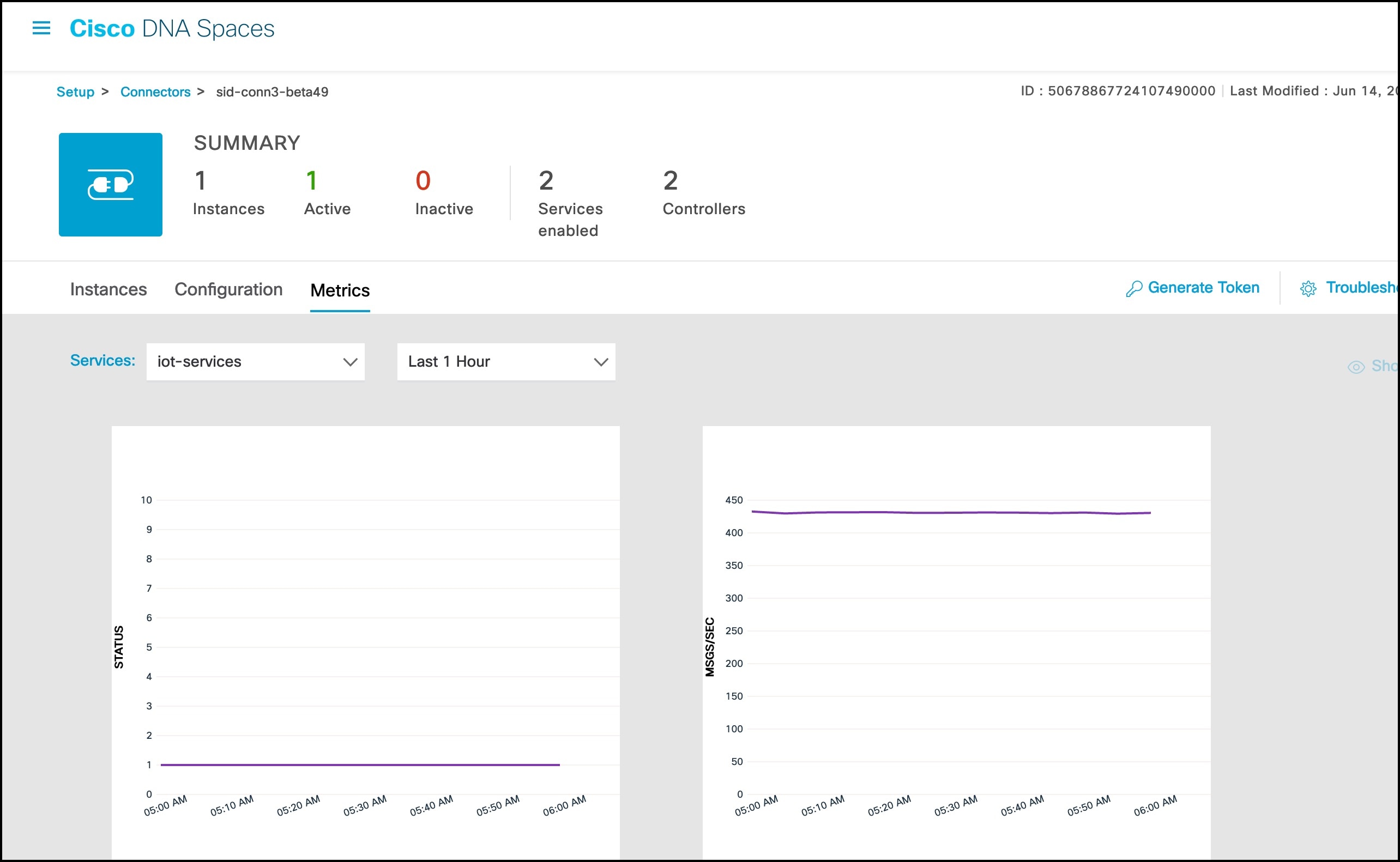
You can monitor the various metrics of the different services that are installed on connector from the Cisco Spaces dashboard.

Procedure


Step 1

From the Cisco Spaces dashboard, navigate to Setup > Wireless Networks.

Step 2

In the Connect via Spaces Connector area titled Step 2 Configure Spaces Connector, click View Connectors.

Step 3

In the Connectors window that opens up, click a connector of your choice.

Step 4

In the connector details window that is displayed, click the Metrics tab.

Step 5

From the Services drop-down list, choose a service that is installed on this connector to observe the metrics that are related to the service. You can also choose the period for which the metrics is collected.

Figure 1. Observing Service Metrics