Cisco Spaces: Connector Azure cloud platform support
The Cisco Spaces: Connector 3.2 June, 2025 release supports the Azure cloud platform. To deploy the Azure Connector virtual machine (VM), you need the necessary access to Azure cloud platform.
The documentation set for this product strives to use bias-free language. For the purposes of this documentation set, bias-free is defined as language that does not imply discrimination based on age, disability, gender, racial identity, ethnic identity, sexual orientation, socioeconomic status, and intersectionality. Exceptions may be present in the documentation due to language that is hardcoded in the user interfaces of the product software, language used based on RFP documentation, or language that is used by a referenced third-party product. Learn more about how Cisco is using Inclusive Language.
The Cisco Spaces: Connector 3.2 June, 2025 release supports the Azure cloud platform. To deploy the Azure Connector virtual machine (VM), you need the necessary access to Azure cloud platform.
Follow the steps to setup a connector VM.
|
Step 1 |
Log in to your Azure portal. |
||
|
Step 2 |
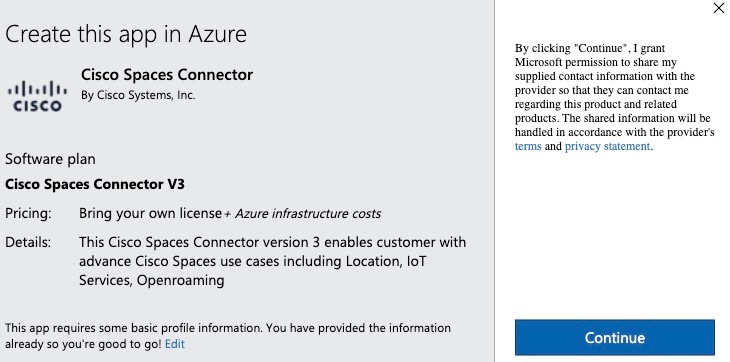
In the Azure Marketplace, search for the latest connector release and click . 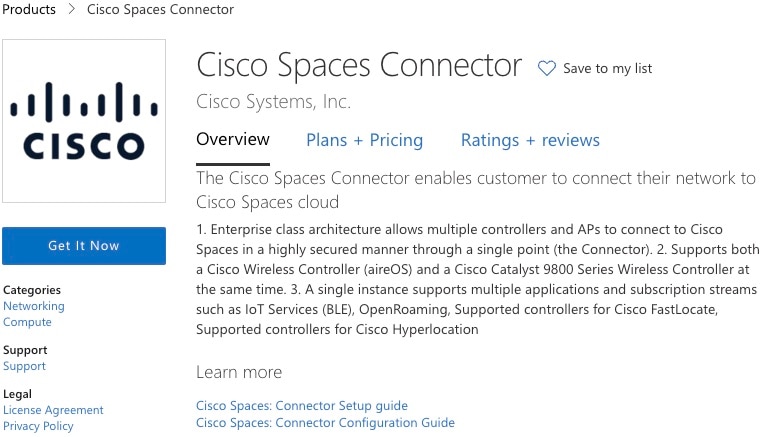
|
||
|
Step 3 |
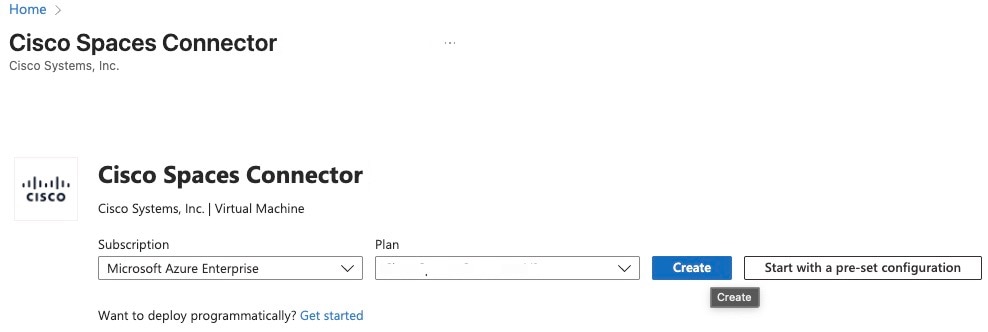
In the Cisco Spaces: Connector preview page, perform these steps:
|
||
|
Step 4 |
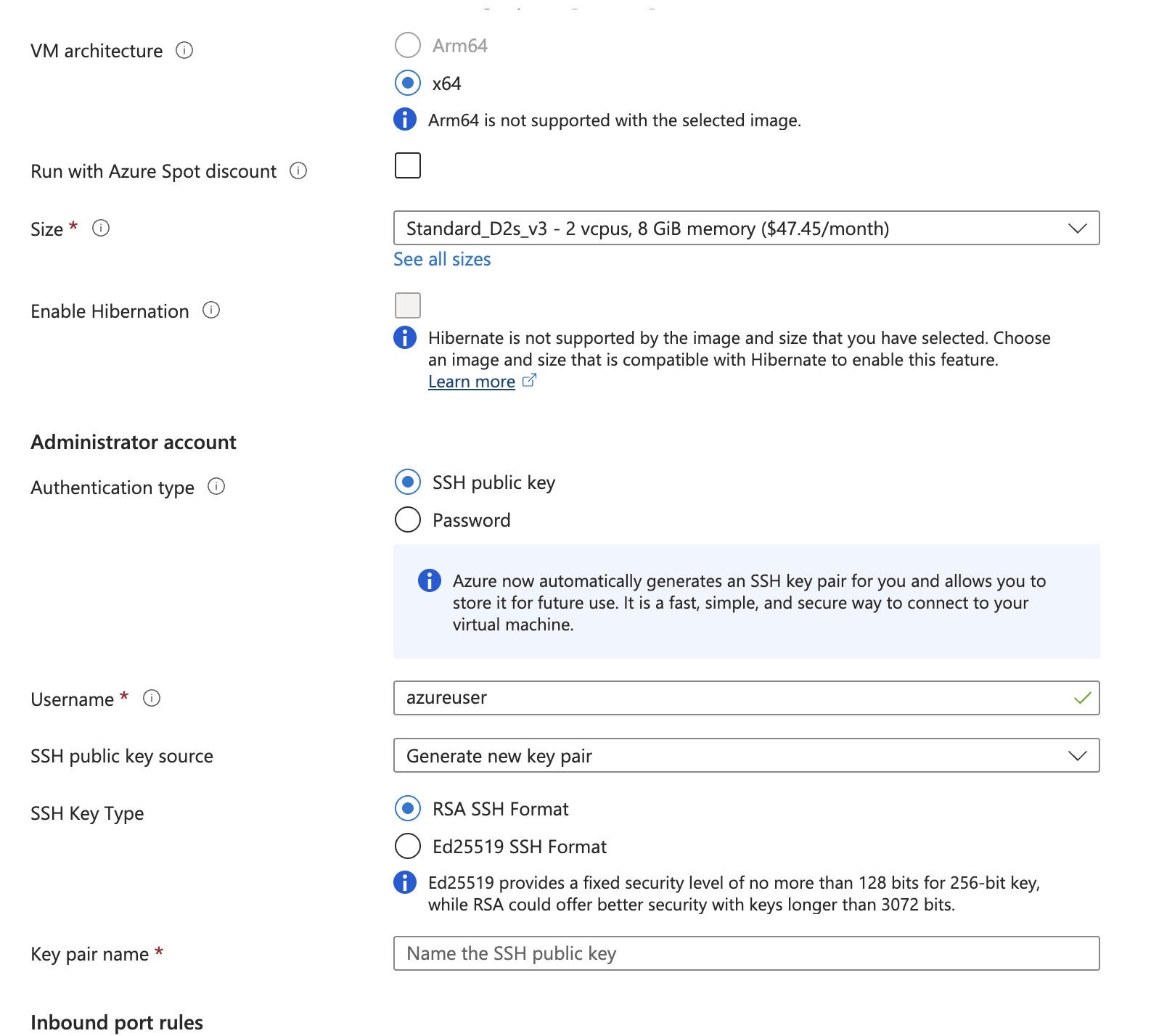
In the Create a virtual machine window, under the Basics tab, perform these steps: 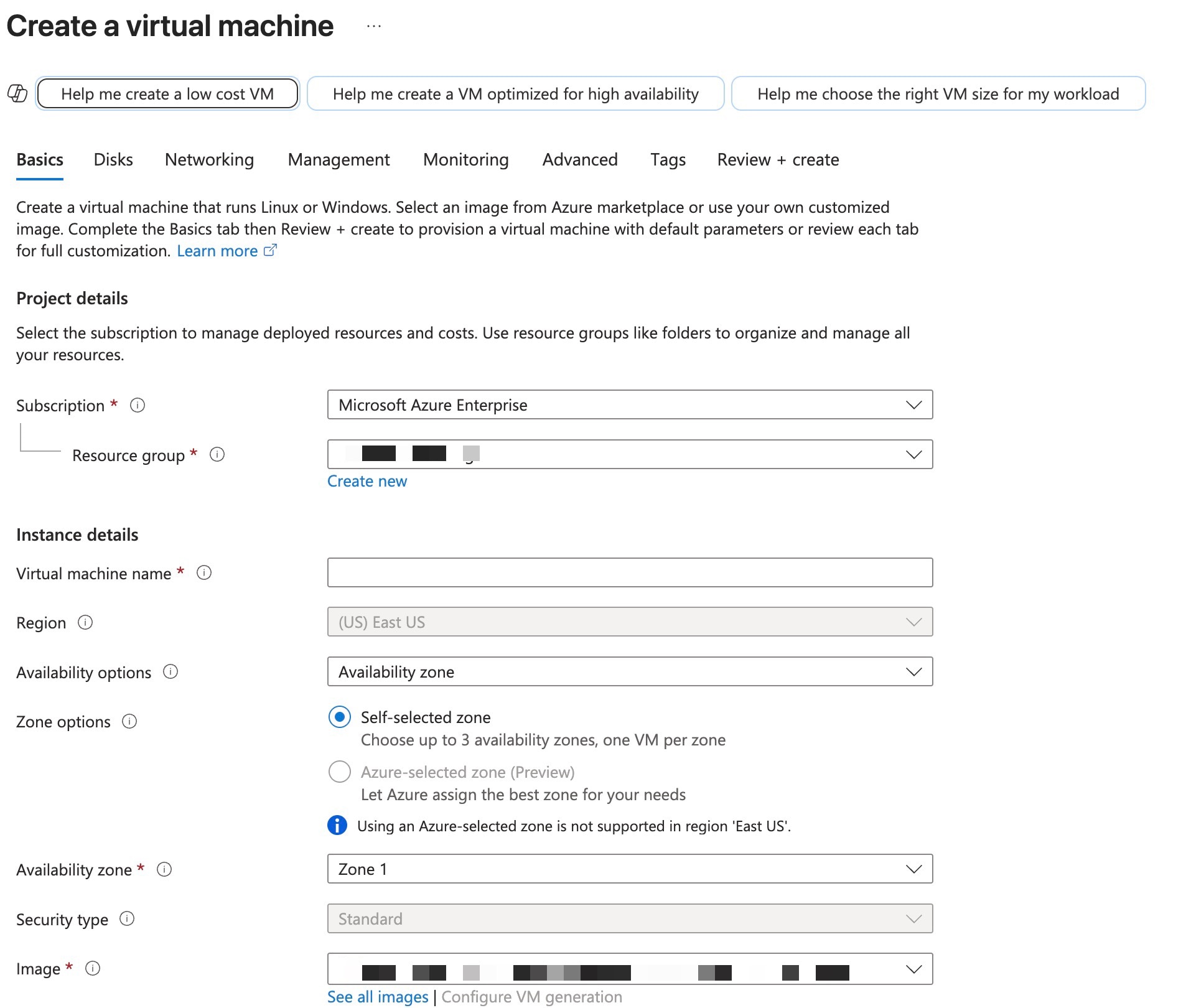
|
||
|
Step 5 |
In the Create a virtual machine window, perform these steps under the Networking tab: 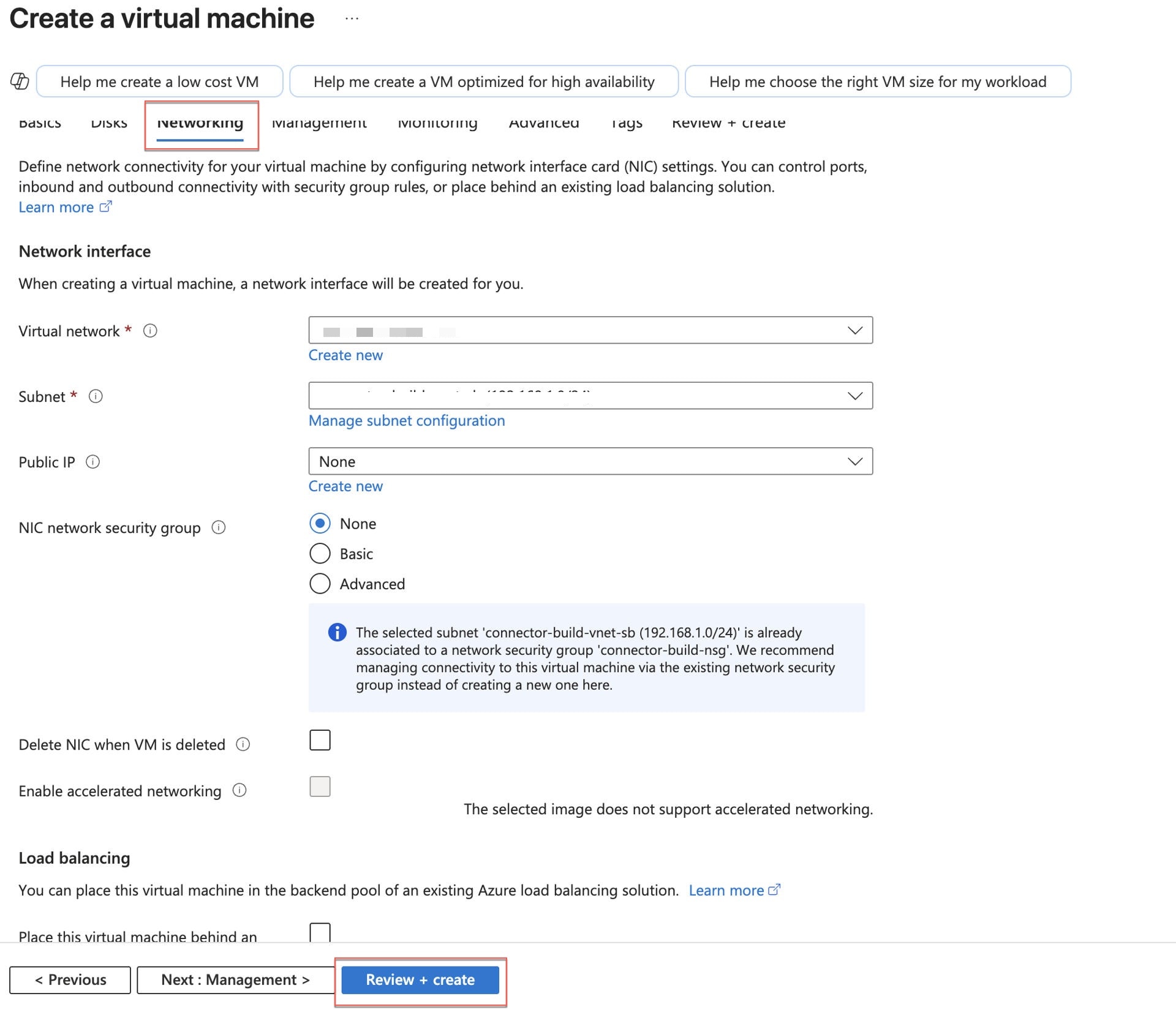
|
||
|
Step 6 |
To change the permission of the downloaded key, run the command: Example: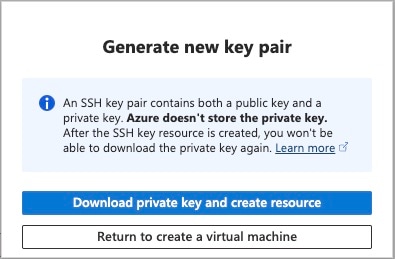
|
||
|
Step 7 |
SSH to the connector as azureuser using the public key. Example: |
||
|
Step 8 |
Enter the password for the Cisco Spaces administrator (spacesadmin). 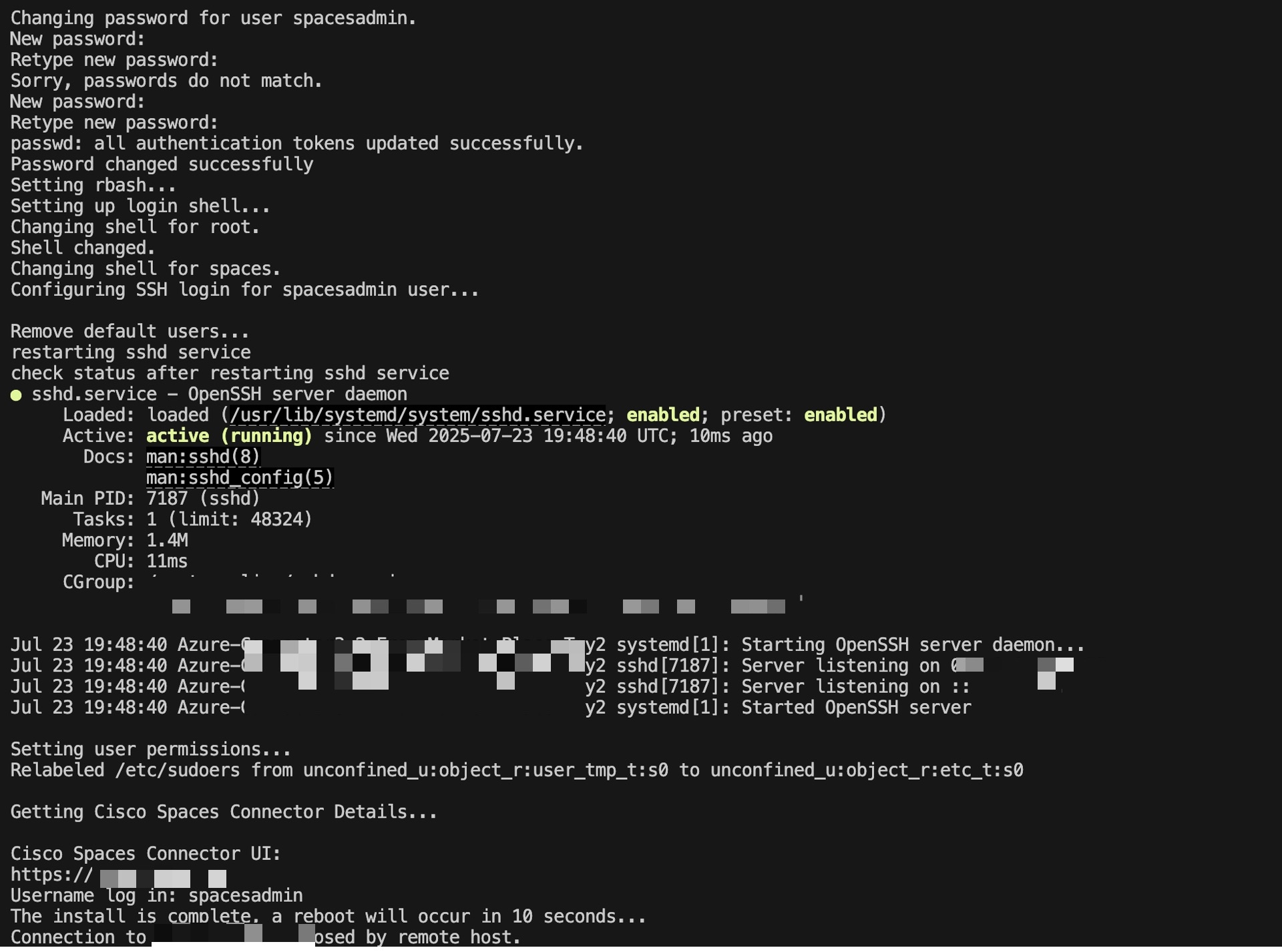
|


 Feedback