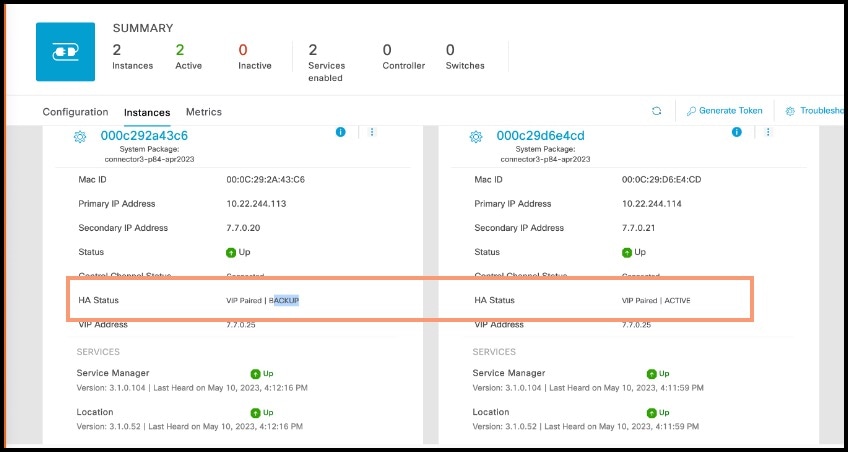
High Availability

Configuring Connectors as VIP Paired

Cisco Spaces: Connector high availability uses Virtual Router Redundancy Protocol (VRRP) protocol to determine the state of the instance in the high availability pair. When using VIP pairing with connector 3 and deploying firewalls between the connectors, it's crucial to enable the Virtual Router Redundancy Protocol (VRRP) IP protocol 112.

Ensure that both the source and destination IP addresses match the physical IPs of the connectors. Additionally, to enable proper VRRP functionality, ensure that both connectors reside within the same layer 2 or VLAN segment.

This task shows you how to configure two connectors and pair them with a virtual IP address (VIP).


Note


  • Cisco Spaces: Connector in Amazon Web Services (AWS) and Azure Cloud does not support High Availability in the VIP Paired mode.


Before you begin

Install two different Cisco Spaces: Connectors. Configure each connector with a unique IP address.


Note


Cisco Spaces: Connector High Availability utilizes HTTPS to assess the status of its peer. When implementing VIP pairing with connector 3 and deploying firewalls between the connectors, ensure that HTTPS TCP port 443 is permitted in both directions.

Table 1. HTTPS TCP port 443 connections

Source TCP ephemeral

Destination TCP 443

Connector IP 1

Connector IP 2

Connector IP 2

Connector IP 1


Procedure


Step 1

Login to Cisco Spaces > Setup > Wireless Networks and in the Configure Spaces Connector area, click Create Connector.
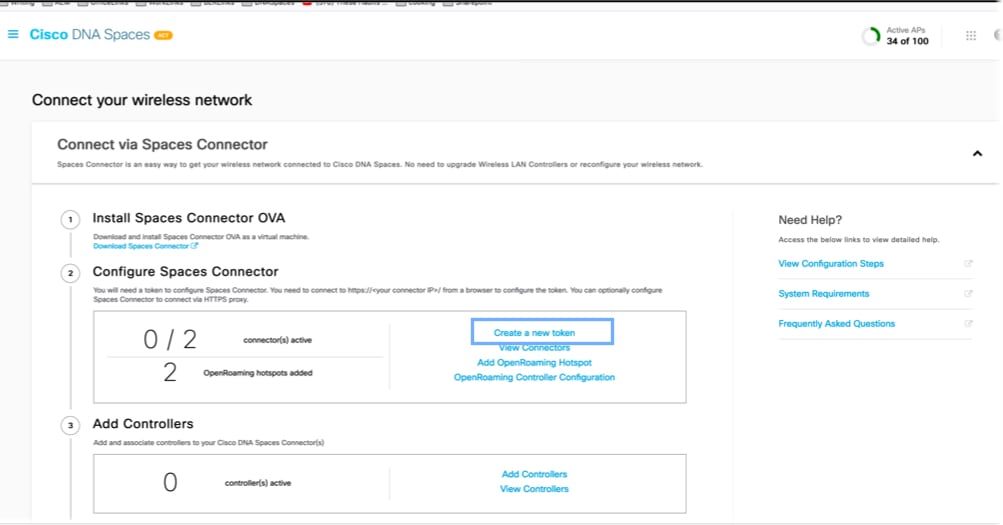
Figure 1. Create Connector

Step 2

Enter a name for the connector and choose the version.

A connector is created. Click Go to the connector Details page. 

Step 3

In the connector details page, click Generate Token in the top-right corner.
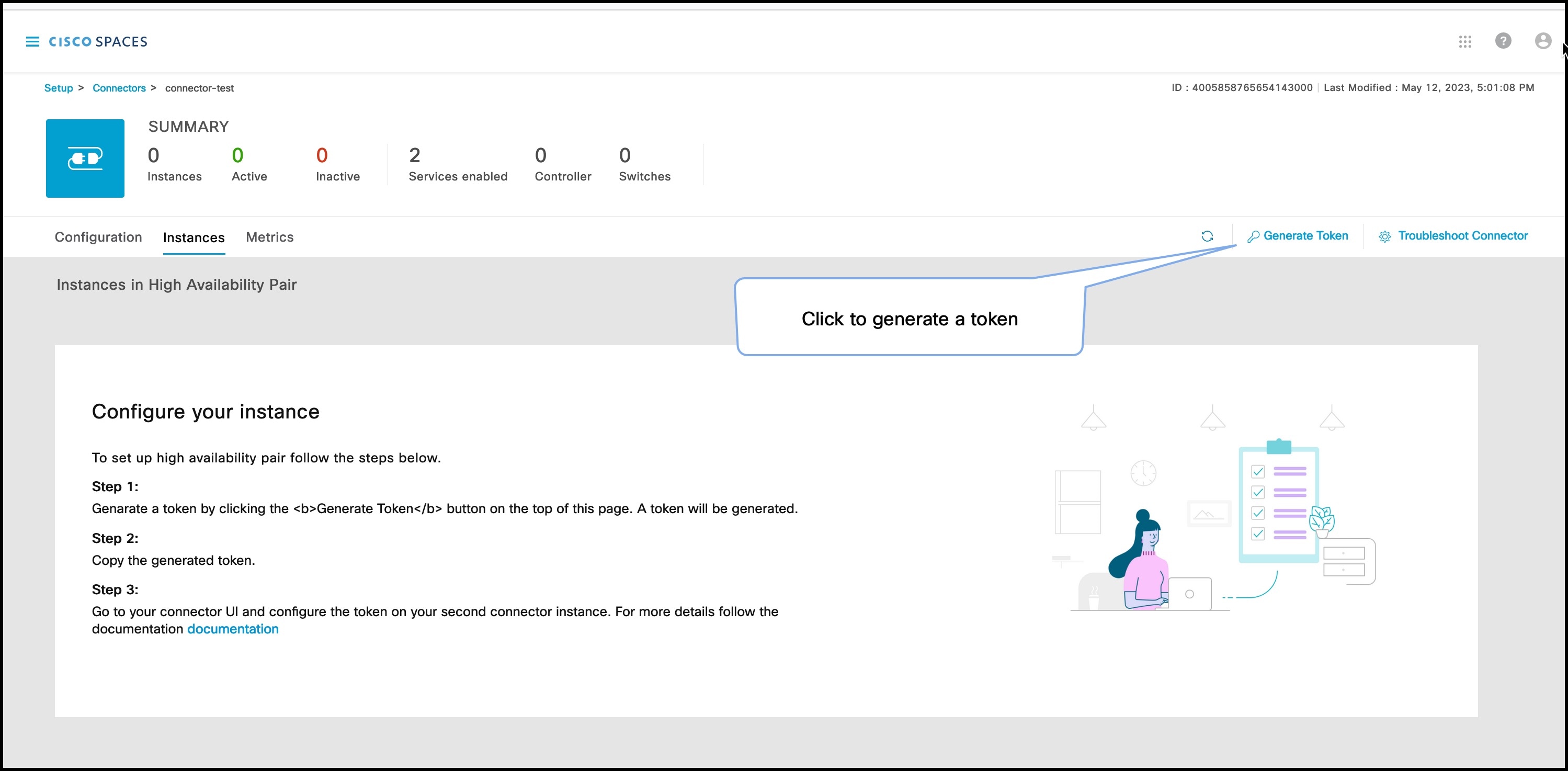
Figure 2. Generate Token
Copy the displayed token.

Step 4

Log in to the GUI of the first instance of connector and click Configure Token in the top-right corner to provision the first copied token there.

Figure 3. Configure a Token

Step 5

Log in to the GUI of the second instance of connector, and click Configure Token in the top-right corner to provision the second copied token there as well.

Figure 4. Configure a Token

Two tokens have been configured on two connector instances. You can observe that the connector ID on each instance of the connector is the same

Step 6

On each instance of the connector, observe that the value of the connector ID is the same.

Figure 5. Observe connector ID

Step 7

On the Cisco Spaces dashboard, go back to the connector details page, and click the Instances tab. Here, you can see both the connectors that you configured. Observe that the connector IP addresses are reflected here.
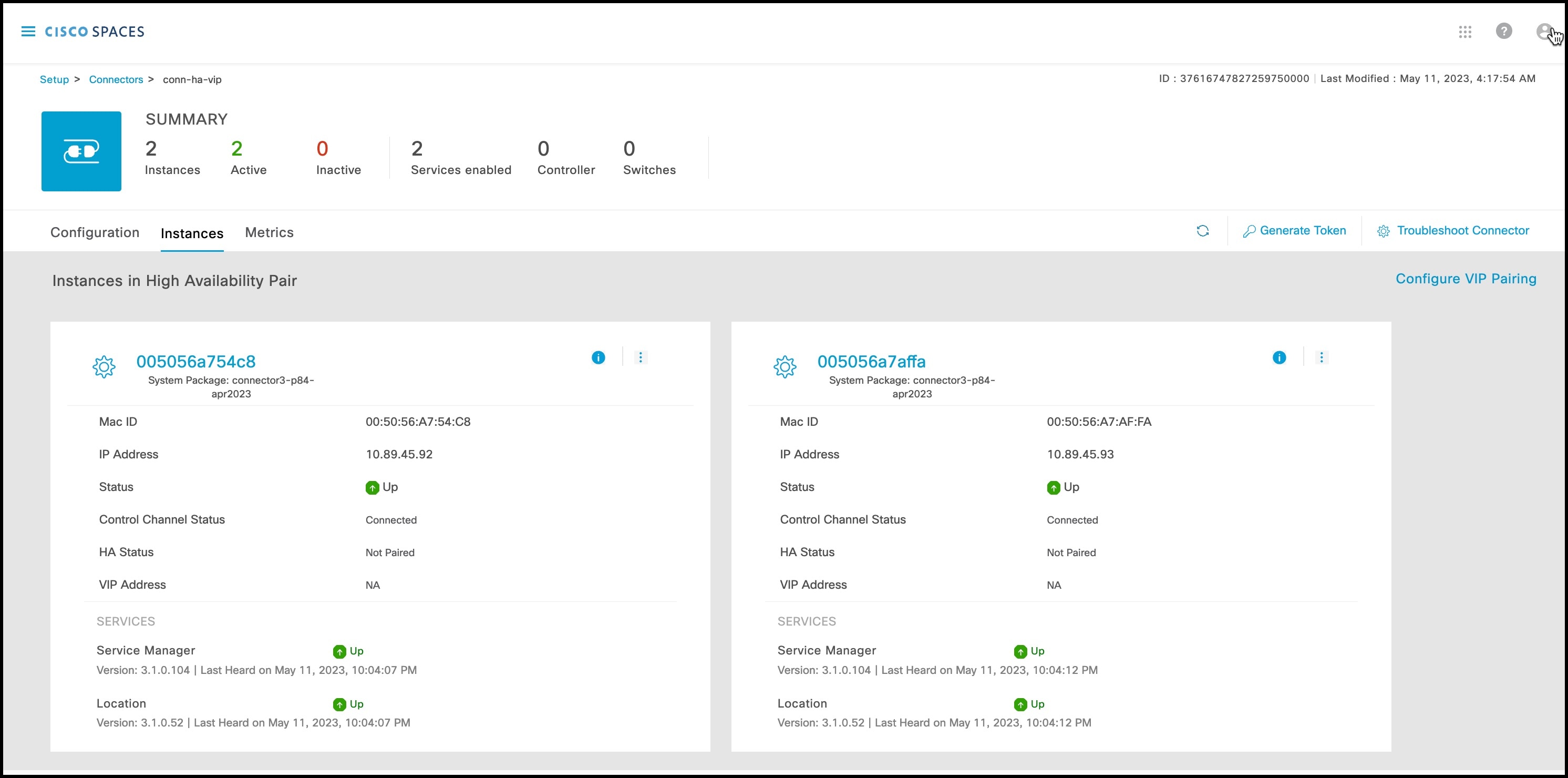
Figure 6. Cisco Spaces dashboard
The two connectors are now configured as an active-active pair.

Step 8

To configure the two connector instances as VIP-Paired, click Configure VIP Pairing in the top-right corner.
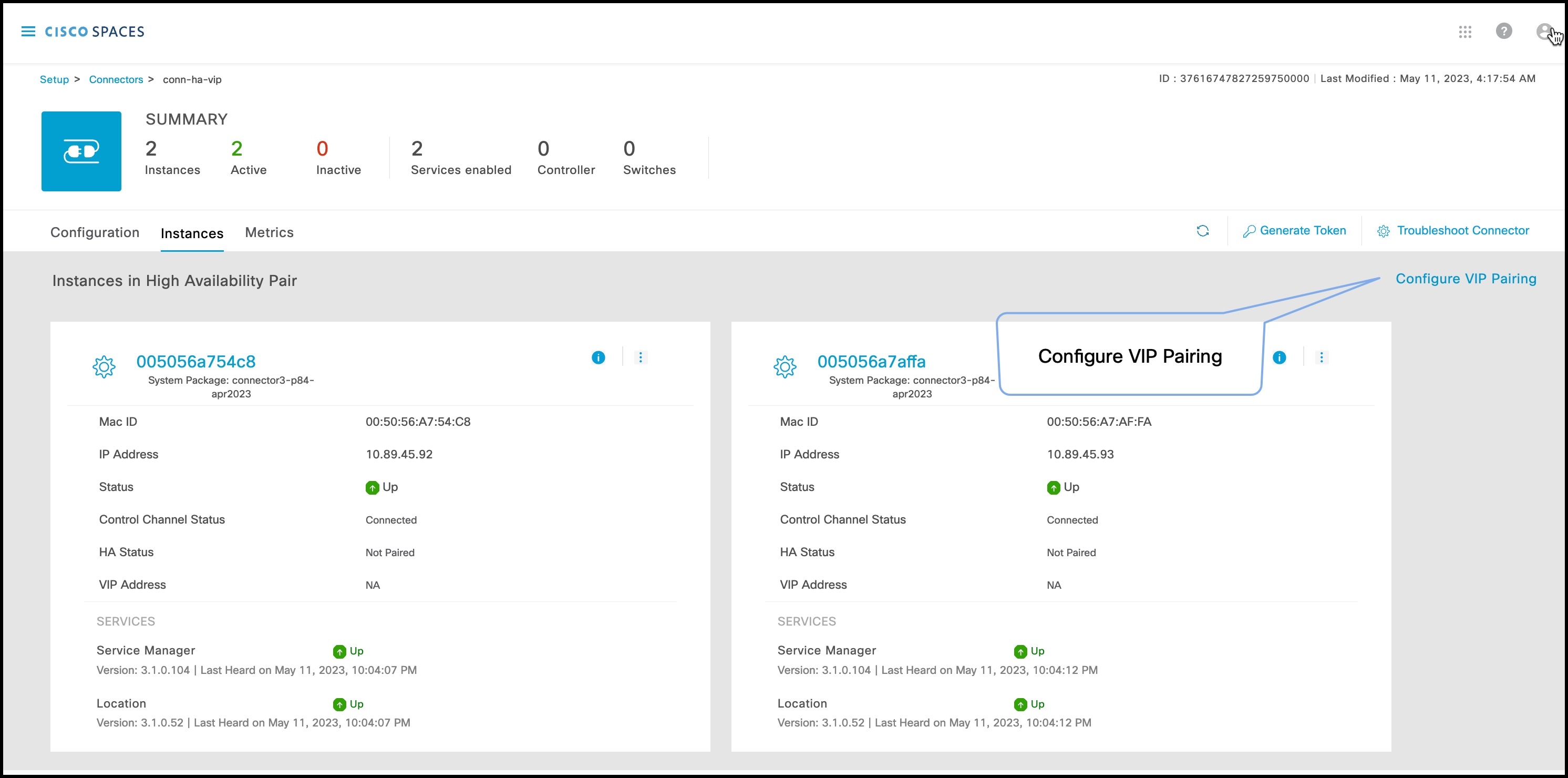
Step 9

In the Configure Virtual IP popup that is displayed, enter the Virtual IP address (VIP).  If the connector has dual interface enabled, you have to chose which interface would be used VIP pairing.
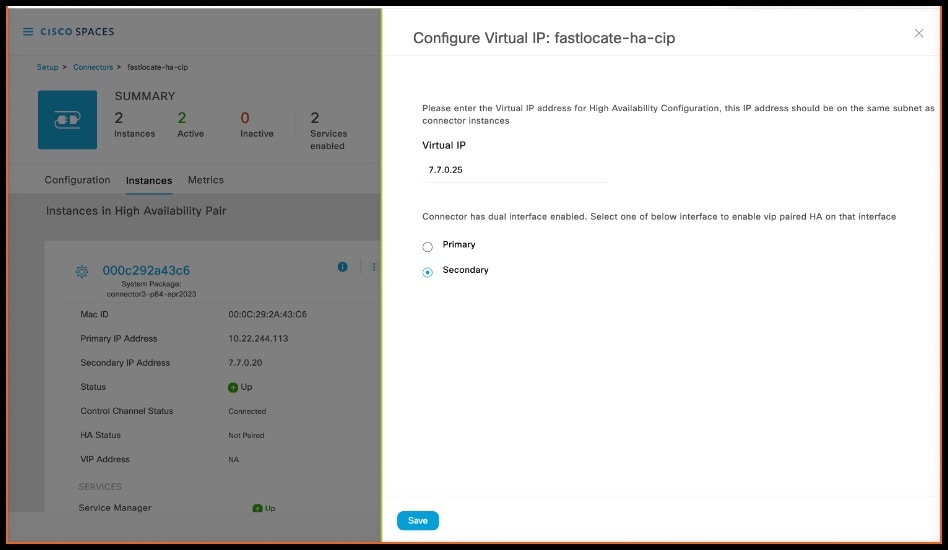
Note

 
  • Ensure that the VIP is in the same subnet as the connector IP address.

  • If you have dual-interface connector, then VIP should be from the subnet of the secondary interface.

You can now see that the instances are configured as a VIP pair.

Connector Active-Active

You can pair two Cisco Spaces: Connectors in an active-active mode to enable the uninterrupted flow of data to Cisco Spaces.

  1. You have to generate two tokens on Cisco Spaces and configure these token on two different connector instances. Each connector instance must have a unique IP address.

  2. Both connectors receive configurations from Cisco Spaces

  3. The connectors can then connect to devices and send data back to Cisco Spaces.

  4. Cisco Spaces then manages the redundant data.

  5. If one connector is down, the other connector continues to send data.

Restrictions for Active-Active

  • On the Cisco Spaces dashboard, there is no configuration required for two Connectors to be an active-active pair.

  • Both Connectors connect to all Wireless Controllers and send traffic to Cisco Spaces. The traffic from Wireless Controllers to Cisco Spaces hence increases.

  • To be an active-active Connector pair, two connectors must run OVA version 3.0 or higher.

  • There is no failover support for Hyperlocation.


    Note


    • Cisco FastLocate is re-established after failover with a delay of three to four minutes.

    • Reprovision services after a failover for active-active. For VIP-paired mode, re-provisioning is unnecessary.


  • There is no support for monitoring the Connector active-active feature.

  • You cannot run IoT Service high availability in Active - Active mode. To run IoT Service high availability, use VIP-paired mode.

Configuring Connectors in Active-Active

This task shows you how to configure two connectors as active-active.

Before you begin

Install two different instances of Cisco Spaces: Connectors of OVA version 3.0 or higher. Configure each instance of connector with a unique IP address.

Procedure


Step 1

Login to Cisco Spaces > Setup > Wireless Networks and in the Configure Spaces Connector area, click Create Connector.

Figure 7. Create Connector

Step 2

Enter a name for the connector and choose the version.

A connector is created. Click Go to the connector Details page. 

Step 3

In the connector details page, click Generate Token in the top-right corner.

Figure 8. Generate Token
Copy the displayed token.

Step 4

Repeat  Step 3 to generate and copy a second token.

Step 5

Log in to the GUI of the first instance of connector and click Configure Token in the top-right corner to provision the first copied token there.

Figure 9. Configure a Token

Step 6

Log in to the GUI of the second instance of connector, and click Configure Token in the top-right corner to provision the second copied token there as well.

Figure 10. Configure a Token

Two tokens have been configured on two connector instances. You can observe that the connector ID on each instance of the connector is the same

Step 7

On each instance of the connector, observe that the value of the connector ID is the same.

Figure 11. Observe connector ID

Step 8

On the Cisco Spaces dashboard, go back to the connector details page, and click the Instances tab. Here, you can see both the connectors that you configured. Observe that the connector IP addresses are reflected here.

Figure 12. Cisco Spaces dashboard
The two connectors are now configured as an active-active pair.