Cisco Spaces: Connector AMI

Launch Connector 3 as an EC2 Instance from AMI

This chapter provides information about how to launch a connector 3 as an EC2 instance from Amazon Machine Images (AMI), configure the connector 3 instance, and finally obtain a URL to log in to the connector connector and CLI.

Procedure


Step 1

Log in to your Amazon Web Services account and navigate to the EC2 Dashboard. In the left-navigation pane, choose Images > AMI Catalog.

Step 2

In the AMIs search area, click AWS MarketPlace AMIs and enter DNA Spaces Connector. Press Enter.
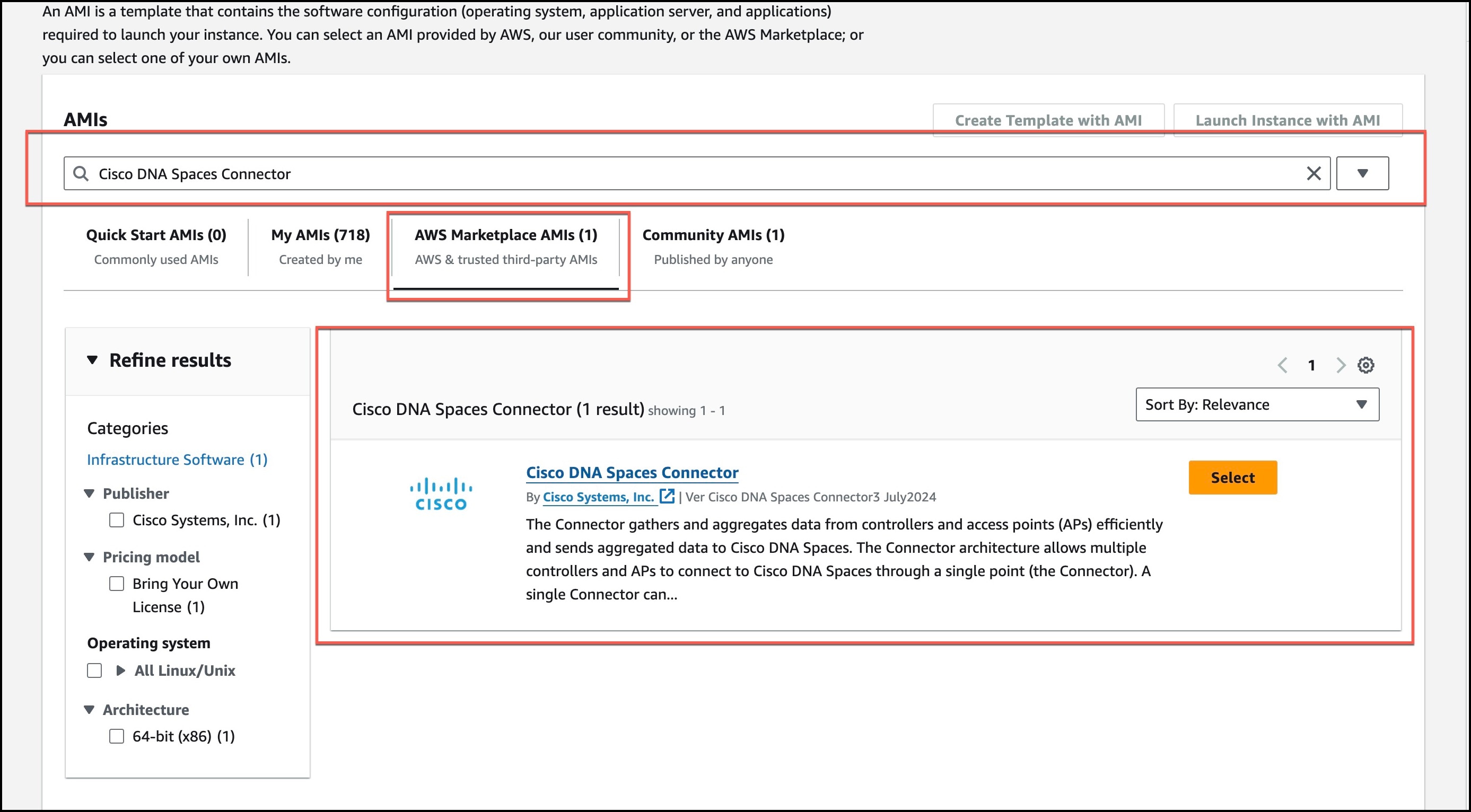
Figure 1. Configuration

Step 3

Click the displayed image and click Select.

Step 4

In the Cisco DNA Spaces Connector window displayed, click Continue.
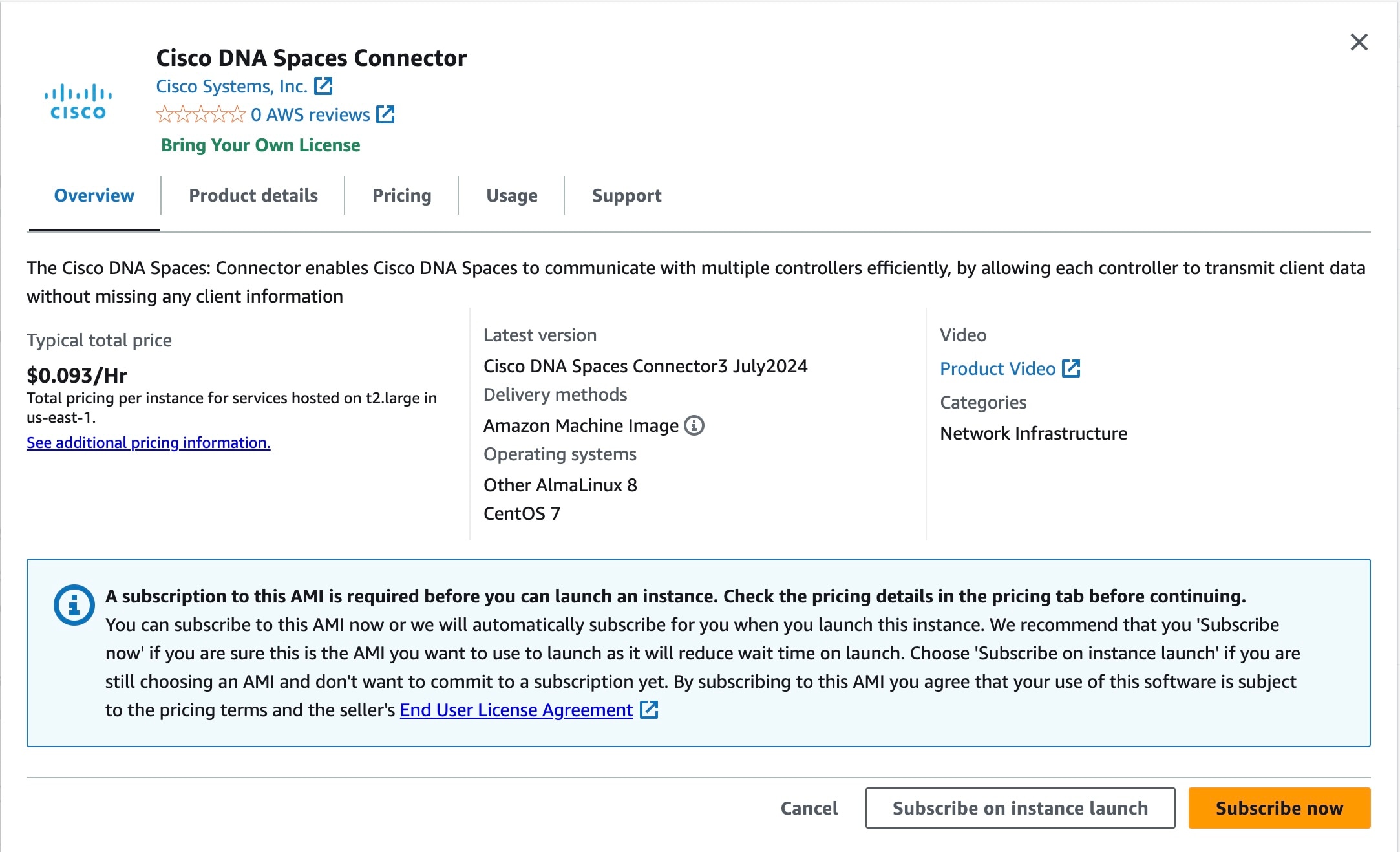
Figure 2. AWS MarketPlace AMIs

Step 5

In the Image Summary window displayed, click Launch Instance from AMI
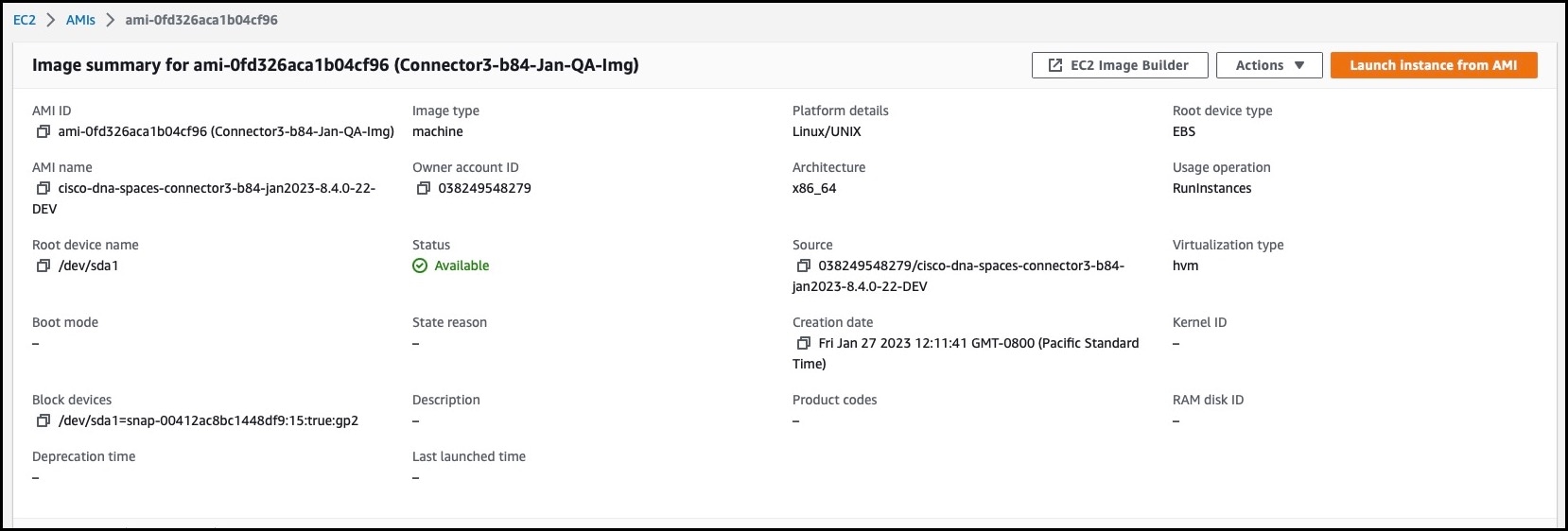
Figure 3. Launch Instance from AMI

Step 6

In the Launch an Instance window displayed, enter an instance name, and add any additional labels for your instance by clicking the Add Additional tags button.
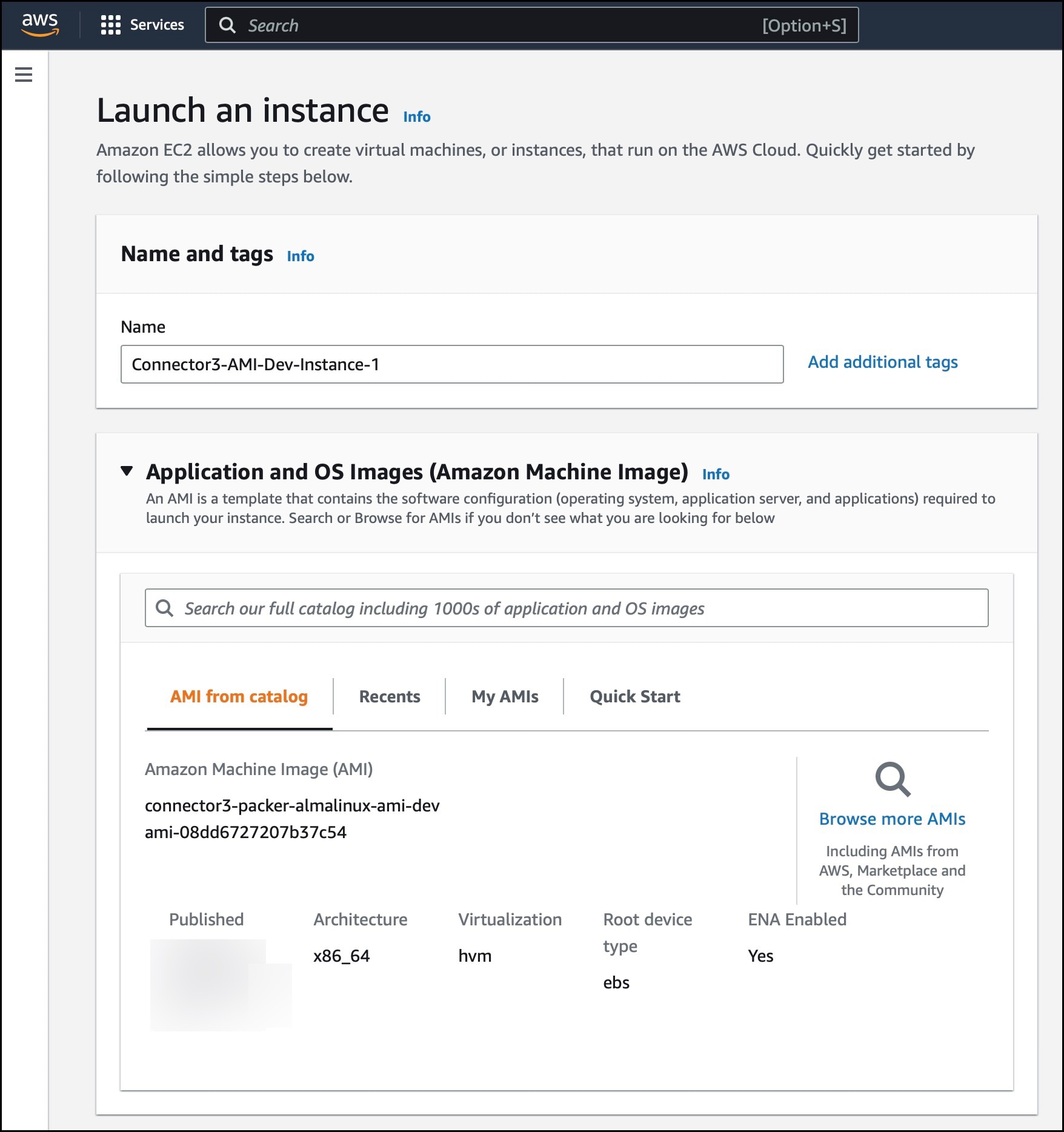
Figure 4. Launch Instance from AMI

Step 7

Choose any EC2 instance that has a minimum of 2 vCPU and 4GB Memory. Click Next: Configure Instance Details.
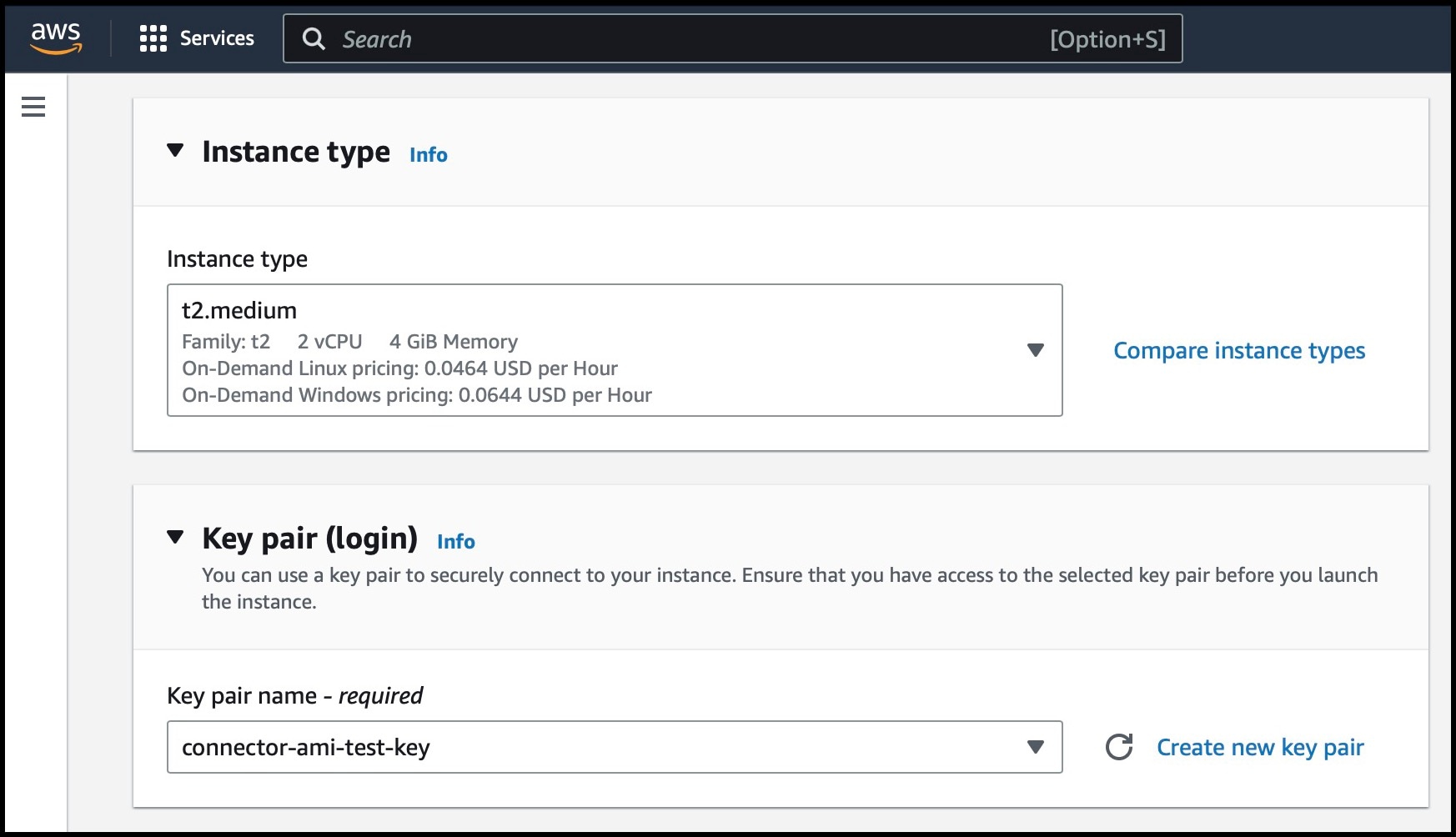
t2.medium corresponds to a standard window with 2vCPUs and 4-GB memory and is the recommended setting.
Figure 5. Configure Instance Details

Note


You can have a more advanced configuration by choosing an option with higher vCPU and memory, by choosing an instance type with one of the following configurations. If an exact match is unavailable, you can choose a configuration with the next-available vCPU or memory:

  • 4 vCPUs and 8-GB memory (referred to in this document as Advanced1)

  • 8 vCPUs and 16-GB memory (referred to in this document as Advanced2)

Step 8

Choose a Network and a Subnet. Click Next: Add Storage.
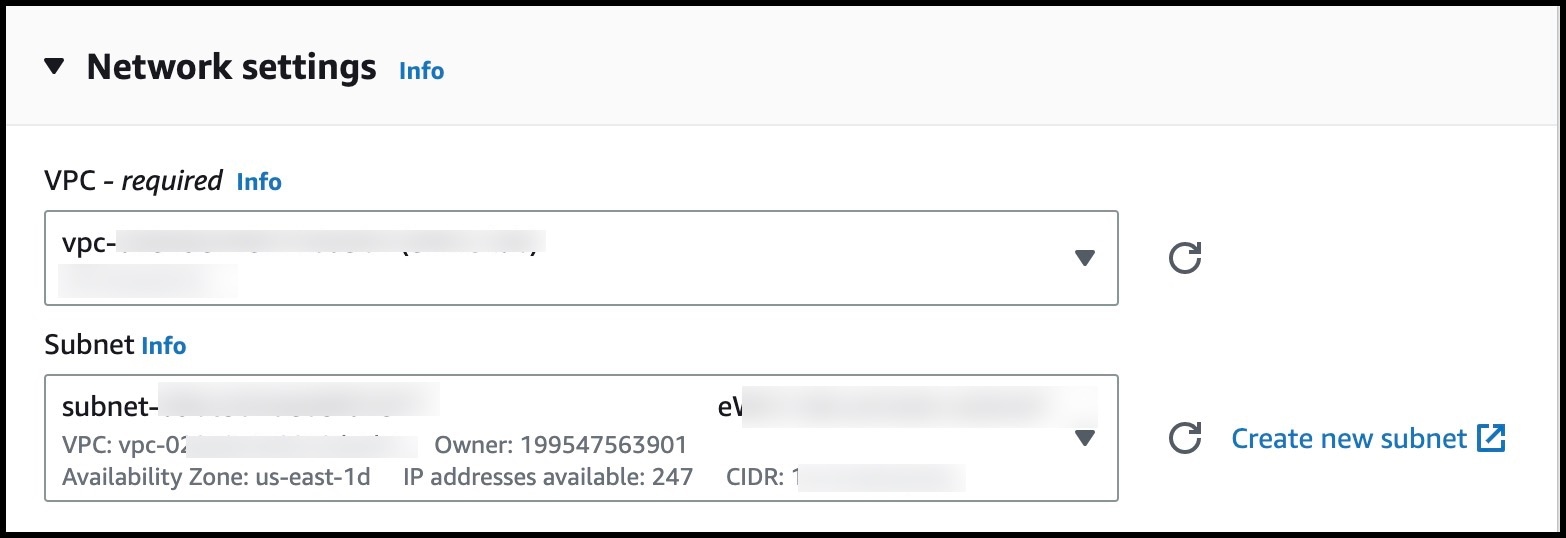
Figure 6. Add Storage

Step 9

Enter the value of Size(GB) as 120. Click Next: Configure Security Group.
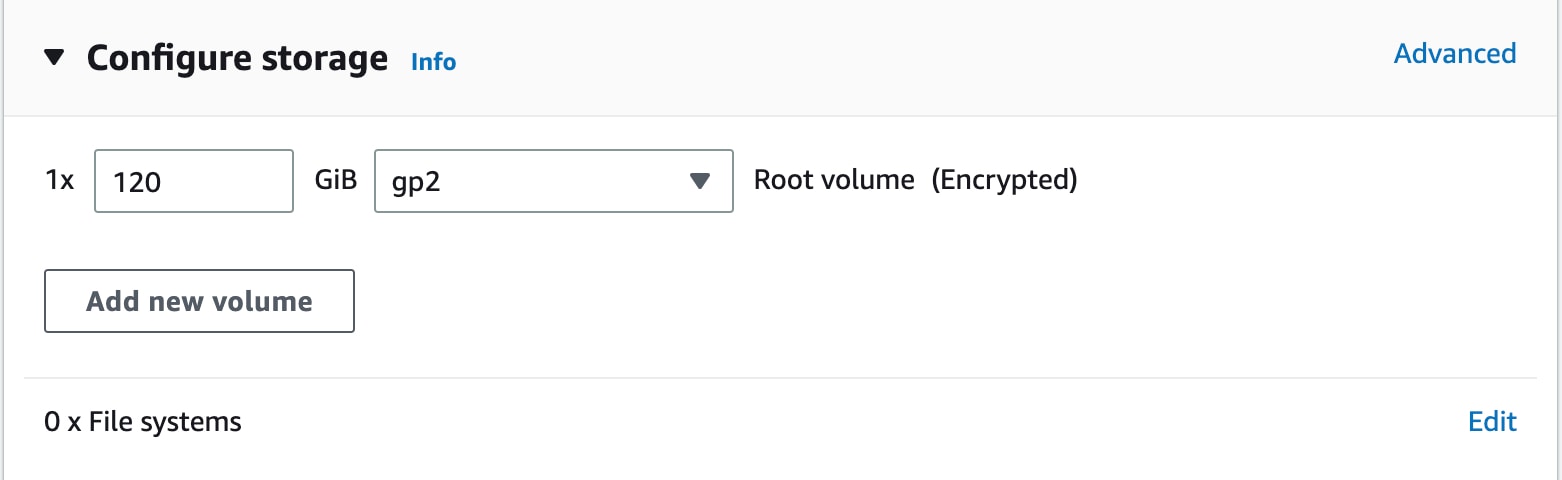
Figure 7. Configure Storage

Step 10

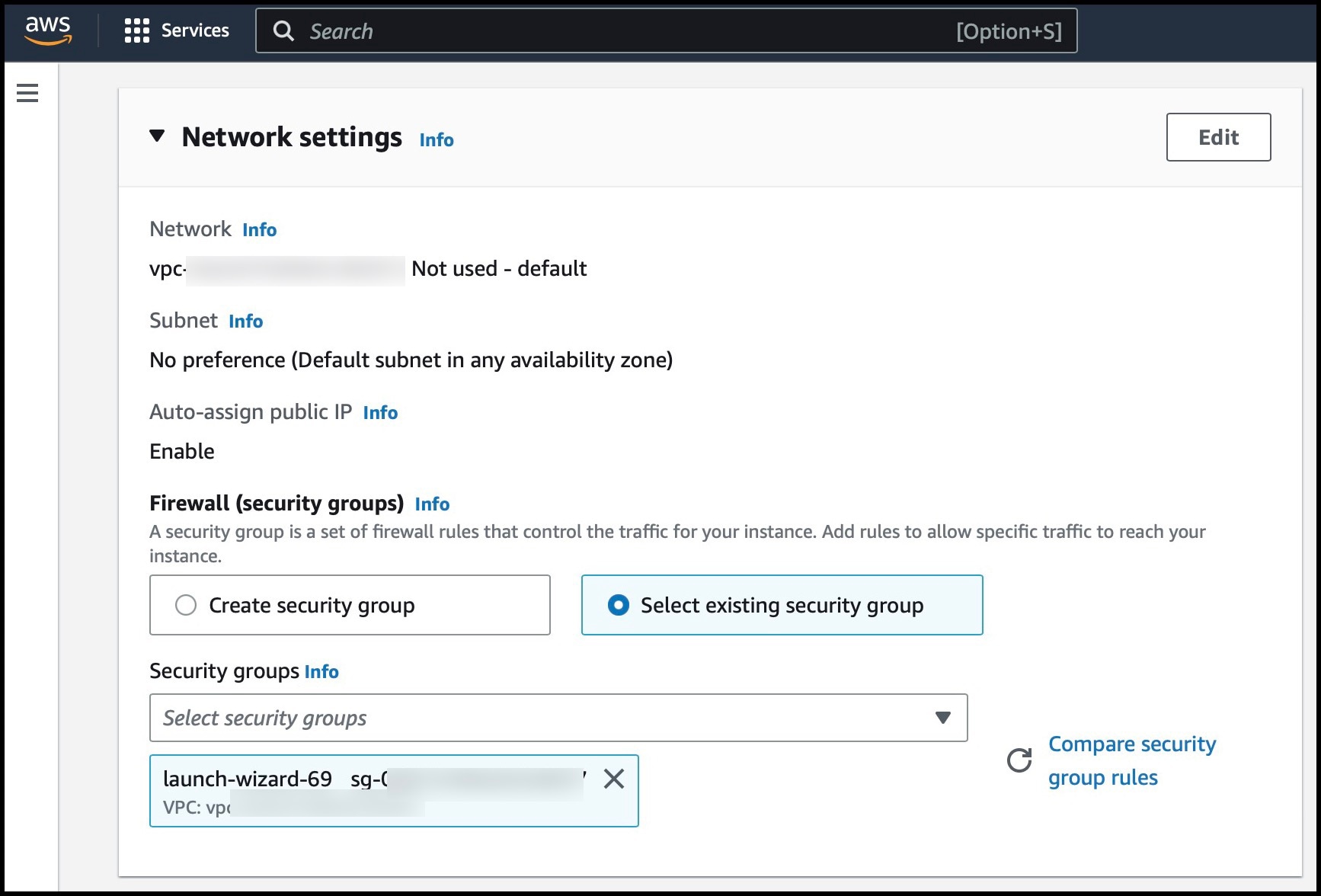
Configure a security group by following these steps:

  1. Create a new security group or modify an existing one by clicking the respective radio button.

    Figure 8. Configure Security Group
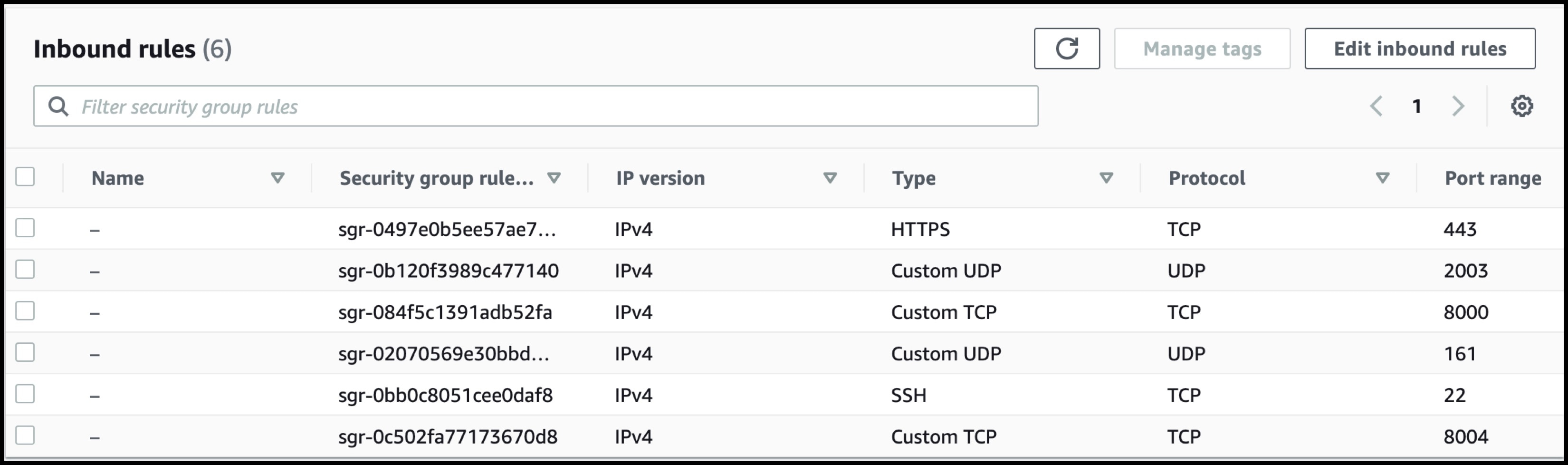
  2. Configure rules permitting inbound traffic to specific ports, as shown in the following image. You can allow inbound traffic to these ports for all IP addresses or choose to restrict them for specific IP addresses.

    Figure 9. Configure These Inbound Rules Permitting Traffic to Specific Ports

    Note


    Using an inbound rule, you can also specify the network subnet range that can access this instance (For example, through SSH).

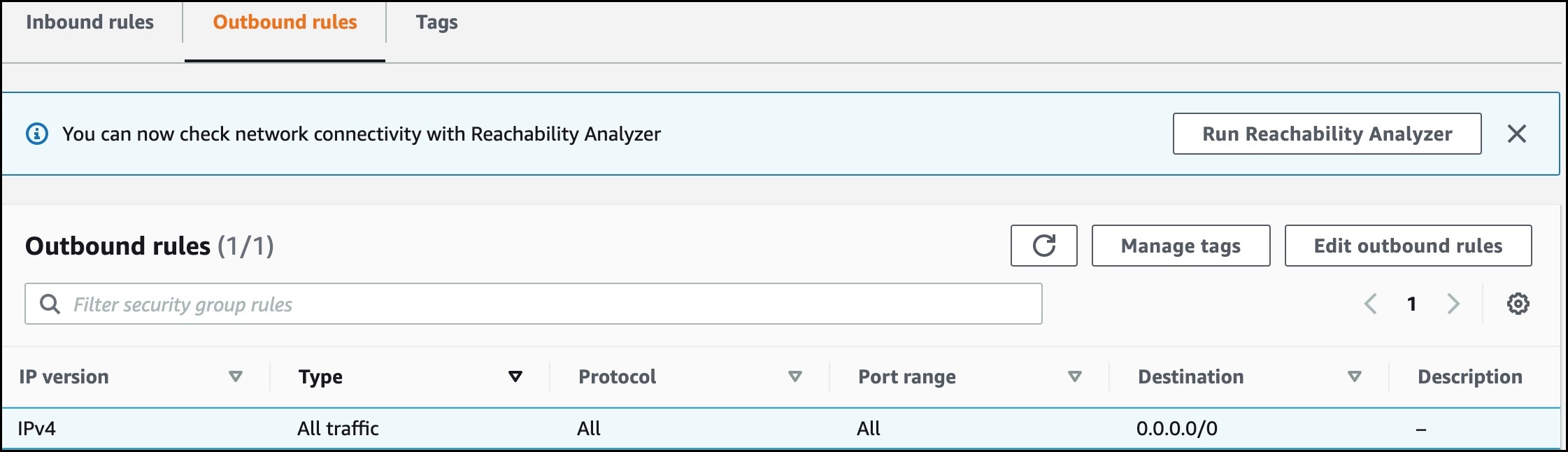
  3. Configure the outbound rule shown in the following image.

    Figure 10. Configure This Outbound Rule

    Note


    For various connector services to work, you must open specific ports. See the respective Information About Open Ports section of the connector service for more information.

Step 11

In the displayed Select an existing key pair or create a new key pair dialog box, do either of the following:
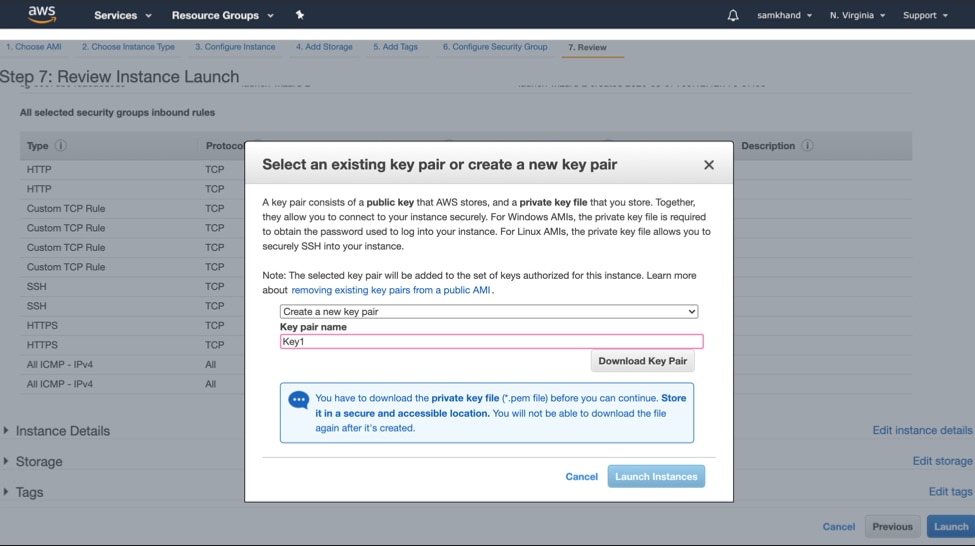
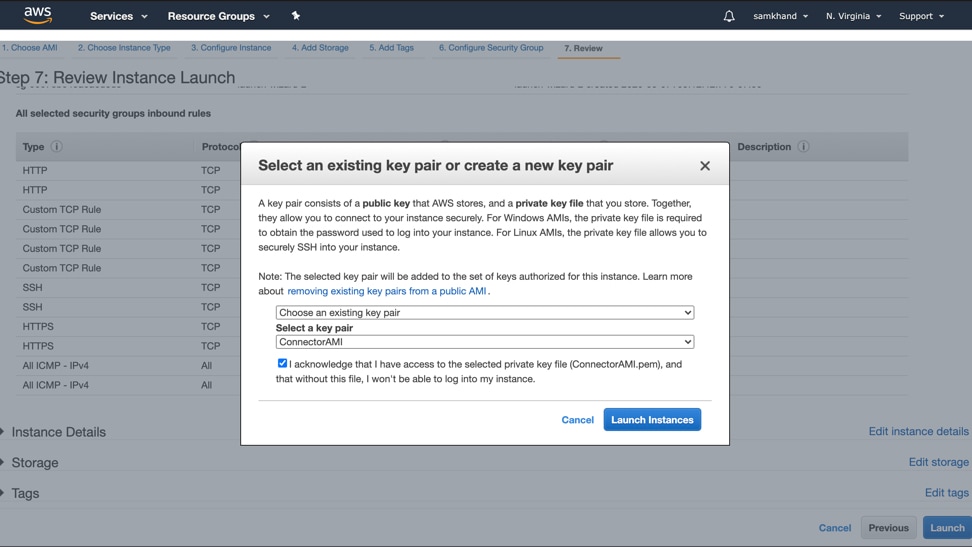
  • Choose Create a new key pair from the drop-down list. Provide a Key pair name and click Download Key Pair to download it. Then click Launch Instance to launch the instance.
  • Choose Choose an existing key pair from the drop-down list. Select the previously downloaded key pair from the Select a key Pair drop-down list. Then click Launch Instance to launch the instance.
Figure 11. Create a New Key Pair
Figure 12. Choose an Existing Key Pair

Step 12

After you have downloaded the key pair (.pem) file to your system, navigate to the file location. Configure appropriate permissions for the .PEM file using the chmod command.

chmod 400 /path/to/MyAccessKey1.pem

Step 13

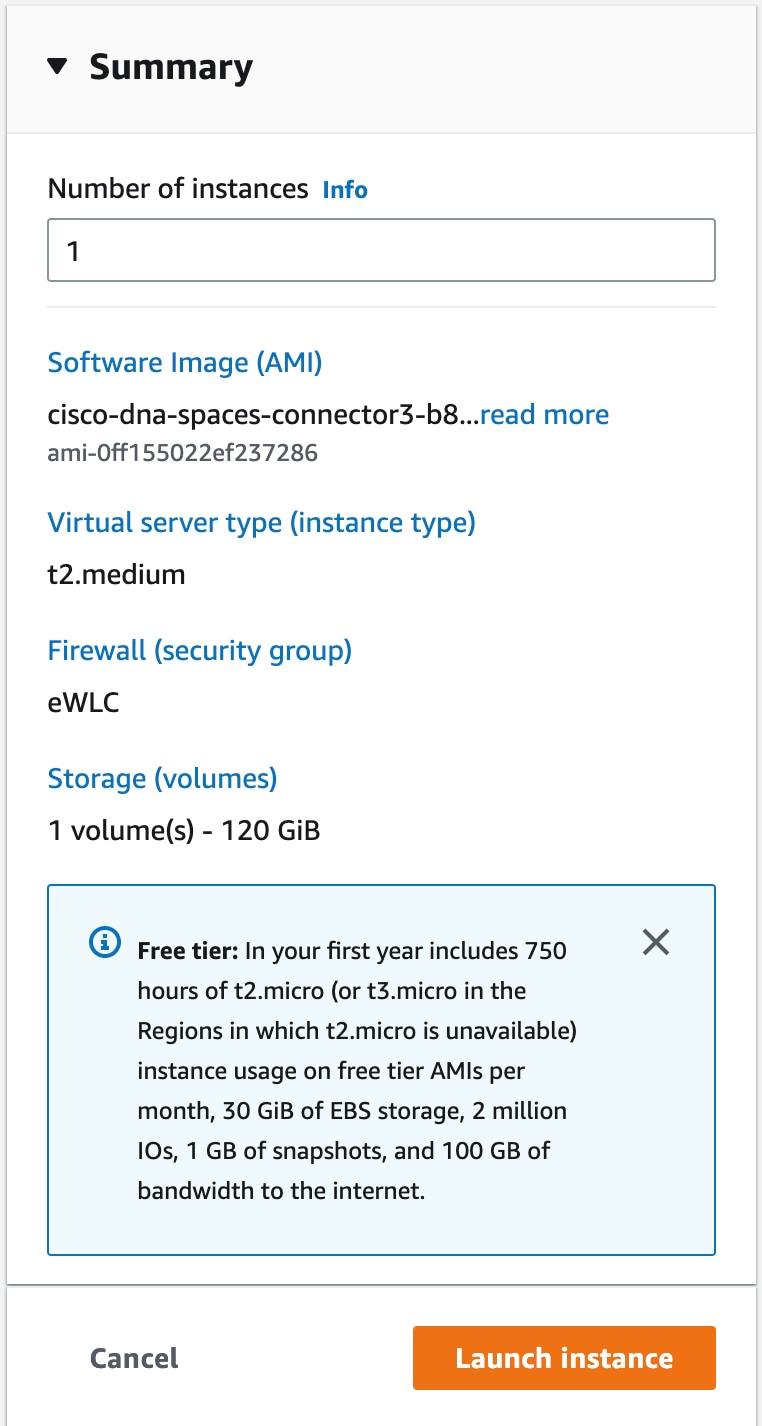
Review the instance and click Launch.

Figure 13. Review Instance and Launch

Step 14

On the EC2 dashboard, wait for the instance to finish launching and the status to change to Running. Alternatively, you can see the running instances on the Instances page. Click the instance to obtain the IPv4 address of the instance.
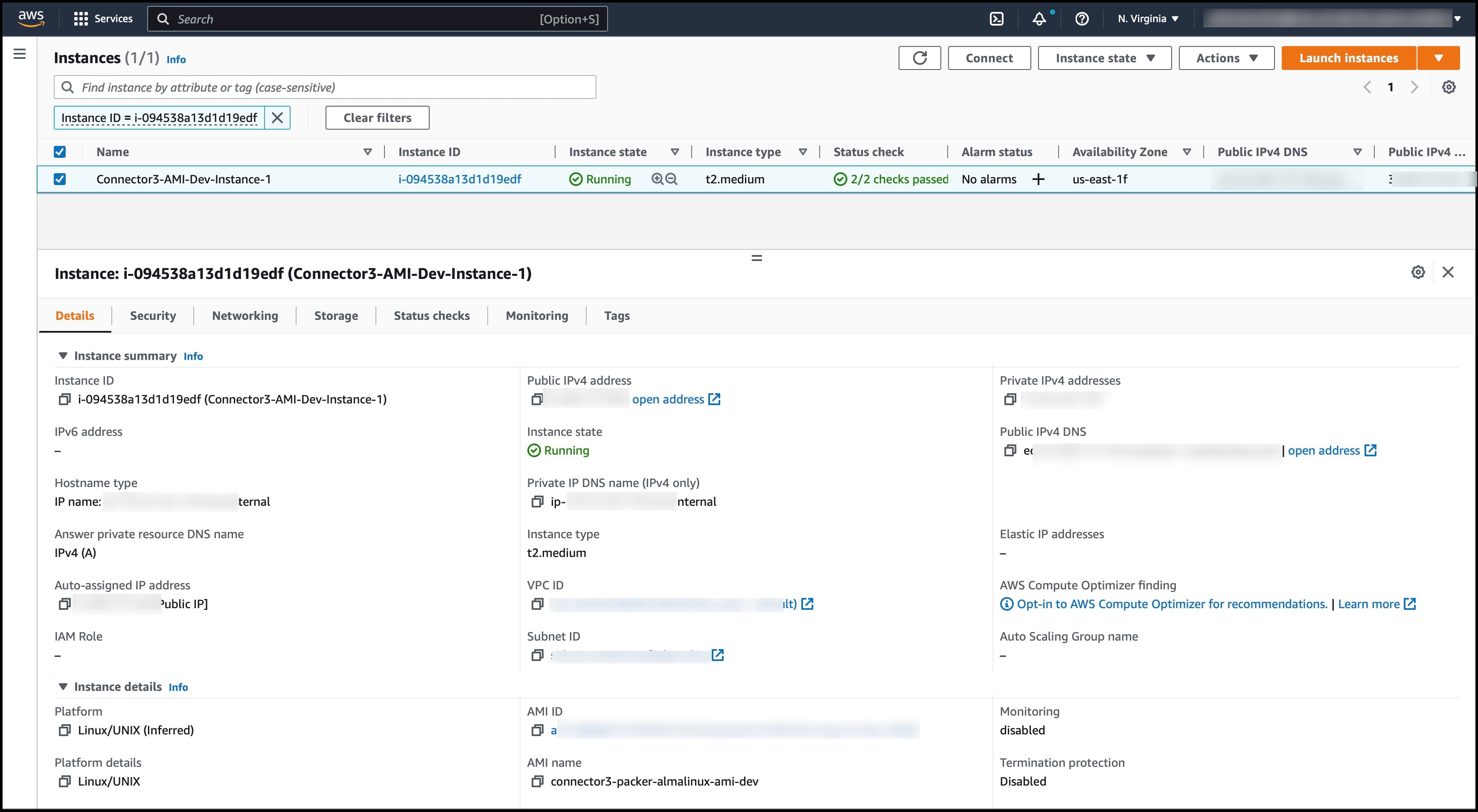
Figure 14. Obtain IPv4 Address of Instance

Step 15

Perform initial setup to configure a hostname, and change passwords for spacesadmin and root users.

  1. Log in to the connector  using the ssh -i command and the following parameters:

    • The .PEM key pair downloaded in step 11

    • ec2-user

    • The IPv4 address obtained in step 14

    ssh -i /path/to/key/MyAccessKey1.pem ec2-user@IPv4-address
  2. Change passwords for spacesadmin and root users. Avoid a BAD PASSWORD prompt by complying with the following password requirements:

    • Length is more than 14 characters.

    • Includes at least one uppercase letter.

    • Includes at least one lowercase letter.

    • Includes at least one special character.

    The following is a sample output of the command:
    Welcome to Cisco Spaces Connector Setup
    Changing password for user spacesadmin.
    New password: 
    Retype new password: 
    passwd: all authentication tokens updated successfully.
    Password changed successfully
    Setting rbash...
    Restarting docker...
    Changing shell for root.
    Shell changed.
    Changing shell for spaces.
    
    
    Remove default users...
    Relabeled /etc/sudoers from unconfined_u:object_r:user_tmp_t:s0 to unconfined_u:object_r:etc_t:s0
    
    
    Cisco Spaces Connector UI:
    https://XX.XXX.XX.XXX
    Username log in: spacesadmin
    The install is complete, a reboot will occur in 10 seconds...

    Once the installation is complete, a reboot occurs within 10 seconds. Note down the public IP address before reboot.

Step 16

Log in to the connector and configure the connector further. Do one of the following using the public IPv4 address from the previous step (step 15):

  • Log in to the connector GUI using the browser window and the address https://public-ipv4-address
  • Log in to the connector CLI using the SSH command and the username spacesadmin. Use the command ssh spacesadmin@public-ipv4-address. When prompted, use the password configured for the spacesadmin user.