This concept explains how Packet I/O enables IOS XR interfaces to be managed directly by Linux, allowing standard automation tools to configure and control interfaces.
A Linux-managed IOS XR interface is a network management capability that
allows IOS XR interfaces to be configured and controlled entirely by the Linux operating system,
supports the use of standard Linux automation tools, and
bypasses the requirement to use IOS XR CLI or YANG models for interface management.
The Linux system contains multiple network namespaces, each mapping to a single interface in the XR control plane. By default, IOS XR interfaces are managed via IOS XR CLI or YANG models, with attributes inherited from XR. With Packet I/O functionality, configuration and management can be performed entirely within Linux, increasing flexibility and automation.
Configure an interface to be Linux-managed
In some scenarios, you may want to shift control of certain interfaces from the IOS XR operating system to the underlying Linux system. This allows direct Linux-based management and automation of network interfaces, facilitating advanced integration with Linux tools or external systems.
Follow these steps to configure an interface to be Linux-managed.
Procedure
1.
Check the available exposed-interfaces in the system.
Example:
RRP/0/RP0/CPU0:ios(config)#linux networking exposed-interfaces interface ?
  GCC0      OTN GCC0 interface(s) | short name is G0
  GCC1      OTN GCC1 interface(s) | short name is G1
  GCC2      OTN GCC2 interface(s) | short name is G2
  Loopback  Loopback interface(s) | short name is Lo
  MgmtEth   Ethernet/IEEE 802.3 interface(s) | short name is Mg
2.
Configure the interface to be managed by Linux.
Example:
This command configures a MgmtEth interface to be managed by Linux.
The IOS XR interface is now managed by Linux. You can verify and manage the interface directly from the Linux operating system, and use standard Linux automation tools as desired.
Configure custom MTU setting
Set a custom MTU value for a Linux-managed interface to optimize network performance and compatibility.
This task is useful when you need to customize the MTU setting of a Linux-managed interface on a router or device, ensuring it meets specific operational requirements. It also demonstrates how changes in Linux can affect IOS XR interface configuration.
Follow these steps to configure custom MTU setting.
Procedure
1.
Configure the MTU setting.
Example:
[ios:~]$ ifconfig Mg0_RP0_CPU0_0 up

[ios:~]$Router:Aug 1 17:41:54.824 UTC: ifmgr[266]: %PKT_INFRA-LINK-3-UPDOWN : Interface
HundredGigE0/0/0/24, changed state to Down
Router:Aug 1 17:41:54.824 UTC: ifmgr[266]: %PKT_INFRA-LINEPROTO-5-UPDOWN : Line protocol on
Interface HundredGigE0/0/0/24, changed state to Down
Router:Aug 1 17:41:56.448 UTC: xlncd[253]: %MGBL-CONFIG-6-DB_COMMIT : Configuration committed by
user 'system'. Use 'show configuration commit changes 1000000022' to view the changes.
Router:Aug 1 17:41:56.471 UTC: ifmgr[266]: %PKT_INFRA-LINK-3-UPDOWN : Interface
HundredGigE0/0/0/24, changed state to Up
Router:Aug 1 17:41:56.484 UTC: ifmgr[266]: %PKT_INFRA-LINEPROTO-5-UPDOWN : Line protocol on
Interface HundredGigE0/0/0/24, changed state to Up
Router:Aug 1 17:41:58.493 UTC: xlncd[253]: %MGBL-CONFIG-6-DB_COMMIT : Configuration committed by
user 'system'. Use 'show configuration commit changes 1000000023' to view the changes.

[ios:~]$
[ios:~]$ ip link set dev Mg0_RP0_CPU0_0 mtu 1400
[ios:~]$
[ios:~]$Router:Aug 1 17:42:46.830 UTC: xlncd[253]: %MGBL-CONFIG-6-DB_COMMIT : Configuration
committed by user 'system'. Use 'show configuration commit changes 1000000024' to view the changes.
2.
Verify that the MTU setting has been updated in Linux.
Example:
This example highlights the MTU setting for all interfaces in Linux.
(Optional) Use the show ip interface brief | include MgmtEth0/RP0/CPU0/0 to see the MgmtEth0/RP0/CPU0/0 interface only.
Example:
RP/0/RP0/CPU0:ios#show ip interface brief | include MgmtEth0/RP0/CPU0/0
MgmtEth0/RP0/CPU0/0            10.127.60.229   Up              Up       default
RP/0/RP0/CPU0:ios#
The output indicates that the interface acts as a regular Linux interface, and IOS XR configuration receives inputs from Linux.
Synchronize statistics between IOS XR and Linux
Ensure that interface packet and byte statistics in Linux accurately reflect all traffic handled by IOS XR by configuring regular synchronization of statistics from IOS XR to the Linux kernel.
By default, the packet and byte counters maintained by Linux for IOS XR interfaces only reflect traffic sourced in Linux. To maintain accurate and up-to-date traffic counters, IOS XR can periodically synchronize statistics to Linux.
Enter the configuration mode using the configuration command.
Follow these steps to synchronize statistics between IOS XR and Linux.
Procedure
1.
Configure the statistics synchronization including the direction and synchronization interval.
Example:
The example shows statistics synchronization in global configuration:
RP/0/RP0/CPU0:ios(config)#linux networking statistics-synchronization from-xr every 30s
Example:
The example shows statistics synchronization in exposed-interface configuration:
RP/0/RP0/CPU0:ios(config)#linux networking exposed-interfaces interface mgmtEth 0/RP0/CPU0/2 statistics-synchronization from-xr every 10s
where :
from-xr: The direction indicating that the interface packet statistics will be pushed from IOS XR to the Linux kernel.
every: Shows the frequency at which to synchronize statistics. The intervals supported for global configuration are 30s and 60s. The intervals supported for exposed interfaces are 5s, 10s, 30s or 60s. The interval s is in seconds.
2.
Verify that the statistics synchronization is applied successfully on IOS XR.
Example:
This example highlights the statistics synchronization that is applied on IOS XR interface.
RP/0/RP0/CPU0:ios(config)#show running-config linux networking
linux networking
 vrf default
  address-family ipv4
   protection
   protocol tcp local-port all default-action deny
    permit interface bundle-ether 1
    !
   !
  !
 !
exposed-interfaces
 interface bundle-ether 1 linux-managed
  statistics-synchronization from-xr every 10s
  !
 !
!
For troubleshooting purposes, use the show tech-support linux networking command to display debugging information.
Route synchronization
A route synchronization is a networking capability that
enables routing information to be shared between IOS XR routing tables and Linux kernel routing tables,
allows traffic from Linux applications to be sent through various network paths, and
supports multiple routing scenarios to optimize communication between IOS XR and Linux.
Route synchronization methods
You can achieve route synchronization using three methods:
Sending traffic from Linux via a connected network.
Sending traffic from Linux via a network requiring a route, where the route is present in XR.
Sending traffic from Linux via a network requiring a route (no route present).
Back-to-back topology
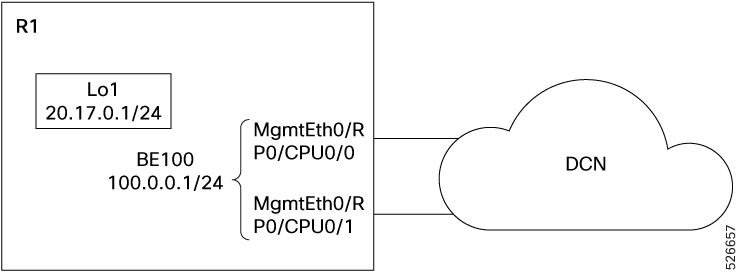
For each of the three scenarios, the following back-to-back topology is used for illustration. All interfaces are assumed to be configured with their IP addresses and up.
Figure 1. NCS 1004 back-to-back topology
All the three methods consider the R1 node has the same configuration.
NCS 1004 supports route synchronization methods that combine the strengths of both IOS XR and Linux routing tables. This capability allows for flexible and efficient routing of traffic, ensuring that Linux applications can utilize IOS XR-managed network paths and take advantage of optimized connectivity configurations.
Send traffic from Linux via a connected network
Use this procedure to send traffic from Linux to verify connectivity with a connected network, leveraging automatically synchronized IP addresses and kernel-populated routes.
XLNC automatically synchronizes all relevant IP addresses, and the Linux kernel populates the necessary routes. No additional Linux configuration is required for this method. Traffic can be sent to the destination IP addresses, such as 12.0.0.2 or 100.0.0.2, from Linux on R1.
Before you begin
Follow these steps to send traffic from Linux via a connected network.
Procedure
1.
View the IP routes used by the to_xr interfaces.
Example:
RP/0/RP0/CPU0:ios#bash
[ios:~]$ ip route
default via 10.127.60.1 dev Mg0_RP0_CPU0_0
10.127.59.46 via 10.127.60.1 dev Mg0_RP0_CPU0_0
10.127.60.0/24 dev Mg0_RP0_CPU0_0  scope link  src 10.127.60.173
2.
Verify connectivity with R2 node.
Example:
This output shows the details of network connectivity to R2 node IP 12.0.0.2.
[ios:~]$ ping 10.127.60.173
PING 10.127.60.173 (10.127.60.173) 56(84) bytes of data.
64 bytes from 10.127.60.173: icmp_seq=1 ttl=64 time=0.046 ms
64 bytes from 10.127.60.173: icmp_seq=2 ttl=64 time=0.039 ms
64 bytes from 10.127.60.173: icmp_seq=3 ttl=64 time=0.030 ms
64 bytes from 10.127.60.173: icmp_seq=4 ttl=64 time=0.030 ms
64 bytes from 10.127.60.173: icmp_seq=5 ttl=64 time=0.030 ms
64 bytes from 10.127.60.173: icmp_seq=6 ttl=64 time=0.031 ms
64 bytes from 10.127.60.173: icmp_seq=7 ttl=64 time=0.038 ms
^C
--- 10.127.60.173 ping statistics ---
7 packets transmitted, 7 received, 0% packet loss, time 5999ms
rtt min/avg/max/mdev = 0.030/0.034/0.046/0.009 ms
Send traffic from Linux using an XR route
Enable network services on Linux, such as Model Driven Telemetry and IOS-XR Install hosted on IOS XR platforms, to send traffic that is routed by IOS XR, ensuring proper connectivity as defined in IOS XR’s routing table.
In IOS XR systems, Linux-based services may need to send traffic through the XR routing stack. By default, IOS XR selects the IP address of the lowest-numbered loopback (such as Loopback0) as a source hint for Linux-originated traffic. If connectivity to certain destinations requires a different source address, you must manually add routing entries on Linux. In future releases, XR routes can be automatically synced to Linux, but in this release manual configuration is required.
Follow these steps to send traffic from Linux via a network using an XR route.
Procedure
1.
Check the route details for the NCS 1004 node R1.
Example:
RP/0/RP0/CPU0:ios#show route
Fri Oct 31 15:20:43.596 IST

Codes: C - connected, S - static, R - RIP, B - BGP, (>) - Diversion path
       D - EIGRP, EX - EIGRP external, O - OSPF, IA - OSPF inter area
       N1 - OSPF NSSA external type 1, N2 - OSPF NSSA external type 2
       E1 - OSPF external type 1, E2 - OSPF external type 2, E - EGP
       i - ISIS, L1 - IS-IS level-1, L2 - IS-IS level-2
       ia - IS-IS inter area, su - IS-IS summary null, * - candidate default
       U - per-user static route, o - ODR, L - local, G  - DAGR, l - LISP
       A - access/subscriber, a - Application route
       M - mobile route, r - RPL, t - Traffic Engineering, (!) - FRR Backup path

Gateway of last resort is 10.127.60.1 to network 0.0.0.0

S*   0.0.0.0/0 [1/0] via 10.127.60.1, 01:18:21
L    2.2.2.2/32 is directly connected, 01:18:22, Loopback2
S    10.127.59.46/32 [1/0] via 10.127.60.1, 01:18:21
C    10.127.60.0/24 is directly connected, 01:18:21, MgmtEth0/RP0/CPU0/0
L    10.127.60.173/32 is directly connected, 01:18:21, MgmtEth0/RP0/CPU0/0
2.
View the IP routes used by the to_xr interfaces.
Example:
RP/0/RP0/CPU0:ios#bash
Fri Oct 31 15:22:32.218 IST
[:~]$ ip route
default via 10.127.60.1 dev Mg0_RP0_CPU0_0
10.127.59.46 via 10.127.60.1 dev Mg0_RP0_CPU0_0
10.127.60.0/24 dev Mg0_RP0_CPU0_0  scope link  src 10.127.60.173
[:~]$exit
RP/0/RP0/CPU0:ios#show running-config linux networking
Tue Oct 28 16:39:44.951 IST
linux networking
 vrf default
  east-west Loopback2
  address-family ipv4
   source-hint default-route interface MgmtEth0/RP0/CPU0/0
  !
 !
!
5.
Add a route with source IP address in Linux.
Example:
RP/0/RP0/CPU0:ios#bash
Fri Oct 31 15:22:32.218 IST
[:~]$#ip route add 10.127.60.0/24 dev to_xr scope link src 10.127.60.173
6.
Verify connectivity with R2 node.
Example:
[:~]$# ping 10.127.60.1
PING 10.127.60.1 (10.127.60.1) 56(84) bytes of data.
64 bytes from 10.127.60.1: icmp_seq=1 ttl=254 time=0.876 ms
64 bytes from 10.127.60.1: icmp_seq=2 ttl=254 time=0.768 ms
64 bytes from 10.127.60.1: icmp_seq=3 ttl=254 time=0.697 ms
64 bytes from 10.127.60.1: icmp_seq=4 ttl=254 time=0.824 ms
^C
--- 10.127.60.1 ping statistics ---
4 packets transmitted, 4 received, 0% packet loss, time 3000ms
rtt min/avg/max/mdev = 0.697/0.791/0.876/0.069 ms
[:~]$
Traffic sent from Linux through the to_xr interface is now routed according to IOS XR’s RIB, and source IP selection matches the requirements of your network.
Send traffic from Linux via a network without an XR route
This method requires configuring routes within the Linux operating system. The source IP can be omitted, as it will be resolved automatically by Linux. These steps allow you to achieve the same outcome as scenario 2, but without dependency on XR routing.
Follow these steps to send traffic from Linux via a network without an XR route.
Procedure
1.
Check the route details for the NCS 1004 node R1.
Example:
RP/0/RP0/CPU0:ios#show route
Fri Oct 31 15:58:52.236 IST

Codes: C - connected, S - static, R - RIP, B - BGP, (>) - Diversion path
       D - EIGRP, EX - EIGRP external, O - OSPF, IA - OSPF inter area
       N1 - OSPF NSSA external type 1, N2 - OSPF NSSA external type 2
       E1 - OSPF external type 1, E2 - OSPF external type 2, E - EGP
       i - ISIS, L1 - IS-IS level-1, L2 - IS-IS level-2
       ia - IS-IS inter area, su - IS-IS summary null, * - candidate default
       U - per-user static route, o - ODR, L - local, G  - DAGR, l - LISP
       A - access/subscriber, a - Application route
       M - mobile route, r - RPL, t - Traffic Engineering, (!) - FRR Backup path

Gateway of last resort is 10.127.60.1 to network 0.0.0.0

S*   0.0.0.0/0 [1/0] via 10.127.60.1, 01:56:30
L    2.2.2.2/32 is directly connected, 01:56:31, Loopback2
S    10.127.59.46/32 [1/0] via 10.127.60.1, 01:56:30
C    10.127.60.0/24 is directly connected, 01:56:30, MgmtEth0/RP0/CPU0/0
L    10.127.60.173/32 is directly connected, 01:56:30, MgmtEth0/RP0/CPU0/0
2.
View the IP routes used by the to_xr interfaces.
Example:
RP/0/RP0/CPU0:ios#bash
Fri Oct 31 15:59:14.656 IST
[ios:~]$  ip route
default via 10.127.60.1 dev Mg0_RP0_CPU0_0
10.127.59.46 via 10.127.60.1 dev Mg0_RP0_CPU0_0
10.127.60.0/24 dev Mg0_RP0_CPU0_0  scope link  src 10.127.60.173
[NE_173:~]$
3.
Set the route in Linux.
Example:
This command sets the route in the linux interface.
[ios:~]$ ip route add 10.127.60.0/24 dev to_xr scope link src 10.127.60.173
4.
Verify connectivity with R2 node.
Example:
[:~]$# ping 10.127.60.1
PING 10.127.60.1 (10.127.60.1) 56(84) bytes of data.
64 bytes from 10.127.60.1: icmp_seq=1 ttl=254 time=0.876 ms
64 bytes from 10.127.60.1: icmp_seq=2 ttl=254 time=0.768 ms
64 bytes from 10.127.60.1: icmp_seq=3 ttl=254 time=0.697 ms
64 bytes from 10.127.60.1: icmp_seq=4 ttl=254 time=0.824 ms
^C
--- 10.127.60.1 ping statistics ---
4 packets transmitted, 4 received, 0% packet loss, time 3000ms
rtt min/avg/max/mdev = 0.697/0.791/0.876/0.069 ms
[:~]$
Traffic is successfully sent from the Linux node via the manually configured route, bypassing the XR routing setup. You can confirm successful connectivity by receiving ping replies from the destination.