This topic explains the updated layout and core navigation areas of the modernized interface. It describes how to access system tools, manage fabric inventory, and utilize the User Journey feature to explore upcoming functionalities and track configuration progress.
The new layout is displayed here.
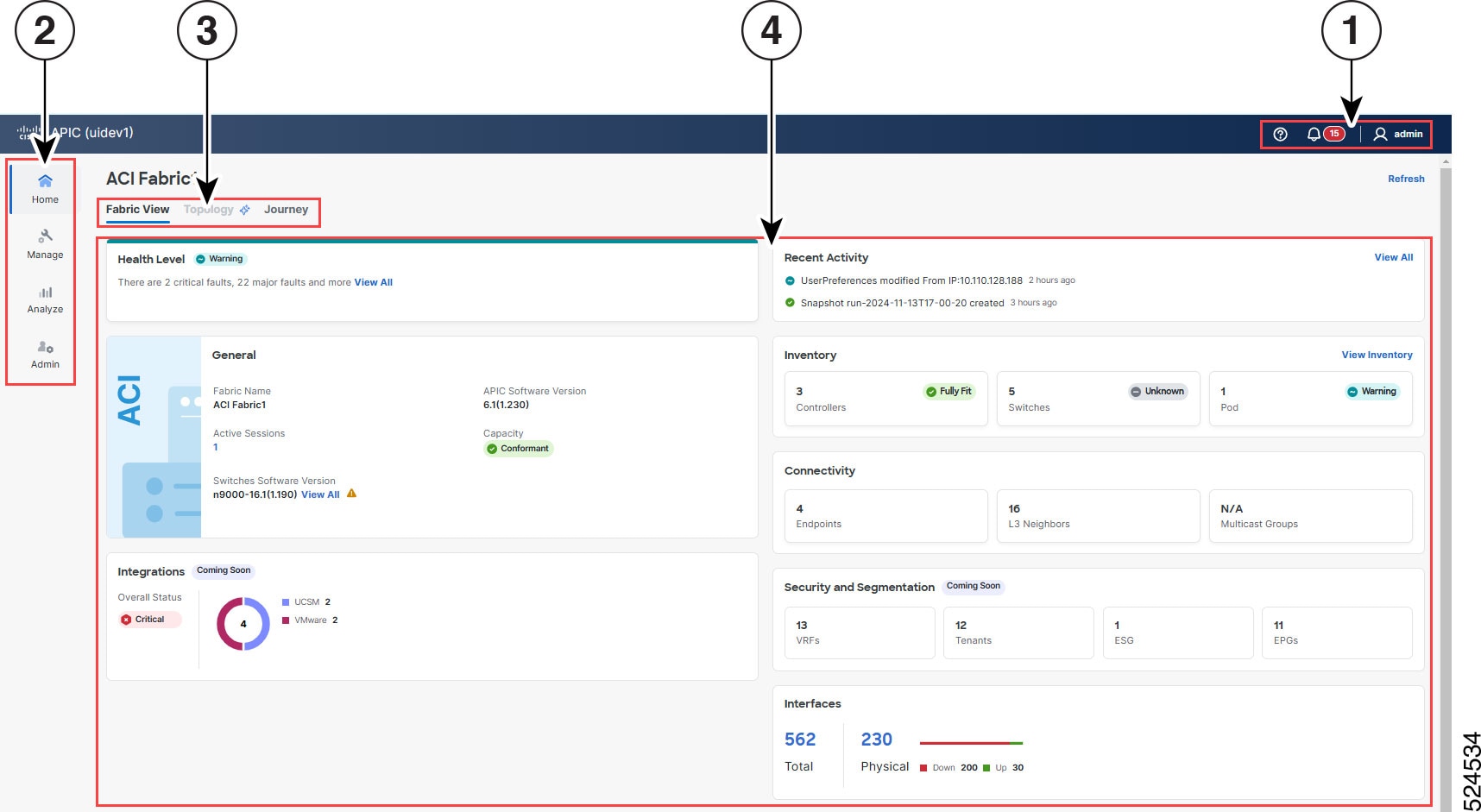
The areas of the new layout:
-
1 indicates the Tools area.
-
2 indicates the Navigation area.
-
3 indicates the Tabs area.
-
4 indicates the Work area.
Tools area
This area contains basic tools that appear regardless of the GUI page.
-
Help: Opens a menu with these choices:
-
About: Shows the Cisco APIC release, copyright year, and current system time.
-
APIC Fabric Setup: Helps you determine what you have not yet configured for your fabric.
-
Help Center: Provides links to some of the more commonly-used documentation.
-
Open Object Store Browser: Opens the Managed Object Browser, or Visore, which is a utility built into Cisco APIC that provides a graphical view of the managed objects (MOs) using a browser.
-
Show API Inspector: Opens the API Inspector, which is a built-in tool of the Cisco APIC that allows you to view the internal API messages between the GUI and the Cisco APIC operating system to execute tasks.
-
-
Notifications: Shows notifications about key issues with the Cisco APIC. Using the drop-down menu, you can choose to show all notifications or only notifications of a specific severity. The menu includes only fault severities that are currently raised. You can also click View All to see all faults in a table.
-
Profile: Opens a menu with these choices:
-
Switch to existing UI: Switches back to the existing (old) GUI.
-
User Preferences: Configures your user settings.
-
Change Password: Changes your password.
-
Change User Certificate: Changes your login certificate.
-
Change SSH Key: Changes the public SSH key that you use for certificate-based login.
-
Logout: Logs you out from the Cisco APIC.
-
Navigation area
This is the core navigation for the Cisco APIC, which is present on all GUI pages.
-
Home: Enables you to view information about the fabric. This area has these tabs:
-
Fabric View: Shows various information about your the fabric. You can click blue text as well as Controllers, Switches, and Pods to see more information about those things.
-
Topology: Shows a graphical representation of your fabric's topology.
-
Journey: Shows the main functionalities of Cisco APIC, displays the execution plan for the new GUI, and provides a preview of upcoming features and their functionality.
Most of the stages have a Tell Me More button, which opens a dialog that gives you more information about the part of the GUI that is associated with that stage, including a screenshot. For a stage that is labeled as "Coming Soon," the dialog outlines the upcoming development for that part of the GUI and the screenshot shows how the GUI might look.
Figure 2. User journey 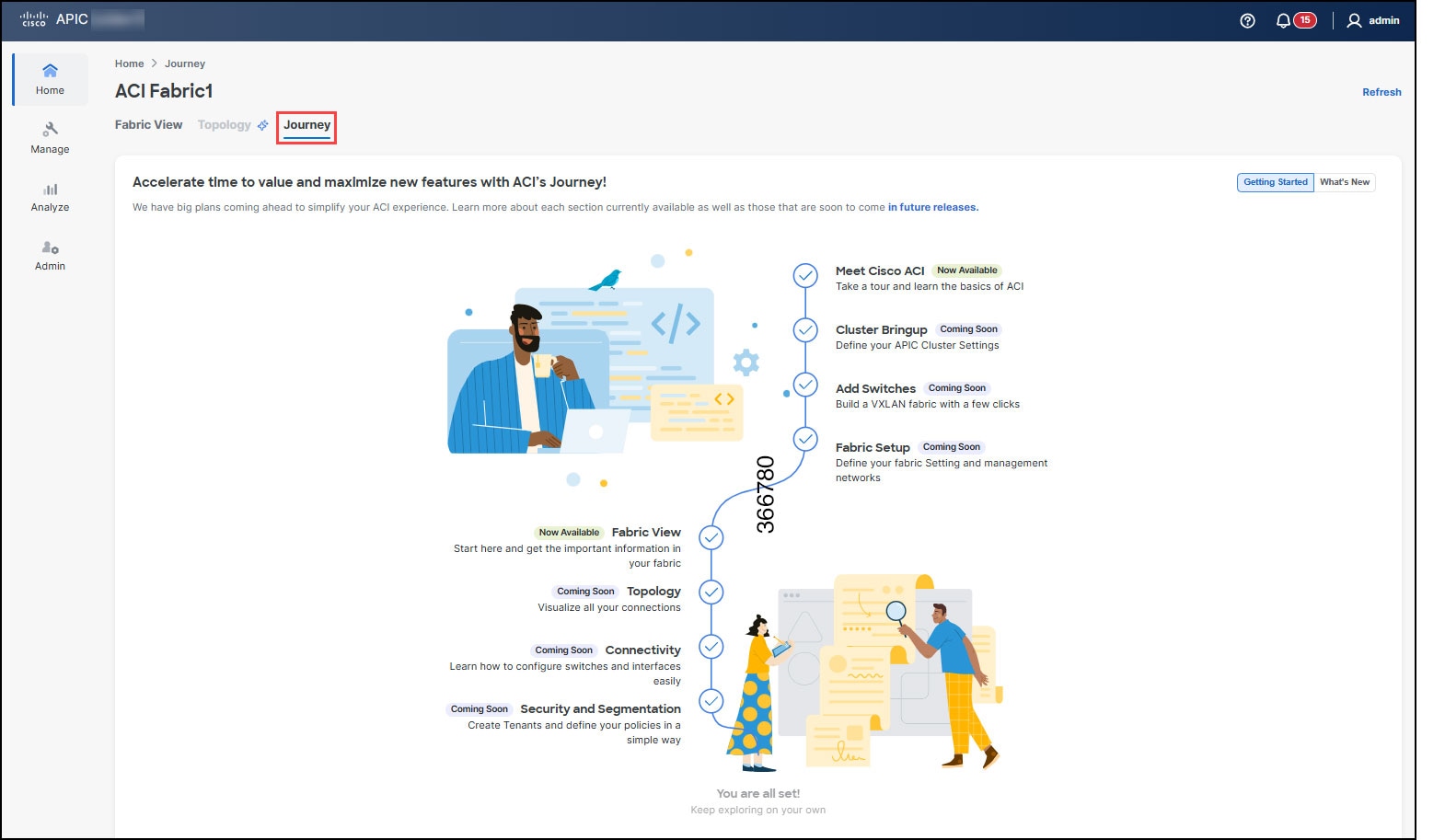
-
-
Manage: Enables you to view information about and configure these things:
-
Inventory: Shows information about the controllers, switches, and pods.
-
Tenants: Shows information about the tenants.
-
Policy Groups: Shows information about the policy groups.
-
Policies: Shows information about the configured policies.
-
Domains and Pools: Shows information about the domains and pools.
-
Software Management: Enables you to upgrade the firmware of the Cisco APICs and switches.
-
Monitoring Destinations: Shows information about the monitoring destinations, such as for callhome, SNMP, or TACACS.
-
Switches and Interfaces: Shows information about the switches and interfaces.
-
-
Analyze: Enables you to view these things:
-
Faults: Shows the faults that Cisco APIC raised due to issues with your fabric.
-
History and Logs: Shows the various records and logs, such as fault records, event records, and audit logs.
-
Tech Support: Enables you to export the tech support logs, which you provide when you contact the Cisco Technical Assistance Center (TAC).
-
-
Admin: Enables you to use or configure these things:
-
Backup and Restore: Enables you to backup and restore the Cisco APIC configurations.
-
Authentication: Enables you to configure how users must authenticate to log into the Cisco APIC.
-
Active Sessions: Shows the users who are logged into the Cisco APIC.
-
Integrations: Shows information about third-party products that you have integrated with Cisco APIC.
-
Licensing: Shows information about your active licenses for using Cisco APIC and its features.
-
System Settings: Enables you to configure the Cisco APIC.
-
Tabs area
This area contains tabs that change depending on the core navigation that you chose. The tabs enable you to navigate to subsections of that core navigation.
Work area
This area changes depending on which page you are viewing. The work area shows status, contains links to view configured objects, and much more. Any text in blue is a link that you can click to see more information about or change the configuration of something.
The Cisco APIC release 6.1(2) includes numerous UI revisions for enhanced ease of use, more detailed information, and quicker navigation with fewer clicks.
| Home |
> Fabric View |
Color coding, more cards, pill-shaped icons, and links to detailed information:
|
| Manage |
> Inventory |
> Controllers. Controller screen displays the type of controller in the table (Physical or Virtual) > Controller > select a controller
> Switches > select a switch
> Pods > select a pod
|
| Table Settings |
Gear icon |
Settings persist only in the browser where the user made the changes, even after logging out. |
| Help |
? icon |
Help Center |