Cisco N9396Y12C-SE1 NX-OS Mode Switch Hardware Installation Guide

PDF

Install the switch using the rack-mount kit

Want to summarize with AI?

Log in

Overview

Installing the switch using the NXK-ACC-RMK2-2RU rack-mount kit.

To install the switch, attach mounting brackets to the rack, install slider rails on the rear of the rack, slide the switch onto the slider rails, install the retainer brackets, and secure the switch to the rack with the retainer clips. Typically, the front of the rack is the side easiest to access for maintenance.

Note
You supply the eight 10-32 or 12-24 screws required to mount the slider rails and switch to the rack.

Before you begin

  • Inspect the switch shipment to ensure that you have everything ordered.

  • Verify that the switch rack-mount kit includes these parts:

    • Rack-mount brackets (2)

    • Rack-mount front-mount brackets (2)

    • Rack-mount slider rails (2)

    • Rack-mount retainer clips (2)

    • Phillips countersink screws (12)

    • Flat head screws M4 (6)

    • Flat head screws M3 (4)

  • The rack is installed and secured to its location.

Procedure

1.

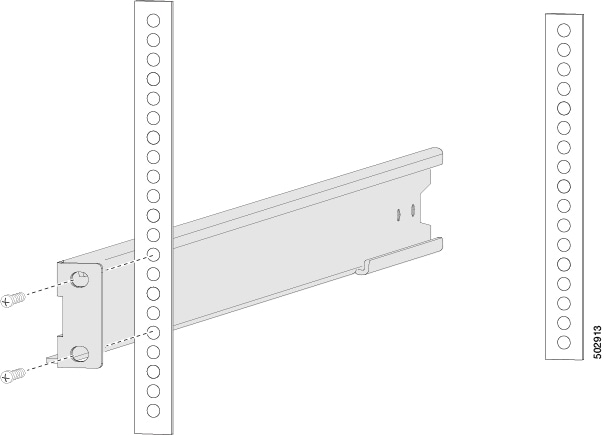
Install two rack-mount brackets to the rack.

  1. Determine which end of the chassis goes in the cold aisle:

    • If the switch has port-side intake modules (fan modules with burgundy coloring), position the front-mount brackets so that the switch ports will be in the cold aisle.

    • If the switch has port-side exhaust modules (fan modules with blue coloring), position the front-mount brackets so that the switch fan and power supply modules will be in the cold aisle.

  2. Position a front-mount bracket so that it aligns to the desired position in the rack and secure the bracket with 12-24 screws or 10-32 screws, depending on the rack thread type (see the figure). Tighten 12-24 screws to 30 in-lb (3.39 N·m) of torque. Tighten 10-32 screws to 20 in-lb (2.26 N·m) of torque.

  3. Repeat Step 1 for the other front rack-mount bracket on the other side of the rack and be sure to position that bracket horizontally to the same level as the first bracket.

2.

If you are not installing the chassis into a grounded rack, attach a customer-supplied grounding wire to the chassis as explained in Ground the chassis . If you are installing the chassis into a grounded rack, skip this step.

3.

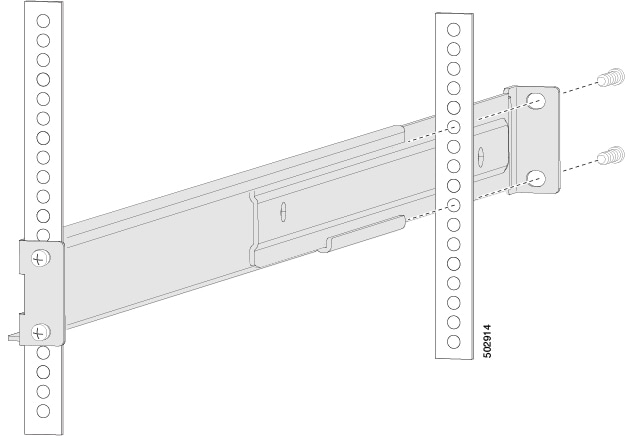
Install the slider rails on the rack or cabinet.

  1. Determine which two posts of the rack or cabinet you should use for the slider rails. Of the four vertical posts in the rack or cabinet, two will be used for the front mount brackets attached to the easiest accessed end of the chassis. The other two posts will have the slider rails.

  2. Position a slider rail at the desired level on the back side of the rack and slide it into the front-mount bracket already installed. Secure with 12-24 screws or 10-32 screws, depending on the rack thread type (see the figure). Tighten 12-24 screws to 30 in-lb (3.39 N·m) of torque. Tighten 10-32 screws to 20 in-lb (2.26 N·m) of torque.

  3. Repeat Step 3 to attach the other slider rail to the other side of the rack.

    Make sure that the slider rails are at the same level. Use a level tool, tape measure, or carefully count the screw holes in the vertical mounting rails.

4.

Insert the switch into the rack and attach it.

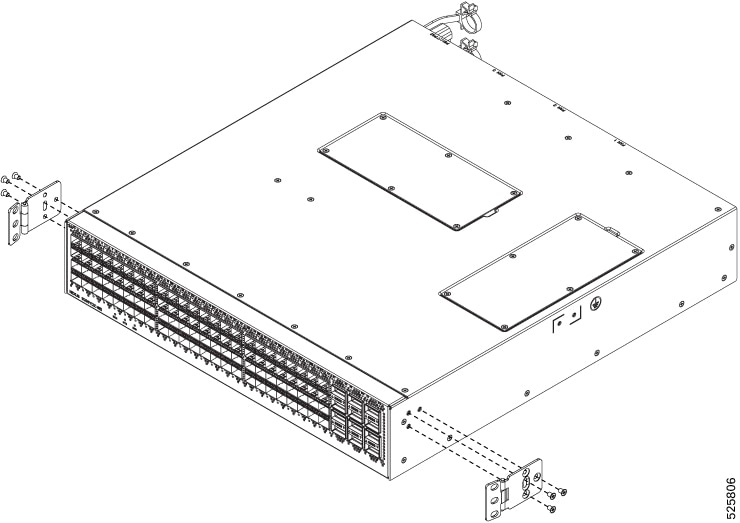
  1. Align the four holes in one side of front mount brackets to three holes on the left or right side of the chassis (see the figure).

  2. Use three M4 x 6 mm screws to attach the bracket to the chassis. Tighten each screw to 11 to 15 in-lb (1.2 to 1.7 N·m).

  3. Repeat Steps 4 to attach the second front mount bracket to the other side of the chassis.

5.

Insert the switch into the rack and attach it.

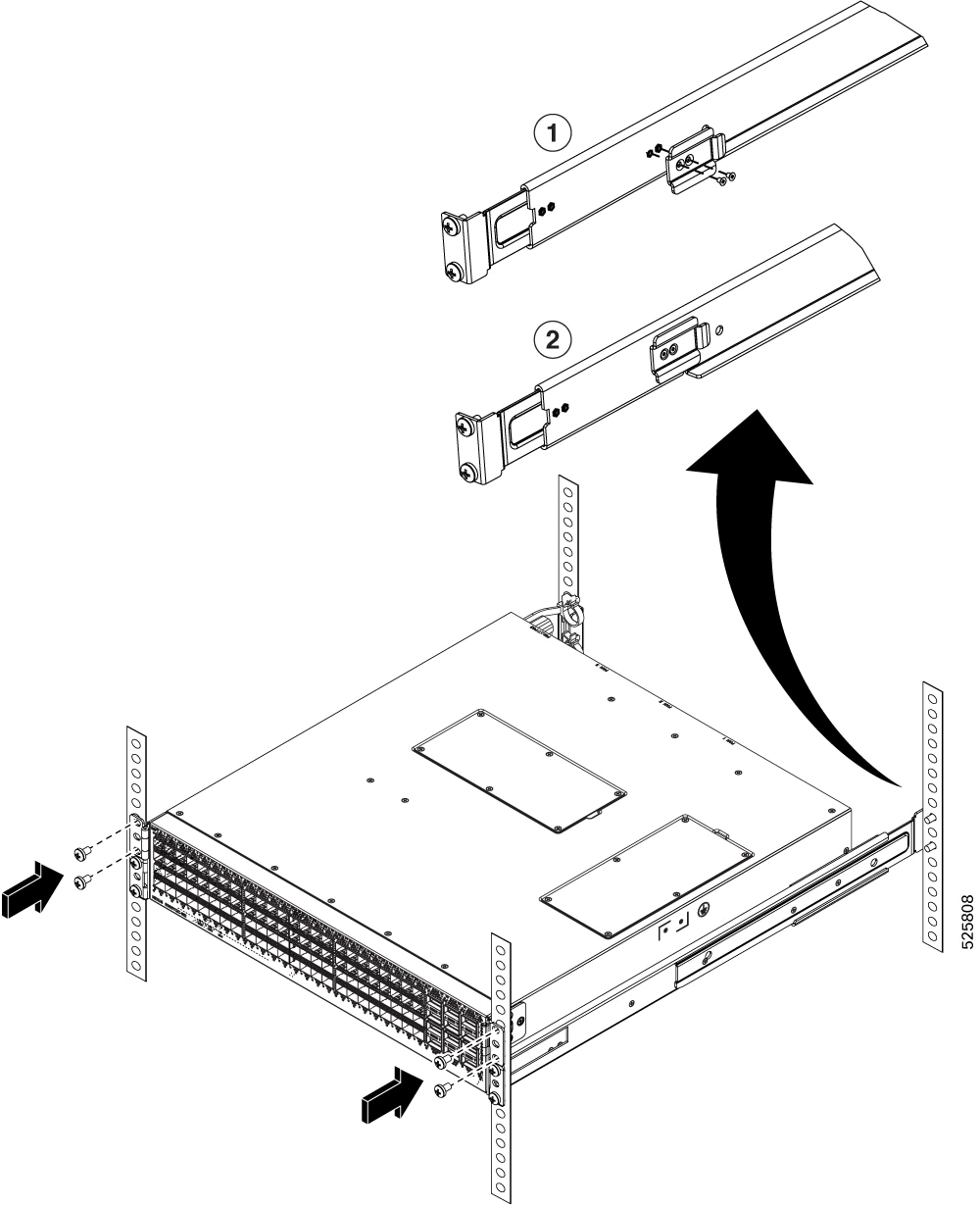
  1. Holding the switch with both hands, position the switch onto the rack-mount brackets and carefully slide the chassis into the rack (see the figure).

6.

Rotate one front mount bracket to align with the rack (see the figure).
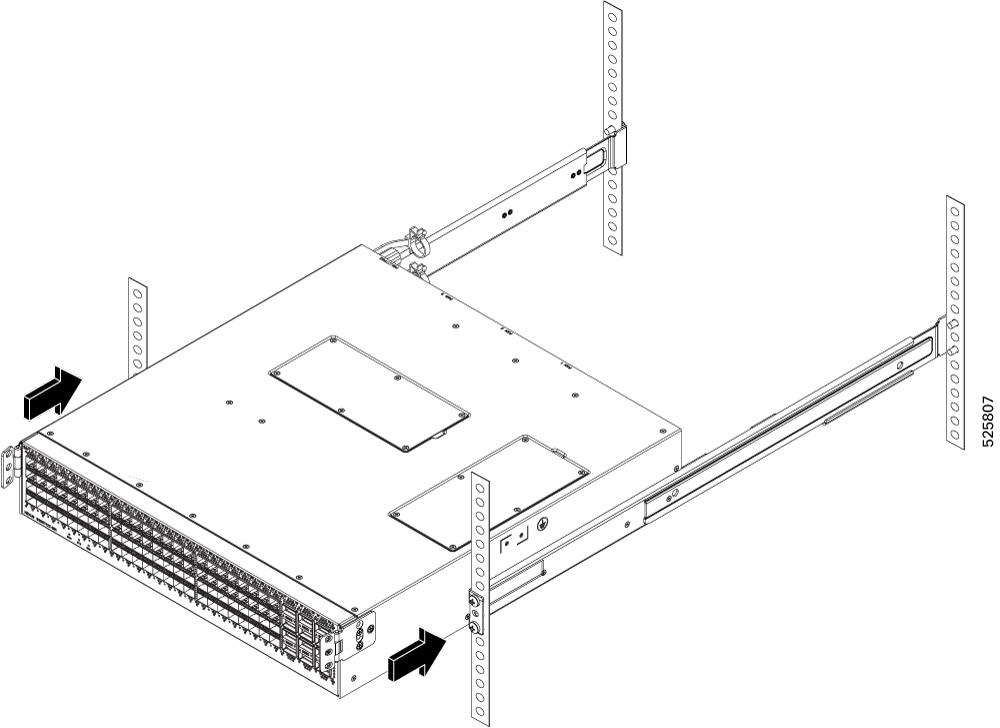
  1. Tighten the 10-32 screws to 20 in-lb (2.26 N·m) or tighten the 12-24 screws to 30 in-lb (3.39 N·m).

  2. Repeat Step 6 to attach the other front mount bracket on other side of the chassis.

7.

Insert the retainer clip to hold the chassis in place.

  1. Align the retainer clip to the inside of the back of the slider rail. Make sure to hook the flange to the cutout on the bracket and align the screw holes (see the figure).

  2. Attach the screws to secure the retainer clip (see the figure).

  3. Repeat Step 7 to attach the other retainer clip on the other side of the chassis.

8.

If you attached a grounding wire to the chassis grounding pad, connect the other end of the wire to the facility ground.