Cisco Multicloud Defense User Guide

PDF

Cisco Multicloud Defense User Guide

Configure Service VPCs and Service VNets

Want to summarize with AI?

Log in

Learn how service VPCs and service VNets support secure, organized Cisco Multicloud Defense gateway deployments across cloud environments.


While not strictly mandatory, we do strongly recommend creating and attaching a VPC or VNet to your Multicloud Defense Gateway as part of the deployment process. VPCs and VNets provide the necessary framework to secure, organize, and efficiently manage your network resources while integrating with a firewall gateway.

When you attach a VPC or VNet, you open your network to the following bonuses:

  • Isolation and Security - A VPC/VNet allows you to create a logically isolated network within a cloud provider, ensuring that your resources are segregated from other users. You can also define security rules that control inbound and outbound traffic to and from your resources, using the firewall gateway to enforce these rules, thus controlling access.

  • Customizable Network Architecture - The ability to create subnets within a VPC or VNet and organize and segment your resources, while also managing IP address ranges as well as customizing routing tables to direct traffic efficiently within your network.

  • Scalability and Flexibility with Resource Management - Easily add or remove resources, scale your network, and adjust configurations to meet changing demands.

Without it, your environment faces increased security risks and reduced control.

Before You Begin

Before you create a VPC or VNet for your gateway, we recommend looking over the following prerequisites. Some of these are specific to the cloud service provider you use.

Prerequisites

  • If you opt to configure a Service VPC or VNet with a native gateway (NAT gateway), you must have a native gateway configured from your cloud service provider. See your cloud service provider documentation for more information.

  • If you intend to deploy a Service VNet with an Azure NAT gateway, confirm you have all of the permissions in your custom role within the Azure dashboard prior to creating and deployng. See Create a Custom Role to Assign to the Application for the complete list of permissions.

  • If you provide your own transit gateway, you are able to attach more than one Service VPC or VNet to it. It is even possible to replace an existing Service VPC or VNet with a new one without re-deploying the gateway.

  • If you create a Service VPC for an FTDv gateway, only AWS and Azure accounts are supported.

Shared VPCs in GCP

If you intend to create, or have already created, a shared VPC in your GCP environment, you must do an additional step to enable inventory in the Multicloud Defense Controller. Without these permissions, asset discovery fails and the Inventory page is not reliable. Access the IAM page of your GCP host project (shared VPC) and grant access to the Multicloud Defense Controller service account from the service project . This access is required to allow the service project to interact with shared network resources. You need to grant the following IAM roles for every GCP project that is affiliated with the shared VPC:

  • Compute Viewer

  • Compute Network User

If you create an environment in GCP where there is a shared VPC setup on one GCP project and the instances are attached to a different GPC project, the Multicloud Defense Gateway ignores all received logs from GCP. This is a default action because Multicloud Defense expects DNS logs to come from a singular project where the instances and network are both located.

Create a Service VPC or VNet

Be sure to review the prerequisites and use cases that affect specific cloud service providers in the Before You Begin section for VPCs and VNets. Use the following procedure to create a Service VPC or VNet.

Procedure

1.

From the Multicloud Defense Controller, navigate to Infrastructure > Gateways > VPCs/VNets.

2.

Click Create Service VPC/VNet.

3.

Input parameter values:

  • Name - Assign a name to the Service VPC/VNet.

  • CSP Account - Select the CSP account to create the Service VPC/VNet.

  • Region - Select the region the Service VPC will be deployed to.

  • (AWS/Azure) CIDR Block – The CIDR Block for Service VNet. This must not overlap with your Spoke(application) VNets.

  • (GCP only) Datapath CIDR Block - The CIDR Block for the Multicloud Defense Gateway datapath Service VPC. This CIDR block must not overlap with address ranges in your Spoke (application) VPCs.

  • (GCP only) Datapath 2 CIDR Block - The CIDR Block for the Multicloud Defense Gateway datapath Service VPC. This CIDR block must not overlap with address ranges in your Spoke (application) VPCs.

  • (GCP only) Management CIDR Block - The CIDR Block for the Multicloud Defense Gateway management Service VPC. This CIDR block must not overlap with address ranges in your Spoke (application) VPCs.

  • Availability Zones - If you are attaching this Servrice VPC to an AWS or Azure NAT gateway, you must have at least one availability zone configured. Note that once you add availability zones to an AWS service VPC you cannot edit the zones to add or remove them if you deploy in an edge or centralized mode. For a a Service VNet, Multicloud Defense recommends to select at least two availability zones for resiliency.

  • (AWS CloudWAN only) Network Type - Select CloudWAN.

  • (AWS CloudWAN only) Network ID - Expand the drop-down menu to select the core network that is associated with the global network in your AWS account.

  • (AWS CloudWAN only) Network Function Group - Use the drop-down menu to select an existing network function group. This selection attaches the service VPC to the network function group in the core network. Alternatively, select Create New to create a new group for this VPC. If you create a new network function group, you will be prompted in this Service VPC window to enter a new name for the network function group.

  • (Azure only) Resource Group - The resource group to deploy service VNet.

  • (AWS only)Transit Gateway - The Transit Gateway connects virtual private cloud and on-premises networks through a central hub. Use the drop-down menu to select an existing gateway for this VPC. If there is no pre-existing gateway for you to select, choose Create_new. This option allows Multicloud Defense to create one as part of the VPC creation process.

  • (AWS only) Transit Gateway Name - If you opted to create a new Transit Gateway, enter a name for the gateway in this field.

  • (AWS only) Auto accept shared attachments - If you opted ot create a new Transit Gateway and intend to use this VPC for a multi-account hub gateway deployment, check this option.

  • (AWS and Azure only) Use NAT Gateway - Enable this option if you want all egress traffic will go through NAT Gateway. If you are using a NAT gateway for an Azure account, confirm you have all of the permissions in your custom role within the Azure dashboard before finish creating this service VNet. See Create a Custom Role to Assign to the Application for the complete list of permissions.

    Caution

    Do not enable this NAT Gateway option if you intend to deploy this Service VPC to deploy a Multicloud Defense VPN gateway in your AWS or Azure environment.

4.

Click Save.

What to do next

If you have just created a service VPC for an AWS or GCP account, you must first Manage the Service VPC/VNet and then Add a Gateway and associate the VPC or VNet with the gateway.

If you are creating a Service VPC for an FTDv gateway, continue with Create a Firewall Threat Defense Virtual Gateway

If you have created a service VNet for Azure, we strongly recommend you Add a Gateway.


Secure Spoke VPC or VNet

By securing the spoke VPCs, you create a more robust and resilient network that can respond to security threats. Securing spoke VPCs helps protect sensitive data that may be transmitted between the service VPC and the spoke VPCs; this can help reduce the overall attack surface as well as proper security measures in spoke VPCs support network segmentation, which is a key strategy in limiting the spread of potential security incidents.

We strongly recommend you secure your spoke VPCs for AWS and GCP accounts before you create or add a gateway.

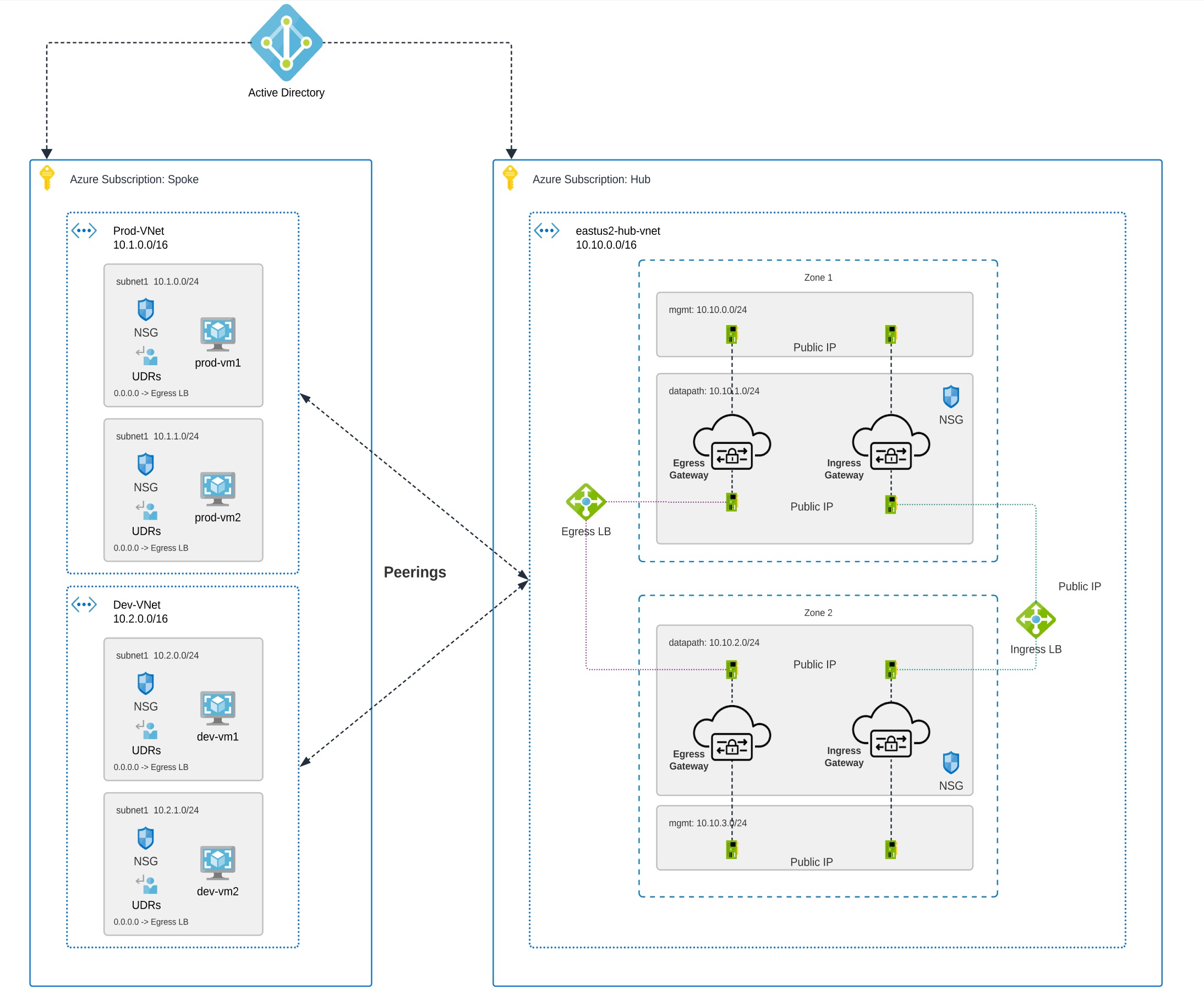
Below is an example of how spoke VPCs interact with your network:

Figure 1. Azure Combined Hub - Multisubscriptions
Spoke VPCs interacting within a network. Two VNet peering to Azure Subscription Hub containing gateways and load balancers.

Prerequisites and Limitations

Complete these requirements before you secure your spoke VPC or VNet:

AWS

  • AWS does not support adding or removing availability zones from a service VPC after its creation for environments deployed in edge or centralized mode. If you need to modify the availabilty zones after creating a service VPC, you must create a new VPC with the correct zones included.

  • AWS accounts with CloudWAN must have the following configured through the AWS Network Manager before you secure a spoke VPC or add a gateway:

    • For AWS accounts that are already onboarded, manually modify the permissions list in the AWS dashboard to include networkmanager:* to the MCDControllerRole IAM policy. See AWS' "Adding and removing IAM Identity permission" documentation for more information.

    • You must attach an egress/east-west gateway to the service VPC.

    • You must have at least one global network configured.

    • You must have at least one core network already created, does not have to contain segments already.

Azure

  • VNet pairing is supported across accounts within the same CSP type. You can add spoke VPC/VNets within an account and across accounts. In Azure, for spoke VPCs peering across subscriptions, the CSP accounts should be onboarded using the same app registrations, and subscriptions should be within the same Active Directory.

  • Azure environments require a route table attached prior to securing spoke VPC/VNet. See the "Associate a route table to a subnet" chapter in the Azure user guide for more.

  • Azure does not support adding or removing availability zones from a service VPC after its creation for environments deployed in edge or centralized mode. If you need to modify the availabilty zones after creating a service VPC, you must create a new VPC with the correct zones included.

GCP

  • GCP does not support adding or removing availability zones from a service VPC after its creation for environments deployed in edge or centralized mode; this also applies to Azure, GCP, and OCI for environments deployed in edge mode. If you need to modify the availabilty zones after creating a service VPC, you must create a new VPC with the correct zones included.

OCI

  • OCI does not support adding or removing availability zones from a service VPC after its creation for environments deployed in edge or centralized mode. If you need to modify the availabilty zones after creating a service VPC, you must create a new VPC with the correct zones included.


Manage the Service VPC/VNet

Use the following procedure to manage a spoke VPC or spoke VNet:

Before you begin

When you protect an AWS service VPC that is configured to utilize the AWS CloudWAN, the table shown in this page has a separate row for each edge region. You can add/remove segments to secure the segment using the service VPC. Each segment can be edited with a list of VPCs that can be attached or dettached from the segment. Any traffic flowing through the segment will be protected by the network function group configured in the VPC. Anything forwarded from the segments seen in this table pass through the network function group configured in the VPC.

Procedure

1.

From the Multicloud Defense Controller dashboard, navigate to Infrastructure > Gateways > VPCs/VNets.

2.

Select Service VPC or Service VNet and click Actions.

3.

Click Manage Spoke VPC/VNet.

4.

To add a segment to a region that is attached to the VPC or VNet displayed in the table, click Add.

5.

Use the drop-down menu to select an available network segment. This action assigns an existing network segement to a service VPC or the network fucntion group inside your service VPC. Note that Multicloud Defense does not create network segments, you must create network segments as part of the core network in you AWS account.

6.

To Remove a network segment, select the segment and then click Remove

7.

Click + Add VPC to add a VPC and associate a user VPC to the network segment.

  1. In the Add VPC to Segment window, select all spoke VPC or VNets in the left side of the window and click ">" to assign them to the segment. Altenatively, select any existing VPCs or VNets and click "<" to remove it from the segment.

  2. Click Save to confirm the VPC changes.

8.

Click Save to confirm the network segment changes. Note that it may take up to 30 minutes for these changes to go into effect and for the affected VPC or VNet to become "Active".


Export a Spoke VPC or VNet

Use the following procedure to export the configuration of a spoke VPC or VNet:

Procedure

1.

From the Multicloud Defense Controller dashboard, navigate to Infrastructure > Gateways > VPCs/VNets.

2.

Select the Service VPC or Service VNet from the table and click Actions.

3.

Click Export.

4.

Multicloud Defensegenerates an export wizard.

5.

Either click Download to download the terraform locally or scroll down and click Copy Code to copy the JSON resource.

6.

Manually paste into the terraform script.

7.

Within the terraform prompt, execute the command provided in the lower half of the window.

8.

Follow the prompts within the terraform prompt to complete the task. Close the export window.


Delete a Spoke VPC or Vnet

Use the following procedure to delete a spoke VPC or VNet from your account configuration. Note that you may have to confirm the deletion through the dashboard of your cloud service provider.

Procedure

1.

From the Multicloud Defense Controller dashboard, navigate to Infrastructure > Gateways > VPCs/VNets.

2.

Select the Service VPC or Service VNet from the table and click Actions.

3.

Click Delete.

4.

Confirm the deletion of the service VPC or VNet and click Yes.