Cisco Multicloud Defense User Guide

PDF

Cisco Multicloud Defense User Guide

Rule Sets and Rule Set Groups

Want to summarize with AI?

Log in

An overview of Cisco Multicloud Defense rule sets and rule set groups used to organize and apply security policies across gateways.


Rule Sets

Rule sets consist of a set of rules that define a segmentation and advanced security policy that are applied to a set of one or more gateways to accommodate application and workload protection. The rules are organized as a priority list where traffic is processed by a matched rule, a general action is taken to allow or deny, and further inspection is accommodated through advanced security.

Rule sets must be associated with at least one Multicloud Defense Gateway. The following limitations apply to all rule sets:

  • Rule sets are cloud agnostic and can be applied to one or more gateways operating across multiple cloud environment.

  • A gateway can only be associated with a single rule set, although more than one rule set can be applied using a rule set group.

  • Rules within a rule set can use discovered cloud asset information to form a dynamic policy, or a policy that adapts in real time to changes.

  • A rule set can include rules that only apply to specific cloud accounts and/or cloud regions, although the rule set is applied to gateways that cross cloud environments. Here is an example:

    • A dynamic tag-based address object used in a rule within a rule set that is applied to two gateways across two clouds can resolve to a set of IP addresses that are associated with a gateway in one cloud, while resolving to a different set of IP addresses that are associated with a gateway in another cloud.

  • Rule sets can be created from the Policies > Security Policies > Rule Sets page or from within the gateway creation workflow. The following diagram is of a a single rule set applied to multiple gateways:
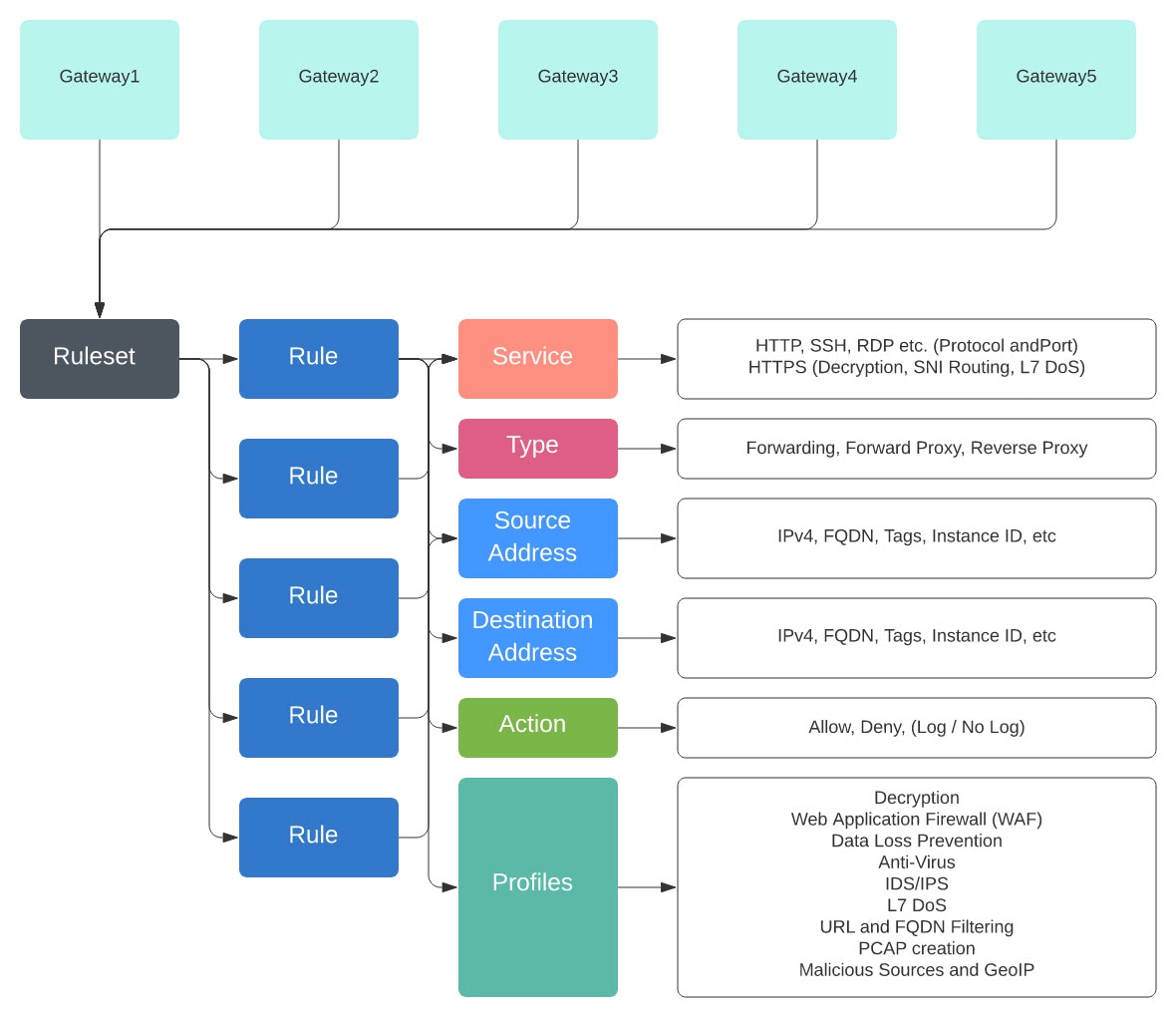
    A ruleset applied to multiple gateways.

Another supported use case is of multiple rule sets associated with multiple gateways.

Policy Rule Set Groups

A policy rule set group is a collection of standalone rule sets. Users can combine multiple standalone rule sets into a policy rule set group and associate the group to one or more Multicloud Defense Gateways. Policy rule set groups allow organizations to separate policies in an organized fashion and combine them to an overarching policy.

Note
  • A policy rule set group can only consist of rule set members.

  • Ensure all rule sets associated with a policy rule set group do not have conflicting rules.

  • A policy rule set group can have a maximum of 100 rule set members.


Create Policy Rule Set

To create a policy rule set:

Procedure

1.

Navigate to Policies > Security Policies > Rule Sets.

2.

Click Create.

3.

Add a name and description for the policy rule set.

4.

Click Save.

What to do next

Once the policy rule set is created, add standalone rules to the rule set.


Create a Rule in a Rule Set


Add or Edit a Forwarding Rule in a Rule Set

Use the following procedure to add existing rules to a policy rule set or to edit rules that are already included in a policy rule set:

Before you begin

You can create a new rule within the Multicloud Defense Gateway. Note the following limitations before you add or edit rules to your rule set:

  • A single policy rule set can have a maximum of 2047 rules.

  • A policy rule set group can have a maximum combined set of 2047 rules.

Procedure

1.

Navigate to Policies > Security Policies > Rule Sets.

2.

Click the policy rule set name to view the policy rule set.

3.

Click Add Rule to create a new rule or add an existing rule. This generates a prompt.

4.

Enter the following properties:

  • Name - a unique name used to reference the rule.

  • (optional) Description - A brief description of the rule.

  • Type - Select Forwarding.

5.

Enter the following Object information:

  • Service - The service object used to determine the protocols and ports for which the rule will apply.

  • Source - The address object used to determine the resources for which the rule will apply.

  • Destination - The address object used to determine the destination resources for which the rule will apply. For a ReverseProxy rule type, the destination is always the Multicloud Defense Gateway. For ForwardProxy rule types, the destination is always any.

  • FQDN - Use the drop-down menu to select a set of FQDNs used for SNI match. Note this applies only to Forwarding rule types.

6.

Enter the Details:

  • Action - The action defines whether the traffic should be allowed or denied, and whether the traffic should be logged or not logged in events. Traffic is always logged in traffic summary, no matter whether the action is set to Log or No Log. The advanced security profiles evaluate traffic allowed by the rule. Note that each advanced security profile has its own action that will either use or override this action.

  • Reset On Deny - If enabled, the Multicloud Defense Gateway will send a TCP Reset packet for the sessions that match this policy and are dropped by the gateway. Note this only applies to Forwarding rule types.

7.

Enter the following Profiles information:

  • (Optional) Network Intrusion - The Network Intrusion (IPS) profile to be used for advanced security.

  • (Optional) Anti-malware - The Anti-malware profile to be used for advanced security. If you do not already have an Anti-malware profile created, click + Create Anti Malware here.

  • (Optional) Data Loss Prevention - The Data Loss Prevention (DLP) profile to be used for advanced security. Note that this applies only to ForwardProxy rule types.

  • (Optional) FQDN Filtering - The FQDN Filtering (FQDN) profile to be used for advanced security.

  • (Optional) Malicious IPs - The Malicious IPs (MIP) profile to be used for advanced security.

  • (Optional) PCAP - Check this box to enable. Whether packet capture is enabled or disabled for the rule. Whenever traffic matches a rule with PCAP enabled, a packet capture of the session traffic will occur and the PCAP will be stored in the location specified by the PCAP profile. The PCAP profile is configured on the Multicloud Defense Gateway.

8.

After specifying the configuration for the rule, click Save.

9.

Continue adding more rules. Once all desired rules have been added, click Save Changes. You will be presented with a before and after view of all changes made to the rule set. If satisfied with your changes, click Save. If you need to make further changes, click Cancel to return to editing your rule set.


Add or Edit a Reverse Proxy Rule in a Rule Set

Use the following procedure to add existing rules to a policy rule set or to edit rules that are already included in a policy rule set:

Before you begin

You can create a new rule within the Multicloud Defense Gateway. Note the following limitations before you add or edit rules to your rule set:

  • A single policy rule set can have a maximum of 2047 rules.

  • A policy rule set group can have a maximum combined set of 2047 rules.

Procedure

1.

Navigate to Policies > Security Policies > Rule Sets.

2.

Click the policy rule set name to view the policy rule set.

3.

Click Add Rule to create a new rule or add an existing rule. This generates a prompt.

4.

Enter the following properties:

  • Name - a unique name used to reference the rule.

  • (optional) Description - A brief description of the rule.

  • Type - Select ReverseProxy.

5.

Enter the following Object information:

  • Service - The service object used to determine the protocols and ports for which the rule will apply.

  • Source - The address object used to determine the resources for which the rule will apply.

  • Destination - The address object used to determine the destination resources for which the rule will apply. For a ReverseProxy rule type, the destination is always the Multicloud Defense Gateway.

  • Target - The address object used to specify the destination for which the Multicloud Defense Gateway will establish a gateway to server connection.

6.

Select the preferred rule Action. This defines whether the traffic should be allowed or denied, and whether the traffic should be logged or not logged in events. Traffic is always logged in traffic summary, no matter whether the action is set to Log or No Log. For traffic that is allowed by the rule, the advanced security profiles are evaluated. Note that each advanced security profile has its own action that will either use or override this action.

7.

Enter the following Profiles information:

  • (Optional) Network Intrusion - The Network Intrusion (IPS) profile to be used for advanced security.

  • (Optional) Anti-malware - The Anti-malware profile to be used for advanced security. If you do not already have an Anti-malwre profile created, click + Create Anti Malware here.

  • (Optional) Web Protection - The Web Protection (WAF) profile to be used for advanced security. Note that this applies only to ReverseProxy rule types.

  • (Optional) URL Filtering - The URL Filtering (URL) profile to be used for advanced security. Note that this applies only to ForwardProxy and ReverseProxy rule types.

  • (Optional) Malicious IPs - The Malicious IPs (MIP) profile to be used for advanced security.

  • (Optional) PCAP - Check this box to enable. Whether packet capture is enabled or disabled for the rule. Whenever traffic matches a rule with PCAP enabled, a packet capture of the session traffic will occur and the PCAP will be stored in the location specified by the PCAP profile. The PCAP profile is configured on the Multicloud Defense Gateway.

8.

After specifying the configuration for the rule, click Save.

9.

Continue adding more rules. Once all desired rules have been added, click Save Changes. You will be presented with a before and after view of all changes made to the rule set. If satisfied with your changes, click Save. If you need to make further changes, click Cancel to return to editing your rule set.


Add or Edit a Forward Proxy Rule in a Rule Set

Use the following procedure to add existing rules to a policy rule set or to edit rules that are already included in a policy rule set:

Before you begin

You can create a new rule within the Multicloud Defense Gateway. Note the following limitations before you add or edit rules to your rule set:

  • A single policy rule set can have a maximum of 2047 rules.

  • A policy rule set group can have a maximum combined set of 2047 rules.

Procedure

1.

Navigate to Policies > Security Policies > Rule Sets.

2.

Click the policy rule set name to view the policy rule set.

3.

Click Add Rule to create a new rule or add an existing rule. This generates a prompt.

4.

Enter the following properties:

  • Name - a unique name used to reference the rule.

  • (optional) Description - A brief description of the rule.

  • Type - Select ForwardProxy.

5.

Enter the following Object information:

  • Service - The service object used to determine the protocols and ports for which the rule will apply.

  • Source - The address object used to determine the resources for which the rule will apply.

  • Destination - The address object used to determine the destination resources for which the rule will apply. For ForwardProxy rule types, the destination is always any.

  • FQDN - Use the drop-down menu to select a set of FQDNs used for SNI match. Note this applies only to Forwarding rule types.

6.

Enter the preffered rule Action. This defines whether the traffic should be allowed or denied, and whether the traffic should be logged or not logged in events. Traffic is always logged in traffic summary, no matter whether the action is set to Log or No Log. For traffic that is allowed by the rule, the advanced security profiles are evaluated. Note that each advanced security profile has its own action that will either use or override this action.:

7.

Enter the following Profiles information:

  • (Optional) Network Intrusion - The Network Intrusion (IPS) profile to be used for advanced security.

  • (Optional) Anti-malware - The Anti-malware profile to be used for advanced security. If you do not already have an Anti-malwre profile created, click + Create Anti Malware here.

  • (Optional) Data Loss Prevention - The Data Loss Prevention (DLP) profile to be used for advanced security. Note that this applies only to ForwardProxy rule types.

  • (Optional) URL Filtering - The URL Filtering (URL) profile to be used for advanced security. Note that this applies only to ForwardProxy and ReverseProxy rule types.

  • (Optional) FQDN Filtering - The FQDN Filtering (FQDN) profile to be used for advanced security.

  • (Optional) Malicious IPs - The Malicious IPs (MIP) profile to be used for advanced security.

  • (Optional) PCAP - Check this box to enable. Whether packet capture is enabled or disabled for the rule. Whenever traffic matches a rule with PCAP enabled, a packet capture of the session traffic will occur and the PCAP will be stored in the location specified by the PCAP profile. The PCAP profile is configured on the Multicloud Defense Gateway.

8.

After specifying the configuration for the rule, click Save.

9.

Continue adding more rules. Once all desired rules have been added, click Save Changes. You will be presented with a before and after view of all changes made to the rule set. If satisfied with your changes, click Save. If you need to make further changes, click Cancel to return to editing your rule set.


Disable, Edit, Clone, or Delete Rules in a Rule Set

Use the following procedure to edit or clone an existing rule that is configured for a rule set. You can also disable a rule if you do not need it active for your currenty policies or rule set. You can delete a rule if you do not need it now or for any future deployment.

Note that you can only edit or clone one rule at a time. You can disable or delete multiple rules simultaneously.

Procedure

1.

Navigate to Policies > Security Policies > Rule Sets.

2.

Locate the rule set that contains the rule you want to disable, edit, clone, or delete and click the rule set name.

3.

Check the checkbox of the standalone rule.

4.

Expand the Actions button.

5.

Select your actionable item:

  • Disable - This option keeps the rule in the rule set but disables the rule and the configured rule action from affecting traffic.

  • Edit - This option launches the Properties window and allows you to edit the configuration of the rule. Click Save to keep the changes you made.

  • Clone - This option creates a duplicate of the rule and opens the Properties window for you to name the cloned rule, or make any additional changes to the rule's configuration. Click Save to confirm the configuration. Saving a cloned rule automatically adds it to the rule set you are viewing.

  • Delete - This option permanently removes the rule from the rule set. Note that this also removes the rule from the gateway.

6.

Click Save Changes to confirm the changes you made to the rule and, indirectly, do the rule set. If you do not want to save the changes, click Cancel. Confirm that losing any changes made to the gateway is OK.


Create a Policy Rule Set Group

To create a policy rule set group:

Procedure

1.

Navigate to Policies > Security Policies > Rule Sets.

2.

Click Create.

3.

Add a name and description for the policy rule set group.

4.

Select Type as the group.

5.

Expand the drop-down menu to add rule sets in the Rule Set List section. If you want to add more rule sets, click Add Rule Sets to add another row.