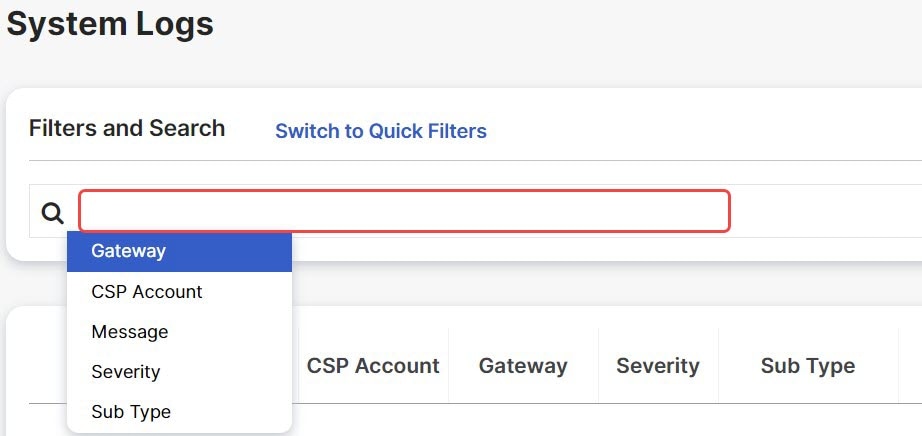
Learn how System Logs help you review system messages, gateway events, resource changes, and operational issues by timeframe and severity level.
System logs contain details of actions that the Multicloud Defense solution performs. This includes system messages, gateway events, instance creation or deletion, and other configuration and operation modifications of the Multicloud Defense solution and more. The system stores these logs for a duration of 1 year. Multicloud Defense supports log forwarding to AWS S3.
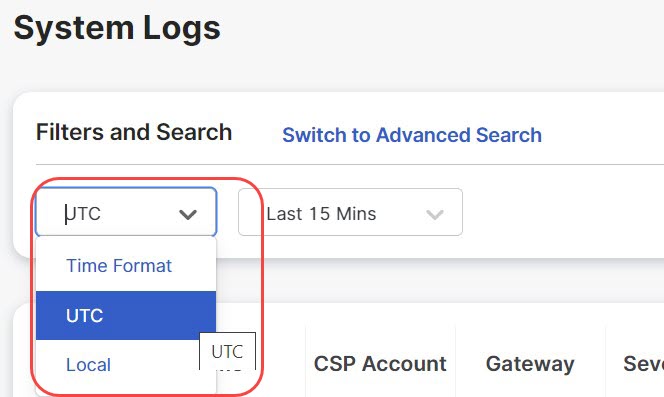
Time Format
Logs display in UTC (Coordinated Universal Time) or local time format. Local means the time zone of the user as configured. For example, in the USA/Pacific time zone. Date and Time of logs display in ISO 8601 format (Complete date plus hours, minutes, seconds, and a decimal fraction of a second - YYYY-MM-DD T HH:MM:SS:S). Example: 2020-11-22T10:58:46.820
To select or switch between different time formats, click the radio button as shown:
Timeframe
You can display logs in increment options from 15 minutes to 30 days, or Custom timeframes.
To select or switch between timeframes, click the drop-down-menu and select a timeframe as shown:
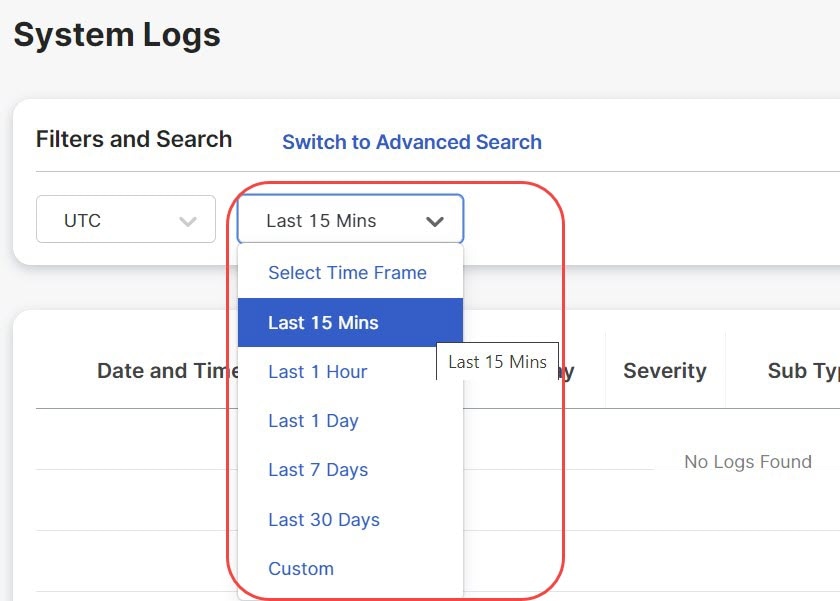
For Custom timeframes, select Custom, the Start, and the End date or time by clicking the calender objects followed by Save.
Severity Levels
The severity levels of system logs are:
-
Info- Informational details such as sign in, sign out, password changes, configuration changes and so on. These contain events that do not qualify as other severity levels. -
Warning- Notifications that inform you of a possible system action or change, for example, password updates. -
Medium- Issues that are medium in severity such as package upgrades and so on. -
High- Serious issues such as network disconnections with external devices and so on. -
Critical- Major issues that are critical in nature such as hardware failures and so on.