Migrate On-Premises Firewall Management Center Managed Secure Firewall Threat Defense to Cloud-Delivered Firewall Management Center

Overview of Firewall Threat Defense to Cloud-Delivered Firewall Management Center Migration

Introduction

This feature enables you to migrate Firewall Threat Defense devices from On-Premises Firewall Management Center to Cloud-Delivered Firewall Management Center through Security Cloud Control Firewall Management. Migration enables organizations to move device management from on-premises infrastructure to Cisco’s cloud-based management. This migration preserves existing policies, objects, and configurations.

Customer benefits

  • Preserves existing policies and configuration

  • Imports device-specific configuration, including interfaces, routing, and related settings

  • Handles duplicate policy and object names according to defined conflict-resolution rules

  • Transfers feature licenses automatically

  • Supports high availability pairs and clusters

  • Provides 14-day evaluation window before permanent commit

  • Allows analytics to remain on-prem or move to cloud

  • Provides an intuitive troubleshooting page with status summaries and step‑by‑step progress to pinpoint issues.

  • Provides migration reports for validation and audit

User role changes

The user roles of the On-Premises Firewall Management Center are no longer applicable in Security Cloud Control Firewall Management after migration. Your authorization to perform tasks on the migrated device is based on your user role in Security Cloud Control Firewall Management. See the Users topic to understand the On-Premises Firewall Management Center Center and Cloud-Delivered Firewall Management Center user role mapping.

How Firewall Threat Defense Migration to Cloud-Delivered Firewall Management Center Works

Security Cloud Control Firewall Management performs migration in the following sequence:

  1. Onboards on-premises Firewall Management Center to Security Cloud Control Firewall Management.

  2. Exports configurations from on-premises Firewall Management Center.

  3. Imports shared policies, objects, and device-specific configurations to Cloud-Delivered Firewall Management Center.

  4. Registers Firewall Threat Defense devices with Cloud-Delivered Firewall Management Center.

  5. Starts a 14-day evaluation window to commit or revert changes.

  6. Allows a commit or revert changes.

After migration:

  • Cloud-Delivered Firewall Management Center manages devices and their configuration.

  • Events and analytics can be handled by either the on-premises Firewall Management Center (analytics-only mode) or Security Cloud Control Firewall Management.

  • Devices appear on the Security Devices page.

About 14-Day Evaluation Period

When a migration job is successful, you have 14 days to test and assess migration changes using Cloud-Delivered Firewall Management Center. If you are convinced about the migration changes, we recommend that you commit the devices manually, and not wait for Secure Firewall Management Center to automatically commit the migration changes. You have a 14-day evaluation period to review and assess the migration changes that are made to the devices before Secure Firewall Management Center automatically commits them.

After successful migration:

  • You have 14 days to evaluate configuration.

  • You can undo the changes and continue managing the device with On-Premises Firewall Management Center.

  • You can commit migration changes to Cloud-Delivered Firewall Management Center.

After 14 days evaluation period:

  • Changes are automatically committed.

  • Revert is no longer possible after auto-commit.

During 14 day evaluation window:

  • High availability break may not be supported (depending on onboarding method).

  • Performing advanced high availability or cluster operations may result in migration commit failure.

  • Deleting devices is not allowed.

  • Changes made in Cloud-Delivered Firewall Management Center are lost, if reverted.

How Firewall Threat Defense Licenses are Handled During Migration to Cloud-Delivered Firewall Management Center

  • When the Firewall Threat Defense is migrated to the cloud, all feature licenses associated with the device are transferred to Security Cloud Control and released from the Firewall Management Center to the Smart License pool. The device reclaims the device-specific licenses during its registration with Security Cloud Control. You need not apply license on the device again.

  • The device-specific licenses are not required if you want to keep devices in the Firewall Management Center for analytics.

End-to-End Workflow for Migrating Firewall Threat Defense to Cloud-Delivered Firewall Management Center

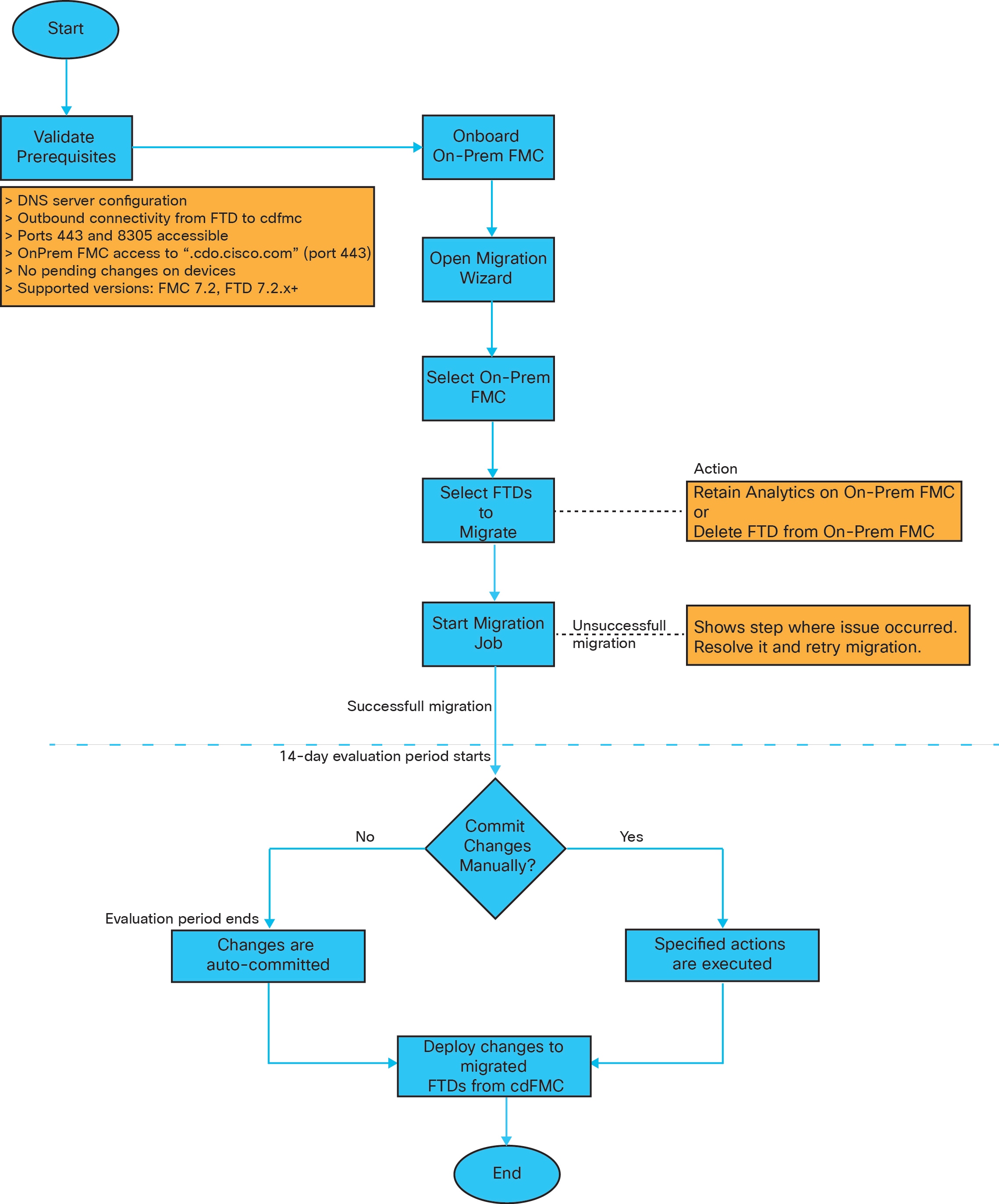
The following flowchart illustrates the high-level workflow for migrating Firewall Threat Defense to Cloud-Delivered Firewall Management Center.

End-to-end workflow diagram for migrating FTD to cdFMC

Event and Analytics Management Options During Firewall Threat Defense Migration

The events and analytics management can be retained in the on-premises Firewall Management Center or transferred to Security Cloud Control Firewall Management, where the devices must be configured to send events to Security Cloud Control Firewall Management.

While initiating the migration process, you are allowed to choose the manager where the device events must be sent for analytics:

  • Retain analytics on the on-premises Firewall Management Center, or

  • Transfer analytics to Security Cloud Control Firewall Management.

Special requirement for FMC 1000/2500/4500

If you are migrating from an on-premises Firewall Management Center 1000/2500/4500, you cannot retain analytics on the on-premises Firewall Management Center due to limited availability.

In this case, devices must send events to:

  • Security Analytics and Logging (On-Prem), or

  • Security Analytics and Logging (SaaS).

See Cisco Security Analytics and Logging.

If you retain on-premises Firewall Management Center for analytics

  • Security Cloud Control Firewall Management becomes the configuration manager.

  • The devices remain on the on-premises Firewall Management Center in analytics-only mode.

  • Devices continue sending events to the on-premises Firewall Management Center.

  • Security Cloud Control Firewall Management manages configuration changes only.

If you select Security Cloud Control Firewall Management for analytics

  • Secure Firewall Management Center becomes both:

    • Configuration manager, and

    • Analytics manager.

  • The devices are removed from the on-premises Firewall Management Center.

  • You must configure the devices to send events to the Cisco cloud.

  • Events can be sent using:

    • Security Services Exchange (SSE), or

    • Secure Event Connector (SEC)

  • Events are processed by Cisco Secure Analytics and Logging (SAL) in the cloud.


Note


If you initially select on-premises Firewall Management Center for analytics, you have a 14-day evaluation period during which you can change the analytics destination to Secure Firewall Management Center.

After either:

  • Manually committing the migration, or

  • The 14-day evaluation period expires, the analytics selection becomes permanent. Events will continue to be sent to the selected destination, and the setting cannot be changed.

To modify analytics settings after the evaluation period or after commit, refer to the migration troubleshooting procedures. see Resolving Firewall Threat Defense Migration to Cloud-Delivered Firewall Management Center Issues


eStreamer Server Streaming

When you manage a Firewall Threat Defense device with Cloud-Delivered Firewall Management Center, the device supports sending only fully-qualified events (FQE) to eStreamer clients. If you have configured eStreamer clients in the on-premises Firewall Management Center, ensure that the clients support the detailed data formats used by FQE when you migrate the device management to Cloud-Delivered Firewall Management Center. Any legacy clients, security information and event management (SIEM) systems, or log management solutions that do not support the data format of FQE or lack the necessary storage to handle the larger volume of FQE data will not work when you migrate.

Supported Features

Shared Policies Imported

The following policies are imported first and then followed by the device configuration:

  • Access control

  • IPS

  • SSL

  • Prefilter

  • NAT

  • QoS

  • Identity

  • Platform settings

  • Flex config

  • Network analysis

  • DNS

  • Malware & file

  • Health

  • Remote Access VPN

  • Site-to-Site VPN

Handling duplicate names

If a policy or object name in Security Cloud Control Firewall Management matches one imported from the On-Premises Firewall Management Center, Security Cloud Control Firewall Management will take the following actions after a successful management change.

Policies, Objects

Condition

Action

Access control, SSL, IPS, Prefilter, NAT, QoS, Identity, Platform settings, Network analysis, DNS, Malware & File policies.

Name of the Cloud-Delivered Firewall Management Center policy matches the on-premises Firewall Management Center policy.

Cloud-Delivered Firewall Management Center policy is used.

RA VPN Default group policy DfltGrpPolicy

The default group policyDfltGrpPolicy from the on-premises Firewall Management Center is ignored.

Existing Cloud-Delivered Firewall Management Center default group policy DfltGrpPolicy is used.

Network, Port objects

Name and content of network and port objects in the Cloud-Delivered Firewall Management Center match the ones in the on-premises Firewall Management Center.

Existing Cloud-Delivered Firewall Management Center network and port objects with the same name and content are used.

If the object has the same name but different content, an object override is created.

All other objects

Existing Cloud-Delivered Firewall Management Center object is used.


Note


Syslog alert objects used in the access control policy are imported.


Unsupported Features

Migration of a Firewall Threat Defense device registered only for analytics-only with the Firewall Management Center feature is not currently supported.

The following configuration are not imported from the Firewall Management Center to Security Cloud Control as part of migration:

  • Custom Widgets, Application Detectors, Correlation, SNMP and Email Alerts, Scanners, Groups, Dynamic Access Policy, Custom AMP Configuration, Users, Domains, Scheduled Deployment Tasks, ISE configuration, Scheduled GeoDB Updates, Threat Intelligence Director configuration, Dynamic Analysis Connections.

  • ISE internal certificate object is not imported as part of the migration. You must export a new system certificate or a certificate and its associated private key from ISE and import it into Security Cloud Control Firewall Management.

Secure Firewall Recommended Rules

Migrating Firewall Threat Defense to the cloud migrates existing rule recommendations linked to intrusion policies. However, the Cloud-Delivered Firewall Management Center does not generate new rule recommendations or auto-update migrated ones post-migration, as it does not support rule recommendations. See Auto Cisco Recommended Rules.

Custom Network Analysis

Before migration, Custom Network Analysis policies must be removed from the On-Premises Firewall Management Center.

  1. Log on to the on-premises Firewall Management Center.

  2. Choose Policies > Access Control.

  3. Click the edit icon on the access control policy you want to disassociate the custom NAP and then click the Advanced tab.

  4. In the Network Analysis and Intrusion Policies area, click the edit icon.

  5. In the Default Network Analysis Policy list, select a system-provided policy.

  6. Click OK.

  7. Click Save to save the changes and then click Deploy to download the changes to the device.

After migration, you can manually create the Network Analysis Policy in Security Cloud Control Firewall Management.

User Identity Migration Guidelines and Limitations for Firewall Threat Defense Devices

Before you migrate an on-premises Firewall Threat Defense to Cloud-Delivered Firewall Management Center, you must prepare and also deploy as soon as possible after the migration if any access control policies reference identity objects discussed in this topic. To confirm, click Policies > Access Control heading > Access Control and examine your access control policies and rules.

If none of your access control policies reference identity objects (in particular, users and groups), you can ignore these guidelines.

Before migrating

Before migrating, on the On-Prem Firewall Management Center, click Integration > Other Integrations > Identity Sources and see if you have any Cisco ISE/ISE-PIC or Passive Identity Agent identity sources defined.

  • If you have Cisco ISE/ISE-PIC or Passive Identity Agent identity sources defined, create the Cisco ISE/ISE-PIC identity sources on Cloud-Delivered Firewall Management Center then migrate the device as discussed in the following paragraphs.

  • If no Cisco ISE/ISE-PIC or Passive Identity Agent identity sources are defined, migrate the device as discussed in the following paragraphs.

Migrate the device

Migration is discussed in Overview of Firewall Threat Defense to Cloud-Delivered Firewall Management Center Migration. To avoid traffic disruption, when you migrate the device, we strongly recommend you either:

  • Check the Auto deploy to FTDs after successful migration check box.

  • Deploy policies immediately after migration is complete.

Migration Guidelines and Limitations for VPN Configuration

Keep the following in mind when you migrate a device with VPN configuration.

Migration guidelines for Remote Access VPN

Security Cloud Control Firewall Management imports all remote access VPN policy settings, with the following exceptions:

  • Object overrides are not migrated.

    If overrides are used in the address pool object, manually add them to the imported object in Security Cloud Control Firewall Management after migration.

  • Local users.

    If the authentication server uses a local database, the associated local realm object is imported into Security Cloud Control Firewall Management. However, you must manually add the local users to the imported local realm object after migration. See Create a Realm and Realm Directory.

  • Load-balancing configuration is not migrated.

  • Certificate enrollment with domain configuration.

    Perform the following after migration to enroll the certificate with domain configuration:

    1. Choose Security Devices.

    2. Select the migrated FTD and in the Device Management on the right, click Device Overview.

    3. Choose Devices > Certificates.

      Perform one of the following tasks:

      • If the certificates are imported in an Error state, click the Refresh certificate status icon to synchronize the certificate status with the device. The certificate status turns green.

      • If the certificates are not imported, you must manually add the certificates defined in the Remote Access VPN policy that is configured in the Firewall Management Center.

Migration guidelines for Site-to-Site VPN

  • After selecting a Firewall Threat Defense device, all peers are automatically selected from various topologies, as all devices within a topology must migrate together.

  • Migration wizard doesn't list the extranet devices that are associated with them, but they will still be automatically included during the migration process.

All settings will be migrated, with the following exceptions:

  • Network object overrides are not migrated. They must be manually added to the imported object in Security Cloud Control Firewall Management after migration.

  • If the authentication type configured as Preshared Automatic Key in the On-Premises Firewall Management Center:

    • Cloud-Delivered Firewall Management Center generates new pre-shared key post-deployment.

    • Existing tunnels remain active.

    • New tunnels use newly generated key.

  • If devices are moved to Security Cloud Control Firewall Management but the changes are not yet committed, the associated site-to-site VPN policy can still be modified in the On-Premises Firewall Management Center, however, it those changes do not update the device configuration in Security Cloud Control Firewall Management.

  • Devices configured for SASE tunnels on Cisco Umbrella are not migrated.

Supported On-Premises Firewall Management Center and Firewall Threat Defense Software Versions for Migration

Minimum supported versions

  • Minimum On-Premises Firewall Management Center: 7.2

  • Minimum Firewall Threat Defense: 7.2.x (not supported for Version 7.1)

Physical On-Premises Firewall Management Center 1000/2500/4500 Model-Managed Firewall Threat Defense

  • Migration is supported from physical FMC 1000/2500/4500 models.

  • Temporary upgrade from 7.0 to 7.4 is supported for migration purposes only. The On-Premises Firewall Management Center Version 7.4 is “unsupported for general operations,” but allowed as an interim step until migration completes. You can download the upgrade package here.

  • After migration, do the following:

    1. Return to On-Premises Firewall Management Center to a supported version after migration.

    2. Remove re-migrated devices.

    3. Reimage back to 7.2.x.

    4. Re-register the devices.


    Note


    Unzip (but do not untar) the upgrade package before uploading it to the On-Premises Firewall Management Center. To upgrade to Version 7.4, see Cisco Secure Firewall Management Center Upgrade Guide, Version 6.0-7.0.


We recommend upgrading the devices to Version 7.2.x before upgrading the On-Premises Firewall Management Center to Version 7.4.


Important


An upgrade is necessary because Version 7.0 On-Premises Firewall Management Centers do not support cloud device migration. Only Version 7.4 is supported during the migration and evaluation process. These On-Premises Firewall Management Centers cannot run intermediate versions. Only standalone and high availability Firewall Threat Defense devices running Version 7.0.3+ (7.0.5 recommended) are eligible for migration.


Firewall Threat Defense in a High Availability Pair

  • High availability pairs migrate as a single node.

  • Both active and standby Firewall Threat Defense devices migrate together.


Important


We highly recommend committing manager changes before performing advanced operations, like creating or breaking high availability configurations from the On-Premises Firewall Management Center on the devices being migrated. Carrying out these tasks during the evaluation period is unsupported and may lead to migration commit failure.


Firewall Management Center in a High Availability Pair

  • Onboard the active On-Premises Firewall Management Center and not the standby.

  • Use either the auto-onboarding method or the credentials method for onboarding the On-Premises Firewall Management Center.


Note


If you have already onboarded a standalone On-Premises Firewall Management Center and later configured it as a standby, delete the standby On-Premises Firewall Management Center and onboard the active one.


Points to Remember:

  • Auto-onboarding On-Premises Firewall Management Center Method

    • High availability break is not supported during the 14 days evaluation period.

      You can break high availability after changes are committed, manually or automatically, after the evaluation period.

    • High availability switchover is supported during the 14 days evaluation period.

  • Onboarding On-Premises Firewall Management Center Method Using Credentials

    • High availability break and high availability switchover are not supported during the 14 days evaluation period. You can perform these operations after committing the changes manually or automatically after the evaluation period.

    • After a switchover, onboard the new active unit, which was previously in standby mode, and then start a migration job on the devices.


Note


During the 14-day evaluation period after migrating a Firewall Threat Defense device, if you have performed advanced operations on the device, such as converting it to a multi-instance chassis, note that the evaluation period becomes nullified, and you will not be able to revert the device management back to the On-Premises Firewall Management Center.

If you want to manage a multi-instance chassis using Cloud-Delivered Firewall Management Center, onboard the chassis manually to Security Cloud Control.


Firewall Threat Defense Cluster

Firewall Threat Defense cluster migration is supported on these platforms with minimum versions:

Platforms

Minimum Firewall Threat Defense

Minimum On-Premises Firewall Management Center Version

VMware, KVM

7.2.1

7.4.1

AWS, GCP

7.2.1

7.4.1

Azure

7.3

7.4.1

Secure Firewall 3100

7.2.1

7.4.1

Firepower 4100

7.2.x

7.4.1

Secure Firewall 4200

7.4

7.4.1

Firepower 9300

7.2.x

7.4.1


Important


Before migrating the Firewall Threat Defense cluster, remember the following points:

  • Do not migrate the Firewall Threat Defense cluster during clustering-related operations from the On-Premises Firewall Management Center.

  • After migration, manually commit manager changes before performing advanced operations, such as adding a node, breaking a node, or breaking a cluster from the on-premises Firewall Management Center. Performing such tasks during the evaluation period may result in migration commit failure.


Migration Support for Multi-instance Firewall Threat Defense Devices

You can migrate a multi-instance Firewall Threat Defense device that is part of a chassis (Secure Firewall 3100/4200). The multi-instance device gets listed as one of the devices in the Select Devices page, and you can choose it to proceed with the migration. This migration is supported in Firewall Threat Defense device versions 7.6 or later.

If you decide to do such a multi-instance Firewall Threat Defense device migration, it is strongly recommended that you unregister the corresponding chassis device manually from the on-premises Firewall Management Center and onboard it to Security Cloud Control, by navigating to the Security Devices page.

Prerequisites for Migrating Firewall Threat Defense to Cloud-Delivered Firewall Management Center

Before you begin the process, ensure that the following prerequisites are met:

  • DNS Server Configuration:

    The Firewall Threat Defenses must have the correct DNS server configuration to resolve Cloud-Delivered Firewall Management Center hostnames. For details about checking connectivity with Cloud-Delivered Firewall Management Center, see Check device connectivity with Cloud-Delivered Firewall Management Center.

  • Network Access:

    The required network access must be enabled for Firewall Threat Defenses to reach Cloud-Delivered Firewall Management Center through the TCP port 8305. Note that outbound connectivity from the Firewall Threat Defenses to Cloud-Delivered Firewall Management Center is sufficient.

  • Firewall Threat Defense Outbound Port 443:

    The Firewall Threat Defenses must be able to access port 443 and 8305 of Cloud-Delivered Firewall Management Center.

  • On-Premises Firewall Management Center Outbound Port 443:

    The on-premises Firewall Management Center must have access to outbound port 443 open to reach “*.cdo.cisco.com” domain.

  • The on-premises Firewall Management Center is onboarded to Security Cloud Control. Onboarding the on-premises Firewall Management Center also onboards all the Firewall Threat Defense devices registered to that on-premises Firewall Management Center. See Onboard an On-Prem FMC.


    Note


    Create a new user in the on-premises Firewall Management Center with Administrator role or a custom user role with "Devices" and "System" permissions for onboarding purposes.


    Caution


    If you onboard an on-premises Firewall Management Center to Security Cloud Control and simultaneously sign in to that on-premises Firewall Management Center with the same user name, the onboarding fails.


  • For the on-premises Firewall Management Center 1000/2500/4500 migration:

  • The Firewall Threat Defense devices must be synchronized and not have pending changes on them. The migration fails on a device if Security Cloud Control identifies pending changes on that device.

  • All peer devices in a site-to-site VPN topology must be online and have no pending deployment.

  • On-Premises Firewall Management Center should allow outbound HTTP/HTTPS to upload configurations to Amazon S3.

  • Security Cloud Control imports Syslog alert object used in the access control policy from the on-premises Firewall Management Center. If Security Cloud Control already contains an alert object with the same name but a different type (SNMP, Email), it is reused during configuration import.

    The user must check whether the Syslog object name matches the existing SNMP or Email alert object in Security Cloud Control. If the name matches, you must rename the Syslog object in the on-premises Firewall Management Center before starting the migration process.

  • If you attempt to migrate firewalls with modified system defined FlexConfig text objects from an on-premises Firewall Management Center to the Cloud-Delivered Firewall Management Center, the values of the modified system defined FlexConfig text objects are not migrated to the Cloud-Delivered Firewall Management Center, and the deployment will fail.

    To avoid this, perform these tasks before you start the migration:

    • Copy the modified system defined FlexConfig text object values from the on-premises Firewall Management Center to Cloud-Delivered Firewall Management Center before migration.

    • Initiate migration from on-premises Firewall Management Center to Cloud-Delivered Firewall Management Center after verifying the predefined FlexConfig text objects.

Points to remember

Policy and Object Name Conflicts:

If a policy in Cloud-Delivered Firewall Management Center shares the same name as one in on-premises Firewall Management Center (excluding network, port, URL, and VLAN objects), the cdFMC version will be retained. See Handling Shared Policies and Objects.

Policy and Object Updates:

After migration, policies and objects aren't auto-synced between on-premises Firewall Management Center and Cloud-Delivered Firewall Management Center. For phased migrations, you must update them manually.

Evaluation Period:

You can revert to on-premises Firewall Management Center within 14 days of migration. After that, changes are finalized automatically. See Revert the Threat Defense Management to On-Prem Firewall Management Center.

High availability failover link must be up

The high availability failover link should be up for a successful migration. Before initiating the migration process on Security Cloud Control, determine the health status of the failover link on the on-premises Firewall Management Center.

  1. Identify the failover interfaces of all HA pairs you want to migrate to Cloud-Delivered Firewall Management Center.

    1. Choose Devices > Device Management.

    2. Next to the device high-availability pair you want to edit, click Edit ( ).

    3. Click the High Availability tab.

    4. In the High Availability Link area, the Interface field shows the failover interface used in the pair.

    5. Identify the interfaces used for failover communication if there are multiple HA pairs for migration.

  2. Check the health status of the failover interfaces.

    1. Choose Devices > Device Management.

    2. Next to the device high-availability pair you want, click Health Monitor.

    3. In the left pane, expand the high availability pair to see the Firewall Threat Defense devices.

    4. Click the device indicated in the exclamation mark ( ).

    5. Click the Critical button at the top.

      The Interface Status shows the errors associated with interfaces.

    6. If the failover interface is down, the Interface ‘failover_interfacename’ has no link message is displayed.


      Note


      However, you can migrate the HA pair to Cloud-Delivered Firewall Management Center if you see any other data interface issues except for the failover interface.


    7. Rectify the issue and click Sync from onprem fmc now to obtain the latest changes on the device.

Migrate Firewall Threat Defense to Cloud-Delivered Firewall Management Center

Procedure


Step 1

In the navigation bar on the left, click Administration > Migration > Migrate FTD to cdFMC.

Step 2

Click and choose On-Prem FMC-managed FTD to cdFMC.

Note

 
You can initiate only one migration job at one time.

Step 3

In the Select On-Prem FMC area, perform the following:

  1. You can click the Onboard an FMC link to onboard the on-premises Firewall Management Center if you have not done already. See Onboard an FMC.

  2. Select the on-premises Firewall Management Center from the available list and click Next.

In the Select Devices step, you will see the Firewall Threat Defense devices that the selected on-premises Firewall Management Center manages. If a high-availability pair is set up on the on-premise on-premises Firewall Management Center, the high availability node will be shown instead of the active and standby devices.

The Last Synced time field indicates the time that is elapsed since the device configuration is synchronized into the on-premises Firewall Management Center. You can click Sync from OnPrem FMC Now to fetch the latest device changes.

Step 4

In the Select Devices step, perform the following:

  1. Select the devices that you want to migrate.

    These devices can include standalone, high-availability pairs, or clusters. If you have a high-availability pair or a cluster, select the node that represents it. Also, you can hover your mouse pointer over the cluster to view more details about the control node.

    Note

     
    • The devices running on unsupported versions are not available for selection.

    • The devices that are registered for analytics only with the on-premises Firewall Management Center or have pending changes to be deployed are not eligible for migration.

    • When you select a device that is associated with a site-to-site VPN topology, Security Cloud Control automatically selects its peer devices belonging to either the same topology or a different topology, because all devices in the site-to-site VPN topology must be migrated together for a successful migration to take place. The wizard does not list the extranet devices, if any. However, Security Cloud Control migrates extranet devices.

      The S2S VPN Topology column indicates the number of site-to-site VPN topologies in which a selected device participates. You click the topology link to view the topologies and devices that are migrated along with the selected device. This field is not applicable to devices that are not part of the site-to-site VPN topology.

    • A high availability pair is presented as a single node. You must select this node to include active and standby devices in the migration.

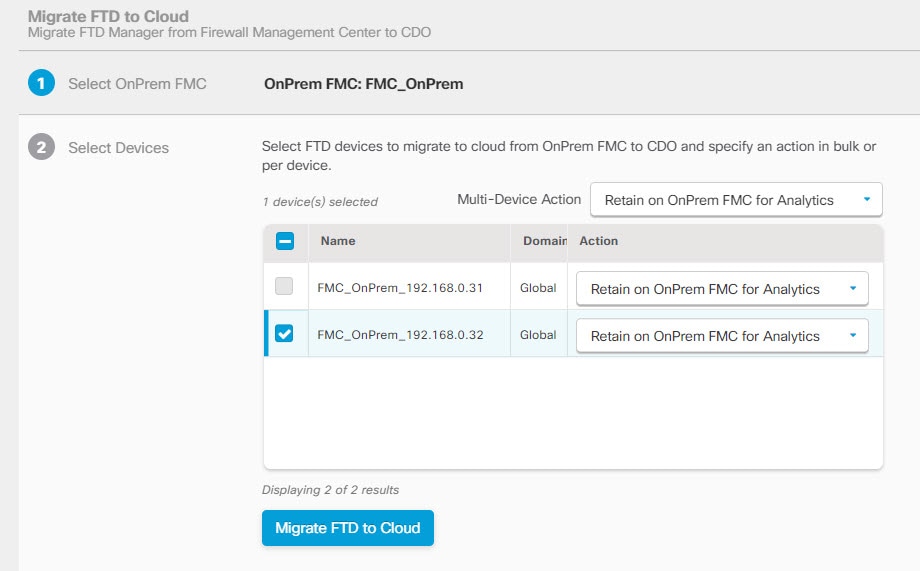
  2. In the Multi-Device Action list, you can choose a common action to apply on all devices.

  3. In the Commit Action column, you can choose one of the following actions for the selected device:

    • Retain on OnPrem FMC for Analytics: After the migration process is completed, the analytics management for selected Firewall Threat Defense devices is retained on the on-premises Firewall Management Center.

    • Delete FTD from OnPrem FMC: After the migration process is completed, the selected devices are removed from the on-premises Firewall Management Center and are available for Security Cloud Control to handle the analytics. You must configure the devices to send events to Security Cloud Control for managing analytics. When the devices are deleted from the on-premises Firewall Management Center, they cannot be revoked.

      Important


      For the on-premises Firewall Management Center 1000/2500/4500, when you select devices to migrate, make sure you choose Delete FTD from OnPrem FMC. Note that the device is not fully deleted unless you commit the changes or 14 days pass.

Note


The actions that are specified here are committed automatically after the 14 days evaluation period or after the changes are committed manually.

Step 5

(Optional) Check the Pause migration to review imported shared policies check box.

When you enable this option, the migration process will pause after the shared access policies like Access Control and NAT policies are staged in the Cloud-Delivered Firewall Management Center. This pause ensures that the evaluation doesn't start and that the device's current state and manager remain unaffected. It gives you ample time to review the imported configuration for accuracy. After you've assessed everything, you can resume the migration during the planned migration interval, which will then kick off the 15-day evaluation period.

Step 6

Check the Auto deploy to FTDs after successful migration check box to deploy the migrated configuration automatically to the device after successfully migrating and registering the device with the Cloud-Delivered Firewall Management Center.

However, if you prefer to review and manually deploy the configuration from the Cloud-Delivered Firewall Management Center after successful migration, you can uncheck this option and proceed to the next step.

Step 7

Click Migrate FTD to cdFMC.

Step 8

Click View Migration to Cloud Progress to see the progress.


What to do next

If you have paused the migration for review, you must manually click Proceed Migration to import the remaining configuration. See Proceed Migration Process.

You can view the overall and individual status of migration jobs and generate a report when a job is completed successfully. See View a Firewall Threat Defense Migration Job.

View a Firewall Threat Defense Migration Job

The migration dashboard provides the status of all migration jobs initiated from the Security Cloud Control. You can expand a specific job to see the status of individual devices associated with that tenant. This helps you keep track of the progress of your migration and identify issues, if any, that need to be addressed.

If you have set up alerts for device workflows, click the notifications icon to see the alerts that have been triggered during the migration process. Additionally, if you have opted to receive email notifications from Security Cloud Control, you will also receive an email notification regarding alerts, if any.

When a migration job is successful, you have 14 days to test and assess migration changes. If you are convinced about the migration changes, we recommend that you commit the devices manually, and not wait for Security Cloud Control to automatically commit the migration changes. See Commit Migration Changes Manually.

Note that for the on-premises Firewall Management Center 1000/2500/4500, you would have migrated devices from Version 7.4, which is unsupported for general operations. To return the on-premises Firewall Management Center to a supported version you must remove the re-migrated devices, reimage back to Version 7.2.x, restore from backup, and re-register the devices.


Note


  • You cannot revoke the actions that are specified in the migration commit window after committing the changes.

  • You can cancel the migration during the evaluation period and return the device to the on-premises Firewall Management Center.

  • You cannot delete a device from either the on-premises Firewall Management Center or Cloud-Delivered Firewall Management Center during the evaluation period.


Important


Changes can be made and deployed to the device using Security Cloud Control during the evaluation period. If you switch device management back to the on-premises Firewall Management Center, Security Cloud Control-specific changes made during the evaluation period is not saved on the device once it is reverted to the source Security Cloud Control tenant. You must deploy the changes from the on-premises Firewall Management Center to the device after reverting the device's manager.


  • Name: Represents the job name that shows the on-premises Firewall Management Center name and the date and time when the job was initiated.

  • Number of FTDs: Shows the total number of devices that are being migrated to the cloud.

  • Status: Shows the status of the job. Expand the job to see the status of individual devices.

    When a job is completed successfully, the FTD Migration job is successful message appears in the Status column. You can click the tooltip to see the number of days remaining for evaluating the manager.

    You can click Commit Migration Changes to commit the changes manually before the 14 days evaluation period ends.

  • Last Update: Shows the date and time that are updated only when a change is made to the device.

  • Actions: Click to execute the following actions:

After a successful migration, Security Cloud Control deploys the configuration to the device. If the system identifies errors or warnings in the changes to be deployed, it displays them in the Validation Messages window. To view complete details, click the arrow icon before the warnings or errors. If the deployment fails, see the Best Practices for Deploying Configuration Changes section of Firepower Management Center Device Configuration Guide X.Y.

Configure Relam Sequence for Identity Policy

If the device contains an identity policy with a Realm or ISE configuration, configure your device as a proxy for Security Cloud Control to communicate with the identity source. The identity policies don't function if Security Cloud Control fails to connect to the Identity Realms.

A tooltip appears in the Status column for a device that requires additional configuration.

  1. Click the tooltip icon and then click Learn more.

  2. In the Configure Proxy window, click Configure my realms.

    To add a proxy sequence, see the Create a Proxy Sequence section in the Firepower Management Center Device Configuration Guide, 7.2.

Proceed Migration Process

If the Pause migration to review imported shared policies option was checked during the migration setup, the migration process will pause after the shared access policies were staged in the Cloud-Delivered Firewall Management Center. After you've reviewed the staged configurations, you must manually instruct Security Cloud Control to resume the migration, which will then import device-specific configurations such as routing and interfaces, as well as register the Firewall Threat Defense with the Cloud-Delivered Firewall Management Center. Completion of the migration triggers a 14-day evaluation period.

To proceed, go to the migration job page and click Proceed with migration for the relevant job.

Remember that deployment from the Cloud-Delivered Firewall Management Center must be done after a successful migration.

Commit Migration Changes Manually to Cloud-Delivered Firewall Management Center

We recommend that you commit migration changes manually if you are convinced with your changes and not waiting for Security Cloud Control to auto commit changes. The Commit Migration Changes window shows the remaining days to commit the migration to Cloud-Delivered Firewall Management Center or revert the device to on-premises Firewall Management Center. During the evaluation period, you can modify the actions for selected threat defense devices before committing the changes. Once the changes are committed, you can't revoke the actions.


Note


The commit manager changes actions are disabled in the following conditions:


  • The 14-day evaluation period has passed.

  • The Firewall Threat Defense devices have either been reverted to the on-premises Firewall Management Center or deleted from on-premises Firewall Management Center, in which case, no further actions can be taken.

Procedure


Step 1

In the migration jobs page, click the under the Actions column of a completed job.

Step 2

Click Commit Migration Changes. (This link is available only after a job is completed successfully.)

Step 3

Select a device and in the Commit Actions list, choose one of the following actions:

  • Retain on OnPrem FMC for Analytics: After committing the changes, analytics management for selected Firewall Threat Defense devices is retained on the management center.
  • Delete Firewall Threat Defense from OnPrem FMC: After committing the changes, the selected devices are removed from the on-premises Firewall Management Center and are available for Security Cloud Control to handle the analytics. You must configure the Firewall Threat Defense to send events to Security Cloud Control for managing analytics. After the Firewall Threat Defense devices are deleted from the on-premises Firewall Management Center, they cannot be revoked.

Note


If you want to revert the device management to on-premises Firewall Management Center, refer to Revert the Firewall Threat Defense Management to On-Premises Firewall Management Center.

Step 4

Click Commit executes your specified actions immediately without further confirmation.

On the migration jobs screen, you can expand the job to check the progress of the actions specified.

The migrated devices appear on Security Cloud Control's Security Devices page. These devices can be managed using the Cloud-Delivered Firewall Management Center portal that is linked to Security Cloud Control. Ensure you deploy the changes to the devices from Cloud-Delivered Firewall Management Center.


Revert the Firewall Threat Defense Management to On-Premises Firewall Management Center

You can revert the device management to the on-premises Firewall Management Center during the evaluation period. This means that the devices will no longer be managed through the Security Cloud Control platform. However, it is important to note that any changes made during the migration process in the Security Cloud Control will not be reflected in the on-premises Firewall Management Center after reverting Firewall Threat Defense management.


Note


When the Firewall Threat Defense management has been returned to the on-premises Firewall Management Center , you can begin the migration job again to switch the Firewall Threat Defense management to Security Cloud Control.


Procedure


Step 1

In the migration jobs page, click the under the Actions column of a completed job.

Step 2

Click Commit Migration Changes. (This link is available only after a job is completed successfully.)

Step 3

Select a device and in the Commit Actions list, choose Revert Manager to OnPrem FMC.

Step 4

Click Commit executes your specified actions immediately without further confirmation.

Step 5

Deploy the changes to the device from the on-premises Firewall Management Center.


View Migrated Devices

The migrated devices appear on the Security Devices page in Security Cloud Control. You can cross-launch and configure the required feature on the Cloud-Delivered Firewall Management Center.


Note


The devices on the Cloud-Delivered Firewall Management Center device listing page may show No-IP instead of the device's management IP address. Because the device registration uses the NAT ID, the device initiates the process, and therefore, the management IPs aren't discovered or used for the connection. Note that this applies to newly onboarded devices and devices migrated from the on-premises Firewall Management Center.


Analytics Only Firewall Threat Defense Device Example

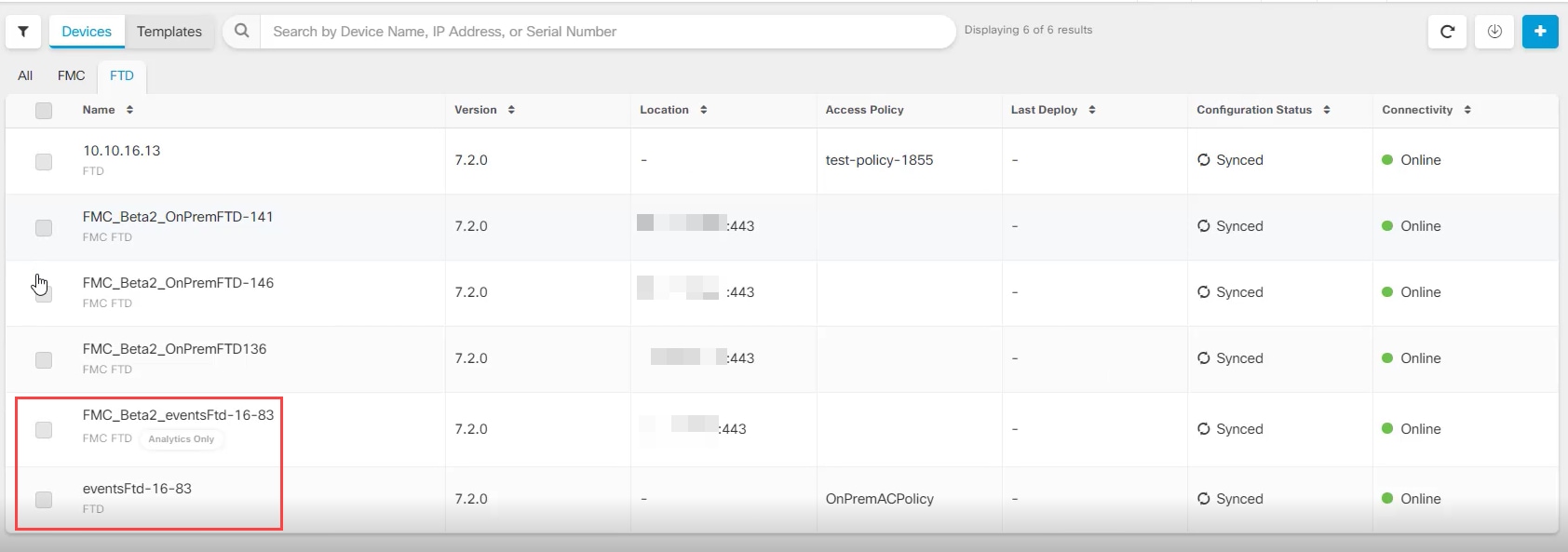
Security Cloud Control creates two instances of the same device that is configured to retain on the Firewall Management Center for analytics.

The device instance with FMC FTD and Analytics Only labels shows that the Firewall Management Center handles the analytics. The device instance with the FTD label indicates that Security Cloud Control manages its configuration.

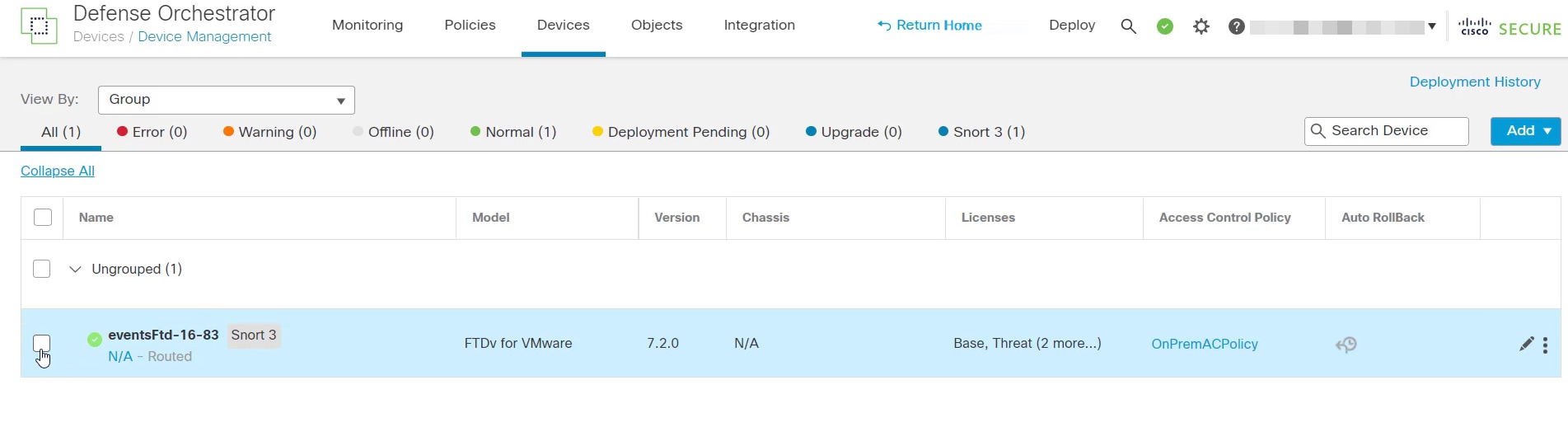
You can manage the configuration of the device using Security Cloud Control. To see the device in the Cloud-Delivered Firewall Management Center, do the following:

Select the device having FTD label and in the Management pane on the right, click Device Summary.

You can view the events from the device in the Firewall Management Center. To see the events, do the following:

  1. Select the device having FMC FTD and Analytics Only labels and on the right, click the Manage Devices link.

  2. Log on to the on premise Firewall Management Center.

  3. Choose Device > Device Management.

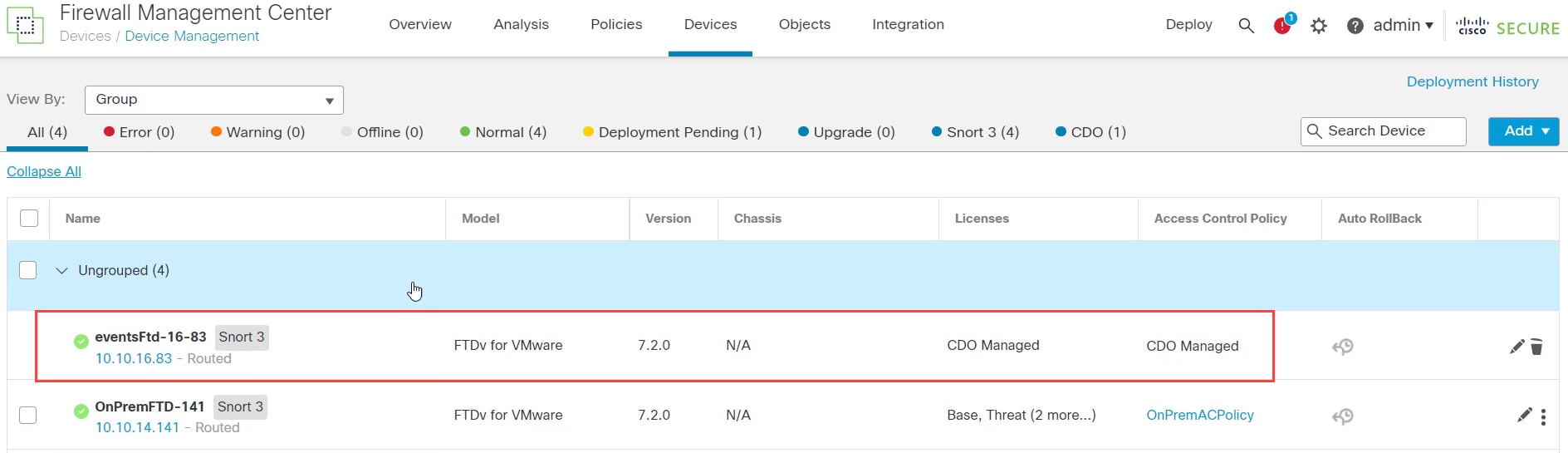
You can't select this device as Security Cloud Control manages the configuration. The Firewall Management Center shows the Security Cloud Control Managed label for this device.

To see the live events in the Firewall Management Center, click Analysis > Events.

Generate a Firewall Threat Defense Migration Report

When a migration job is successful, you can generate and download a report in PDF format to analyze every parameter imported from the on-premises Firewall Management Center to Cloud-Delivered Firewall Management Center. The report provides details of each device associated with the job. Details include information about devices, values of shared policies, objects, routing details, interfaces, network settings, and more.

On the migration jobs page, click the under the Actions column of a completed job and then click Download Report.. You must download a report within a year of the job being triggered.

Delete a Migration Job

If you have completed a migration job and no longer need it to be displayed on the migration page, you can easily remove it by deleting it. This cleans up the migration page and make it easier to navigate.


Attention


If you want to delete a migration job during the evaluation period, you must first commit the migration changes or revert the manager to the on-prem management center. Failing to do so may result in an inconsistent state of the on-prem management center, which could be unrecoverable. See Commit Migration Changes Manually.

If you don't have access to your on-premises Firewall Management Center or if it is no longer available and you are blocked from performing a commit or revert, you can delete the job.


Procedure


Step 1

Click Administration > Migration > Migrate FTD to cdFMC.

Step 2

Click the under the Actions column and then click Remove Migration Job.

Step 3

Click Delete to confirm your action.


Enable Notification Settings

You can subscribe to get email notifications from Security Cloud Control whenever a device associated with your tenant experiences a specific action when migrating a Firewall Threat Defense device to Security Cloud Control.

Security Cloud Control sends an email if you enable to receive a notification for the following states during migration:

  • Failed: When a migration job fails.

  • Started: When a migration job is initiated.

  • Succeeded: When a migration job is completed successfully.

  • Commit Pending: When the manager changes have to be committed.

To enable notification settings, see Notification Settings.

Verify Firewall Threat Defense Connectivity with Cloud-Delivered Firewall Management Center

This section provides the commands to determine the Firewall Threat Defense connectivity with the Cloud-Delivered Firewall Management Center.

Check internet connectivity on the device

Execute the ping system <any OpenDNS server address> command to check whether the device can reach the internet.

  1. Connect to the CLI of the device, either from the console port or using SSH.

  2. Log in with the Admin username and password.

  3. Enter ping system <OpenDNS IPAddress>.

ping system 208.67.222.222
PING 208.67.222.222 (208.67.222.222) 56(84) bytes of data.
64 bytes from 208.67.222.222: icmp_seq=1 ttl=48 time=22.10 ms
64 bytes from 208.67.222.222: icmp_seq=2 ttl=48 time=22.10 ms
64 bytes from 208.67.222.222: icmp_seq=3 ttl=48 time=22.8 ms
64 bytes from 208.67.222.222: icmp_seq=4 ttl=48 time=22.6 ms
^C
--- 208.67.222.222 ping statistics ---
4 packets transmitted, 4 received, 0% packet loss, time 7ms
rtt min/avg/max/mdev = 22.588/22.841/22.995/0.223 ms

The above example shows that the device can connect to the internet using the OpenDNS Server IP address. Also, the number of packets transmitted is the same as received, indicating that internet connectivity is available on the device. This shows that the device can reach the internet.


Note


If your results don't match, check the internet connection manually.


Check device connectivity with Cloud-Delivered Firewall Management Center

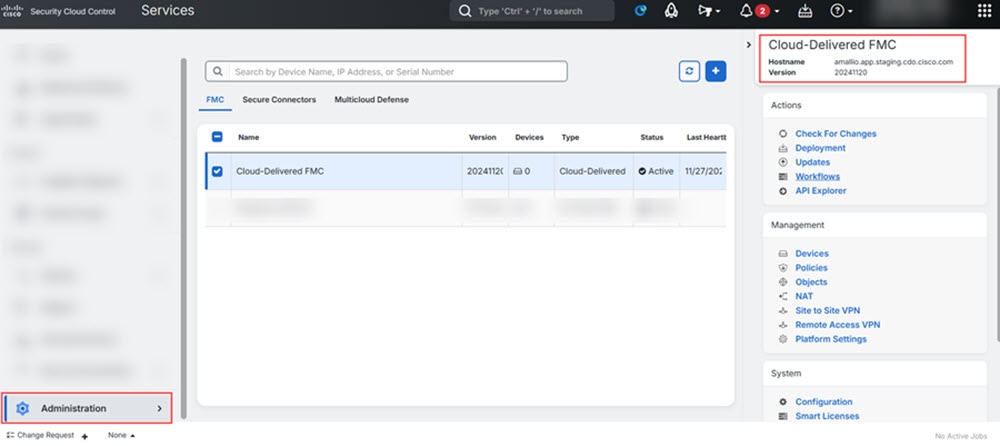
  1. Obtain the host name of the Cloud-Delivered Firewall Management Center.

    1. In the Security Cloud Control left pane, click Administration > Integrations > Firewall Management Center.

    2. Choose Cloud-Delivered FMC to see the Cloud-Delivered Firewall Management Center details on the right pane.

    3. In the Hostname field, copy only the hostname shown in the following example image.

      In the above figure, the highlighted text is the hostname (Security Cloud Control-acc10.app.us.Security Cloud Control.cisco.com) of the FMC to be copied.

  2. Connect to the CLI of the device, either from the console port or using SSH.

  3. Enter ping system <hostname of the FMC>.

ping system cdo-acc10.app.us.cdo.cisco.com
PING cdo-acc10.app.us.cdo.cisco.com (54.187.125.161) 56(84) bytes of data.
^C
--- cdo-acc10.app.us.cdo.cisco.com ping statistics ---
2 packets transmitted, 0 received, 100% packet loss, time 64ms

In the above example, the hostname is resolved with the IP address, indicating your connection is successful. Ignore the "100% packet loss" message shown in the response.


Note


If you can't connect to the host, you can rectify the DNS configuration in the CLI using configure network dns <address>.


Use the Troubleshoot Feature for Failed Migrations

Before you begin

There might be a few instances where, owing to some issues, the migration fails or is not thoroughly successful. To help resolve issues around such failed or partially successful migrations, you can use the inbuilt Troubleshoot feature.

Procedure


Step 1

On the migration jobs page, click the under the Actions column of a failed or a partially migrated job.

Step 2

Click Troubleshoot.

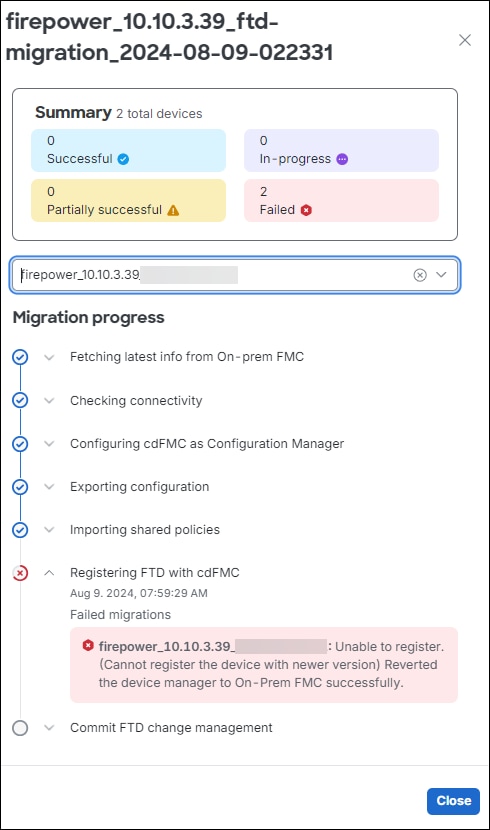
This opens up a sliding window that contains the following information:

  • A Summary containing additional details about the status of the migration.

  • A detailed Migration progess listing all the steps in the migration and also indicating the step at which the migration has failed.

Migration summary showing 2 failed devices and migration progress with a registration error at the FMC step.

Step 3

Based on the stage at which the migration seems to have failed, refer Troubleshoot Firewall Threat Defense Migration to Cloud-Delivered Firewall Management Center for information on how to troubleshoot.


Resolving Firewall Threat Defense Migration to Cloud-Delivered Firewall Management Center Issues

This section details how to troubleshoot specific errors that may occur when migrating Firewall Threat Defense devices to Cloud-Delivered Firewall Management Center.

Configuration export from On-Premises Firewall Management Center failed

Cause:

  • Disk space is full or nearly full, preventing the export process from being completed.

  • Concurrent operations such as device upgrade, upgrade revert, moving a device between domains, device import and export, device template import and export, or policy analysis are running in on-premises Firewall Management Center.

  • Connectivity issues exist between the on-premises Firewall Management Center and Security Cloud Control.

Workaround:

  1. Perform these actions according to your requirements:

    • Ensure that at least 10% of disk space is available to accommodate the creation of necessary export files.

    • Ensure that no parallel operations are running during the migration.

    • Ensure that the network connection between on-premises Firewall Management Center and Security Cloud Control is stable and reliable.

  2. Retry the migration.

  3. If the issue persists, contact Cisco TAC.

Failed to initiate import in Security Cloud Control

Cause:

Import can fail if:

  • Disk space is full or nearly full, preventing the import process from being completed.

  • Concurrent operations such as device upgrade, upgrade revert, moving a device between domains, device import and export, device template import and export, or policy analysis are running in Cloud-Delivered Firewall Management Center.

Workaround:

  1. Ensure that no other operations are running during import and retry migration.

  2. If the issue persists, contact Cisco TAC.

Failed to retrieve the most recent device information from On-Premises Firewall Management Center

Cause:

  • Network connectivity issues.

  • DNS settings.

  • Device synchronization issues.

Workaround:

  1. Perform these actions according to your requirements:

    • Ensure that the network connection between Security Cloud Control and on-premises Firewall Management Center is stable.

    • Ensure that DNS settings for resolving Firewall Management Center hostnames are correct.

    • Ensure network access for Firewall Threat Defense devices through TCP ports 8305 and 443.

    • Ensure outbound connectivity to port 443 to Security Cloud Control and Cloud-Delivered Firewall Management Center hosts.

    • Ensure that the devices are synchronized without any pending changes.

  2. Retry migration.

  3. If the issue persists, contact Cisco TAC.

Failed to select Security Cloud Control as the manager for events and analytics

Cause:

Selected on-premises Firewall Management Center for analytics during Firewall Threat Defense migration and committed it or the Security Cloud Control automatically committed it after the 14-day evaluation period.

Workaround:

  1. Log in to the on-premises Firewall Management Center and remove the Firewall Threat Defense device from the on-premises Firewall Management Center.

  2. Enable the Firewall Threat Defense device to send events to Security Analytics and Logging (SaaS) directly. For more information, see Send Cloud-delivered Firewall Management Center-Managed Event Logs to SAL (SaaS) Using a Direct Connection.

  3. Verify if the SSE Connector is running in the Firewall Threat Defense device. To verify, access Firewall Threat DefenseCLI and do the following:

    
    # more /ngfw/etc/sf/connector.properties
    
registration_interval=180

    connector_port=8989
    
connector_fqdn=api-sse.cisco.com
  4. Verify the connectivity between Firewall Threat Defense and the SSE portal. The following URLs need to be allowed as IPs can change:

    • api.apj.sse.itd.cisco.com (primary SSE cloud API endpoint)

    • est.sco.cisco.com (common endpoint across geographies)

    • mx.apj.sse.itd.cisco.com

    • dex.apj.sse.itd.cisco.com (for customer success services)

    • eventing-ingest.apj.sse.itd.cisco.com (for Cisco XDR and Security Cloud Control services)

    • registration.apj.sse.itd.cisco.com (enables Firewall Threat Defense device registration to the regional Cisco cloud)

  5. access Firewall Threat Defense CLI and perform a CURL request to validate tenant details using the following command:

    root@firepower:/home/admin# curl localhost:8989/v1/contexts/default/tenant
  6. Verify that the event logs are appearing in Security Cloud Control.

Failed to import configuration from On-Premises Firewall Management Center

Cause:

The On-Premises Firewall Management Center configuration may include policies or object configurations that are unsupported or are conflicting, leading to migration failure.

Workaround:

  1. Check the On-Premises Firewall Management Center configuration for unsupported policies or object configurations to ensure compatibility.

  2. Retry migration.

  3. If the issue persists, contact Cisco TAC.

Failed to complete device discovery

Cause:

Conflicts or unhandled scenarios exist in the device configuration or within Security Cloud Control's internal operations, such as incompatible settings or unsupported conditions that Security Cloud Control does not support.

Workaround:

  1. Perform these actions according to your requirements:

    • Inspect the device configuration in On-Premises Firewall Management Center for incompatible settings or unsupported scenarios that Security Cloud Control does not support and make necessary updates.

    • Check system logs for errors and confirm that both the On-Premises Firewall Management Center and the device are functioning properly.

  2. Retry migration.

  3. If the issue persists, contact Cisco TAC.

Failed to connect the device to Security Cloud Control

Cause:

Possible causes include the device being powered off, network connectivity issues, or a firewall blocking the necessary ports.

Workaround:

  1. Perform these actions according to your requirements:

    • Confirm that the device is powered on, and network connection is stable. Look for Firewall issues, blocked ports, and incorrect cabling.

    • Ensure that your device has the correct DNS server configuration for resolving Security Cloud Control hostnames.

  2. Retry migration.

  3. If the issue persists, contact Cisco TAC.

Failed to register the device, causing the manager to revert to On-Premises Firewall Management Center

Cause:

The device failed to register with Cloud-Delivered Firewall Management Center during migration, causing the system to revert the device manager to On-Premises Firewall Management Center. This may be because of connectivity issues.

Workaround:

  1. Perform these actions according to your requirements:

    • Verify DNS settings for resolving Security Cloud Control hostnames.

    • Ensure that network access is enabled for TCP port 8305, allowing the Firewall Threat Defense devices to connect to the Cloud-Delivered Firewall Management Center.

    • Allow outbound HTTPS connections on Firewall Threat Defense devices to reach the Cloud-Delivered Firewall Management Center and upload configurations to Security Cloud Control.

  2. Retry migration.

  3. If the issue persists, contact Cisco TAC.

Failed to unregister the device due to an ongoing deployment

Cause:

Migration failed because a deployment is in progress on the device.

Workaround:

  1. Perform these actions according to your requirements:

    • Wait for the ongoing deployment to finish.

    • Confirm that the device is stable, with no pending tasks.

  2. Retry migration.

  3. If the issue persists, contact Cisco TAC for support.

Report generation failed after successful FTD migration to Cloud-Delivered Firewall Management Center

Cause:

The report generation failure may be because of temporary system glitches.

Workaround:

  • Generate the report after some time to overcome the temporary system issues that might have caused the initial failure.

  • If the issue persists, contact Cisco TAC.

Failed to initiate FTD migration to Cloud-Delivered Firewall Management Center

Cause:

  • Ongoing migration in the source manager.

  • Unsupported device version.

  • Incorrect DNS and network configuration.

Workaround:

  1. Perform these actions according to your requirements:

    • Confirm that no other migration jobs are active in the same source manager.

    • Verify that the devices are on supported versions, have no pending changes to be deployed, and are active.

    • Ensure that the DNS settings are correct, and network access is available to communicate with Cloud-Delivered Firewall Management Center.

  2. If the issue persists, contact Cisco TAC.

Failed to deploy changes from Security Cloud Control

Cause:

Device migration to Cloud-Delivered Firewall Management Center failed during deployment.

Workaround:

  1. Perform these actions according to your requirements:

    • Attempt the deployment again from the Deployment page on Cloud-Delivered Firewall Management Center.

    • Check for out-of-band changes, which are changes made directly in the device, and not through Security Cloud Control. If out-of-band changes exist, they may interfere with the deployment. Use Security Cloud Control's Check for changes functionality to identify and address out-of-band changes.

    • Ensure that all the configurations are supported and do not conflict with the current device settings.

    • Verify that the device is onboarded and reachable by both the Security Cloud Control and management center, with the necessary internet access and communication capabilities.

  2. If the issue persists, contact Cisco TAC.

Failed to commit FTD migration to Cloud-Delivered Firewall Management Center

Cause:

  • The 14-day evaluation period has expired.

  • Firewall Threat Defense devices have been reverted to or deleted from the On-Premises Firewall Management Center, preventing further actions.

Workaround:

  1. Try committing again to address any transient network or device issues.

  2. If the issue persists, contact Cisco TAC.

Failed to retain device on On-Premises Firewall Management Center for Analytics

Cause:

If your source manager is an On-Premises Firewall Management Center 1000/2500/4500, it cannot support retaining for Analytics because of the limited resources.

Workaround:

  1. Ensure that the Retain on On-Prem FMC for Analytics option is selected during the migration process.

  2. If the issue persists, contact Cisco TAC.

Failed to revert the device manager to On-Premises Firewall Management Center

Cause:

  • The device cannot be reverted if the 14-day evaluation period has expired.

  • Firewall Threat Defense devices have been reverted to or deleted from the On-Premises Firewall Management Center, preventing further actions.

Workaround:

  1. Perform these actions according to your requirements:

    • Try committing the changes again to address the temporary server or network issues.

    • If changes have occurred in the high availability configuration after migration, reset the devices to their original migration state before attempting to commit.

  2. If the issue persists, contact Cisco TAC.

Failed to configure Security Cloud Control as the configuration manager

Cause:

The device already has a configuration manager.

Workaround:

  1. If another configuration manager is present, remove it manually and retry the migration.

  2. If the issue persists, contact Cisco TAC.

Failed to commit migration; the device is ineligible

Cause:

  • The device has pending changes that have to be deployed.

  • The device to be migrated is part of FTD high availability (HA), but the current state is invalid, for example, it is in Active/Active state.

  • The device to be migrated is connected in Analytics-only mode.

  • Cluster migration is supported only for FTDs version 7.4 and above.

  • Migration for chassis and MI FTDs on models 3100/4200 is currently not supported.

Workaround:

  1. Perform these actions according to your requirements:

    • Verify that the device is up to date with On-Premises Firewall Management Center, then retry migration.

    • Ensure all pending changes on the devices are deployed.

    • Confirm that the Firewall Threat Defense device is in a valid state, such as Active/Standby. If the status isn't correctly reflected in On-Premises Firewall Management Center, use the Force refresh node status option on the device listing page to update the correct status on management center.

  2. If the issue persists, contact Cisco TAC.

Failed to import site-to-site VPN policies from On-Premises Firewall Management Center

Cause:

The failure may be due to various factors, such as VPN policy configuration or network connectivity issues.

Workaround:

  1. Perform these actions according to your requirements:

    • Verify your site-to-site VPN policies in On-Premises Firewall Management Center to ensure there are no configuration errors. If object overrides are used within network objects, manually add these overrides to Security Cloud Control after migration.

    • Ensure that both the On-Premises Firewall Management Center and the targeted device have stable and reliable network connections to Security Cloud Control.

    • If the authentication type is set as Pre-shared Automatic Key in On-Premises Firewall Management Center, Security Cloud Control generates a new pre-shared key for the VPN post-migration deployment without disrupting existing tunnels.

  2. Retry migration.

  3. If the issue persists, contact Cisco TAC.

Failed to migrate as all devices within the topology need to be migrated simultaneously

Cause:

Migrating multiple devices, particularly those within the same network topology, requires synchronizing their migrations to avoid inconsistencies and potential errors. All devices should be migrated within the same timeframe.

Workaround:

  1. Perform these actions according to your requirements:

    • Devices registered for Analytics -only with the On-Premises Firewall Management Center or those with pending changes are not eligible for migration.

    • When selecting a device associated with a site-to-site VPN topology, Security Cloud Control automatically selects peer devices from the same or different topology, as all devices in the topology must be migrated together for success. Extranet devices, if any, are not listed by the wizard.

    • The S2S VPN Topology column shows the number of site-to-site VPN topologies a device is part of. Click the topology link to view the topologies and devices migrating with the selected device. This field does not apply to devices outside the site-to-site VPN topology.

    • A high-availability pair is shown as a single node. Select this node to include both active and standby devices in the migration.

  2. If the issue persists, contact Cisco TAC.

HTTP status code 201 (created) found in On-Premises Firewall Management Center response

Cause:

The Secure Device Connector (SDC) version is not compatible.

Workaround:

  1. Ensure that the SDC is upgraded to version 202205191350 or later.

    • In the left pane, click Administration > Integrations > Secure ConnectorsAdministration > Secure Connectors.

    • Click the SDC to view the existing version in the Details pane on the right.

    • Update your Secure Device Connector.