Policy Analyzer and Optimizer

Security Cloud Control provides the Policy Analyzer and Optimizer, which is an intelligent cloud service that can analyze security policies, detect anomalies, and provide recommendations on remediations that can be performed to optimize the policies.

About Policy Analyzer and Optimizer

AgenticOps for firewalls provides operational insights and tools that help improve firewall management, policy hygiene, and deployment readiness. One such capability is Policy Analyzer and Optimizer, which uses an algorithmic approach to evaluate firewall policy rules and identify anomalies such as duplicate, shadowed, redundant, or otherwise optimizable rules. For more information, refer to AgenticOpsInsights to know more about the various other functionalities that AgenticOps provides.

Secure Firewall Threat Defense devices with extensive policies may have numerous duplicate or shadowed rules. Such large policies with unoptimized rulesets can lead to excessive consumption of device memory, delayed loading of rules, and long search duration, resulting in inefficient security policy enforcement, reduced network speeds, and extended deployment durations.

Policy Analyzer and Optimizer is an intelligent Security Cloud Control Firewall Management service that analyzes firewall policies, detects rule anomalies, and helps you understand where a policy can be optimized. Policy Analyzer and Optimizer supports access control policies policies for Cloud-Delivered Firewall Management Center and supported Security Cloud Control-managed On-Premises Firewall Management Center data sources.

In addition, Policy Analyzer and Optimizer can do the following:

  • View policy health and optimization opportunities for the selected management center data source.

  • Analyze policies on demand or rely on scheduled analysis that runs every 24 hours.

  • Download analysis reports as PDFs after analysis completes.

  • Use Access Control Policy Analyzer and Optimizer remediation workflows where supported.

  • Stage and apply remediation for an entire anomaly category, selected observations, or individual rules within supported observations.

  • Use Network Address Translation Policy Analyzer and Optimizer findings and AgenticOps insights to investigate NAT policies that contain optimizable rules.

Supported policy types

Security Cloud Control Firewall Management performs anomaly analysis on the following policy types:

Table 1. Supported policy types for Policy Analyzer and Optimizer

Policy type

Use this section when

Current scope

Access control policy

You want to analyze access control policies, review access control findings, and apply supported remediations.

Analysis, remediation, reporting, remediation history, and policy insights.

Network address translation policy

You want to analyze NAT policies for shadowed and redundant NAT rules.

Analysis and reporting for fully shadowed and fully redundant NAT rules. NAT remediation is not available in this release.

Common Policy Analyzer and Optimizer concepts

Policy Analyzer and Optimizer uses these shared concepts across access control policy analysis and NAT policy analysis.

Table 2. Common Policy Analyzer and Optimizer concepts

Concept

Common behavior

Policy-type difference

Data source

A Cloud-Delivered Firewall Management Center or an On-Premises Firewall Management Center selected in Policy Analyzer and Optimizer.

The Access Control tab can be used for supported On-Premises Firewall Management Center data sources. The Network Address Translation tab is available only when Network Address Translation Policy Analyzer and Optimizer is enabled through AgenticOps for the selected data source.

Sync

Fetches current policy inventory and metadata, including newly created, deleted, or modified policies.

Sync does not, by itself, create a new analysis summary. If the policy changed after the last analysis, run analysis again or wait for scheduled analysis.

Analysis

Evaluates selected policies and produces policy health information, observations, and report data.

Access control Policy Analyzer and Optimizer evaluates access control rule and object findings. Network Address Translation Policy Analyzer and Optimizer evaluates NAT rule shadowing and redundancy.

Reporting

Provides a downloadable analysis report after analysis completes.

Access control Policy Analyzer and Optimizer also provides remediation reports after supported remediation is applied.

Remediation

A workflow that stages selected changes and applies them only when you select Apply Remediation.

Available for access control policies. Network Address Translation Policy Analyzer and Optimizer does not provide an Apply Remediation workflow.

You can stage remediation for an entire anomaly category, selected observations within a category, or individual rules within an expanded observation.

You can also select individual rules within an expanded observation. Using the suggested remediations, you can disable or delete selected Duplicate Rules and Expired Rules, remove selected fully overlapped objects from rules, and merge selected Mergeable Rules.

Prerequisites to use Policy Analyzer and Optimizer

Before you use Policy Analyzer and Optimizer, verify the prerequisites that apply to your policy type and data source.

  • The On-Premises Firewall Management Center must be integrated with Security Cloud Control.


    Note


    In the On-Premises Firewall Management Center, navigate to Integration > Cisco Security Cloud and check the Enable Policy Analysis & Optimization checkbox after integrating with the Cisco Security Cloud.


  • The Cloud-Delivered Firewall Management Center must be provisioned in Security Cloud Control Firewall Management.

Prerequisites to use Policy Analyzer and Optimizer for access control policy

  • Access control policy analysis is supported on the On-Premises Firewall Management Center operating on Version 7.2 or later. The Cisco-recommended Version is 7.6 or later, because these versions support cross-launch to Policy Analyzer and Optimizer directly from On-Premises Firewall Management Center.

  • Access control policy to be analyzed must be associated with a Firewall Threat Defense device that is managed by an On-Premises Firewall Management Center integrated with Security Cloud Control.

Prerequisites to use Policy Analyzer and Optimizer for Network Address Translation

  • NAT policy analysis is supported on the On-Premises Firewall Management Center operating on Version 7.6 or later.

  • Network Address Translation Policy Analyzer and Optimizer availability also depends on AgenticOps being enabled for the selected tenant and data source. For more information, refer to Enable AgenticOps Insights.

  • Enable AgenticOps for the Cloud-Delivered Firewall Management Center or On-Premises Firewall Management Center data source that you want to analyze. Choose Insights & Reports > Settings > Policy Analyzer and Optimizer > Data Sources and enable AgenticOps for the management center you want.


Note


If an On-Premises Firewall Management Center is running a version earlier than 7.6, access control Policy Analyzer and Optimizer may still be available for analyzing access control policy, but Network Address Translation Policy Analyzer and Optimizer is not available for that data source.


Enable Policy Analyzer and Optimizer for Security Cloud Control-managed On-Premises Firewall Management Center

Onboard your On-Premises Firewall Management Center to Security Cloud Control, navigate to Administration > Integrations > Firewall Management Center, select the On-Premises Firewall Management Center, and choose Policy Analyzer and Optimizer under System in the right pane. See Onboard an On-Premises Firewall Management Center for more information.

If you have an On-Premises Firewall Management Center Version 7.6 and want to use Policy Analyzer and Optimizer, follow the steps below:

Procedure


Step 1

In your On-Premises Firewall Management Center, navigate Integration > Security Cloud Control.

Step 2

If you have not integrated your On-Premises Firewall Management Center with Cisco Security Cloud, click Enable Security Cloud Control and follow the steps. To authorize the cloud integration, you must choose an existing Security Cloud Control tenant or provision a new one, to which your on-premises Firewall Management Center will get onboarded, after the cloud integration is successful.

Step 3

After integrating your On-Premises Firewall Management Center with Security Cloud Control, check the Enable Policy Analyzer and Optimizer checkbox and click Save.


Policy Analyzer and Optimizer licensing requirements

Policy Analyzer and Optimizer requires no additional licensing. It comes as part of the Security Cloud Control Firewall Management base subscription.

Open Policy Analyzer and Optimizer and select a data source

You can open Policy Analyzer and Optimizer from Security Cloud Control Firewall Management or cross-launch from supported On-Premises Firewall Management Center policy pages.

Follow these steps to open Policy Analyzer and Optimizer and select a data source:

Procedure


Step 1

In the Security Cloud Control Firewall Management left pane, choose Administration > Integrations > Firewall Management Center.

Step 2

Select Cloud-Delivered FMC or an On-Premises Firewall Management Center.

Step 3

Click Policy Analyzer and Optimizer under System.

Note


Alternatively, choose Insights & Reports > Policy Analyzer and Optimizer.

Step 4

Use the data source selector at the top of the Policy Analyzer and Optimizer page to choose the Cloud-Delivered Firewall Management Center or On-Premises Firewall Management Center whose policies you want to review.

Step 5

Choose the Access Control tab depending on the policy type that you want to analyze.

Note


If the selected data source is not enabled for AgenticOps, the Network address translation tab shows a message indicating that the NAT Policy Analyzer and Optimizer require AgenticOps for the selected data source. However, you can still utilize the access control Policy Analyzer and Optimizer if the access control prerequisites are met.


Sync and analysis behavior

Policy Analyzer and Optimizer displays policy metadata, including analysis status, last modified time, and last analyzed time. Last modified reflects changes made to the policy in the management center that manages it. Last analyzed reflects the analysis run that produced the current Policy Analyzer and Optimizer summary.

Use Sync with FMC to fetch the latest access control and NAT policy inventories and modified timestamps from the management center. Each Policy Analyzer and Optimizer tab shows the sync success or failure status for the policy type on that tab. If a policy was modified after the last analysis, the displayed analysis can be out of date until you run analysis again or a scheduled analysis runs.

Search and filter policies in Policy Analyzer and Optimizer

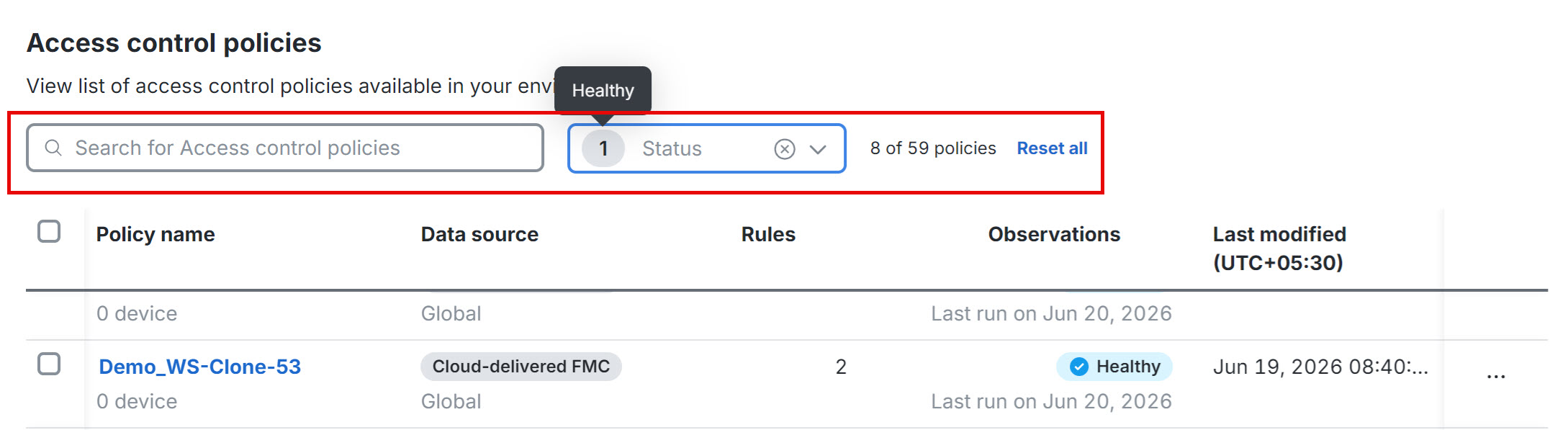
Use the Search for access control policies field and the Status field to narrow the access control policy list.

Search helps you find a policy by name. Status filtering helps you find policies by analysis state, such a Healthy, Error, In progress, Analysis pending, Optimizable, or Analysis out of date.

  • Search for access control policies: Finds access control policies that match the policy name you enter.

  • Status: Filters access control policies by their current analysis state.

Access control policy analysis and optimization

Use the Access Control tab when you want to analyze access control policies, review access control policy findings, and apply the remediations that Policy Analyzer and Optimizer supports for access control rules and objects.

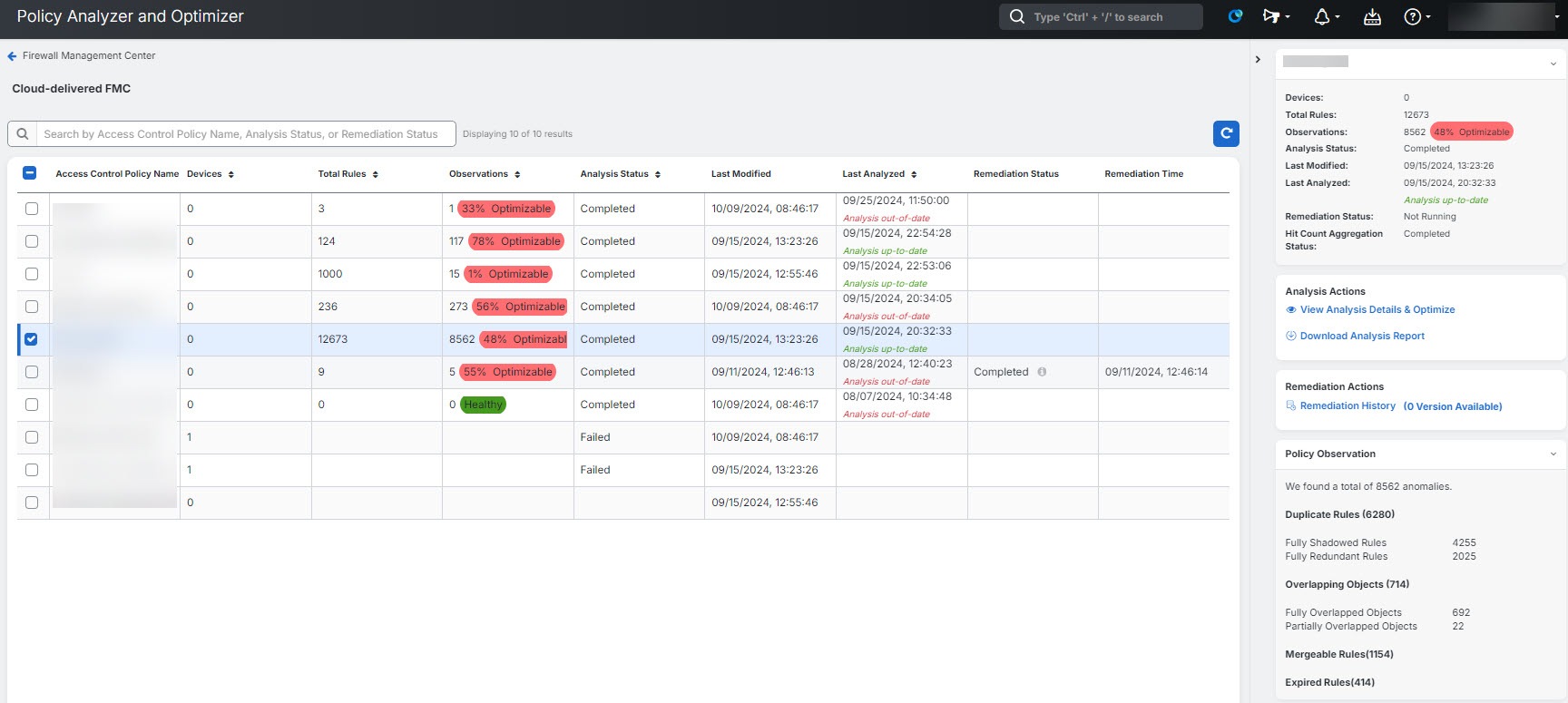
After provisioning a Cloud-Delivered Firewall Management Center or onboarding an On-Premises Firewall Management Center to your Security Cloud Control Firewall Management tenant and creating policies, you can start analyzing them using the Policy Analyzer and Optimizer.

For more information, refer to Onboard an On-Premises Firewall Management Center and Enable Cloud-Delivered Firewall Management Center on Your Security Cloud Control.

Analyze access control policies

Use this procedure to assess an access control policy before making changes, review policy health, or re-run analysis after policy updates. If a policy has not been analyzed, you can start a new analysis. If the analysis is out of date, you can re-analyze the policy to refresh the results.


Note


When you create a new policy, it might take a while for the Policy Analyzer and Optimizer to fetch the policy details and show up on the Policy Analyzer and Optimizer. Click the refresh () button on the top-right corner to manually refresh the page to see new policies.

Procedure


Step 1

Choose Insights & Reports > Policy Analyzer and Optimizer.

Step 2

In the right pane, select Cloud-delivered FMC or an On-Premises Firewall Management Center from the drop-down list as the data source whose policies you wish to analyze.

Step 3

In the Access Control area, select the policy you want to analyze or review.

Note

 
  • For an unanalyzed policy, click on Analyze Policies.

  • If the policy status indicates Analysis out of date, click on Re-analyze Policy under Analysis Actions on the right.

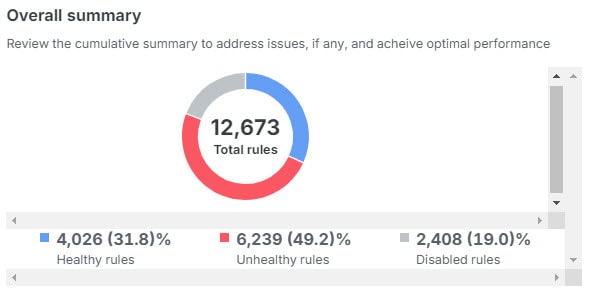
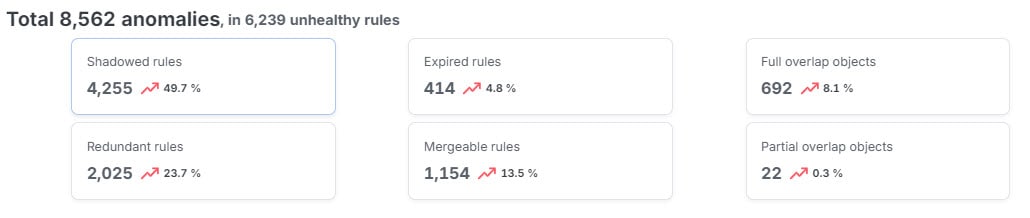
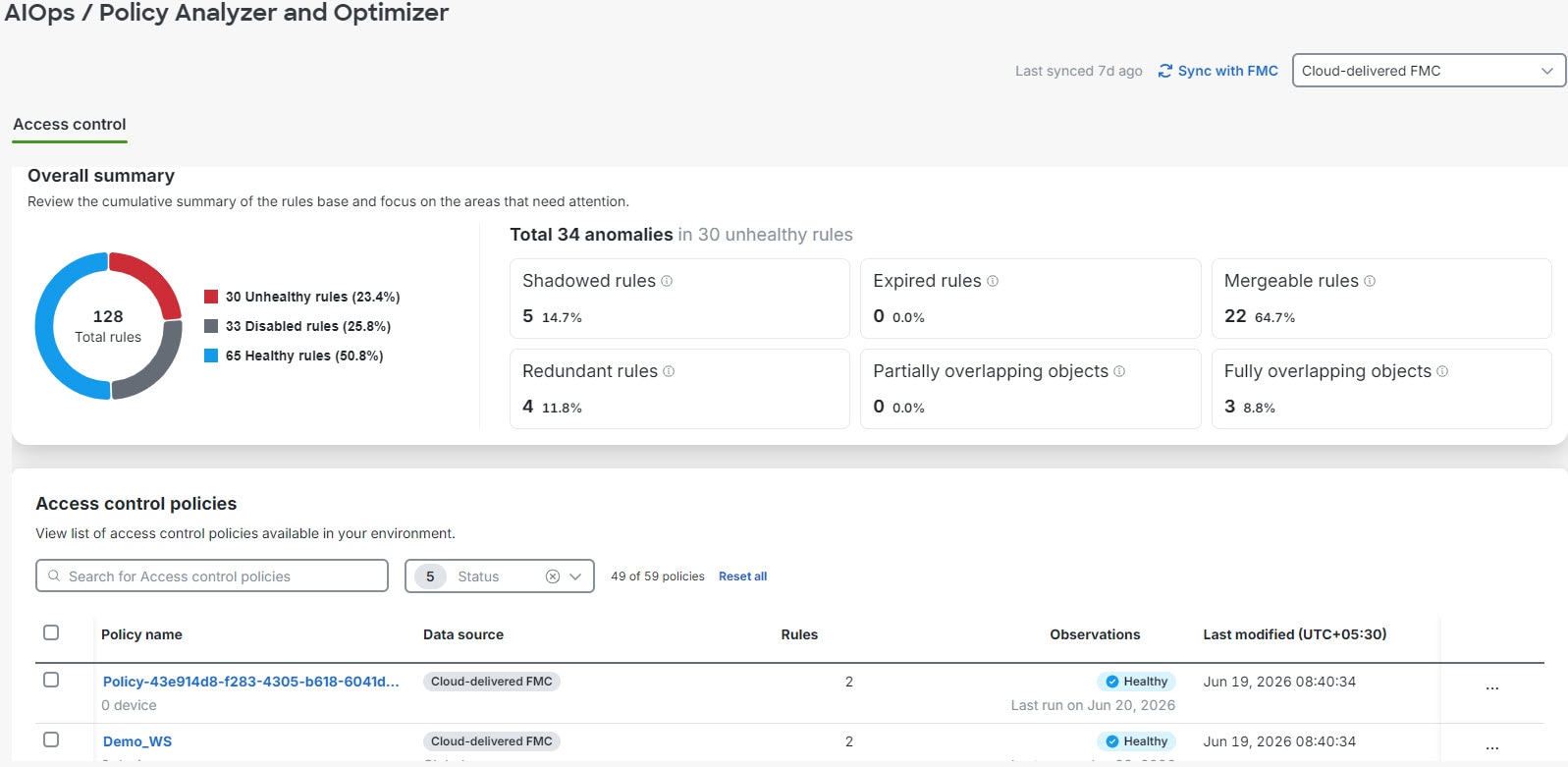
The Overall summary section displays the total number of rules categorized by their health status: healthy, disabled, or unhealthy, for the selected management center (Cloud-Delivered Firewall Management Center or On-Premises Firewall Management Center).

The dashboard also highlights specific anomalies within your unhealthy rules. You can review the count and percentage for the categories: Shadowed rules, Expired rules, Mergeable rules, Redundant rules, Partially overlapping rules, Fully overlapping objects.


Access control policy analysis summary

When analysis completes, select an access control policy to review the right-pane summary and click View analysis details and optimize.

Alternatively, you can click the ellipse button associated with a policy and select View details to see the right-pane summary.

Overall summary—provides insights on how many rules are healthy, disabled, expired, and contain anomalies, using a pie chart for the selected access control policy. You can also hover over the part of the pie to view the percentage of rules.

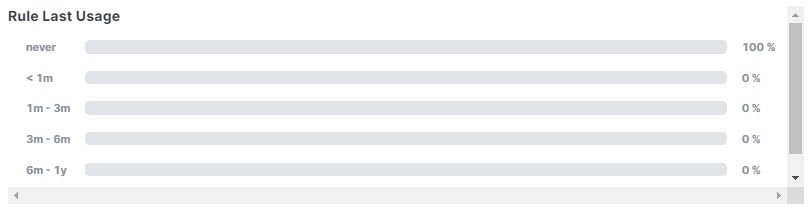
Rule usage history—shows how recently rules were used, with time periods.

Rules with Anomalies—provides insights on how many rules have anomalies.

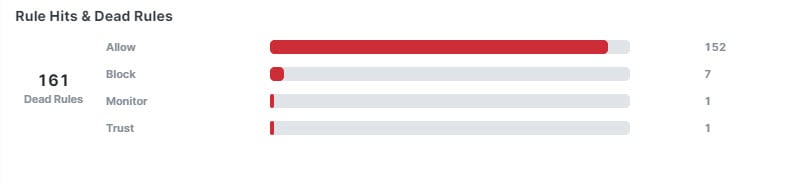
Hits rules & dead rules—provides insights on hitcount of expired rules, for rule types including allow, block, monitor, and trust.

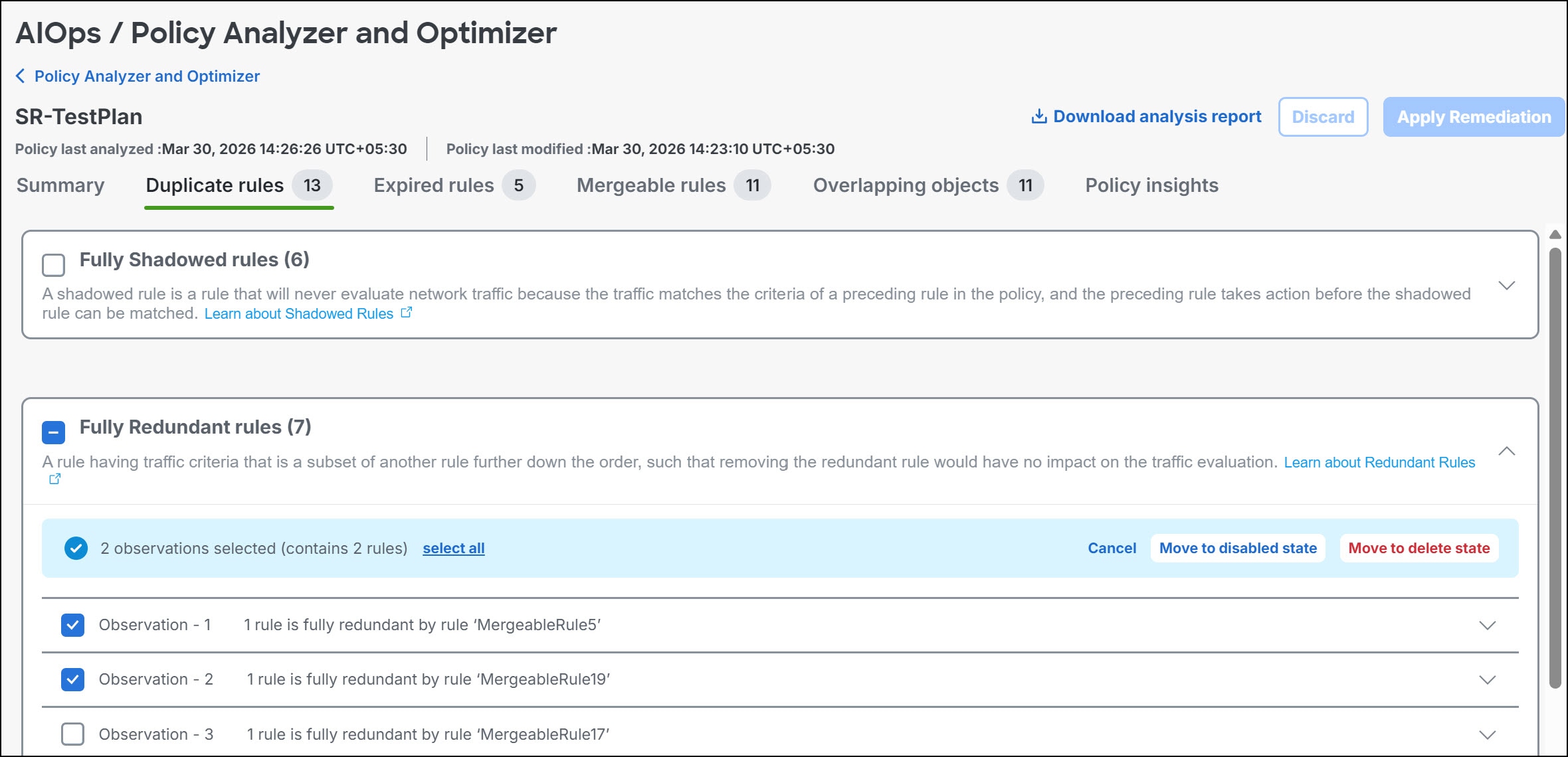
In remediation tabs such as Duplicate rules, Expired rules, Mergeable rules, Overlapping objects, and Policy insights you can select the check box next to a category to stage all observations in that category, or expand the category and select specific observations or rules. Available actions depend on the anomaly type.

Analyze duplicate rules in access control policy

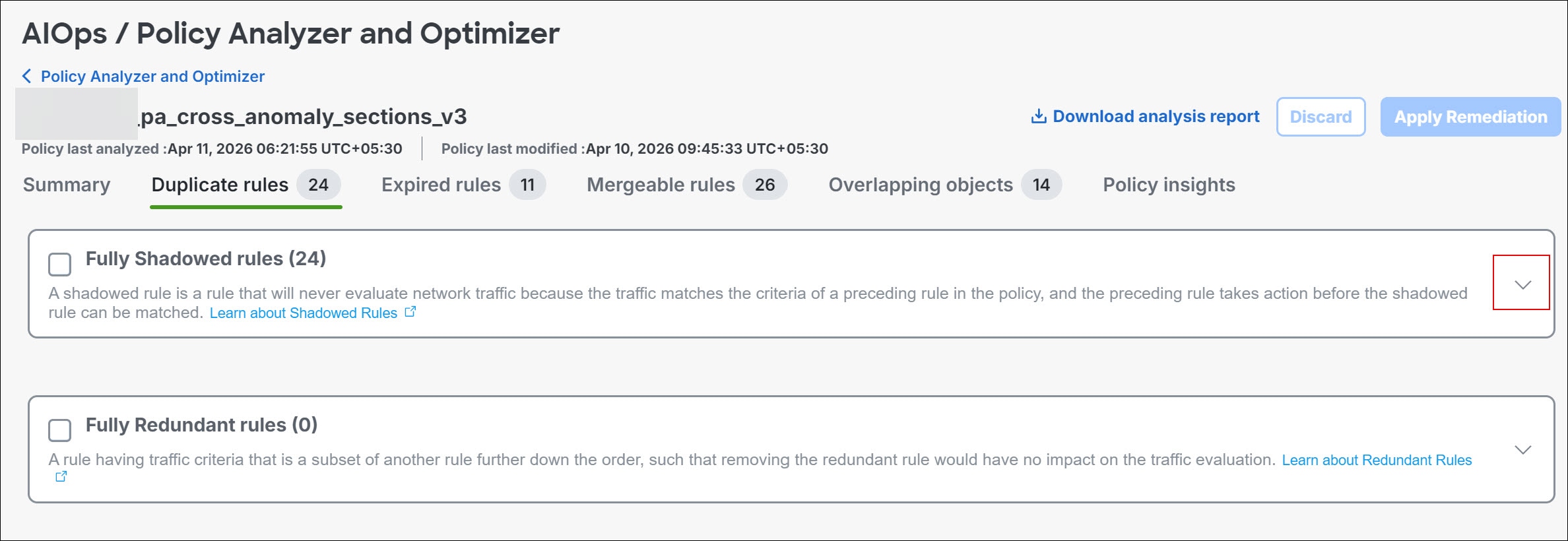
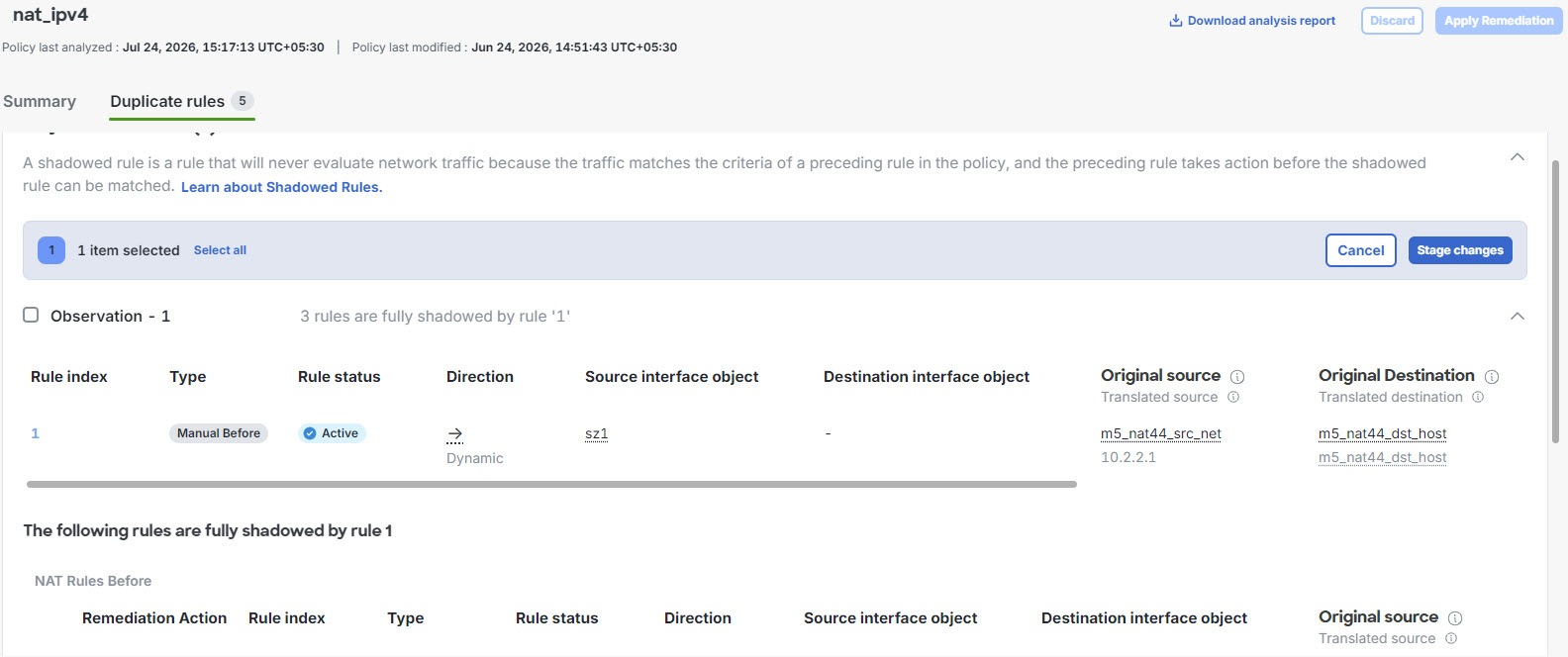
The Duplicate Rules tab lists shadowed and redundant rules with anomalies:

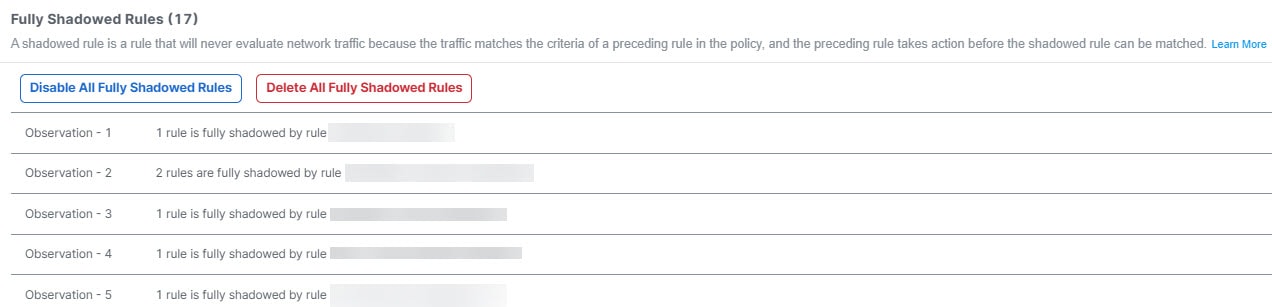
  • A Fully Shadowed rules is one that will never evaluate network traffic because another rule that precedes it over shadows this rule.

  • A Fully Redundant rules is one that is just a part of another larger rule, such that removing this redundant rule does not have an impact on the network traffic, because the traffic evaluation that this rule must perform is already performed by another rule.

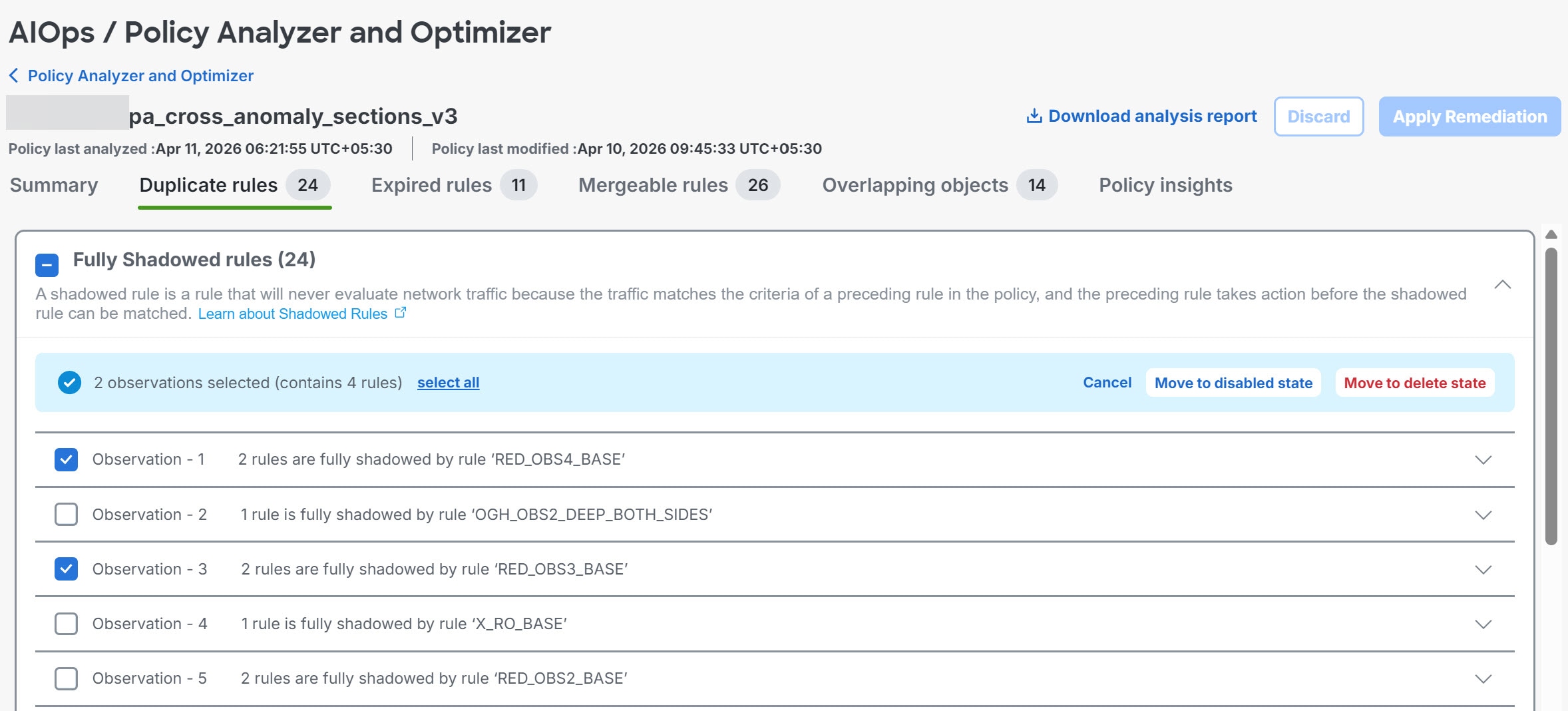
You can remediate all duplicate-rule observations in a category, selected fully shadowed or fully redundant observations, or individual rules within an expanded observation. For selected duplicate rules, choose Move to disabled state or Move to delete state. Disable rules first when you want to measure the impact before deleting them.


Note


Expand each observation to review the affected rules before you stage a remediation. Each rule in the list is displayed with a set of attributes; click the settings button on the top right to select which rule attributes you want to display along with the rule.


When duplicate-rule remediation removes shadowed or redundant rules and retains a base rule, Policy Analyzer and Optimizer adds a standardized comment to the retained rule. The comment identifies the retained rule and the removed rules, which helps you audit the cleanup.

After you stage the selected duplicate-rule remediations, you can still Undo them before clicking Apply Remediation. It is recommended that you disable rules first to measure the impact and delete them later, because deleting them permanently removes them.

You can enable the disabled rules any time by navigating to the Cloud-Delivered Firewall Management Center or the On-Premises Firewall Management Center on which the rules are present.

Analyze expired rules in access control policy

The Expired Rules tab lists rules that were configured with a time range and the time range has expired. You can also see rule information such as the date on which the rule expired, hit count, last hit time, and the time range.

You can remediate all expired-rule observations in the category, selected expired-rule observations, or selected expired rules. For selected expired rules, choose Move to disabled state or Move to delete state. Only selected rules are changed when you apply remediation.

Analyze mergeable rules in access control policy

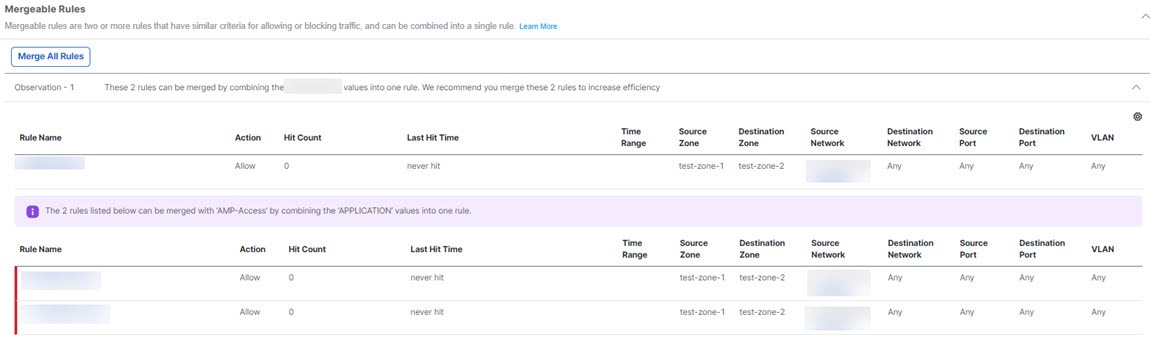
The Mergeable Rules tab lists the rules that have similar allow and block settings and can be merged into a single rule.

Review the mergeable-rule observations and stage remediation for the entire category, selected observations, or individual rules within an expanded observation. Click Merge Selected to merge only the staged items. Unselected mergeable-rule observations remain unchanged until you stage and apply remediation for them.


Note


When you select individual rules to merge, select only consecutive rules. The first selected rule in the sequence is updated with the merged rule criteria, and the remaining selected rules are removed. You can start the merge from any rule in a consecutive set. The first rule in the observation does not need to be selected.


Analyze overlapping objects in access control policy

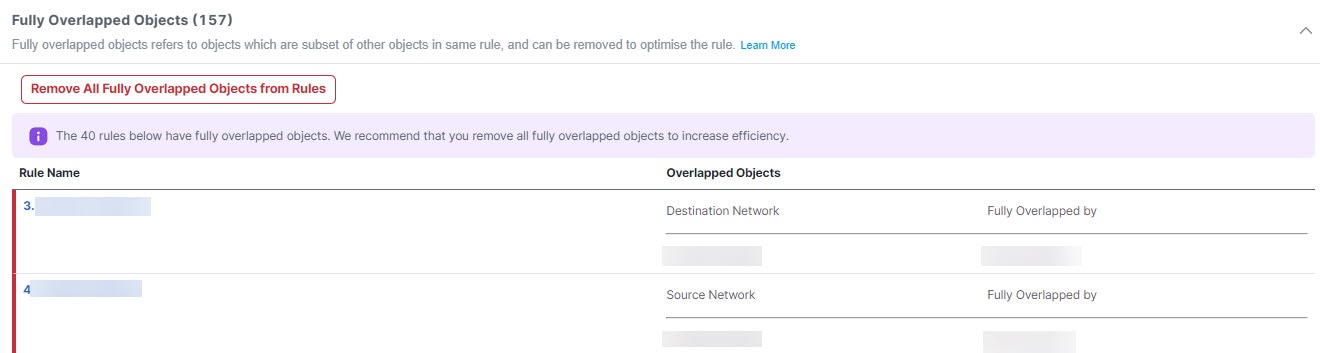
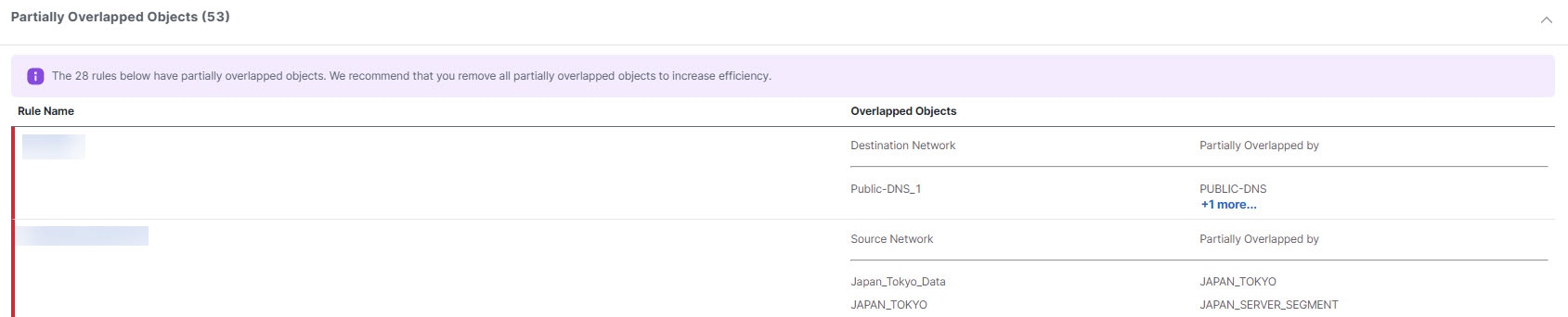
The Overlapping Objects tab lists objects that are either fully overlapping (the IP addresses or port numbers are either the same or a complete subset) or partially overlapping (some subset of IP addresses are repeated, but not all).

For example, if a rule contains an object for 192.168.1.1 and another for 192.168.1.0/24, the 192.168.1.1 object is fully overlapped by the other object and is not needed in the rule. For fully overlapped objects, you can remediate all fully overlapped observations in the category, selected observations, or selected rules. Click Remove All Fully Overlapped Objects from Rules to remove fully overlapped objects only from the staged items. For partial overlaps, evaluate each occurrence and edit the objects directly.

For partial overlaps, you need to evaluate each occurrence, determine if any changes can be made, and implement those changes directly by editing the objects.

Analyze policy insights in access control policy

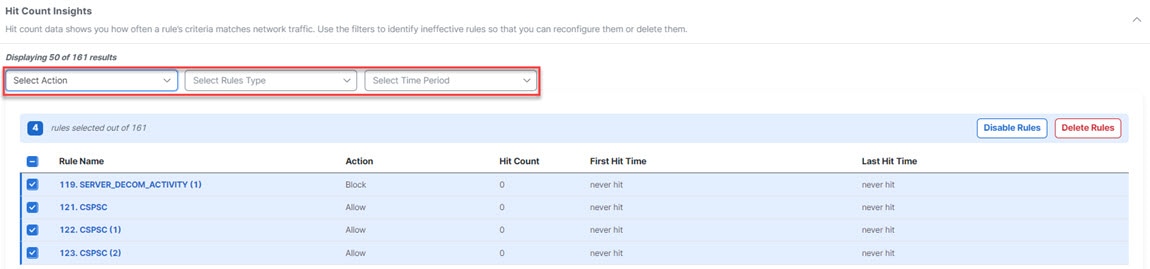
The Policy Insights tab has a Hit Count section that initially lists any rules that have never been triggered (Never Hit Rules). The hit count information is from all devices that are assigned to the policy. You can change criteria and see other hit count information, for example, Not Hit Rules for the past six months, or Hit Rules over a selected time period. You can filter the rules using the actions set in the rules, hit information, and time period:

  • Never Hit Rules—Rules that have never been hit from the time they were created.

  • Hit Rules—Rules that have been hit in the selected time period.

  • Not Hit Rules—Rules that have not been hit in the selected time period.

Select the rules that you want to disable or delete, and select Disable Rules or Delete Rules. These changes are staged until you select Apply Remediation. First, disable the rules when you want to measure their impact before deleting them.

Access control policy remediation

Policy Analyzer and Optimizer stages remediation changes before it updates the policy. You can stage remediation for an entire anomaly category, selected observations, or individual rules within an expanded observation. Before you apply remediation, unselected observations and rules remain unchanged and available for later selection in the same analysis report.

Review staged changes before you select Apply Remediation. After you apply remediation, you cannot apply more changes from the same analysis report. To remediate remaining anomalies, run policy analysis again on the updated policy and use the new report.

Before you begin

  • Back up all policies before you apply remediation.

  • Ensure that at least one remediation is staged. If no remediation is staged, Apply Remediation is disabled.

  • Verify the Policy Last Modified and Policy Last Analyzed timestamps, and review the number of rules that are staged for remediation.

Procedure


Step 1

In the Policy Analyzer and Optimizer page, select the policy to see details about the analysis on the right pane and click View analysis details & optimize.

Step 2

Click the remediation tab that contains the anomalies that you want to fix.

Step 3

Expand a remediation category. Select the check box for the category to stage all observations, or select the check boxes for specific observations or rules to stage only those items. Repeat this step in other remediation tabs, as needed.

Step 4

Select the remediation action that applies to the staged items, such as Move to disabled state, Move to delete state, Merge Selected, Remove All Fully Overlapped Objects from Rules, Disable Rules, or Delete Rules.

Step 5

Review the staged remediation. If you need to change the staged remediation before applying it, use the available undo or discard action.

Step 6

Click Apply Remediation.

Step 7

Read the confirmation message, which summarizes the remediations that will be applied. Confirm that the selected policy and staged remediation are correct.

Step 8

Click Apply.

Note


For an On-Premises Firewall Management Center in which the Change Management Workflow is enabled, when policy remediations are applied, an internal workflow ticket is created and the changes are staged. The changes take effect only when the ticket is submitted or approved. See Change Management in Cisco Secure Firewall Management Center Administration Guide for more information.


After remediation is complete, the selected rules are updated. Policy Analyzer and Optimizer automatically analyzes the updated policy and generates a refreshed summary that shows any remaining issues. Verify the intended changes in the corresponding access control policy.

Download access control analysis report

The access control analysis report is a PDF summary of completed remediations for a selected policy. It includes only the remediation categories that apply to the changes you selected and applied. Each section lists the rule name, remediation action, and related comments. For example, if no duplicate rules were remediated, the report excludes the duplicate-rule remediation section.

The report includes only the remediation sections and rule details for remediations that you selected and applied. Unselected anomalies are not included in the report.

  1. In the Policy Analyzer and Optimizer page, click Access control.

  2. Select an access control policy, and in the right pane, click Download analysis report.

The report can include these sections:

  • Remediation Summary

  • Hit Count Remediation

  • Expired Rules Remediation

  • Duplicate Rules Remediation

  • Mergeable Rules Remediation


Note


To determine whether a policy is remediated by the Policy Analyzer and Optimizer, navigate to Policies > Access Policies and edit a policy to view the rules in the Policy Editor. When a policy is remediated, a comment is added to the rules that are optimized.

You can also filter all the optimized rules using "updated by Policy Analyzer and Optimizer" to view all the remediated rules.

During duplicate rule remediation, the retained rule is updated with a comment specifying which rule was preserved and which were removed.


Network Address Translation policy analysis

Use the Network Address Translation (NAT) tab when you want to analyze NAT policies and find rules that are shadowed or redundant. NAT Policy Analyzer and Optimizer helps you identify rules that are not contributing to effective NAT behavior, understand which rule owns the conflict, and download a NAT analysis report for review.

NAT Policy Analyzer and Optimizer requirements

  • NAT Policy Analyzer and Optimizer is available only when AIOps is enabled for the tenant and for the selected data source.

  • For On-Premises Firewall Management Center, NAT Policy Analyzer and Optimizer requires Version 7.6 or later.

  • If NAT Policy Analyzer and Optimizer is disabled in AIOps settings, NAT Policy Analyzer and Optimizer operations are blocked for all data sources.

  • When AIOps is enabled for a data source, Policy Analyzer and Optimizer initiates the initial NAT synchronization and analysis for onboarded data sources.

  • NAT Policy Analyzer and Optimizer performs analysis at the management center level, not on a per-device basis.


Note


Disabled NAT rules are excluded from being analyzed by the Policy Analyzer and Optimizer.


Analyze NAT policies

Network Address Translation (NAT) Policy Analyzer and Optimizer analyzes Cloud-Delivered Firewall Management Center and On-Premises Firewall Management Center NAT policies and categorizes NAT findings into shadowed rules and redundant rules.

NAT Policy Analyzer and Optimizer reports these NAT finding types.

Table 3.

NAT finding

Meaning

How to interpret it

Shadowed NAT rule

A rule that will never evaluate network traffic because another rule that precedes it over shadows this rule.

Review the shadowing rule and the shadowed rules together. A rule is marked shadowed only when the overlap is complete for the compared dimensions.

Redundant NAT rule

A rule can be removed without changing the final NAT behavior because another rule can handle the traffic with the same effective NAT action.

Policy Analyzer and Optimizer checks the translated action for redundancy. Matching traffic criteria alone is not enough when translated source, destination, service, or PAT behavior differs.

NAT rule sections and comparison behavior

NAT Policy Analyzer and Optimizer follows the high-level NAT evaluation model used by Cisco Secure Firewall NAT policies. NAT rules are evaluated in section order: Manual NAT before Auto NAT, Auto NAT, and Manual NAT after Auto NAT.

The NAT section determines the rule comparisons that can be reported by NAT Policy Analyzer and Optimizer.

NAT section

What it contains

NAT Policy Analyzer and Optimizer comparison behavior

Manual NAT before Auto NAT

Manual or twice NAT rules evaluated before Auto NAT.

Rules in this section can be compared with rules in the same section, Auto NAT, and Manual NAT after Auto NAT.

Auto NAT

Object NAT rules whose device order is determined internally.

Auto NAT rules can participate in comparisons with Manual NAT before or after sections. NAT Policy Analyzer and Optimizer does not report shadowed or redundant rules within the same Auto NAT section.

Manual NAT after Auto NAT

Manual or twice NAT rules evaluated after Auto NAT.

Rules in this section can be compared with rules in the same section and with rules from earlier comparable sections.

Supported NAT address families for Policy Analyzer and Optimizer

NAT Policy Analyzer and Optimizer supports these address-family flows.

Flow

Traffic family

Notes

NAT44

IPv4 to IPv4

Supported for standard IPv4 NAT and PAT behavior.

NAT66

IPv6 to IPv6

Supported for IPv6 NAT behavior.

NAT64

IPv6 to IPv4

Supported when cross-family behavior is explicitly configured.

NAT46

IPv4 to IPv6

Supported when cross-family behavior is explicitly configured.

NAT policy analysis summary

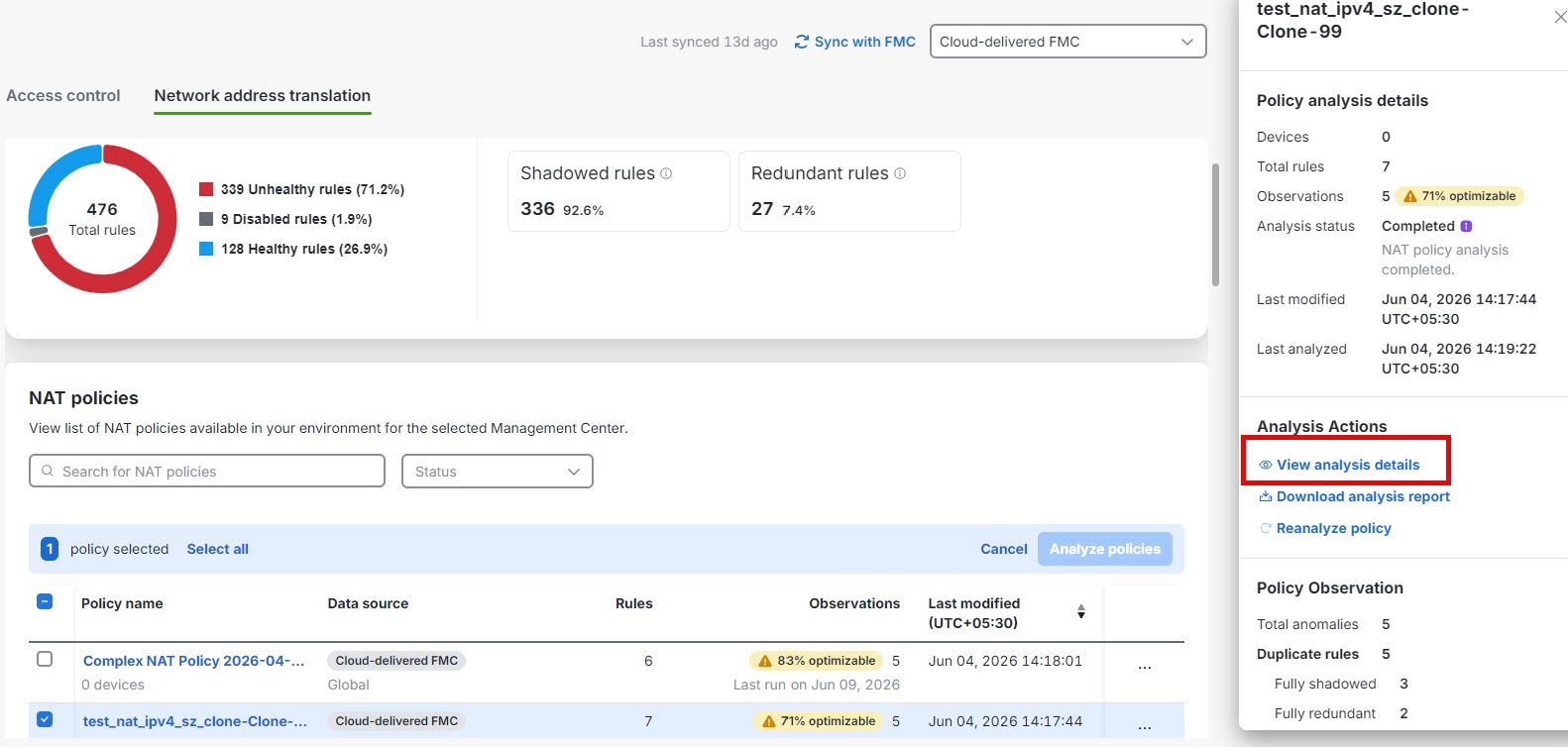
When analysis completes, select a NAT policy to review the right-pane summary and click View analysis details.

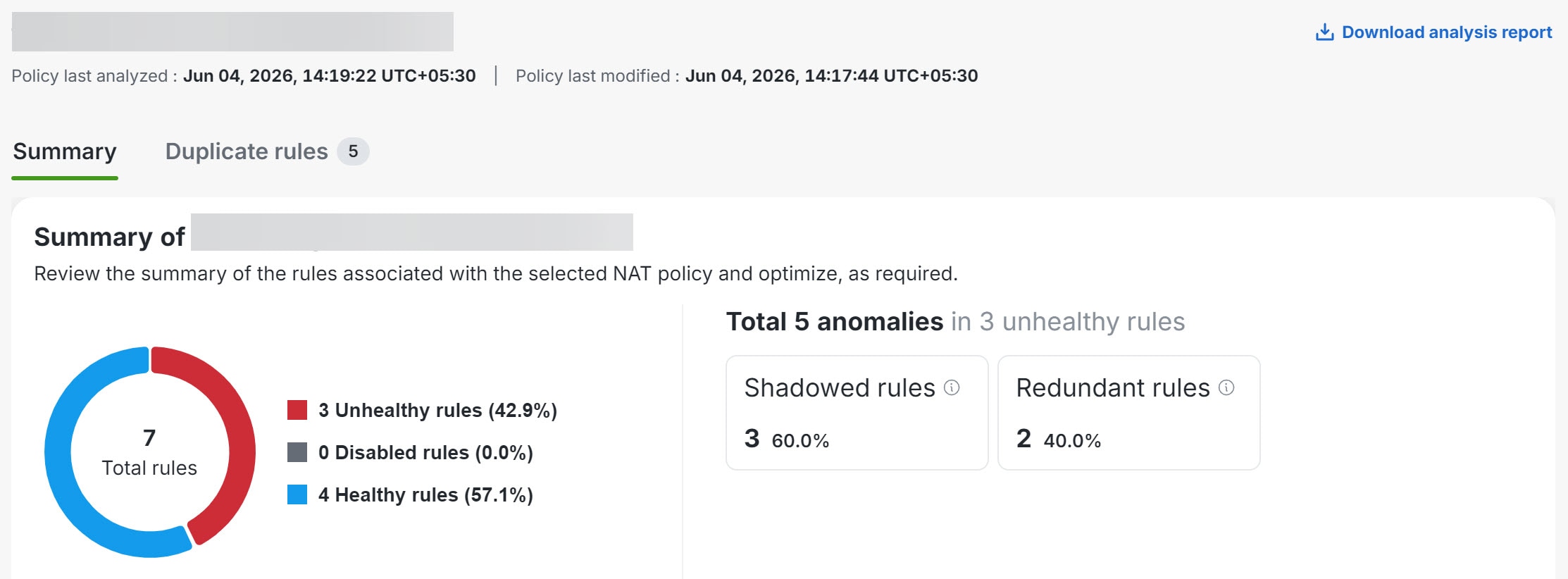
The policy-specific page displaying the anomaly details is shown.

  • Overall summary—provides insights on how many rules are unhealthy, disabled, healthy, using a pie chart for the selected NAT policy. You can also hover over the part of the pie to view the percentage of rules.

  • Total anomalies—shows the number of rule anomalies detected in the selected NAT policy. Also indicates how many unhealthy rules contain those anomalies.

Download NAT analysis report

The NAT analysis report is available after NAT policy analysis is complete and can be downloaded as a PDF. The PDF report includes policy metadata, analysis timestamps, summary charts, counts for healthy, disabled, shadowed, and redundant rules, and tabular observation details.

  1. In the Policy Analyzer and Optimizer page, click Network address translation.

  2. Select a NAT policy, and in the right pane, click Download analysis report.

The detailed rule information can include NAT section, rule type, direction, source and destination interface objects, original source, original destination, original service, translated source, translated destination, and translated service. Use these details to evaluate whether changes are needed in the management center. NAT Policy Analyzer and Optimizer does not apply NAT remediations in this release.

NAT Policy Analyzer and Optimizer and AgenticOps insights

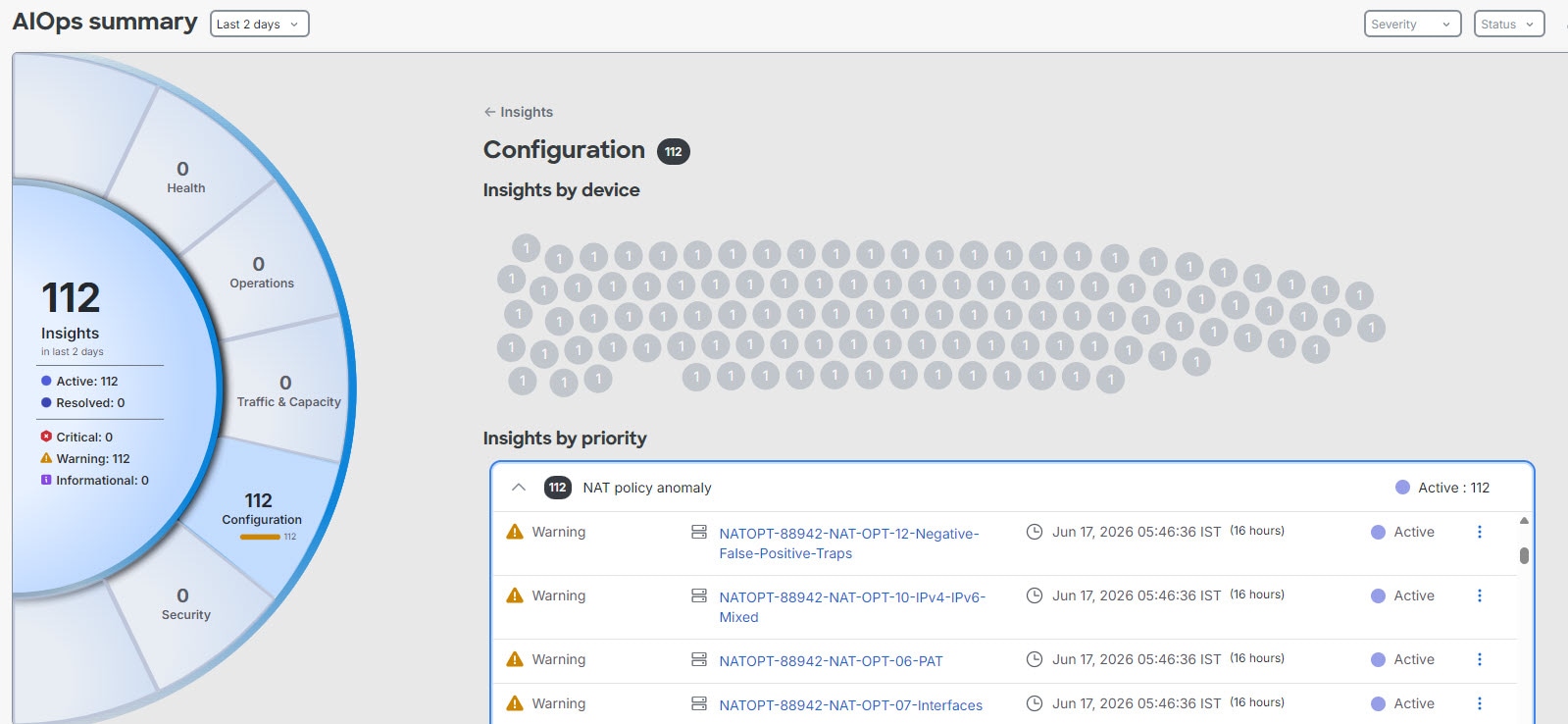
When NAT Policy Analyzer and Optimizer analysis detects NAT policy anomalies, AgenticOpscan raise a NAT policy anomaly insight. From AIOps Insights, you can review NAT anomaly counts by data source, open the affected data source or policy, and navigate back to the NAT Policy Analyzer and Optimizer analysis details.

Navigation: Insights & Reports > Summary.

If you dismiss a NAT anomaly insight, it is dismissed for the current insight occurrence. A later scheduled analysis can raise the insight again if NAT anomalies are detected again.

Troubleshooting Policy Analyzer and Optimizer

Read the following sections to troubleshoot any issues with the Policy Analyzer and Optimizer:

Policy Analyzer and Optimizer Does Not Analyze Policies

If you notice that Policy Analyzer and Optimizer is not analyzing policies despite clicking Analyze Policy, try the following:

Procedure


Step 1

Navigate Administration > Integrations > Firewall Management Center.

Step 2

Select the On-Premises Firewall Management Center or Cloud-Delivered FMC for which the policy analysis is not happening and choose Workflows under Actions on the right pane.

Step 3

If you see that the latest workflow's Current State shows up as Error, expand the workflow and scroll to the last action whose END STATE is ERROR.

Step 4

Click Error Message under the RESULT column to see a detailed error message or click Stack Trace to see the series of exceptions that occurred, which caused the error.

Step 5

Resolve the error or contact Cisco TAC for assistance.


Policy Analyzer and Optimizer Does Not Fetch Policies

If policies on your On-Premises Firewall Management Center are not displayed on the Policy Analyzer and Optimizer page on Security Cloud Control, do the following:

Procedure


Step 1

On the On-Premises Firewall Management Center, navigate Integration > Cisco Security Cloud.

Step 2

Ensure that the Enable Policy Analyzer and Optimizer checkbox is checked.

Step 3

(Optional) In the left navigation pane of your Security Cloud Control tenant, navigate Administration > Integrations > Firewall Management Center, and ensure that the On-Premises Firewall Management Center is active and reachable.


Frequently Asked Questions About Policy Analyzer and Optimizer

Can Cisco AI Assistant analyze and remediate policies instead of manually doing it using Policy Analyzer and Optimizer?

The Cisco AI Assistant collaborates with Policy Analyzer and Optimizer to scrutinize policies with anomalies and notify users. However, the AI Assistant cannot automatically analyze and remediate policies.

Can Policy Analyzer and Optimizer detect new changes to an already-analyzed policy and run analysis again on the same policy?

No, the Policy Analyzer and Optimizer can analyze policies only when manually triggered or at a 24-hour scheduled policy analysis run.

For a shared policy, does the Policy Analyzer and Optimizer provide individual device-based reports?

No. The Policy Analyzer and Optimizer provides reports only based on the access policy analysis data.

I am an On-Premises Firewall Management Center user. Should I purchase the Security Cloud Control base license to use the Policy Analyzer and Optimizer?

No. The Policy Analyzer and Optimizer comes as part of an existing or a newly created Security Cloud Control tenant during the Cisco Security Cloud integration.

I provisioned a Security Cloud Control tenant when I integrated my On-Premises Firewall Management Center with the Cisco Security Cloud. What other features, except Policy Analyzer and Optimizer, can I leverage in Security Cloud Control?

You can only leverage Policy Analyzer and Optimizer capabilities of this Security Cloud Control tenant. To use other features of Security Cloud Control, you need to purchase the Security Cloud Control base license and other device-specific licenses.

For an On-Premises Firewall Management Center on which the change management workflow is enabled and there are policies with pending changes to be approved, can the Policy Analyzer and Optimizer still apply remediations those policies?

No. The remediation will be hindered with an error saying the policies are locked for use.

Is there a maximum number of rules that Policy Analyzer and Optimizer can analyze in a policy?

There are no such limits. The Policy Analyzer and Optimizer can analyze any number of policies and rules. However, when the policies have more number of rules, the analysis takes a long time too.

What is the difference between disable rules and delete rules? Which is the better option?

Deleting a rule removes the rule completely from the device memory. However, disabling a rule keeps it in the device memory as a backup and does not get deployed to the device.

If a policy remediation fails when it is partially done, are the changes automatically revoked by Policy Analyzer and Optimizer?

No. In such a case, you get a failure notification and a remediation report. You can read the report to know which rules were impacted by the half-done remediation, manually revoke the changes, and start the remediation all over again.