Users

The Cloud-Delivered Firewall Management Center includes default admin accounts for web and CLI access. This chapter discusses how to create custom user accounts.

About CLI users

You can add custom user accounts on managed devices, either as internal users or as external users on a LDAP or RADIUS server. Each managed device maintains separate user accounts. For example, when you add a user to the Cloud-Delivered Firewall Management Center, that user only has access to the Cloud-Delivered Firewall Management Center; you cannot then use that username to log directly into a managed device. You must separately add a user on the managed device.

Internal and External Users

Managed devices support two types of users:

  • Internal user—The device checks a local database for user authentication.

  • External user—If the user is not present in the local database, the system queries an external LDAP or RADIUS authentication server.

User Roles

Web Interface User Roles

There are a variety of user roles in Security Cloud Control (Security Cloud Control): Read-Only, Edit-Only, Deploy-only, Admin, and Super Admin. User roles are configured for each user on each tenant. If a Security Cloud Control user has access to more than one tenant, they may have the same user ID but different roles on different tenants. A user may have a read-only role on one tenant and a Super Admin role on another. When the interface or the documentation refers to a Read-only user, Deploy Only, Edit Only, an Admin user, or a Super Admin user we are describing that user's permission level on a particular tenant. Note that you cannot create user roles in the cloud-delivered Firewall Management Center because it uses Security Cloud Control user roles.

Read Only

Read Only users can view all device configurations but not change them.

Deploy Only

Deploy Only users can audit queued changes made to device configurations and deploy them but cannot change them.

Edit Only

Edit Only users can make changes to all device configurations but cannot deploy them to devices.

Super Admin and Admin

Super Admin and Admin users can access everything in the product. The difference between Super Admin and Admin users is that Super Admins can create accounts for other users on a tenant and modify existing user roles, while admins cannnot.

To know more about user roles in Security Cloud Control, see User Roles.

The following table maps the user roles in On-Premises Firewall Management Center to their equivalent roles in the cloud-delivered Firewall Management Center in Security Cloud Control.

Tip


We recommend that you read through the table only if you are familiar with the user roles in On-Premises Firewall Management Center.


Table 1. Secure Firewall Management Center and Cloud-delivered Firewall Management Center User Role Mapping

On-Premises Firewall Management Center User Role

Equivalent Cloud-delivered Firewall Management Center User Role

Capabilities

Access Admin, Discovery Admin, Intrusion Admin, Maintenance User

Edit Only

You can search, filter, or view the following:

  • Access control policies and associated features

  • Intrusion policies

  • Intrusion rules

  • Network discovery rules

  • Custom detectors

  • Correlation policies

  • Objects

  • Rulesets

  • Interfaces

  • VPN configurations

  • Monitoring- and maintenance-related settings

You can back up or restore a device but cannot deploy policies to the devices.

Administrator

Super Admin

You can access all features of the cloud-delivered Firewall Management Center and perform tasks, including create, read, modify, or delete policies or objects and deploy those changes to the devices. You can also edit user roles or create user records in Security Cloud Control.

Network Admin

Admin

You can access all features of the cloud-delivered Firewall Management Center and perform tasks, including create, read, modify, or delete policies or objects and deploy those changes to the devices. However, you cannot edit user roles or create user records in Security Cloud Control.

Security Analyst, Security Analyst (Read Only)

Read Only

You can view device information, policies, objects, and their related settings but cannot do the following:

  • Create or edit objects

  • Create or edit policies

  • Modify device configurations

  • Backup or restore devices

Security Approver

Deploy Only

You can view most settings and deploy staged changes to devices but cannot create or modify objects or policies.

Create a User Record with Your Security Cloud Control Username

Only a Security Cloud Control user with Super Admin privileges can create the Security Cloud Control user record. The Super Admin must create the user record with the same email address that was specified in the Create Your Security Cloud Control Username task above.

Use the following procedure to create a user record with an appropriate user role:

Procedure


Step 1

Login to Security Cloud Control.

Step 2

In the left pane, choose Settings > User Management.

Step 3

Click to add a new user to your tenant.
Step 4

Provide the email address of the user.

Note


The user's email address must correspond to the email address of the Cisco Secure Log-On account.

Step 5

From the Role drop-down list, select the user's role.

Step 6

Click OK.


Configure External Authentication for the Cloud-Delivered Firewall Management Center

To enable external authentication, you need to add one or more external authentication objects.

About External Authentication for the Cloud-Delivered Firewall Management Center

When you enable external authentication, the Cloud-Delivered Firewall Management Center verifies the user credentials with an LDAP or RADIUS server as specified in an external authentication object.

You can configure multiple external authentication objects for web interface access. For example, if you have 5 external authentication objects, users from any of them can be authenticated to access the web interface. You can use only one external authentication object for CLI access. If you have more than one external authentication object enabled, then users can authenticate using only the first object in the list.

For the Cloud-Delivered Firewall Management Center, enable the external authentication objects directly on the System (system gear icon) > Users > External Authentication tab; this setting only affects Cloud-Delivered Firewall Management Center usage, and it does not need to be enabled on this tab for managed device usage. For Firewall Threat Defense devices, you must enable the external authentication object in the platform settings that you deploy to the devices.

Web interface users are defined separately from CLI users in the external authentication object. For CLI users on RADIUS, you must pre-configure the list of RADIUS usernames in the external authentication object. For LDAP, you can specify a filter to match CLI users on the LDAP server.


Note


Users with CLI access can gain Linux shell access with the expert command. Linux shell users can obtain root privileges, which can present a security risk. Make sure that you:
  • Restrict the list of users with CLI or Linux shell access.

  • Do not create Linux shell users.


About LDAP

The Lightweight Directory Access Protocol (LDAP) allows you to set up a directory on your network that organizes objects, such as user credentials, in a centralized location. Multiple applications can then access those credentials and the information used to describe them. If you ever need to change a user's credentials, you can change them in one place.

Microsoft has announced that Active Directory servers will start enforcing LDAP binding and LDAP signing in 2020. Microsoft is making these a requirement because when using default settings, an elevation of privilege vulnerability exists in Microsoft Windows that could allow a man-in-the-middle attacker to successfully forward an authentication request to a Windows LDAP server. For more information, see 2020 LDAP channel binding and LDAP signing requirement for Windows on the Microsoft support site.

If you have not done so already, we recommend you start using TLS/SSL encryption to authenticate with an Active Directory server.

About RADIUS

Remote Authentication Dial In User Service (RADIUS) is an authentication protocol used to authenticate, authorize, and account for user access to network resources. You can create an authentication object for any RADIUS server that conforms to RFC 2865.

Secure Firewall devices support the use of SecurID tokens. When you configure authentication by a server using SecurID, users authenticated against that server append the SecurID token to the end of their SecurID PIN and use that as their password when they log in. You do not need to configure anything extra on the Secure Firewall device to support SecurID.

Guidelines
  • The default RADIUS authentication port is 1812.

  • The default RADIUS accounting port is 1813 (one number more than the RADIUS authentication port).

If you change the RADIUS authentication port, the RADIUS accounting port changes accordingly. Ensure that the Cloud-Delivered Firewall Management Center can connect to the RADIUS server on the new accounting port; otherwise, authentication delays may occur.

Add an LDAP External Authentication Object for the Security Cloud Control

Add an LDAP server to support external users for device management.

Before you begin

  • You must specify DNS server(s) for domain name lookup on your device. Even if you specify an IP address and not a hostname for the LDAP server on this procedure, the LDAP server may return a URI for authentication that can include a hostname. A DNS lookup is required to resolve the hostname.

  • If you are configuring an LDAP authentication object for use with CAC authentication, do not remove the CAC inserted in your computer. You must have a CAC inserted at all times after enabling user certificates.

Procedure


Step 1

Choose System (system gear icon) > Users.

Step 2

Click the External Authentication tab.

Step 3

Click Add icon (add icon) Add External Authentication Object.

Step 4

Set the Authentication Method to LDAP.

Step 5

Enter a Name and optional Description.

Step 6

Choose a Server Type from the drop-down list.

Tip


If you click Set Defaults, the device populates the User Name Template, UI Access Attribute, CLI Access Attribute, Group Member Attribute, and Group Member URL Attribute fields with default values for the server type.

Step 7

For the Primary Server, enter a Host Name/IP Address.

If you are using a certificate to connect via TLS or SSL, the host name in the certificate must match the host name used in this field. In addition, IPv6 addresses are not supported for encrypted connections.

Step 8

(Optional) Change the Port from the default.

Step 9

(Optional) Enter the Backup Server parameters.

Step 10

Enter LDAP-Specific Parameters.

  1. Enter the Base DN for the LDAP directory you want to access. For example, to authenticate names in the Security organization at the Example company, enter ou=security,dc=example,dc=com. Alternatively click Fetch DNs, and choose the appropriate base distinguished name from the drop-down list.

  2. (Optional) Enter the Base Filter. For example, if the user objects in a directory tree have a physicalDeliveryOfficeName attribute and users in the New York office have an attribute value of NewYork for that attribute, to retrieve only users in the New York office, enter (physicalDeliveryOfficeName=NewYork).

    If you are using CAC authentication, to filter only active user accounts (excluding the disabled user accounts), enter (!(userAccountControl:1.2.840.113556.1.4.803:=2)). This criteria retrieves user accounts within AD belonging to ldpgrp group and with userAccountControl attribute value that is not 2 (disabled).

  3. Enter a User Name for a user who has sufficient credentials to browse the LDAP server. For example, if you are connecting to an OpenLDAP server where user objects have a uid attribute, and the object for the administrator in the Security division at your example company has a uid value of NetworkAdmin, you might enter uid=NetworkAdmin,ou=security,dc=example,dc=com.

  4. Enter the user password in the Password and the Confirm Password fields.

  5. (Optional) Click Show Advanced Options to configure the following advanced options.

    • Encryption—Click None, TLS, or SSL.

      If you change the encryption method after specifying a port, you reset the port to the default value for that method. For None or TLS, the port resets to the default value of 389

      • None — LDAP communication is unencrypted.

      • TLS — LDAP communication is upgraded to TLS using the STARTTLS operation on default port 389

      • SSL — LDAP communication is encrypted using TLS immediately upon connection (LDAPS) on default port 636.

    • SSL Certificate Upload Path—For SSL or TLS encryption, click Choose File and choose the complete CA chain certificate.

      Note


      Do not choose a binary certificate (PKCS12, DER, and alike) file because Firewall Threat Defense does not support them.

      To remove the uploaded certificate, check the Clear loaded certificate check box. This option only appears when you have uploaded a certificate, and when you are in the Edit mode of the external authentication object.

      If you had previously uploaded a certificate and want to replace it, reupload the new certificate (complete CA chain), and redeploy the configuration to your devices to copy over the new certificate.

      Note


      TLS encryption requires a certificate on all platforms. We recommend that you always upload a certificate for SSL to prevent man-in-the-middle attacks.

    • User Name Template—Provide a template that corresponds with your UI Access Attribute. For example, to authenticate all users who work in the Security organization of the Example company by connecting to an OpenLDAP server where the UI access attribute is uid, you might enter uid=%s,ou=security,dc=example,dc=com in the User Name Template field. For a Microsoft Active Directory server, you could enter %s@security.example.com.

      This field is required for CAC authentication.

    • Shell User Name Template—Provide a template that corresponds with your CLI Access Attribute to authenticate CLI users. For example, to authenticate all users who work in the Security organization by connecting to an OpenLDAP server where the CLI access attribute is sAMAccountName, you might enter %s in the Shell User Name Template field.

    • Timeout (Seconds)—Enter the number of seconds before rolling over to the backup connection, between 1 and 1024. The default is 30.

      Note


      The timeout range is different for Firewall Threat Defense and the Cloud-Delivered Firewall Management Center, so if you share an object, be sure not to exceed the Firewall Threat Defense's smaller timeout range (1-30 seconds). If you set the timeout to a higher value, the Firewall Threat Defense LDAP configuration will not work.

Step 11

Configure Attribute Mapping to retrieve users based on an attribute.

  • Enter a UI Access Attribute, or click Fetch Attrs to retrieve a list of available attributes. For example, on a Microsoft Active Directory Server, you may want to use the UI access attribute to retrieve users, because there may not be a uid attribute on Active Directory Server user objects. Instead, you can search the userPrincipalName attribute by typing userPrincipalName in the UI Access Attribute field.

  • Set the CLI Access Attribute if you want to use a shell access attribute other than the user distinguished type. For example, on a Microsoft Active Directory Server, use the sAMAccountName CLI access attribute to retrieve CLI access users by typing sAMAccountName.

Step 12

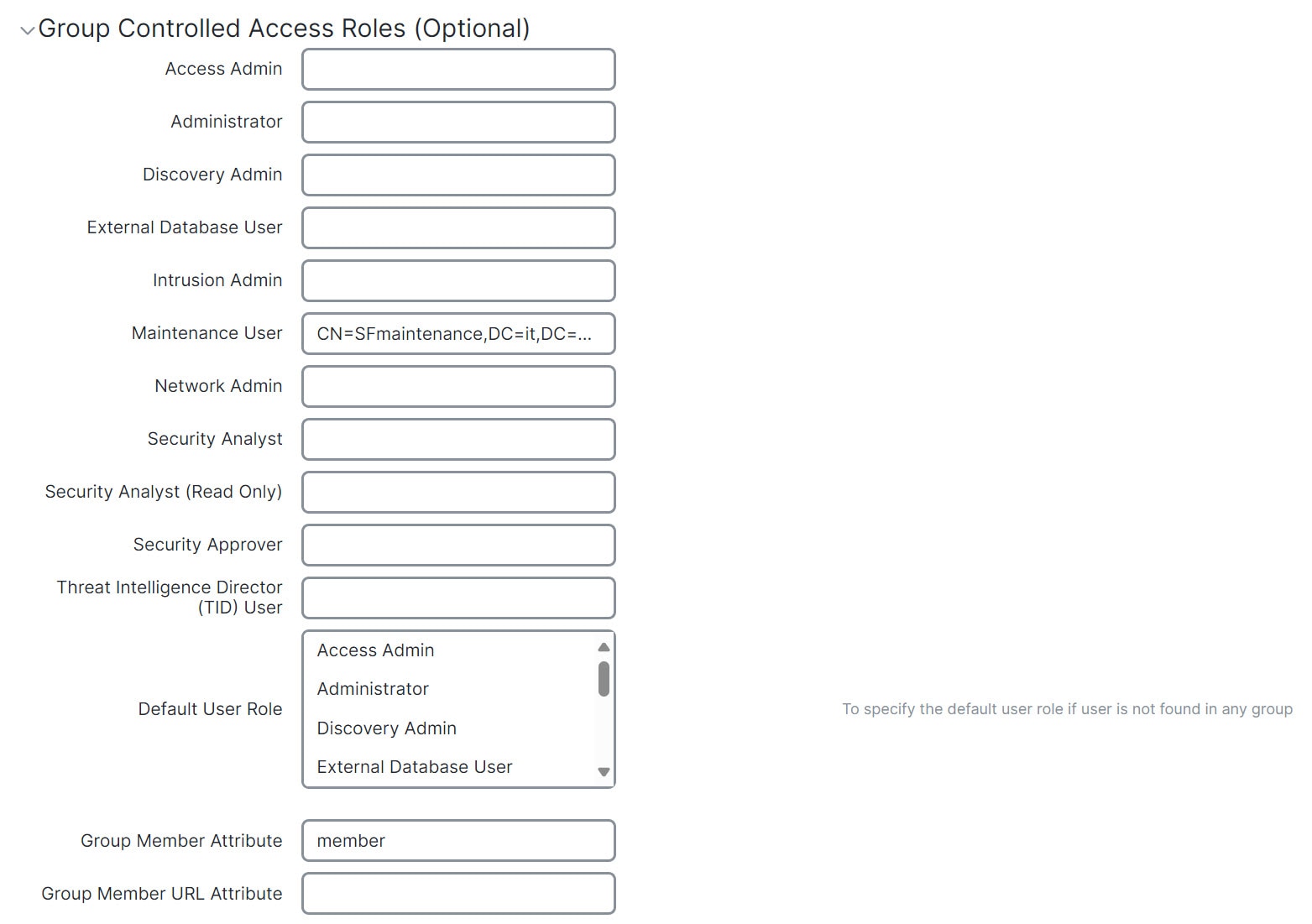
(Optional) Configure Group Controlled Access Roles.

If you do not configure a user’s privileges using group-controlled access roles, a user has only the privileges granted by default in the external authentication policy.

  1. (Optional) In the fields that correspond to user roles, enter the distinguished name for the LDAP groups that contain users who should be assigned to those roles.

    Any group you reference must exist on the LDAP server. You can reference static LDAP groups or dynamic LDAP groups. Static LDAP groups are groups where membership is determined by group object attributes that point to specific users, and dynamic LDAP groups are groups where membership is determined by creating an LDAP search that retrieves group users based on user object attributes. Group access rights for a role only affect users who are members of the group.

    If you use a dynamic group, the LDAP query is used exactly as it is configured on the LDAP server. For this reason, the device limits the number of recursions of a search to 4 to prevent search syntax errors from causing infinite loops.

    Example:

    Enter the following in the Administrator field to authenticate names in the information technology organization at the Example company:

    
    cn=itgroup,ou=groups, dc=example,dc=com
    
    
  2. Choose a Default User Role for users that do not belong to any of the specified groups.

  3. If you use static groups, enter a Group Member Attribute.

    Example:

    If the member attribute is used to indicate membership in the static group for default Security Analyst access, enter member.

  4. If you use dynamic groups, enter a Group Member URL Attribute.

    Example:

    If the memberURL attribute contains the LDAP search that retrieves members for the dynamic group you specified for default Admin access, enter memberURL.

Step 13

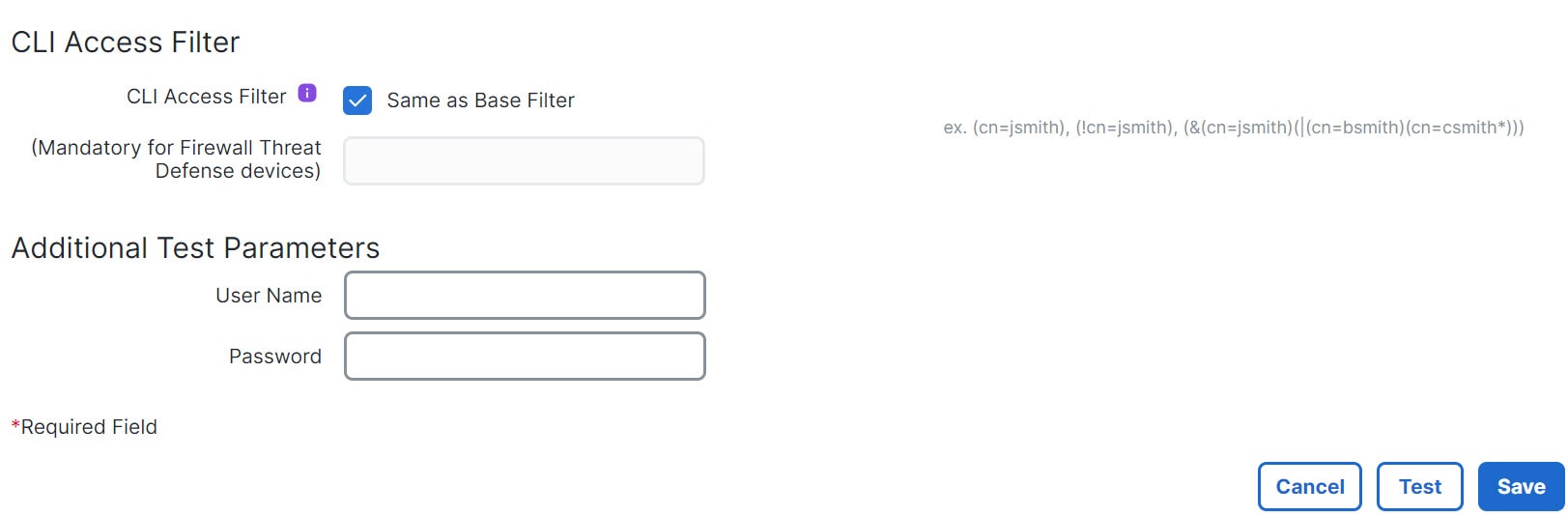
(Optional) Set the CLI Access Filter to allow CLI users.

To prevent LDAP authentication of CLI access, leave this field blank. To specify CLI users, choose one of the following methods:

  • To use the same filter you specified when configuring authentication settings, check the check box of Same as Base Filter.

  • To retrieve administrative user entries based on attribute value, enter the attribute name, a comparison operator, and the attribute value you want to use as a filter, enclosed in parentheses. For example, if all network administrators have a manager attribute which has an attribute value of shell, you can set a base filter of (manager=shell).

The usernames must be Linux-valid:

  • Maximum 32 alphanumeric characters, plus period (.), hyphen (-), and underscore (_)

  • All lowercase

  • Cannot start with hyphen (-); cannot be all numbers; cannot include at sign (@) or slash (/)

Note


Users with CLI access can gain Linux shell access with the expert command. Linux shell users can obtain root privileges, which can present a security risk. Make sure that you restrict the list of users with CLI or Linux shell access.

Note


Do not create any internal users that have the same user name as users included in the CLI Access Filter. The only internal Cloud-Delivered Firewall Management Center user should be admin; do not include an admin user in the CLI Access Filter.

Step 14

(Optional) Click Test to test connectivity to the LDAP server.

The test output lists valid and invalid user names. Valid user names are unique, and can include underscores (_), periods (.), hyphens (-), and alphanumeric characters. Note that testing the connection to servers with more than 1000 users only returns 1000 users because of UI page size limitations. If the test fails, see Troubleshooting LDAP Authentication Connections.

Step 15

(Optional) You can also enter Additional Test Parameters to test user credentials for a user who should be able to authenticate: enter a User Name uid and Password, and then click Test.

If you are connecting to a Microsoft Active Directory Server and supplied a UI access attribute in place of uid, use the value for that attribute as the user name. You can also specify a fully qualified distinguished name for the user.

Tip


If you mistype the name or password of the test user, the test fails even if the server configuration is correct. To verify that the server configuration is correct, click Test without entering user information in the Additional Test Parameters field first. If that succeeds, supply a user name and password to test with the specific user.

Example:

To test if you can retrieve the JSmith user credentials at the Example company, enter JSmith and the correct password.

Step 16

Click Save.


Examples

Basic Example

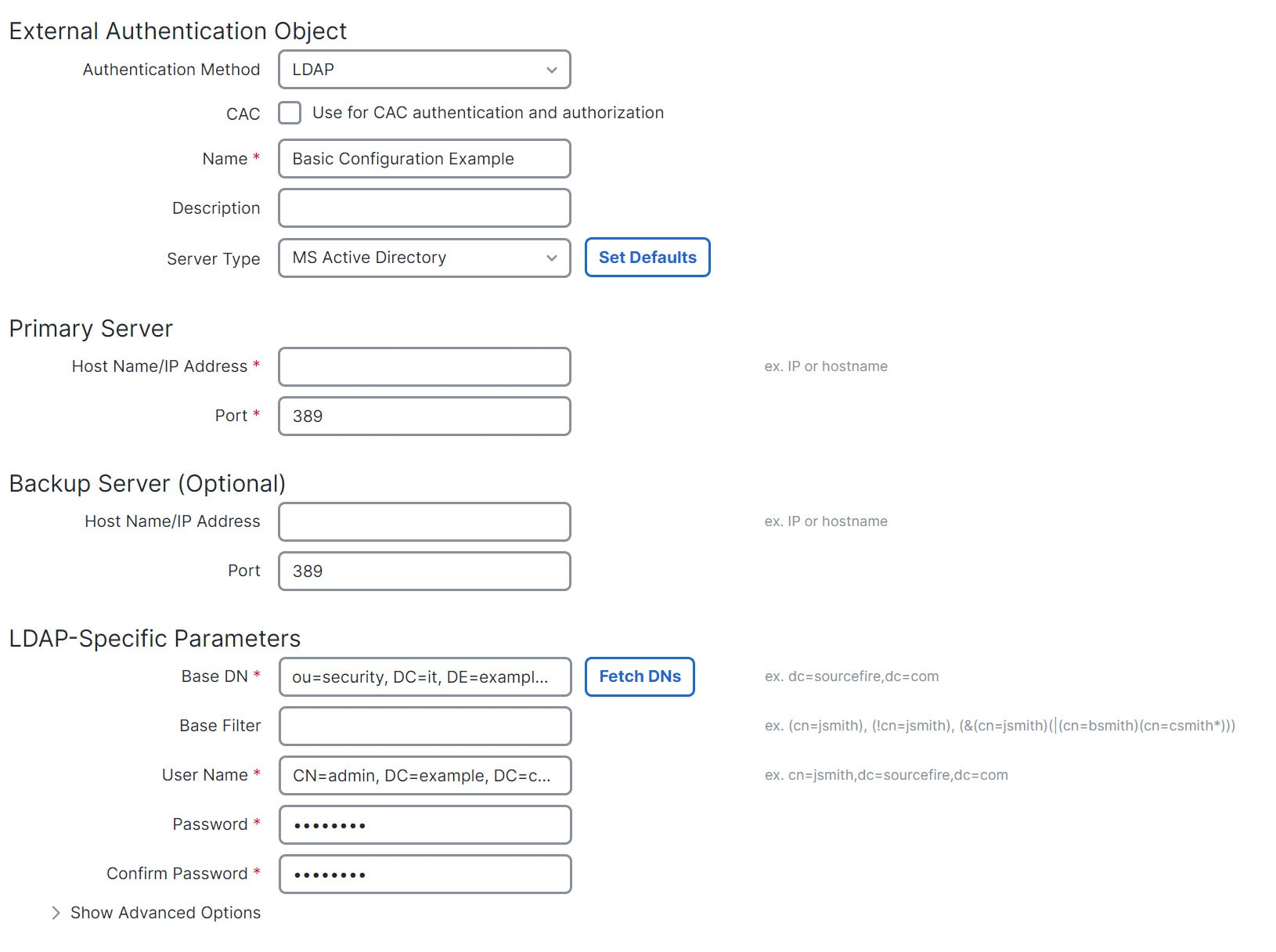
The following figures illustrate a basic configuration of an LDAP login authentication object for a Microsoft Active Directory Server. The LDAP server in this example has an IP address of 10.11.3.4. The connection uses port 389 for access.

This example shows a connection using a base distinguished name of OU=security,DC=it,DC=example,DC=com for the security organization in the information technology domain of the Example company.

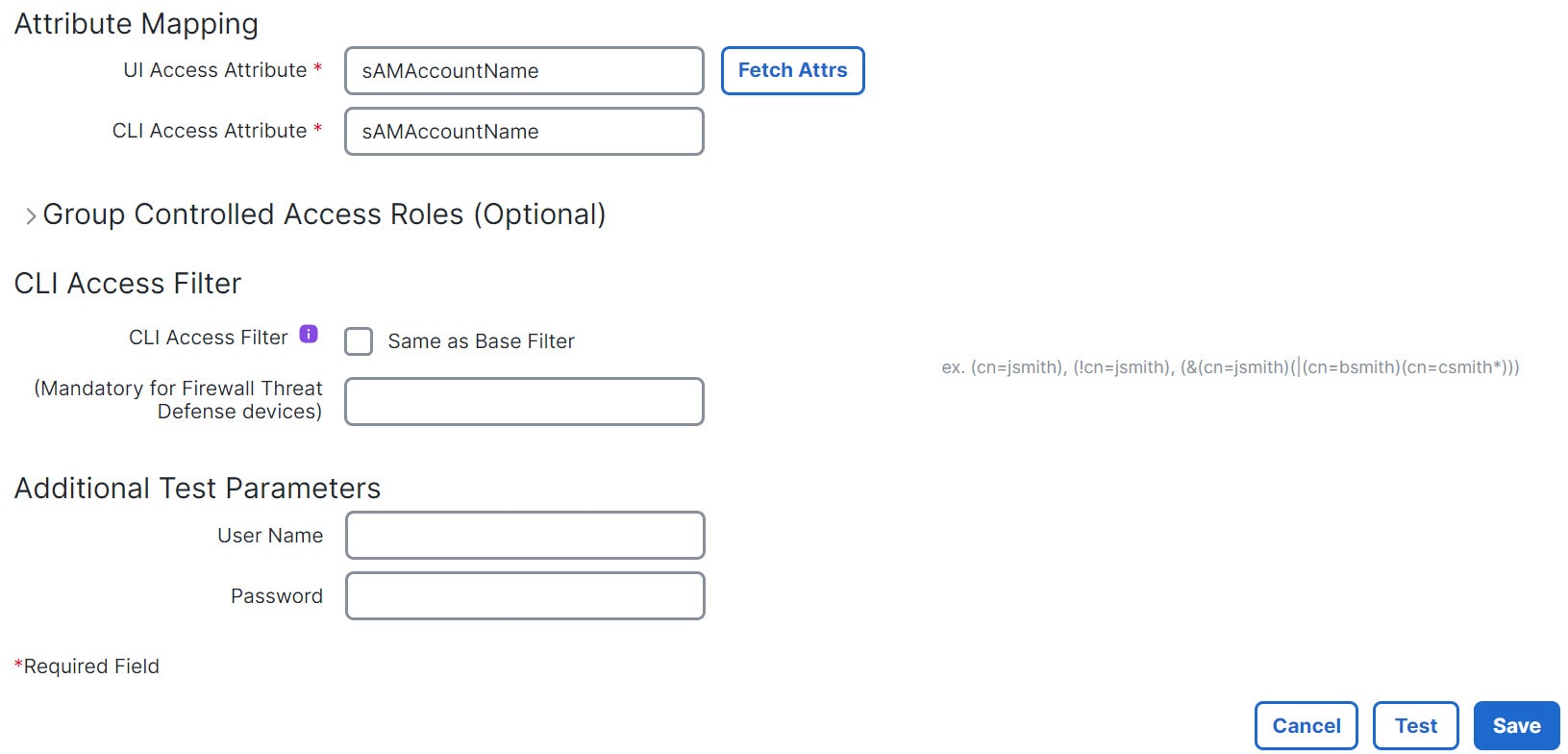
However, because this server is a Microsoft Active Directory server, it uses the sAMAccountName attribute to store user names rather than the uid attribute. Choosing the MS Active Directory server type and clicking Set Defaults sets the UI Access Attribute to sAMAccountName. As a result, the system checks the sAMAccountName attribute for each object for matching user names when a user attempts to log into the system.

In addition, a CLI Access Attribute of sAMAccountName causes each sAMAccountName attribute to be checked for all objects in the directory for matches when a user logs into a CLI account on the appliance.

Note that because no base filter is applied to this server, the system checks attributes for all objects in the directory indicated by the base distinguished name. Connections to the server time out after the default time period (or the timeout period set on the LDAP server).

Advanced Example

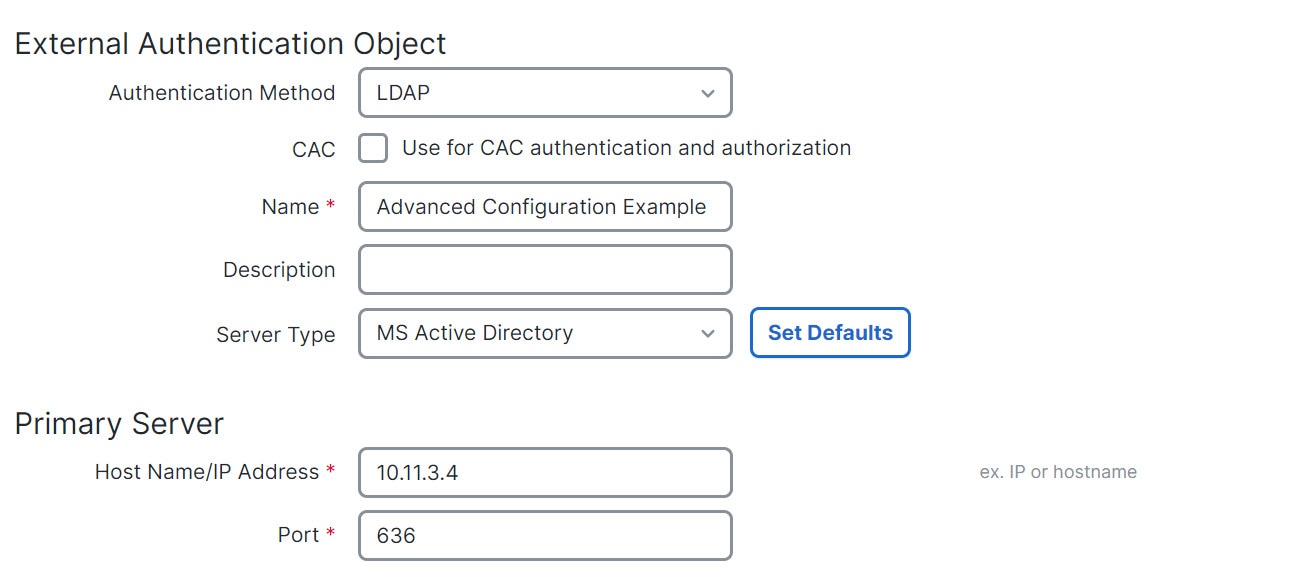
This example illustrates an advanced configuration of an LDAP login authentication object for a Microsoft Active Directory Server. The LDAP server in this example has an IP address of 10.11.3.4. The connection uses port 636 for access.

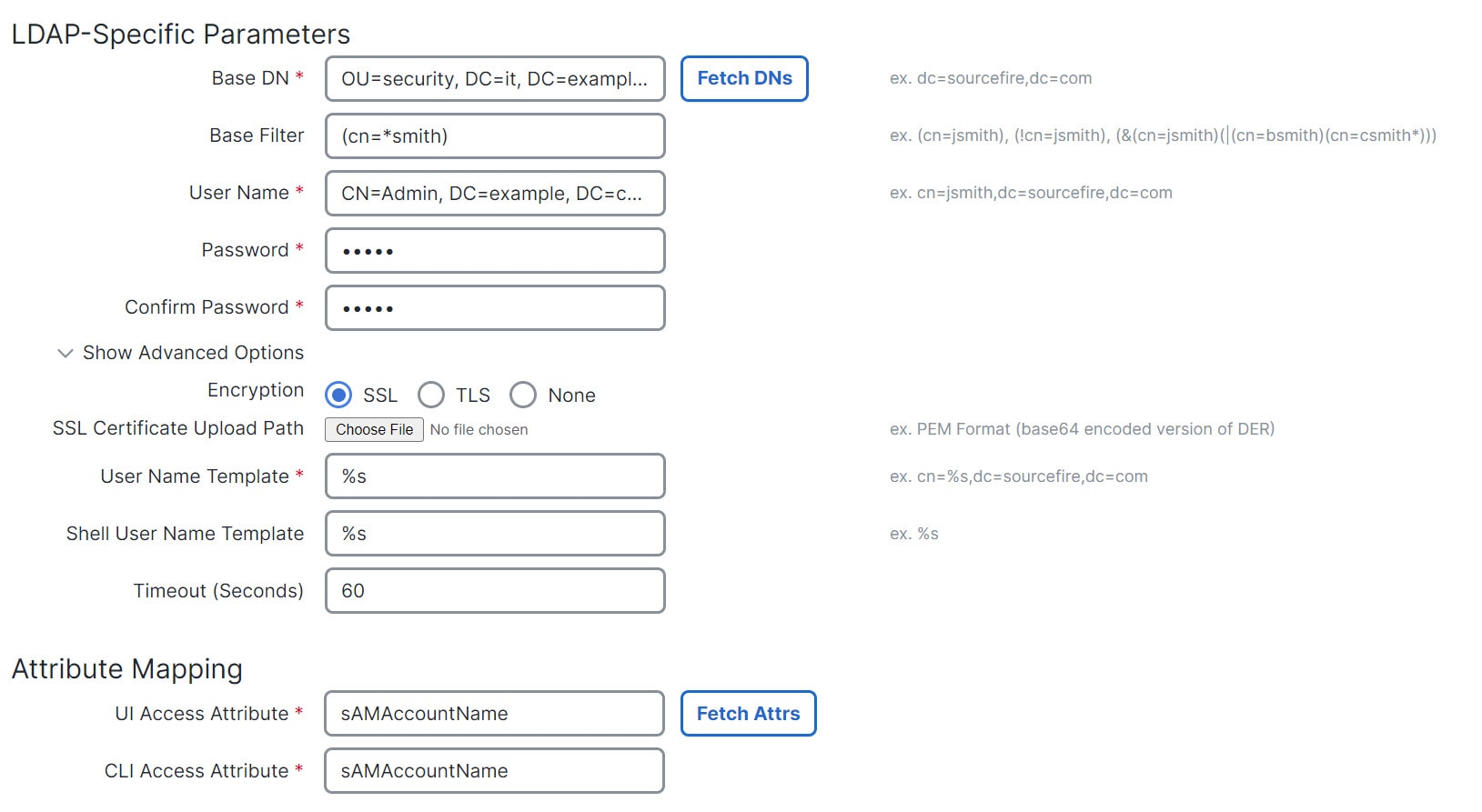
This example shows a connection using a base distinguished name of OU=security,DC=it,DC=example,DC=com for the security organization in the information technology domain of the Example company. However, note that this server has a base filter of (cn=*smith). The filter restricts the users retrieved from the server to those with a common name ending in smith.

The connection to the server is encrypted using SSL and a certificate named certificate.pem is used for the connection. In addition, connections to the server time out after 60 seconds because of the Timeout (Seconds) setting.

Because this server is a Microsoft Active Directory server, it uses the sAMAccountName attribute to store user names rather than the uid attribute. Note that the configuration includes a UI Access Attribute of sAMAccountName. As a result, the system checks the sAMAccountName attribute for each object for matching user names when a user attempts to log into the system.

In addition, a CLI Access Attribute of sAMAccountName causes each sAMAccountName attribute to be checked for all objects in the directory for matches when a user logs into a CLI account on the appliance.

This example also has group settings in place. The Maintenance User role is automatically assigned to all members of the group with a member group attribute and the base domain name of CN=SFmaintenance,DC=it,DC=example,DC=com.

The CLI Access Filter is set to be the same as the base filter, so the same users can access the appliance through the CLI as through the web interface.

Add a RADIUS External Authentication Object for Security Cloud Control

Add a RADIUS server to support external users for device management.

Note that supports only these six attributes in the access request of the RADIUS authentication:

  • NAS-IP-Address: Used in UI and CLI authentication

  • NAS-Identifier: Used in CLI authentication

  • NAS-Port: Used in UI and CLI authentication

  • NAS-Port-Type: Used in CLI authentication

  • Service-Type: Used in UI and CLI authentication

  • Calling-Station-Id: Used in CLI authentication


Note


  • NAS-Port attribute: The attribute value is dynamically generated and cannot be configured.

  • NAS-Port-Type attribute: The attribute value is always Virtual, regardless of whether the is virtual or physical.

  • NAS-Identifier attribute: The attribute value is always sshd.

  • Service-Type attribute: supports only Login and Authenticate Only service types


Procedure


Step 1

Choose System (system gear icon) > Users.

Step 2

Click External Authentication.

Step 3

Click Add icon (add icon) Add External Authentication Object.

Step 4

Set the Authentication Method to RADIUS.

Step 5

Enter a Name and optional Description.

Step 6

Check the RADIUS Server-Enabled Message Authenticator check box to require the Message-Authenticator attribute in all RADIUS responses, ensuring that every response from the RADIUS server is securely verified by the Firewall Threat Defense.

This feature is enabled by default for new RADIUS servers. We recommend that you enable it for existing servers after the upgrade. Disabling message authenticators may expose your firewalls to potential attacks. Ensure that your RADIUS server has the Message-Authenticator configuration.

Note


The Message-Authenticator attribute persist whether the feature is enabled or disabled. The attribute is always a requirement from the server side (RADIUS). When the check box is enabled in the configuration, it also becomes a requirement from the Cloud-Delivered Firewall Management Center.

Step 7

For the Primary Server, enter a Host Name/IP Address.

Step 8

(Optional) Change the Port from the default.

Step 9

Enter the RADIUS Secret Key.

Step 10

(Optional) Enter the Backup Server parameters.

Step 11

(Optional) Enter RADIUS-Specific Parameters.

  1. Enter the Timeout in seconds before retrying the primary server, between 1 and 1024. The default is 30.

  2. Enter the Retries before rolling over to the backup server. The default is 3.

  3. In the fields that correspond to user roles, enter the name of each user or identifying attribute-value pair that should be assigned to those roles.

    Separate usernames and attribute-value pairs with commas.

    Example:

    If you know all users who should be Security Analysts have the value Analyst for their User-Category attribute, you can enter User-Category=Analyst in the Security Analyst field to grant that role to those users.

    Example:

    To grant the Administrator role to the users jsmith and jdoe, enter jsmith, jdoe in the Administrator field.

    Example:

    To grant the Maintenance User role to all users with a User-Category value of Maintenance, enter User-Category=Maintenance in the Maintenance User field.

  4. Select the Default User Role for users that do not belong to any of the specified groups.

If you change a user's role, you must save/deploy the changed external authentication object and also remove the user from the Users screen. The user will be re-added automatically the next time they log in.

Step 12

(Optional) Define Custom RADIUS Attributes.

If your RADIUS server returns values for attributes not included in the dictionary file in /etc/radiusclient/, and you plan to use those attributes to set roles for users with those attributes, you need to define those attributes. You can locate the attributes returned for a user by looking at the user’s profile on your RADIUS server.

Note


Before you configure custom RADIUS attributes, ensure that you get the Attribute ID and Type of a custom attribute from the RADIUS server administrator. If there is a mismatch, in the RADIUS packet capture, the custom RADIUS attribute configured in is displayed as Unassigned Attribute.

  1. Enter an Attribute Name.

    When you define an attribute, you provide the name of the attribute, which consists of alphanumeric characters. Note that words in an attribute name should be separated by dashes rather than spaces.

  2. Enter the Attribute ID as an integer.

    The attribute ID should be an integer and should not conflict with any existing attribute IDs in the etc/radiusclient/dictionary file.

  3. Choose the Attribute Type from the drop-down list.

    You also specify the type of attribute: string, IP address, integer, or date.

  4. Click Add to add the custom attribute.

When you create a RADIUS authentication object, a new dictionary file for that object is created on the device in the /var/sf/userauth directory. Any custom attributes you add are added to the dictionary file.

Example:

If a RADIUS server is used on a network with a Cisco router, you might want to use the Ascend-Assign-IP-Pool attribute to grant a specific role to all users logging in from a specific IP address pool. Ascend-Assign-IP-Pool is an integer attribute that defines the address pool where the user is allowed to log in, with the integer indicating the number of the assigned IP address pool.

To declare that custom attribute, you create a custom attribute with an attribute name of Ascend-IP-Pool-Definition, an attribute ID of 218, and an attribute type of integer.

You could then enter Ascend-Assign-IP-Pool=2 in the Security Analyst (Read Only) field to grant read-only security analyst rights to all users with an Ascend-IP-Pool-Definition attribute value of 2.

Step 13

(Optional) In the CLI Access Filter area Administrator CLI Access User List field, enter the user names that should have CLI access, separated by commas.

Make sure that these usernames match usernames on the RADIUS server. The names must be Linux-valid usernames:

  • Maximum 32 alphanumeric characters, plus period (.), hyphen (-), and underscore (_)

  • All lowercase

  • Cannot start with hyphen (-); cannot be all numbers; cannot include at sign (@) or slash (/)

To prevent RADIUS authentication of CLI access, leave the field blank.

Note


Users with CLI access can gain Linux shell access with the expert command. Linux shell users can obtain root privileges, which can present a security risk. Make sure that you restrict the list of users with CLI or Linux shell access.

Note


Remove any internal users that have the same user name as users included in the shell access filter. For the Cloud-Delivered Firewall Management Center, the only internal CLI user is admin, so do not also create an admin external user.

Step 14

(Optional) Click Test to test Cloud-Delivered Firewall Management Center connectivity to the RADIUS server.

Step 15

(Optional) You can also enter Additional Test Parameters to test user credentials for a user who should be able to authenticate: enter a User Name and Password, and then click Test.

Tip


If you mistype the name or password of the test user, the test fails even if the server configuration is correct. To verify that the server configuration is correct, click Test without entering user information in the Additional Test Parameters field first. If that succeeds, supply a user name and password to test with the specific user.

Example:

To test if you can retrieve the JSmith user credentials at the Example company, enter JSmith and the correct password.

Step 16

Click Save.


Examples

Simple User Role Assignments

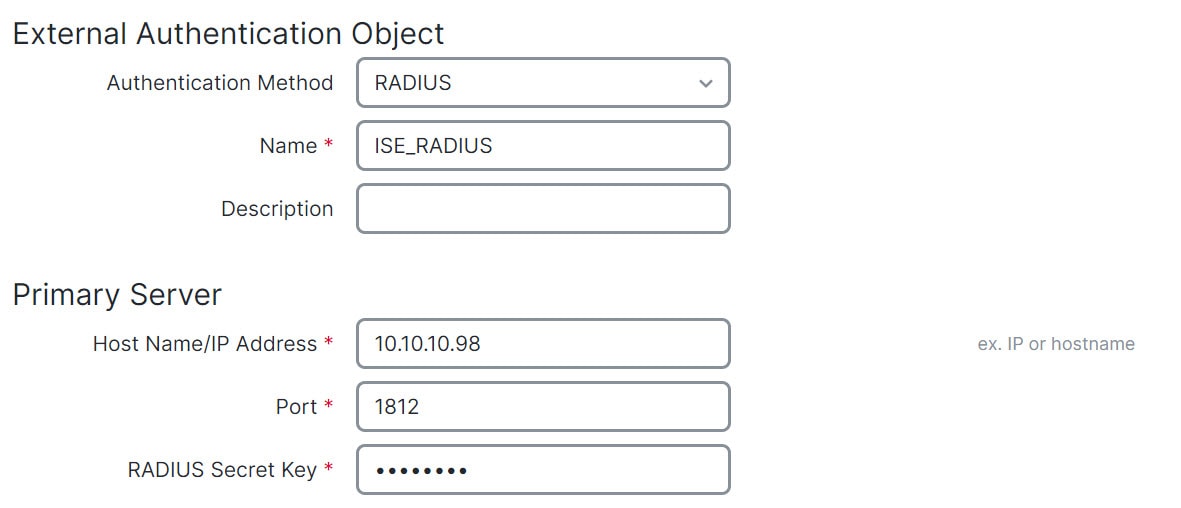
The following figure illustrates a sample RADIUS login authentication object for a server running Cisco Identity Services Engine (ISE) with an IP address of 10.10.10.98 on port 1812. No backup server is defined.

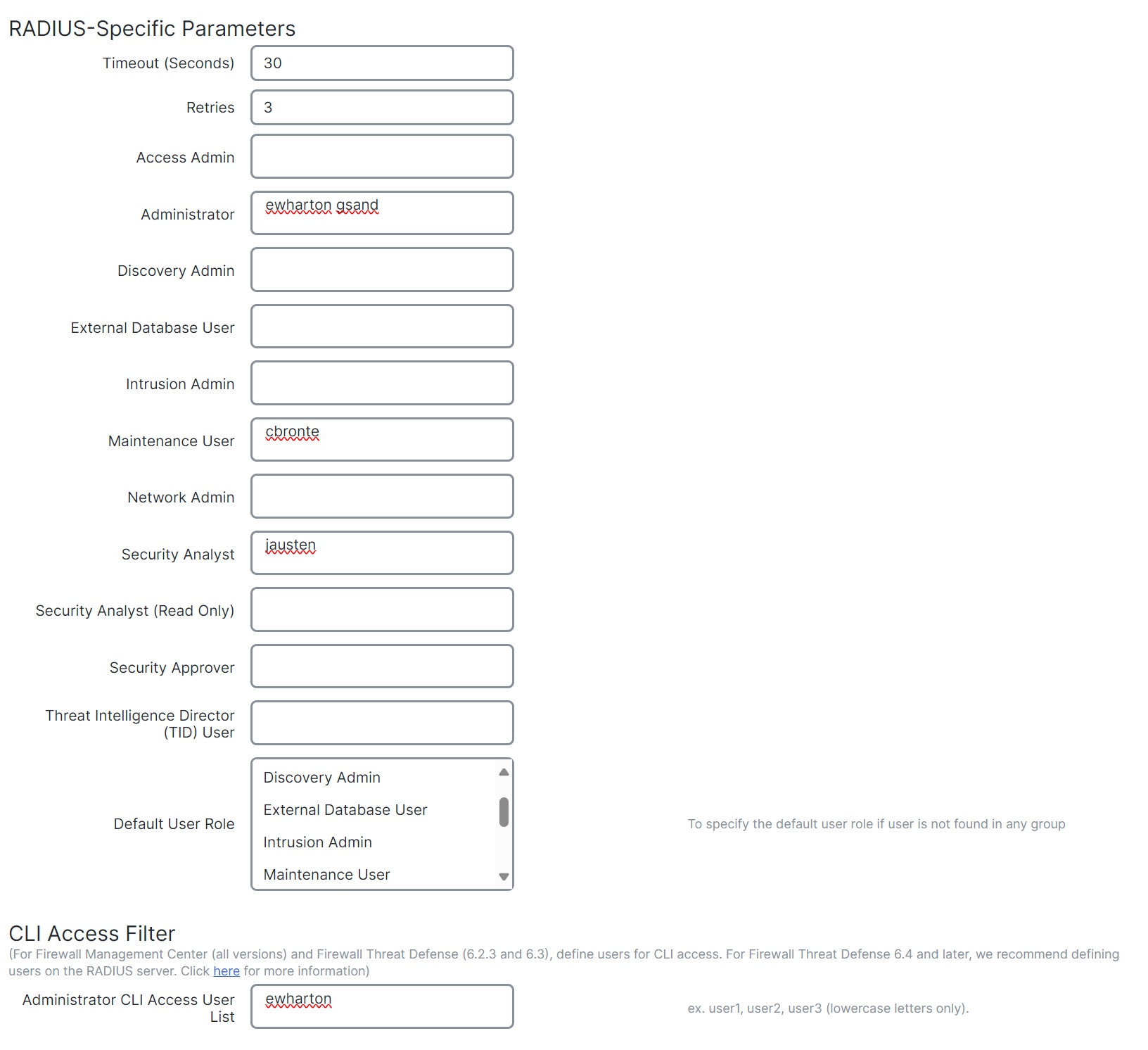
The following example shows RADIUS-specific parameters, including the timeout (30 seconds) and number of failed retries before the Secure Firewall System attempts to contact the backup server, if any.

This example illustrates important aspects of RADIUS user role configuration:

Users ewharton and gsand are granted web interface Administrative access.

The user cbronte is granted web interface Maintenance User access.

The user jausten is granted web interface Security Analyst access.

The user ewharton can log into the device using a CLI account.

The following graphic depicts the role configuration for the example:

Roles for Users Matching an Attribute-Value Pair

You can use an attribute-value pair to identify users who should receive a particular user role. If the attribute you use is a custom attribute, you must define the custom attribute.

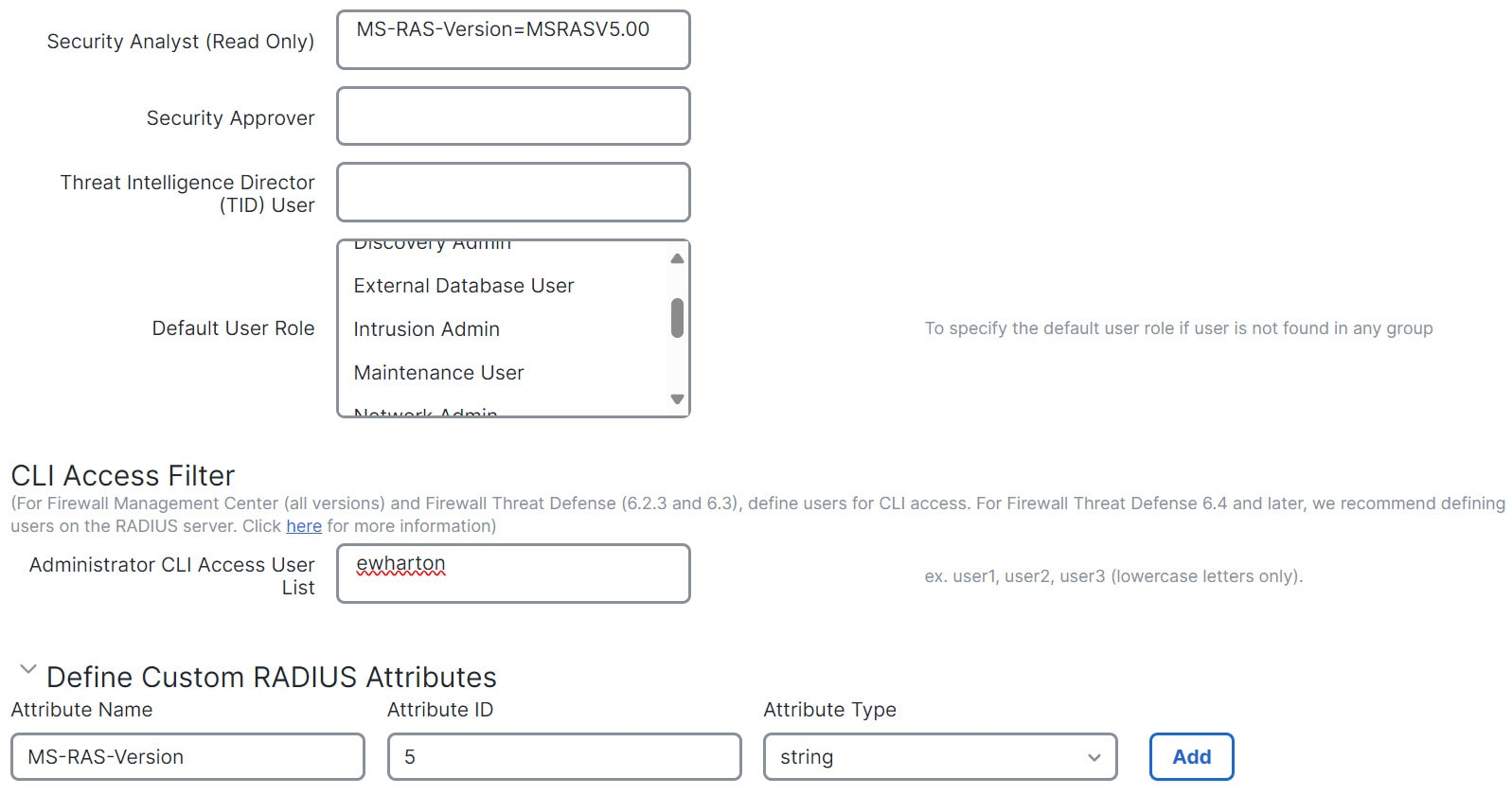
The following figure illustrates the role configuration and custom attribute definition in a sample RADIUS login authentication object for the same ISE server as in the previous example.

In this example, however, the MS-RAS-Version custom attribute is returned for one or more of the users because a Microsoft remote access server is in use. Note the MS-RAS-Version custom attribute is a string. In this example, all users logging in to RADIUS through a Microsoft v. 5.00 remote access server should receive the Security Analyst (Read Only) role, so you enter the attribute-value pair of MS-RAS-Version=MSRASV5.00 in the Security Analyst (Read Only) field.

Troubleshooting LDAP Authentication Connections

If you create an LDAP authentication object and it either does not succeed in connecting to the server you select or does not retrieve the list of users you want, you can tune the settings in the object.

If the connection fails when you test it, try the following suggestions to troubleshoot your configuration:

  • Use the messages displayed at the top of the web interface screen and in the test output to determine which areas of the object are causing the issue.

  • Check that the user name and password you used for the object are valid:

    • Check that you have the rights to browse to the directory indicated in your base-distinguished name by connecting to the LDAP server using a third-party LDAP browser.

    • Check that the user name is unique to the directory information tree for the LDAP server.

    • If you see an LDAP bind error 49 in the test output, the user binding for the user failed. Try authenticating to the server through a third-party application to see if the binding fails through that connection as well.

    • When configuring LDAP authentication, avoid using a backslash ("\") in the binding password. The presence of a backslash in the password causes the LDAP binding process to fail, resulting in unsuccessful external authentication.

  • Check that you have correctly identified the server:

    • Check that the server IP address or host name is correct.

    • Check that you have TCP/IP access from your local appliance to the authentication server where you want to connect.

    • Check that access to the server is not blocked by a firewall and that the port you have configured in the object is open.

    • If you are using a certificate to connect via TLS or SSL, the host name in the certificate must match the host name used for the server.

    • Check that you have not used an IPv6 address for the server connection if you are authenticating CLI access.

    • If you used server type defaults, check that you have the correct server type and click Set Defaults again to reset the default values.

  • If you typed in your base-distinguished name, click Fetch DNs to retrieve all the available base distinguished names on the server, and select the name from the list.

  • If you are using any filters, access attributes, or advanced settings, check that each is valid and typed correctly.

  • If you are using any filters, access attributes, or advanced settings, try removing each setting and testing the object without it.

  • If you are using a base filter or a CLI access filter, make sure that the filter is enclosed in parentheses and that you are using a valid comparison operator (maximum 450 characters, including the enclosing parentheses).

  • To test a more restricted base filter, try setting it to the base distinguished name for the user to retrieve just that user.

  • If you are using an encrypted connection:

    • Check that the name of the LDAP server in the certificate matches the host name that you use to connect.

    • Check that you have not used an IPv6 address with an encrypted server connection.

  • If you are using a test user, make sure that the user name and password are typed correctly.

  • If you are using a test user, remove the user credentials and test the object.

  • Test the query that you are using by connecting to the LDAP server and using this syntax:

    
    ldapsearch -x -b 'base_distinguished_name'
    -h LDAPserver_ip_address -p port -v -D
    'user_distinguished_name' -W 'base_filter'


    For example, if you are trying to connect to the security domain on myrtle.example.com using the domainadmin@myrtle.example.com user and a base filter of (cn=*), you could test the connection using this statement:

    
    ldapsearch -x -b 'CN=security,DC=myrtle,DC=example,DC=com'
    -h myrtle.example.com -p 389 -v -D
    'domainadmin@myrtle.example.com' -W '(cn=*)'


If you can test your connection successfully but authentication does not work after you deploy a platform settings policy, check that authentication and the object you want to use are both enabled in the platform settings policy that is applied to the device.

If you connect successfully but want to adjust the list of users retrieved by your connection, you can add or change a base filter or CLI access filter or use a more restrictive or less restrictive base DN.

While authenticating a connection to Active Directory (AD) server, rarely the connection event log indicates blocked LDAP traffic although the connection to AD server is successful. This incorrect connection log occurs when the AD server sends a duplicate reset packet. The Firewall Threat Defense device identifies the second reset packet as part of a new connection request and logs the connection with Block action.

Configure User Preferences

Depending on your user role, you can specify certain preferences for your user account.

Change the Web Interface Appearance

You can change the way the web interface appears when you are using the light theme.

Procedure


Step 1

From the drop-down list under your username, choose User Preference.

Step 2

Under Light theme variant, click the Use new design toggle button to enable or disable the new design.

Enable the toggle to use the left navigation menu and disable it to use the top navigation menu.

Note


This toggle works only if you are using the light theme. If you want to switch between dark theme and light theme, you must do this from the General Preference page in Security Cloud Control. For more information, see Change the Security Cloud Control Web Interface Appearance.


Setting Your Default Time Zone

This setting determines the times displayed in the web interface for your user account only, for things like task scheduling and viewing dashboards. This setting does not change the system time or affect any other user, and does not affect data stored in the system, which generally uses UTC.


Warning


The Time Zone function (in User Preferences) assumes that the system clock is set to UTC time. DO NOT ATTEMPT TO CHANGE THE SYSTEM TIME. Changing the system time from UTC is NOT supported, and doing so will require you to reimage the device to recover from an unsupported state.


Note


This feature does not affect the time zone used for time-based policy application. Set the time zone for a device in Devices > Platform Settings.


Procedure


Step 1

From the drop-down list under your user name, choose User Preferences.

Step 2

Click Time Zone drop-down.

Step 3

Choose the continent or country and the state name that corresponds with the time zone you want to use.


Configure How-To Settings

How To is a widget that provides walkthroughs to navigate through tasks on the Cloud-Delivered Firewall Management Center. The walkthroughs guide you to perform the steps required to achieve a task by taking you through each step, one after the other irrespective of the various UI screens that you may have to navigate, to complete the task. The How To widget is enabled by default.

For a list of feature walkthroughs supported in the Cloud-Delivered Firewall Management Center, see Feature Walkthroughs Supported in Secure Firewall Management Center.

Procedure


Step 1

From the drop-down list under your user name, choose User Preferences.

Step 2

Click the How-To Settings tab.

Step 3

Check the Enable How-Tos check box to enable How-Tos.

Step 4

Click Save.


What to do next

To open the How To widget, choose Help (help icon) > On-screen Assistance > How-Tos. You can search for How-To walkthroughs that address tasks of interest.