Elephant Flow Detection

Elephant flows are extremely large (in total bytes), continuous flows set up by a TCP (or other protocols) flow measured over a network link. By default, elephant flows are those larger than 1 GB/10 seconds. They can cause performance duress in Snort cores. Elephant flows are not numerous, but they can occupy a disproportionate share of the total bandwidth over a period of time. They can lead to problems, such as high CPU utilization, packet drops, and other issues.

From Cloud-Delivered Firewall Management Center 7.2.0 onwards (Snort 3 devices only), you can use the elephant flow feature to detect and remediate elephant flows, which helps to reduce system stress and resolve the mentioned issues.

Elephant flow detection and remediation

Elephant flow detection and remediation is a feature that

  • detects elephant flows in network traffic,

  • applies remediation actions to manage these flows, and

  • requires Snort 3 as the detection engine to function.

Remediation actions

These remediation actions can be applied:

  • Bypass elephant flow—You can configure elephant flow to bypass Snort inspection. If this is configured, Snort does not receive any packet from that flow.

  • Throttle elephant flow—You can apply rate-limit to the flow and continue to inspect flows. The flow rate is calculated dynamically, and the system reduces the flow rate by 10 percent. Snort sends the verdict (with QoS flow reduced by 10 percent) to the firewall engine. If you choose to bypass all applications, including unidentified applications, you cannot configure the throttle action (rate-limit) for any flow.

Elephant flow upgrade from Intelligent Application Bypass

For devices running 7.2.0 or later, you must configure elephant flow settings under the Elephant Flow Settings section in the access control policy (Advanced settings tab) because Intelligent Application Bypass (IAB) is deprecated from version 7.2.0 onwards for Snort 3 devices.

Post-upgrade to 7.2.0 (or later), if you are using a Snort 3 device, the elephant flow configuration settings will be picked and deployed from the Elephant Flow Settings section and not from the Intelligent Application Bypass Settings section, so if you have not migrated to Elephant Flow configuration settings, your device will lose the elephant flow configuration upon the next deployment.

This table shows the IAB or elephant flow configurations that can be applied to version 7.2.0 or later and to version 7.1.0 or earlier that are running Snort 3 or Snort 2 engines.

Cloud-Delivered Firewall Management Center

Firewall Threat Defense

Elephant Flow or IAB Configuration

Cloud-Delivered Firewall Management Center 7.0 or 7.1

Snort 2 device

Configuration from IAB is applicable.

Snort 3 device

Configuration from IAB is applicable.

Cloud-Delivered Firewall Management Center 7.2.0

Snort 2 device

Configuration from IAB is applicable.

Snort 3 device (7.1.0 and earlier)

Configuration from IAB is applicable.

Snort 3 device (7.2.0 and later)

Configuration from Elephant Flow is applicable.

Configure elephant flow detection

Configure elephant flow detection to take actions on elephant flows. This helps resolve issues such as system duress, high CPU utilization, packet drops and related performance problems.


Attention


Elephant flow detection is not applicable for prefiltered, trusted, or fast-forwarded flows, which do not process through Snort. As elephant flows are detected by Snort, elephant flow detection is not applicable for encrypted traffic.


Procedure


Step 1

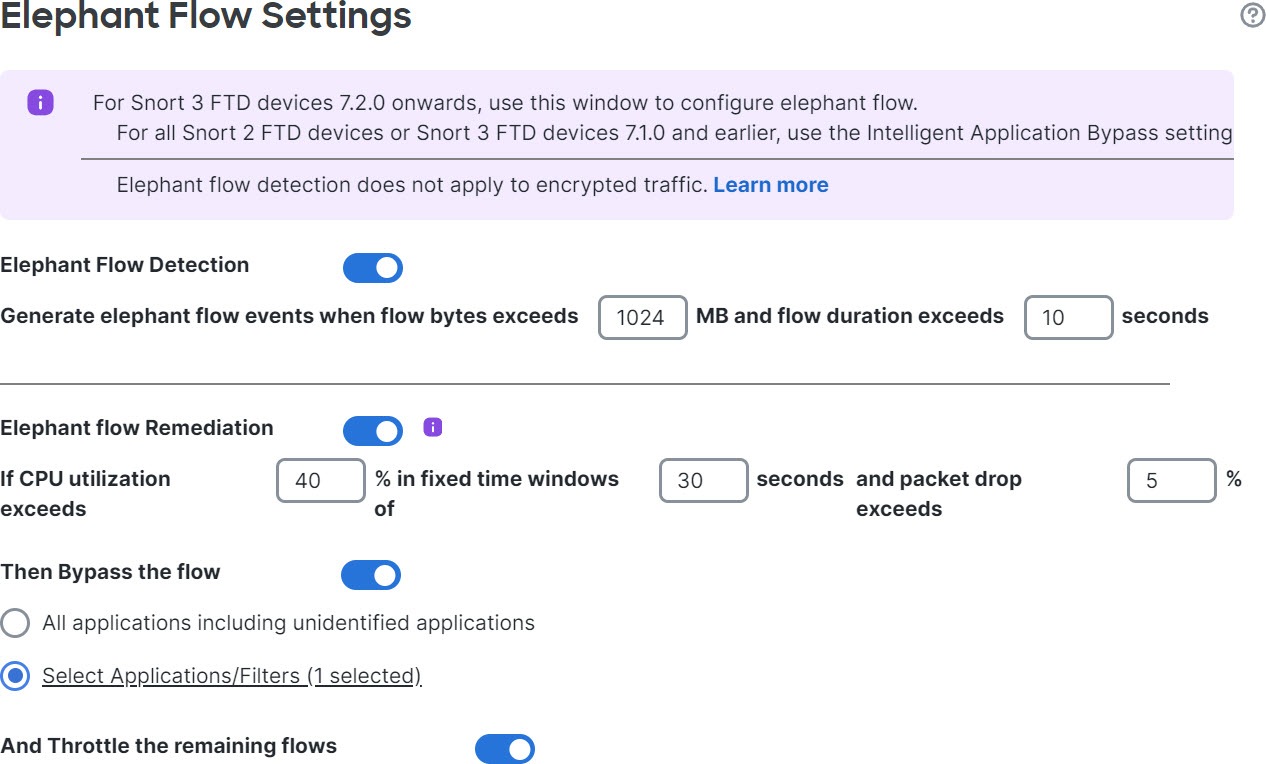
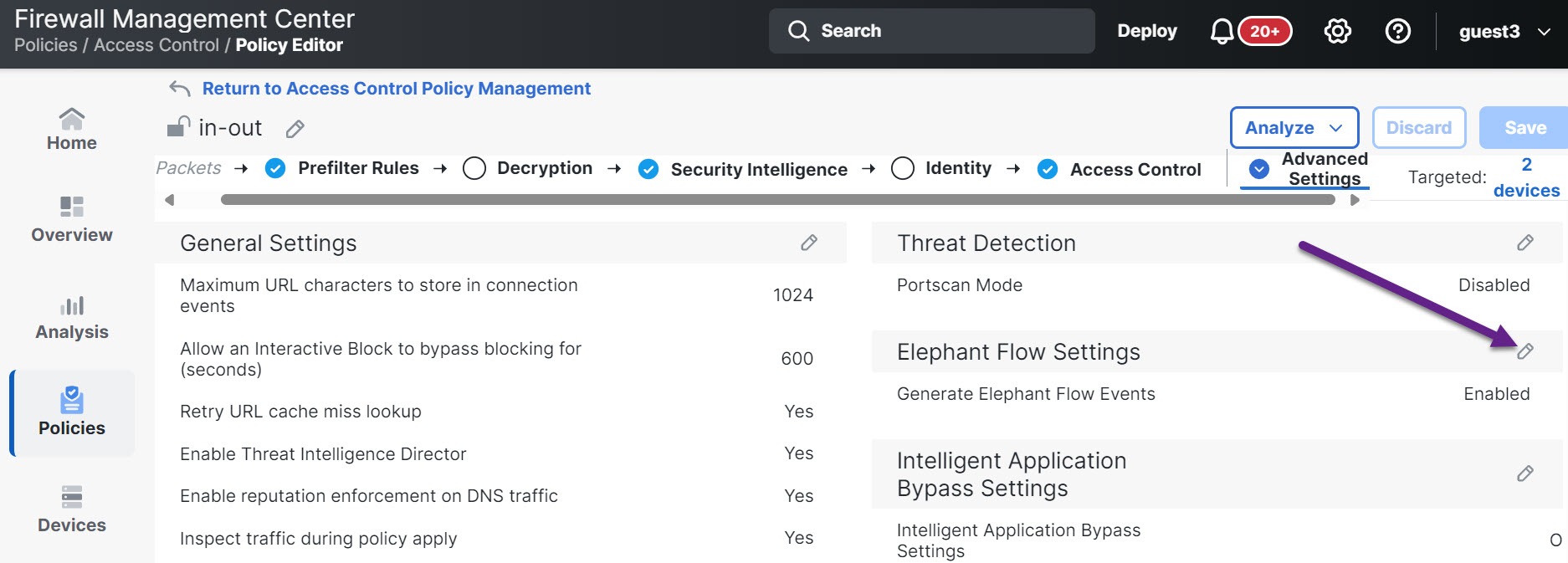
In the access control policy editor, click Advanced Settings from the More drop-down arrow at the end of the packet flow line. Then, click Edit (edit icon) next to Elephant Flow Settings.

If View (View button) appears instead, settings are inherited from an ancestor policy, or you do not have permission to modify the settings. If the configuration is unlocked, uncheck Inherit from base policy to enable editing.

Figure 1. Configure elephant flow detection
Figure 2. Configure elephant flow detection
The diagram illustrates the configuration process for detecting elephant flows, highlighting the parameters and thresholds that trigger event generation when exceeded.

Step 2

Configure the values for flow bytes and flow duration for the Elephant Flow Detection toggle button that is enabled by default.

When they exceed your configured values, elephant flow events are generated.

Step 3

To remediate elephant flows, enable the Elephant Flow Remediation toggle button.

Step 4

To set the criteria for remediation of the elephant flow, configure the values for CPU utilization percentage, duration of fixed time windows, and packet drop %.

CPU utilization is calculated per elephant flow and is derived from the flow latency. If the CPU utilization crosses the configured threshold and other configurations, such as fixed time windows and packet drops, are also matched, the elephant flow remediation actions are applied. Similarly, packet drop calculation is based on the packets dropped per CPU. After the packet drop percentage exceeds the configured value on a specific CPU, the remediation actions are applied. For example, consider that configurations are set to the default, that is, CPU utilization of 40%, fixed time window of 30 seconds, and packet drop of 5%. On a specific CPU, if more than 5% of packet drops are detected and the CPU utilization per flow exceeds 40% in the fixed time frame of 30 seconds, then the flows are either bypassed or throttled.

Step 5

Configure the actions for elephant flow remediation when it meets the configured criteria.

  1. Bypass the flow—Enable this button to bypass Snort inspection for selected applications or filters. Choose from:

    • All applications including unidentified applications—Select this option to bypass all the application traffic. If you configure this option, you cannot configure the throttle action (rate-limit) for any flow.

    • Select Applications/Filters—Select this option to select the applications or filters whose traffic you want to bypass; see the topic Configuring Application Conditions and Filters in the Access Control Rules chapter in the Cisco Secure Firewall Management Center Device Configuration Guide.

  2. Throttle the flow—Enable this button to apply rate-limit to the flow and continue to inspect flows. Note that you can select the applications or filters to bypass Snort inspection and throttle the remaining flows.

Note


Automatic removal of throttle from a throttled elephant flow occurs when the system is out of duress, that is, the percentage of Snort packet drops is less than your configured threshold. Consequently, rate limiting is also removed.

You can also manually remove throttling from a throttled elephant flow, using these threat defense commands:

  • clear efd-throttle <5-tuple/all> bypass —This command removes throttling from the throttled elephant flow and bypasses Snort inspection.

  • clear efd-throttle <5-tuple/all> —This command removes throttling from the throttled elephant flow and Snort inspection continues. Elephant flow remediation is skipped after using this command.

    For more information about these commands, refer to the Cisco Secure Firewall Threat Defense Command Reference.

Step 6

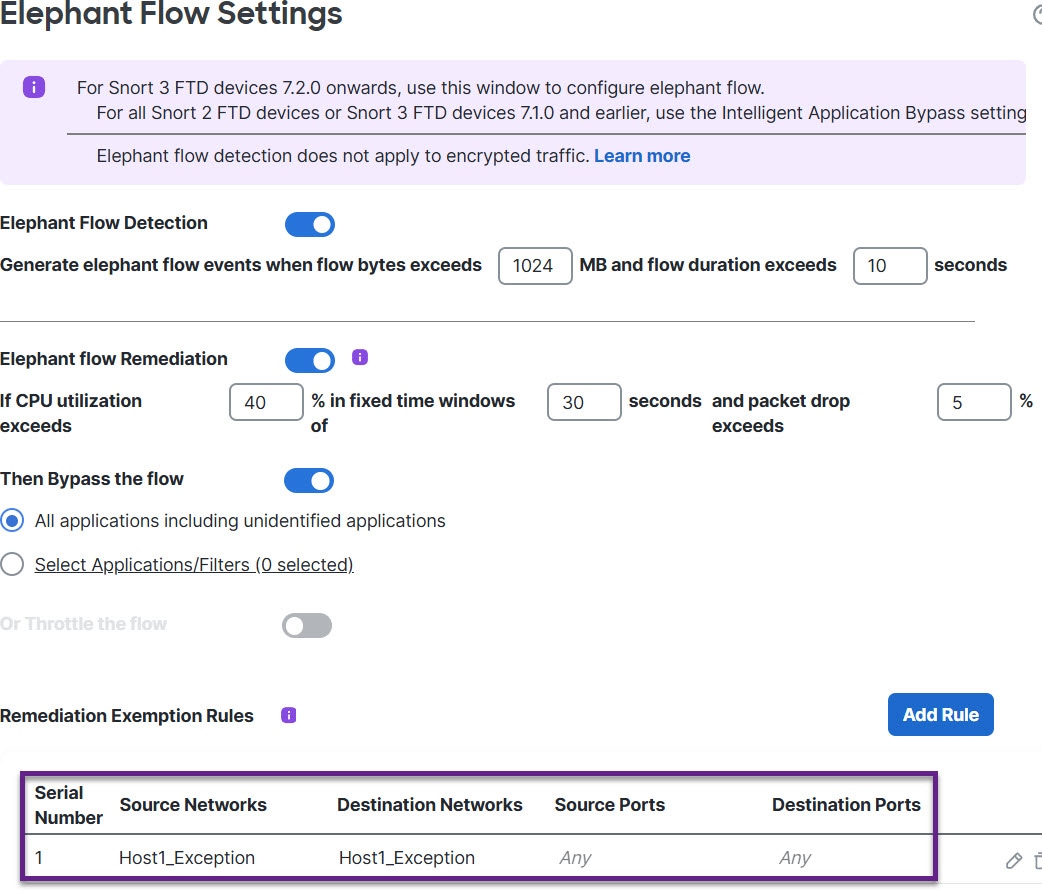
In the Remediation Exemption Rule section, click Add Rule to configure L4 access control list (ACL) rules for flows that must be exempted from remediation.

  1. In the Add Rule window, use the Networks tab to add the network details, that is the source network and the destination network. Use the Ports tab to add the source port and the destination port.

    If an elephant flow is detected and it matches the rules that are defined, an event is generated with the reason as Elephant Flow Exempted in the Reason column header of Connection Events.

  2. In the Remediation Exemption Rule section, you can view the flows that are exempt from the remediation action.

  3. Click OK to save the elephant flow settings.

Step 7

Click Save to save the policy.


What to do next

Deploy configuration changes.

After configuring your elephant flow settings, monitor your connection events to see if any flows are detected, bypassed, or throttled. You can view this in the Reason field of your connection event. The three reasons for elephant flow connections are:

  • Elephant Flow

  • Elephant Flow Throttled

  • Elephant Flow Trusted


Attention


Enabling elephant flow detection alone does not cause generation of connection events for elephant flows. If a connection event is already logged for another reason and the flow is also an elephant flow, then the Reason field contains this information. However, to ensure that you are logging all elephant flows, you must enable connection logging in the applicable access control rules.

Refer to Cisco Secure Firewall Elephant Flow Detection for more information.

Use case - Configure Elephant Flow Detection Outcomes

This use case provides a sample scenario for configuring outcomes and system responses that detect elephant flows in network traffic to optimize performance and resource usage.

Elephant flows

An elephant flow is an extremely large network connection that

  • consists of long-running connections set up by TCP or other protocols measured over a network link,

  • measures larger than 1 GB per 10 seconds by default, and

  • can cause performance duress or issues in Snort cores by consuming excessive CPU resources.

Impact on system performance

Elephant flows can potentially consume an excessive amount of CPU resources and impact other competing flows for detection resources and cause issues, such as increased latency or packet drops.

Benefits of elephant flow detection and remediation

  • Elephant flow configuration allows customization and the option to bypass or even throttle elephant flows.

  • You can choose to bypass or throttle flows that are based on your chosen applications to provide Snort inspection of suspect traffic, while bypassing more trusted traffic.

  • Elephant flow remediation helps prioritize and free up more bandwidth for your internal applications, depending on your specific requirements.

How elephant flows work

Summary

The key components involved in the elephant flow process are:

  • System detection: Monitors for Snort duress conditions based on configured parameters.

  • Flow identification: Determines when a flow qualifies as an elephant flow.

  • CPU monitoring: Tracks CPU utilization against configured thresholds.

  • Bypass action: Allows traffic for trusted applications to pass without Snort inspection.

  • Throttle action: Reduces the flow throughput in 10 percent increments until CPU utilization drops below the threshold.

Workflow

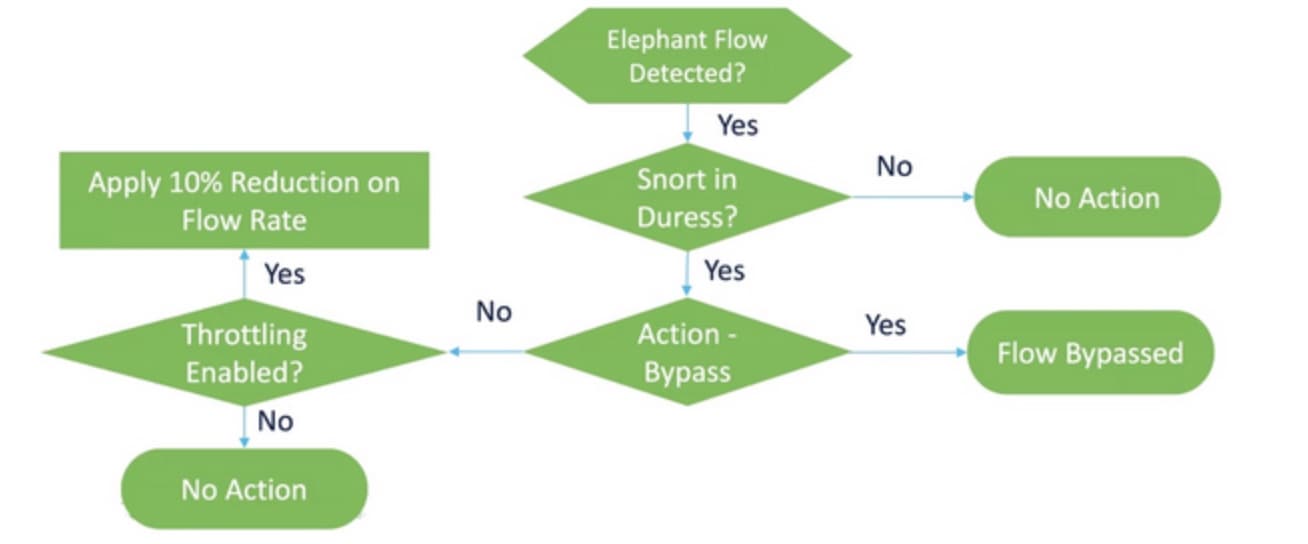
Figure 3. Elephant flow workflow
The elephant flow workflow illustrates the stages of processing elephant flows, including flow identification, CPU monitoring, and actions taken to manage traffic based on CPU utilization thresholds.

These stages describe how elephant flows are processed:

  1. The system continuously monitors traffic flows and applies intrusion policy processing to all flows, including potential elephant flows, ensuring that attacks are detected early in connections.
  2. When an elephant flow is detected based on configured parameters, the system evaluates whether a Snort duress condition exists by checking CPU utilization and time window parameters. No action is taken unless the system detects a Snort duress condition (performance issue). The system does not throttle or bypass a flow just because it is large.
  3. If duress conditions are met, the system determines whether to bypass or throttle the elephant flow based on configuration settings. The actions of throttle and bypass are mutually exclusive. This means that you can either bypass or throttle a flow, but not both.
  4. For bypass actions, if configured for specific applications only, the system allows trusted application flows to pass without Snort inspection while throttling remaining flows causing duress. This ensures that other non-trusted application flows still receive full Snort inspection, although their bandwidth is reduced.
  5. For throttle actions, the system reduces flow throughput in 10 percent increments until CPU utilization reduces to below the configured threshold.

Sample business scenarios

In a data center, several activities are happening, such as replication of data between clusters, virtual machine integration, and database backup. Users in an organization could be watching videos on an OTT service or downloading them. Bandwidth utilization for such activities might result in elephant flows that slow down the network and impact the performance of important tasks. As a network administrator (and depending on your specific requirements), you want visibility into such large flows that are causing bandwidth issues and remediate them.

As an example, let's see how you can configure elephant flow parameters to bypass Snort inspection for WebEx traffic (which your organization uses for real-time video conferencing) and throttle the remaining applications or connections, including videos, movies, and so on.

Prerequisites

Ensure that you are running management center 7.2.0 or later and that the managed threat defense is also 7.2.0 or later.

When you enable only elephant flow detection, no additional connection events are generated. The system adds the Elephant Flow notation to matching connections that are already logged to the management center. To log these events, you must enable connection logging in your access control policy. You can do that for specific rules or add a Monitor rule that logs all connections, including elephant flows.

Configure elephant flow parameters

Configure elephant flow detection and remediation settings to identify high-bandwidth connections, and manage them through bypassing or throttling to maintain optimal system performance during high CPU utilization.

Elephant flows are high-bandwidth, long-duration connections that can impact system performance. By configuring elephant flow parameters, you can detect these flows and apply appropriate remediation actions such as bypassing trusted applications from inspection or throttling flows that cause system duress.

Procedure


Step 1

Choose Policies > Access Control heading > Access Control.

Step 2

Click Edit (edit icon) next to the access control policy that you want to edit.

Step 3

Choose Advanced Settings from the More drop-down arrow at the end of the packet flow line.

Step 4

Click Edit (edit icon) next to Elephant Flow Settings.

The figure illustrates the configuration settings for elephant flow parameters, including flow bytes and duration, in a network management interface.

Step 5

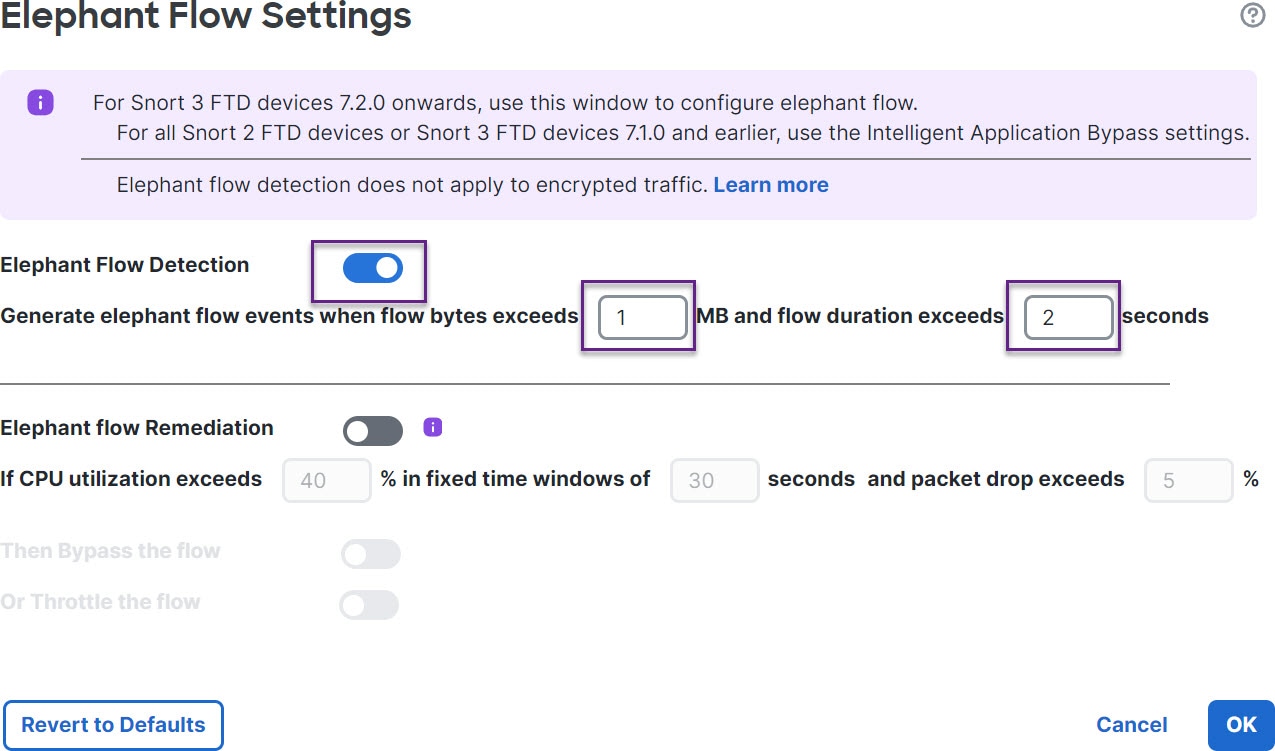
The Elephant Flow Detection toggle button is enabled by default. The default setting enables detection only and no default action is configured. The detection settings allow you to adjust the flow bytes and duration so that you can identify the elephant flows in your system.

As a test setting, configure the flow bytes and duration parameters, as shown in the following figure.

The figure illustrates the configuration settings for elephant flow parameters, including flow bytes and duration, as part of a test setup.

Step 6

Enable the Elephant Flow Remediation toggle button. When an elephant flow is detected, you can choose to bypass or throttle the flow. Bypassing a flow means that the traffic is allowed to pass without Snort inspection. Throttling indicates that the flow throughput is reduced. This rate reduction is done in 10 percent increments until the CPU utilization decreases to less than the configured threshold.

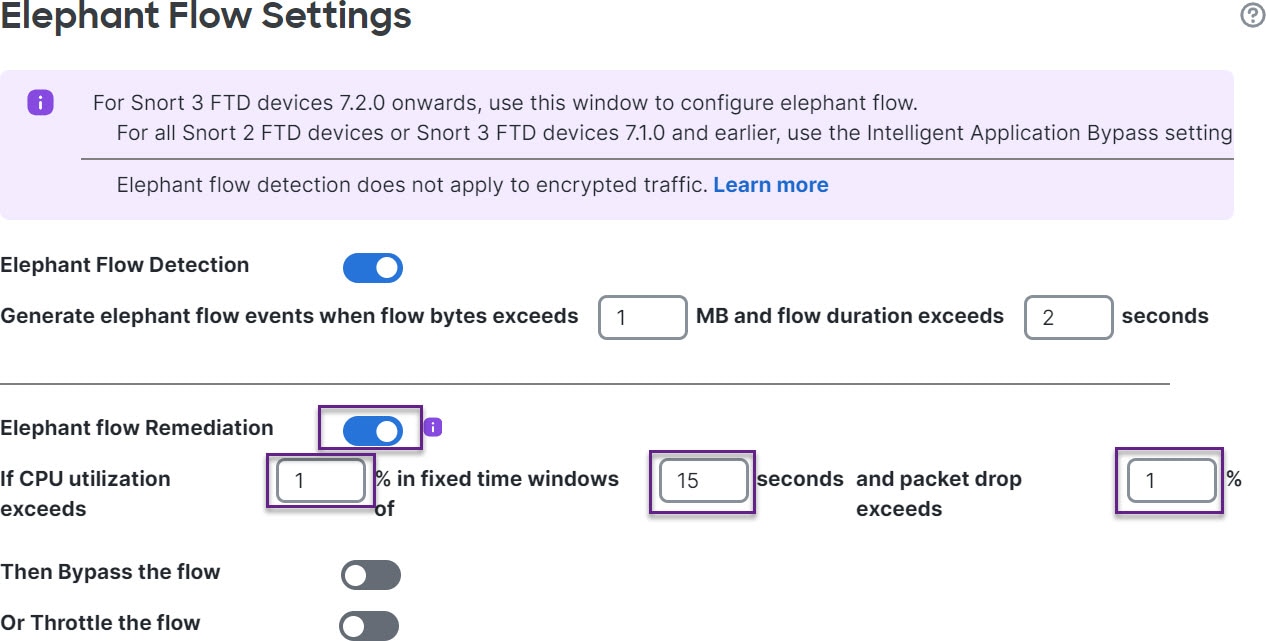
As a test setting, configure the elephant flow remediation parameters as shown in the following figure.

The figure illustrates the configuration settings for elephant flow remediation parameters in a network environment. It provides a visual reference for the specific values and options to be set during the configuration process.

Step 7

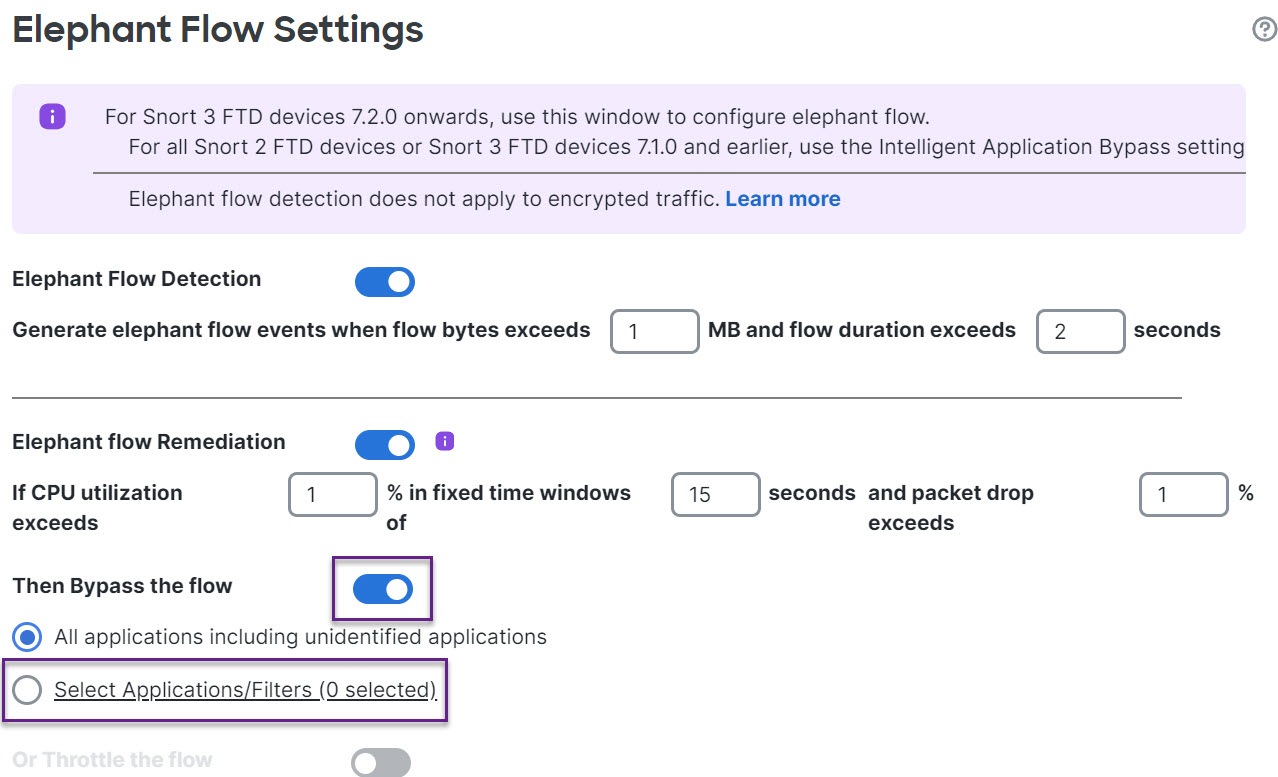
Enable the Bypass the flow toggle button and click the Select Applications/Filters radio button.

The diagram illustrates the configuration parameters for elephant flow management, highlighting key settings and their impact on network performance. It provides a visual representation of how to optimize data flow for large data transfers.

Step 8

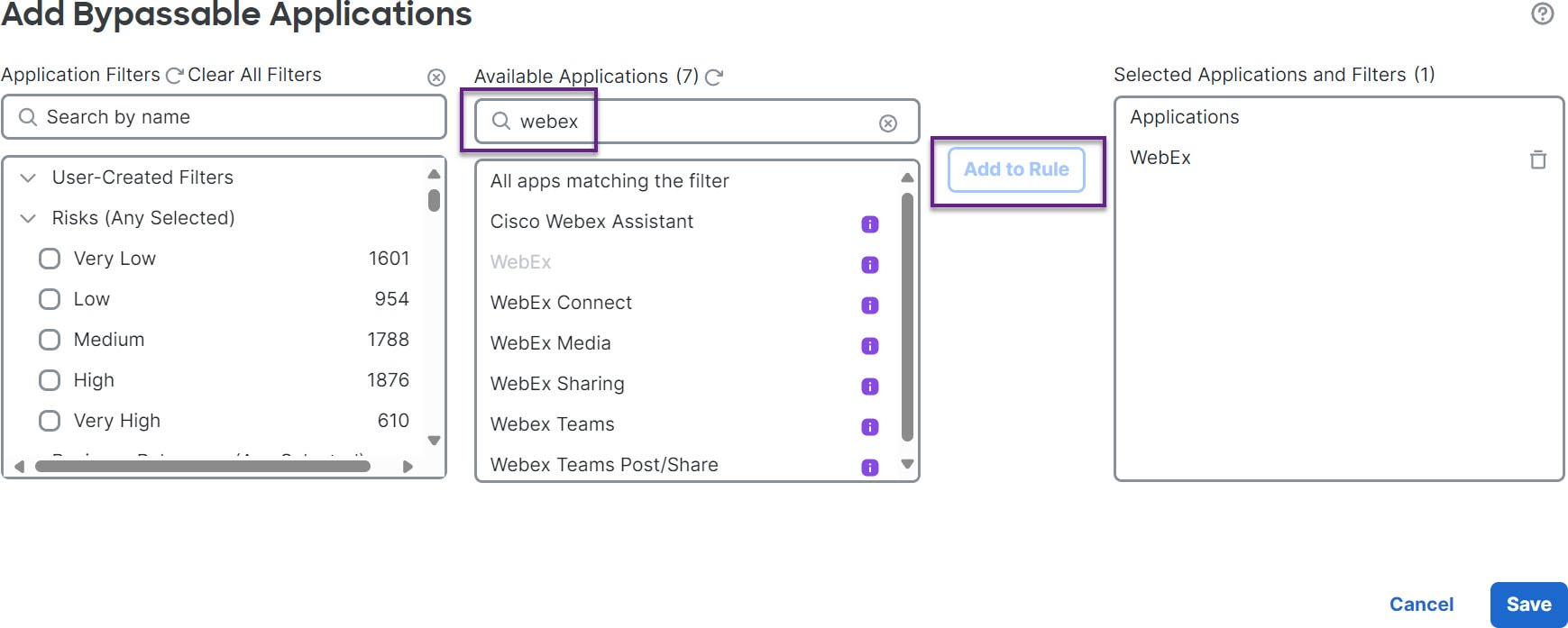
Under Application Filters, search for and select the WebEx application, add it to the rule, and click Save. This means that WebEx connections are trusted and prioritized. These connections will skip Snort inspection if detected as elephant flows based on the configured parameters.

The diagram illustrates the configuration parameters for elephant flow management in a network, highlighting key settings and their impact on traffic handling.

Step 9

Enable the Throttle toggle button to throttle the remaining flows (causing duress). This ensures that all the other flows are slowed down in 10 percent increments until the Snort duress condition is met.

Click OK and then Save.


What to do next

Deploy configuration changes.

View events for elephant flows

This task enables you to monitor elephant flow connection events to track flow detection, bypass, and throttling activities through the Reason field in connection events.

After configuring your elephant flow settings, monitor your connection events to see if any flows are detected, bypassed, or throttled. You can see this information in the Reason field of your connection events. The three types for elephant flow connections are:

  • Elephant Flow

  • Elephant Flow Throttled

  • Elephant Flow Trusted

Procedure

Step 1

Choose Analysis > Connections > Events. You can also view the events from the Unified Events viewer.

Step 2

In the Connection Events page, from the Predefined Search drop-down list, choose Elephant Flows to display elephant flow events.

The image illustrates the process of viewing Elephant Flow Trusted and Elephant Flow Throttled event types, highlighting the Edit Search link and Reason field selection in the user interface.

Tip


To see Elephant Flow Trusted or Elephant Flow Throttled event types, click the Edit Search link on the top-left corner of the page and in the Reason field, choose Elephant Flows in the left panel. Enter Elephant Flow Trusted or Elephant Flow Throttled, depending on what you want to search.

The diagram illustrates the flow of events for elephant flows, highlighting key stages and interactions within the process. It provides a visual representation of how data is managed and processed in this context.

Step 3

View the elephant flow that was detected mid-flow and the Reason field shows Elephant Flow. At the end of the flow, it was bypassed and the Reason field shows Elephant Flow Trusted.

The image illustrates the monitoring interface for elephant flow events, highlighting detected, throttled, and trusted flows based on the Reason field values in connection events.

Configure elephant flow remediation exemption

This task allows you to create exemption rules for specific flows that should not be subject to remediation actions even when detected as elephant flows.

You can configure L4 access control list (ACL) rules for flows that must be exempted from remediation. If a flow is detected as an elephant flow and it matches the rules that are defined, that flow is exempted from remediation.

Before you begin

You must be running management center version 7.4.0 or later and the managed threat defense must also be on version 7.4.0 or later.

Follow these steps to configure elephant flow remediation exemption.

Procedure


Step 1

Choose Policies > Access Control heading > Access Control.

Step 2

Click Edit (edit icon) next to the access control policy you want to edit.

Step 3

Choose Advanced Settings from the More drop-down arrow at the end of the packet flow line.

Step 4

Click Edit (edit icon) next to Elephant Flow Settings. Ensure that you have configured the elephant flow detection and remediation parameters. See Configure elephant flow parameters.

Step 5

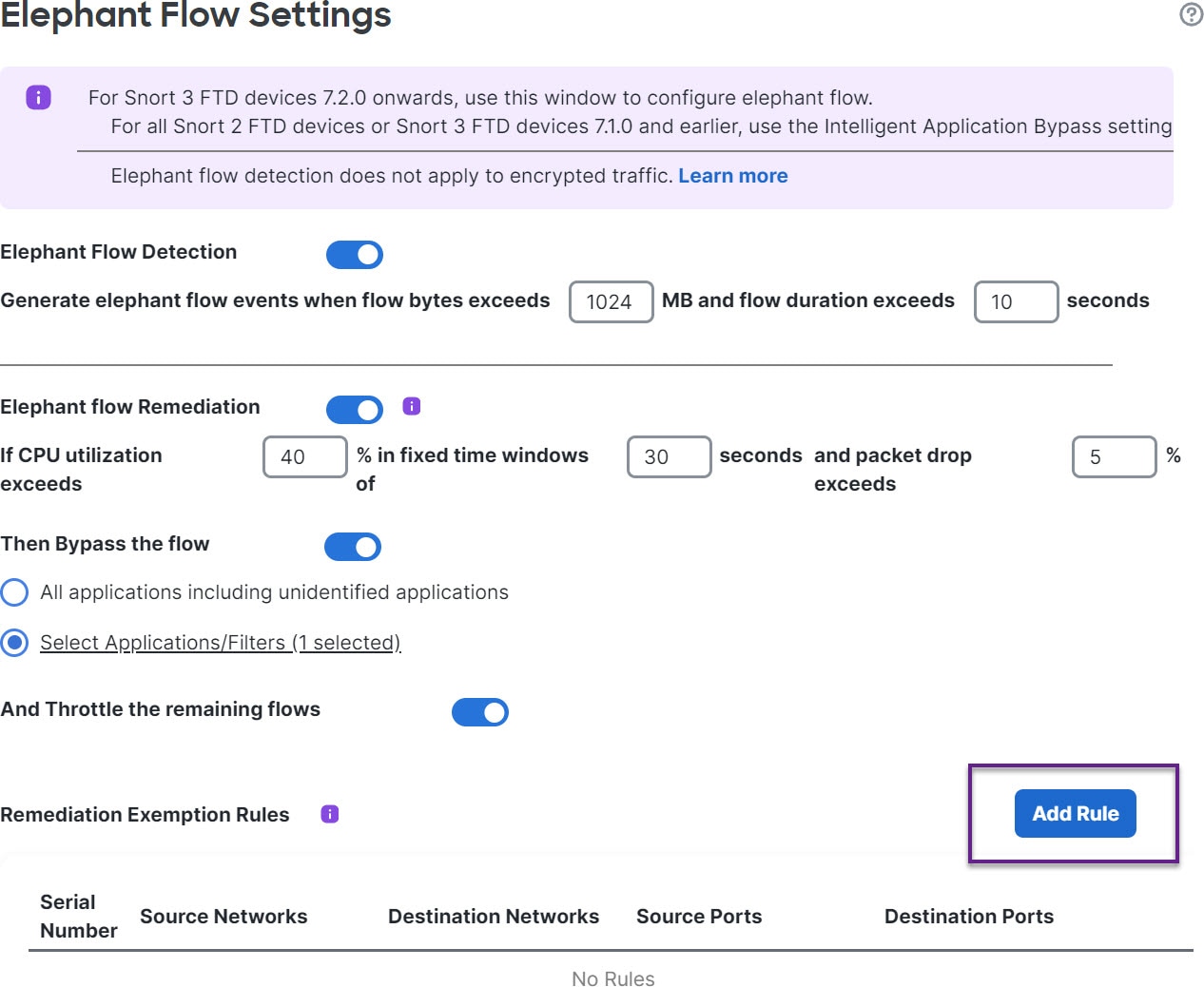
Click the Add Rule button next to Remediation Exemption Rules.

The diagram illustrates the process for configuring elephant flow remediation exemptions in a network environment, highlighting key steps and decision points.

Step 6

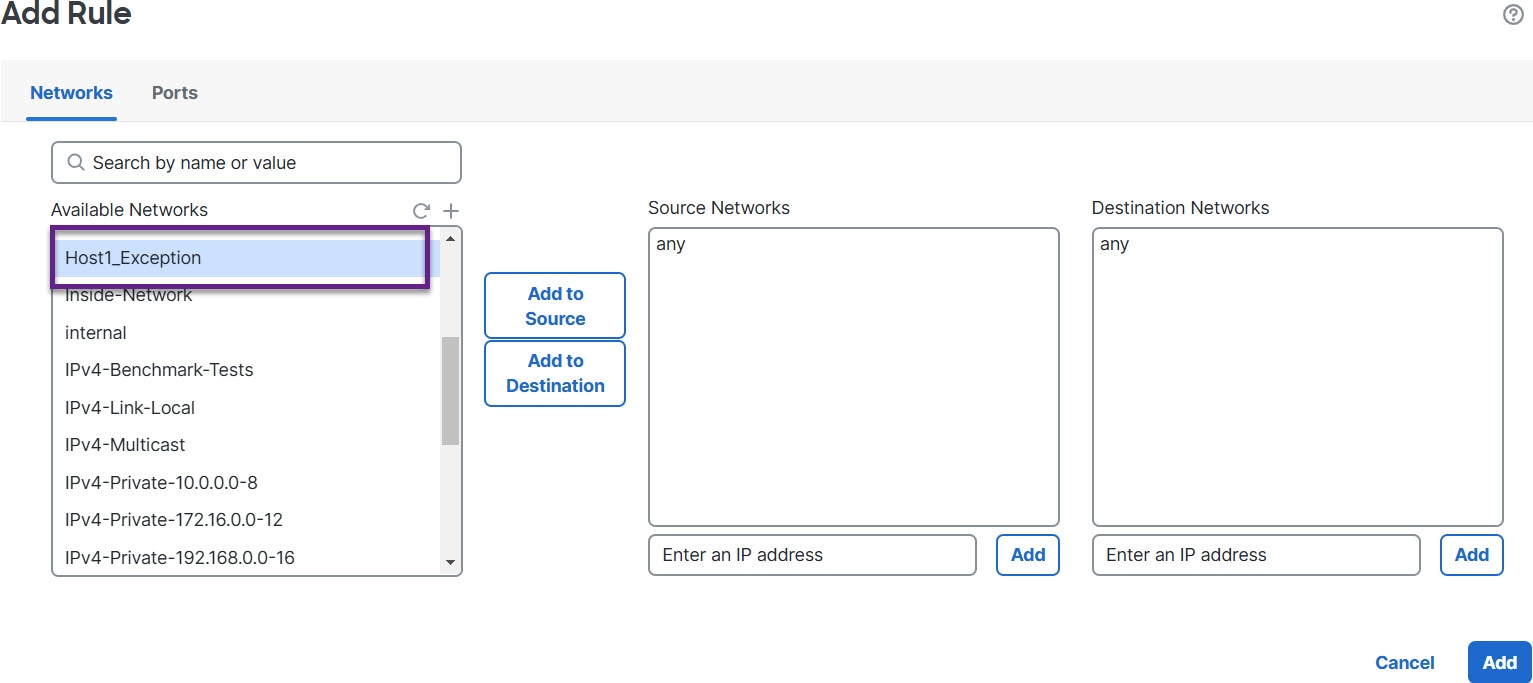
From the list of Available Networks, choose the configured host to exempt from elephant flow remediation. For the purposes of this example, we have created a host called "Host1_Exception."

The diagram illustrates the process for configuring an elephant flow remediation exemption, highlighting key steps and decision points in the workflow. It provides a visual representation of the necessary configurations and their impact on network performance.

Step 7

Click Add to Source or Add to Destination as needed to add this host to the source or destination.

Step 8

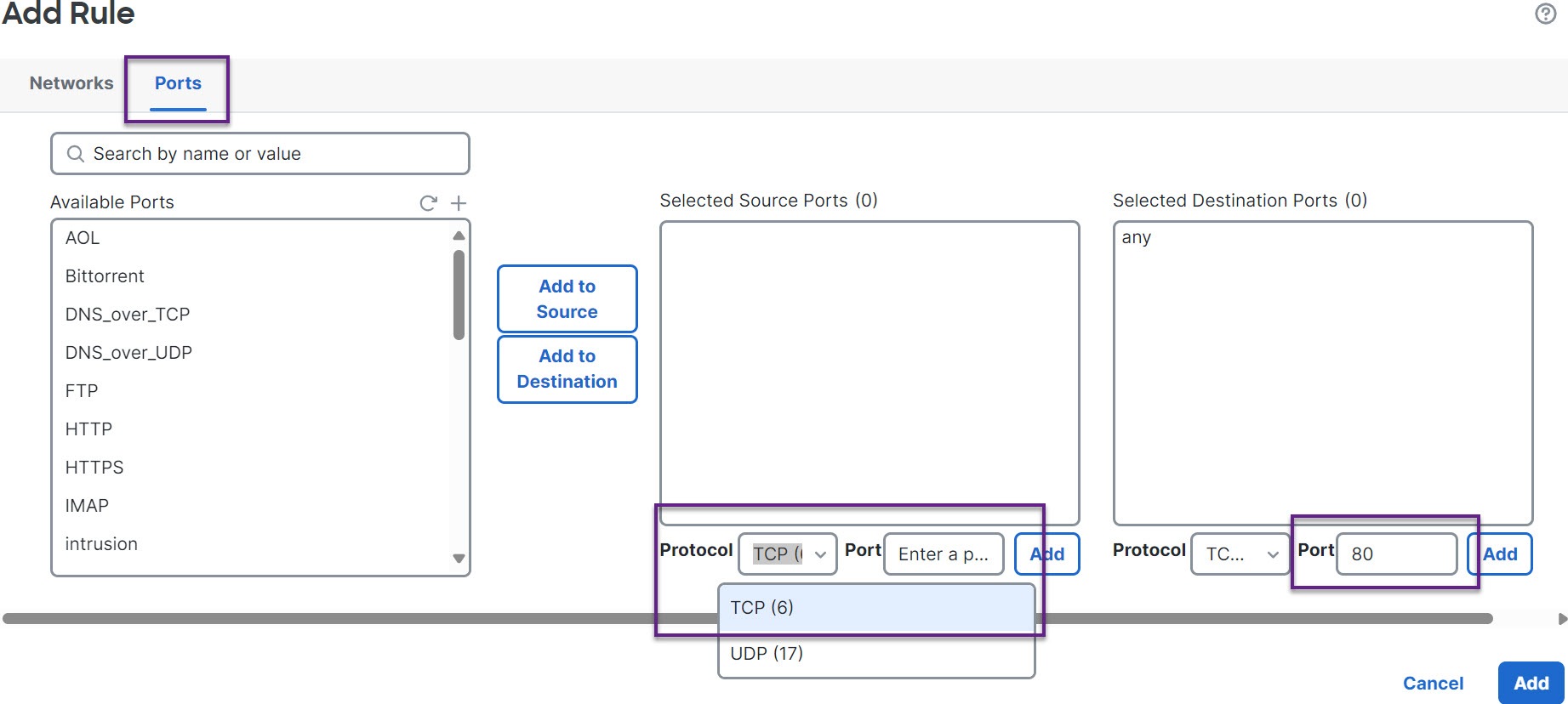
Click the Ports tab.

  1. For the source port, choose Protocol as TCP, enter 80 as the destination port, then click Add.

    The diagram illustrates the process for configuring elephant flow remediation exemptions in a network environment, highlighting key steps and decision points.
  2. Click OK.

    The diagram illustrates the process of creating an exemption rule for elephant flow remediation, highlighting the criteria that determine which flows are exempt from remediation actions.

Step 9

Click Save.


What to do next

Deploy configuration changes.

View events for elephant flow remediation exemption

This task allows you to monitor and review elephant flows that have been exempted from remediation to understand network traffic patterns and exemption reasons.

Elephant flows are high-volume network connections that may require special handling. When these flows are exempted from remediation, you can view the exemption events to track and analyze the decision.

Procedure

Step 1

Choose Analysis > Connections > Events. You can also view the events from the Unified Events viewer.

Step 2

View the elephant flows that were exempted from remediation. The Reason field shows Elephant Flow Exempted.

The connection events display highlights elephant flows with the exemption reason in the Reason field, facilitating the identification and analysis of exempted traffic.

Additional references

For detailed conceptual information, see the Elephant Flow Detection for Snort 3 chapter in this guide or the content in the following link: