Multitenant WAN Edge Devices

Feature history for multitenant WAN edge devices

This table shows the feature history of multitenant WAN edge devices.

Table 1. Feature History

Feature Name

Release Information

Description

Multitenant WAN Edge Devices

Cisco IOS XE Catalyst SD-WAN Release 17.7.1a

Cisco vManage Release 20.7.1

With this feature, a service provider can deploy, configure, and manage multitenant WAN edge devices in a multitenant Cisco Catalyst SD-WAN deployment.

Distribute Device Resources Among Tenants Using Tiers

Cisco IOS XE Catalyst SD-WAN Release 17.8.1a

Cisco vManage Release 20.8.1

With this feature, you can define tiers and assign tenants to tiers. While defining a tier, you limit the amount of a multitenant WAN edge resource that is allocated to a tenant in the tier, when the tenant is onboarded to a multitenant WAN edge device.

From this release, you can specify how many tenant VPNs can be created for a tenant belonging to a tier. In subsequent releases, tiers will be enhanced to support limits on the usage of additional device resources such as firewall, NAT, and TLOCs.

Enhanced Multitenant Tier Definition to include Route and TLOC Resource-Usage Limits

Cisco IOS XE Catalyst SD-WAN Release 17.10.1a

Cisco vManage Release 20.10.1

This feature is enhanced to support route and TLOC resource-usage limits. A service provider can assign a tier to limit the routes and TLOC resource-usage to the tenant based on the service agreement.

Enhanced Multitenant Tier Definition to include NAT Limits

Cisco IOS XE Catalyst SD-WAN Release 17.12.1a

Cisco Catalyst SD-WAN Manager Release 20.12.1

With this feature, you can configure maximum limit on NAT translations per tenant.

From this release Tier is called Resource Profile in Cisco SD-WAN Manager.

Multitenant WAN edge devices

A multitenant WAN edge device is an edge device in a Cisco Catalyst SD-WAN network that

  • operates in a multitenancy environment, and

  • can serve multiple tenants.

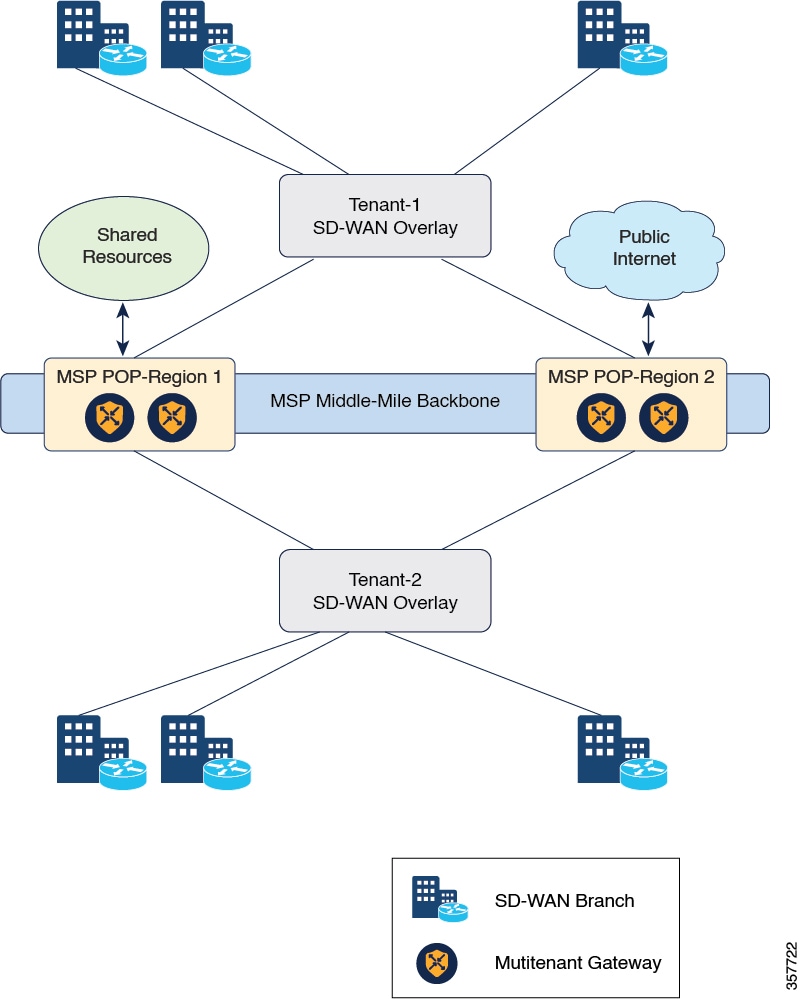
As a service provider managing a multitenant Cisco Catalyst SD-WAN deployment, you can deploy a multitenant WAN edge device in the overlay network to serve as a shared gateway for traffic belonging to multiple tenants. For example, you can deploy such a shared gateway in each regional point of presence (PoP). You can carry inter-region traffic belonging to multiple tenants through these shared gateways and the transport backbone linking the PoPs.

Figure 1. Multitenant WAN edge devices as shared gateways

Multitenant WAN edge devices isolate traffic belonging to different tenants by mapping a tenant service VPN (referred to as tenant VPN) to a device VPN (also referred to as the device VRF). Cisco SD-WAN Manager performs the mapping between the tenant and device VPNs when you onboard a tenant on a multitenant WAN edge device.

Multitenant WAN edge devices establish control connections with the Cisco SD-WAN Validator nodes specified in the bootstrap configuration, and then connect to nodes in the Cisco SD-WAN Manager cluster. When you onboard a tenant to a multitenant WAN edge device, the device establishes control connections to the Cisco SD-WAN Controller assigned to the tenant.

The service provider must deploy, configure, and manage multitenant WAN edge devices. The devices and their states are displayed only in the Cisco SD-WAN Manager provider view. The provider, acting on behalf of the tenant, must deploy, configure, and manage single-tenant WAN edge devices owned by a tenant. The devices and their states are displayed in the tenant view or the provider-as-tenant view. When a tenant is onboarded to a multitenant WAN edge device, the multitenant WAN edge device can interoperate with single-tenant WAN edge devices owned by the tenant and other multitenant WAN edge devices to which the tenant is onboarded.

Benefits of multitenant WAN edge devices

These are the benefits of a multitenant WAN edge device.

As a managed service provider, by deploying multitenant WAN edge devices, you can

  • reuse the edge devices and the interconnecting transport backbone to serve multiple tenants

  • lower capital and operational expenditure

  • provide faster access to tenants to shared resources, SaaS, and IaaS through the shared transport backbone, and

  • manage tenant association with the devices, tenant-specific policies, and QoS requirements with Cisco SD-WAN Manager as the unified management interface.

Device resource tiers

A device resource tier is a structure for managing multitenant WAN edge devices that defines how much of each device resources a tenant assigned to the teir can consume.

When you onboard many tenants on a multitenant WAN edge device, you may need to distribute the limited device resources among the tenants to ensure fair usage of resources or to implement different service-level agreements (SLAs). A tier lets you define and limit how much of each device resource a tenant assigned to the tier can consume. After creating a tier, when you onboard a tenant, you assign a tenant to a particular tier to apply the resource-usage limits to the tenant.

Usage notes

  • After you create a tier, you cannot modify the device-resource-usage limits specified in the tier. To apply a different set of limits to tenants, you must create a new tier and assign the relevant tenants to the new tier.

  • You can delete a tier only when no tenants are assigned to it.

Device resource tiers

This section describes the resources governed by tier.
Table 2. Resources governed by tier

Resource usage limit

Description

Available from

Number of VPNs

Maximum number of tenant VPNs that can be created for a tenant belonging to the tier.

Cisco SD-WAN Manager enforces the limit when you create a new tenant VPN for a tenant.

  • If you have already created the maximum number of tenant VPNs specified in the tier, Cisco SD-WAN Manager reports the error and doesn't apply the configuration.

Cisco IOS XE Release 17.8.1 and Cisco vManage Release 20.8.1

Route-limit

The number of IPv4 unicast and IPv6 unicast routes that can be created for a tenant belonging to the tier.

Route limit on a tenant is the sum of routes from all VRFs.

Cisco IOS XE Catalyst SD-WAN Release 17.10.1a

Cisco vManage Release 20.10.1

TLOC

TLOC allows you to map transport interfaces to tenants. At least one TLOC needs to be selected per tier and you can include up to 16 TLOCs in a tier.

Cisco IOS XE Catalyst SD-WAN Release 17.10.1a

Cisco vManage Release 20.10.1

NAT limit

The maximum limit on the number of NAT translations per tenant.

Once the maximum limit has reached for a tenant, the packets are dropped and further translations are not allowed.

Cisco IOS XE Catalyst SD-WAN Release 17.12.1a

Cisco Catalyst SD-WAN Manager Release 20.12.1

Supported devices for multitenant WAN edge devices

This table describes the devices that can operate as multitenant WAN edge devices.
Table 3. Supported devices

Device family

Model

Cisco ASR 1000 Series Aggregation Services Routers

ASR 1001-HX

ASR 1001-X

ASR 1002-HX

ASR 1002-X

Note


Cisco IOS XE Catalyst SD-WAN Release 17.9.1a is the last supported release for ASR 1001-X and ASR 1002-X.

Cisco Catalyst 8000V Edge Software

Catalyst 8000V

Cisco Catalyst 8300 Series Edge Platforms

C8300-1N1S-4T2X

C8300-1N1S-6T

C8300-2N2S-4T2X

C8300-2N2S-6T

Cisco Catalyst 8500 Series Edge Platforms

C8500-12X

C8500-12X4QC

C8500L-8S4X

Cisco ISR 4000 Series Integrated Services Routers

ISR 4461

Restrictions for multitenant WAN edge devices

Unsupported services and technologies

Multitenant WAN edge devices do not support these services and technologies:

  • Cloud Express and Multicloud workflows

  • Zone-Based Firewall (ZBFW) and advanced security features

  • Per-tenant DPI statistics

  • Dynamic on-demand tunnels

  • SNMP

  • Per-tenant management of NAT resources

  • OMP IPv6 route filtering

  • OMP notifications

Provider ownership of devices

The provider must own, deploy, and manage all multitenant WAN edge devices in the deployment. The provider must also deploy and manage any single-tenant device owned by a specific tenant.

Unique system IP addresses

Configure a unique system IP address for each WAN edge device in the multitenant Cisco Catalyst SD-WAN deployment, irrespective of whether the device is a multitenant device owned and managed by the provider or a single-tenant device owned by a tenant and managed by the provider on behalf of the tenant.

Maximum SLA classes

You can configure a maximum of 16 SLA classes. You can either assign specific SLA classes to tenants or share SLA classes among tenants.

Migration of device from the tenant level to be multitenant device

You cannot migrate a single-tenant WAN edge device from the tenant level to serve as a multitenant WAN edge device at the provider level. You must decommission the single-tenant device and delete it from Cisco SD-WAN Manager, perform a factory reset on the device to erase the existing configuration, and onboard the device at the provider level.

Precedence in VRF limits

Tenant limits takes precedence when VRF limits are also configured.

Enable multitenant WAN edge deployment

Before you begin

Ensure that every WAN edge device in the deployment, across tenants, is configured with a unique system IP address.

Follow these steps to enable multitenant WAN edge deployment.

Procedure


Step 1

Log in to Cisco SD-WAN Manager as the provider admin user.

Step 2

From the Cisco SD-WAN Manager menu, choose Administration > Settings.

Step 3

Find MT Edge Deployment Settings and click Edit.

Step 4

For Enable MT Edge Deployment, click Enabled.

By default, Enable MT Edge Deployment is Disabled.

Step 5

Click Save.


What to do next

If two or more WAN edge devices in the deployment are configured with the same system IP address, Cisco SD-WAN Manager reports an error. Modify the configuration of the WAN edge devices and try to enable multitenant WAN edge deployment.

Onboard WAN edge devices at the provider level using a template

Before you begin

Follow these steps to onboard WAN edge devices at the provider level.

Procedure


Step 1

Log in to Cisco SD-WAN Manager as the provider admin user.

Step 2

Upload the device serial number file to Cisco SD-WAN Manager. While uploading the file, choose the option to validate and send the device list to controllers.

Step 3

Bootstrap the device using bootstrap configuration generated through Cisco SD-WAN Manager or manually create the initial configuration on the device.

Step 4

If you are using Enterprise Certificates to authenticate the device, download the Certificate Signing Request (CSR) from Cisco SD-WAN Manager and get the CSR signed by the Enterprise CA. Install the certificate on Cisco SD-WAN Manager.

Step 5

Create a configuration template for the device and attach the device to the template.

While configuring the device, configure the service provider organization name as sp-organization-name and the tenant organization-name.


Enable multitenancy on provider-level WAN edge devices using a template

You can enable multitenancy on a provider-level WAN edge using the Multi Tenant parameter in the System template.

A provider-level WAN edge device can serve more than one tenant.

Before you begin

Follow these steps to enable multitenancy on provider-level WAN edge devices.

Procedure


Step 1

Log in to Cisco SD-WAN Manager as the provider admin user.

Step 2

From the Cisco SD-WAN Manager menu, choose Configuration > Templates.

Step 3

Click Feature.

Step 4

Find the System template of the provider-level WAN edge device for which you wish to enable multitenancy.

Step 5

For the System template, click and click Edit.

Step 6

In the Basic Configuration area, find the Multi Tenant parameter. Initially, the parameter has a default scope and the default value Off. For the Multi Tenant parameter, do this:

  1. Click the scope drop-down list and choose Global scope.

  2. Click On to enable multitenancy.

Step 7

Click Update to save and apply the modified configuration.


Create a resource profile (tier)

Before you begin

Follow these steps to create a resource profile (previously called a tier).

Procedure


Step 1

Log in to Cisco SD-WAN Manager as the provider admin user.

Step 2

From the Cisco SD-WAN Manager menu, choose Administration > Tenant Management.

Step 3

Click Resource Profiles.

In Cisco vManage Release 20.11.1 and earlier releases, Resource Profiles is called Tiers.

Any existing tiers are displayed in a table.

Step 4

Click Add a Resource Profile.

In Cisco vManage Release 20.11.1 and earlier releases, Add a Resource Profile is called Add Tier.

Step 5

In the Add Tier slide-in pane, do this:

  1. Enter these details:

    Field

    Description

    Resource Profile Name

    In Cisco vManage Release 20.11.1 and earlier releases, Resource Profile Name is called Tier Name.

    Enter a unique name for the tier.
    Maximum VPN

    Enter the maximum number of VPNs that can be created on a multitenant WAN edge device for a tenant assigned to this tier.

    Minimum value: 1

    Maximum value: The maximum number of VPNs that you can specify for a tier depends on the device model.

    NAT Limit (Optional)

    Minimum supported release: Cisco IOS XE Catalyst SD-WAN Release 17.12.1a and Cisco Catalyst SD-WAN Manager Release 20.12.1

    Enter the maximum number of NAT translations that are allowed on each tenant.

    Route Limit (Optional)

    Minimum supported release: Cisco IOS XE Catalyst SD-WAN Release 17.10.1a and Cisco vManage Release 20.10.1

    (Optional) Specify IPv4 unicast or IPv6 unicast route limits. Route limit on a tenant is the sum of routes from all VRFs.

    Default value is 0.

    Note


    The value 0 means there is no route limit configured in the tier definition.

    Route Limit Type

    Minimum supported release: Cisco IOS XE Catalyst SD-WAN Release 17.10.1a and Cisco vManage Release 20.10.1

    The following two route limit types can be configured for IPv4 or IPv6 routes on the device:

    • Warning-only: This option allows to install new tenant IPv4 or IPv6 routes even after total exceeds their respective limit. A warning message is shown on device console when IPv4 route limit or IPv6 route limit is exceeded.

    • Warning with threshold: This option allows to configure a warning threshold, which is the percentage of the route limit. A warning message is shown on device console when the threshold percentage of IPv4 route limit or IPv6 route limit is reached. When a tenant’s total IPv4 or IPv6 routes exceed the configured IPv4 or IPv6 route limit, routes are rejected.

    Threshold

    Minimum supported release: Cisco IOS XE Catalyst SD-WAN Release 17.10.1a and Cisco vManage Release 20.10.1

    Specify the route limit threshold value when you chose Warning with threshold option. When threshold percentage of IPv4 or IPv6 route limit is reached, a warning message is displayed on the device console.

    Range: 1 to 100.

    Allowed Transport

    In Cisco vManage Release 20.11.1 and earlier releases, Allowed Transport is called TLOC.

    Minimum supported release: Cisco IOS XE Catalyst SD-WAN Release 17.10.1a and Cisco vManage Release 20.10.1

    Add TLOC details for the tier. For a tier, add at least one TLOC and up to 16 TLOCs. A TLOC definition includes the TLOC color and the encapsulation type.

    Range: 1 to 16

    Color

    Minimum supported release: Cisco IOS XE Catalyst SD-WAN Release 17.10.1a and Cisco vManage Release 20.10.1

    Select the color from the drop-down list. The color attribute helps to identify an individual WAN transport tunnel.

    Encapsulation

    Minimum supported release: Cisco IOS XE Catalyst SD-WAN Release 17.10.1a and Cisco vManage Release 20.10.1

    Select encapsulation type as either GRE or IPSec per TLOC configuration.

    Table 4. Maximum number of VPNs supported by each device model

    Device model

    Maximum number of VPNs

    ASR1001-X 80
    ASR1001-HX 336
    ASR1002-X 336
    ASR1002-HX 336
    C8500-12X4QC 336
    C8500-12X 336
    C8500L-8S4X 336
    C8300-1N1S-6T 200
    C8300-1N1S-4T2X 200
    C8300-2N2S-6T 200
    C8300-2N2S-4T2X 200
    Catalyst 8000V 300
    ISR4461 80
  2. To add the tier, click Save. To discard your entries and close the slide-in pane, click Cancel.

    After you click Save, the slide-in pane is closed and the new tier is listed in the table along with any existing tiers.


Onboard tenants to a multitenant WAN edge device using a template

You can onboard tenants to a multitenant WAN edge device using the Tenant template.

  • If you haven’t onboarded a tenant to the device, create a Tenant template, add tenants, and attach the tenant template to the device template.

  • If you have onboarded tenants to the device, to onboard a new tenant, update the existing Tenant template attached to the device.

When you onboard a new tenant to the multitenant WAN edge device, the device establishes control connections to the Cisco SD-WAN Controllers assigned to the tenant.

Before you begin

Before onboarding the tenant to a multitenant WAN edge device, add the tenant to the multitenant deployment and create the tier with which you wish to associate the tenant.

Follow these steps to onboard tenants to a multitenant WAN edge device.

Procedure


Step 1

Log in to Cisco SD-WAN Manager as the provider admin user.

Step 2

From the Cisco SD-WAN Manager menu, choose Configuration > Templates.

Step 3

Find the device template for the multitenant WAN edge device to which you are onboarding tenants.

Step 4

For the device template, click and select Edit.

The device template is displayed.

Step 5

Click Additional Templates.

Step 6

In the Additional Templates area, click the Tenant template drop-down list and select Create Template.

Step 7

In the Tenant template form, do this:

  1. Enter a unique template name. The template name can contain up to 128 alphanumeric characters.

  2. Enter a description for the template. The description can contain up to 2048 alphanumeric characters.

  3. In the Tenant area, click New Tenant.

  4. From the Tenant Name drop-down list, select the tenant organization name.

    In Cisco vManage Release 20.11.1 and earlier releases, Tenant Name is called Org Name.

  5. From the Resource Profile Name drop-down list, select a tier for the tenant.

    In Cisco vManage Release 20.11.1 and earlier releases, Resource Profile Name is called Tier Name.

  6. Click Add.

  7. Repeat these steps to add additional tenants.

Step 8

Click Save.

Step 9

For the device template, click Update to save and apply the modified configuration.

Step 10

Select the target device in the left pane and click Configure Devices.


Create a tenant VPN for onboarded tenants using a template

After onboarding a tenant to a multitenant WAN edge device, use the Cisco VPN template to create tenant VPNs. To isolate VPN traffic of one tenant from the VPN traffic of other tenants onboarded on the multitenant WAN edge device, Cisco SD-WAN Manager maps a tenant VPN ID to a device VPN ID while you create the tenant VPN.

When you attempt to apply the tenant VPN configuration to a device, Cisco SD-WAN Manager checks these:

  • Maximum number of tenant VPNs

    The number of tenant VPNs that can be created for a tenant is restricted by the maximum number of the VPNs that is specified by the tier to which the tenant belongs. If the maximum number of tenant VPNs is already created for the tenant, Cisco SD-WAN Manager reports an error and does not apply the VPN configuration to the device.

  • Maximum number of device VPNs

    Each device model supports a certain maximum number of device VPNs. On a multitenant WAN edge device, each tenant VPN is mapped to device VPN. If the maximum number of device VPNs supported by the device are already created and mapped to tenant VPNs, Cisco SD-WAN Manager reports an error and does not apply the configuration to the device.

Before you begin

Follow these steps to create a tenant VPN for onboarded tenants.

Procedure


Step 1

Log in to Cisco SD-WAN Manager as the provider admin user.

Step 2

From the Cisco SD-WAN Manager menu, choose Configuration > Templates.

Step 3

Find the Device template for the multitenant WAN edge device to which you wish to onboard tenants.

Step 4

For the device template, click and select Edit.

This displays the device template.

Step 5

Click Service VPN.

Step 6

In the Service VPN area, click Add VPN.

Step 7

In the Add VPN slide-in pane, click Create VPN Template.

Step 8

In the Create VPN Template slide-in pane, do the following:

  1. Enter a unique template name. The template name can contain up to 128 alphanumeric characters.

  2. Enter a description for the template. The description can contain up to 2048 alphanumeric characters.

  3. In the Basic Configuration area, map the tenant VPN ID to a device VPN ID:

    1. From drop-down list corresponding to Tenant VPN, select the tenant organization name.

    2. In the text field corresponding to Tenant VPN, enter the tenant VPN ID.

    3. Click Generate VPN ID.

      A read-only VPN field displays the device VPN ID for the tenant VPN ID. SD-WAN Manager performs this mapping. For a tenant, SD-WAN Manager maps a particular tenant VPN ID to the same device VPN ID on all the multitenant WAN edge devices.

  4. Configure other properties of the tenant VPN in the template.

  5. Click Save.

Step 9

In the Add VPN slide-in pane, move the template created in Step 8 from Available VPN Templates to Selected VPN Templates.

Step 10

Click Next.

Step 11

Add any additional Cisco VPN templates as needed.

Step 12

Click Add.

Step 13

For the device template, click Update to save and apply the modified configuration.

Step 14

Select the target device in the left pane and click Configure Devices.


Remove a tenant from a multitenant WAN edge device using a template

To remove a tenant from a multitenant WAN Edge Device, you must detach the tenant service VPN template from the device template and delete the tenant from the Tenant template.

Before you begin

Follow these steps to remove a tenant from a multitenant WAN edge device.

Procedure


Step 1

Log in to Cisco SD-WAN Manager as the provider admin user.

Step 2

Remove the tenant service VPN template from the Device template.

  1. From the Cisco SD-WAN Manager menu, choose Configuration > Templates.

  2. Find the device template for the multitenant WAN edge device to which you wish to onboard tenants.

  3. For the device template, click and click Edit.

    The device template is displayed.

  4. Click Service VPN.

  5. In the Service VPN area, check the check box for the VPN template to be removed.

  6. Click Remove VPN.

  7. Click Update to save and apply the modified configuration.

Step 3

Delete tenant from the Tenant template.

  1. From the Cisco SD-WAN Manager menu, choose Configuration > Templates.

  2. Click Feature.

  3. Find the Tenant template from which you should delete the tenant.

  4. For the Tenant template, click and click Edit.

  5. In the Tenant section, find the organization name of the tenant you wish to delete.

  6. Click the Trash icon corresponding to the tenant organization name.

  7. Click Update to save and apply the modified configuration.


Delete a tier

Before you begin

Follow these steps to delete a tier.

Procedure


Step 1

Log in to Cisco SD-WAN Manager as the provider admin user.

Step 2

From the Cisco SD-WAN Manager menu, choose Administration > Tenant Management.

Step 3

Click Tiers.

A table displays the existing tiers.

Step 4

For a tier, click in the Actions column and select Delete.

Step 5

Confirm the deletion.

The tier is deleted and is no longer listed in the table.