Geofencing

Feature history for geofencing

This table describes the developments of this feature, by release.

Table 1. Feature History

Feature Name

Release Information

Description

Geofencing

Cisco IOS XE Catalyst SD-WAN Release 17.6.1a

Cisco vManage Release 20.6.1

This feature provides a way to restrict a device's location to an operational geographical boundary, and to identify a device's location and report any violations of the configured boundary. If the device is identified to be in violation, you can restrict network access to the device using Cisco SD-WAN Manager operational commands.

In the CLI or a CLI template, configure geofencing coordinates for establishing the location of the device. You can also register for SMS alerts.

Added Support for Configuring Geofencing Using a Cisco System Feature Template

Cisco IOS XE Catalyst SD-WAN Release 17.7.1a

Cisco vManage Release 20.7.1

This feature adds support for configuring the geographical boundary of a device using a Cisco System feature template.

With this feature, you can also configure automatic geolocation detection, where the device determines its own location, while configuring geofencing. A new parameter auto-detect-geofencing-location is added to the geolocation (system) command.

Added Support for LTE Advanced NIM Modules

Cisco IOS XE Catalyst SD-WAN Release 17.8.1a

Added support for Long-Term Evolution (LTE) Advanced Network Interface Modules (NIMs) for Cisco ISR 4000 routers.

Geofencing

Geofencing is a location-based feature that includes

  • defining a geographical boundary within which a device can be deployed,

  • configuring alerts to be sent to Cisco SD-WAN Manager or a mobile number when a device leaves the geographical boundary, and

  • restricting network access when a device leaves the specified boundary.

Geographical boundary

Devices use Global Positioning System (GPS) functionality provided by a Long-Term Evolution (LTE) Pluggable Interface Module (PIM) to determine the device location.

You can configure these for geofencing:

  • Base location (latitude and longitude) and a geofence range for device detection

  • Short message service (SMS) alert registration for sending SMS messages to a mobile number

  • GPS enablement on an LTE PIM in the controller cellular 0/x/0 section

Geofencing status alerts are sent to Cisco SD-WAN Manager upon detection of device boundary violations.

Overview

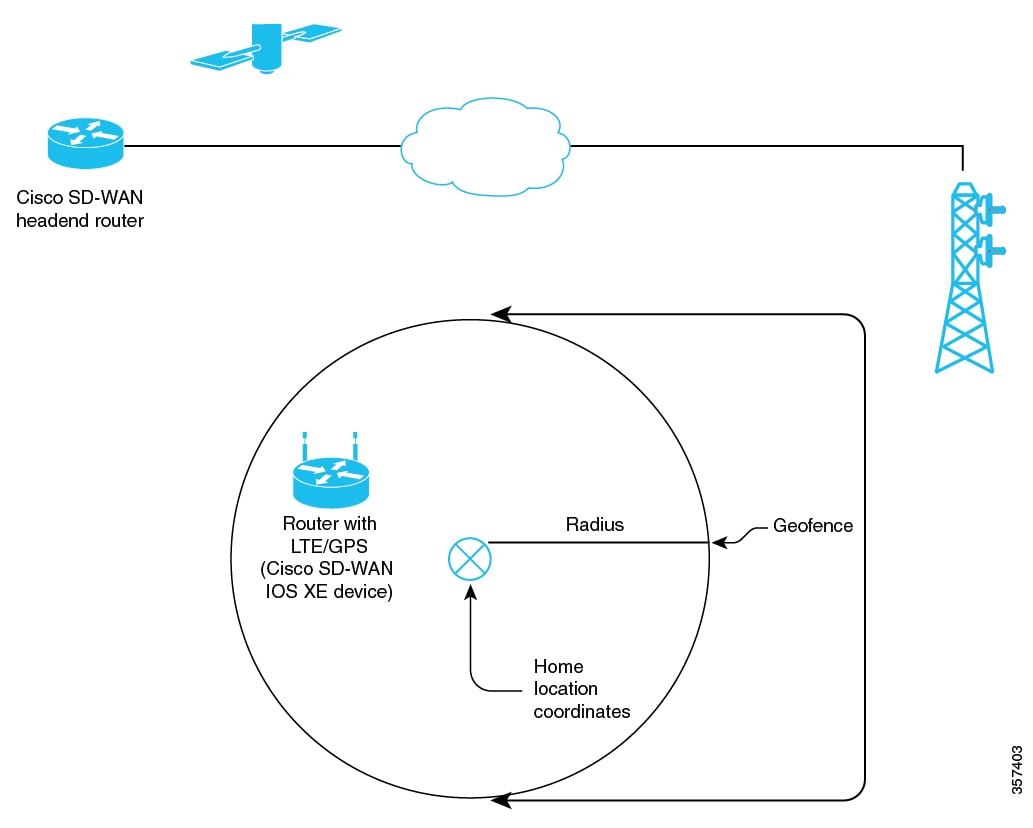
Figure 1. Overview of geofencing
Overview of Geofencing

Configuration

  • In Cisco SD-WAN Manager, you can use operational commands for restricting network access if a device exceeds its geographical boundary.

    For information on the operational commands for restricting network access, see the Cisco Catalyst SD-WAN Monitor and Maintain Configuration Guide.

  • From Cisco vManage Release 20.7.1, you can configure geofencing using a Cisco System feature template.

Benefits of geofencing

  • Protects against inappropriate access to an organization's network if a device is beyond its geographical boundary

  • Notifies end users of any displaced devices

  • Supports a geofence radius for specifying the target location of the device

  • Supports SMS alerts for mobile phone alerts

Platforms supported for geofencing

Supported devices:

  • Cisco ISR 1000 with Long-Term Evolution (LTE) (fixed and pluggable)

  • Cisco Catalyst 8K with LTE Pluggable Interface Module (PIM)

  • Cisco ISR 4000 with LTE Advanced Network Interface Modules (NIMs)

Supported LTE PIMs:

  • P-LTE-VZ(WP7601)

  • P-LTE-US(WP7603)

  • P-LTE-JN(WP7605)

  • P-LTE-MNA(WP7610)

  • P-LTE-GB(WP7607)

  • P-LTE-IN(WP7608)

  • P-LTE-AU(WP7609)

  • P-LTEA-EA(EM7455)

  • P-LTEA-LA(EM7430)

Supported LTE advanced NIMs:

  • NIM-LTEA-EA(EM7455)

  • NIM-LTEA-LA(EM7430)

Prerequisites for geofencing

Built-in LTE interface

Ensure that your Cisco IOS XE Catalyst SD-WAN C1100 series router has a built-in Long-Term Evolution (LTE) interface.

SIM card

A SIM card is mandatory in the LTE PIM for receiving SMS alerts.

Restrictions for geofencing

Device mode

Geofencing is supported only on devices in controller mode.

Configure geofencing

Geofencing is a location-based feature that enables defining a geographical boundary within which a device can operate.

Use one of these methods to configure geofencing:

Configure geofencing using templates

Geofencing is a location-based feature that enables defining a geographical boundary within which a device can operate.

From Cisco vManage Release 20.7.1, you can configure geofencing using a Cisco System feature template.

Before you begin

Follow these steps to configure geofencing using a feature template.

Procedure


Step 1

From the Cisco SD-WAN Manager menu, choose Configuration > Templates.

Step 2

Click Feature Templates.

In Cisco vManage Release 20.7.x and earlier releases, Feature Templates is titled Feature.

Step 3

Click Add Template.

Step 4

Choose a device.

Step 5

In the Select Template > Basic Information section, click Cisco System.

Step 6

In the Template Name field, enter a name for the template.

The name can be up to 128 characters and can contain only alphanumeric characters.

Step 7

In the Template Description field, enter a description of the template.

The description can be up to 2048 characters and can contain only alphanumeric characters.

Step 8

In the Basic Configuration section of the Cisco System template, choose a value from the drop-down list for Console Baud Rate (bps).

Console Baud Rate (bps) is a mandatory field for configuring geofencing.

Step 9

Click GPS or navigate to the GPS section of the Cisco System template.

Step 10

In the Latitude field, leave the field set to Default for automatic detection of a device.

Range: -90.0 - 90.0

Step 11

In the Longitude field, leave the field set to Default for automatic detection of a device.

Range: -180.0 - 180.0.

Note


If you manually specify Latitude and Longitude coordinates, you disable automatic detection of a device.

Automatic detection of a device can fail if a device does not have a last-known valid location.

Step 12

In the Geo Fencing Enable field, change the scope from Default to Global, and click Yes to enable geofencing.

The Geo Fencing Enable field is not enabled by default.

Step 13

(Optional) In the Geo Fencing Range in meters field, specify a geofencing range unit in meters.

The geofencing range specifies the radius from the base target location in meters.

The default geofencing range is 100 meters. You can configure a geofencing range of 100 to 10,000 meters.

Step 14

(Optional) In the Enable SMS drop-down list, change the scope to Global, and click Yes to enable SMS alerts.

An SMS alert is delivered when a device is determined to be outside the configured geofencing radius of its target location.

Note


The presence of a SIM card is mandatory in the Long-Term Evolution PIM for receiving SMS alerts.

Step 15

(Optional) In the Mobile Number 1 field, add a mobile number for receiving SMS alerts.

Note


Mobile numbers must start with a + sign, include a country code, an area code, with no spaces between the country code and the area code, and the remaining digits.

Sample mobile number: +12344567236.

You can configure additional mobile phone numbers by clicking the + icon.

You can configure up to a maximum of four mobile numbers.

Step 16

Click Save.


Configure geofencing using CLI commands

Geofencing is a location-based feature that enables defining a geographical boundary within which a device can operate.

For information on the operational commands for restricting network access, see the Cisco Catalyst SD-WAN Monitor and Maintain Configuration Guide.

Before you begin

Follow these steps to configure geofencing using CLI commands:

Procedure


Step 1

Configure latitude, longitude, a geofence range, and SMS alerts.

  1. Configure a base location latitude and longitude.

    Example:

    Device(config)# system
    Device(config-system)# gps-location latitude 37.317342 longitude -122.218170
  2. Enable automatic detection of a device where the device determines its own location.

    Example:

    Router(config)# system
    Router(config-system)# no gps-location latitude
    Router(config-system)# no gps-location longitude
    Router(config-system)# gps-location auto-detect-geofencing-location

    Do not configure latitude and longitude coordinates when using the auto-detect-geofencing-location parameter.

    You can choose to either configure a base location using latitude and longitude coordinates, or you can enable automatic detection of a device.

  3. Enable, configure, and specify a geofence range.

    For geofencing range, the unit is meters. Geofencing range is an optional configuration parameter, and if not configured, it takes the default value of 100 meters.

    Example:

    Device(config-system)# gps-location geo-fencing-enable
    Device(config-system)# gps-location geo-fencing-config
    Device(conf-geo-fencing-config)# geo-fencing-range 1000
  4. Add mobile numbers for receiving SMS alerts.

    Example:

    Device(config-geo-fencing-config)# sms                                                                       
    Device(config-sms)# sms-enable
    Device(config-sms)# mobile-number +12344567234
    Device(config-mobile-number-+12344567234)# exit
    Device(config-mobile-number-+12344567234)# mobile-number +12344567235
    Device(config-mobile-number-+12344567235)# exit
    Device(config-mobile-number-+12344567235)# mobile-number +12344567236
    Device(config-mobile-number-+12344567236)# exit
    Device(config-mobile-number-+12344567236)# mobile-number +12344567237
    Device(config-mobile-number-+12344567237)# exit
    Device(config-sms)# commit

Step 2

Enable GPS on an LTE PIM.

These are example CLI configurations for enabling GPS on an LTE PIM in the 0/x/0 section of the configuration.

  1. Enable GPS on an LTE PIM in the controller cellular section.

    Example:

    Device(config)# controller Cellular 0/2/0
    Device(config-Cellular-0/2/0)# lte gps enable
  2. Enable ms-based mode with a SIM card present in an LTE PIM.

    We recommend that you use ms-based with a SIM card present.

    Mobile station-based assistance refers to the case where the Global Navigation Satellite System (GNSS-enabled) mobile device computes its own position locally.

    Example:

    Device(config-Cellular-0/2/0)# lte gps mode ms-based
  3. Enable National Marine Electronics Association (NMEA) streaming.

    Example:

    Device(config-Cellular-0/2/0)# lte gps nmea


Configuration example using CLI commands

Configuration example for geofencing, with automatic location detection

This is an end-to-end configuration of geofencing and controller cellular, with automatic detection of a device location.

system
  gps-location auto-detect-geofencing-location
  gps-location geo-fencing-enable
  gps-location geo-fencing 
    geo-fencing-range 1000 
    sms
      sms-enable
      mobile-number +112312345676
      !
      mobile-number +112312345677
      !  
      mobile-number +112312345678
      !
      mobile-number +112312345679
      !
     !
    !
  system-ip             10.1.1.35
  site-id               273
  admin-tech-on-failure
  organization-name     LTE-Test
  vbond vbond-dummy.test.info port 12346
  ! 
  controller Cellular 0/2/0
  lte gps enable 
  lte gps mode ms-based
  lte gps nmea
  !

Configuration example for geofencing, with manual configuration of location

This is an end-to-end configuration of geofencing and controller cellular, with manual configuration of latitude and longitude coordinates.

system
   gps-location latitude 37.317342
   gps-location longitude -122.218170
   gps-location geo-fencing-enable
   gps-location geo-fencing-config
    geo-fencing-range 1000
    sms 
     sms-enable
     mobile-number +112312345676 
     !
     mobile-number +112312345677
     !
     mobile-number +112312345678 
     !
     mobile-number +112312345679
     !
     !
     !

Methods for verifying the geofencing configuration

You can use one or more of these verification commands to view information about the geofencing configuration.

Verifying that geofencing is enabled

Use the show sdwan geofence-status command to verify that geofencing is enabled.

In the output, Geofence Config Status = Geofencing-Enabled indicates that geofencing is enabled.

In the output, Auto-Detect Geofencing Enabled = true indicates that automatic detection of the device is enabled. If automatic detection of the device is not enabled, Auto-Detect Geofencing Enabled = false is displayed in the output.

Device# show sdwan geofence-status
geofence-status
 Geofence Config Status =                  Geofencing-Enabled
 Target Latitude =                         37.317342
 Target Longitude =                        -122.218170
 Geofence Range(in m) =                    100
 Current Device Location Status =          Location-Valid
 Current Latitude =                        37.317567
 Current Longitude =                        -122.218170
 Current Device Status =                   Within-defined-fence
 Distance from target location(in m) =     30
 Last updated device location timestamp =  2021-05-06T22:58:34+00:00
 Auto-Detect Geofencing Enabled =          true

Verifying GPS enablement and mode

Use the show cellular 0/x/0 gps command to check the GPS enablement and mode.

In the output, GPS Feature = enabled indicates that GPS for controller cellular is enabled.

In the output, GPS Mode Configured = ms-based indicates that the GPS mode is ms-based.

Device# show cellular 0/2/0 gps
GPS Feature =  enabled
GPS Mode Configured =  ms-based
GPS Port Selected =  Dedicated GPS port
GPS Status =  GPS coordinates acquired
Last Location Fix Error =  Offline [0x0]
=============================
GPS Error Count =  0
NMEA packet count =  17899
NMEA unknown packet count =  0


Per talker traffic count =
        US-GPS =  5982
        GLONASS =  2560
        GALILEO =  3505
        BEIDOU =  0
        GNSS =  3409
        Unknown talker =  2443
=============================
Speed over ground in km/hr =  0
=============================

Latitude =  31 Deg 19 Min 14.6203 Sec North
Longitude =  122 Deg 58 Min 32.8164 Sec West
*Apr 15 23:58:45.298: GPS Mode Configured =Timestamp (GMT) =  Thu Apr 15 23:57:21 2021

Fix type index =  0, Height =  18 m
Satellite Info
----------------
Satellite #2, elevation 51, azimuth 42, SNR 24 *
Satellite #5, elevation 36, azimuth 144, SNR 34 *
Satellite #6, elevation 14, azimuth 45, SNR 24 *
Satellite #12, elevation 72, azimuth 146, SNR 33 *
Satellite #25, elevation 60, azimuth 305, SNR 25 *
=============================
 Total Satellites in view =  5
 Total Active Satellites =  5
 GPS Quality Indicator =  1
 Total satellites from each constellation:
         US-GPS =  3
         GLONASS =  1
         GALILEO =  1
         BEIDOU =  0
=============================

Displaying geofencing notifications

Use the show sdwan notification stream viptela command to display geofencing notifications.

Device# show sdwan notification stream viptela 
notification 
 eventTime 2021-04-13T23:05:02.881093+00:00
 system-logout-change 
  severity-level minor
  host-name pm5
  system-ip 172.16.255.15
  user-name admin
  user-id 0
 !
!
notification 
 eventTime 2021-04-14T00:36:31.344117+00:00
 geo-fence-alert-status 
  severity-level major
  host-name pm5
  system-ip 172.16.255.15
  alert-type device-location-inside
  alert-msg Device Locking started for Geofencing Mode and device is within range

Geofencing alarms

You can monitor geofencing alarms based on severity or based on time, in Cisco SD-WAN Manager, from Monitor > Logs.


Note


Cisco vManage Release 20.6.1 and earlier: Monitor > Alarms


Table 2. Geofencing alarms

Type

Severity

Description

Device Location Outside

Critical

This notification is sent when the device location is outside the defined geofencing range.

Device Location Inside

Major

This notification is sent when the device location is determined to be inside the defined geofence range when it was previously determined to be outside the defined geofence range, or the device location could not be obtained due to a GPS signal outage.

Device Location Lost

Major

This notification is sent when the device location cannot be determined due to a GPS outage.

Device Location Update

Major

This notification is sent when the device location changes by more than 20 meters either when geofencing is enabled or not. If geofencing is not enabled, this notification is sent only if the device location is available.