Role-Based Access Control

This table describes the developments of this feature, by release.

Table 1.

Feature Name

Release Information

Feature Description

Co-Management: Granular Role-Based Access Control

Cisco Catalyst SD-WAN Manager Release 20.13.1

This feature introduces Role-Based Access Control (RBAC) based on sites, scope, or roles. It is a method of authorizing system access for users based on a combination of role and scope of a user.

You can create scopes, users, and roles with required read and write permissions for Cisco SD-WAN Manager policies. RBAC prevents unauthorized access and reduces the risk of data breaches and other security incidents.

Canadian French language support on Cisco Catalyst SD-WAN Manager

Cisco Catalyst SD-WAN Manager Release 20.13.1

Added support for using Canadian French for Cisco SD-WAN Manager user interface.

RBAC by resource group

Cisco IOS XE Catalyst SD-WAN Release 17.5.1a

Cisco vManage Release 20.5.1

This feature introduces Role-Based Access Control (RBAC) based on sites or resource groups. It is a method of authorizing system access for users based on a combination of user groups and resource groups.

For large Cisco Catalyst SD-WAN deployments across multiple geographical locations, this feature helps you to split the network administration among different regional administrators.

RBAC for policies

Cisco IOS XE Catalyst SD-WAN Release 17.6.1a

Cisco vManage Release 20.6.1

This feature allows you to create users and user groups with required read and write permissions for Cisco SD-WAN Manager policies. RBAC for policies provides users with the access to all the details of policies to help maximize the operational efficiency. It makes it easier to meet configuration requirements and ensures that authorized users on the system are only given access to what they need.

Co-Management: Granular RBAC for feature templates

Cisco vManage Release 20.7.1

This feature introduces greater granularity in assigning RBAC permissions for template use. This enables you to give a tenant self-management of network configuration tasks. Network administrators and managed service providers can use this feature to assign permissions to their end customers.

Co-Management: Improved granular configuration task permissions

Cisco vManage Release 20.9.1

To enable a user to self-manage specific configuration tasks, you can assign the user permissions to perform specific configuration tasks while excluding other tasks.

This feature introduces numerous new permission options, enabling fine granularity in determining which configuration task permissions to provide to a user.

RBAC for security operations and network operations default user groups

Cisco vManage Release 20.9.1

This feature provides the following default user groups:

  • network_operations user group for non-security policies

  • security_operations user group for security policies

RBAC for policies allows you to create users and user groups with the required read and write permissions for security and non-security policies. Users can perform configuration and monitoring actions only for the authorized policy type.

Co-Management: Improved granular configuration for resource group features

Cisco vManage Release 20.11.1

To enable a user to self-manage specific configuration tasks, you can assign the user permissions to perform specific configuration tasks while excluding other tasks.

This feature introduces new permission options for the following configuration groups and feature profiles.

  • AppQoE under other feature profile

  • GPS under transport feature profile

  • Cisco VPN Interface GRE under WAN/LAN profile.

  • Cisco VPN Interface IPsec under WAN profile.

  • Cisco Multicast under LAN profile.

  • UCSE under other feature profile.

  • IPv4 Tracker and Tracker Group under transport and service feature profiles.

  • IPv6 DIA Tracker and Tracker Group, under transport feature profile.

Assigning roles locally for SSO-authenticated users

Cisco vManage Release 20.11.1

If you are using an identity provider, such as Okta, for security assertion markup language (SAML)-based single sign-on (SSO), then in most use cases, you define user roles through the identity provider. This feature enables you to assign user groups locally in Cisco SD-WAN Manager, in case no roles are defined for the user by the identity provider.

Role-Based Access Control

Role-Based Access Control (RBAC) is a method of restricting or authorizing system access for users based on user roles and scope.

A role is a set of permissions the user receives that

  • defines the privileges a user has in the system

  • specifies the allowed actions (read, write, or deny) for different APIs or functionalities, and

  • determines access based on the organizations or domains (locales) assigned to the user.

Scope defines the set of objects (sites, devices or templates) a user can act on.

Users

A user is an entity that performs different actions in Cisco SD-WAN Manager and belongs to a role.

Users are not directly assigned privileges. To manage individual user privileges, you can assign the appropriate roles and scopes. A user is granted write access to system resources only when both the assigned role provides access privileges and the assigned locale permits access.

Permissions for users

  • Users with read or write access can view and make changes to the selected features.

  • Users with read access can only view information.

  • Users with deny access cannot view information or make changes to Cisco IOS XE Catalyst SD-WAN.

System default roles

You cannot change system default roles. Cisco IOS XE Catalyst SD-WAN software provides these system default roles:

  • basic: The basic role is a system default role and is pre-built in Cisco SD-WAN Manager. You cannot modify or delete it. To modify the role, create a copy and modify the copy as a new customer role.

  • operator: The operator role is configurable and can be assigned to users at any privilege level. This role is intended for users who have permission to only view information.

  • netadmin: The netadmin role is a non-configurable role. By default, this role includes the admin user. You can add other users to this role. Users with this role are permitted to perform all operations on the device.

  • network_operations: The network_operations role is a non-configurable role. Users in this role can perform all non-security-policy operations on the device and only view security policy information. For example, users can create or modify template configurations, manage disaster recovery, and create non-security policies such as an application aware routing policy or Cflowd policy. Users with this role are authorized to apply policies to a device, revoke applied policies, and edit device templates.

  • security_operations: The security_operations role is a non-configurable role. Users in this role can perform all security operations on the device and only view non-security-policy information. For example, users can manage umbrella keys, licensing, IPS signatures auto-update, TLS/SSL proxy settings, and so on. Users with this role require network_operations users to intervene on day-0 to deploy a security policy on a device and on day-N to remove a deployed security policy. However, after a security policy is deployed on a device, security_operations users can modify the security policy without needing the network_operations users to intervene.


Note


Only netadmin users can view the running and local configuration. Users associated with a predefined operator role do not have access to the running and local configurations. The predefined operator role provides read access for the template configuration. To assign a subset of admin privileges, create a new role with the selected features from the features list, grant both read and write access, and associate the role with the custom user.


Privileges for Role-Based Access Control

Role-based access privileges are arranged into five categories, which are called tasks:

  • Interface: Privileges for controlling the interfaces on the Cisco IOS XE Catalyst SD-WAN device.

  • Policy: Privileges for controlling the control plane policy, OMP, and data plane policy.

  • Routing: Privileges for controlling the routing protocols, including BFD, BGP, OMP, and OSPF.

  • Security: Privileges for controlling the security of the device, including installing software and certificates. Only users who belong to the netadmin group can install software on the system.

  • System: General system-wide privileges.

Restrictions for configuring RBAC

Role and scope per user

From Cisco Catalyst SD-WAN Manager Release 20.13.1, you can only configure one role and one scope per user.

Enabling or disabling Cloud SaaS feeds

To enable or disable Cloud SaaS feeds, a user role requires write permission for the Application Priority Write option.

In Cisco Catalyst SD-WAN Manager Release 20.13.x and Cisco Catalyst SD-WAN Manager Release 20.14.x, a user with the security_operations role can enable or disable Cloud SaaS feeds. From Cisco Catalyst SD-WAN Manager Release 20.15.1, the security_operations role does not include write permission for the Application Priority Write option, and does not support enabling or disabling Cloud SaaS feeds.

Granular RBAC for feature templates

To use any of the template restriction options that are provided for RBAC for co-management, provide permissions for the Template Configuration option. If a specific user role does not have any permissions assigned in the Template Configuration option, the Templates menu will not be visible to the user in SD-WAN Manager. See User group permissions.

To enable an RBAC user to apply templates to devices, provide write permission to the Template Deploy option.

RBAC by VPN

RBAC by VPN is a network access control method that enables administrators to

  • define VPN groups with one or more network segments

  • assign users to specific VPN groups to manage and control their access, and

  • restrict user permissions so that access and monitoring are limited to devices and features within designated VPN groups in Cisco SD-WAN Manager.

Restricted access capabilities for users assigned to a VPN group

RBAC by VPN provides these restricted access to users configured with a VPN group:

  • Access to the VPN dashboard

  • Monitor devices, network, and application status via VPN dashboard

  • VPN dashboard information restricted to devices with segments in the VPN group

  • Monitor option restricted to devices with segments in the VPN group

  • Interface monitoring on each device restricted to interfaces of segments in the VPN group

VPN dashboard

Users configured with VPN group can access only the VPN dashboard in read-only mode. Users with admin access can create the VPN groups and access both the Admin Dashboard and VPN Dashboard(s). An admin user can access these dashboards by choosing Dashboard from the Cisco SD-WAN Manager menu.

RBAC with AAA

The Cisco Catalyst SD-WAN AAA software implements role-based access to control the authorization permissions for users on Cisco IOS XE Catalyst SD-WAN devices.

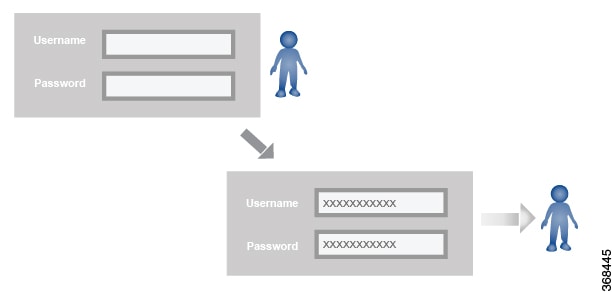
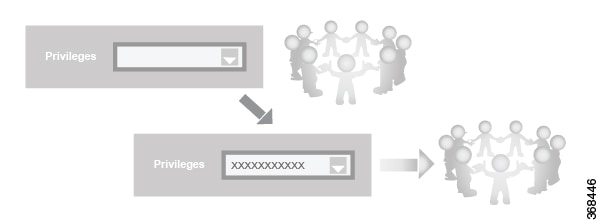
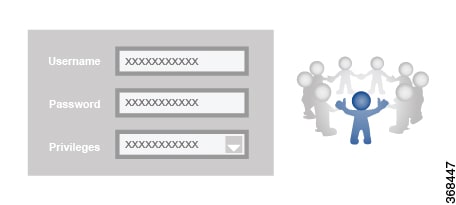
RBAC consists of three components:

  • Users: They are allowed to log in to a Cisco IOS XE Catalyst SD-WAN device.

  • User groups: They are collections of users.

  • Privileges: These are associated with each group. Privileges define the commands that the users are authorized to issue.

Users and user groups

All users who are permitted to perform operations on a Cisco IOS XE Catalyst SD-WAN device device must have a login account. For the login account, you configure a username and a password on the device itself. These allow the user to log in to that device. A username and password must be configured on each device that a user is allowed to access.

The Cisco Catalyst SD-WAN software provides one standard username, admin, which is a user who has full administrative privileges, similar to a UNIX superuser. By default, the admin username password is admin. You cannot delete or modify this username, but you can and should change the default password.

User groups pool together users who have common roles, or privileges, on the Cisco IOS XE Catalyst SD-WAN device. As part of configuring the login account information, you specify which user group or groups that user is a member of. You do not need to specify a group for the admin user, because this user is automatically in the user group netadmin​ and is permitted to perform all operations on the SD-WAN device.

The user group itself is where you configure the privileges associated with that group. These privileges correspond to the specific commands that the user is permitted to execute, effectively defining the role-based access to the Cisco Catalyst SD-WAN software elements.

Standard user groups

Cisco Catalyst SD-WAN software provides standard user groups and allows creation of custom user groups as needed.

  • basic: The basic group is a configurable group and can be used for any users and privilege levels. This group is designed to include users who have permission to both view and modify information on the device.

  • operator: The operator group is also a configurable group and can be used for any users and privilege levels. This group is designed to include users who have permission only to view information.

  • netadmin: The netadmin group is a non-configurable group. By default, this group includes the admin user. You can add other users to this group. Users in this group are permitted to perform all operations on the device.

  • network_operations: From Cisco vManage Release 20.9.1, network_operations user group is supported. The network_operations group is a non-configurable group. Users in this group can perform all non-security-policy operations on the device and only view security policy information. For example, users can create or modify template configurations, manage disaster recovery, and create non-security policies such as application aware routing policy or CFlowD policy.

  • security_operations: From Cisco vManage Release 20.9.1, security_operations user group is supported. The security_operations group is a non-configurable group. Users in this group can perform all security operations on the device and only view non-security-policy information. For example, users can manage umbrella keys, licensing, IPS signatures auto update, TLS/SSL proxy settings, and so on.

Users of the network_operations group are authorized to apply policies to a device, revoke applied policies, and edit device templates. Users of the security_operations group require network_operations users to intervene on day-0 to deploy security policy on a device and on day-N to remove a deployed security policy. However, after a security policy is deployed on a device, security_operations users can modify the security policy without needing the network_operations users to intervene.


Note


All user groups, regardless of the read or write permissions selected, can view the information displayed on the Cisco SD-WAN Manager Dashboard screen.

Only admin users can view running and local configuration. Users associated with predefined operator user group do not have access to the running and local configurations. The predefined user group operator has only read access for the template configuration. If you need only a subset of admin user privileges, then you need to create a new user group with the selected features from the features list with both read and write access and associate the group with the custom user.


User authorization rules for operational and configuration commands

The user authorization rules for operational commands are based simply on the username. Any user who is allowed to log in to the Cisco IOS XE Catalyst SD-WAN device can execute most of the operational commands. However, only the admin user can issue commands that affect the fundamental operation of the device, such as installing and upgrading the software and shutting down the device.

Any user can issue the config command to enter configuration mode. In configuration mode, users are allowed to issue any general configuration command. Also, users can configure their passwords using the system aaa user self password password command and then commit the configuration change. For the actual commands that configure device operation, authorization is defined according to user group membership. See User group authorization rules for configuration commands.

This table lists the AAA authorization rules for general CLI commands. All the commands are operational commands except as noted. Also, some commands available to the "admin" user are available only if that user is in the "netadmin" user group.

CLI Command

Any User

Admin User

clear history

X

X

commit confirm

X

X

complete-on-space

X

X

config

X

X

exit

X

X

file

X

X

help

X

X

[no] history

X

X

idle-timeout

X

X

job

X

X

logout

X (users in netadmin group only)

monitor

X

X

nslookup

X

X

paginate

X

X

ping

X (users in netadmin group only)

X (users in netadmin group only)

poweroff

X(users in netadmin group only)

prompt1

X

X

prompt2

X

X

quit

X

X

reboot

X (users in netadmin group only)

request aaa request admin-tech request firmware request interface-reset request nms request reset request software

X (users in netadmin group only)

request execute request download request upload

X

X

request (everything else)

X

rollback (configuration mode command)

X (users in netadmin group only)

screen-length

X

X

screen-width

X

X

show cli

X

X

show configuration commit list

X

X

show history

X

X

show jobs

X

X

show parser dump

X

X

show running-config

X

X

show users

X

X

system aaa user self password password (configuration mode command) (Note: A user cannot delete themselves)

tcpdump

X

X

timestamp

X

X

tools ip-route

X

X

tools netstat

X

X

tools nping

X

X

traceroute

X

X

vshell

X

(The availability of vshell command is unavailable to all users that are not in netadmin group in Cisco vManage Release 20.9.5.)

X

(The vshell AAA authorized access is limited only to users that are in netadmin group.)

User group authorization rules for operational commands

This table lists the user group authorization rules for operational commands.

Table 2. User group authorization rules for operational commands

Operational Command

Interface

Policy

Routing

Security

System

clear app

X

clear app-route

X

clear arp

clear bfd

X

X

clear bgp

X

X

clear bridge

X

clear cellular

X

clear control

X

clear crash

X

clear dhcp

X

clear dns

X

clear igmp

X

clear installed-certificates

X

clear interface

X

clear ip

X

clear notification

X

clear omp

X

clear orchestrator

X

clear ospf

X

clear pim

X

clear policy

X

clear pppoe

X

clear system

X

clear tunnel

X

clear wlan

X

clear ztp

X

X

clock

X

debug bgp

X

debug cellular

X

debug cflowd

X

debug chmgr

X

debug config-mgr

X

debug dhcp-client

X

debug dhcp-helper

X

debug dhcp-server

X

debug fpm

X

debug ftm

X

debug igmp

X

debug netconf

X

debug omp

X

debug ospf

X

debug pim

X

debug resolver

X

debug snmp

X

debug sysmgr

X

debug transport

X

debug ttm

X

debug vdaemon

X

X

debug vrrp

X

debug wlan

X

request certificate

X

request control-tunnel

X

request controller

X

request controller-upload

X

request csr

X

request device

X

request device-upload

X

request on-vbond-controller

X

request port-hop

X

request root-cert-chain

X

request security

X

request vedge

X

request vedge-upload

X

request vsmart-upload

X

show aaa

X

show app

X

show app-route

X

show arp

X

show bfd

X

X

show bgp

X

show boot-partition

X

show bridge

X

show cellular

X

show certificate

X

show clock

X

show control

X

X

show crash

X

show debugs—same as debug commands

show dhcp

X

show external-nat

X

X

show hardware

X

show igmp

X

show interface

X

show ip

X

X

show ipsec

X

show licenses

X

show logging

X

show multicast

X

show nms-server

X

show notification

X

show ntp

X

show omp

X

X

X

show orchestrator

X

show ospf

X

show pim

X

show policer

X

show policy

X

show ppp

X

show pppoe

X

show reboot

X

show security-info

X

show software

X

show system

X

show transport

X

show tunnel

X

show uptime

X

show users

X

show version

X

show vrrp

X

show wlan

X

show ztp

X

User group authorization rules for configuration commands

This table lists the user group authorization rules for configuration commands.

Table 3. User group authorization rules for configuration commands

Configuration Command

Interface

Policy

Routing

Security

System

apply-policy

X

banner

X

bfd

X

X

bridge

X

omp

X

X

X

policy

X

security

X

X

snmp

X

system

X

vpn interface

X

vpn ip 

X

vpn router

X

vpn service

X

vpn (everything else, including creating, deleting, and naming)

X

wlan

X

RBAC by resource group

RBAC by resource group

RBAC by resource groups is a method of restricting or authorizing system access for users based on user groups and resource groups.

A user group defines the privileges of a user in the system and the resource group defines the organizations (domains) to which a user is allowed access.

Assigning user and resource groups

Users are not directly assigned privileges, but you can manage individual user privileges by assigning the appropriate user and resource groups.

For large Cisco Catalyst SD-WAN deployments across multiple geographical locations, you can split the network administration among different regional administrators.

Network administrators can be classified as global administrators or regional administrators, based on the user groups and resource groups assigned to them:

  • Global administrators have access to all resources in every resource group and have complete read-write privileges for all features.

  • Regional administrators also have full read-write privileges for all the features. However, the resources they can access are limited by the resource groups assigned to them.

Global admin

A global admin is responsible for overseeing the entire network, but is not involved in the operations of the individual devices on a daily basis. User accounts in the global resource group have access to all resources.

Any user in a single tenant setup with netadmin privileges who is also part of global resource group is considered a global admin. The default admin user on SD-WAN Manager is also a global-admin. The global resource group contains all WAN edges and controllers in a single view.

A global admin can:

  • assign devices to their corresponding regions

  • assign regional admin accounts

  • manage controllers

  • maintain sharable and centralized configurations

  • operate on the individual devices when necessary

  • switch to view only a specific resource group and can create templates

  • assign more global admins

Local resource group admins, also called regional admins can clone global templates and reuse them within their resource groups.

Regional admin

A regional admin is responsible for day-to-day operations (configuration, monitoring, onboarding, and so on) for devices in the corresponding regions. Regional admins do not have access to or visibility into devices outside of their region. A regional admin can create these user groups:

  • Resource group admin – full read/write access to devices in the corresponding resource group, can troubleshoot, monitor, attach, or detach templates for the WAN edges in their group

  • Resource group operator – read-only access to WAN edges within their resource group

  • Resource group basic – basic access within their resource group

Resource group admins can create new templates and attach or detach them from WAN edges in their group. They can also copy and reuse global templates.

The resource group determines the resources accessible to a user; however, the level of access is controlled by the existing user group.

  • If a user is in resource group resource_group_a and user group resource_group_admin, they have full read/write access to all resources in resource_group_a.

  • If a user is in resource group resource_group_a and user group resource_group_operator, they have read-only access to all resources in resource_group_a.

  • If a user is in resource group resource_group_a and user group resource_group_basic, they have read-only access to interface and system resources in resource_group_a.

Global resource group

The global group is a special, system-predefined resource group with these different access control rules:

  • Users within this group are considered as global-admins, who can have full access to all resources (devices, templates and policies) in the system and they can manage the resource groups and assign resources and users to groups.

  • All other users have read-only access to resources within this group.

  • The system default admin account (or tenantadmin account in a multitenant setup) is always in this group. This privilege cannot be changed. However, the admin account may add/remove other user accounts to or from this group.

IdP (SSO)-managed group

An identity provider (IdP) is a service that stores and verifies user identity. IdPs typically work with single sign-on (SSO) providers to authenticate users. If a user is authenticated with a SSO service of an IdP, the group information is also provided and managed by the IdP. An IdP passes the information about the user, including the user name and all the group names, where the user belongs to. SD-WAN Manager matches the group names with the group names stored in the database to further distinguish if a particular group name passed from IdP is for user group or resource group or VPN group.

Configure resource groups

From Cisco IOS XE Catalyst SD-WAN Release 17.5.1a and Cisco vManage Release 20.5.1 you can configure resource groups to restrict or authorize user access to specific sets of resources.

Procedure


Step 1

From the Cisco SD-WAN Manager menu, choose Administration > Resource Groups.

The table displays a list of resource groups configured in SD-WAN Manager.

Step 2

To edit or delete a resource group, click ..., and click Edit or Delete.

Step 3

To add s new resource group, click Add Resource Group.

Step 4

Enter Resource Group Name and the Description.

Step 5

Under Site ID, enter Range or Select ID(S) from the drop-down list to include in the resource group.

Step 6

To add the resource group to a device, click Add.


Multitenancy support

With Cisco Catalyst SD-WAN multitenancy, a service provider can manage multiple customers, called tenants, from Cisco SD-WAN Manager. The tenants share Cisco SD-WAN Manager instances, Cisco SD-WAN Validator, and Cisco SD-WAN Controller. The domain name of the service provider has subdomains for each tenant. Cisco SD-WAN Manager is deployed and configured by the service provider. The provider enables multitenancy and creates a Cisco SD-WAN Manager cluster to serve tenants. Only the provider can access a Cisco SD-WAN Manager instance through the SSH terminal.

Provider has these features:

  • Resource group is not applicable as the provider manages only the controllers.

  • When provider provisions a new tenant, the default user account for the tenant is tenantadmin.

  • Other user accounts created by the provider are included in the default global resource group.

  • When a provider creates a template for a tenant, the template is included in the global resource group.

Granular RBAC

Granular RBAC for templates

When setting user group permissions, use the template permissions defined in this section. This approach allows you to provide an RBAC user with specific access to various types of templates and control which device configurations they can apply.

From Cisco vManage Release 20.7.1, you can use these template permissions:

Permission

Description

CLI Add-On Template

Provides access to the CLI add-on feature template.

Device CLI Template

Provides access to the device CLI template.

SIG Template

Provides access to the SIG feature template and SIG credential template.

Other Feature Templates

Provides access to all feature templates except the SIG feature template, SIG credential template, and CLI add-on feature template.

Feature Profile

Provides access to all feature profiles.

Config Group

Provides access to all configuration groups.

Expand each feature profile to specify granular RBAC. After you set the permissions for the user group, verify that you can access the required feature profiles under Templates > Configuration Groups.

Single-tenant and multi-tenant scenarios

You can use granular RBAC for feature templates in single-tenant and multi-tenant Cisco SD-WAN Manager scenarios.

You can create user groups to assign specific permissions to a tenant's various teams, enabling teams to manage only specific network services without granting permission to use device CLI templates.

Avoid granting tenants the permission to apply device CLI templates because they can override any other template or device configuration. For example, create a user group for a tenant's security operations group. Grant them read/write access only to the SIG Template option to enable them to manage security configurations.

Benefits of granular RBAC

From Cisco vManage Release 20.7.1, the permissions configured for co-management in Cisco Catalyst SD-WAN allow for very detailed and specific control over who can access and modify network configurations. They are useful when using Cisco Catalyst SD-WAN with tenants, enabling you to provide a tenant access to specific types of templates. This setup lets tenants manage their own network configuration tasks within their own VPN.

For information about the permissions added for co-management, see Granular RBAC for templates.

RBAC for policies

RBAC for policies

RBAC for policies allows a user or user group to have selective read and write (RW) access to Cisco SD-WAN Manager policies.

From Cisco IOS XE Catalyst SD-WAN Release 17.6.1a and Cisco vManage Release 20.6.1, a user can perform these actions with read and write access:

  • For Cflowd policy: Configure Cflowd policy, but cannot configure application-aware routing policy.

  • For application aware routing (AAR) policy: Configure application-aware routing policy, but cannot configure other policies.


Note


This feature is only supported for centralized and localized policies, but not supported for security policies.


Configure RBAC for policies

From Cisco IOS XE Catalyst SD-WAN Release 17.6.1a and Cisco vManage Release 20.6.1, you can configure required access for policies.

Procedure


Step 1

Create user groups with required read or write access to selected control or data policies.

For details on creating user groups, refer Create User Groups.

Step 2

Create users and assign them to required user groups. .

Refer Add Users.

Step 3

Create or modify or view policy configurations as required.

For information about configuring policies, see Configure Centralized Policies Using Cisco SD-WAN Manager.


Modify policy configurations

FromCisco IOS XE Catalyst SD-WAN Release 17.6.1a and Cisco vManage Release 20.6.1, you can modify or update policy configurations as per your requirement.

Simply log in to Cisco SD-WAN Manager to view the user group components that are assigned to you and you can modify the policy configurations. For more details on configuring policies, see Cisco Catalyst SD-WAN Policies Configuration Guide

Configure RBAC for CFlowd policy

Create a CFlowd user group

From Cisco IOS XE Catalyst SD-WAN Release 17.6.1a and Cisco vManage Release 20.6.1, you can create a CFlowd user group and assign users to modify a CFlowd data policy.

Procedure


Step 1

From Cisco SD-WAN Manager, choose Administration > Manage Users.

Step 2

Click User Groups and Add User Group.

Step 3

Enter User Group Name.

For example, cflowd-policy-only.

Step 4

Check the Read or Write check box against the CFlowD Policy feature that you want to assign to a user group.

Step 5

Click Add.

You can view the new user group in the left navigation path.

Step 6

Click Edit to edit the existing read or write rules.

Step 7

Click Save.


Create a CFlowd policy user

To modify a CFlowd policy, create a CFlowd policy user and assign it to the Cflowd policy user group.

Procedure


Step 1

From Cisco SD-WAN Manager menu, choose Administration > Manage Users.

Step 2

Click Users.

Step 3

Click Add User.

Step 4

In the Add New User page, enter Full Name, Username, Password, and Confirm Password details.

Step 5

Choose cflowd-policy-only from the User Groups drop-down list.

Allow the Resource Group to select the default resource group.

Step 6

Click Add.

You can view the new user in the Users window.

Step 7

To edit the existing read or write rules for a user, click Edit.


Modify a CFlowd policy

You can modify CFlowd policies associated with the related CFlowd user group.

Procedure


Step 1

Log in to Cisco SD-WAN Manager with the CFlowd user credentials.

You can access only CFlowd policies as your login is associated to cflowd-policy-only user group.

Step 2

You can create, modify, or update the configurations based on your requirement.


Assigning roles to users defined by identity providers

From Cisco vManage Release 20.11.1 you can manage user roles and permissions through the identity provider (IdP) when users authenticate via Okta to log into Cisco SD-WAN Manager.

When a user logs in, SD-WAN Manager retrieves the user's role(s) from the IdP and maps them to user group permissions in SD-WAN Manager. The permissions granted to the user correspond to these mapped user groups.

If a user does not have a role defined in the IdP, a network administrator—who has access to SD-WAN Manager but does not have access to the IdP—can assign the user to a specific local user group within SD-WAN Manager to provide the necessary permissions.

However, if both a role is defined for a user in the IdP and a user group is assigned locally in SD-WAN Manager, the role defined in the IdP will take precedence over the local assignment.

This table summarizes the methods available for assigning specific permissions to a user:

IdP for SAML SSO

Roles defined in the IdP

How user permissions are defined

Not using an IdP

Not applicable

In SD-WAN Manager, assign a user to one or more user groups locally. This provides the user with the corresponding user group permissions.

Using an IdP

IdP has one or more roles defined for the user.

Define roles for the user through the IdP. SD-WAN Manager provides the user with the user group permissions corresponding to the roles.

IdP does not have a role defined for the user.

Use the Remote User option for adding a user (Administration > Manage Users > Add User). See Add a User.

In SD-WAN Manager, assign a user to one or more user groups locally. This provides the user with the corresponding user group permissions.

Configure RBAC

Configure scope

Procedure


Step 1

From the Cisco SD-WAN Manager menu, choose Administration > Users and Access.

By default Scope menu is selected. The table displays the list of scopes configured in the device.

Step 2

Click Add Scope.

Step 3

Enter Scope Name and Description.

Step 4

Click Add Nodes.

Step 5

Choose the required nodes and click Save.

You can click Edit Nodes to update the existing nodes in the list.

Step 6

(Optional) In the Associations pane, click Add Users to associate users.

  1. In the Add Users pop-up window, choose the users that you want to add.

  2. Click Save.

    The selected users are associated to a scope.

Step 7

(Optional) In the Configurations tab, click Add Configurations to add configurations. Choose the available configurations from the following tabs:

  1. Configuration Group

  2. Device Template

  3. Feature Template

  4. Feature Profile

  5. Security Policy

  6. Localized Policy

Step 8

Click Save.


A new scope with nodes, users and required configurations is created.

Configure roles

Procedure


Step 1

From the Cisco SD-WAN Manager menu, choose Administration > Users and Access.

Step 2

Click Roles.

The table displays the list of roles configured in the device.

Step 3

Click Add Role.

Step 4

Enter Custom Role Name in the Add Custom Role page.

Step 5

Select the Deny, Read, or Write check box against the feature or sub feature that you want to assign a role.

Step 6

Click Add.


You can view the new role in the table in the Roles page.

Copy custom role

To create a copy of a custom role, use these steps.

Procedure


Step 1

In the list of roles, for the role you wish to copy, click ..., and click Copy.

The Copy Custom Role page is displayed.

Step 2

Enter Custom Role Name.

Step 3

Select the Deny, Read, or Write check box against the feature or sub feature that you want to update for a role.

Step 4

Click Copy.


You can view the new role in the table in the Roles page.

Edit custom role

Procedure


Step 1

In the list of roles, for the role you wish to copy, click ..., and click Edit.

The Edit Custom Role page is displayed.

Step 2

Select the Deny, Read, or Write check box against the feature or sub feature that you want to update for a role.

Note


Starting from Cisco Catalyst SD-WAN Manager Release 20.18.1, the permissions for a role and its descendents may differ in the Deny/Read/Write table. Therefore, do not assume the parent role as the entire role for the sub-tree under it.

If you have a role with write permissions for Configuration Groups but deny or read permission for deploy, a Change device variables button appears instead of Deploy button. This button allows you to modify device-specific values during the deploy process, without initiating the deployment.

Step 3

Click Update.


You can view the updated role in the table in the Roles page.

Delete a role

You can delete a role when it is no longer needed. For example, you might delete a role that you created for a specific project when that project ends.

Procedure


Step 1

Choose the role you wish to delete, click ..., and click delete.

The Warning page is displayed.

Step 2

To confirm the deletion of the role, click Delete.


This deletes the role.

Prerequisites for Application Catalog features

You can grant certain permissions to a custom role for viewing and creating applications through the Discovered Applications page. Discovered Applications appear on the Configuration > Application Catalog > Discovered Applications page.

To enable a custom role to view discovered applications, grant these permissions:

  • read permission for Cloud OnRamp

  • read permission for

    • Policy Configuration

    • Policy Group

    • Security Policy Configuration

    • Feature Profile > Embedded Security, or

    • Feature Profile > Embedded Security > NgFirewall

To enable a custom role to create custom applications from Discovered Applications, grant write permissions for these:

  • Policy Configuration

  • Policy Group

  • Security Policy Configuration

  • Feature Profile > Embedded Security, or

  • Feature Profile > Embedded Security > NgFirewall

Manage user group permissions

User group permissions for Cisco IOS XE Catalyst SD-WAN device

Table 4. User Group Permissions: Cisco IOS XE Catalyst SD-WAN devices

Feature

Read Permission

Write Permission

Alarms

Set alarm filters and view the alarms generated on the devices on the Monitor > Logs > Alarms page.

Cisco vManage Release 20.6.x and earlier: Set alarm filters and view the alarms generated on the devices on the Monitor > Alarms page.

No additional permissions.

Audit Log

Set audit log filters and view a log of all the activities on the devices on the Monitor > Logs > Alarms page and the Monitor > Logs > Audit Log page.

Cisco vManage Release 20.6.x and earlier: Set audit log filters and view a log of all the activities on the devices on the Monitor > Alarms page and the Monitor > Audit Log page.

No additional permissions.

Certificates

View a list of the devices in the overlay network under Configuration > Certificates > WAN Edge List.

View a certificate signing request (CSR) and certificate on the Configuration > Certificates > Controllers window.

Note


Starting from Cisco IOS XE Catalyst SD-WAN Release 17.13.1a, the Controllers tab is renamed as the Control Components tab to stay consistent with Cisco Catalyst SD-WAN rebranding.

Validate and invalidate a device, stage a device, and send the serial number of valid controller devices to the Cisco Catalyst SD-WAN Validator on the Configuration > Certificates > WAN Edge List window.

Generate a CSR, install a signed certificate, reset the RSA key pair, and invalidate a controller device on the Configuration > Certificates > Controllers window.

Note


Starting from Cisco IOS XE Catalyst SD-WAN Release 17.13.1a, the Controllers tab is renamed as the Control Components tab to stay consistent with Cisco Catalyst SD-WAN rebranding.

CLI Add-On Template

(Minimum supported release: Cisco vManage Release 20.7.1)

View the CLI add-on feature template on the Configuration > Templates window.

Note


This operation requires read permission for Template Configuration.

Create, edit, delete, and copy a CLI add-on feature template on the Configuration > Templates window.

Note


These operations require write permission for Template Configuration.

Note


For information about this option, see Information About Granular RBAC for Feature Templates

Cloud OnRamp

View the cloud applications on theConfiguration > Cloud OnRamp for SaaS and Configuration > Cloud OnRamp for IaaS window.

No additional permissions.

Cluster

View information about the services running on SD-WAN Manager, a list of devices connected to a SD-WAN Manager server, and the services that are available and running on all the SD-WAN Manager servers in the cluster on the Administration > Cluster Management window.

Change the IP address of the current SD-WAN Manager, add a SD-WAN Manager server to the cluster, configure the statistics database, edit, and remove a SD-WAN Manager server from the cluster on the Administration > Cluster Management window.

Colocation

View the cloud applications on the Configuration > Cloud OnRamp for Colocation window.

No additional permissions.

Config Group > Device > Deploy

(Minimum supported release: Cisco vManage Release 20.9.1)

This permission does not provide any functionality.

Deploy a configuration onto Cisco IOS XE Catalyst SD-WAN devices.

Note


To edit an existing feature configuration requires write permission for Template Configuration.

For more details on deploying devices, see Deploy Devices.

Device CLI Template

(Minimum supported release: Cisco vManage Release 20.7.1)

View the device CLI template on the Configuration > Templates window.

Note


This operation requires read permission for Template Configuration.

Create, edit, delete, and copy a device CLI template on the Configuration > Templates window.

Note


These operations require write permission for Template Configuration.

Note


For information about this option, see Information About Granular RBAC for Feature Templates

Device Inventory

View the running and local configuration of devices, a log of template activities, and the status of attaching configuration templates to devices on the Configuration > Devices > WAN Edge List window.

View the running and local configuration of the devices and the status of attaching configuration templates to controller devices on the Configuration > Devices > Controllers window.

Note


Starting from Cisco IOS XE Catalyst SD-WAN Release 17.13.1a, the Controllers tab is renamed as the Control Components tab to stay consistent with Cisco Catalyst SD-WAN rebranding.

Upload a device's authorized serial number file to SD-WAN Manager, toggle a device from SD-WAN Manager configuration mode to CLI mode, copy a device configuration, and delete the device from the network on the Configuration > Devices > WAN Edge List window.

Add and delete controller devices from the overlay network, and edit the IP address and login credentials of a controller device on the Configuration > Devices > Controllers window.

Note


Starting from Cisco IOS XE Catalyst SD-WAN Release 17.13.1a, the Controllers tab is renamed as the Control Components tab to stay consistent with Cisco Catalyst SD-WAN rebranding.

Device Monitoring

View the geographic location of the devices on the Monitor > Geography window.

View events that have occurred on the devices on the Monitor > Logs > Events page.

Cisco vManage Release 20.6.x and earlier: View events that have occurred on the devices on the Monitor > Events page.

View a list of devices in the network, along with device status summary, SD-WAN Application Intelligence Engine (SAIE) and Cflowd flow information, transport location (TLOC) loss, latency, and jitter information, control and tunnel connections, system status, and events on the Monitor > Devices page (only when a device is selected).

Note


In Cisco vManage Release 20.7.x and earlier releases, the SAIE flow is called the deep packet inspection (DPI) flow.

Cisco vManage Release 20.6.x and earlier: Device information is available in the Monitor > Network page.

Ping a device, run a traceroute, and analyze the traffic path for an IP packet on the Monitor > Devices page (only when a device is selected).

Note


These operations require read and write permissions for Device Monitoring.

Device Reboot

View the list of devices on which the reboot operation can be performed on the Maintenance > Device Reboot window.

Reboot one or more devices on the Maintenance > Device Reboot window.

Disaster Recovery

View information about active and standby clusters running on SD-WAN Manager on the Administration > Disaster Recovery window.

No additional permissions.

Events

View the geographic location of the devices on the Monitor > Logs > Events page.

View the geographic location of the devices on the Monitor > Events page.

Ping a device, run a traceroute, and analyze the traffic path for an IP packet on the Monitor > Logs > Events page (only when a device is selected).

Feature Profile > Other > Thousandeyes

(Minimum supported release: Cisco vManage Release 20.9.1)

View the ThousandEyes settings on the Configuration > Templates > (View configuration group) page, in the Other Profile section.

Note


This operation requires read permission for Template Configuration.

Create, edit, and delete the ThousandEyes settings on the Configuration > Templates > (Add or edit configuration group) page, in the Other Profile section.

Note


These operations require write permission for Template Configuration.

Feature Profile > Service > Dhcp

(Minimum supported release: Cisco vManage Release 20.9.1)

View the DHCP settings on the Configuration > Templates > (View configuration group) page, in the Service Profile section.

Note


This operation requires read permission for Template Configuration.

Create, edit, and delete the DHCP settings on the Configuration > Templates > (Add or edit configuration group) page, in the Service Profile section.

Note


These operations require write permission for Template Configuration.

Feature Profile > Service > Lan/Vpn

(Minimum supported release: Cisco vManage Release 20.9.1)

View the LAN/VPN settings on the Configuration > Templates > (View configuration group) page, in the Service Profile section.

Note


This operation requires read permission for Template Configuration.

Create, edit, and delete the LAN/VPN settings on the Configuration > Templates > (Add or edit configuration group) page, in the Service Profile section.

Note


These operations require write permission for Template Configuration.

Feature Profile > Service > Lan/Vpn/Interface/Ethernet

(Minimum supported release: Cisco vManage Release 20.9.1)

View the Ethernet Interface settings on the Configuration > Templates > (View configuration group) page, in the Service Profile section.

Note


This operation requires read permission for Template Configuration.

Create, edit, and delete the Ethernet Interface settings on the Configuration > Templates > (Add or edit configuration group) page, in the Service Profile section.

Note


These operations require write permission for Template Configuration.

Feature Profile > Service > Lan/Vpn/Interface/Svi

(Minimum supported release: Cisco vManage Release 20.9.1)

View the SVI Interface settings on the Configuration > Templates > (View configuration group) page, in the Service Profile section.

Note


This operation requires read permission for Template Configuration.

Create, edit, and delete the SVI Interface settings on the Configuration > Templates > (Add or edit configuration group) page, in the Service Profile section.

Note


These operations require write permission for Template Configuration.

Feature Profile > Service > Routing/Bgp

(Minimum supported release: Cisco vManage Release 20.9.1)

View the Routing/BGP settings on the Configuration > Templates > (View configuration group) page, in the Service Profile section.

Note


This operation requires read permission for Template Configuration.

Create, edit, and delete the Routing/BGP settings on the Configuration > Templates > (Add or edit configuration group) page, in the Service Profile section.

Note


These operations require write permission for Template Configuration.

Feature Profile > Service > Routing/Ospf

(Minimum supported release: Cisco vManage Release 20.9.1)

View the Routing/OSPF settings on the Configuration > Templates > (View configuration group) page, in the Service Profile section.

Note


This operation requires read permission for Template Configuration.

Create, edit, and delete the Routing/OSPF settings on the Configuration > Templates > (Add or edit configuration group) page, in the Service Profile section.

Note


These operations require write permission for Template Configuration.

Feature Profile > Service > Switchport

(Minimum supported release: Cisco vManage Release 20.9.1)

View the Switchport settings on the Configuration > Templates > (View configuration group) page, in the Service Profile section.

Note


This operation requires read permission for Template Configuration.

Create, edit, and delete the Switchport settings on the Configuration > Templates > (Add or edit configuration group) page, in the Service Profile section.

Note


These operations require write permission for Template Configuration.

Feature Profile > Service > Wirelesslan

(Minimum supported release: Cisco vManage Release 20.9.1)

View the Wireless LAN settings on the Configuration > Templates > (View configuration group) page, in the Service Profile section.

Note


This operation requires read permission for Template Configuration.

Create, edit, and delete the Wireless LAN settings on the Configuration > Templates > (Add or edit configuration group) page, in the Service Profile section.

Note


These operations require write permission for Template Configuration.

Feature Profile > System > Interface/Ethernet > Aaa

(Minimum supported release: Cisco vManage Release 20.9.1)

View the AAA settings on the Configuration > Templates > (View configuration group) page, in the System Profile section.

Note


This operation requires read permission for Template Configuration.

Create, edit, and delete the AAA settings on the Configuration > Templates > (Add or edit configuration group) page, in the System Profile section.

Note


These operations require write permission for Template Configuration.

Feature Profile > System > Interface/Ethernet > Banner

(Minimum supported release: Cisco vManage Release 20.9.1)

View the Banner settings on the Configuration > Templates > (View configuration group) page, in the System Profile section.

Note


This operation requires read permission for Template Configuration.

Create, edit, and delete the Banner settings on the Configuration > Templates > (Add or edit configuration group) page, in the System Profile section.

Note


These operations require write permission for Template Configuration.

Feature Profile > System > Basic

(Minimum supported release: Cisco vManage Release 20.9.1)

View the Basic settings on the Configuration > Templates > (View configuration group) page, in the System Profile section.

Note


This operation requires read permission for Template Configuration.

Create, edit, and delete the Basic settings on the Configuration > Templates > (Add or edit configuration group) page, in the System Profile section.

Note


These operations require write permission for Template Configuration.

Feature Profile > System > Bfd

(Minimum supported release: Cisco vManage Release 20.9.1)

View the BFD settings on the Configuration > Templates > (View configuration group) page, in the System Profile section.

Note


This operation requires read permission for Template Configuration.

Create, edit, and delete the BFD settings on the Configuration > Templates > (Add or edit configuration group) page, in the System Profile section.

Note


These operations require write permission for Template Configuration.

Feature Profile > System > Global

(Minimum supported release: Cisco vManage Release 20.9.1)

View the Global settings on the Configuration > Templates > (View configuration group) page, in the System Profile section.

Note


This operation requires read permission for Template Configuration.

Create, edit, and delete the Global settings on the Configuration > Templates > (Add or edit configuration group) page, in the System Profile section.

Note


These operations require write permission for Template Configuration.

Feature Profile > System > Logging

(Minimum supported release: Cisco vManage Release 20.9.1)

View the Logging settings on the Configuration > Templates > (View configuration group) page, in the System Profile section.

Note


This operation requires read permission for Template Configuration.

Create, edit, and delete the Logging settings on the Configuration > Templates > (Add or edit configuration group) page, in the System Profile section.

Note


These operations require write permission for Template Configuration.

Feature Profile > System > Ntp

(Minimum supported release: Cisco vManage Release 20.9.1)

View the NTP settings on the Configuration > Templates > (View configuration group) page, in the System Profile section.

Note


This operation requires read permission for Template Configuration.

Create, edit, and delete the NTP settings on the Configuration > Templates > (Add or edit configuration group) page, in the System Profile section.

Note


These operations require write permission for Template Configuration.

Feature Profile > System > Omp

(Minimum supported release: Cisco vManage Release 20.9.1)

View the OMP settings on the Configuration > Templates > (View configuration group) page, in the System Profile section.

Note


This operation requires read permission for Template Configuration.

Create, edit, and delete the OMP settings on the Configuration > Templates > (Add or edit configuration group) page, in the System Profile section.

Note


These operations require write permission for Template Configuration.

Feature Profile > System > Snmp

(Minimum supported release: Cisco vManage Release 20.9.1)

View the SNMP settings on the Configuration > Templates > (View configuration group) page, in the System Profile section.

Note


This operation requires read permission for Template Configuration.

Create, edit, and delete the SNMP settings on the Configuration > Templates > (Add or edit configuration group) page, in the System Profile section.

Note


These operations require write permission for Template Configuration.

Feature Profile > Transport > Cellular Controller

(Minimum supported release: Cisco vManage Release 20.9.1)

View the Cellular Controller settings on the Configuration > Templates > (View a configuration group) page, in the Transport & Management Profile section.

Note


This operation requires read permission for Template Configuration.

Create, edit, and delete the Cellular Controller settings on the Configuration > Templates > (Add or edit a configuration group) page, in the Transport & Management Profile section.

Note


These operations require write permission for Template Configuration.

Feature Profile > Transport > Cellular Profile

(Minimum supported release: Cisco vManage Release 20.9.1)

View the Cellular Profile settings on the Configuration > Templates > (View a configuration group) page, in the Transport & Management Profile section.

Note


This operation requires read permission for Template Configuration.

Create, edit, and delete the Cellular Profile settings on the Configuration > Templates > (Add or edit a configuration group) page, in the Transport & Management Profile section.

Note


These operations require write permission for Template Configuration.

Feature Profile > Transport > Management/Vpn

(Minimum supported release: Cisco vManage Release 20.9.1)

View the Management VPN settings on the Configuration > Templates > (View configuration group) page, in the Transport & Management Profile section.

Note


This operation requires read permission for Template Configuration.

Create, edit, and delete the Management VPN settings on the Configuration > Templates > (Add or edit a configuration group) page, in the Transport & Management Profile section.

Note


These operations require write permission for Template Configuration.

Feature Profile > Transport > Management/Vpn/Interface/Ethernet

(Minimum supported release: Cisco vManage Release 20.9.1)

View the Management Ethernet Interface settings on the Configuration > Templates > (View configuration group) page, in the Transport & Management Profile section.

Note


This operation requires read permission for Template Configuration.

Create, edit, and delete the Management VPN and Management Internet Interface settings on the Configuration > Templates > (Add or edit a configuration group) page, in the Transport & Management Profile section.

Note


These operations require write permission for Template Configuration.

Feature Profile > Transport > Routing/Bgp

(Minimum supported release: Cisco vManage Release 20.9.1)

View the BGP Routing settings on the Configuration > Templates > (View configuration group) page, in the Transport & Management Profile section.

Note


This operation requires read permission for Template Configuration.

Create, edit, and delete the BGP Routing settings on the Configuration > Templates > (Add or edit a configuration group) page, in the Transport & Management Profile section.

Note


These operations require write permission for Template Configuration.

Feature Profile > Transport > Tracker

(Minimum supported release: Cisco vManage Release 20.9.1)

View the Tracker settings on the Configuration > Templates > (View configuration group) page, in the Transport & Management Profile section.

Note


This operation requires read permission for Template Configuration.

Create, edit, and delete the Tracker settings on the Configuration > Templates > (Add or edit a configuration group) page, in the Transport & Management Profile section.

Note


These operations require write permission for Template Configuration.

Feature Profile > Transport > Wan/Vpn

(Minimum supported release: Cisco vManage Release 20.9.1)

View the Wan/Vpn settings on the Configuration > Templates > (View configuration group) page, in the Transport & Management Profile section.

Note


This operation requires read permission for Template Configuration.

Create, edit, and delete the Wan/Vpn settings on the Configuration > Templates > (Add or edit a configuration group) page, in the Transport & Management Profile section.

Note


These operations require write permission for Template Configuration.

Feature Profile > Transport > Wan/Vpn/Interface/Cellular

(Minimum supported release: Cisco vManage Release 20.9.1)

View the Wan/Vpn/Interface/Cellular settings on the Configuration > Templates > (View configuration group) page, in the Transport & Management Profile section.

Note


This operation requires read permission for Template Configuration.

Create, edit, and delete the Wan/Vpn/Interface/Cellular settings on the Configuration > Templates > (Add or edit a configuration group) page, in the Transport & Management Profile section.

Note


These operations require write permission for Template Configuration.

Feature Profile > Transport > Wan/Vpn/Interface/Ethernet

(Minimum supported release: Cisco vManage Release 20.9.1)

View the Wan/Vpn/Interface/Ethernet settings on the Configuration > Templates > (View configuration group) page, in the Transport & Management Profile section.

Note


This operation requires read permission for Template Configuration.

Create, edit, and delete the Wan/Vpn/Interface/Ethernet settings on the Configuration > Templates > (Add or edit a configuration group) page, in the Transport & Management Profile section.

Note


These operations require write permission for Template Configuration.

Integration Management

View information about controllers running on SD-WAN Manager, on the Administration > Integration Management window.

No additional permissions.

License Management

View license information of devices running on SD-WAN Manager, on the Administration > License Management window.

On the Administration > License Management page, configure use of a Cisco Smart Account, choose licenses to manage, and synchronize license information between SD-WAN Manager and the license server.

Interface

View information about the interfaces on a device on the Monitor > Devices > Interface page.

Cisco vManage Release 20.6.x and earlier: View information about the interfaces on a device on the Monitor > Network > Interface page

Edit Chart Options to select the type of data to display, and edit the time period for which to display data on the Monitor > Devices > Interface page.

Application Monitoring

(Minimum supported release: Cisco Catalyst SD-WAN Manager Release 20.12.1)

View the application health of the devices on the Monitor > Applications window.

View the application health of the devices on the Monitor > Applications window.

Manage Users

View users and user groups on the Administration > Manage Users window.

Add, edit, and delete users and user groups from SD-WAN Manager, and edit user group privileges on the Administration > Manage Users window.

Other Feature Templates

(Minimum supported release: Cisco vManage Release 20.7.1)

View all feature templates except the SIG feature template, SIG credential template, and CLI add-on feature template on the Configuration > Templates window.

Note


This operation requires read permission for Template Configuration.

Note


To check the mutual authentication option, you need read permission for certificates. (Minimum supported release: Cisco Catalyst SD-WAN Manager Release 20.12.1)

Create, edit, delete, and copy all feature templates except the SIG feature template, SIG credential template, and CLI add-on feature template on the Configuration > Templates window.

Note


These operations require write permission for Template Configuration.

Note


For information about this option, see Information About Granular RBAC for Feature Templates

Note


To check the mutual authentication option, you need write permission for certificates. (Minimum supported release: Cisco Catalyst SD-WAN Manager Release 20.12.1)

Policy

View the common policies for all Cisco Catalyst SD-WAN Controllers or devices in the network on the Configuration > Policies window.

Create, edit, and delete the common policies for all Cisco Catalyst SD-WAN Controllers or devices in the network on the Configuration > Policies window.

Policy Configuration

View the list of policies created and details about them on the Configuration > Policies window.

Create, edit, and delete the common policies for all the Cisco Catalyst SD-WAN Controllers and devices in the network on the Configuration > Policies window.

Policy Deploy

View the current status of the Cisco Catalyst SD-WAN Controllers to which a policy is being applied on the Configuration > Policies window.

Activate and deactivate the common policies for all SD-WAN Manager servers in the network on the Configuration > Policies window.

RBAC VPN

View the VPN groups and segments based on roles on the Monitor > VPN page.

Cisco vManage Release 20.6.x and earlier: View the VPN groups and segments based on roles on the Dashboard > VPN Dashboard page.

Add, edit, and delete VPNs and VPN groups from SD-WAN Manager, and edit VPN group privileges on the Administration > VPN Groups window.

Routing

View real-time routing information for a device on the Monitor > Devices > Real-Time page.

Cisco vManage Release 20.6.x and earlier: View real-time routing information for a device on the Monitor > Network > Real-Time page.

Add command filters to speed up the display of information on the Monitor > Devices > Real-Time page.

Security

View the current status of the Cisco Catalyst SD-WAN Controllers to which a security policy is being applied on the Configuration > Security window.

Activate and deactivate the security policies for all SD-WAN Manager servers in the network on the Configuration > Security window.

Security Policy Configuration

Activate and deactivate the common policies for all SD-WAN Manager servers in the network on the Configuration > Security > Add Security Policy window.

Activate and deactivate the security policies for all SD-WAN Manager servers in the network on the Configuration > Security > Add Security Policy window.

Session Management

View user sessions on the Administration > Manage Users > User Sessions window.

Add, edit, and delete users and user groups from SD-WAN Manager, and edit user sessions on the Administration > Manage Users > User Sessions window.

Settings

View the organization name, Cisco Catalyst SD-WAN Validator DNS or IP address, certificate authorization settings, software version enforced on a device, custom banner on the SD-WAN Manager login page, and the current settings for collecting statistics on the Administration > Settings window.

Edit the organization name, Cisco Catalyst SD-WAN Validator DNS or IP address, certificate authorization settings, software version enforced on a device, custom banner on the SD-WAN Manager login page, current settings for collecting statistics, generate a certificate signing request (CSR) for a web server certificate, and install a certificate on the Administration > Settings window.

SIG Template

(Minimum supported release: Cisco vManage Release 20.7.1)

View the SIG feature template and SIG credential template on the Configuration > Templates window.

Note


This operation requires read permission for Template Configuration.

Create, edit, delete, and copy a SIG feature template and SIG credential template on the Configuration > Templates window.

Note


These operations require write permission for Template Configuration.

Note


For information about this option, see Information About Granular RBAC for Feature Templates

SIG Tunnels

(Minimum supported release: Cisco IOS XE Catalyst SD-WAN Release 17.12.x

View information about the SIG tunnels on the Monitor > Tunnels > SIG Tunnels page.

View information about the SIG tunnels on the Monitor > Tunnels > SIG Tunnels page.

Software Upgrade

View a list of devices, the custom banner on SD-WAN Manager on which a software upgrade can be performed, and the current software version running on a device on the Maintenance > Software Upgrade window.

Upload new software images on devices, upgrade, activate, and delete a software image on a device, and set a software image to be the default image on devices on the Maintenance > Software Upgrade window.

System

View system-wide parameters configured using SD-WAN Manager templates on the Configuration > Templates > Device Templates window.

Note


In Cisco vManage Release 20.7.x and earlier releases, Device Templates is called Device.

Configure system-wide parameters using SD-WAN Manager templates on the Configuration > Templates > Device Templates window.

Note


In Cisco vManage Release 20.7.x and earlier releases, Device Templates is called Device.

Template Configuration

View feature and device templates on the Configuration > Templates window.

Create, edit, delete, and copy a feature or device template on the Configuration > Templates window.

Note


From Cisco vManage Release 20.7.1, to create, edit, or delete a template that is already attached to a device, the user requires write permission for the Template Deploy option.

Template Deploy

View the devices attached to a device template on the Configuration > Templates window.

Attach a device to a device template on the Configuration > Templates window.

Tools

Use the admin tech command to collect the system status information for a device on the Tools > Operational Commands window.

Use the admin tech command to collect the system status information for a device, and use the interface reset command to shut down and then restart an interface on a device in a single operation on the Tools > Operational Commands window.

Rediscover the network to locate new devices and synchronize them with SD-WAN Manager on the Tools > Operational Commands window.

Establish an SSH session to the devices and issue CLI commands on the Tools > Operational Commands window.

vAnalytics

Launch Cisco SD-WAN Analytics from > vAnalytics window.

No additional permissions.

Workflows

Launch workflow library from > Workflows window.

No additional permissions.

Config Group > Device > Deploy

(Minimum supported release: Cisco vManage Release 20.11.1)

View the devices associated to a configuration group on the Configuration > Templates > Edit Configuration Group > Associated Devices window.

Deploy a configuration onto Cisco IOS XE Catalyst SD-WAN devices.

Note


To edit an existing feature configuration requires write permission for Template Configuration.

For more details on deploying devices, see Deploy Devices.

Feature Profile > Transport > IPv4 Tracker and Tracker Group

(Minimum supported release: Cisco vManage Release 20.11.1)

View the IPv4 Tracker and Tracker Group settings on the Configuration > Templates > (View configuration group) page, in the Transport & Management Profile section.

Note


This operation requires read permission for Template Configuration.

Create, edit, and delete the IPv4 Tracker and Tracker Group settings on the Configuration > Templates > (Add or edit a configuration group) page, in the Transport & Management Profile section.

Note


These operations require write permission for Template Configuration.

Feature Profile > Transport > IPv6 Tracker and Tracker Group

(Minimum supported release: Cisco vManage Release 20.11.1)

View the IPv6 Tracker and Tracker Group settings on the Configuration > Templates > (View configuration group) page, in the Transport & Management Profile section.

Note


This operation requires read permission for Template Configuration.

Create, edit, and delete the IPv6 Tracker and Tracker Group settings on the Configuration > Templates > (Add or edit a configuration group) page, in the Transport & Management Profile section.

Note


These operations require write permission for Template Configuration.

Feature Profile > Transport > Gps

(Minimum supported release: Cisco vManage Release 20.11.1)

View the GPS settings on the Configuration > Templates > (View configuration group) page, in the Transport & Management Profile section.

Note


This operation requires read permission for Template Configuration.

Create, edit, and delete the Gps settings on the Configuration > Templates > (Add or edit a configuration group) page, in the Transport & Management Profile section.

Note


These operations require write permission for Template Configuration.

Feature Profile > Other > APPQoE

(Minimum supported release: Cisco vManage Release 20.11.1)

View the APPQoE settings on the Configuration > Templates > (View configuration group) page, in the Other section.

Note


This operation requires read permission for Template Configuration.

Create, edit, and delete the APPQoE settings on the Configuration > Templates > (Add or edit a configuration group) page, in the Other section.

Note


These operations require write permission for Template Configuration.

Feature Profile > Other > UCSE

(Minimum supported release: Cisco vManage Release 20.11.1)

View the UCSE settings on the Configuration > Templates > (View configuration group) page, in the Other section.

Note


This operation requires read permission for Template Configuration.

Create, edit, and delete the UCSE settings on the Configuration > Templates > (Add or edit a configuration group) page, in the Other section.

Note


These operations require write permission for Template Configuration.

Feature Profile > Wan Profile > Cisco VPN Interface IPSec

(Minimum supported release: Cisco vManage Release 20.11.1)

View the Cisco VPN Interface IPSec settings on the Configuration > Templates > (View configuration group) page, in the Wan Profile section.

Note


This operation requires read permission for Template Configuration.

Create, edit, and delete the Cisco VPN Interface IPSec settings on the Configuration > Templates > (Add or edit a configuration group) page, in the Wan Profile section.

Note


These operations require write permission for Template Configuration.

Feature Profile > Wan/Lan Profile > Cisco VPN Interface GRE

(Minimum supported release: Cisco vManage Release 20.11.1)

View the Cisco VPN Interface GRE settings on the Configuration > Templates > (View configuration group) page, in the Wan/Lan Profile section.

Note


This operation requires read permission for Template Configuration.

Create, edit, and delete the Cisco VPN Interface GRE settings on the Configuration > Templates > (Add or edit a configuration group) page, in the Wan/Lan Profile section.

Note


These operations require write permission for Template Configuration.

Feature Profile > Lan Profile > Cisco Multicast

(Minimum supported release: Cisco vManage Release 20.11.1)

View the Cisco Multicast settings on the Configuration > Templates > (View configuration group) page, in the Lan Profile section.

Note


This operation requires read permission for Template Configuration.

Create, edit, and delete the Cisco Multicast settings on the Configuration > Templates > (Add or edit a configuration group) page, in the Lan Profile section.

Note


These operations require write permission for Template Configuration.

To create Service, System, and Transport feature profiles using configuration groups, provide read and write permissions for each of these features to access each configuration group.

Permission type

Features

Read and write permissions

Feature Profile > System
Feature Profile > System > AAA

Feature Profile > System > BFD

Feature Profile > System > Banner

Feature Profile > System > Basic

Feature Profile > System > Logging

Feature Profile > System > NTP

Feature Profile > System > OMP

Feature Profile > System > SNMP

Feature Profile > Service

Feature Profile > Service > BFD

Feature Profile > Service > LAN/VPN

Feature Profile > Service > LAN/VPN/Interface/Ethernet

Feature Profile > Service > Routing/BGP

Feature Profile > Service > Routing/OSPF

Feature Profile > Service > Routing/DHCP

Feature Profile > Service > Routing/Multicast

Feature Profile > Transport

Feature Profile > Transport > Routing/BGP

Feature Profile > Transport > WAN/VPN

Feature Profile > Transport > WAN/VPN/Interface/Ethernet


Note


For more details on configuring features using Configuration Groups, see Feature Management.


User group permissions for Cisco Catalyst Wireless Gateway devices

This table lists the user group read or write permissions for Cisco Catalyst Wireless Gateway devices.
Table 5. User group permissions: Cisco Catalyst Wireless Gateway devices

Feature

Read Permission

Write Permission

Feature Profile > Teleworker > Basic

(Minimum supported release: Cisco vManage Release 20.9.1 )

View the basic settings on the Configuration > Templates > (View mobility configuration group) page, in the Global Profile section.

Note


This operation requires read permission for Template Configuration.

Configure tthe basic settings on the Configuration > Templates > (Add or edit mobility configuration group) page, in the Global Profile section.

Note


This operation requires write permission for Template Configuration.

Feature Profile > Teleworker > Cellular

(Minimum supported release: Cisco vManage Release 20.9.1)

View the cellular network settings on the Configuration > Templates > (View mobility configuration group) page, in the Global Profile section.

Note


This operation requires read permission for Template Configuration.

Configure the cellular network settings on the Configuration > Templates > (Add or edit mobility configuration group) page, in the Global Profile section.

Note


This operation requires write permission for Template Configuration.

Feature Profile > Teleworker > Ethernet

(Minimum supported release: Cisco vManage Release 20.9.1)

View the ethernet settings on the Configuration > Templates > (View mobility configuration group) page, in the Global Profile section.

Note


This operation requires read permission for Template Configuration.

Configure the ethernet settings on the Configuration > Templates > (Add or edit mobility configuration group) page, in the Global Profile section.

Note


This operation requires write permission for Template Configuration.

Feature Profile > Teleworker > NetworkProtocol

(Minimum supported release: Cisco vManage Release 20.9.1)

View the network protocol settings on the Configuration > Templates > (View mobility configuration group) page, in the Global Profile section.

Note


This operation requires read permission for Template Configuration.

Configure the network protocol settings on the Configuration > Templates > (Add or edit mobility configuration group) page, in the Global Profile section.

Note


This operation requires write permission for Template Configuration.

Feature Profile > Teleworker > SecurityPolicy

(Minimum supported release: Cisco vManage Release 20.9.1)

View the security policy settings on the Configuration > Templates > (View mobility configuration group) page, in the Global Profile section.

Note


This operation requires read permission for Template Configuration.

Configure the security policy settings on the Configuration > Templates > (Add or edit mobility configuration group) page, in the Global Profile section.

Note


This operation requires write permission for Template Configuration.

Feature Profile > Teleworker > Vpn

(Minimum supported release: Cisco vManage Release 20.9.1)

View the VPN settings on the Configuration > Templates > (View mobility configuration group) page, in the Global Profile section.

Note


This operation requires read permission for Template Configuration.

Configure the VPN settings on the Configuration > Templates > (Add or edit mobility configuration group) page, in the Global Profile section.

Note


This operation requires write permission for Template Configuration.

Feature Profile > Teleworker > Wifi

(Minimum supported release: Cisco vManage Release 20.9.1)

View the Wi-Fi settings on the Configuration > Templates > (View mobility configuration group) page, in the Global Profile section.

Note


This operation requires read permission for Template Configuration.

Configure the Wi-Fi settings on the Configuration > Templates > (Add or edit mobility configuration group) page, in the Global Profile section.

Note


This operation requires write permission for Template Configuration.

Configure Users

Add user

Use these steps to add users.

Procedure


Step 1

From the Cisco SD-WAN Manager menu, choose Administration > Users and Access.

Step 2

Click Users.

Step 3

Click Add User.

Step 4

Configure these fields:

Field

Description

Full Name

Enter the full name of the user.

User Name

Enter the user name.

Password

Enter a password.

Remote User

Enable the Remote User option for remote users. If you enable this option, enter an email for the user.

Roles

Choose roles for the user.

Scope

Choose the scope for the user.

Select Locale

(Minimum supported release: Cisco Catalyst SD-WAN Manager Release 20.13.1) Choose a locale to set the language for SD-WAN Manager user interface.

Note

 
In Cisco Catalyst SD-WAN Manager Release 20.12.1 and earlier releases, SD-WAN Manager only supported the English language on the user interface. From Cisco Catalyst SD-WAN Manager Release 20.13.1, SD-WAN Manager user interface supports Canadian French.

Note

 
From Cisco IOS XE Catalyst SD-WAN Release 17.18.1a and later releases, SD-WAN Manager user interface supports Japanese.

Step 5

Click Add to add the user.


Edit user

To edit user details after adding users, use these steps.

Procedure


Step 1

In the Users page, for the user you wish to edit, click ..., and click Edit.

The Edit User page is displayed.

Step 2

Enter Full Name, Username.

Step 3

Choose the role from the Roles drop-down list.

Step 4

Choose the scope from the Scope drop-down list.

Step 5

Choose the locale from the Select Locale drop-down list.

From Cisco Catalyst SD-WAN Manager Release 20.13.1 this option is available.

Step 6

Click Update.


Copy user

Create a copy of the user details with these steps:

Procedure


Step 1

To create a copy of the user, click ..., and click Copy.

The Copy User page is displayed.

Step 2

Enter Full Name, Username.

Step 3

If the user is a remote user, then:

  1. Enable the Remote User option.

  2. Enter the email in the Email and Confirm Email field.

Step 4

If the user is not a remote user, then:

  1. Enter the password in the Password and Confirm Passwordfields.

Step 5

Choose the role from the Roles drop-down list.

Step 6

Choose the scope from the Scope drop-down list.

Step 7

Choose the locale from the Select Locale drop-down list.

From Cisco Catalyst SD-WAN Manager Release 20.13.1 Select Locale option is available.

Step 8

Click Copy.


Delete user

If a user no longer needs access to devices, you can delete the user. Deleting a user does not log out the user if the user is logged in.

Procedure


Step 1

For the user you wish to delete, click ..., and click Delete.

Step 2

To confirm the deletion of the user, click OK.


Change user password

Change user password with these steps.

Procedure


Step 1

To change the password for a user, click ... and click Change Password.

Step 2

Enter the current user password in Current logged in User Password field.

Step 3

Enter the new password in the New Password for User field.

Step 4

Enter the new password again in the Confirm New Password for User field.

Step 5

Click Update.


Reset locked user

Procedure


Step 1

To reset the lock for a user, click ... and click Reset Locked User.

Step 2

In the Reset Locked User pop-up menu, click Yes.


Apply administrative lock

Procedure


Step 1

To apply administrative lock for a user, click ... and click Administrative Lock.

Step 2

In the Lock User pop-up menu, click Yes.


View users logged in to a device using SSH sessions

You can monitor users logged in to a device using SSH sessions using these steps.

Procedure


Step 1

From the Cisco SD-WAN Manager menu, choose Monitor > Devices.

For Cisco vManage Release 20.6.x and earlier, from the Cisco SD-WAN Manager menu, choose Monitor > Network.

Step 2

Select the device you want to use under the Hostname column.

Step 3

Click Real Time.

Step 4

From Device Options, choose AAA users for Cisco IOS XE Catalyst SD-WAN devices.


You will see a list of users logged in to the device.

View users with active HTTP sessions

Procedure


Step 1

From the Cisco SD-WAN Manager menu, choose Administration > Manage Users.

Step 2

Click User Sessions.

A list of all the active HTTP sessions within Cisco SD-WAN Manager is displayed, including, username, domain, source IP address, and so on.


Configure user sessions

User Sessions page shows a list of all the active HTTP sessions within SD-WAN Manager, including username, domain, source IP address, and so on.

To remove a user session, choose the session from the list, and click Remove Session.

Configure VPN segments

Procedure


Step 1

From the Cisco SD-WAN Manager menu, choose Administration > VPN Segments.

A web page displays the list of configured segments.

Step 2

To edit or delete an existing segment, click , and click Edit or Delete.

Step 3

To add new segment, click Add Segment.

Step 4

Enter the name of the segment in the Segment Name field.

Step 5

Enter the number of VPNs you want to configure in VPN Number field.

Step 6

To add a new segment, click Add.


Configure VPN groups

Procedure


Step 1

From the Cisco SD-WAN Manager menu, choose Administration > VPN Groups.

A web page displays the list of groups that are configured.

Step 2

To edit or delete a VPN group, click , and click Edit or Delete.

Step 3

To view the existing VPN in the dashboard, click , and click View Dashboard.

The VPN Dashboard displays the device details of the VPN device configured.

Step 4

To add a new VPN group, click Add VPN Group and enter these details:

  1. Provide a VPN group name in the VPN Group Name field.

  2. Enter a brief description of the VPN in the Description field.

  3. Check Enable User Group access check box and enter the user group name.

  4. From Assign Segment, click Add Segment drop-down list to add a new or existing segment to the VPN group.

  5. Enter the Segment Name and VPN Number in the respective fields.

Step 5

Click Save.


Verify granular RBAC permissions

Use this procedure to verify the permissions that you have configured for a user group.

Before you begin

This verification method is supported for Cisco vManage Release 20.7.1 and later.

Procedure


Step 1

From the Cisco SD-WAN Manager menu, choose Administration > Manage Users.

Step 2

Click User Groups.

Step 3

In the pane that displays the user groups, select a user group to display the read and write permissions assigned to the user group.

Step 4

Scroll to the permissions that control template access to verify your configuration for the user group.


Monitor devices for VPN groups

To monitor devices for VPN groups, use these instructions.

Procedure


Step 1

From the Cisco SD-WAN Manager menu, choose Monitor > Network.

Step 2

Click WAN - Edge.

Step 3

Select the VPN Group and VPN Segment for which you want to monitor the network.

A web page displays the list of VPN groups and segments that are configured to a device.