Provision

The section contains the following topics:

Port Management

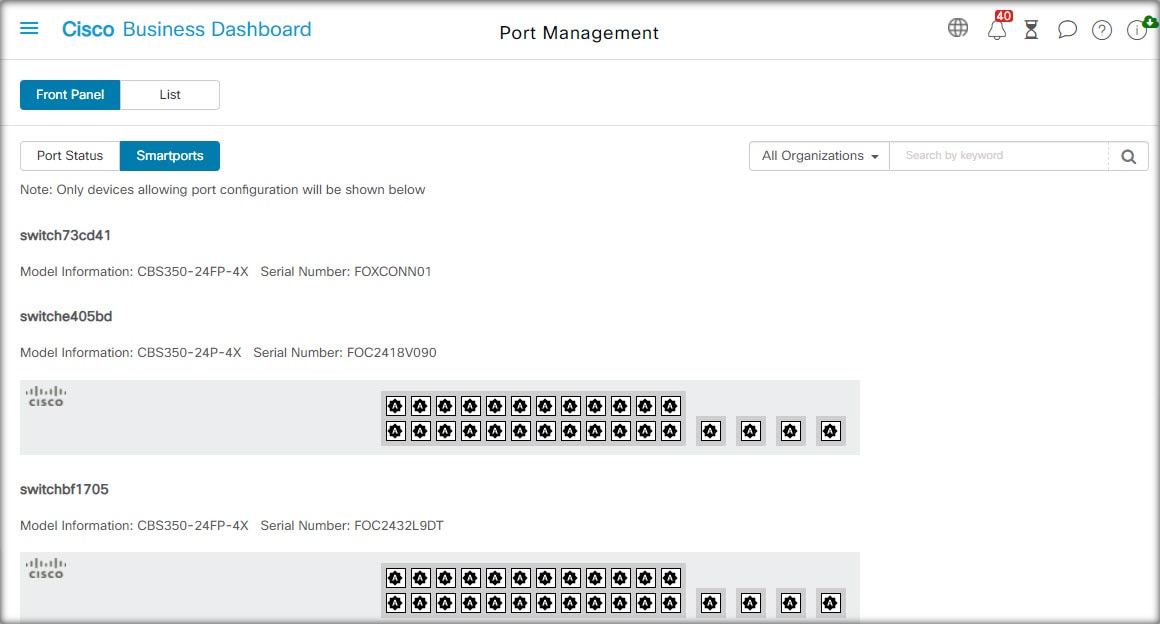
Port Management provides a front panel view of each device that includes switch ports that can be configured by Cisco Business Dashboard. This page allows you to view the status of the ports including traffic counters, and make changes to the port configuration. This page also lets you view and configure the Smartports role for ports on devices that support Smartports. You can use the search box to limit the devices displayed. Type in all or part of a device name, product ID, or serial number to find the desired device.

A list view of the same information is also provided to show all the switch ports in a tabular format. The front panel view in Port Management presents two different views of the device:

The Physical view allows you to see the status and change the configuration of the port at the physical layer. You can view or change settings for speed, duplex, Energy Efficient Ethernet (EEE), Power over Ethernet (PoE), and VLANs. Each port is shown with a green LED indicating link and a yellow LED indicating that power is being supplied to the attached device.

The Smartports view allows you to see the current Smartports role for each port, and to change the role. Each port is overlaid with an icon indicating the current role:


Note


A Smartport is an interface to which a built-in (or user-defined) template can be applied. These templates are designed to provide a means of quickly configuring the device to support the communication requirements and utilize the features of various types of network devices.


To view the status of a port, click on the port in either the front panel view or list view. The Basic Info panel for the port appears, showing a series of panels as follows:

General

This panel shows the physical layer status of the port and allows you to enable the port or shut it down

Ethernet

Use this panel to control speed and duplex settings

Port Authentication

This panel allows you to enable 802.1x port authentication on this port. Authentication will be performed against the authentication server(s) specified in the Authentication profile assigned to the device.

If no authentication servers are defined, Cisco Business Dashboard will be used as the default authentication server.

VLAN

This panel shows the VLANs currently configured on the port. Click the Select VLAN or Create VLAN buttons to modify this configuration

POE

This panel is only displayed for POE-enabled ports, and allows you to configure the POE settings for the port. You can also power-cycle an attached POE device by clicking the Toggle Power button

Green Ethernet

This panel allows you to manage the Energy Efficient Ethernet (EEE) configuration for the port

Smartports

This panel shows the Smartports roles available for this port. Click on a role to apply that configuration to the port. The currently configured role is highlighted.

To make changes to the port settings, click the edit icon in the top right of the pane containing that setting. Once the changes have been made, click the Save icon.

Network Configuration

The section contains the following topics:

About Network Configuration

The Network Configuration pages allow you to define various configuration parameters that typically apply to some or all devices in the network. These parameters include configuration such as time settings, domain name services, administrator authentication, and Virtual LANs and Wireless LANs. You can create configuration profiles for each of these areas separately, or you can use the wizard to create profiles for each area in a single workflow. The configuration profiles are applied to one or more device groups, and then pushed out to the devices.

Using the Wizard

Use the wizard to create configuration profiles for each of the Network Configuration elements, and assign those profiles to one or more device groups in a single workflow.

  1. Navigate to Provision > Network Configuration > Wizard.

  2. In the Device Group Selection screen, enter a profile name for this configuration, choose an organization and select one or more device groups to be configured.

  3. Click Next. In each of the screens that follow, select the configuration as required. For more details on these parameters, see the following sections.

  4. Complete the configuration settings on each screen and click Next. If you do not wish to configure settings on a particular screen for this profile, click Skip.

  5. Click Back to visit the previous screens or you may click the headings on the left.
  6. Complete the configuration and review the settings on the final screen. Click Finish to apply the configuration to the selected devices.

Configuring Time Management

The Time Management page allows you to configure timezones, daylight saving, and NTP servers for the network. The following sections provide instructions on creating, modifying and deleting the Time Settings configuration profile.

Create a Time Management Configuration Profile

  1. Navigate to Provision > Network Configuration > Time Management.

  2. Click the ✚(plus) icon to add a new profile.

  3. On the Device Group Selection section, enter a profile name for this configuration, choose an organization and select one or more device groups to be configured.

  4. In the Time Setting section, select an appropriate timezone from the drop-down list.

  5. Optionally enable Daylight Saving by checking the check box, and then specify the parameters for daylight saving in the fields provided. You may choose to specify fixed dates or a recurring pattern. You may also specify the offset to be used.

  6. Optionally enable the Network Time Protocol (NTP) in the Use NTP section for clock synchronization by checking the check box. In the boxes provided specify at least one NTP server address.

  7. Click Save.

Modify a Time Management Configuration Profile

  1. Select the radio button next to the profile to be changed, and click the edit icon.

  2. Make the required changes to the profile settings and click Update.

Remove a Time Management Configuration Profile

  1. Select the radio button next to the profile which needs to be removed.

  2. Click the delete icon.

Configuring DNS Resolvers

The DNS Resolvers page allows you to configure the domain name and domain name servers for the network. The following sections provide instructions on creating, modifying and deleting the DNS resolvers configuration profile.

Create a DNS Resolver Configuration Profile

  1. Navigate to Provision > Network Configuration > DNS Resolvers.

  2. Click the ✚(plus) icon to add a new profile.

  3. On the Device Group Selection section, enter a profile name for this configuration, choose an organization and select one or more device groups to be configured.

  4. Specify the domain name for the network.

  5. Specify at least one DNS server address.

  6. Click Save.

Modify a DNS Resolver Configuration Profile

  1. Select the radio button next to the profile to be changed, and click the edit icon.

  2. Make the required changes to the profile settings and click Update.

Remove a DNS Resolver Configuration Profile

  1. Select the radio button next to the profile to be removed.

  2. Click the delete icon.

Configuring Authentication

The Authentication page allows you to configure administrative user access to network devices and set authentication servers (RADIUS servers) to use when authenticating network access based on users. The following sections provide instructions on creating, modifying and deleting the authentication configuration profile.

Create an Authentication Configuration Profile

  1. Navigate to Provision > Network Configuration > Authentication.

  2. Click the ✚(plus) icon to add a new profile.

  3. On the Device Group Selection section, enter a profile name for this configuration, choose an organization and select one or more device groups to be configured.

  4. Optionally, specify one or more username and password combinations for local user authentication. Additional users may be added by clicking the ✚ (plus) icon.

  5. You may also choose to require the use of complex passwords.

  6. Optionally specify one or more RADIUS servers to use for authentication. You can check the checkbox to enable the use of Cisco Business Dashboard for authentication.

  7. Click Save.


Note


Users requiring network access must be granted the Network Access permission. See Users for more information.


Note


When using Cisco Business Dashboard for network access authentication, it is strongly recommended that the dashboard have a certificate signed by a public certificate authority. If this is not done, most client devices will present a certificate warning to the user, and some clients will not proceed with authentication at all.


Modify an Authentication Configuration Profile

  1. Select the radio button next to the profile to be changed, and click the edit icon.

  2. Make the required changes to the profile settings and click Update.

Remove an Authentication Configuration Profile

  1. Select the radio button next to the profile which needs to be removed.

  2. Click the delete icon.

Configuring Virtual LANs

The Virtual LANs page allows you to divide your switch network into multiple virtual networks or VLANs. You can find the existing VLANs in the network that were not configured by Cisco Business Dashboard also displayed on this page in a separate table. The following sections provide instructions on creating, modifying and deleting Virtual LAN configuration profiles.

Create a Virtual LAN

  1. Navigate to Provision > Network Configuration > Virtual LANs.

  2. Click the ✚(plus) icon to add a new VLAN.

  3. On the Device Group Selection section, enter a profile name for this configuration, choose an organization and select one or more device groups to be configured.

  4. Specify a descriptive name for the VLAN, and the VLAN ID to be used. The VLAN ID should be a number in the range 1-4094.

  5. You may create multiple VLANs using a single profile. If you want to create additional VLANs in this profile, click Add Another and go back to step 4.

  6. Click Save. The new VLAN will be created on all VLAN-capable devices in the selected groups.

If the VLAN ID of the newly created VLAN matches an existing VLAN already present on devices in the device group, that VLAN will be adopted by Cisco Business Dashboard and removed from the discovered Virtual LANs table.

Modify a VLAN

  1. Check the radio button next to the VLAN to be changed, and click the edit icon.

  2. Make the required changes to the VLAN settings and click Update.

Remove a VLAN

Check the radio button next to the VLAN to be removed, and click the delete icon.

Remove a VLAN not created by Cisco Business Dashboard

In the table of discovered VLANs, click the delete icon next to the VLAN or VLANs to be removed.


Note


VLAN 1 may not be deleted.


Configuring Wireless LANs

The Wireless LANs page allows you to manage the wireless networks in your environment. You can find the existing Wireless LANs in the network that were not configured by Cisco Business Dashboard also displayed in a separate table. The following sections provide you instructions on creating, modifying and deleting Wireless LAN configuration profiles.

Create a Wireless LAN

  1. Navigate to Provision > Network Configuration>Wireless LANs.

  2. Click the ✚(plus) icon to add a new Wireless LAN profile.

  3. On the Device Group Selection section, enter a profile name, choose an organization and select one or more device groups to be configured.

  4. Click the ✚(plus) icon to add a new SSID.

  5. Specify an SSID name for the Wireless LAN, and the VLAN ID that it should be associated with. The VLAN ID should be a number in the range 1-4095, and if it does not already exist in the network, a new VLAN will be created automatically.

  6. Select the type of security required.

    If you select Guest as the security type, you then need to specify the type of authentication to be used with the guest portal. The options include Username/Password, Web Consent, and Email Address. More information on these options can be found in Configuring Guest Portals.


    Note


    SSIDs with a security setting of Guest will only be applied to CBWxxx access points.


    If you select an Enterprise security type, then make sure to assign an authentication profile to the device containing the preferred RADIUS server(s) to use. If one has not been defined for this device, the Cisco Business Dashboard will be used by default.

  7. Optionally, click to expand the Advanced Settings to change the Broadcast, Application Visibility, Local Profiling and Radio settings to match your requirements.

  8. Click Save to continue or Cancel to discard your changes.

  9. You can create multiple Wireless LANs using a single profile. If you want to create additional Wireless LANs in this profile, go back to step 4.

  10. Click Save. The new WLAN will be created on all devices with wireless access point capabilities in the selected groups.

If the Wireless LAN configuration of the newly created profile matches an existing Wireless LAN already present on devices in the device group, that Wireless LAN will be adopted by Cisco Business Dashboard and removed from the discovered Wireless LANs table.

Modify a Wireless LAN

  1. Check the radio button next to the Wireless LAN to be changed, and click the edit icon.

  2. Make the required changes to the Wireless LAN settings and click Update.

Remove a Wireless LAN

Select the radio button next to the Wireless LANs to be removed, and then click the delete icon.


Note


If a Virtual LAN was created automatically when creating the Wireless LAN, the Virtual LAN will not be deleted when the Wireless LAN is deleted. The Virtual LAN may be deleted on the Virtual LANs page.


Remove a Wireless LAN Not Created By Cisco Business Dashboard

In the table of discovered Wireless LANs, click the radio button for the Wireless LAN to be removed and then click the delete icon. In some cases, a WLAN may not be able to be deleted from certain devices. In these cases, it will be necessary to make changes to the device configuration directly.

Configuring Wireless Radios

The Wireless Radios page allows you to manage radio frequency (RF) optimization across the wireless networks in your environment. A Wireless Radio profile allows you to control whether the access points should automatically adjust their wireless radio settings to suit the environment, as well as enabling the detection and reporting of rogue access points and interferers.

The following sections provide you instructions on creating, modifying and deleting Wireless Radio profiles.

Create a Wireless Radio Profile

  1. Navigate to Provision > Network Configuration > Wireless Radios.

  2. Click the ✚(plus) icon to add a new Wireless Radio profile.

  3. On the Device Group Selection section complete the following:

    • Enter a profile name for this configuration.

    • choose an organization.

    • Select one or more device groups to be configured.

  4. Choose whether automatic RF Optimization should be performed by the access points in the network. If you enable RF Optimization, be sure to select appropriate values for Client Density and Traffic Type.

  5. Optionally enable the detection of rogue access points.

  6. Optionally enable the detection of interferers.

  7. Click Save.

    The new Wireless Optimization settings will be applied to all wireless access points with RF optimization capabilities in the selected groups.

Modify a Wireless Radio Profile

  1. Check the radio button next to the Wireless Radio Profile to be changed and click the edit icon.

  2. Make the required changes to the RF optimization settings and click Update

Remove a Wireless Radio Profile

  1. Select the radio button next to the Wireless Radio Profile to be removed, and then click the delete icon.

Configuring Guest Portals

The Guest Portals page allows you to centrally manage the web page presented to a guest user when connecting to a guest wireless network. Cisco Business Dashboard hosts a single guest portal for each organization, and each portal may be individually customized to represent the identity of the organization.

The guest portals support multiple methods of authenticating the user, and the same portal can present a different authentication method on different networks. The authentication methods supported are:

  • Username/Password – Each guest user must be defined ahead of time in the dashboard and assigned a username and password. The username and password must then be entered into the guest portal when connecting to the wireless network.

  • Web Consent – The guest user is presented with the organization’s Acceptable Use Policy and must accept the policy in order to access the network.

  • Email Address – The guest user is prompted to provide an email address prior to gaining access to the network. The email address is recorded as the username for the client and may be seen in the wireless client report and the device user interface.

The appearance of each guest portal may be customized by changing all of the text fields including the font used, modifying colors, and updating the background and logo images.

To customize a guest portal, do the following:

  1. Navigate to Provision > Network Configuration > Guest Portals.

  2. Select the radio button for the guest portal to be customized and click the edit icon

  3. Use the form presented to update the appearance of the captive portal. You may modify any of the text fields, upload new images to use as background and logo, and modify the colors and font used.

    The guest portal has slightly different content depending on the authentication method chosen. Select the tabs at the bottom of the page to update the fields for the different versions of the portal.

    You may view your changes before saving them by clicking the Preview button on each of the different authentication methods. To restore the portal to the default appearance, click the Reset to defaults button at the top right.

  4. Click Update to save your changes or Cancel to discard them.

Reapply Network Configuration

In certain situations, such as when the device is offline or lacks the correct credentials, changes made to a network configuration profile may not be applied to the devices. To fix this, the network configuration profile may be reapplied to all associated devices using the following steps:

  1. Select the radio button next to the profile which needs to be reapplied.

  2. Click the Reapply Configuration icon.

Alternatively, you can go to the group detail page or device detail page to perform the reapplication. Cisco Business Dashboard supports reapplication at three levels.

  • Group level: Applies each network configuration profile assigned to a device group to all devices within that group.

  • Profile level: Applies the current network configuration profile to all devices in the device groups associated with that profile.

  • Device level: Applies selected network configuration profiles to an individual device.

CLI Templates

This section contains the following topics:

About CLI Templates

Cisco Business Dashboard provides an interactive CLI Templates window to author your CLI templates. You can design templates easily with a predefined configuration by using parameterized elements or variables. Templates allow an administrator to define a configuration of CLI commands that can be used to consistently configure multiple network devices, reducing deployment time. Variables in the template allow customization of specific settings per device.

The CLI Templates page allows you to upload or create templates that can then be deployed to the devices. Templates are specific to an organization and can only be used for provisioning devicesassociated with the same organization.

Templates can be simple CLI commands, or can contain placeholders and associated metadata to allow the same configuration to be used with multiple devices, while still allowing for unique parameters to be set on a device by device basis. For example, a single template could be applied to multiple devices, but allow the hostname to be specified individually for each device.

For more information on the syntax of the configuration templates, See Appendix A: Managing Configuration Templates.

CLI Templates vs Network Plug and Play Configuration Templates

Cisco Business Dashboard offers two powerful templating options to streamline device configuration: CLI Templates and PnP Configuration Templates. While both support the Mustache templating language for dynamic and reusable configurations, they serve different purposes within the device lifecycle.

PnP Configuration Template

  • Purpose: Used primarily for Day 0 onboarding of devices.

  • Operation: The entire configuration is defined in the template and pushed at once to the device's startup configuration during the initial provisioning.

  • Use Case: Ideal for new devices beign added to the network, ensuring that they are fully configured before becoming operational.

CLI Template

  • Purpose: Designed for Day N provision, supporting ongoing configuration tasks after the initial onboarding.

  • Operation: Configuration commands are applied line-by-line directly to the running configuration, allowing for incremental changes and updates without requiring a device reboot.

  • Use Case: Suitable for making configuration changes, updates, or bulk modifications to devices that are already in service.

Configuring CLI Templates

Cisco Business Dashboard supports two types of CLI templates: Regular and Composite. A Regular template generates real configuration segments and can use variables for customization. A Composite template combines two or more Regular templates into a sequence, allowing you to apply multiple configurations collectively and in a specific order. The sequence can be reordered or aborted if any step fails, making Composite templates ideal for orchestrating complex, multi-step configuration changes across devices.

To manually create a new regular template, complete the following steps:

  1. Navigate to Provision > CLI Templates.

  2. Click the ✚(plus) icon.

  3. Select the type as Regular. Next, select an organization and enter a name for the template. Enter a comma-separated list of product IDs that support this template. Product IDs can contain the wildcard characters ‘?’, representing a single character, and ‘*’, representing a string of characters. Optionally, you can enter a description.

  4. Click the Save button.

  5. The template editor opens with a blank area for the configuration on the left, and a form on the right for managing the metadata associated with the template.

  6. Create the configuration by typing or pasting text into the text area on the left. If necessary, make the appropriate changes to the metadata using the controls on the right.

  7. When you are satisfied with the configuration, click Save.

  8. You can use the Preview button from the Actions list to see how the configuration template will appear when it is assigned to a device.

To create a new composite template manually, follow the steps below.

  1. Navigate to Provision > CLI Templates.

  2. Click the ✚(plus) icon.

  3. Select the type as Composite. Next, select an organization and enter a name for the template. Enter a comma-separated list of product IDs that support this template. Product IDs can contain the wildcard characters ‘?’, representing a single character, and ‘*’, representing a string of characters. Optionally, you can enter a description.

  4. Click the Save button.

  5. The template editor opens with two panels: the left panel displays all available regular templates within the same organization, and the right panel shows the regular templates you have selected. Select one or more regular templates to include in your composite template. You can reorder the sequence as needed.

  6. A checkbox is available to enable or disable aborting the sequence if a deployment step fails.

  7. When you are satisfied with the configuration, click Save.

  8. You can use the Preview button from the Actions list to see how the configuration template will appear when it is assigned to a device.

To upload a regular template, follow the steps below.

  1. Navigate to Provision > CLI Templates.

  2. Click the Upload icon.

  3. Select the organization for the template from the dropdown. Specify a name for the configuration and optionally add a description.

  4. Drag a configuration file from your PC and drop it on the target area of the Upload File window. Alternatively, click the target area and select a configuration file to upload.

  5. Click Upload.

To remove a template, follow the steps below.

  1. Navigate to Provision > CLI Templates.

  2. Check one or more checkboxes for the templates to be removed and click the Delete icon.

To edit a template, follow the steps below.

  1. Navigate to Provision > CLI Templates.

  2. Click on the name of the template to open the template editor.

Provisioning CLI Templates

To provision a CLI template, follow the steps below.

  1. Navigate to Provision > CLI Templates.

  2. Click Provision button in the Action column for the desired template. You are redirected to the Provision Template workflow.

  3. Under Device Selection , choose the devices from the applicable list, which are based on the details defined in the template.

  4. Under Device Validation, verify that all selected devices are ready for template provisioning. This step checks each device for potential issues that could prevent successful deployment. If any issues are detected, click Fix Issues to resolve them. Use the Test CLI Access button to confirm device access. The Next button will be enabled once all devices are validated. If you prefer to skip the CLI access validation, select the Proceed Despite CLI Access Test Results checkbox to enable the Next button.

  5. In the Template Variables Configuration window, configure the template variables for each device. Select a device to preview the specific configuration to be applied. If you want to automatically save your configuration changes after deploying the template, select the Copy running configuration to startup configuration after provision checkbox.

  6. In the Summary window, review all settings and configurations. Click Finish to apply the template to the selected devices.

  7. Click Back to visit the previous screens or you may click the headings on the left.

Viewing CLI Template Provision Result

You can view the provisioning results in the Provision Status column of the CLI Templates table. This column shows the number of devices on which the template has been provisioned.

  • A check icon displays the number of devices for which the CLI template was provisioned without any failures.

  • A cross icon displays the number of devices for which the CLI template deployment failed.

A link is displayed below the number of devices. Click this link to open the Provisioned Devices table, which shows information about each device and the provisioning results for devices where the template has been applied. In this table, the Provision Status column indicates whether provisioning was successful or failed for each device. Each status entry includes a link; click this link to view detailed results, such as the deployed CLI commands and the corresponding device outputs.

Network Plug and Play

The section contains the following topics:

About Network Plug and Play

Network Plug and Play is a service that works in conjunction with Network Plug and Play enabled devices to allow firmware and configuration to be managed centrally, and to allow zero-touch deployment of new network devices. Devices may be deployed directly using the Network Plug and Play protocol, or indirectly if discovered by a probe that is associated with the Dashboard.

When installed, a Network Plug and Play enabled device will identify the Network Plug and Play server through one of manual configuration, DHCP, DNS, or the Plug and Play Connect service. The following sections provide more detail on the configuration of the Network Plug and Play service in Cisco Business Dashboard.

Network Requirements

A Network Plug and Play device will automatically find the address of the Network Plug and Play server using one of the following methods below. Each method will be attempted in turn until an address is found or all methods have failed. The methods used are, in order:

  • Manual configuration—A Network Plug and Play enabled device can be manually configured with the address of the server through the administration interface

  • DHCP—The address of the server can be supplied to the device in the Vendor-specific Information option

  • DNS—If the DHCP Vendor-specific Information option has not been provided, then the device will perform a DNS lookup for the server using a well-known hostname

  • Plug and Play Connect Service—If no other method has been successful, the device will attempt to contact the Plug and Play Connect service. This service will then redirect the device to your server.

Once the device has identified the server, it will contact the server and update firmware and configuration as specified by the server.

Certificate Requirements

When establishing a connection to a Network Plug and Play server, the client checks to ensure the certificate presented by the server is valid and can be trusted. For the certificate to be acceptable and the connection to proceed, the certificate must meet the following conditions:

  • The certificate must be signed by a trusted Certificate Authority (CA), or the certificate itself must be trusted by the client. A certificate downloaded from the TrustpoolBundleURL learned from DHCP, or from the Plug and Play Connect service is trusted by the client

  • If the server identity is discovered using manual configuration, DHCP or Plug and Play Connect, and is an IP address, then either the Common Name field or the Subject-Alt-Name field must contain that IP address

  • If the server identity is discovered using manual configuration, DHCP or Plug and Play Connect, and is a hostname, then either the Common Name field or the Subject-Alt-Name field must contain that hostname

  • If the server identity is discovered using DNS discovery, then either the Common Name field or the Subject-Alt-Name field must contain the IP address corresponding to the well-known hostname pnpserver.<local domain>


Note


Some of the older Network Plug and Play client implementations do not verify the presence of the server identity in the certificate.


Setting up Discovery using DHCP

To discover the server address using DHCP, the device will send a DHCP discover message with option 60 that contains the string “ciscopnp”. The DHCP server must send a response containing the Vendor-specific Information option (option 43). The device extracts the server address from this option and uses this address to contact the server. An example of an option 43 string containing the address of a Network Plug and Play server is “5A1N;B2;K4;I172.19.45.222;J80”.

The option 43 string has the following components, delimited by semicolons:

  • 5A1N—Specifies the DHCP sub-option for Plug and Play, active operation, version 1, no debug information. It is not necessary to change this part of the string.

  • B2—IP address type:

    • B1 = hostname

    • B2 = IPv4

  • K4—Transport protocol to be used between the Cisco Plug and Play Agent and the server:

    • K4 = HTTP (default)

    • K5 = HTTPS

  • Ixxx.xxx.xxx.xxx—IP address or hostname of the server (following a capital letter i). In this example, the IP address is 172.19.45.222.

  • Jxxxx—Port number to use to connect to the server. In this example, the port number is 80. The default is port 80 for HTTP and port 443 for HTTPS.

  • TtrustpoolBundleURL—Optional parameter that specifies the external URL of the trustpool bundle if it is to be retrieved from a different location than the server. For example, to download the bundle from a TFTP server at 10.30.30.10, you would specify the parameter like this: Ttftp://10.30.30.10/ca.p7b

  • If you are using trustpool security and you do not specify the T parameter, the device retrieves the trustpool bundle from the server.

  • Zxxx.xxx.xxx.xxx;—IP address of the NTP server. This parameter is mandatory when using trustpool security to ensure that all devices are synchronized.

Consult the documentation for your DHCP server for details on how to configure DHCP options.

Setting up Discovery using DNS

If DHCP discovery fails to get the IP address of the server, the device falls back to a DNS lookup method. Based on the network domain name returned by the DHCP server, the device constructs a fully qualified domain name (FQDN) for the server, using the preset hostname “pnpserver”.

For example, if the DHCP server returns the domain name “example.com”, the device constructs the FQDN “pnpserver.example.com”. It then uses the local name server to resolve the IP address for this FQDN.

Setting up Discovery using Plug and Play Connect

Plug and Play Connect is a Cisco-provided service that is the last resort used by a Network Plug and Play-enabled device to discover the server. To use Plug and Play Connect for server discovery, you must first create a Controller Profile representing the PnP server, and then register each of your devices with the Plug and Play Connect Service.

Accessing the Plug and Play Connect Service

To access the Plug and Play Connect Service, do the following:

  1. In your web browser, navigate to https://software.cisco.com

  2. Click the Log In button at the top right of the screen. Log in with a cisco.com ID associated with your Cisco Smart Account.

  3. Select the Plug and Play Connect link under the Network Plug and Play heading. The main page for the Plug and Play Connect service is displayed.

Creating a Controller Profile

To create a Controller Profile for the PnP server, do the following:

  1. Open the Plug and Play Connect web page in your browser. If necessary, select the correct Virtual Account to use.

  2. Select the Controller Profiles link, and then click the Add Profile button.

  3. Select a Controller Type of PNP SERVER from the drop-down list. Then click Next.

  4. Specify a name, and optionally a description for the profile.

  5. Under the heading for Primary Controller, use the drop-down provided to select whether to specify the server by name or IP address. Fill in the name or addresses of the server in the fields provided.

  6. Select the protocol to use when communicating with the server. It is strongly recommended that HTTPS be used to ensure the integrity of the provisioning process.

  7. If the protocol selected is HTTPS, the certificate used by the server should be uploaded using the controls provided. See Managing Certificates for details on downloading the certificate from Cisco Business Dashboard.

  8. Optionally specify a Secondary Controller.

  9. Click Next, and review the settings before clicking Submit.

Registering Devices

Certain products purchased directly from Cisco may be associated with your Cisco Smart Account at the time of order, and these will automatically be added to Plug and Play Connect. However, the majority of Cisco Business Plug and Play-enabled products will need to be registered manually. To register devices with Plug and Play Connect, do the following:

  1. Open the Plug and Play Connect web page in your browser. If necessary, select the correct Virtual Account to use it.

  2. Select the Devices link, and then click Add Devices. You may need to be approved to manually add devices to your account. This is a one-time process, and, if it is required, you will be notified by email once approval has been granted.

  3. Choose whether to add devices manually, or to add multiple devices by uploading details in CSV format. Click the link provided to download a sample CSV file. If you choose to upload a CSV file, click the Browse button to select the file.

  4. Click Next.

  5. If you selected to add devices manually, click Identify Device. Specify the Serial Number and Product ID for the device to be added. Select a Controller Profile from the drop-down. Optionally enter a description for this device.

  6. Repeat step 4 until you have added all your devices, then click Next.

  7. Review the devices you have added, and then click Submit.

Configuring the Network Plug and Play Service

There are several tasks that you need to perform when setting up the Network Plug and Play service for your environment. These include uploading configurations and images, adding and configuring devices to use Network Plug and Play, and managing devices that connect to the service when they have not previously been registered with the service. The following sections describe these tasks in detail.

Using the Network Plug and Play Dashboard

The Network Plug and Play Dashboard provides an overview of the devices currently being provisioned using Network Plug and Play.

Three charts are displayed showing the device status broken down by:

  • Device group

  • PnP enabled device

  • Devices that are not defined in the Cisco Business Dashboard inventory (unclaimed devices)

Each chart shows the number of devices or groups in each of the states listed. You can click on the state heading on any of the charts to see a detailed list of devices or groups that fall into that category. The following table provides a breakdown of the different statuses:

Table 1. Network Plug and Play Dashboard – Status Definitions

Status

Description

Groups

Pre-provisioned

Device groups with PnP-enabled devices in the Pending state only.

In Progress

Device groups with some PnP-enabled devices in the Pending state and some in the Provisioning or Provisioned state.

Provisioned

Device groups where all PnP-enabled devices are in the Provisioned state.

Error

Device groups with one or more PnP-enabled devices in the Error state.

Enabled Devices

Pending

Devices in the inventory that have been enabled for PnP, but have not yet contacted the PnP server.

Provisioning

Devices that have contacted the PnP server and begun provisioning but have not completed the provisioning process.

Provisioned

Devices that have been successfully provisioned using PnP.

Error

Devices where the PnP provisioning process has failed.

Unclaimed Devices

Unclaimed

Devices that have contacted the PnP server but are not defined in the inventory.

Ignored

Unclaimed devices that have been explicitly ignored by the user.

You can restrict the data displayed to a specific organization using the organization drop-down at the top right of the page. When viewing device groups, type all or part of a group name in the search box to limit the groups displayed in the table. Or you can enter a device name, product ID or serial number in the search box when viewing provisioning rules to display the current status of an individual device.


Note


The chart for unclaimed devices is only displayed to Administrators who are viewing data for All Organizations.


Managing Enabled Devices

Enabled Devices are devices in the inventory that have been configured for provisioning with an image or configuration file, or were previously discovered by Cisco Business Dashboard and have attempted to connect using the Network Plug and Play protocol. An Enabled Device that has been configured with an image or configuration file will have that image and/or configuration applied to the device at the next opportunity. If the device is connected to and managed by the Dashboard, the changes will be applied immediately. Otherwise, the changes will be applied the next time the device is connected - either via a probe or direct management, or when it checks in using the Network Plug and Play protocol. An Enabled Device may also be set to apply changes during the next change window, in which case the changes will be delayed until the next change window after the device checks in.

To create a new Enabled Device, follow the steps below.

  1. Navigate to Provision > Network Plug and Play >Enabled Devices.

  2. Click the ✚(plus) icon to add a new enabled device to the inventory.


    Note


    You may also click the upload icon to add devices in bulk using a csv file. Template csv files may be downloaded from the Provision > Network Plug and Play > Configurations page by opening the configuration template to be used for the devices and selecting Download CSV Template from the Actions dropdown.


  3. Fill out the Add New Device form with the requested parameters, including identifying details for the device, the organization, network and device group it should belong to, then click Next.

  4. Optionally, select a firmware image to be applied to the device. If you choose Default for the image, the device will use the image that is designated as the default for the product ID at the time the device connects to the server.


    Note


    You may use the checkbox on this page to delay the provisioning of the new device until the next change window. However, this is rarely appropriate when creating a new device, as a new device is not usually an active part of the network until after provisioning is complete.


  5. Optionally, select a configuration to be applied to the device, along with the version of the configuration if there is more than one version. If the configuration is a template containing placeholders, a form will be displayed prompting for the values that should be used for this device. Complete these fields as necessary. If the template makes use of parameters defined by the system, click on the checkbox to display the values that will be used.

  6. Click Next to proceed to the Summary screen. Review the data entered to ensure it is correct. You can also review the final device configuration in the preview window at the bottom. When you are satisfied, click Finish.

To edit an existing device, follow the steps below.

  1. Navigate to Provision > Network Plug and Play>Enabled Devices.

  2. Check the checkbox for the device to be modified and click Edit. Alternatively, you can click the name of the device.

  3. Click Next to display the Provision Device screen. Change the image and/or configuration file if required and make any changes to the parameter values associated with the configuration. Optionally, check the checkbox to ensure that changes will be applied during the change window.

  4. Click Next to proceed to the Summary screen. Review the data entered to ensure it is correct. You can also review the final device configuration in the preview window at the bottom. When you are satisfied, click Finish.


Note


If the image or configuration file settings are changed for a device that has already been provisioned, that device's state will reset to pending, and the device will be re-provisioned.


To remove an Enabled Device, follow the steps below.

  1. Navigate to Provision > Network Plug and Play >Enabled Devices.

  2. Check one or more checkboxes for the devices to be removed and click the delete icon.


Note


If an Enabled Device is deleted when that device is otherwise known to the Dashboard and the device is online, only the image and configuration files settings for that device will be removed. The device will remain in the inventory similar to any other managed device. If a device subsequently connects to the Dashboard using PnP, a new entry will be added to the Enabled Devices table.


Unclaimed Devices


Note


The Unclaimed Devices page is only available to Administrators.


An unclaimed device is one that has connected to the service, but there is no device record in the inventory that matches the device. To see a list of unclaimed devices, and to claim an unclaimed device so it can be managed using Network Plug and Play, follow the steps below.

  1. Navigate to Provision > Network Plug and Play >Unclaimed Devices and select the Unclaimed tab.

  2. Click the claim button for the device to be managed.

  3. Fill out the Unclaimed Device form with the requested parameters, including the organization, network and device group it should belong to, then click Next.

  4. Optionally, select a firmware image to be applied to the device. If you choose Default for the image, the device will use the image that is designated as the default for the product ID at the time the device connects to the server.

  5. Alternatively, select a configuration to be applied to the device, along with the version of the configuration if there is more than one version. If the configuration is a template containing placeholders, a form will be displayed prompting for the values that should be used for this device. Complete these fields as necessary.

    If the template makes use of parameters defined by the system, you can check the checkbox to display the values that will be used.

  6. Click Next to proceed to the Summary screen. Review the data entered to ensure it is correct. You can also review the final device configuration in the preview window at the bottom. When you are satisfied, click Finish.

To remove a device from the Unclaimed list without provisioning it, follow the steps below.

  1. Navigate to Provision > Network Plug and Play>Unclaimed Devices and select the Unclaimed tab.

  2. Click Ignore for the device you wish to remove from the list.

The devices will be moved to the Ignored list and no further action will be taken. To reclaim an ignored device, follow the steps below.

  1. Navigate to Provision > Network Plug and Play>Unclaimed Devices and select the Ignored tab.

  2. Click the Unignore button for the device to be reclaimed.

The devices will be moved to the Unclaimed list, and you can claim the devices as described above.

Auto Claiming Devices


Note


The Auto Claim page is only available to Administrators.


Unclaimed devices can be automatically claimed and provisioned by the server by creating an Auto Claim rule for that product ID. To create an Auto Claim rule, follow the steps below.

  1. Navigate to Provision > Network Plug and Play>Auto Claim Devices.

  2. Click the ✚(plus) icon to create a new Auto Claim rule.

  3. Fill out the Auto Claim Device form with the requested parameters, including the Product ID (PID) to be matched, and the organization, network, and device group the newly claimed device should belong to, then click Next.

  4. Optionally, select a firmware image to be applied to the device. If you choose Default for the image, the device will use the image that is designated as the default for the product ID at the time the device connects to the server.

  5. Alternatively, select a configuration to be applied to the device, along with the version of the configuration if there is more than one version. If the configuration is a template containing placeholders, a form will be displayed prompting for the values that should be used for this device. Complete these fields as necessary.

    If the template makes use of parameters defined by the system, you can check the checkbox to display the values that will be used.

  6. Click Next to proceed to the Summary screen. Review the data entered to ensure it is correct. You can also review the final device configuration in the preview window at the bottom. When you are satisfied, click Finish.

New devices that are not present in the inventory will be compared against the list of Auto Claim rules. If there is a match, a new device record will be created in the inventory with the image and configuration file defined by the Auto Claim rule. The device will then be provisioned accordingly. If the device does not match an Auto Claim rule, it will be added to the Unclaimed list and no further action will be taken.

Device Firmware Images

The Images page allows you to upload firmware images that can then be deployed to the devices.

Firmware images can be designated as the default image for different platforms, allowing you to update the firmware across an entire family of devices very easily. Firmware images are specific to an organization and can only be used for provisioning devices associated with the same organization.

To upload a firmware image, follow the steps below.

  1. Navigate to Provision > Network Plug and Play > Images.

  2. Click the ✚(plus) icon.

  3. Select the organization for the image from the dropdown.

  4. Drag a firmware image from your PC and drop it on the target area of the Upload File window. Alternatively, click the target area and select a firmware image to upload.

  5. Click Upload.

You can change the filename or designate an image as the default image for one or more device types. To modify the filename or designate an image as a default image, follow the steps below.

  1. Navigate to Provision > Network Plug and Play >Images.

  2. Select the radio button for the image in the Images table and click edit.

  3. If desired, modify the filename of the image using the textbox provided.

  4. Optionally enter a comma-separated list of product IDs into the Default Image for Product IDs field. Product IDs can contain the wildcard characters ‘?’, representing a single character, and ‘*’, representing a string of characters.

  5. Click Save.

To remove an image, follow the steps below.

  1. Navigate to Provision > Network Plug and Play >Images.

  2. Select the radio button for the image to be deleted and click delete.

Device Configuration Files

The Configurations page allows you to upload or create configuration files that can then be deployed to the devices. Configuration files are specific to an organization and can only be used for provisioning devices associated with the same organization.

Configuration files can be simple text files, or can contain placeholders and associated metadata to allow the same configuration file to be used with multiple devices, while still allowing for unique parameters to be set on a device by device basis. For example, a single configuration template could be applied to multiple devices, but allow the hostname to be specified individually for each device.

Several configuration templates are included with the Dashboard application as system templates and are available to all organizations. These templates allow commonly changed settings to be modified, and can be used as is, or copied and used as a basis for new templates. For more information on the syntax of the configuration templates, See Appendix A: Managing Configuration Templates.

To create a new configuration manually, follow the steps below.

  1. Navigate to Provision > Network Plug and Play>Configurations.

  2. Click the ✚(plus) icon.

  3. The template editor opens with a blank area for the configuration on the left, and a form on the right for managing the metadata associated with the template.

    Enter a name for the configuration in the field at the top left. Select an organization and enter a comma-separated list of product IDs that support this configuration in the fields on the right. Optionally, enter a description. Product IDs can contain the wildcard characters ‘?’, representing a single character, and ‘*’, representing a string of characters.

  4. Create the configuration by typing or pasting text into the text area on the left. If necessary, make the appropriate changes to the metadata using the controls on the right.

    You can use the Preview button to see how the configuration template will appear when it is assigned to a device.

  5. When you are satisfied with the configuration, click Save.

To upload a configuration file, follow the steps below.

  1. Navigate to Provision > Network Plug and Play >Configurations.

  2. Click the Upload icon.

  3. Select the organization for the configuration from the dropdown. Specify a name for the configuration and optionally add a description.

  4. Drag a configuration file from your PC and drop it on the target area of the Upload File window. Alternatively, click the target area and select a configuration file to upload.

  5. Click Upload.

You can click on the filename of the uploaded configuration file to view the contents in the template editor, if you wish.

To remove a configuration, follow the steps below.

  1. Navigate to Provision > Network Plug and Play >Configurations.

  2. Check one or more checkboxes for the configurations to be removed and click the delete icon.

Managing Settings

The Network Plug and Play Settings page allows you to control the operation of the Network Plug and Play Protocol.

The Check In Time Interval controls how frequently a device will connect to the Network Plug and Play service after initial provisioning. To modify this parameter, follow the steps below.

  1. Navigate to Provision > Network Plug and Play>Settings.

  2. Enter the desired interval between connections in the field provided. The time is in minutes, and the default is 2880 minutes, or two days.

  3. Click Save.

The Check In Time Interval is set for the system as a whole, but can be overridden at the organization level. If no interval is set for the organization, then the system value is used.

Configuring the Certificate

The certificate automatically generated by Cisco Business Dashboard during first startup is a self-signed certificate. In most cases, this will not be sufficient for the certificate to be accepted by the Network Plug and Play client, and it will be necessary to generate a new certificate. When generating a new self-signed certificate or certificate signing request (CSR), the Dashboard will include the contents of the Common Name field in the Subject Alternative Name field in addition to any values specified in the Subject Alternative Name field on the GUI.

For more information on configuring the Dashboard’s certificate, see Managing Certificates.

Monitoring Network Plug and Play

Each device known to the Network Plug and Play service is shown on either the Enabled Devices page or the Unclaimed Devices page with a status displayed. This status can also be viewed on the Inventory page by enabling the display of the PnP Status column. The status field shows the current state of the device, and will contain one of the values as listed in the following table. By clicking on the status field, you can see more detail, including a history of the state changes for this device over time.

Table 2. Network Plug and Play - Device Status

Status

Description

Pending

Device is defined but has not made contact with the service.

Provisioning

The device has made the initial connection to the service.

Provisioning_Image

A firmware image is being applied by the device.

Provisioned _Image_Rebooting

The device is rebooting to run the new firmware.

Provisioned_Image

New firmware has been applied successfully.

Provisioning_Config

A configuration file is being applied to the device.

Provisioned_Config

The configuration file has been successfully applied to the device. Depending on the type of device, it can reboot to apply the configuration.

Error

An error has occurred. Check log files for more details.

Provisioned

The provisioning process for the device is complete.