Viewing Device Inventory
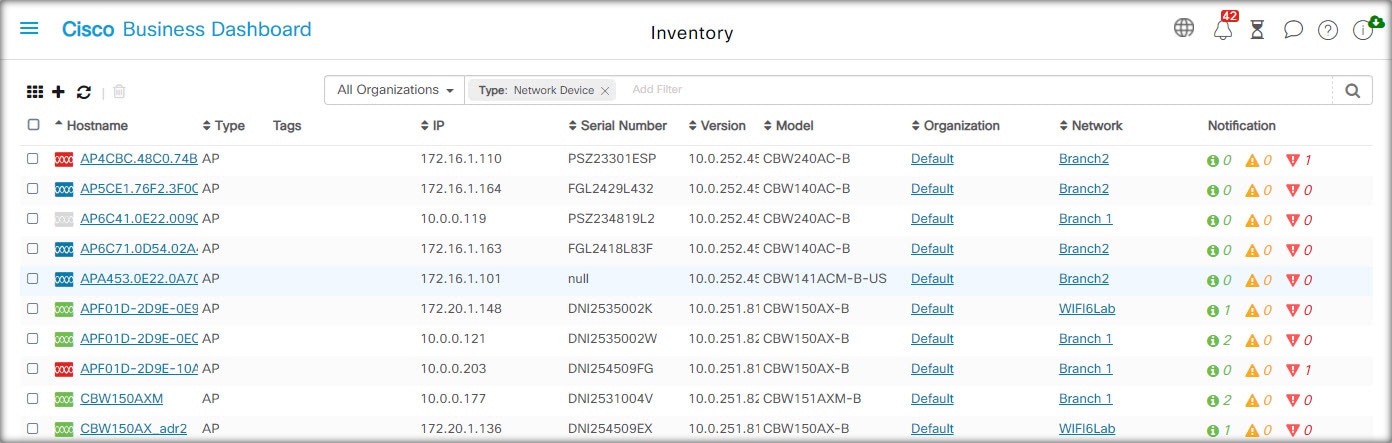
| Item |
Description |
|---|---|
| Hostname |
Displays the name of the device. |
| Type |
The type of device such as a switch, router or wireless access point (WAP). |
|
Tags |
Lists any tags associated with the device. |
|
IP |
The Internet Protocol (IP) addresses of the device. |
|
MAC (hidden by default) |
The Media Access Control (MAC) address is a standardized data link layer address that is required for certain network interface types. These addresses are specific and unique to each device and are not used by other devices in the network. |
|
Serial Number |
The serial number for the device. |
| Version |
The current firmware version of the device. |
| Vendor (hidden by default) |
The vendor that manufactured the device. |
| Model |
Model name of the device. |
|
CBD Agent Status |
The CBD agent status for the device, is only available for devices that support direct management. |
| Organization |
The organization the device belongs to. |
| Network |
The network to which the device belongs |
|
Device Group (hidden by default) |
The device group the device belongs to. |
| Notification |
A count of the outstanding notifications for the device |
|
PnP Status (hidden by default) |
The current Network Plug and Play status for the device. For more information, see the Network Plug and Play pages. |
The following additional controls are available on the Inventory page:
-
Select columns button—Use this button located at the top left of the table to choose which columns to display
-
Filter Box—You may use the Filter box to limit the display by typing device names, device types, serial numbers and so on. By default, the inventory is filtered to display only network devices
-
Add icon—Click the (✚) plus icon to add new devices to the inventory prior to the device being discovered. When manually adding a device to the inventory you can provide basic information about the device including identity information, organization and device group, and PnP settings. Providing this information ahead of time ensures the device will be correctly managed when it is connected to the network
-
Export to CSV File icon - Click this icon to export all devices matching the current filters to a CSV file.
-
Refresh button—Click this button to update the table to show the latest available information
-
Actions buttons—The following action buttons allow you to perform actions on one or more selected devices

Upgrade Firmware To Latest 
Upgrade From Local 
Backup Configuration 
Restore Configuration 
Reboot 
Save Running Configuration 
Delete 
Disconnect Action buttons are only displayed when one or more devices supporting actions are selected.
 Note |
For more details on these actions, see Performing Device Actions, on page 19 |
 Feedback