Administration

This chapter contains the following sections:

About Administration

The Administration option in Cisco Business Dashboard allows you to control the operation of the application at the organizational level. This option is divided into the following pages:

  • Organizations—Create and maintain organizations in Cisco Business Dashboard.

  • Device Groups—Allocate network devices into groups for easy management.

  • Device Credentials—Enter credentials to be used when accessing network devices.

  • Users— Define user access to Cisco Business Dashboard.

  • Login Attempts—Provides a log of all user access to Cisco Business Dashboard.

Not all pages are visible to all roles. Operators cannot manage user settings.

Organizations

Organizations are used in Cisco Business Dashboard to split networks, users, and devices into groups that are typically administered separately. Each network or device belongs to an organization, and each user can manage one or more organizations. An organization might represent a customer or a department or a region – whatever is most suitable for your company – but in all cases, the use of organizations allows more granular control over who can view and manage the different parts of the network. A single organization called Default is created when Cisco Business Dashboard is installed.

Create a New Organization

  1. Navigate to Administration > Organizations.

  2. Click the ✚(plus) icon at the top of the table.

  3. Specify a name for the organization and enter the required details.

  4. Enter a name for a new device group that should be used as the default group for newly discovered devices. The new device group will be created along with the organization.

  5. Specify a start time and duration for the organization's change window.

  6. Click Save.

  7. Repeat the steps above for each organization you wish to create.

Modify an Existing Organization

  1. Navigate to Administration>Organizations.

  2. Select the radio button for the organization to be modified and click the Edit icon

  3. Make changes as required and click Save.

Delete an Organization

  1. Navigate to Administration >Organizations.

  2. Select the radio button for the organization to be modified and click the Delete icon.

Manage Monitoring Profiles for an Organization

Monitoring Profiles allow you to control how network device monitoring is performed across the organization. The profiles selected at the organization level will be applied across all networks in the organization.

To change the Monitoring Profiles for an organization, do the following:

  1. Navigate to Administration >Organizations.

  2. Click the name of the organization to be modified and select the Monitoring Profiles tab.

  3. Use the drop-downs to select the appropriate monitoring profile to be applied to devices of the corresponding type. See Monitoring Profiles for more information on creating monitoring profiles.

    You can also choose to follow the behavior defined at system level by checking the Inherit from Monitoring Defaults check boxes for individual device types or for the entire organization.

  4. Click Save.

Manage Users Associated with an Organization

Users with a role of Organization Administrator or lower must be explicitly associated with an organization to be able to view or manage devices in that organization.

To associate a user with the organization, follow the steps below.

  1. Navigate to Administration >Organizations.

  2. Click the name of the organization to be modified and select the Users tab.

  3. Click the ✚(plus) icon. Select the user from the drop-down list.


    Note


    Administrator level users are implicitly associated with all organizations and will not appear in the drop-down list.


To remove a user from the organization, follow the steps below.

  1. Navigate to Administration>Organizations.

  2. Click the name of the organization to be modified and select the Users tab.

  3. Click the Delete icon next to the user in the table.

Manage Networks Associated with an Organization

Every network in Cisco Business Dashboard belongs to a single organization. You can view a list of networks associated with an organization by selecting the Networks tab on the Organization Detail page.

Associating a network with an organization is done when the network is first created. To change the organization a network is associated with, follow the steps below.

  1. Navigate to Network and select the network that you wish to change. Click More to display the Network Detail panel.

  2. Click the Edit icon next to the network name.

  3. Select the new organization from the drop-down list.

  4. Click OK.

You can create new networks for an organization from this view. Click the ✚(plus) icon to create a new network and fill in appropriate values in the form that is displayed.

Device Groups

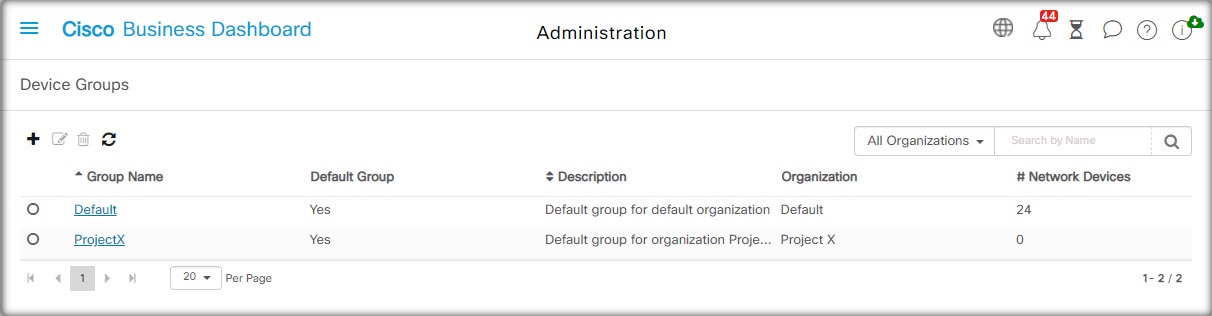
Cisco Business Dashboard uses device groups for performing most configuration tasks. Multiple network devices are grouped together so that they may be configured in a single action such as creating VLANS or WLANS to only a subset of devices.

Each device group can contain devices of multiple types, and when configuration is applied to a device group, that configuration is only applied to devices in the group that support that feature. For example, if a device group contains wireless access points, switches and routers, then configuration for a new wireless SSID will be only be applied to the wireless access points, and will be applied to the routers only if they are wireless routers.

Device groups may include devices from multiple networks, but all devices must belong to a single organization. A device group may be designated as the default group for an organization or network, and any newly discovered devices for that network or organization will be placed in the default device group.

Create a New Device Group


  1. Navigate to Administration> Device Groups.

  2. Click on the ✚(plus) sign to create a new group.

  3. Enter an organization, a name and a description for the group. Click Save.

  4. Optionally, add devices to the device group by clicking the ✚(plus) icon and using the search box to select devices to be added to the group. You may add devices individually or by network. If the selected device is already a member of a different group, it will be removed from that group. Each device may only be a member of a single group.

Modify the Device Group

  1. Navigate to Administration> Device Groups.

  2. Select the radio button next to the group to be changed and click the edit icon.

  3. Change the name and description if necessary. Click Save.

  4. Add and remove devices from the group as required. To remove a device that was previously added to the group, click the trashcan icon next to the device. The device will be moved to the Default group for the network or organization.


    Note


    You cannot delete a device from the Default group. To remove a device from the Default group you must add it to a new group.


Delete a Device Group

  1. Navigate to Administration> Device Groups.

  2. Click the radio button for the device group to be removed, and then click the delete icon.


    Note


    You cannot delete a Default group.


Reapply Network Configuration to all Devices in a Group

In some situations— such as when an entire network is offline, when a change is made to a network configuration profile — multiple devices in a device group may not have the correct configuration applied. To fix this, the network configuration profiles may be reapplied to all devices in the group using the following steps:

  1. Navigate to Administration > Device Groups.

  2. Select the radio button next to the group to be reconfigured and click Edit.

  3. Click the Reapply Network Configuration button located at the top right corner of the page

A series of jobs will be created to apply each of the network configuration profiles assigned to the device group to the devices in the group.

Device Credentials

For Cisco Business Dashboard to fully discover and manage the network, it needs credentials to authenticate with the network devices. When a device is first discovered, the Probe will attempt to authenticate with the device using the default username: cisco, password: cisco, and SNMP community: public. If this attempt fails, a notification will be generated and valid credentials must be supplied by the user. To supply valid credentials, follow the steps below.

  1. Navigate to Administration > Device Credentials. The first table on this page lists all the devices that have been discovered that require credentials.

  2. Enter valid credentials into any or all of the Username/Password fields, SNMP Community field, and SNMPv3 credential fields. You may click the ✚(plus) icon next to the corresponding field to enter up to three of each type of credential. Ensure that passwords are entered using plain text.


    Note


    For SNMPv3 credentials, the supported authentication protocols are None, MD5, and SHA, and the supported encryption protocols are None, DES, and AES


  3. Click Apply. The Probes will test each credential against each device that requires that type of credential. If the credential is valid, it will be stored for later use with that device.

  4. Repeat steps 2 to 3 as necessary until every device has valid credentials stored.

To enter a single credential for a specific device, follow the steps below.

  1. Click the Edit icon shown against the device in the discovered devices table. A popup will appear prompting you to enter a credential that corresponds to the Credential Type selected.

  2. Enter a username and password or an SNMP credential in the fields provided.

  3. Click Apply. To close the window without applying, click the ✖ on the top right corner of the pop-up.

Underneath the Add New Credential section is a table showing the identity for each device for which the Probe has a valid credential stored and the time that credential was last used. To display the stored credential for a device, you may click the Show Password icon next to the device. To hide the credentials again, click the Hide Password icon. You may also show and hide credentials for all devices using the button at the top of the table. You may also delete credentials that are no longer required. To delete stored credentials, follow the steps below.

  1. Navigate to Administration > Device Credentials.

  2. In the Saved Credentials table, select the check box against one or more sets of credentials to be deleted. You may also select the checkbox at the top of the table to select all credentials.

  3. Click Delete Selected Credentials.

To delete a credential for a single device, you may also click the Delete icon next to the device.

Users

The User Management page allows you to control how users are granted access to Cisco Business Dashboard, change settings that affect how those users interact with the Dashboard and control whether those users should also be allowed to access the network when performing user-based network authentication. This is a useful tool when you need to add new users or remove them from the network.

Cisco Business Dashboard has settings to control the dashboard features that are available using the Dashboard Access drop-down list, and whether the user can access the network when user user-based network access (the Network Access checkbox). The options available for these settings include:

  • Administrator—An Administrator has full access to Dashboard features including the ability to maintain the system.

  • Organization Administrator—An Organization Administrator is limited to managing one or more organizations, but cannot make changes to the system.

  • Operator—An Operator has similar power to an Organization Administrator, but cannot manage users.

  • Readonly—A Readonly user can only view network information, they cannot make any changes.

  • No Access—A No Access user will not be able to use any of the dashboard features, but may log on to the dashboard to manage their user profile.

  • Network Access—This setting controls whether the user can access the network when user-based network access is in use. If the Dashboard Access setting is set to Organization Administrator or below, then access will only be permitted for organizations in the user's organization list.

Cisco Business Dashboard allows users to be authenticated against the local user database. From release 2.2.1 onwards, users may also be authenticated against a Microsoft Azure Active Directory instance.


Note


Only local users will be checked when performing authentication for user-based network access.


When the Cisco Business Dashboard is first installed, a default Administrator is created in the local user database with the username and password both set to cisco.


Note


User settings can be managed by Administrators and Organization Administrators only.


Add a New User to the Local User Database

  1. Navigate to Administration>Users and select the Users tab.

  2. Click the ✚ (plus) icon to create a new user.

  3. In the fields provided, enter a username, display name, email address and password, and specify the Dashboard Access and Network Access settings. You may also provide contact details for the user.

  4. Click Save.

If the user is not an Administrator, then you must add the user to one or more organizations. To do so, select the Organizations tab and click the ✚(plus) icon. Select the desired organization from the drop-down list.

Modify a User

  1. Navigate to Administration>Users and select the Users tab.

  2. Select the radio button next to the user that needs to be changed and click the Edit icon.

  3. Make the modifications as required.

  4. Click Save.

To add the user to a new organization, select the Organizations tab and click the ✚(plus) icon. Select the desired organization from the dropdown list. To remove them from an organization, click the Delete icon next to the organization in the table.

Delete a User

  1. Navigate to Administration>Users and select the Users tab.

  2. Select the radio button next to the user that needs to be deleted and click delete at the top of the table.

Change password complexity

To enable or change password complexity requirements, follow these steps.

  1. Navigate to Administration>Users and select the User Settings tab.

  2. Select the Local tab under Authentication Source, modify the User Password Complexity settings as required and click Save.


Note


When authenticating against an Azure Active Directory instance, password complexity is managed in Active Directory.


Enable Microsoft Entra ID Authentication

Cisco Business Dashboard supports user authentication using an instance of Microsoft Entra ID. Microsoft Entra ID users are assigned roles and organization lists based on the Microsoft Entra groups the user is a member of.

To enable Microsoft Entra ID as an authentication source, follow these steps.

  1. In the Microsoft Entra ID, create a new App registration for Cisco Business Dashboard, assign it delegated permissions of User.Read and Domain.Read.All from the Microsoft Graph API and create a Client secret. Take note of the Application (client) ID, the Client secret and the Directory (tenant) ID.

  2. Open the Cisco Business Dashboard web GUI and navigate to Administration>Users. Select the User Settings tab, and then select the Microsoft Entra ID tab under Authentication Source.

  3. Click the Enable Checkbox.

  4. Enter the Client ID, Client Secret and Tenant ID collected in step 1 into the field provided

  5. Optionally, specify a comma-separated list of domains that should be allowed to access the dashboard. Click Save.

  6. Click the ✚(plus) icon under the User Group Mappings header to create a new group mapping. Enter the Object ID for the Microsoft Entra group into the field provided, then select a role and organization list to be applied to users in this group. Repeat this step for all the groups that need to be mapped.

    If a user matches multiple groups, then the role and organization mappings from the first match will be used.

  7. Make a note of the Redirect URL displayed beneath the Enable checkbox. Return to Microsoft Entra ID and add the URL to the list of Redirect URIs for the App registration.


Note


The host and port displayed in the redirect URL should be reachable from the web browsers of users accessing the dashboard. If the current displayed values are not be reachable, update the appropriate fields on the Systems Variables tab on the System>Platform Settings page.


Manage Local Authentication

Authentication against the local user database is enabled by default. To disable local authentication, follow these steps.

  1. Ensure that authentication against Azure Active Directory has been set up as described above. Log on to the dashboard using an Administrator account authenticated by Active Directory.

  2. Navigate to Administration>Users and select the User Settings tab. Under Authentication Source, select the Local tab.

  3. Deselect the Enable checkbox and click Save.

To enable local authentication again, follow these steps.

  1. Navigate to Administration > Users and select the User Settings tab. Under Authentication Source, select the Local tab.

  2. Select the Enable checkbox and click Save.

Restore Access when All Administrative Access has been Lost

If administrative access to the Cisco Business Dashboard application is lost, follow these steps to recover the same access.

  1. Log on to the host operating system using SSH or via the console.

  2. Enter the command cisco-business-dashboard recoverpassword

After entering the command, the local user authentication is enabled, and the default Administrator with username cisco and password cisco is restored.

Change session timeouts

To change idle and absolute timeouts for user sessions, follow these steps.

  1. Navigate to Administration>Users and select the User Settings tab.

  2. Modify the User Session parameters as required and click Save. Hover over the help icons to see allowable ranges for these parameters.
Viewing Login Attempts

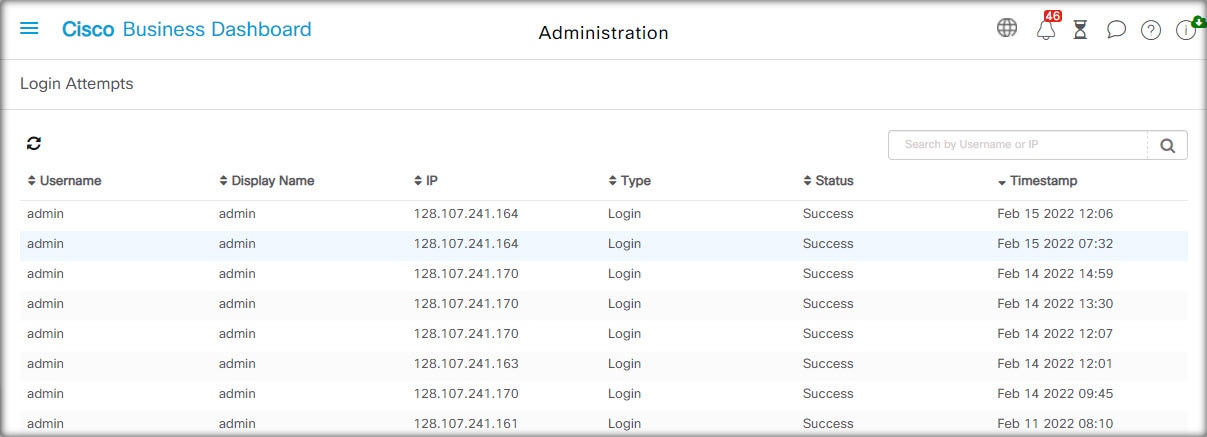
Cisco Business Dashboard keeps a log of every attempt made to log in and out of the system, both successful and unsuccessful.

To view the log, navigate to Administration>Login Attempts. The table displays the following information:

Field

Description

Username

The username associated with the event.

Display Name

The display name for the user.

IP

The IP address of the device from which the user logged in.

Type

The type of event including:

  • LOGIN

  • LOGOUT

Status

Indicates if the attempt succeeded or failed.

Timestamp

The date and time the event took place.

You may use the search box above the table to show only entries that match a particular user or IP address.