Monitor Sessions and Manage Device Access

This chapter provides Crosswork Network Controller administration topics for active sessions, WebSocket subscriptions, and Device Access Groups.

Active sessions

Active sessions are user sessions that administrators can monitor and manage in the Crosswork Network Controller UI.

As an administrator, you can monitor and manage the active sessions in the Crosswork Network Controller UI, and perform the following actions:

  • Terminate a user session

  • View user audit log


Note


  • Non-admin users with permission to terminate can terminate their own sessions.

  • Non-admin users with read-only permission can only collect the audit log for their sessions.

  • Non-admin users without read permissions cannot view the Active Sessions window.


View active sessions

As an administrator, you can view active sessions and session details in Crosswork Network Controller.

Procedure


From the main menu, choose Administration > Users and Roles > Users .

The Active Sessions tab displays all the active sessions in the Crosswork Network Controller with details such as user name, source IP, login time, and login method.

Note


The Source IP column appears only when you check the Enable source IP for auditing check box and relogin to Crosswork Network Controller. This option is available in the Source IP section of the Administration > AAA > Settings page.


Terminate an active session

As an administrator, you can terminate a selected user session.

Procedure


Step 1

From the main menu, choose Administration > Users and Roles > Users .

The Active Sessions tab displays all the active sessions in the Crosswork Network Controller with details such as user name, source IP, login time, and login method.

Note


The Source IP column appears only when you check the Enable source IP for auditing check box and relogin to Crosswork Network Controller. This option is available in the Source IP section of the Administration > AAA > Settings page.

Step 2

To terminate a user session, click the icon under the Actions column, and select Terminate Session. A dialog box is displayed to confirm your action. Select Terminate to terminate the session.

Caution

 
  • Use caution when terminating a session. A user whose session is terminated does not receive any prior warning and loses any unsaved work.

  • Any user whose session is terminated sees the following error message: "Your session has ended. Log into the system again to continue".


View active session audit logs

As an administrator, you can view the audit log for an active session.

Procedure


Step 1

From the main menu, choose Administration > Users and Roles > Users .

The Active Sessions tab displays all the active sessions in the Crosswork Network Controller with details such as user name, source IP, login time, and login method.

Note


The Source IP column appears only when you check the Enable source IP for auditing check box and relogin to Crosswork Network Controller. This option is available in the Source IP section of the Administration > AAA > Settings page.

Step 2

To view audit log for a user, click the icon under the Actions column, and select Audit Log.

The Audit Log window is displayed for the selected user name.


WebSocket subscriptions

WebSocket subscriptions are subscriptions that use JWT-based authentication to authenticate and establish connections.

If you have subscribed to WebSocket subscriptions using JWT based authentication to authenticate and establish your connections, you can view these subscriptions in the Crosswork Network Controller UI. The types of subscriptions that are supported are:

  • Inventory

  • Alarm

  • Service Notification

View WebSocket subscriptions

This topic explains the steps to view WebSocket subscription details in Crosswork Network Controller.

Procedure


Step 1

From the main menu, choose Administration > Users and Roles.

Step 2

Click WebSocket subscriptions.

It displays details such as Subscription ID, Topic, Subscribed by, Subscription time, and Source IP.

Note


The Source IP column appears when you check the Enable source IP for auditing check box. This option is available in the Source IP section of the Administration > AAA > Settings page.


Delete a WebSocket subscription

This topic explains the steps to delete a WebSocket subscription.

Procedure


Step 1

From the main menu, choose Administration > Users and Roles.

Step 2

Click WebSocket subscriptions.

It displays details such as Subscription ID, Topic, Subscribed by, Subscription time, and Source IP.

Note


The Source IP column appears when you check the Enable source IP for auditing check box. This option is available in the Source IP section of the Administration > AAA > Settings page.

Step 3

To delete a subscription, choose the subscription you want to remove and click the Delete icon.


Device access groups

Device Access Groups are logical groups of devices that help administrators manage device-level access for users.

Crosswork Network Controller offers access control based on user roles, with Read, Write, and Delete permissions for specific APIs grouped by functional areas.

While this centralizes access control, it does not extend to device-level access. To manage device access for users, Device Access Groups can be used to logically group devices. Non-admin users assigned to the system-level task of Device Access Groups management can create and manage these groups.

Differences between APIs, tasks, and device access groups

Device access groups are not directly related to API access control or task-based access control. Here's a breakdown of their differences and roles:

  • APIs: Control Read, Write, and Delete access levels to the APIs but do not control the UI access of a user. Permissions for APIs are defined and enforced at the API level, allowing administrators to specify what actions a user can perform.

  • Tasks: Control access to certain functionalities by combining a set of APIs. Enabling a specific task also enables the corresponding APIs required for that task.

  • Device access groups: Serve as an extra security layer to control access to specific devices or resources within Crosswork Network Controller, beyond API and task-based access controls. They are used to logically group devices for user management.

Administrators have full control over building user roles and permissions, including defining device access groups. Device access groups become relevant only after a user has passed the initial API-based and/or task-based access controls set by an administrator. Once these initial access levels are granted, device access groups provide additional control over which devices a user can have WRITE permissions for provisioning.

Administrators can configure device access groups according to specific requirements, adding an extra layer of control and customization for access management within Crosswork Network Controller.

How device access groups work

When a user is associated with one or more device access groups, they can make configuration changes and provision services on the devices within those groups. A Crosswork Network Controller user with an administrator role or a mapped device access groups management task can:

  • Create and manage device access groups.

  • Assign users to specific device access groups.

  • Define and control which devices users can access and modify.

  • Ensure that users have the appropriate permissions to perform their tasks on designated devices.


Note


Device access groups control device-level WRITE or Provisioning and Crosswork Network Controller flows that trigger such operations. They do not affect WRITE or EDIT operations within Crosswork Network Controller itself.


You can restrict users to specific tasks based on their role's permissions, ensuring only authorized individuals have access and control over their actions within the system. Crosswork Network Controller's role-based access control synchronizes with NSO and device access groups to streamline device configurations, using JWT tokens for authentication and authorization in RESTCONF and JSON-RPC API workflows. However, reverse synchronization is not possible; changes in NSO are not reflected in Crosswork Network Controller device access groups. External LDAP, TACACS, and RADIUS servers support device access groups integration.

Summary

The device access group process involves Crosswork Network Controller users, roles, device access groups, NSO synchronization, and external authentication servers.

  • Crosswork Network Controller users make configuration changes and provision services on devices in associated device access groups.

  • Administrators or users with the mapped device access groups management task create groups, assign users, and control device access.

  • Crosswork Network Controller role-based access control synchronizes with NSO and device access groups for RESTCONF and JSON-RPC API workflows.

Workflow

These stages describe how device access groups work.

  1. A Crosswork Network Controller user is associated with one or more device access groups.
  2. The user makes configuration changes and provisions services on devices within those groups.
  3. Crosswork Network Controller uses role permissions and device access group privileges to restrict or allow operations on devices.
  4. Crosswork Network Controller synchronizes role-based access control with NSO and device access groups for supported workflows.

Create device access groups

To enable seamless device-level granular Role-Based Access Control across Crosswork Network Controller applications and integrated NSO, create a device access group that will allow for centralized management of device access permissions, ensuring consistent role-based access implementation across the system. Only users belonging to a role that has the "Device Access Group Management" task enabled have the ability to perform Create, Read, Update, and Delete operations on the device access groups.

Procedure


Step 1

From the main menu, choose Administration > Device Access Groups.

Step 2

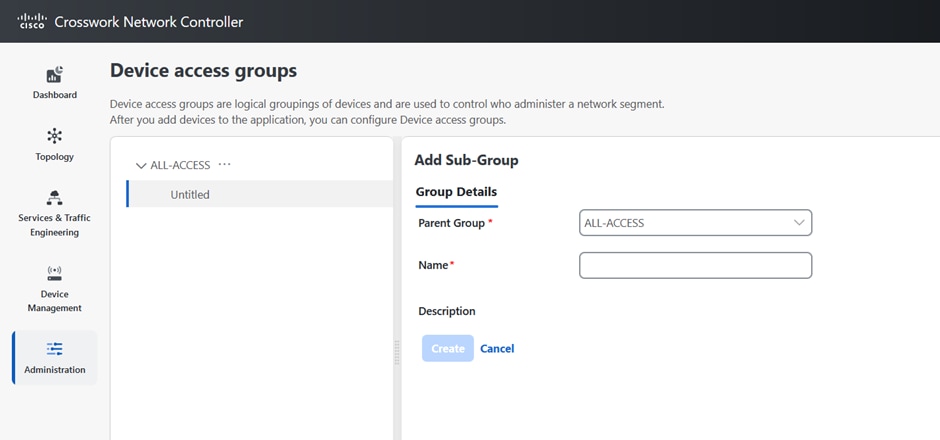
Click the icon next to ALL-ACCESS, then click Add Sub-Group.

Step 3

Add the name and description of the sub-group under Group Details.

Step 4

Click Create.

When you add devices to a device access group, you can view the Devices tab next to Group Details.

Step 5

Click Add Devices.

Step 6

Select the devices you want to add and click Save.

You can also filter the devices that you want to add using the Filter By options for Host Name, Product Type and Node IP. The devices are added under device access groups as well as updated in the NSO site.

Step 7

Click Save.


Edit device access groups

You can add or remove a device from an existing device access group.


Note


The delete group check is only relevant for local users defined in Crosswork Network Controller and does not apply to users managed by external AAA servers.


Procedure


Step 1

From the main menu, choose Administration > Device Access Groups.

Step 2

Click the device access group that you want to edit and then click Edit Group.

You can add more devices by clicking Add Devices or remove them by clicking Remove Devices.

Step 3

Click Save.

Note


You cannot delete a device access group if a user is exclusively associated with it. However, if all users associated with the device access group also belong to other device access groups, you can delete it.


Assign task permissions

You can assign the tasks that you have created to a specific role. You can enable or disable these tasks based on the permissions you want to give for a role. The task permissions are defined by the Global APIs, which allow you to assign Read/Write/Delete permissions for that specific task.

Procedure


Step 1

From the main menu, choose Administration > Users and Roles > Roles.

Step 2

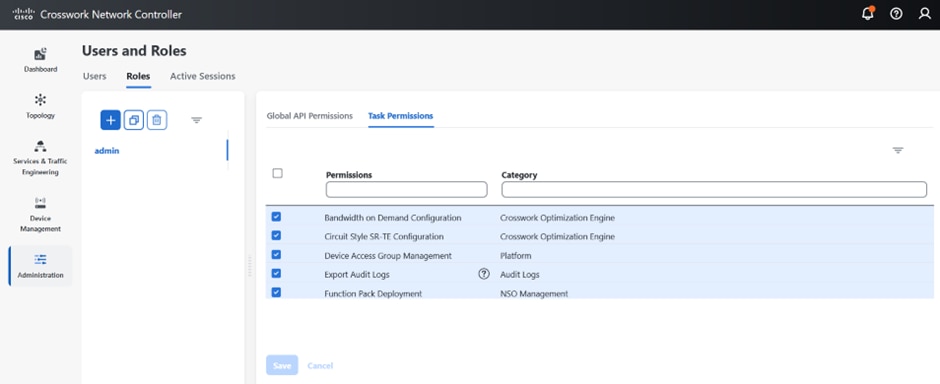
Click Task Permissions to view a list of all the available tasks for your application.

Figure 1. Users and roles window
Users and Roles Window

Step 3

Select the task for which you want to assign permissions. Under the Global API Permissions tab, you can also view the specific Read/Write/Delete permissions that are automatically enabled for the selected task.

Step 4

Click Save.


Associate users with device access groups

Procedure


Step 1

Create a role with Read, Write, and Delete API permissions and assign the set of specific tasks that need to be enabled within each role. Refer to the section, User roles, functional categories, and permissions for more details.

Step 2

Assign this role and one or more device access group to a user. Refer to the section, Add a user for more details.

When the user logs in, the user can only perform operations allowed by the tasks on devices belonging to the associated device access groups. Based on task permissions and device access group privileges, a restricted read-only device access group user has the following capabilities while provisioning policies on BWoD, LCM, CSM, DLM, DGM and CAT. Such a user can:

  • Preview and dry run policies but cannot provision or commit changes for the policies.

  • View Services and Traffic Engineering configuration pages but cannot edit or import files.

  • Perform Path Query operations.

  • View Services and Traffic Engineering configuration pages but cannot edit or import files.

  • Create VPN services.

  • View the devices that are associated with a failed service, along with the detailed error message but cannot take actions on the errors.

Correspondingly, a device access group user with all the Read, Write, and Delete permissions has the following capabilities. Such a user can:

  • Perform all the tasks listed for a restricted read-only device access group user.

  • Provision policies for which they have been granted access to. For instance, if a user wants to create an RSVP-TE policy on a Tunnel, they will be able to do so only if they have been granted access to the head-end node. However, note that access to the endpoints and hops is not checked for device access group control.

  • View the devices that are associated with a failed service, along with the detailed error message. Additionally, users with all privileges can take actions on errors such as Check-Sync, Sync-To, and Compare-Config at the node level.

  • Run and execute Playbooks.

Note


To restrict device access in Crosswork Network Controller for read-only users, the administrators must create an empty device access group (for example, NO_DEVICE_ACCESS) without any devices, and assign it while creating read-only user profiles (or user profiles associated with read-only roles).