Security hardening
Security hardening is a set of adjustments that helps optimize the security mechanisms for:
-
Crosswork Network Controller infrastructure
-
Crosswork Network Controller storage system, local or external
Security hardening tasks
Hardening Crosswork Network Controller security requires completion of these tasks:
-
Shutting down insecure and unused ports.
-
Configuring network firewalls.
-
Hardening the Crosswork Network Controller infrastructure, as needed.
Although the primary source of information is the Cisco representative, who can provide server hardening guidance specific to your deployment, you can also follow the steps in this chapter to secure Crosswork Network Controller.
If you are an administrator and are looking to optimize the security of your Crosswork Network Controller product, you should have a good understanding of these security concepts.
Authentication throttling
Authentication throttling is a security behavior in which Crosswork Network Controller blocks authentication attempts for a username after a failed login attempt to help avoid password guessing and related abuse scenarios.
Authentication throttling behavior
After a failed login attempt for a username, all authentication attempts for that username are blocked for 3 seconds.
The throttling applies to all supported authentication schemes, such as TACACS, LDAP, and the default local authentication.
HTTPS
Hypertext Transfer Protocol Secure (HTTPS) is a protocol that uses Secure Sockets Layer (SSL), or its subsequent standardization, Transport Layer Security (TLS), to encrypt the data transmitted over a channel.
TLS support
Several vulnerabilities have been found in SSL, so Crosswork Network Controller now supports TLS only.
 Note |
TLS is often loosely referred to as SSL, so this documentation also follows this convention. |
SSL employs a mix of privacy, authentication, and data integrity to secure the transmission of data between a client and a server. To enable these security mechanisms, SSL relies on certificates, private-public key exchange pairs, and Diffie-Hellman key agreement parameters.
X.509 certificates
An X.509 certificate is a form of digital identification for user authentication and verification of a communication partner's identity.
X.509 certificates and private-public key pairs identify an entity, such as a server or client, and support certificate-based trust.
Certificate authorities and signing certificates
Certificate Authorities (CAs), such as VeriSign and Thawte, issue certificates to identify an entity. A client or server certificate includes the name of the issuing authority and digital signature, the serial number, the name of the client or server that the certificate was issued for, the public key, and the certificate's expiration date.
A CA uses one or more signing certificates to create SSL certificates. Each signing certificate has a matching private key that is used to create the CA signature. The CA makes signed certificates, with the public key embedded, readily available, enabling anyone to use them to verify that an SSL certificate was actually signed by a specific CA.
Certificate setup considerations
In general, setting up certificates in both High Availability (HA) and non-HA environments involves these steps:
-
Generating an identity certificate for a server.
-
Installing the identity certificate on the server.
-
Installing the corresponding root certificate on your client or browser.
The specific tasks you need to complete vary depending on your environment.
Note the following:
-
The start-stop sequencing of servers needs to be done carefully in HA environments.
-
Non-HA environments, where a virtual IP address is configured, require completion of a more complicated certificate request process.
How one-way SSL authentication works
One-way SSL authentication is used when a client needs assurance that it is connecting to the right server, and not an intermediary server. This authentication method is suitable for public resources like online banking websites.
Note |
A client might need to store multiple server certificates to enable interaction with multiple servers. |
Summary
The one-way SSL authentication process uses these components:
-
Client: Requests access to a resource and verifies the server certificate.
-
Server: Sends its server certificate, also known as an SSL or X.509 certificate, to verify its identity.
-
Server root certificate: A trusted object installed on the client or browser.
After the server is verified, an encrypted communication channel is established. The Crosswork Network Controller server then prompts for a valid username and password in an HTML form.
Workflow
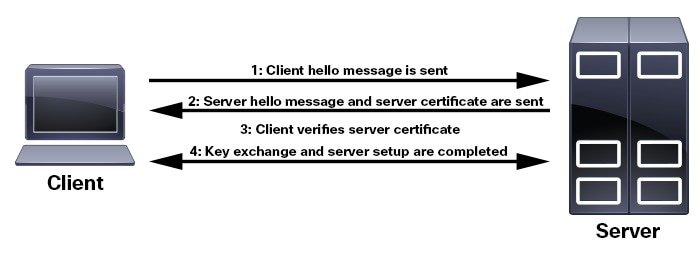
These stages describe how one-way SSL authentication works.
- The client requests access to a resource on a server.
- The server on which the resource resides sends its server certificate to the client to verify its identity.
- The client verifies the server certificate against a server root certificate installed on the client or browser.
- After the server is verified, an encrypted and secure communication channel is established.
- The Crosswork Network Controller server prompts for a valid username and password in an HTML form.
- After the username and password are accepted, access is granted to the resource that resides on the server.
Result
Entering user credentials after an SSL connection is established protects them from being intercepted by an unauthorized party.
To determine whether you need to install a root certificate on your client, look for a lock icon in your browser's URL field. If you see this icon, the necessary root certificate is generally already installed. This is usually the case for server certificates signed by one of the bigger Certifying Authorities (CAs), because root certificates from these CAs are included with popular browsers.
If your client does not recognize the CA that signed a server certificate, it indicates that the connection is not secure. This is not necessarily a bad thing. It indicates that the identity of the server you want to connect with has not been verified. At this point, you can install the necessary root certificate on your client or browser. A lock icon in your browser's URL field indicates that the certificate was installed successfully.
You can also install a self-signed certificate on your client. Unlike a root certificate, which is signed by a trusted CA, a self-signed certificate is signed by the person or entity that created it. While you can use a self-signed certificate to create an encrypted channel, understand that it carries an inherent amount of risk because the identity of the server you are connected with has not been verified.
Requirements for insecure ports and services
Disable any ports that are not needed.
Before you disable ports, identify which ports are enabled and decide which ports can be safely disabled without disrupting the normal functioning of Crosswork Network Controller.
You can make this decision by listing the open ports and comparing them with the list of ports needed for Crosswork Network Controller.
Check the Cisco Crosswork Network Controller 7.2 Installation Guide for the table of ports used by Crosswork Network Controller. The table helps you understand which services use the ports and which services you do not need.
In this case, safe means that you can disable the port without any adverse effects to the product.
If you are not sure whether you should disable a port or service, contact the Cisco representative.
If you have firewalls in your network, configure the firewalls to only allow traffic that is needed for Crosswork Network Controller to operate.
View open listening ports
List the ports that are open before you decide which ports can be safely disabled.
Procedure
|
Log in as a Linux CLI admin user and enter the netstat -aln command. The netstat -aln command displays the server's currently open TCP/UDP ports, the status of other services the system is using, and other security-related configuration information. The command returns output similar to the following: |
Recommendations for storage security
Secure all storage elements that participate in your installation, such as the database and backup servers.
If you are using external storage, contact the storage vendor and the Cisco representative.
If you are using internal storage, contact the Cisco representative.
If you ever uninstall or remove Crosswork Network Controller, make sure that all VM-related files that might contain sensitive data are digitally shredded, as opposed to simply deleted.
Contact the Cisco representative for more information.
 Feedback