Manage and Customize Dashboards

This chapter shows how to create, edit, delete, and customize dashboards so you can quickly view and manage the information you need.

Dashboards and dashlets

A dashboard is a centralized interface that displays the summary of metrics and trends through interactive components called dashlets. Dashboards appear as individual tabs, allowing you to monitor and compare different sets of data in a single view.

Dashboard helps you monitor and analyze performance across various policies by highlighting the most relevant metrics. Crosswork Network Controller provides a set of default dashboards, which you can personalize by adding or customizing additional dashlets to meet your specific monitoring needs.

The data displayed in each dashlet is polled based on the configured policies. Some dashlets allow you to edit the metrics to customize the displayed data. For information on the policies, see the Monitor device and inventory health chapter in the Cisco Crosswork Network Controller 7.2 Device Lifecycle Management guide.

Dashboard customizations

The dashboard framework includes the customization options to help you tailor dashboards to your specific needs:

  • Multiple dashboard tabs per user: Create and manage several dashboards to monitor different data views or operational areas.

  • Dashboard actions: Add, copy, rename, or delete dashboards as needed to stay organized and focused on your goals.

  • Dashlet actions: Add, edit, copy, and delete dashlets to control how information is displayed and shared.

  • Dashboard-level filters: Apply filters across the entire dashboard to view the device group or port-based data.

  • Save and load views: Capture customized dashboard layouts and reload them as needed, so you can quickly switch between different monitoring scenarios.

These capabilities make it easy to create a flexible, data-driven workspace that evolves with your business needs.
Customization of dashboards

Dashboards in Crosswork Network Controller provide a centralized, customizable view of key metrics through interactive dashlets.

Use these topics to create, customize, and manage dashboards:

Create a dashboard

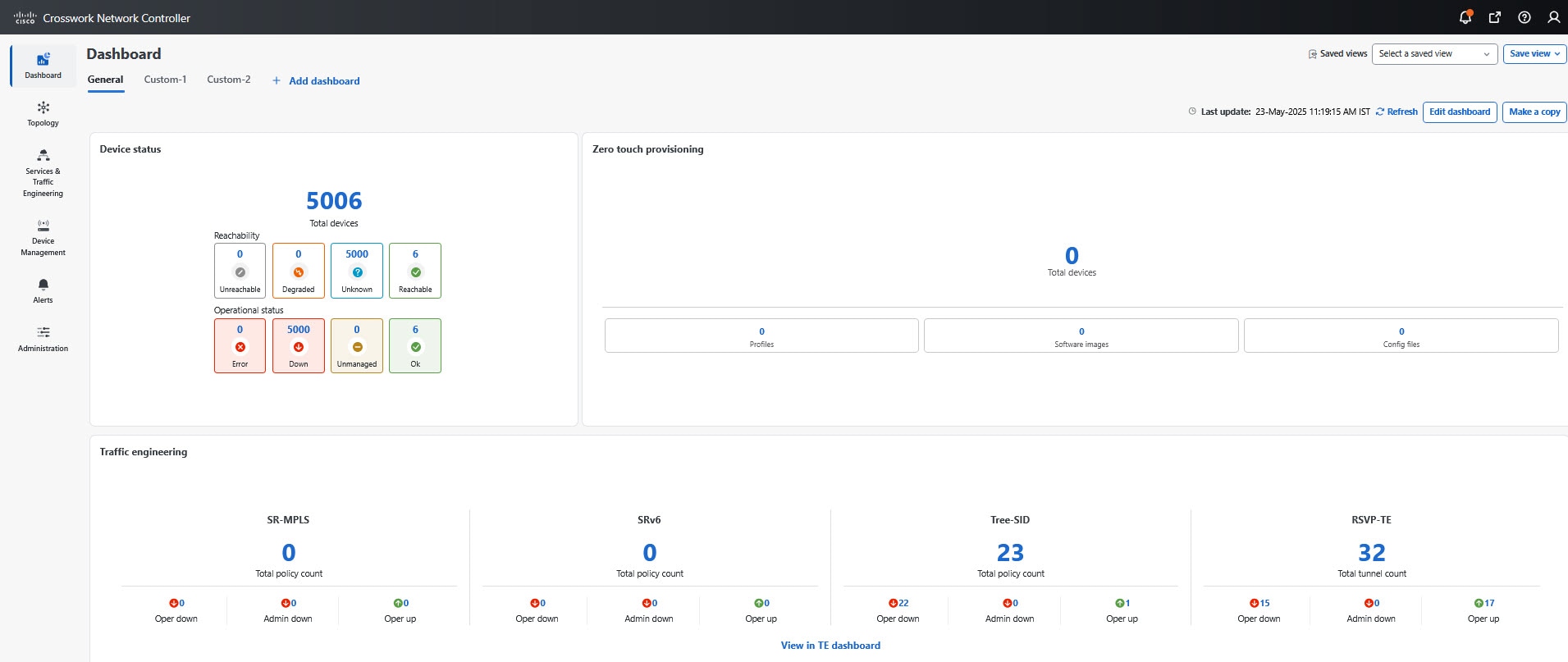
You can create multiple dashboards. Each dashboard is represented as a separate tab. The Crosswork Network Controller includes a default dashboard tab named General, which you cannot rename, delete, or apply filters.

To create a custom dashboard and add relevant dashlets, perform these steps:

Before you begin

Ensure that you have configured the policies that you want to monitor. For information on the policies, see the Monitor device and inventory health chapter in Cisco Crosswork Network Controller 7.2 Device Lifecycle Management .

Procedure


Step 1

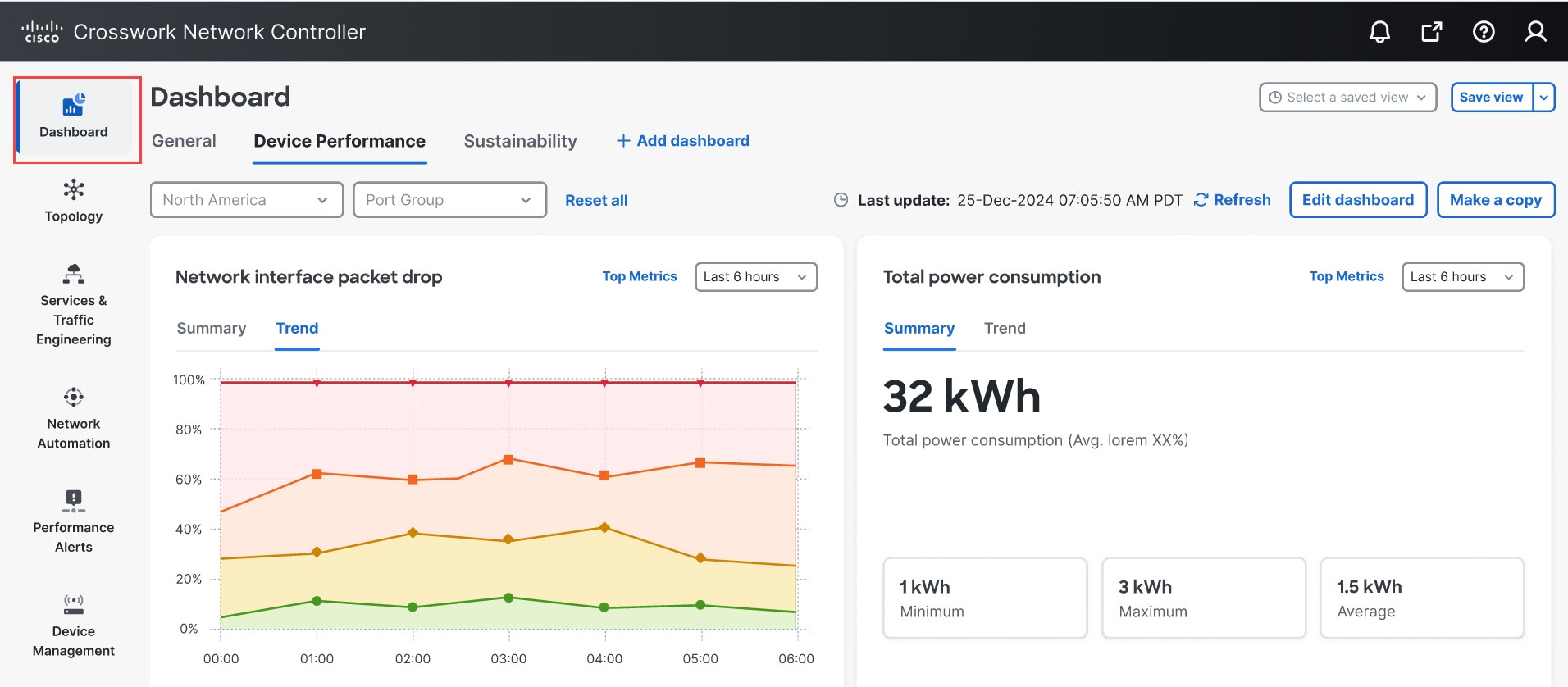
From the Crosswork Controller Network main menu, navigate to Dashboard .

Figure 1. Dashboard

The Dashboard page opens with the default General tab.

Figure 2. Dashboard - General tab

Step 2

Click + Add Dashboard to create a new dashboard tab.

Step 3

Click the edit icon next to the default title, and enter a meaningful name for the dashboard.

Step 4

Add dashlets:

  1. Click +Add dashlet .

  2. In the Add Dashlets drawer, select the policy and the corresponding metrics you want to monitor.

    Note


    If you choose to add the Top 5 metrics in the Interface health dashlets, you must create an Interface health monitoring policy by using either device groups or port groups. You can create one or multiple of these groups. If you configure the Interface health policy using individual devices, rather than device or port groups, the data will not appear in the Dashboards. However, the data will still be accessible on the Device Management > Top Metrics UI page.

  3. Click +Add .

    The selected dashlets are added to the dashboard.
  4. Enter a unique, meaningful title for each dashlet.

  5. Click the ellipsis icon (⋯) on a dashlet to:

    • configure the chart type as Bar, Donut, or Pie, and

    • copy or delete the dashlet.

Step 5

Click Save .


The selected dashlets appear on the dashboard.

What to do next

To view relevant data on the dashlets, apply the appropriate device or port group filters. Then, select the time range for which you want to view the data, such as 6 hours, 1 day, 1 month, and so on.

Edit a dashboard

You can modify a custom dashboard by renaming it, adding or removing dashlets, changing chart types, and editing the dashlet metrics.

To modify a dashboard and the relevant dashlets, perform these steps:

Before you begin

  • Identify the dashboard tab you want to modify and confirm it is not the default dashboard, which cannot be edited.

  • Review the existing dashlets to determine which elements such as titles, metrics, or chart types you want to update.

Procedure


Step 1

From the Crosswork Controller Network main menu, navigate to Dashboard .

The Dashboard page opens with the configured dashboards as individual tabs.

Step 2

Select the dashboard tab that you want to edit.

Step 3

Click Edit dashboard .

Step 4

Modify the required parameters:

  • Dashboard title: Click the edit icon next to the dashboard title and enter a meaningful name.

  • Dashlet title: Click the title field within a dashlet and enter a descriptive name.

  • Chart type: Click the ellipsis icon (⋯) on a dashlet, select Change chart type , and choose from Bar , Donut , or Pie .

  • Copy dashlet: Click the ellipsis icon (⋯) and select Copy . A duplicate dashlet appears after the last dashlet in the dashboard.

  • Delete dashlet: Click the ellipsis icon (⋯) and select Delete to remove the dashlet from the dashboard.

  • Modify metrics: Click Edit metrics to adjust or reset the metric range.

    Note

     
    This option is available only for certain dashlets, such as Link metrics.

Step 5

Click Save .


What to do next

Manage the dashboard views

You can save a dashboard view as a snapshot and reuse it to quickly access a specific configuration of dashlets, filters, and layout. You can share saved views with others or revisit them for common monitoring setups.

To manage the dashboard views, perform these steps:

Before you begin

If you want to rename or manage the existing views, verify that a view has been previously saved.

Procedure


Step 1

From the Crosswork Controller Network main menu, navigate to Dashboard .

The Dashboard page opens with the configured dashboards displayed as individual tabs.

Step 2

Select the dashboard tab for which you want to manage views.

Step 3

In the dashboard toolbar, click the views drop-down and perform any of these actions:

  1. Save view as : Save the current dashboard layout and filters with a unique name.

  2. Rename view : Update the name of an existing saved view.

  3. Manage views : View and manage all saved views.

    • Sort views by Recently added , Most viewed, or Recently visited.

    • Delete any view that is no longer needed.


Filter data in a dashboard

You can filter the data visualizations in a dashboard using the drop-downs, which let you focus on the displayed metrics based on selected device groups or port groups.


Note


  • You can filter data only in the custom dashboard. You cannot filter data in the General dashboard.

  • You can apply only one filter at a time. For example, if you filter data using a device group, the dashboard displays results for that group. Later, if you filter by port group, it overrides the previous filter and displays data based only on the selected port group.


To filter data in a dashboard, perform these steps:

Procedure


Step 1

From the Crosswork Controller Network main menu, navigate to Dashboard .

The Dashboard page opens with the configured dashboards as individual tabs.

Step 2

Select the dashboard tab where you want to apply filters.

Step 3

In the dashboard view, use one of the relevant filter options:

  • Device group: Click the Device group drop-down and select the desired group.

  • Port group: Click the Port group drop-down and select the relevant port group.

Step 4

To sort data by time range, click the range drop-down and select a duration. For example, 6 hours, 1 day, 1 week, or 1 month.


Remove a dashlet

You can remove dashlets from a dashboard and add them again at any time.

To delete a dashlet from the custom dashboard, perform these steps:

Before you begin

Review the contents to confirm that no critical dashlets are in use.

Procedure


Step 1

From the Crosswork Controller Network main menu, navigate to Dashboard .

The Dashboard page opens with the configured dashboards as individual tabs.

Step 2

Select the dashboard tab from which you want to delete the dashlet.

Step 3

Click Edit dashboard .

Step 4

In the dashlet that you want to delete, click the ellipsis icon (⋯) and select Delete .

The dashlet is removed from the dashboard.

Step 5

When the confirmation message appears for the last dashlet, review the details carefully, then click Delete to permanently remove the dashlet.


Delete a dashboard

To delete a custom dashboard and the relevant dashlets, perform these steps:

Before you begin

  • Document any important configurations or metrics before deleting.

  • Review the dashboard contents to confirm that no critical dashlets or data views are in use.

  • You cannot delete or modify the General dashboard. It contains system-generated dashlets related to the configured policies.

Procedure


Step 1

From the Crosswork Controller Network main menu, navigate to Dashboard .

The Dashboard page opens with the configured dashboards as individual tabs.

Step 2

Select the dashboard tab that you want to delete.

Step 3

Click Edit dashboard .

Step 4

Click Delete dashboard .

When the confirmation message appears, review the details carefully. Click Delete to permanently remove the dashboard.