Manage System Health

This section contains the following topics:

Monitor system and application health

The health of the Crosswork Platform system and applications is determined by the operational status of its microservices.

  • The system is considered healthy if all services are up and running.

  • The health is considered degraded if one or more services are down.

  • The health status is down if all services are down.

Monitoring System and Application Health in Crosswork Platform

The Crosswork Platform is built on an architecture consisting of microservices. These microservices, create dependencies across various services within the Crosswork system.

To monitor system and application health, from the main menu, choose Crosswork Manager to access the Crosswork Summary and Crosswork Health windows. Each window provides different views to help you monitor system and application health. You can use the tools and information provided in this window, along with support and guidance from your Cisco Customer Experience account team. Also, you can use the tools to identify, diagnose, and fix issues with the Cisco Crosswork cluster, Platform Infrastructure, and installed applications.

While both windows can give you access to the same type of information, the purpose of each summary and view is different.

Monitor cluster health

The Monitor Cluster Health feature provides a summary of the overall system health, focusing on hardware resources and virtual machines (VMs).

  • Displays system health at a glance in the Crosswork Summary window.

  • Allows users to check hardware resource status and VM performance before installing or upgrading applications.

  • Enables users to view resource utilization, drill down on VMs, and perform VM or cluster-related activities.

Accessing and Using Cluster Health Information

The Crosswork Summary window, accessible via Crosswork Manager > Crosswork Summary, provides a summary of system health. Users can click the System Summary tile to view resource utilization and manage VMs or cluster-related activities. If hardware resources are overutilized or services are degrading, users may need to add more VMs to scale the system. Additional details, such as microservices and alarms, can be accessed by clicking on the Cisco Crosswork Platform Infrastructure and application tiles.

For more information, see Cluster management overview.

Monitor platform infrastructure and application health

The Crosswork health window (Crosswork Manager > Crosswork health tab) displays summaries for the Crosswork platform infrastructure health and installed applications status, with details of microservice status.

Within the Crosswork health tab, you can perform these actions:

  • Click the More icon icon on the application row to view application details.

  • Expand an application row to view information on microservices, alarms, and events for the selected Crosswork product.

From the Microservices tab, you can:

  • View the list of microservices and, if applicable, associated microservices by clicking on the microservice name.

  • Click More icon to restart or obtain Showtech data and logs for each microservice.


    Note


    Showtech logs must be collected separately for each application.


From the Alarms tab, you can:

  • Filter the active alarms.

  • Click the alarm description to drill down on alarm details.

  • Change the status of the alarms (Acknowledge, Unacknowledge, Clear).

  • Add notes to alarms.

  • View list of events in the product.

  • View the correlated alarm for each event.

Visually monitor system functions in real time

You can monitor the health of Crosswork Network Controller and any of its functions in real time, using a set of monitoring dashboards you can access from the Crosswork Manager window.

Crosswork Network Controller uses Grafana to create these dashboards. The dashboards display the graphical view of the product's infrastructure, using metrics collected in its database. You can use these dashboards to diagnose problems you may encounter with individual Crosswork Network Controller applications or their underlying services.

There are multiple monitor dashboards. Each dashboard is categorized by the type of functionality it monitors and the metrics it provides. This table lists some categories that may be available depending on which Crosswork Network Controller applications are installed.

Table 1. Monitoring dashboard categories

This dashboard category...

Monitors...

Change Automation

Playbook functions. Metrics include the number of MOP jobs executed, response latency, API calls, database activity, and so on.

Optima

Feature pack, traffic, and SR-PCE dispatcher functions.

Collection - Manager

Device-data collection functions. Metrics include telemetry collection latencies, total collection operations, memory and database activity related to telemetry, delayed collections, and so on.

Health Insights

Key Performance Indicator functions. Metrics include the number of KPI alerts, API calls, and so on.

Infra

System infrastructure messaging and database activity.

Inventory

Inventory manager functions. These metrics include total numbers of inventory change activities.

Platform

System hardware and communications usage and performance. Metrics include disk and CPU usage, database size, network and disk operations, and client/server communications.

ZTP

Zero Touch Provisioning functions.

To conserve disk space, Crosswork Network Controller maintains a maximum of 24 hours of collected metric data.

Grafana is an open-source visualization tool. This section provides general information about how to use the Crosswork Network Controller implementation of Grafana. For more information about Grafana itself, see https://grafana.com and http://docs.grafana.org

Procedure


Step 1

From the main menu, choose Administration > Crosswork Manager > System Summary.

Step 2

At the top right, click View More Visualizations.

The Grafana user interface appears.

Step 3

In the Grafana user interface, click Home. Grafana displays the list of monitoring dashboards and their categories, as shown in this example.
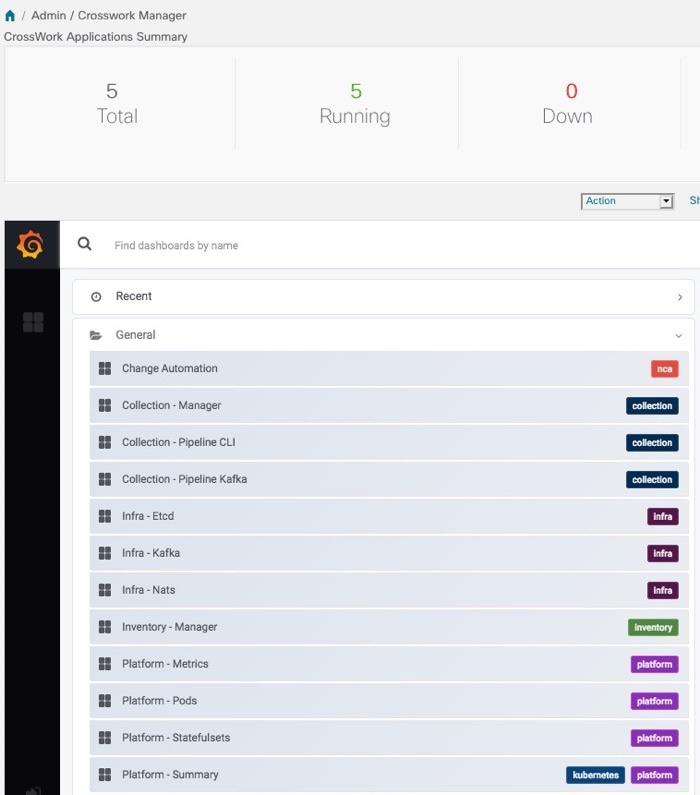
Grafana Dashboard list

Step 4

Click the dashboard you want to view. For example, when you click on Platform - Summary dashboard, a view appears similar to one shown in the next figure.
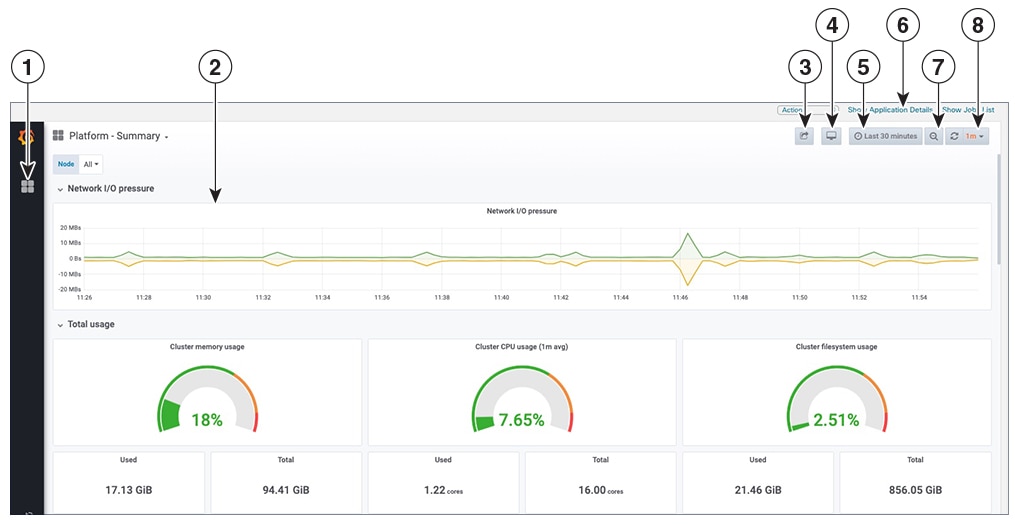
Example: Platform - Summary Dashboard

Step 5

Scroll the dashboard to display all the metrics, or select any of the functions described in the following table.

Item

Description

1

Dashboard Icon : Click the icon to re-display the dashboard list and select a different dashboard.

2

Time Series Graph Zoom : You can zoom in on a specific time period within the graph of any time series data, as follows:

  1. Click a time-period starting point in the graph line and hold down the mouse.

  2. Drag the cursor to the endpoint. Light gray shading appears in the block you are selecting. When you reach the endpoint, release the mouse.

To reset a zoomed time series graph to the default, click the Zoom Out icon.

3

Share Dashboard icon: Click the icon to make the dashboard you are viewing shareable with other users. Clicking this icon displays a pop-up window with tabs and options to share the dashboard in your choice of these forms:

  • URL Link: Click the Link tab and then click Copy to copy the dashboard's URL to your clipboard. You can also choose whether to retain the current time and template settings with the URL.

  • Local Snapshot File: Click the Snapshot tab and then click Local Snapshot. Grafana creates a local snapshot of the dashboard on the server. When the snapshot is ready, click Copy Link to copy the URL of the snapshot to your clipboard.

  • Export to JSON File: Click the Export tab and then click Save to file. You will be prompted to save or open the exported JSON file. You can also choose to turn data source names in the file into templates by selecting the Export for sharing externally checkbox before clicking Save to file.

  • View JSON File and Copy to Clipboard: Click the Export tab and then click View JSON (you can choose to templatize data source names by selecting the Export for sharing externally checkbox before clicking View JSON). Grafana displays the exported JSON code in a popup window. Click Copy to Clipboard to copy the file to your clipboard.

4

Cycle View Mode icon: Click this icon to toggle between the default Grafana TV view mode and the Kiosk mode. The Kiosk view hides most of the Grafana menu. Press Esc to exit the Kiosk view.

5

Time/Refresh Selector: Indicates the time period for the metrics displayed in the dashboard and how often the metrics are refreshed. Click the selector to choose a different time range and refresh rate.

You can specify a custom pair of time-range start and end points, or choose from one of several predefined ranges, such as Last 30 minutes or Last 3 hours.

When you have finished making changes, click Apply.

Note


When making selections, remember only the last 24 hours of data is stored. If you select time ranges beyond that limit, the dashboard may be blank.

6

Show Application Details: Click this option to view details of the selected dashboard item.

7

Zoom Out icon: Click this icon to reset a zoomed time series graph back to the unzoomed state.

8

Refresh icon: Click this icon to immediately or choose time interval to refresh the data shown.

You can choose predefined refresh rates from Off to 2 Days.


Check system health

In this example, you can navigate through the different windows and identify areas to check for a healthy Crosswork system.

Procedure


Step 1

Check overall system health.

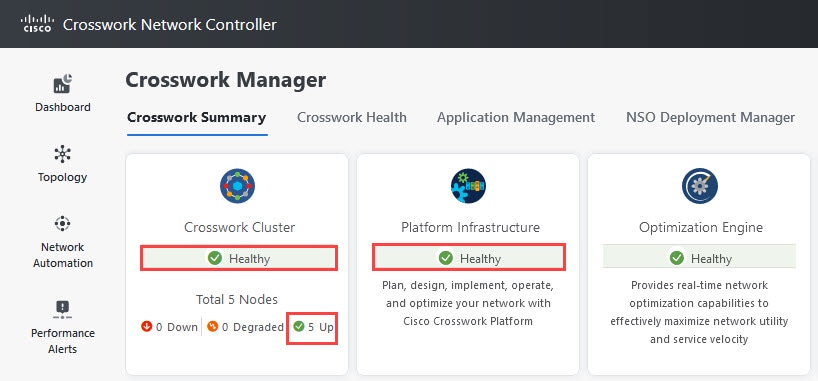
  • From the main menu, choose Administration > Crosswork Manager > Crosswork Summary tab.

  • Check that all the nodes are in operational state (Up) and that the Crosswork Cluster and Platform Infrastructure is healthy.

Figure 1. Crosswork Summary
Crosswork Summary

Step 2

Check and view detailed information about the microservices that run as part of the Crosswork Platform Infrastructure.
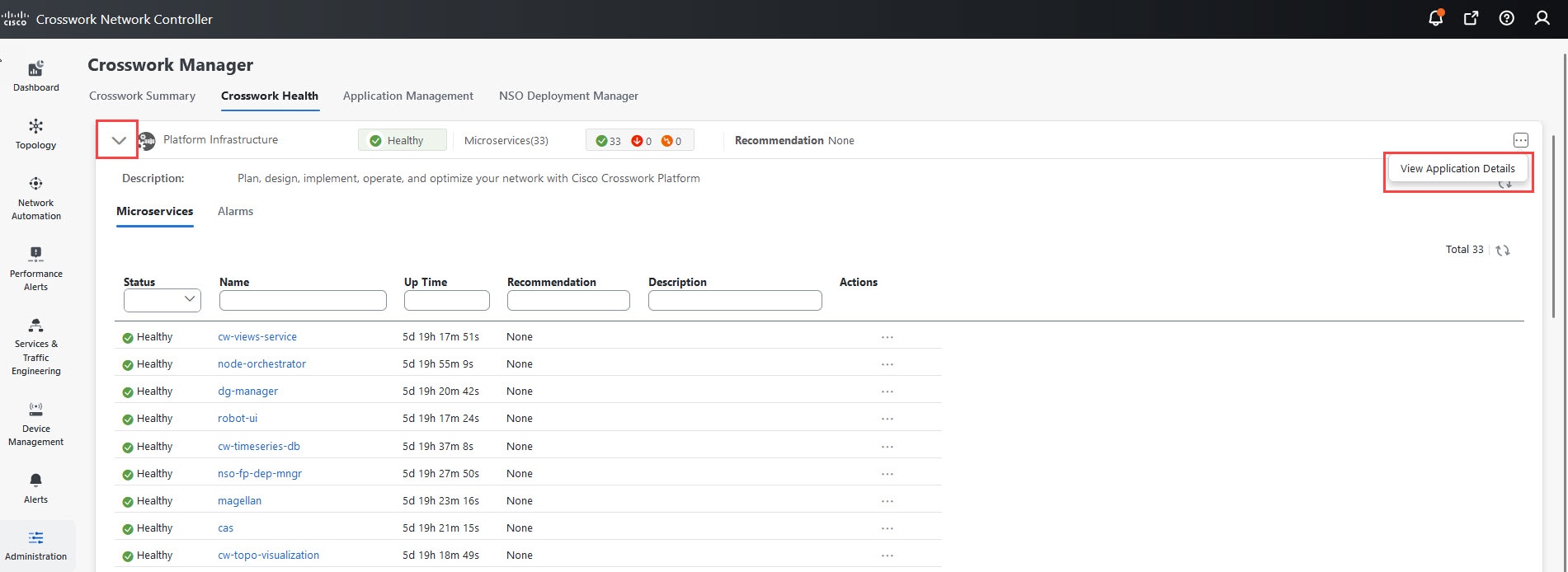
  • Click the Crosswork Health tab.

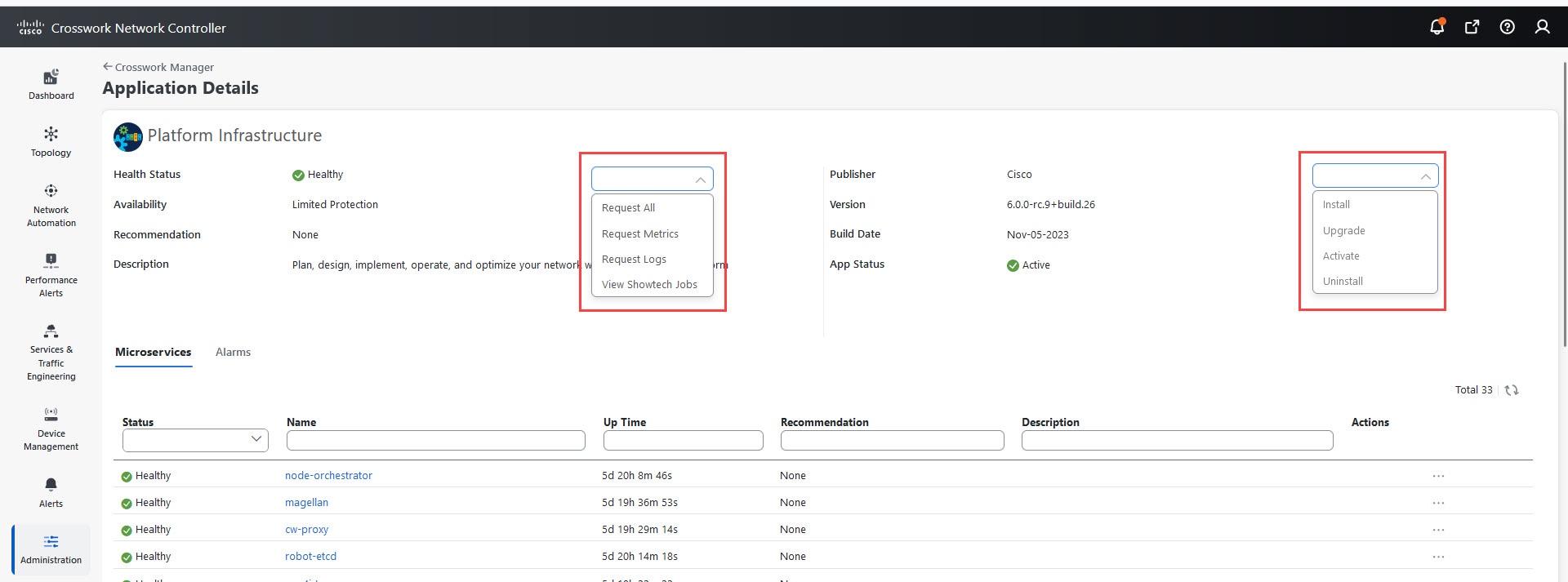
  • Expand the Crosswork Platform Infrastructure row, click More icon, and select Application Details.

  • From the Application Details window, you can check and review microservice details, restart microservices, and collect showtech information. You can also perform installation-related tasks from this window.

Figure 2. Crosswork Health
Crosswork Health
Figure 3. Application Details
Microservices

Step 3

Check and view the alarms and events related to the microservices.
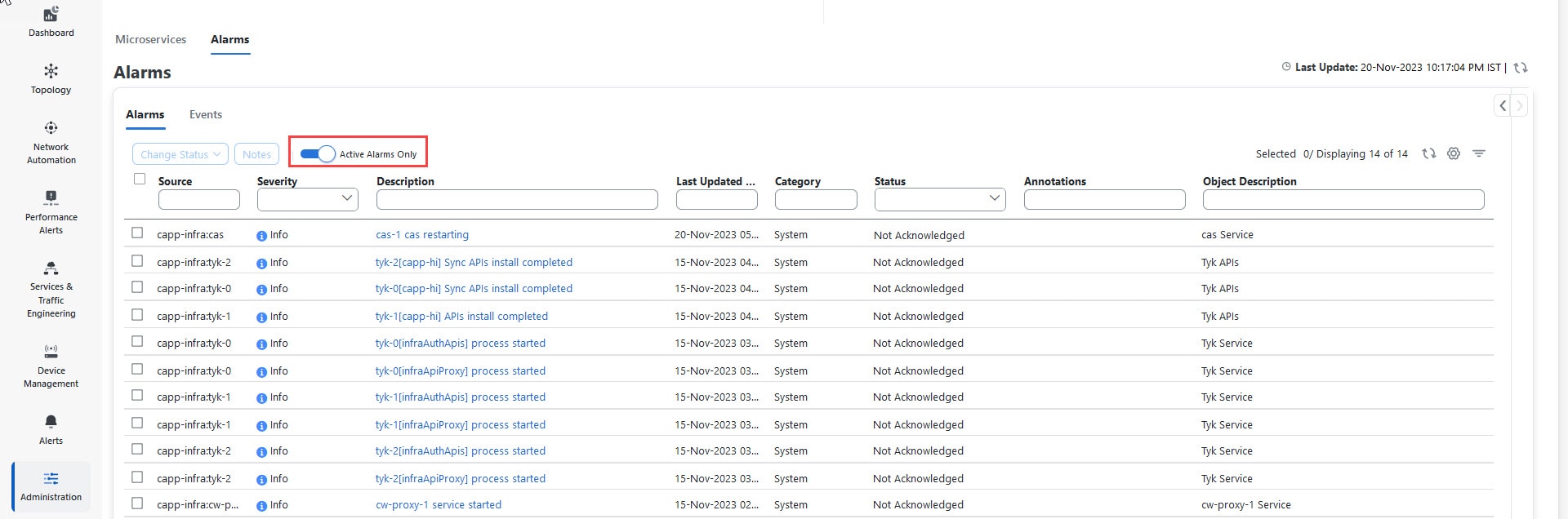
  • Click the Alarms tab. The list displays only Crosswork Platform Infrastructure alarms. You can further filter the list by viewing only active alarms.

  • Click the Events tab. The list displays all Crosswork Platform Infrastructure events, and their corresponding alarms.

Figure 4. Alarms

Step 4

View which Crosswork applications are installed.

  • From the main menu, choose Administration > Crosswork Manager > Application Management tab and click Applications. This window displays all applications that have been installed. You can also click Add new file to install more applications by uploading another application bundle or an auto-install file.

Step 5

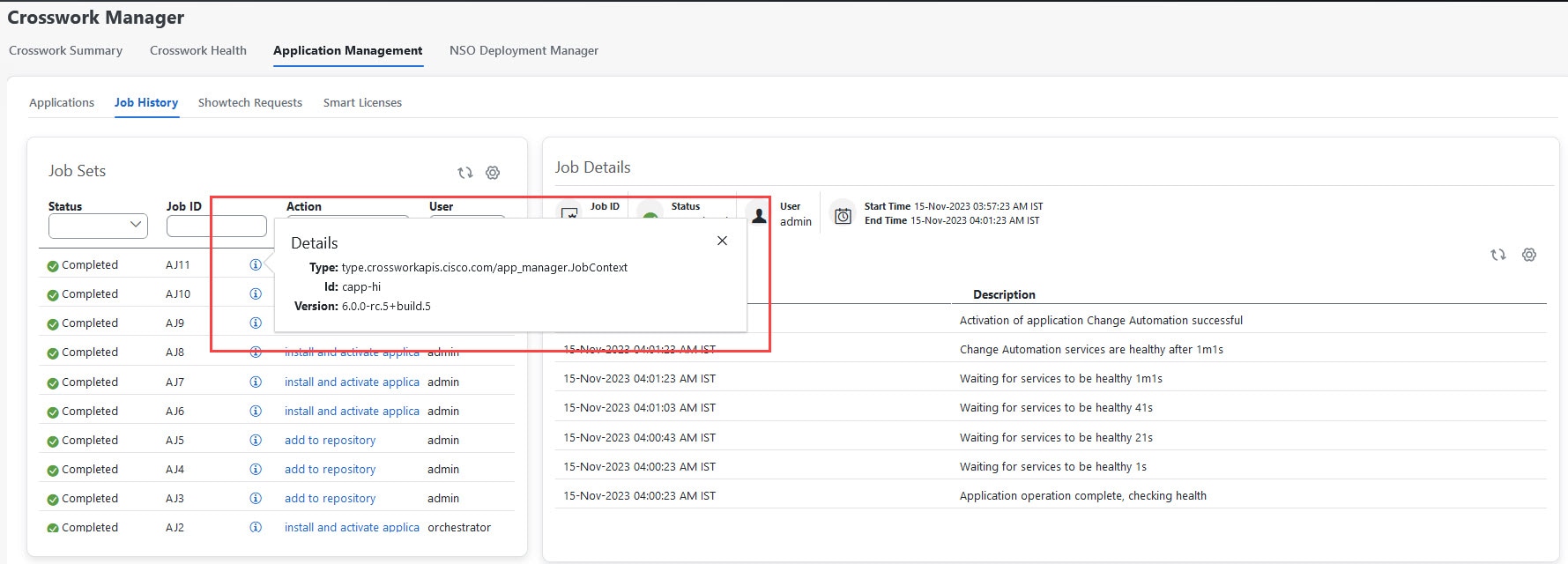
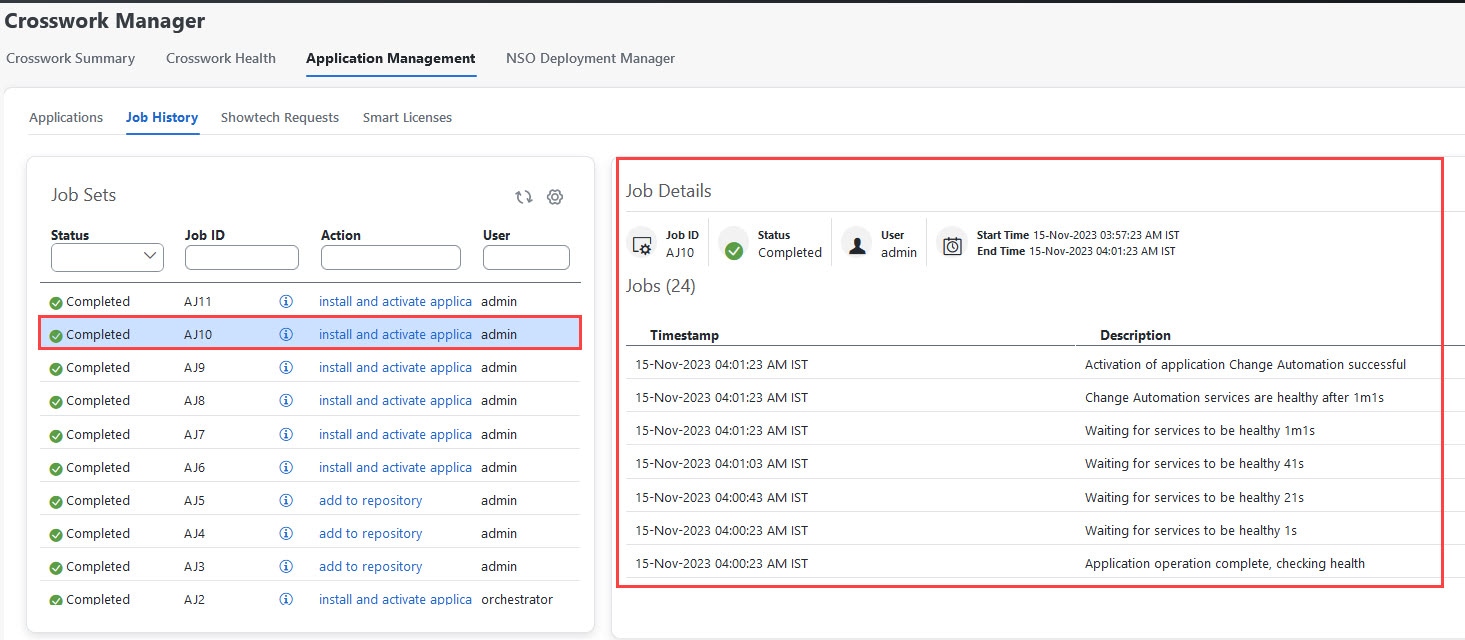
View the status of jobs.

  • Click the Job History tab. This window provides the information regarding the status of jobs and the sequence of events that have been executed as part of the job process.


Alarms and events window

The Alarms and Events window in Crosswork Network Controller provides a centralized interface to view, filter, and manage system alarms and events.

You can view the Alarms and Events by navigating to one of the following:

  • From the main Crosswork window, click Notifications icon.

  • From the main menu, choose Alerts > Alarms and Events.


Note


For information on Network or Device alarms, see Set Up and Monitor Alarms and Events section in the Cisco Crosswork Network Controller 7.2 Device Lifecycle Management guide.


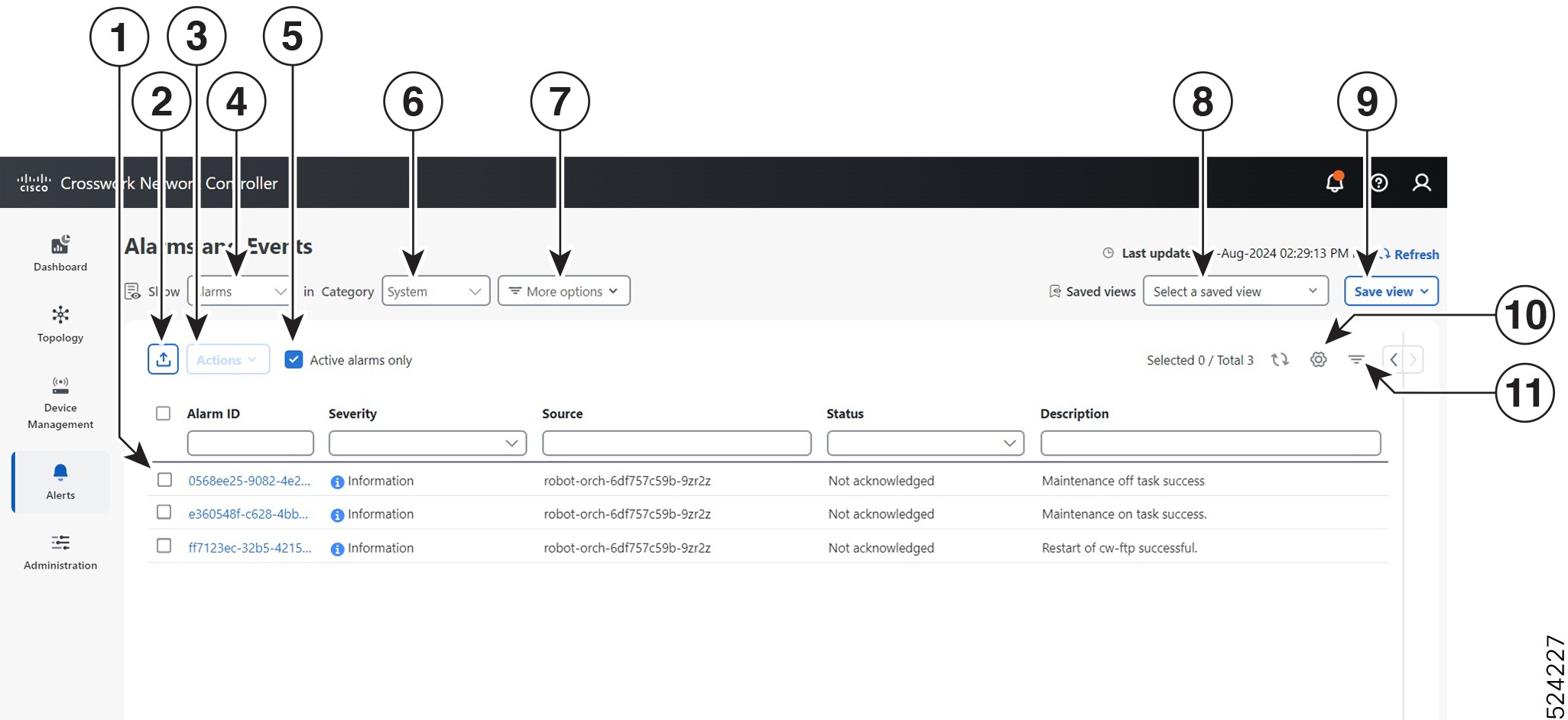
By default, Crosswork displays the Alarms and Events window with the Show selection set to Alarms and the Category selection set to System, as shown below.

Figure 5. Alarms and Events window

The following table describes the main controls and features of the Alarms and Events window:

Table 2. Alarms and Events Window Controls

Item

Description

Details

1

Select alerts

Click the selection box next to the Alarm ID or Event ID column to select one or more alerts. Click the blue ID link in the Alarm ID or Event ID column to view details for that alert. On the Alarms window only: When you have one or more alarms selected, Crosswork enables the Actions menu, so you can acknowledge, clear or annotate the selected alarms.

2

Export alerts

Click the Export icon icon to export a PDF or CSV file listing full information for all the alerts shown in the window. If you select one or more alerts when you click the icon, the file contain information only for the selected alerts.

3

Actions menu

In the Alarms window, click the Actions drop-down menu to perform one or more of these actions on the currently selected alarms:

  • Acknowledge: Marks the currently selected alarms as acknowledged.

  • Unacknowledge: If any of the currently selected alarms have been acknowledged, restores them to the unacknowledged state.

  • Clear: Removes all currently selected alarms from the Alarms window.

  • Clear all of this condition: Removes all currently selected alarms that share the same condition.

  • Notes: Lets you add a text note to all of the currently selected alarms.

Crosswork enables the Actions menu only until you select one or more alarms using the selection box next to the Alarm ID column.

4

Toggle Alarms/Events

Toggles between the Alarms and Events windows.

5

Active Alarms only

In the Alarms window, select the Active Alarms only checkbox to display all active alarms.

6

Category selection

Click the Category drop-down list to select the alarm category (System, Network, or Devices). The default selection is System.

7

More Options

Click More Options to specify whether you want to view all alerts or only the latest, and how often to sync the alerts display with the Crosswork database. If you uncheck the Alarm History or Event History checkbox, the list shows all alerts. If you uncheck the Auto Sync checkbox, Crosswork pauses synchronization.

Note


In a geo HA deployment configured with dual stack, a loss of peer connectivity may cause discrepancies in the Events display flow on the standby cluster. To address the peer connectivity issue, perform the following steps:

  1. Complete the application installation on the active cluster before proceeding with the installation on the standby cluster.

  2. In the Events window on the standby cluster, click on More options and uncheck the View latest events option.

8

Saved Views

Click in the Saved Views field to manage the previously saved views created using the Save View button. In the Manage Saved Views window, you can view, sort, to see all views or only those you have saved.

9

Save View

Click the Save View button to save the current view. Crosswork will prompt you to enter and save the view under a unique name.

10

Column Settings

Click the Settings icon to select which columns to display in the alerts list.

11

Filter

Click the Set Filter icon to toggle display of the floating filter fields at the top of the alerts list. You can use these fields to set filter criteria on one or more columns in the list. Click the Filters Applied link, shown next to the icon, to clear any filter criteria you have set.
System events

To help an operator troubleshoot issues, Crosswork Infrastructure provides a syslog feature that forwards system-related events to an external server.

All the events related to the Crosswork platform are classified broadly into three categories: Day 0, Day 1, and Day 2.

System Event Categories and Examples

Crosswork Infrastructure system events are grouped into three main categories, each with typical actions and events.

This table lists the event categories and sample events or actions within each category:

Table 3. Event Classification and Sample Events

Event Classification

Sample Events and Actions

Day 0 – Events related only to Crosswork Infrastructure installation.

  • Checking the status of the cluster

  • Adding a worker node

  • Slow disk or latency issues

Day 1 – Events related to Crosswork application installation.

  • Restarting a microservice

  • Restarting a microservice fails

  • Installing an application successfully

  • Activating an application successfully

  • Application is still not healthy within 3 minutes of activation

  • Node drain fails

  • Activating an application fails

  • Removing a worker node

Day 2 – Events related to system operations and maintenance.

  • Node eviction

  • Node eviction clean up fails

  • Deactivating an application fails/successfully

  • Uninstallation of an application fails/successfully

  • Slow disk or network

  • Node insertion

  • Node drain fails

  • K8S ETCD clean up

  • Node removal and Node removal fails


Note


See the Cisco Crosswork Network Controller Supported Alarms and Events document for the complete list of supported alarms and events.


Sample day 0, day 1, and day 2 Events

Day 0, Day 1, and Day 2 events are categorized operational events in a functional system. These tables list related information to various Day 0, Day 1, and Day 2 events in a functional system

Day 0 events

These checks can help determine whether the system is healthy.

Table 4. Adding a worker node

Severity

Major

Description

A VM node has been added. This event occurs when the K8 cluster detects a node.

Sample Alarm

None

Sample Syslog Message

<time_stamp> <hosting_hybrid_node> <time_stamp> <crosswork_VIP>
orchestrator-capp-infra - b54ec903-9e0f-49b8-aaf3-1d72cf644c28
vm4wkr-0 'Successfully added new VM into Inventory: vm4wkr'

Recommendation

Monitor and confirm that the VM node appears in the UI with a healthy status.

Table 5. Slow disk or latency in network issues

Severity

Critical

Description

This event occurs when the Infrastructure Capp untar takes more than 1.5 minutes or if the Docker push takes more than 2 minutes to complete.

This message can be found in the firstboot.log file.

Sample Alarm

Not applicable

Sample Syslog Message

Not applicable

Recommendation

This issue must be addressed before further operations can be made on the system. Do the following:

  • Check that disk storage and network SLA requirements are met.

  • Confirm that the observed bandwidth is the same as what is provisioned between the nodes.

  • If using RAID, confirm it is RAID 0.

Day 1 events

These checks can help determine whether the system is healthy.

Table 6. Removing a worker node

Severity

Major

Description

This event occurs when a VM node is erased.

Sample Alarm

None

Sample Syslog Message

<time_stamp> <hosting_hybrid_node> <time_stamp> <crosswork_VIP>
CLUSTER-CLUSTER - 33a5ce0d-6cd0-4e4d-8438-85cfa8fb4ae9 CLUSTER-99
'user=admin,policyId=admin,backend=local,loginTime=2021-02-
28T01:38:48Z,Category=VM Manager,RequestId=vm4wkr [Erase VM []]'

Recommendation

Monitor and confirm that the VM node is no longer seen in the UI. If the erase operation fails, attempt to erase the node again.

Table 7. Adding an application—success

Severity

Information

Description

This event occurs when an application is added successfully.

Alarm

Alarms generated

Syslog Message

<time_stamp> <hosting_hybrid_node> <time_stamp> <crosswork_VIP>
CLUSTER-CLUSTER - 627b2140-a906-4a96-b59b-1af22f2af9f6 CLUSTER-99
'job_type=INSTALL_AND_ACTIVATE_APPLICATION,manager=app_manager:
,user=admin,policyId=admin,backend=local,loginTime=2021-02-
28T09:34:54Z,payload={"package_identifier":{"id":"cappztp","
version":"1.1.0-prerelease.259+build.260"}} [accepted]'

Recommendation

None

Table 8. Adding an application—failure

Severity

Information

Description

This event occurs when an application cannot be added.

Sample Alarm

Alarm detailsError message

Sample Syslog Message

None

Recommendation

After fixing the error, try adding the application again.

Table 9. Activating an application—success

Severity

Information

Description

This event occurs after an application is activated successfully.

Sample Alarm

None

Syslog Message

<time_stamp> <hosting_hybrid_node> <time_stamp> <crosswork_VIP>
orchestrator-Crosswork Health Manager - 010689d1-8842-43c2-8ebd-
5d91ded9d2d7 cw-ztp-service-0-0 ' cw-ztp-service-0 is healthy.'

Recommendation

Activate the application and license.

Table 10. Activating an application—failure

Severity

Critical

Description

This event occurs if an application cannot be activated. The activation may fail because microservices or pods do not come up in time.

Sample Alarm

None

Syslog Message

None

Recommendation

Do the following:

  • Look at the job history and identify where in the activation process it failed. If it fails at the start of one of the pods coming up, restart the pods.

  • Uninstall the application and then try installing the application again.

Table 11. Application remains unhealthy after 3 minutes

Severity

Major

Description

This event occurs if the application was activated successfully but the components remain unhealthy after 3 minutes after application activation.

Sample Alarm

None

Sample Syslog Message

None

Recommendation

You can wait longer and if it becomes healthy, clear the alarm. Contact Cisco TAC if it still appears unhealthy after some time.

Day 2 events

Table 12. Node drain—cleanup

Severity

Information

Description

A node drain occurs if you erase a VM node or if the node has been unresponsive for more than 5 minutes. During the drain operation, pods running on the node are moved (clustered pods may move or go pending, single instance pods will move to another node).

Sample Alarms

  • Node Drain Failed

  • K8s ETCD Cleanup Failed on Node Removal

  • Node Delete

Syslog Message

<time_stamp> <hosting_hybrid_node> <time_stamp> <crosswork_VIP>
orchestrator-Crosswork Health Manager - b062232f-54dc-49b2-8283-
506b7bf672a6 astackserver-0-0 ' astackserver-0 health is degraded.'

Recommendation

Monitor the operation. If the drain is a result of eviction, erase the respective node and insert a new one.

Table 13. Node drain—failure

Severity

Major

Description

A node drain occurs if you erase a VM node or if the node has been unresponsive for more than 5 minutes. This event occurs if the node drain operation fails.

Sample Alarm

None

Sample Syslog Message

<time_stamp> <hosting_hybrid_node> <time_stamp> <crosswork_VIP>
orchestrator-Crosswork Health Manager - b062232f-54dc-49b2-8283-
506b7bf672a6 astackserver-0-0 ' astackserver-0 health is degraded.'

Recommendation

Try erasing the node again.

Table 14. Node eviction—failure

Severity

Critical

Description

In this scenario we assume that one of the hybrid nodes fails.

This event occurs if the node has been down for more than 5 minutes and it is automatically taken out of service.

This event can be triggered if someone stopped or deleted a VM without using Cisco Crosswork or if there is a network outage to that node. K8s automatically start evicting pods on that node (drain eviction operation). The VM node will be marked down during a successful cleanup.

Sample Alarm

  • Node Eviction Cleanup Failure

  • K8S ETCD Cleanup Failed on Node Removal

Syslog Message

None

Recommendation

Erase the faulty node and insert a new VM.

Table 15. Node eviction—cleanup failure

Severity

Critical

Description

This event occurs when the drain eviction fails. The node has been down for more than 5 minutes and K8s automatically start evicting pods on that node.

Sample Alarm

None

Sample Syslog Message

None

Recommendation

Erase the node and attempt another cleanup operation.

Table 16. Resource footprint shortage

Severity

Critical

Description

This event occurs when cluster node resources are being highly utilized and there is a lack of a resource footprint.

Sample Alarm

None

Sample Syslog Message

None

Recommendation

Add a new worker node.

Table 17. Deactivating an application—success

Severity

Minor

Description

This event occurs when an application is deactivated.

Sample Alarm

None

Sample Syslog Message

<time_stamp> <hosting_hybrid_node> <time_stamp> <crosswork_VIP>
CLUSTER-CLUSTER - ade982ea-7f60-4d6b-b7e0-ebafc789edee CLUSTER-99
© 2021 Cisco and/or its affiliates. All rights reserved. Cisco Confidential – DRAFT version 1
'user=admin,policyId=admin,backend=local,loginTime=2021-02-
28T09:34:54Z,job_type=UNINSTALL_APPLICATION,manager=app_manager:
,payload={"application_id":"capp-ztp"} [accepted]'

Recommendation

None

Table 18. Deactivating an application—failure

Severity

Critical

Description

This event occurs when an application cannot be deactivated. This can occu if microservices or pods are still running.

Sample Alarm

None

Syslog Message

None

Recommendation

Do the following:

  • Look at the job history and identify where in the activation process it failed. If it fails at the start of one of the pods coming up, restart the pods.

  • Uninstall the application and then try installing the application again.

Table 19. Slow disk or latency in network issues

Severity

Critical

Description

This event occurs when the Infrastructure Capp untar takes more than 1.5 minutes or if the Docker push takes more than 2 minutes to complete.

This message can be found in the firstboot.log file.

Sample Alarm

Not applicable

Sample Syslog Message

Not applicable

Recommendation

This issue must be addressed before further operations can be made on the system. Do the following:

  • Check that disk storage and network SLA requirements are met.

  • Confirm that the observed bandwidth is the same as what is provisioned between the nodes.

  • If using RAID, confirm it is RAID 0.


Note


There a one-time check performed to ensure the hardware attempts to meet the Disk SLA. If this fails, a critical alarm is issued. User can address the alarm as needed and manually clear the alarm.


Table 20. ETCD cleanup

Severity

Information

Description

This event occurs if someone erases a VM node and the ETCD clean membership cleanup operation begins.

Sample Alarms

If ETCD cleanup fails:

  • K8S ETCD Cleanup Failed on Node Removal

  • Alarm Node Delete

Syslog Message

None

Recommendation

Monitor operation.

Table 21. K8S ETCD cleanup failed on node removal

Severity

Major

Description

This event occurs if the ETCD cleanup operation fails.

Sample Alarm

None

Sample Syslog Message

None

Recommendation

Try erasing the node again.

Table 22. Restart microservices—failure

Severity

Warning

Description

This event occurs when someone restarts a microservice or pod and the operation fails.

Sample Alarm

None

Sample Syslog Message

None

Recommendation

Restart the microservices or pods. You may have to do this a few times to see if it recovers.

Enable trap handling

In addition to UI options, REST APIs, and Syslogs, Cisco Crosswork allows users to generate SNMP traps for events and alarms to notify the application and cluster health.

  • Supports SNMPv2 and SNMPv3 protocols for sending traps.

  • Alarms and events are filtered based on user-defined criteria before being converted to traps.

  • Traps are sent to the trap server using the alarm model in CISCO-EPM-NOTIFICATION-MIB.

For configuration details, see Configure a Trap Server.

For more information on the alarm model, see Cisco EPM Notification MIB.

Collect audit information

Audit logs are records that map user information with all critical user actions performed in the system.

  • Audit logs capture user actions across these core platform areas:

    • User and system administration: device onboarding, user creation/deletion/configuration updates, dashboard customization, show-tech execution, and topology/grouping operations.

    • Data and operational management: backup/restore, Crosswork Data Gateway, Inventory (manual sync, enable/disable RI, export, Resync API), and performance policy CRUD and health settings updates.

    • Automation and orchestration: Change Automation actions (playbooks, KPIs, KPI Profiles, Alert groups).

    • Network optimization and provisioning: Optimization Engine operations (SR-TE, RSVP-TE, affinity mapping, bandwidth functions, RESTCONF operations).

  • Audit logs capture the source IP for all logged operations. This includes:

    • Infrastructure services: TLS certificate operations, app and FP package actions, Placement/Node/Cluster Manager APIs, GEO & Cross-cluster Manager APIs, DLM CRUD actions, performance configuration changes, topology/grouping operations, and dg-manager CRUD (HA pools, custom packages, resource updates, destinations).

    • Telemetry and data-collection services: Helios collection job actions, Health Insight API operations, NPM monitoring and data-retention updates, CLMS registration/de-registration/transport settings, and CAT-FP deployment CRUD.

    • Provisioning and NSO-routed operations: all CRUD in ZTP (serial numbers, vouchers, profiles, devices), all Image Service operations (with user name and source IP), EMS Inventory APIs, and all NSO JSON-RPC/RESTCONF requests routed through cw-proxy.

  • Audit logs capture creation of collection jobs and related behaviors, including per-device entries when applicable, and exclude events triggered automatically by internal services.

User actions captured in audit logs

The audit log includes user actions related to these operations:

  • Device onboarding

  • User creation, deletion, and configuration updates

  • Crosswork Data Gateway management operations

  • Collection job creation

  • Administrative tasks (show-tech execution, topology updates, NSO-related actions)

  • Manage playbooks (import, export, delete) and playbook execution, including logs for execution requests, maintenance tasks, execution IDs, and commit labels


    Note


    When a playbook execution request is sent, Change Automation prints an audit log. The audit log includes details like the playbook name, user information, session details, and the execution ID of the job. When Change Automation executes a playbook maintenance task, it also prints an audit log. The maintenance audit log contains details such as the execution ID. If it performs the commit on NSO, the maintenance audit log details also include the commit label. You can use the audit log to identify all the commit labels associated with an execution ID. Use the commit labels to perform a lookup on the NCS CLI. The lookup shows the exact configuration changes that Change Automation pushed to the device.


  • KPIs, KPI Profiles, and Alert group creation, deletion, configuration updates, and enabling or disabling of KPI Profiles

  • Crosswork Optimization Engine operations such as SR-TE and RSVP-TE tunnel management, affinity mapping, bandwidth functions, and RESTCONF operations

Sample audit log entry

This sample log includes source IP, username, and operation details implemented in this release.

2025-10-23T21:03:05.230Z 10.194.126.46 CW[Proxy] 0000019a-12e1-e40e-0000-019a12e1e40e AUDITLOG-CW Proxy-1761253385230-AUDIT_LOG 'CW Proxy -- Attempted commit with transaction id 2 -- N/A --  -- rwonly -- 172.22.227.147'
2025-10-23T21:03:48.516Z 10.194.126.46 AAA 0000019a-12e2-8d24-0000-019a12e28d24 AUDITLOG-AAA-1761253428516-AUDIT_LOG 'AAA -- Login successful -- N/A --  -- localadmin -- 172.22.227.147'

This sample audit log entry is created when a local admin user runs a playbook.

time="2026-01-09 21:24:31.103312" level=info msg="playbook scheduled for execution" backend=local execution_id=1591737871096-a6699d03-8264-4ea8-8f6f-03e8a58f32a3 latency=11.330355ms loginTime="2026-01-09T20:27:11Z" method=POST playbook="router_config_traffic_steering" policyId=admin set_id=5405fdb1-6b37-41cb-94a3-32b180d3b773 set_name=static-acl-b180d3b773 tag="ROBOT_manager-nca-7689b-fdn8g" user=admin
            

This is a Crosswork Optimization Engine RESTCONF API audit log entry sample:

time="2026-01-06 13:49:06,308" message="action=/operations/cisco-crosswork-optimization-engine-sr-policy-operations:sr-policy-delete, input={\"input\": {\"sr-policies\": [{\"head-end\": \"192.168.0.2\", \"end-point\": \"192.168.0.3\", \"color\": 301}]}}, output={\"cisco-crosswork-optimization-engine-sr-policy-operations:output\":{\"results\": [{\"head-end\":\"192.168.0.2\",\"end-point\":\"192.168.0.3\",\"color\":301, \"message\":\"SR policy  not found in Config DB\",\"state\":\"failure\"}]}}" user =admin policyId =admin backend =local loginTime =1591451346 method =POST url=/operations/cisco-crosswork-optimization-engine-sr-policy-operations:sr-policy-delete
            

Common audit log entry fields

Table 23. Common Audit Log Entry Fields

Field

Description

time

The time that Crosswork created this audit log.

message

Message sent between applications.

msg

Message sent between applications.

user

Name of the user.

policyId

Role or permission of user (taken from local database, TACACS, or LDAP server).

backend

The server (local database, TACACS, or LDAP) authenticating users.

loginTime

The epoch time when the user has logged in. Epoch time is intentionally selected, as it is shorter and independent of time zones.

Other fields

Individual applications use more fields specific to that application. For example:

  • In the sample audit log entry for Cisco Crosswork Change Automation and Health Insights, the playbook field refers to the playbook that Change Automation executed.

  • In the UI audit log entry for Crosswork Optimization Engine, data is a field that refers to the creation details of an SR-TE policy and its attributes.

Audit log location

Crosswork stores audit logs in /var/log/audit/audit.log, under the respective application pods. For example:

  • The sample Change Automation audit log is in the <robot-nca> data directory under the pod.

  • The RESTCONF API audit log is under the optima-restconf pod.

In addition to the individual application audit logs, Cisco Crosswork collects all audit log files once each hour. Crosswork stores them as separate gzipped tar files in this data directory: /mnt/robot_datafs/<app-name>/<instance>/auditlogs/auditlogs.tar.gz

Crosswork collects audit log files based on the specified maximum size and number of backups for each application. For example: MaxSize:20 megabytes and MaxBackups: 5.

View Audit Log

The Audit Log window tracks the following AAA-related events:

  • Create, update, and delete users

  • Create, update, and delete roles

  • User login activites - login, logout, login failure due to maximum active session limit, and account locked due to maximum login failures.

  • Source IP - IP address of the machine from where the action was performed. This column appears only when you check the Enable source IP for auditing check box and relogin to Cisco Crosswork. This check box is available in the Source IP section of the Administration > AAA > Settings page.

  • Password modification by user

To view the audit log, perform the following steps:

Procedure


Step 1

From the main menu, choose Administration > Audit Log.

The Audit Log window is displayed.

Step 2

Click Clear Filter icon to filter the results based on your query.

Using the export icon, you can export the log in the CSV format. When exporting the CSV, you have the option to use the default file name or enter a unique name.