Access Points Modes

Sniffer

A sniffer is a network monitoring tool that

  • captures and forwards packets on a specified channel to a remote packet analyzer

  • allows monitoring and recording of network activity

  • detects network problems, and

  • receives encapsulated 802.11 traffic at the packet analyzer.

Key characteristics

  • Network packet capture: The sniffer captures live packets and forwards them to a packet analyzer for inspection.

  • Protocol support: It works with protocols like Airopeek for encapsulation and transfer via specified UDP ports.

  • Management integration: Sniffers can be configured through AP modes and require resetting to revert to normal operations.

Recommendations

  • Use Clear in AP mode to return the AP back to client-serving mode, such as local or FlexConnect depending on the remote site tag configuration.

  • Do not use the AP command to change the CAPWAP mode.

XOR radio roles

A XOR radio is a configuration that

  • allows the XOR radio to function in multiple modes via a single radio interface

  • eliminates the need to switch the entire AP into a separate mode, and

  • is implemented at the radio level and referred to as "roles."

XOR radio roles facilitate the operation of wireless network radios. This is specifically applicable to models like the Cisco Catalyst 2800, 3800, 4800, and 9100 series AP models. The Sniffer role, supported from the current release onwards, is offered alongside the Client Serving and Monitor roles.

Feature history for sniffer mode

Table 1. Feature history

Release

Feature

Feature information

Cisco IOS XE 17.8.1

XOR Radio Role Sniffer Support on the Access Point

The XOR radio in APs like Cisco 2800, 3800, 4800, and the 9100 series AP models support sniffer role in single radio interface.

Supporting reference information

The radio role is supported in both Local and FlexConnect modes.

Essential hardware and software for sniffer setup

  • A dedicated access point: An AP configured as a sniffer cannot simultaneously provide wireless access service on the network. To avoid disrupting coverage, use an access point that is not part of your existing wireless network.

  • A remote monitoring device: A computer capable of running the analyzer software.

  • Software, supporting files, plug-ins, or adapters: Your analyzer software may require specialized files to function effectively.

Restrictions on sniffer

  • These are the supported third-party network analyzer software applications:

    • Wildpackets Omnipeek or Airopeek

    • AirMagnet Enterprise Analyzer

    • Wireshark

  • The latest version of Wireshark can decode the packets by going to the Analyze mode. Select decode as , and switch UDP5555 to decode as PEEKREMOTE.

  • You cannot use Sniffer mode when the controller L3 interface is the Wireless Management Interface (WMI).

  • When an AP or a radio operates in the sniffer mode, irrespective of its current channel width settings, the AP sniffs or captures only on the primary channel.

  • Avoid enabling AP sniffer mode when the controller is connected to Cisco Application Centric Infrastructure (ACI) that uses default endpoint learning. For more information, refer to CSCwa45713.


Note


As both Cisco Catalyst 9166I and 9166D APs have XOR radios, a Board Device File (BDF) has to be loaded to initialize radio 2 for the radios of these APs to work as expected. While the BDF is being loaded and for the file to be loaded correctly, the firmware has to be made non-operational and radios have to be reset. This operation of radio reset due to firmware being non-operational for the purposes of loading the BDFs is deliberate and is an expected behavior. This operation can be observed in both the controller and Cisco Catalyst Center. We recommend that you ignore the core dump that is generated due to this deliberate operation.

How to configure sniffer

Configure an access point as sniffer (GUI)

This task guides you through configuring an access point to sniffer mode using the GUI, allowing the access point to capture wireless traffic in a specified location.

Procedure


Step 1

Choose Configuration > Wireless > Access Points.

Step 2

On the General tab, update the name of the AP. The AP name can be ASCII characters from 33 to 126, without leading and trailing spaces.

Step 3

Specify the physical location where the AP is present.

Step 4

Choose the Admin Status as Enabled if the AP is to be in enabled state.

Step 5

Choose the mode for the AP as Sniffer.

Step 6

In the Tags section, specify the appropriate policy, site, and RF tags that you created on the Configuration > Tags & Profiles > Tags page.

Note


If the AP is in sniffer mode, you do not want to assign any tag.

Step 7

Click Update & Apply to Device.

Step 8

Choose the mode for the AP as Clear to return the AP back to the client-serving mode depending on the remote site tag configuration.

Note


Changing the AP mode to Sniffer will set all radios to manual mode. A warning prompts you to revert the radio submode to AUTO if required when changing modes.


The AP is configured in sniffer mode, ready for capturing wireless traffic at the specified location.

Configure an access point as sniffer (CLI)

Set an AP to sniffer mode so that it can monitor network traffic.

Procedure


Step 1

Enable privileged EXEC mode.

Example:

Device>enable

Step 2

Configure the AP to function as a sniffer.

Example:

Device# ap name access1 mode sniffer

Where,

  • ap-name is the name of the Cisco lightweight access point.

  • Use the no form of this command to disable the access point as a sniffer.


The AP operates in sniffer mode, capturing and monitoring network traffic.

Enable or disable sniffing on the AP (GUI)

This task guides you through enabling or disabling sniffing mode on an AP using the GUI.

Before you begin

You must change the AP mode to sniffer mode.

Procedure


Step 1

Choose Configuration > Wireless > Access Points.

Step 2

On the Access Points page, click the AP name from the 6 GHz, 5 GHz, or 2.4 GHz list.

Step 3

In the Role Assignment section, select the Assignment Method as Sniffer.

Step 4

In the Sniffer Channel Assignment section, check the Sniffer Channel Assignment checkbox to enable.

Uncheck the checkbox to disable sniffing on the access point.

Step 5

From the Sniff Channel drop-down list, select the channel.

Note


By default, the Sniff Channel is set to 36 for the 5 GHz and 1 for the 2.4 GHz.

Step 6

Enter the IP address into the Sniffer IP field.

To validate the IP address, click Update & Apply to Device. If the IP address is valid, the Sniffer IP Status displays Valid.

Step 7

In the RF Channel Assignment section, configure these items:

Note


The section will be enabled for editing only if the Assignment Method is set to Custom.

  • From the RF Channel Width drop-down list, select the channel width.

  • From the Assignment Method drop-down list, choose the type of assignment.

Note


If you choose Custom, you must select a channel width and specify an RF channel number to the access point radio.

Step 8

Click Update & Apply to Device.


The AP is configured to either operate in sniffing mode or have sniffing mode disabled based on your choice.

Enable or disable sniffing on the AP (CLI)

This task enables you to manage the sniffing feature on an AP using CLI commands, specifically to enable or disable it as necessary.

Procedure


Step 1

Enable privileged EXEC mode.

Example:

Device> enable
					

Step 2

Enable sniffing on the AP.

Example:

Device# <userinput>ap name access1 sniff dot11b 1 9.9.48.5</userinput>
					
  • channel is the valid channel to be sniffed. For 802.11a, the range is 36 to 165. For 802.11b, the range is 1 to 14. For dot11 6 GHz, the range is between 1 and 233.

  • server-ip is the IP address of the machine running network monitoring software.

Step 3

Disable sniffing on the AP.

Example:

Device#<userinput>ap name access1 no sniff dot116ghz</userinput>

The sniffing feature is enabled or disabled on the AP based on the commands executed. Ensure that you verify the current status of the configuration.

Configure XOR radio role sniffer support on the access point (CLI)

Enable the XOR radio on a AP to operate as a sniffer by manually configuring its role and settings through CLI.

Procedure


Step 1

Enable privileged EXEC mode. Enter your password, if prompted.

Example:

Device> enable

Step 2

Shut down the XOR radio.

Example:

Device# ap name AP687D.B45C.189C dot11 dual-band shutdown

Step 3

Convert the XOR radio role to manual.

Example:

Device# ap name ap-name dot11 dual-band role manual client-serving

Step 4

Configure XOR radio to manually operate in a specific band.

Example:

Device# ap name  AP687D.B45C.189C dot11 dual-band band 5ghz

Step 5

Enable XOR radio role Sniffer support on AP from the controller.

Example:

Device# ap name AP687D.B45C.189C dot11 dual-band radio role manual sniffer channel 100 ip 9.4.197.85

Where,

  • ap-name is the name of the Cisco lightweight access point.

  • channel-number is the channel number.

Step 6

Activate the XOR radio.

Example:

Device# ap name AP687D.B45C.189C no dot11 dual-band shutdown

Step 7

Return to privileged EXEC mode.

Example:

Device# end

Note


When configuring the radio to work as a Sniffer in the 5 GHz band, make sure to change the band of the radio manually.


XOR radio on the AP is configured to operate as a sniffer, allowing you to monitor and analyze wireless traffic on a specified channel.

Verify sniffer configurations

Use these commands to verify sniffer configurations on AP and gather specifics regarding the sniffing setup in multiple bands and slots.

Table 2. Commands for verifying sniffer configurations
Commands Description

show ap name ap-name config dot11 {24ghz | 5ghz | 6ghz | dual-band}

Displays the sniffing details.

show ap name ap-name config slot slot-ID

Displays the sniffing configuration details.

slot-ID ranges from 0 to 3. All access points have slot 0 and 1.

Verify XOR radio role sniffer configuration

To verify the XOR radio role sniffer configuration for a given AP, use this command:

Device# show ap name AP687D.B45C.189C config slot 0

Sniffing                                        : Enabled
Sniff Channel                                   : 6
Sniffer IP                                      : 198.51.100.10
Sniffer IP Status                               : Valid
ATF Mode                                        : Disable
ATE Optimization                                : N/A
AP Submode                                      : Not Configured
Remote AP Debug                                 : Disabled
Logging Trap Severity Level                     : information
Software Version                                : 17.9.0.18
Boot Version                                    : 1.1.2.4
Mini IOS Version                                : 0.0.0.0
Stats Reporting Period                          : 60
primary_discovery_timer                         : 120
LED State                                       : Enabled
LED Flash State                                 : Enabled
LED Flash Timer                                 : 0
PoE Pre-Standard Switch                         : Disabled
PoE Power Injector MAC Address                  : Disabled
Power Type/Mode                                 : PoE/Full Power
Number of Slots                                 : 4
AP Model                                        : C9136I-B
IOS Version                                     : 17.9.0.18
Reset Button                                    : Disabled
AP Serial Number                                : FOC25322JJZ
AP Certificate Type                             : Manufacturer Installed Certificate
AP Certificate Expiry-time                      : 08/09/2099 20:58:26
AP Certificate issuer common-name               : High Assurance SUDI CA
AP Certificate Policy                           : Default
AP CAPWAP-DTLS LSC Status
    Certificate status        : Not Available
AP 802.1x LSC Status
    Certificate status        : Not Available
AP User Name                                    : admin
AP 802.1X User Mode                             : Global
AP 802.1X User Name                             : Not Configured
Cisco AP System Logging Host                    : 203.0.113.10
AP Up Time                                      : 4 hours 20 minutes 55 seconds
AP CAPWAP Up Time                               : 4 hours 16 minutes 17 seconds
Join Date and Time                              : 01/19/2022 03:06:12
 
Attributes for Slot 0
  Radio Type                                    : 802.11ax - 2.4 GHz
  Radio Mode                                    : Sniffer
  Radio Role                                    : Sniffer
  Maximum client allowed                        : 400
  Radio Role Op                                 : Manual
  Radio SubType                                 : Main
  Administrative State                          : Enabled
  Operation State                               : Up

Examples for sniffer configurations and monitoring

This example shows how to configure an AP as sniffer:

Device# ap name access1 mode sniffer
This example shows how to enable sniffing on the AP:

Device# ap name sniffer dot11 5ghz sniff 44 1.1.1.1
This example shows how to disable sniffing on the AP:

Device# ap name access1 no sniff dot11b
This example shows how to display the sniffing configuration details:

Device# show ap name access1 config dot11 24ghz
Device# show ap name access1 config slot 0

Monitor mode

A monitor mode is a wireless operational mode that

  • optimizes the monitoring of 802.11b/g/x network channels

  • enhances location calculation for Radio Frequency Identification (RFID) tags, and

  • allows limited channel scanning.

Key features of monitor mode

  • Channel optimization: Optimize the monitoring by limiting the scanning to 2.4-GHz channels, such as 1, 6, and 11.

  • RFID tag tracking: Enable precise tag-tracking by using specific operational frequencies.

AP mode transition

You can move an AP to a particular mode (sensor mode to local mode or FlexConnect mode) using the site tag with the corresponding mode. If the AP is not tagged to any mode, it uses the default site tag mode.


Tip


To optimize operational efficiency, ensure that the AP is tagged correctly.


returning AP to client-serving mode

You must use clear in AP mode to return the AP back to client-serving mode, for example the local mode or FlexConnect mode depending on the remote site tag configuration.

Enable monitor mode (GUI)

Switch the AP to monitor mode using the GUI.

Use these steps to enable monitor mode for the AP:

Procedure


Step 1

Choose Configuration > Wireless > Access Points.

Step 2

In the Access Points page, expand the All Access Points section and click the name of the AP to edit.

Step 3

In the Edit AP page, click the General tab and from the AP Mode drop-down list, choose Monitor.

Step 4

Click Update & Apply to Device.

Step 5

Choose the mode for the AP as clear to return the AP back to the client-serving mode depending on the remote site tag configuration.


The AP is now in monitor mode and can observe wireless traffic without serving clients.

Enable monitor mode (CLI)

Enable and configure monitor mode on APs, ensuring they scan specific channels for network monitoring.

Follow these steps to enable monitor mode:

Procedure


Step 1

Enable monitor mode for the AP.

Example:

Device# ap name 3602a mode monitor

Step 2

Configure the AP to scan only the Dynamic Channel Assignment (DCA) channels supported by its country of operation.

Example:

Device# ap name 3602a monitor tracking-opt

Step 3

Choose up to four specific 802.11b channels to be scanned by the AP.

Example:

Device# ap name 3602a monitor dot11b 1 2 3 4

In the United States, you can assign any value from 1 to 11 (inclusive) to the channel variable. Other countries support additional channels. You must assign at least one channel.

Step 4

Configure the 802.11 6-Ghz radio role manual monitor.

Example:

Device# ap name cisco-ap dot11 6ghz slot 3 radio role manual monitor

slot 3 radio role manual monitor

Step 5

View configuration and statistics of 802.11a or 802.11b or 6-GHz channel assignment.

Example:

Device# show ap dot11 5ghz channel

Step 6

View configuration and statistics summary of 6 GHz band APs.

Example:

Device# show ap dot11 6ghz summary

The APs are set to monitor mode, scanning the specified channels and enabling effective network monitoring and channel assessment.

Management mode migration for Cisco Catalyst Wireless 916X Series AP

A management mode is a configuration setting in networking devices that:

  • determines how a device connects to the network

  • controls the operating mode of access points, and

  • allows flexibility through configurable options such as cloud-based or on-premises management.

Cisco Catalyst Wireless 916X APs support both 6 GHz and 5 GHz bands through dual-band slot 3 radios.

Feature History for management mode migration in Cisco catalyst wireless 916X access points

Table 3. Feature history

Release

Feature

Feature information

Cisco IOS XE Cupertino 17.9.1

Management Mode Migration in Cisco Catalyst Wireless 916X Series Access Points

This feature allows you to convert the AP mode between DNA Management mode and Meraki Management mode, depending on your requirements.

Note


The document explains the conversion from DNA Management mode to Meraki Management mode and not vice versa.

Management modes

  • DNA Management mode: Allows the access point to utilize Cisco's Digital Network Architecture for advanced network capabilities and management.

  • Meraki Management mode: Enables integration and management through Cisco's Meraki Cloud.


Note


The management mode migration configuration is specifically oriented for transitioning from DNA Management mode to Meraki Management mode and not the reverse. Migration can be configured through CLI in privileged EXEC mode at the AP level and from the controller GUI.


Regulatory domain

For regulatory domain support, Cisco Catalyst 916x Series APs (CW916x) support Rest of the World (RoW) and various fixed domains.

The Cisco Catalyst 916x Series APs support these domains:

  • -B

  • -E

  • -A

  • -Z

  • -Q

  • -I

  • -R

These domains define the specific regions or countries where the Cisco Catalyst 916x can operate in compliance with local regulations.

AP join flow functionality

During the AP join flow, the AP passes the regulatory domain details and configured country to the controller. The controller assigns or validates the right country of operation. After validation based on the decision tree, the controller informs the AP of the country with which it should be configured.

Recommendation to configure AP regulatory domain

AP configured with non-RoW regulatory domain

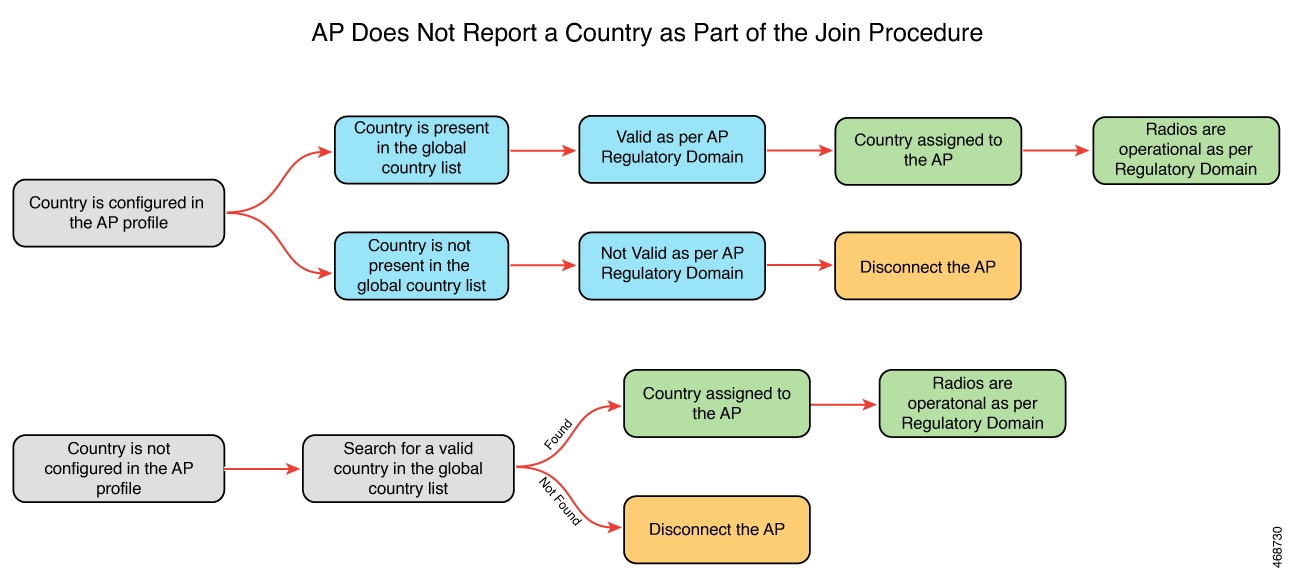
Case 1: AP does not report a country as part of the join procedure.

In the non-RoW regulatory domain, when an AP does not report a country as part of the join procedure, the process occurs:

  • AP profile has a country configured.

    • If the country configured in the AP profile is present in the global country list, and is valid as per the AP regulatory domain, the country that is configured in the AP profile is assigned to the AP. Radios become operational as per the country or regulatory domain support.

    • If the country configured in the AP profile is not present in the global country list, and is not valid as per the AP regulatory domain, the AP is disconnected.

  • AP profile does not have a country configured. Find a valid country from the global country list (the first match), as per the AP regulatory domain.

    • If the country is found, the country is assigned to the AP and the radios become operational as per the country or regulatory domain support.

    • If the country is not found, the AP is disconnected.

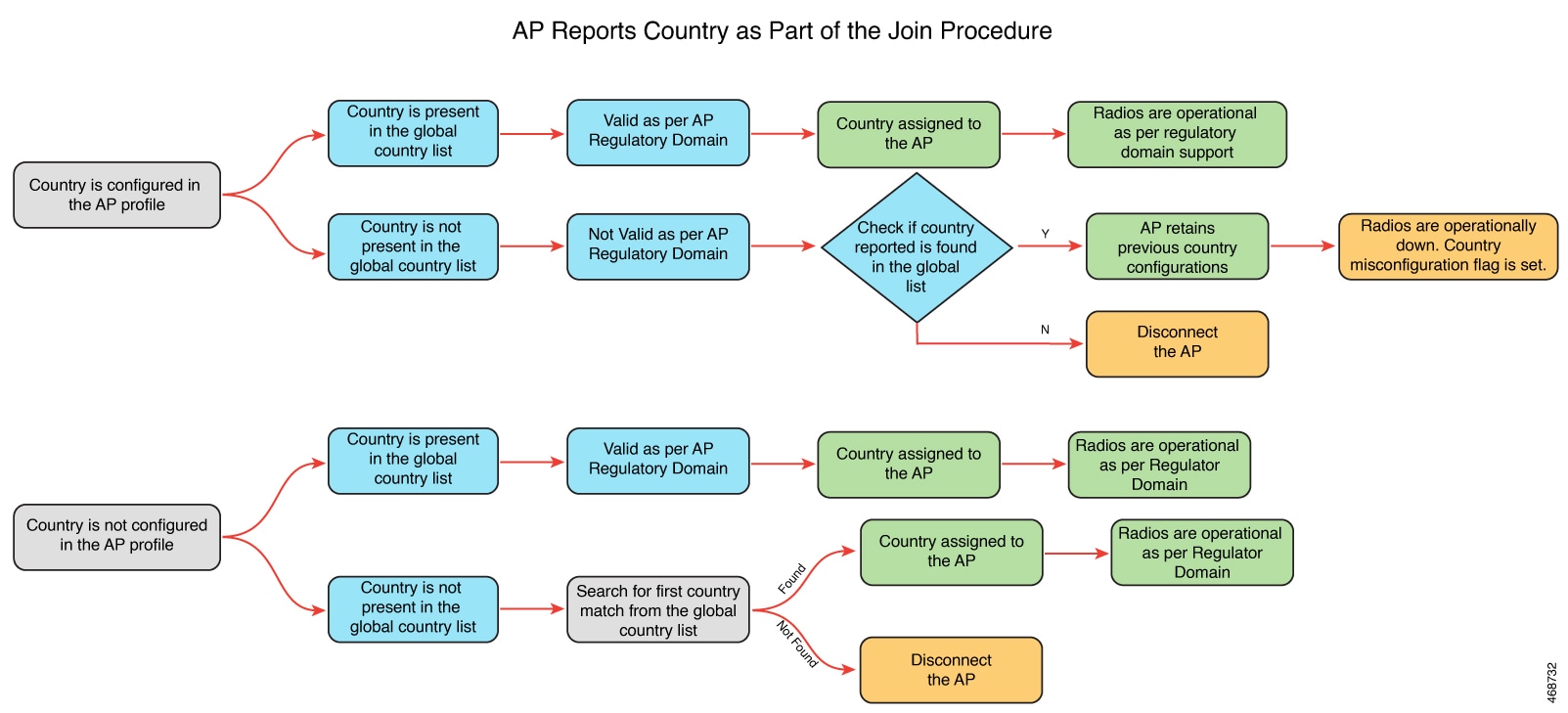
Case 2: AP reports a country as part of the join procedure.

In the non-RoW regulatory domain, when an AP reports a country as part of the join procedure, the following takes place:

  • The AP profile has a country configured.

    • If the country configured in the AP profile is present in the global country list, and it is valid as per the AP regulatory domain, the country that is configured in the AP profile is assigned to the AP. Radios become operational as per the country or regulatory domain support.

    • If the country configured in the AP profile is not present in the global country list, and is not valid as per the AP regulatory domain, check the global country list to confirm the country's presence. If it is present in the global list, the AP retains the previous country configuration and the radios are not operational with the country misconfiguration flag set. If the country is not located in the global list, the AP is disconnected.

  • The AP profile does not have a country configured.

    • If the country reported by the AP is found in the global country list, and is valid as per the AP regulatory domain, the country is assigned to the AP and the radios become operational as per the country or regulatory domain support.

    • If the country is not present in the list, search for the first country match from the global list. If the country is found, the country is assigned to the AP and the radios become operational. If the country is not found, the AP is disconnected.

In the non-RoW regulatory domain, when an AP does not report a country as part of the join procedure, the following takes place:

  • AP profile has a country configured.

    • If the country configured in the AP profile is present in the global country list, and is valid as per the AP regulatory domain, the country that is configured in the AP profile is assigned to the AP. Radios become operational as per the country or regulatory domain support.

    • If the country configured in the AP profile is not present in the global country list, and is not valid as per the AP regulatory domain, the AP is disconnected.

  • AP profile does not have a country configured. Find a valid country from the global country list (the first match), as per the AP regulatory domain.

    • If the country is found, the country is assigned to the AP and the radios become operational as per the country or regulatory domain support.

    • If the country is not found, the AP is disconnected.

AP configured with RoW regulatory domain

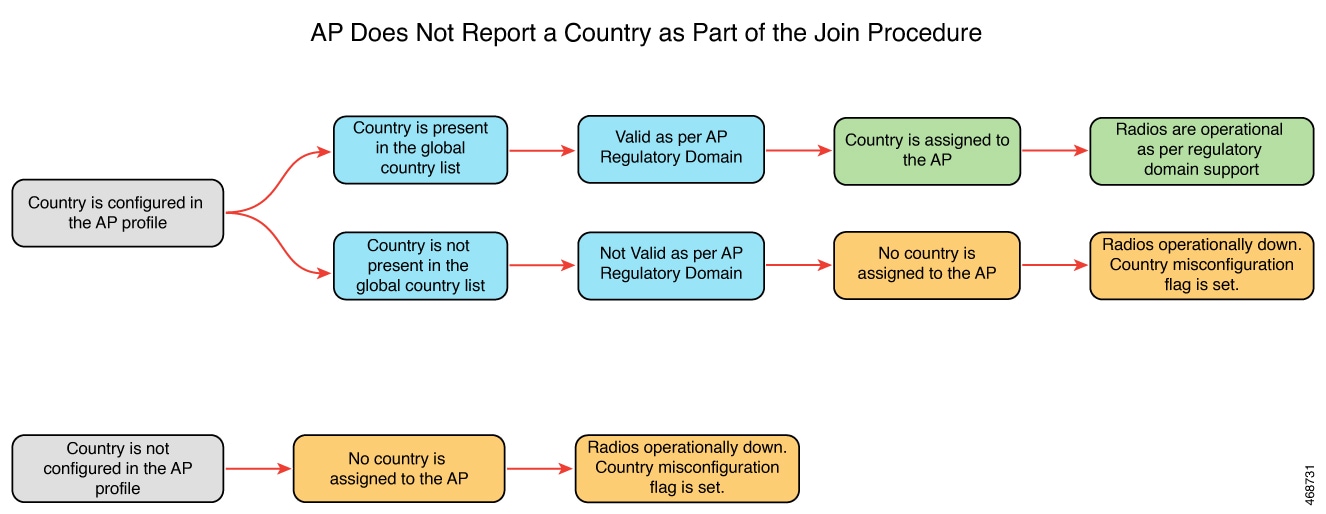
Case 1: The AP does not report a country as part of the join procedure.

In the RoW regulatory domain, when an AP does not report a country as part of the join procedure, this process occurs:

  • The AP profile has a country configured.

    • If the country configured in the AP profile is present in the global country list, and is valid as per the AP regulatory domain, the country configured in the AP profile is assigned to the AP. Radios become operational as per the country or regulatory domain support.

    • If the country configured in the AP profile is not present in the global country list, and is not valid as per the AP regulatory domain, country is not assigned to the AP and radios are not operational, and the country misconfiguration flag is set.

  • If the AP profile does not have a country configured, the country is not assigned to the AP and radios are not operational, and the country misconfiguration flag is set.

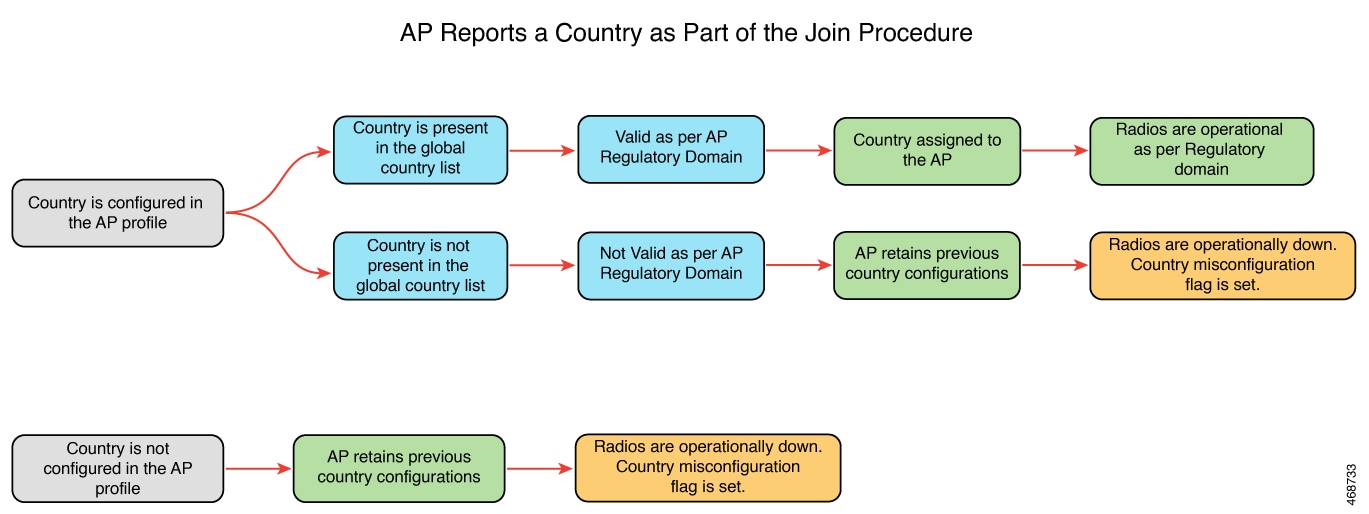
Case 2: The AP reports a country as part of the join procedure.

In the RoW regulatory domain, when an AP reports a country as part of the join procedure, this happens:

  • The AP profile has a country configured.

    • If the country configured in the AP profile is present in the global country list, and it is valid as per the AP regulatory domain, the country that is configured in the AP profile is assigned to the AP. Radios become operational as per the country or regulatory domain support.

    • If the country configured in the AP profile is not present in the global country list, and is not valid as per the AP regulatory domain, the AP retains the previous country configuration and the radios are not operational with the country misconfiguration flag set.

  • The AP retains the previous country configuration and the radios are not operational with the country misconfiguration flag set.

Configure management mode migration (GUI)

Use the GUI to transition APs from DNA management mode to Meraki management mode. This improves network management efficiency.

Before you begin

You must configure the country code on the AP profile. To configure the country code, navigate to Configuration > Tags & Profiles > AP Join page. Click an AP profile to edit. In the General tab, select the country code from the drop-down list.

Use these steps to migrate the management mode using the GUI:

Procedure


Step 1

Choose Configuration > Wireless > Migrate to Meraki Management Mode.

Step 2

Select the APs you need by checking the boxes next to them from the displayed list.

The Migrate to Meraki Management Mode button is enabled.

Step 3

Click Migrate to Meraki Management Mode button to perform a validation check on the selected APs. If the validation check is successful, the Next button is enabled.

Step 4

Click Next to start the process.

Step 5

On the Confirm Management Mode Migration window, perform these actions:

  1. Select the Agree and continue check box.

  2. Click Yes to confirm.

The Management Mode Migration Successful section displays the APs that were migrated to the Meraki management mode. The Management Mode Migration Failed section displays the APs that were retained in DNA management mode.

Step 6

Click Restart Workflow to restart the workflow for APs that did not migrate from DNA management mode to Meraki management mode.


APs migrate to Meraki management mode. APs that fail to migrate remain in DNA management mode, allowing for further troubleshooting or additional attempts.

Export APs migrated to Meraki management mode (GUI)

Export the list of Meraki management mode-migrated APs to ensure information is available for further use, or integration into other tools.

You can export the details about the Meraki management mode-migrated APs either from the Change to Meraki Persona tab after the workflow is completed or from the Previously changed APs tab.

Use these steps to export Meraki management mode-migrated APs:

Procedure


Step 1

Choose Configuration > Wireless > Migrate to Meraki Management Mode.

Step 2

Click Export to export the list of APs.

Step 3

Select whether you want to export only the current page or all pages. Click Yes to continue.

Step 4

On the Export window, select the export method. The available options are:

  • Serial Number

  • JSON

  • Export to Meraki Dashboard

Note


We recommend the Export to Meraki Dashboard option as you can directly export the migrated APs information into the Meraki Dashboard.

Step 5

Click Copy to copy the migrated APs. Click Download and save the file location.


The list of migrated APs was successfuly exported, ensuring that the data is readily available for review, storage, or integration.

Configure the access point management mode (CLI)

Change the management mode of an AP to Meraki using CLI.

Before you begin

Ensure that the AP is compatible with Meraki to run any of the EXEC commands. To verify, use the show ap management-mode meraki capability summary command.


Note


If the country code is misconfigured, the change of management mode will not be allowed for any of the EXEC commands, except the force command.

If the regulatory domain is misconfigured for any slot, the change of management mode is not allowed for any of the EXEC commands, except the force command.


Procedure


Step 1

Enable privileged EXEC mode.

Example:

Device# enable

Enter the password, if prompted.

Step 2

Change the AP management mode to Meraki.

Example:

Device# ap name <i>Cisco-AP-name</i> management-mode meraki
Device# ap name Cisco-AP-name management-mode meraki force 
Device# ap name Cisco-AP-name management-mode meraki noprompt
Device# ap name Cisco-AP-name management-mode meraki force noprompt

Here, force skips the validations at the controller and attempts Meraki management mode change at the AP.

noprompt skips the user prompt for attempting AP management mode change.

Step 3

(Optional) Clear the Meraki AP-related data.

Example:

Device# clear ap meraki stats

The AP is configured to the Meraki management mode.

Verify the management mode migration details

To view the summary of the Meraki-capable AP information, run this command:

Device# show ap management-mode meraki capability summary
AP Name                    AP Model             Radio MAC        MAC Address      AP Serial Number       Meraki Serial Number
-----------------------------------------------------------------------------------------------------------------------------------
APXXXD.BXXX.1XXX           CW9162I             6XXd.bXXe.eXX0   6XXd.bXXe.eXX0    FOCXXXXXB90            FOCXXXXXB90
To view the failure summary of the AP along with the migration attempt timestamp, run this command:
Device# show ap management-mode meraki failure summary
AP Name              AP Model          Radio MAC        MAC Address      Conversion Attempt        AP Serial Number       Meraki Serial Number   Reason Code
----------------------------------------------------------------------------------------------------------------------------------------------------------------------------------
APXXXD.BXXC.1        CW9162I           6XXd.bXXe.eXX0   6XXd.bXXe.eXX0   03/03/2022 17:17:42 IST   FOCXXXXXB90            FOCXXXXXB90            Regulatory domain not set
To view the successful Meraki management mode migration attempts of all the APs, run this command:
Device# show ap management-mode meraki change summary
AP Name                  AP Model          Radio MAC        MAC Address      Conversion Timestamp       AP Serial Number        Meraki Serial Number
---------------------------------------------------------------------------------------------------------------------------------------------------------------------
APXXXX.3XXX.EXXX         CW9166I-B         1XXX.2XXX.1100   ccXX.3XXX.eXX0   05/02/2022 07:48:56 CST    KWC2XXXXX5G             Q5XX-4XXX-K7XX

FlexConnect Authentication

A FlexConnect authentication mode is a WLAN operating state that

  • defines how a FlexConnect AP handles client authentication and data switching

  • changes its behavior based on connection status to the controller, and

  • enables resilient client connectivity during both connected and standalone operation.

Locally switched: The AP forwards client data directly to the local LAN or VLAN at the site instead of tunneling it through the controller.

Centrally switched: The AP forwards the client’s data traffic to the controller, depending on the WLAN configuration.

FlexConnect is a wireless solution for branch office and remote office deployments. It enables customers to configure and control access points (AP) in a branch or remote office from the corporate office through a wide area network (WAN) link without deploying a controller in each office. The FlexConnect access points can also switch client data traffic locally and perform client authentication locally when their connection to the controller is lost. When they are connected to the controller, they can also send traffic back to the controller. FlexConnect access points support multiple SSIDs. In the connected mode, the FlexConnect access point can also perform local authentication.

An access point does not have to reboot when moving from local mode to FlexConnect mode and vice-versa.

FlexConnect Deployment
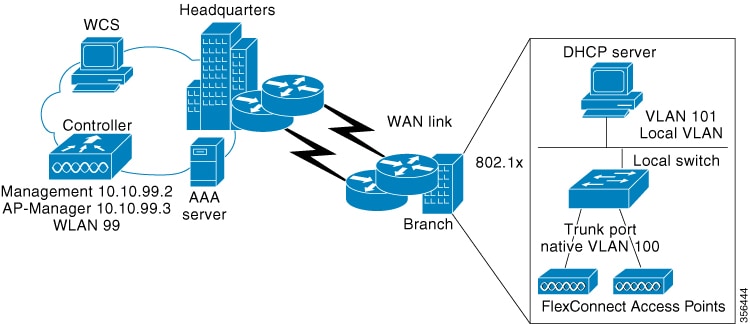
The embedded wireless controller software uses a more robust fault-tolerance methodology with FlexConnect APs. Whenever a FlexConnect AP disassociates from controller, it moves to the standalone mode. Centrally switched clients are disassociated. However, the FlexConnect access point continues to serve locally switched clients. When a FlexConnect AP loses and rejoins its primary or identically configured secondary controller, locally switched client sessions are maintained, providing seamless connectivity.

After the client connection is established, the controller does not restore the original attributes of the client. The client username, current rate and supported rates, and listen interval values are reset to the default or new configured values only after the session timer expires.

The controller can send multicast packets in the form of unicast or multicast packets to an access point. In FlexConnect mode, an access point can receive only multicast packets.

In Cisco Catalyst 9800 Series Wireless Controller, you can define a flex connect site. A FlexConnect site can have a flex connect profile associate with it. You can have a maximum of 100 access points for each flex connect site.

FlexConnect access points support a one-to-one network address translation (NAT) configuration. They also support PAT for all features except true multicast. Multicast is supported across NAT boundaries when configured using the Unicast option. FlexConnect access points also support a many-to-one NAT or PAT boundary, except when you want true multicast to operate for all centrally switched WLANs.

Workgroup Bridge and Universal Workgroup Bridge modes are supported on FlexConnect APs for locally switched clients.

FlexConnect supports IPv6 clients by bridging traffic to the local VLAN, similar to IPv4 operation.

  • An office with intermittent WAN connectivity keeps wireless clients connected using local authentication, with data switched locally until the central controller is available again.

  • A FlexConnect AP at a remote branch uses backup RADIUS for 802.1X authentication during WAN outages.

Analogy: retail chain

Imagine a retail chain with a central headquarters (controller) and a branch store (the FlexConnect AP).

Normal day: Every time a customer wants to make a purchase, the cashier phones headquarters for approval and processing. This is like central authentication and switching.

Local authentication (policy choice): Even on a normal day, the branch can be configured to keep a small credit-card terminal in the store. If management decides to use it, the cashier can approve transactions locally without phoning headquarters. The headquarters link is still up, but the store chooses to handle the verification itself. That terminal is “local authentication".

Stand-alone mode (connectivity condition): One day the phone lines to headquarters go down. The branch is forced to rely on its credit-card terminal, whether it originally planned to or not, if it wants to keep making sales. The store switches on its emergency lights, keeps serving customers, and records the day’s sales to upload later. That forced independence is “standalone mode”.

Key Takeaway

Standalone mode is the situation (phone lines down).

Local authentication is the tool (the in-store terminal) that lets the store keep serving customers—even when the phone lines are fine and especially when they are not.

How FlexConnect authentication works

Summary

FlexConnect authentication enables wireless APs to maintain client connectivity and authentication in various network scenarios, either by connecting to a central controller or operating autonomously. This process is essential for branch offices or remote sites with unreliable WAN links.

The key components involved in the process are:
  • FlexConnect AP: Discovers controllers, downloads configuration, and performs client authentication and data switching either locally or through the controller.

  • The controller: Centralizes configuration management and client authentication when available.

  • Client devices: Attempt to authenticate and connect to the network through FlexConnect APs.

  • RADIUS server: Provides authentication services, either centrally through the controller or locally through a backup server in standalone modes.

Workflow

The process involves the following stages:

  1. Controller Discovery and Join
    • When a FlexConnect AP boots up, it searches for and joins a wireless LAN controller, downloading the latest configuration and software image.
    When... Then... And...

    The controller is reachable, the AP enters connected mode.

    The controller performs central authentication.

    Based on WLAN configuration
    • client data is switched either through the controller (central switching), or
    • locally at the AP (local switching).

    The controller is not reachable, the AP enters standalone mode.

    The AP performs local authentication using stored configuration and, if needed, a backup RADIUS server.

    • Client data is switched locally.
    • Special states (such as “authentication down, local switching”) manage client behavior when authentication cannot occur.
    When operating locally, guest authentication and local RADIUS on the controller are not supported.
  2. Failover and Recovery
    • If controller connectivity is lost, the AP attempts to reach the gateway via ARP and retries controller discovery.
    • If discovery fails, it attempts DHCP renewal and, if still unsuccessful after multiple attempts, falls back to static IP and reboots to recover.
  3. Return to Connected Mode Upon reconnecting to the controller, the AP disassociates clients, applies new configuration, and resumes normal connectivity, with central authentication and state management.

Result

FlexConnect authentication ensures clients can maintain connectivity and authentication even during network disruptions, supports flexible deployment models, and reduces branch office WAN dependency.

Controller discovery methods

When a FlexConnect AP boots up, it searches for a controller. If it finds one, it joins the controller, downloads the latest software and configuration, and initializes the radio. The configuration is saved in nonvolatile memory to support standalone mode if the controller becomes unreachable.

A FlexConnect AP can discover the controller’s IP address through multiple methods:

  • DHCP-based discovery: If the access point gets its IP from a DHCP server, it uses CAPWAP or LWAPP discovery. OTAP is not supported.

  • Static IP discovery: If configured with a static IP, the access point can use all discovery methods except DHCP option 43. DNS resolution is recommended if Layer 3 broadcast fails. With DNS, any AP with a static IP address that knows of a DNS server can find at least one controller.

  • Priming: For remote networks without CAPWAP or LWAPP, priming allows manual configuration through the CLI to specify the controller.

FlexConnect authentication and switching modes


Note


The LEDs on the AP change as the device enters different FlexConnect modes. See the hardware installation guide for your AP for information on LED patterns.

When a client associates with a FlexConnect AP, the AP sends all authentication messages to the controller and, based on the WLAN configuration, either switches the client’s data packets locally (locally switched) or sends them to the controller (centrally switched).

For client authentication (open, shared, EAP, web authentication, and NAC) and data packets, the WLAN operates in one of the following states, determined by its configuration and the controller connectivity status:

  • Central authentication, central switching: The controller handles both client authentication and data switching. All client data is tunneled to the controller. This state is valid only in the connected mode.

  • Central authentication, local switching—In this state, the controller handles client authentication, and the FlexConnect AP switches data packets locally. After the client authenticates successfully, the controller sends a configuration command with a new payload to instruct the FlexConnect AP to start switching data packets locally. This message is sent per client. This state is applicable only in connected mode.

  • Local authentication, local switching: The AP both authenticates clients and switches data locally. This state works in both connected and standalone mode.

  • Authentication down, switch down: The WLAN disassociates clients and stops sending beacons and probes. Valid for both connected and standalone modes.

  • Authentication down, local switching: New client authentication is rejected, but existing client sessions are kept alive. Valid in standalone mode.

In the connected mode, the controller receives only minimal information about locally authenticated clients. Some information not available to the controller are:

  • Policy type

  • Access VLAN

  • VLAN name

  • Supported rates

  • Encryption cipher

When a FlexConnect AP is unable to reach the controller, WLANs configured with open, shared, WPA-PSK, or WPA2-PSK authentication continue to authenticate clients locally if an external RADIUS server is available. If the controller becomes reachable again, all clients are disassociated and a new configuration is applied before connectivity resumes.

In web-authentication mode, client DNS replies must pass through the controller during authentication. After successful web authentication, all traffic switches locally.

Standalone Mode

When a FlexConnect AP cannot reach the controller, it automatically enters standalone mode and begins authenticating clients on its own

Behavior in standalone mode

  • WLANs configured for open, shared, WPA-PSK, or WPA2-PSK authentication enter the local authentication, local switching state and continue new client authentications.

  • WLANs configured for 802.1X, WPA-802.1X, WPA2-802.1X, or Cisco Centralized Key Management require an external or local RADIUS server to remain operational.

  • WLANs configured for central switching move to authentication down, switching down; WLANs configured for local switching move to authentication down, local switching

  • The AP forwards data frames locally while it authenticates clients.

When a FlexConnect AP enters a standalone mode, the AP checks whether it is able to reach the default gateway through ARP. If so, it will continue to try and reach the controller .

If the AP fails to establish the ARP:

  • The AP attempts to discover for five times and if it still cannot find the controller , it tries to renew the DHCP on the ethernet interface to get a new DHCP IP.

  • The AP will retry for five times, and if that fails, the AP will renew the IP address of the interface again, this will happen for three attempts.

  • If the three attempts fail, the AP will fall back to the static IP and will reboot (only if the AP is configured with a static IP).

  • Reboot is done to remove the possibility of any unknown error the AP configuration.

Local authentication in a FlexConnect AP

Local authentication in a FlexConnect AP is an authentication method in which

  • the FlexConnect AP independently authenticates clients without forwarding authentication requests to a central controller

  • client data packets are switched locally by the AP, reducing round-trip latency and dependence on WAN bandwidth

  • authentication capabilities are built into the AP for handling protocols like 802.1X, WPA-PSK, WPA2-PSK, and others reduces the latency requirements of the branch office, and

  • is useful where you cannot maintain a remote office setup of a minimum bandwidth of 128 kbps with the round-trip latency no greater than 100 ms and the maximum transmission unit (MTU) no smaller than 576 bytes.

Additional information

  • Do not enable guest authentication on WLANs with FlexConnect local authentication; guest authentication is unsupported in this configuration.

  • Do not use local RADIUS authentication on the controller for FlexConnect local authentication-enabled WLANs; it is not supported.

  • Once the client has been authenticated, roaming is only supported after the controller and the other FlexConnect access points in the group are updated with the client information.

Local and backup RADIUS server configuration

  • When connected to a central controller, FlexConnect APs use the controller’s primary RADIUS servers in the specified order unless overridden for a particular WLAN. The order is specified on the RADIUS Authentication Servers window or using the the config radius auth add command

  • In standalone mode, each FlexConnect AP must have its own backup RADIUS server to perform 802.1X EAP authentication for clients. The controller itself does not use a backup RADIUS server in this mode.

  • You can configure a backup RADIUS server for individual FlexConnect APs in standalone mode by using the controller CLI or for groups of FlexConnect APs in standalone mode by using either the GUI or CLI. An AP-specific backup RADIUS configuration overrides any group configuration.


Note


A controller does not use a backup RADIUS server. The controller uses the backup RADIUS server in local authentication mode.

WLAN authentication and switching states

When a primary RADIUS server becomes unavailable, WLANs will enter either:

  • Authentication down, switching down

    state if the WLAN was configured for central switching
  • Authentication down, local switching state if the WLAN was configured for local switching

Web authentication and DNS handling

When web-authentication is used on FlexConnect APs at a remote site, the clients get the IP address from the remote local subnet.

To resolve the initial URL request, the DNS is accessible through the subnet's default gateway. In order for the controller to intercept and redirect the DNS query return packets, these packets must reach the controller at the data center through a CAPWAP connection. During the web-authentication process, the FlexConnect APs allows only DNS and DHCP messages; the APs forward the DNS reply messages to the controller before web-authentication for the client is complete. After web-authentication for the client is complete, all the traffic is switched locally.

Restrictions

  • OTAP is not supported.

  • After the AP reboots with the new controller software, convert it to FlexConnect mode.

  • 802.1X authentication on the AUX port is unsupported for Cisco Aironet 2700 series FlexConnect APs.

  • FlexConnect passive client mode disables IP Learn timeout by default in local switching, central authentication deployments.

  • When a FlexConnect AP enters standalone mode, only WLANs configured for open, shared, WPA-PSK, or WPA2-PSK authentication support local authentication for new clients; 802.1X types require an external or local RADIUS server.

  • When FlexConnect APs are connected to the controller (rather than in standalone mode), the controller uses its primary RADIUS servers and accesses them in the order specified on the RADIUS Authentication Servers page or in the config radius auth add CLI command (unless the server order is overridden for a particular WLAN). However, to support 802.1X EAP authentication, FlexConnect APs in standalone mode need to have their own backup RADIUS server to authenticate clients.


    Note


    A controller does not use a backup RADIUS server. The controller uses the backup RADIUS server in local authentication mode.

When the FlexConnect AP cannot reach its default gateway through ARP and cannot discover the controller, it attempts multiple DHCP renewals and reboots if configured with a static IP to recover connectivity; controller discovery failures trigger fallback behavior.

If the AP fails to establish the ARP, this happens:
  • The AP attempts to discover for five times and if it still cannot find the controller, it tries to renew the DHCP on the ethernet interface to get a new DHCP IP.

  • The AP will retry for five times, and if that fails, the AP will renew the IP address of the interface again, this will happen for three attempts.

  • If the three attempts fail, the AP will fall back to the static IP and will reboot (only if the AP is configured with a static IP).

  • The AP reboots to eliminate potential configuration errors.

Guidelines and restrictions for FlexConnect

Configuration Changes

  • When you apply a configuration change to a locally switched WLAN, the access point resets the radio, causing associated client devices to disassociate, including those not associated with the modified WLAN. Modify the configuration only during a maintenance window. This is applicable when a centrally switched WLAN is changed to a locally switched WLAN.

  • This guideline is specific to Wave 1 APs, and not for Wave 2 APs or 11AX APs.

VLAN and Switched WLANs

  • FlexConnect mode can support only 16 VLANs per AP.

  • NAC out-of-band integration is supported only on WLANs configured for FlexConnect central switching, not for local switching.

  • FlexConnect access points with locally switched WLANs cannot perform IP source guard and prevent ARP spoofing.

Network and Client Requirements

  • You can deploy a FlexConnect access point with either a static IP address or a DHCP address. Ensure a DHCP server is available locally and able to provide the IP address for the access point at bootup.

  • FlexConnect supports up to 4 fragmented packets or a 576-byte MTU WAN link.

  • Round-trip latency must not exceed 300 milliseconds (ms) between the access point and the controller, and CAPWAP control packets must be prioritized over all other traffic.

Roaming and Associations

When a client roams from one AP to another and the roaming is successful, this happens:

  • The client does not send any traffic to the new AP.

  • The client’s state is IP LEARN pending.

  • The client is deauthenticated after 180 seconds, if there is no traffic for the entire duration. In case the DHCP Required flag is set, the deauthentication occurs after 60 seconds.

Authentication and Support

  • FlexConnect APs do not forward the DHCP packets after Change of Authorization (CoA) and change of VLANs using 802.1X encryption. You must disconnect the client from the WLAN and reconnect the client to enable the client to get an IP address in the second VLAN.

  • The configuration on the controller must be the same between the time the access point went into standalone mode and the time the access point came back to connected mode.

  • Local authentication fallback is not supported when a user is not available in the external RADIUS server.

Configuration Practices

  • In the FlexConnect mode, use a named site tag instead of default-site-tag. If you use default-site-tag, the client Pairwise Master Key (PMK) is not sent to APs. This results in client roam and reassociation issues.

Rate limiting per SSID is not supported in FlexConnect local switching mode

  • Rate limiting per SSID is not supported in FlexConnect local switching mode.

  • Rate limiting is enforced per flow (5-tuple) and not per SSID or per client.

  • For rate limiting to work as expected, FlexConnect central switching mode should be used.

  • In FlexConnect local switching mode, QoS policies are applied at the AP level.

Configure a site tag (CLI)

Configure a site tag using CLI to centrally manage configurations for APs within a network. By completing this task, you streamline the management of configuration profiles and associated devices on the network.

Use these steps to configure a site tag using CLI:

Procedure


Step 1

Enter global configuration mode.

Example:

Device# configure terminal

Step 2

Configure site tag and enter site tag configuration mode.

Example:

Device(config)# wireless tag site default-site-tag

Step 3

Move the AP to FlexConnect mode.

Example:

Device(config-site-tag)# no local-site

Note


no local-site must be configured before configuring flex-profile. Otherwise, flex-profile will not be applied to the site tag.

Step 4

Map a flex profile to a site tag.

Example:

Device(config-site-tag)# flex-profile rr-xyz-flex-profile

Step 5

Assign an AP profile to the wireless site.

Example:

Device(config-site-tag)# ap-profile xyz-ap-profile

Step 6

Add a description for the site tag.

Example:

Device(config-site-tag)# description "default site tag"

Step 7

Save the configuration, exit the configuration mode, and return to privileged EXEC mode.

Example:

Device(config-site-tag)# end

Step 8

Display the summary of site tags.

Example:

Device# show wireless tag site summary

You configured the new site tag for the network. Now visible in the system, the site tag allows you to efficiently manage AP profiles and flex profiles associated with specific network sites.

Configure a policy tag (CLI)

Create and apply a policy tag to group wireless local area network (WLAN) and policy profiles for your network configuration.

Use this task when you need to define or update policy tags for your wireless network devices using the CLI.

Before you begin

  • Prepare unique names for policy tags using ASCII characters (32 to 126, no leading or trailing spaces).

  • Identify the WLAN and policy profiles you plan to map.

Procedure


Step 1

Enter global configuration mode.

Example:

Device# configure terminal

Step 2

Configure policy tag and enter policy tag configuration mode.

Example:

Device(config-policy-tag)# wireless tag policy default-policy-tag

Note


When performing local web authentication, the clients connected to a controller get disconnected intermittently before session timeout.

Step 3

Add a description to a policy tag.

Example:

Device(config-policy-tag)# description "default-policy-tag"

Step 4

Map a remote-LAN profile to a policy profile.

Example:

Device(config-policy-tag)# remote-lan remote-lan-name policy profile-policy-name port-id port-id-number

Step 5

Map a policy profile to a WLAN profile.

Example:

Device(config-policy-tag)# wlan wlan-name policy profile-policy-name

Note


Ensure that the WLAN profile is not used by any other profiles. If the AP uses the default profile, ensure that the no central switching command is configured on other profiles.

Step 6

Exit policy tag configuration mode, and return to privileged EXEC mode.

Example:

Device(config-policy-tag)# end

Step 7

(Optional) Display the configured policy tags.

Example:

Device# show wireless tag policy summary

Note


To view detailed information about a policy tag, use the show wireless tag policy detailed policy-tag-name command.


Your device has the new policy tag applied. The mapped WLAN and policy profiles are now active based on your configuration.

What to do next

Verify that connected devices use the updated policy tag and the expected network policies are applied.

Attach policy and site tags to an access point (GUI)

This task allows you to efficiently organize and manage access points by assigning specific policy and site tags through GUI.

Use these steps to assign policy and site tags to an AP using GUI:

Procedure


Step 1

Choose Configuration > Wireless > Access Points.

Step 2

Click the Access Point name.

Step 3

Go to the Tags section.

Step 4

Choose the Policy Tag from the Policy drop-down list.

Step 5

Choose the Site Tag from the Site drop-down list.

Step 6

Click Update and Apply to Device.


The AP has the designated policy and site tags, ensuring it operates under defined network conditions and policy settings.

Attach policy tag and site tag to an AP (CLI)

Assign a policy tag and site tag to an AP using the CLI.

Use this procedure to associate specific network policies and locations with an AP in your Cisco wireless deployment.

Before you begin

Make sure you have the wired MAC address of the AP.

Procedure


Step 1

Enter global configuration mode.

Example:

Device# configure terminal

Step 2

Configure a Cisco AP and enters AP profile configuration mode.

Example:

Device(config)# ap F866.F267.7DFB 

Note


The mac-address should be a wired mac address.

Step 3

Map a policy tag to the AP.

Example:

Device(config-ap-tag)# policy-tag rr-xyz-policy-tag

Step 4

Map a site tag to the AP.

Example:

Device(config-ap-tag)# site-tag rr-xyz-site

Step 5

Associate the RF tag.

Example:

Device(config-ap-tag)# rf-tag rf-tag1

Step 6

Save the configuration, exit configuration mode, and return to privileged EXEC mode.

Example:

Device(config-ap-tag)# end

Step 7

(Optional) Display AP details and the tags associated to it.

Example:

Device# show ap tag summary  

Step 8

Display the AP name with tag information.

Example:

Device# show ap name "ap-name" tag info  

Step 9

(Optional) Display the AP name with tag details.

Example:

Device# show ap name ap-name tag detail

The AP is now associated with the specified policy, site, and optionally, RF tags you selected

Apply access control lists on FlexConnect

Apply Access Control Lists (ACLs) on a FlexConnect wireless profile to filter packet movement through a network.

Use these steps to apply ACLs on FlexConnect.

Procedure


Step 1

Enter global configuration mode.

Example:

Device# configure terminal

Step 2

Configure a wireless flex profile and enter wireless flex profile configuration mode.

Example:

Device(config)# wireless profile flex Flex-profile-1

Step 3

Configure an ACL policy.

Example:

Device(config-wireless-flex-profile)# acl-policy ACL1

Access control lists (ACLs) perform packet filtering to control the movement of packets through a network.

Step 4

Return to wireless flex profile configuration mode.

Example:

Device(config-wireless-flex-profile-acl)# exit

Step 5

Configure native vlan-id information.

Example:

Device(config-wireless-flex-profile)# native-vlan-id 25

Step 6

Configure a VLAN.

Example:

Device(config-wireless-flex-profile)# vlan-name VLAN0169

Step 7

Configure an ACL for the interface.

Example:

Device(config-wireless-flex-profile-vlan)# acl ACL1

Step 8

Configure VLAN information.

Example:

Device(config-wireless-flex-profile-vlan)# vlan-id 169

The ACLs are applied to the FlexConnect wireless profile, ensuring controlled packet filtering through configured VLAN settings.

Configure FlexConnect

Configure the switch at a remote site

Configure a switch to support a FlexConnect access point at a remote site by ensuring proper VLAN and IP address settings.

Use the steps to configure the switch at a remote site

Procedure


Step 1

Attach the AP by connecting the FlexConnect access point to either a trunk or an access port on the switch.

Note


The sample configuration in this procedure shows the FlexConnect access point connected to a trunk port on the switch.

Step 2

This example configuration guides you on configuring a switch to support a FlexConnect AP.

In this sample configuration, the FlexConnect access point is connected to the trunk interface FastEthernet 1/0/2 with native VLAN 100. The access point needs IP connectivity on the native VLAN. The remote site has local servers or resources on VLAN 101. A DHCP pool is created in the local switch for both the VLANs in the switch. The first DHCP pool (NATIVE) is used by the FlexConnect access point, and the second DHCP pool (LOCAL-SWITCH) is used by the clients when they associate to a WLAN that is locally switched.


.
.
.
ip dhcp pool NATIVE
   network 209.165.200.224 255.255.255.224
   default-router 209.165.200.225
   dns-server 192.168.100.167
!
ip dhcp pool LOCAL-SWITCH
   network 209.165.201.224 255.255.255.224
   default-router 209.165.201.225 
   dns-server 192.168.100.167
!
interface Gig1/0/1
 description Uplink port
 no switchport
 ip address 209.165.202.225 255.255.255.224
!
interface Gig1/0/2
 description the Access Point port
 switchport trunk encapsulation dot1q
 switchport trunk native vlan 100
 switchport trunk allowed vlan 101
 switchport mode trunk
!
interface Vlan100
 ip address 209.165.200.225 255.255.255.224
!
interface Vlan101
 ip address 209.165.201.225 255.255.255.224
end
!
.
.
.

The switch is configured to support the FlexConnect access point, enabling network connectivity for the access point and local servers or resources in the VLANs specified.

Configure the controller for FlexConnect

You can configure the controller for FlexConnect in either centrally switched WLAN or locally switched WLAN environments.

The controller configuration for FlexConnect consists of creating centrally switched and locally switched WLANs. This table shows three WLAN scenarios.

Table 4. WLAN scenarios

WLAN

Security

Authentication

Switching

Interface mapping (GUEST VLAN)

Employee

WPA1+WPA2

Central

Central

Management (centrally switched GUEST VLAN)

Employee-local

WPA1+WPA2 (PSK)

Local

Local

101 (locally switched GUEST VLAN)

Guest-central

Web authentication

Central

Central

Management (centrally switched GUEST VLAN)

Employee-local-auth

WPA1+WPA2

Local

Local

101 (locally switched VLAN)

Configure local switching in FlexConnect mode (GUI)

Enable local switching for a device operating in FlexConnect mode using the GUI.

Use these steps to configure local switching.

Procedure

Step 1

Choose Configuration > Tags & Profiles > Policy.

Step 2

On the Policy Profile page, click the name of a policy profile to edit it or click Add to create a new one.

Step 3

In the Add/Edit Policy Profile window that is displayed, uncheck the Central Switching check box.

Step 4

Click Update & Apply to Device.


The device is now configured to use local switching in FlexConnect mode.

Configure local switching in FlexConnect mode (CLI)

Configure a WLAN for local switching when operating in FlexConnect mode, enabling WLANs to be locally switched at the AP.

Procedure

Step 1

Enter global configuration mode.

Example:
Device# configure terminal

Step 2

Configure WLAN policy profile and enter the wireless policy configuration mode.

Example:
Device(config)# wireless profile 
policy rr-xyz-policy-1

Step 3

Configure the WLAN for local switching.

Example:
Device(config-wireless-policy)# no central switching

Step 4

Return to privileged EXEC mode.

Example:
Device(config)# end

The WLAN operates with local switching at the AP, allowing the WLAN data traffic to be processed locally rather than routed through a central controller.

Configure central switching in FlexConnect mode (GUI)

Enable or disable central switch mode in FlexConnect to manage traffic more effectively based on your network setup.

Procedure

Step 1

Choose Configuration > Tags & Profiles > Policy.

Step 2

On the Policy Profile page, select a policy.

Step 3

In the Edit Policy Profile window, in General Tab, use the slider to enable or disable Central Switching.

Step 4

Click Update & Apply to Device.


Central switch mode has been configured as specified, and the network policy is updated according to your current setup needs.

Configure central switching in FlexConnect mode (CLI)

Establish central switching in FlexConnect mode on your device using the CLI.

Use these steps to configure central switching in FlexConnect mode.

Procedure

Step 1

Enter global configuration mode.

Example:
Device# configure terminal

Step 2

Configure WLAN policy profile and enter the wireless policy configuration mode.

Example:

Device
config)# wireless profile policy rr-xyz-policy-1
					

Step 3

Configure the WLAN for central switching.

Example:
Device config-wireless-policy)# central switching
					

Step 4

Return to privileged EXEC mode.

Example:
Device(config)# end

Central switching configuration is applied, and data from devices is centrally processed in FlexConnect mode.

Configure an access point for FlexConnect

For more information, see Configuring a Site Tag (CLI) topic in New Configuration Model chapter.

Configure an access point for local authentication on a WLAN (GUI)

Configure an AP so that it uses local authentication for wireless LANs, enhancing the security and autonomy of network access control processes.

Procedure


Step 1

Choose Configuration > Tags & Profiles > Policy.

Step 2

In the Policy Profile page, select a policy profile name. The Edit Policy Profile window is displayed.

Step 3

In the General tab, deselect Central Authentication check box.

Step 4

Click Update & Apply to Device.


The AP is set up to authenticate users locally without relying on central authentication systems, providing secure and efficient network access verification.

Configure an access point for local authentication on a WLAN (CLI)

Configure an AP to use local authentication on a WLAN to enhance security control at the network edge.

Procedure


Step 1

Enter global configuration mode.

Example:

Device# configure terminal

Step 2

Configure WLAN policy profile and enter the wireless policy configuration mode.

Example:

Device(config)# wireless profile 
policy rr-xyz-policy-1

Step 3

Configure the WLAN for local authentication.

Example:

Device(config-wireless-policy)# no central authentication

Step 4

Return to privileged EXEC mode.

Example:

Device(config)# end

The AP is configured to authenticate WLAN users locally, bypassing central authentication mechanisms.

Connect client devices to WLANs

A client device connection to a WLAN is a profile creation process that

  • allows client devices to connect to wireless networks

  • requires specific authentication methods, and

  • assigns IP addresses upon successful authentication.

Additional Reference Information

Refer to the instructions for your client device to create profiles to connect to the WLANs you created. These instructions are specified in the Configuring the vEWLC for FlexConnect document.

Example Scenarios:

  1. Employee WLAN: Create a client profile that uses WPA or WPA2 with PEAP-MSCHAPV2 authentication. After the client is authenticated, the management VLAN of the embedded controller assigns an IP address to the client.

  2. Local-Employee WLAN: Create a client profile that uses WPA or WPA2 authentication. After the client is authenticated, the client is allotted an IP address by VLAN 101 on the local switch.

  3. Guest-Central WLAN: Create a client profile that uses open authentication. After the client is authenticated, the client is allocated an IP address by VLAN 101 on the network local to the access point. After the client connects, a local user can enter any HTTP address in the web browser. The user is automatically directed to the controller to complete the web authentication process. When the web login window appears, the user should enter the username and password.


Note


Ensure that the authentication settings are configured correctly for each client profile.


Configuring FlexConnect Ethernet Fallback

FlexConnect ethernet fallback

A FlexConnect Ethernet Fallback is a configuration feature that

  • allows the AP to shut down its radio when the Ethernet link is non-operational

  • enables the AP to set its radio back to operational state when the Ethernet link is restored, and

  • operates independently of the AP being in connected or standalone mode.

To prevent radios from flapping when there is Ethernet interface instability, a configurable delay timer is provided.

Configure FlexConnect ethernet fallback (CLI)

Use CLI to configure the FlexConnect Ethernet fallback on specific APs to ensure network reliability in case of port failover.

Before you begin

This feature is not applicable to APs with multiple ports.

Procedure


Step 1

Enter global configuration mode.

Example:

Device# configure terminal

Step 2

Configure a wireless flex profile and enter wireless flex profile configuration mode.

Example:

Device(config)# wireless profile flex test

Step 3

Enable radio interface shutdown.

Example:

Device(config-wireless-flex-profile)# fallback-radio-shut

Step 4

Exit configuration mode and return to privileged EXEC mode.

Example:

Device(config-wireless-flex-profile)# end

Step 5

(Optional) Display detailed information about the selected profile.

Example:

Device# show wireless profile flex detailed test

The FlexConnect Ethernet fallback is configured, ensuring that the radio interface shuts down during Ethernet failure, maintaining network continuity.

Configure FlexConnect AP local authentication (GUI)

Configure the local authentication settings on a FlexConnect AP using the GUI to enable authentication and client handling directly on the AP.

Use these steps to configure FlexConnect AP local authentication:

Procedure


Step 1

Choose Configuration > Tags & Profiles > Flex.

Step 2

In the Flex page, click the name of the Flex Profile or click Add to create a new one.

Step 3

In the Add/Edit Flex Profile window, click the Local Authentication tab.

When you enable local authentication and association on the Access Point with Flex mode, these outcomes occur:

  • AP handles the authentication.

  • AP handles the rejection of client joins (in Mobility).

    Note


    You will not receive updated statistics from the controller when the AP rejects client associations.

Step 4

Choose the server group from the RADIUS Server Group drop-down list.

Step 5

Use the Local Accounting Radius Server Group drop-down to select the RADIUS server group.

Step 6

Check the Local Client Roaming check box to enable client roaming.

Step 7

Choose the profile from the EAP Fast Profile drop-down list.

Step 8

Choose to enable or disable these:

  • LEAP: Lightweight Extensible Authentication Protocol (LEAP) is an 802.1X authentication type for wireless LANs and supports strong mutual authentication between the client and a RADIUS server using a logon password as the shared secret. It provides dynamic per-user, per-session encryption keys.

  • PEAP: Protected Extensible Authentication Protocol (PEAP) is a protocol that encapsulates the Extensible Authentication Protocol (EAP) within an encrypted and authenticated Transport Layer Security (TLS) tunnel.

  • TLS: Transport Layer Security (TLS) is a cryptographic protocol that provides communications security over a computer network.

  • RADIUS: Remote Authentication Dial-In User Service (RADIUS) is a networking protocol that provides centralized Authentication, Authorization, and Accounting (AAA or Triple A) management for users who connect and use a network service.

Step 9

In the Users section, click Add.

Step 10

Enter username and password details and click Save.

Step 11

Click Save & Apply to Device.


The AP is configured to handle local authentication requests, enabling improved client management.

Configure FlexConnect access point local authentication

You enable FlexConnect APs local authentication, allowing user authentication directly at the AP level using RADIUS profiles and methods.


Note


The Cisco Catalyst 9800 Series Wireless Controller + FlexConnect local authentication + AP acting as RADIUS are not supported on Cisco COS and IOS APs.


Procedure


Step 1

Create a AAA authentication model.

Example:

Device(config)# aaa new-model

Step 2

Send session ID information from the RADIUS group for a given call.

Example:

Device(config)# aaa session-id common

Step 3

Enable system authorization control for the RADIUS group.

Example:

Device(config)# dot1x system-auth-control

Step 4

Create an EAP profile.

Example:

Device(config)# eap profile aplocal-test

Step 5

Configure the FAST method on the profile.

Example:

Device(config-eap-profile)# method fast

Step 6

Return to configuration mode.

Example:

Device(config-radius-server)# exit

Step 7

Configure the flex policy.

Example:

Device(config)# wireless profile flex default-flex-profile

Step 8

Configure EAP-FAST profile details.

Example:

Device(config-wireless-flex-profile)# local-auth ap eap-fast aplocal-test

Step 9

Configure LEAP method.

Example:

Device(config-wireless-flex-profile)# local-auth ap leap

Step 10

Configure the PEAP method.

Example:

Device(config-wireless-flex-profile)# local-auth ap peap

Step 11

Configure DHCP broadcast for locally switched clients.

Example:

Device(config-wireless-flex-profile)# dhcp broadcast

Step 12

Configure username and password.

Example:

Device(config-wireless-flex-profile)# local-auth ap username username password

Step 13

Configure another username and password.

Example:

Device(config-wireless-flex-profile)# local-auth ap username username password

Step 14

Return to configuration mode.

Example:

Device(config-wireless-flex-profile)# exit

Step 15

Configure profile policy.

Example:

Device(config)# wireless profile policy default-policy-profile

Step 16

Disable the policy profile.

Example:

Device(config-wireless-policy)# shutdown

Step 17

Disable central authentication.

Example:

Device(config)# no central authentication

Step 18

Configure VLAN name or VLAN ID.

Example:

Device(config)# vlan-id 54

Step 19

Enable the configuration.

Example:

Device(config)# no shutdown

You can now authenticate users locally with FlexConnect APs by using specified EAP methods and profiles, operating under defined policy configurations.

Configure FlexConnect access point local authentication with external RADIUS server

Set up local authentication on a FlexConnect access point using an external RADIUS server.

In this mode, an AP handles client authentication and switches client data packets locally. This state is valid in standalone mode and connected mode.

Use these steps to create and configure FlexConnect AP local authentication with a RADIUS server:

Procedure


Step 1

Create a AAA authentication model.

Example:

Device(config)# aaa new-model

Step 2

Send session ID information from the RADIUS group for a given call.

Example:

Device(config)# aaa session-id common

Step 3

Enable the system authorization control for the RADIUS group.

Example:

Device(config)# dot1x system-auth-control

Step 4

Specify the RADIUS server name.

Example:

Device(config)# radius server Test-SERVER1

Note


To authenticate clients with freeradius over RADSEC, you should generate an RSA key longer than 1024 bit. Use the crypto key generate rsa general-keys exportable label name command to achieve this.

Do not configure key-wrap option under the radius server and radius server group, as it may lead to clients getting stuck in authentication state.

Step 5

Specify the primary RADIUS server parameters.

Example:

Device(config-radius-server)# address ipv4 ip-address address auth-port
port-number acct-port port-number
Device(config-radius-server)# address ipv6 ip-address address auth-port
port-number acct-port port-number

Step 6

Specify the authentication and encryption key used between the device and the RADIUS daemon running on the RADIUS server.

Example:

Device(config-radius-server)# key test123

Note


The maximum number of characters allowed for the shared secret is 63.

Step 7

Specify the RADIUS server name.

Example:

Device(config)# radius server Test-SERVER2

Step 8

Specify the secondary RADIUS server parameters.

Example:

Device(config-radius-server)# address ipv4 124.3.52.62 auth-port 1112 acct-port 1113
Device(config-radius-server)# address ipv6 2001:DB8:0:21::15 auth-port 1812 acct-port 1813

Step 9

Specify the authentication and encryption key used between the device and the RADIUS daemon running on the RADIUS server.

Example:

Device(config-radius-server)# key test113

Step 10

Return to configuration mode.

Example:

Device(config-radius-server)# exit

Step 11

Create a RADIUS server group identification.

Example:

Device(config)# aaa group server radius aaa_group_name

Note


server-group refers to the server group name. The valid range is from 1 to 32 alphanumeric characters.

Step 12

Specify the RADIUS server name.

Example:

Device(config)# radius server Test-SERVER1

Step 13

Specify the RADIUS server name.

Example:

Device(config-radius-server)# radius server Test-SERVER2

Step 14

Exit from RADIUS server configuration mode.

Example:

Device(config-radius-server)# exit

Step 15

Create a new flex policy.

Example:

Device(config)# wireless profile flex default-flex-profile

Step 16

Configure the authentication server group name.

Example:

Device(config-wireless-flex-profile)# local-auth radius-server-group aaa_group_name

Step 17

Return to configuration mode.

Example:

Device(config-wireless-flex-profile)# exit

Step 18

Configure a WLAN policy profile.

Example:

Device(config)# wireless profile policy default-policy-profile

Step 19

Disable a policy profile.

Example:

Device(config-wireless-policy)# shutdown

Step 20

Disable central authentication.

Example:

Device(config-wireless-policy)# no central authentication

Step 21

Configure a VLAN name or VLAN Id.

Example:

Device(config-wireless-policy)# vlan-id 54

Step 22

Enable the configuration.

Example:

Device(config-wireless-policy)# no shutdown

The FlexConnect AP is now set up for local authentication using the specified RADIUS server parameters.

NAT-PAT functionalities in FlexConnect

NAT-PAT for FlexConnect is a networking function that:

  • enables the use of a central DHCP server for assigning IP addresses to clients across remote sites

  • involves an AP translating client traffic by replacing the private IP address with its own public IP address, and

  • supports efficient management of IP address allocation.

If implementing NAT and PAT for flexibly managed networks, enable local switching and configure central DHCP. When ensuring DHCP service, use the ipv4 dhcp required command.

Configuring NAT-PAT for a WLAN or a Remote LAN

Create a WLAN

Configure and enable a WLAN using command line inputs, ensuring it is active and ready for use.

Use these steps to create a WLAN.

Procedure


Step 1

Enter global configuration mode.

Example:

Device# configure terminal

Step 2

Enter the WLAN configuration sub-mode.

Example:

Device(config)# wlan wlan-demo 1 ssid-demo
  • wlan-name—Enter the profile name. The range is from 1 to 32 alphanumeric characters.

  • wlan-id—Enter the WLAN ID. The range is from 1 to 512.

  • SSID-name—Enter the Service Set Identifier (SSID) for this WLAN. If the SSID is not specified, the WLAN profile name is set as the SSID.

Note


If you have already configured a WLAN, use the wlan wlan-name command.

Step 3

Shut down the WLAN.

Example:

Device(config-wlan)# no shutdown

Step 4

Return to privileged EXEC mode.

Example:

Device(config-wlan)# end

The WLAN is successfully configured and activated, allowing devices to connect using the specified SSID.

Configure a wireless profile policy and NAT-PAT (GUI)

Define and apply a wireless profile policy and NAT-PAT settings using GUI.

Procedure


Step 1

Navigate to Configuration > Tags & Profiles > Policy.

Step 2

Click Add to create a new policy.

Step 3

In the General tab, enter the Name of the policy.

Step 4

Disable the Central Switching toggle button.

Step 5

Enable the Central DHCP toggle button.

Step 6

Enable the Flex NAT/PAT toggle button.

Step 7

In the Advanced tab, under the DHCP Settings, check the IPv4 DHCP Required check box.

Step 8

Apply the configuration by selecting Apply to Device.


The configuration of the wireless profile policy and NAT-PAT settings is complete.

Configure a wireless profile policy and NAT-PAT (CLI)

Configure a wireless profile policy and enable NAT-PAT settings for a device using CLI.

Use the steps here to configure a wireless profile policy and NAT-PAT.

Procedure


Step 1

Enter global configuration mode.

Example:

Device# configure terminal

Step 2

Configure the policy profile for NAT.

Example:

Device(config)# wireless profile policy nat-enabled-policy

Step 3

Configure the WLAN for local switching.

Example:

Device(config-wireless-policy)# no central switching

Step 4

Configure the DHCP parameters for WLAN.

Example:

Device(config-wireless-policy)# ipv4 dhcp required

Step 5

Configure the central DHCP for locally switched clients.

Example:

Device(config-wireless-policy)# central dhcp

Step 6

Enable NAT-PAT.

Example:

Device(config-wireless-policy)# flex nat-pat

Step 7

Enable policy profile.

Example:

Device(config-wireless-policy)# no shutdown

Step 8

Return to privileged EXEC mode.

Example:

Device(config-wireless-policy)# end

Wireless profile policy is configured and NAT-PAT is activated, which facilitates network traffic management and enables efficient packet handling on your device.

Map a WLAN to a policy profile (CLI)

Enable seamless network management by mapping a WLAN to a designated policy profile through CLI.

Use these steps to map a WLAN to a policy profile.

Procedure


Step 1

Enter global configuration mode.

Example:

Device# configure terminal

Step 2

Configure a policy tag and enter policy tag configuration mode.

Example:

Device(config)# wireless tag policy demo-tag

Step 3

Map a policy profile to a WLAN profile.

Example:

Device(config-policy-tag)# wlan wlan-demo policy nat-enabled-policy

Step 4

Return to privileged EXEC mode.

Example:

Device(config-policy-tag)# end

WLAN is mapped to the specified policy profile, ensuring the application of the required network policies.

Configure a site tag

Configure a site tag to enhance management and control of your wireless network.

Use these steps to configure a site tag:

Procedure


Step 1

Enter global configuration mode.

Example:

Device# configure terminal

Step 2

Configure a site tag and enter site tag configuration mode.

Example:

Device(config)# wireless tag site flex-site

Step 3

Move the AP to FlexConnect mode.

Example:

Device(config-site-tag)# no local-site

Step 4

Return to privileged EXEC mode.

Example:

Device(config-site-tag)# end

The FlexConnect mode is configured onto the assigned AP, enhancing network flexibility and management.

Attach policy and site tags to an access point (GUI)

This task allows you to efficiently organize and manage access points by assigning specific policy and site tags through GUI.

Use these steps to assign policy and site tags to an AP using GUI:

Procedure


Step 1

Choose Configuration > Wireless > Access Points.

Step 2

Click the Access Point name.

Step 3

Go to the Tags section.

Step 4

Choose the Policy Tag from the Policy drop-down list.

Step 5

Choose the Site Tag from the Site drop-down list.

Step 6

Click Update and Apply to Device.


The AP has the designated policy and site tags, ensuring it operates under defined network conditions and policy settings.

Attach a policy tag and a site tag to an access point (CLI)

Apply network policy and site tags to an AP using commands.

Use these steps to attach a policy tag and a site tag to an AP:

Procedure


Step 1

Enter global configuration mode.

Example:

Device# configure terminal

Step 2

Configure APs and enter ap-tag configuration mode.

Example:

Device(config)# ap F866.F267.7DFB

Step 3

Map the policy tag to the AP.

Example:

Device(config-ap-tag)# policy-tag demo-tag

Step 4

Map the site tag to the AP.

Example:

Device(config-ap-tag)# site-tag flex-site

Step 5

Return to privileged EXEC mode.

Example:

Device(config-ap-tag)# end

The AP has the specified policy and site tags applied, ready for network reconfiguration.

Split tunneling for FlexConnect

Split tunneling is a network feature that:

  • minimizes unnecessary bandwidth consumption on WAN links

  • allows traffic classification based on packet contents for local switching, and

  • ensures efficient routing of data by distinguishing between local and central switching requirements.

If a client connects over a WAN link associated with a centrally switched WLAN, traffic intended for a device present in the local site is typically sent over CAPWAP to the controller, then back to the local site over CAPWAP or via some off-band connectivity. This consumes WAN link bandwidth unnecessarily. The split tunneling feature mitigates this by classifying client traffic based on packet contents. Matching packets are locally switched, while the rest are centrally switched.

Configuration details

To configure local split tunneling on an AP, ensure that you have enabled DHCP Required on the policy profile using the ipv4 dhcp required command. This ensures the client associating with the split WLAN performs DHCP.

Restriction: split tunneling for FlexConnect

  • Ensure Apple iOS clients receive option 6 (DNS) in the DHCP offer for split tunneling to function correctly.

  • VLAN-based central switching for FlexConnect in auto-anchor deployment is not supported.

  • You cannot use split tunneling with RLAN clients. When the split-tunnel option is enabled on RLAN, traffic denied by the split tunnel ACL is not translated based on the IP address, instead the traffic is sent back to the controller through CAPWAP.

  • Do not configure URL filters with wildcard URLs such as * and ".".

Configuring Split Tunneling for a WLAN or Remote LAN

Define an access control list for split tunneling (GUI)

Define an ACL for split tunneling.

Use these steps to define an ACL for split tunneling in the GUI.

Procedure


Step 1

Choose Configuration > Security > ACL.

Step 2

Click Add.

Step 3

In the Add ACL Setup dialog box, enter the ACL Name.

Step 4

Choose the ACL type from the ACL Type drop-down list.

Step 5

Under the Rules settings, enter the Sequence number and choose the Action as either permit or deny.

Step 6

Choose the required source type from the Source Type drop-down list.

If...

Then...

Source type is Host

Enter the Host Name/IP

Source type is Network

Specify the Source IP address and Source Wildcard mask

Step 7

Check the Log check box if you want the logs.

Step 8

Click Add.

Step 9

Add the rest of the rules and click Apply to Device.


The ACL is defined and applied to the specified device for the purpose of split tunneling. You can view the rules in the device's ACL configuration.

Define an ACL for split tunneling (CLI)

Define an ACL for split tunneling to manage traffic effectively between local and remote networks, improving network performance and security.

Use these steps to create an ACL for split tunneling.

Procedure


Step 1

Enter global configuration mode.

Example:

Device# configure terminal

Step 2

Define an extended IPv4 access list using a name, and enter access-list configuration mode.

Example:

Device(config)# ip access-list extended split_mac_acl

Step 3

Allow the traffic to switch centrally.

Example:

Device(config-ext-nacl)# deny ip any host 9.9.2.21

Step 4

Allow the traffic to switch locally.

Example:

Device(config-ext-nacl)# permit ip any any

Step 5

Exit configuration mode and return to privileged EXEC mode.

Example:

Device(config-ext-nacl)# end

The ACL selectively allows local or central switching of network traffic, enhancing performance and security management.

Create a WLAN

Configure and enable a WLAN using command line inputs, ensuring it is active and ready for use.

Use these steps to create a WLAN.

Procedure


Step 1

Enter global configuration mode.

Example:

Device# configure terminal

Step 2

Specify the WLAN name and ID

Example:

Device(config)# wlan wlan-demo 1 ssid-demo
  • wlan-name—Enter the profile name. The range is from 1 to 32 alphanumeric characters.

  • wlan-id—Enter the WLAN ID. The range is from 1 to 512.

  • SSID-name—Enter the Service Set Identifier (SSID) for this WLAN. If the SSID is not specified, the WLAN profile name is set as the SSID.

Step 3

Shut down the WLAN.

Example:

Device(config-wlan)# no shutdown

Step 4

Return to privileged EXEC mode.

Example:

Device(config-wlan)# end

The WLAN is successfully configured and activated, allowing devices to connect using the specified SSID.

Configure a wireless profile policy and a split MAC ACL name (GUI)

Configure a wireless profile policy and apply a split MAC ACL name to optimize resource allocation and traffic management.

Procedure


Step 1

Choose Configuration > Tags & Profiles > Policy.

Step 2

Click Add.

Step 3

In the General tab, enter the Name of the policy.

Step 4

Enable the Central Switching toggle button.

Step 5

Enable the Central DHCP toggle button.

Step 6

In the Advanced tab, under the DHCP settings, check the IPv4 DHCP Required check box and enter the DHCP Server IP Address.

Step 7

Under the WLAN Flex Policy settings, choose the split MAC ACL from the Split MAC ACL drop-down list.

Step 8

Click Apply to Device.


The wireless profile policy and split MAC ACL name are configured and applied to the device, ensuring coordinated network resource management.

Configure a wireless profile policy and a split MAC ACL name

You will establish a secure wireless network environment by configuring a wireless profile policy and a split MAC ACL name.

Use these steps to configure a wireless profile policy and a split MAC ACL name:

Procedure


Step 1

Enter global configuration mode.

Example:

Device# configure terminal

Step 2

Configure a WLAN policy profile and enter wireless policy configuration mode.

Example:

Device(config)# wireless profile policy split-tunnel-enabled-policy

Step 3

Configure a split MAC ACL name.

Example:

Device(config-wireless-policy)# flex split-mac-acl split_mac_acl

Note


You must use the same ACL name for linking the flex and the policy profile.

Step 4

Configure WLAN for central switching.

Example:

Device(config-wireless-policy)# central switching

Step 5

Enable central DHCP for centrally switched clients.

Example:

Device(config-wireless-policy)# central dhcp

Step 6

Configure the DHCP parameters for a WLAN.

Example:

Device(config-wireless-policy)# ipv4 dhcp required

Step 7

(Optional) Configure the override IP address of the DHCP server.

Example:

Device(config-wireless-policy)# ipv4 dhcp server 9.1.0.100

Step 8

Enable a policy profile.

Example:

Device(config-wireless-policy)# no shutdown

The wireless profile policy is active with a configured split MAC ACL name, ensuring traffic is managed according to the defined policy guidelines.

Map a WLAN to a policy profile (GUI)

Map a WLAN to its associated policy profile to ensure network policy configurations are enforced.

Procedure


Step 1

Choose Configuration > Tags & Profiles > Tags.

Step 2

Click Add.

Step 3

Enter the Name of the Tag Policy.

Step 4

Under WLAN-POLICY Maps tab, click Add.

Step 5

Choose the WLAN Profile from the WLAN Profile drop-down list.

Step 6

Choose the Policy Profile from the Policy Profile drop-down list.

Step 7

Click the Tick Icon.

Step 8

Click Apply to Device.


The WLAN is mapped to the desired policy profile by the system, and configuration is enforced on the device.

Map WLAN to a policy profile

Map a WLAN to a policy profile to enhance network management by applying specific policies to WLAN configurations.

Use these steps to map WLAN to a policy profile.

Procedure


Step 1

Enter global configuration mode.

Example:

Device# configure terminal

Step 2

Configure a policy tag and enter policy tag configuration mode.

Example:

Device(config)# wireless tag policy split-tunnel-enabled-tag

Step 3

Map a policy profile to a WLAN profile.

Example:

Device(config-policy-tag)# wlan wlan-demo policy split-tunnel-enabled-policy

Step 4

Return to privileged EXEC mode.

Example:

Device(config-policy-tag)# end

The WLAN is associated with the policy profile, ensuring compliance with network policies for connected devices.

Configure a site tag

Configure a site tag for split tunneling, optimizing network performance through selective traffic routing.

Use the steps to configure a site tag:

Procedure


Step 1

Enter global configuration mode.

Example:

Device# configure terminal

Step 2

Configure a site tag and enter site tag configuration mode.

Example:

Device(config)# wireless tag site flex-site

Step 3

Ensure the local site is not configured on the site tag.

Example:

Device(config-site-tag)# no local-site

Step 4

Configure a flex profile.

Example:

Device(config-site-tag)# flex-profile flex-profile

Step 5

Return to privileged EXEC mode.

Example:

Device(config-site-tag)# end

The site tag for split tunneling is successfully configured, providing optimized network traffic routing.

Attach policy and site tags to an AP

Use this task to configure policy and site tags on your AP using CLI.

Use these steps to attach a policy tag and site tag to your AP.

Procedure


Step 1

Enter global configuration mode.

Example:

Device# configure terminal

Step 2

Configure a Cisco AP and enter AP profile configuration mode.

Example:

Device(config)# ap 188b.9dbe.6eac

Step 3

Map a policy tag to the AP.

Example:

Device(config-ap-tag)# policy-tag split-tunnel-enabled-tag

Step 4

Map a site tag to the AP.

Example:

Device(config-ap-tag)# site-tag flex-site

Step 5

Return to privileged EXEC mode.

Example:

Device(config-ap-tag)# end

The policy and site tags configure the AP with designated network management settings. Verify the mapping by checking the APs configuration status in the system.

VLAN-based central switching for FlexConnect

VLAN-based central switching for FlexConnect is a network configuration method that

  • enables traffic redirection to the controller when a VLAN is not defined locally

  • supports local switching if the VLAN is present in the AP's database, and

  • requires VLANs to be defined on the controller for proper functionality.

Expanded explanation

  • In FlexConnect local switching, if the VLAN definition is not available in an AP, the corresponding client does not pass traffic. This scenario is applicable when the AAA server returns the VLAN as part of client authentication.

  • When a WLAN is locally switched in FlexConnect and a VLAN is configured on the AP side, the traffic is switched locally. When a VLAN is not defined in an AP, the VLAN drops the packet.

Special considerations

  • The controller forwards the traffic to its corresponding VLAN.

  • Ensure that VLAN is defined on the controller for VLAN-based central switching.

  • VLAN-based central switching is not supported by mac filter.

  • For local switching, ensure that VLAN is defined on both the policy profile and FlexConnect profile.

  • VLAN-based central switching with central web authentication enabled in Flex profile is not supported.

Restriction on multiple policy profiles and VLAN behavior


Restriction


If you add multiple policy profiles to a policy tag that uses a VLAN-based, central-switching SSID, do not configure the central switch VLAN in any profile. Avoid using the VLAN ID, and do not define a VLAN name in the Flex profile. Otherwise, the system switches all traffic for that VLAN locally

The reason for this behavior: If the VLAN is present in the access point (AP) database, the system overrides central switching and switches client traffic locally


Configure VLAN-based central switching (GUI)

Enable VLAN-based central switching on a policy profile using the GUI to manage network traffic effectively.

Use these steps to configure VLAN-based central switching.

Procedure


Step 1

Choose Configuration > Tags & Profiles > Policy.

Step 2

Click the name of the policy profile.

Step 3

In the Edit Policy Profile window, perform these tasks:

  • Set Central Switching to Disabled state.

  • Set Central DHCP to Disabled state.

  • Set Central Authentication to Enabled state.

Step 4

Click the Advanced tab.

Step 5

Under AAA Policy, check the Allow AAA Override check box to enable AAA override.

Step 6

Under WLAN Flex Policy, check the VLAN Central Switching check box to enable VLAN-based central switching on the policy profile.

Step 7

Click Update & Apply to Device.


VLAN-based central switching is configured in the policy profile, enabling centralized network traffic management.

Configure VLAN-based central switching (CLI)

Configure VLAN-based central switching in a wireless network environment using CLI to enable efficient data forwarding and management.

Use these steps to configure VLAN-based central switching.

Procedure


Step 1

Enter global configuration mode.

Example:

Device# configure terminal

Step 2

Configure a wireless policy profile.

Example:

Device(config)# wireless profile policy default-policy-profile

Step 3

Configure a WLAN for local switching.

Example:

Device(config-wireless-policy)# no central switching

Step 4

Configure local DHCP mode, with DHCP being performed in an AP.

Example:

Device(config-wireless-policy)# no central dhcp

Step 5

Configure a WLAN for central authentication.

Example:

Device(config-wireless-policy)# central authentication

Step 6

Configure AAA policy override.

Example:

Device(config-wireless-policy)# aaa-override

Step 7

Configure VLAN-based central switching.

Example:

Device(config-wireless-policy)# flex vlan-central-switching

Step 8

Return to privileged EXEC mode.

Example:

Device(config-wireless-policy)# end

Step 9

(Optional) Display detailed information of the policy profile.

Example:

Device# show wireless profile policy detailed default-policy-profile

VLAN-based central-switching is established, optimizing network traffic flow and centralizing control.

OfficeExtend AP for FlexConnect

A Cisco OfficeExtend Access Point (OEAP) is a type of wireless access point that

  • extends the corporate WLAN over the Internet to remote locations

  • ensures secure communication between the controller and access point through DTLS encryption, and

  • provides users with a seamless experience comparable to being at a corporate office.

Datagram Transport Layer Security (DTLS) encryption is utilized between the access point and the controller to maintain the highest level of communication security.

Configure OfficeExtend AP

Enable and configure OEAP mode on FlexConnect APs.

Use these steps to configure OEAP.

Procedure


Step 1

Enter global configuration mode.

Example:

Device# configure terminal

Step 2

Configure a wireless flex profile and enter wireless flex profile configuration mode.

Example:

Device(config)# wireless profile flex test

Step 3

Enable the OEAP mode for a FlexConnect AP.

Example:

Device(config-wireless-flex-profile)# office-extend

Step 4

Exit configuration mode and return to privileged EXEC mode.

Example:

Device(config-wireless-flex-profile)# end

Note


After creating a flex profile, ensure that OEAP is in flex connect mode and mapped to its corresponding site tag.

OfficeExtend is disabled by default. To clear the access point’s configuration and return it to the factory-defaults, use the clear ap config cisco-ap command.


The OEAP is configured and enabled in FlexConnect mode, ready for deployment in a remote office setup.

Disable OfficeExtend AP

Disabling the OEAP mode on a specific FlexConnect AP to optimize wireless network management and security.

Use these steps to disable an OEAP.

Procedure


Step 1

Enter global configuration mode.

Example:

Device# configure terminal

Step 2

Configure a wireless flex profile and enter wireless flex profile configuration mode.

Example:

Device(config)# wireless profile flex test

Step 3

Disable OfficeExtend AP mode for a FlexConnect AP.

Example:

Device(config-wireless-flex-profile)# no office-extend

Step 4

Exit configuration mode and return to privileged EXEC mode.

Example:

Device(config-wireless-flex-profile)# end

The configured FlexConnect AP is no longer operating in OEAP mode.

Best practices for OfficeExtend AP for FlexConnect

  • Preconfigure your controller IP for a zero-touch deployment with OEAP. Configure the local SSID from the AP, allowing other home users to connect using the same AP.

  • In releases prior to Cisco IOS XE 17.3.2, when an AP is converted to OEAP, the local DHCP server on the AP is enabled by default. If the DHCP server on the home router has a similar configuration, a network conflict occurs, preventing the AP from rejoining the controller. Change the default DHCP server to resolve this.

  • For OEAP, when configuration changes are made from the OEAP GUI to Radio Status, Radio Interface Status, 802.11 n-mode, 802.11 ac-mode, Bandwidth, or Channel Selection (2.4 GHz or 5 GHz), restart CAPWAP to synchronize configurations between the AP and the controller. During this interval, the AP GUI may not respond; it will resume functionality once the AP rejoins the controller. Wait about 1–2 minutes for the AP to rejoin the controller before making further changes from the OEAP GUI.

  • In OEAP, if the OEAP local DHCP server is enabled and the user configures DNS IP from OEAP GUI, the wireless and wired clients connected to Cisco OEAP will receive that IP as DNS server IP in DHCP ACK.

Support for OEAP Personal SSID

OEAP personal SSID support

A personal SSID is a feature of the Cisco OEAP that

  • enables local home clients to connect using personal network identifiers

  • allows leveraging existing OEAP infrastructure for local connectivity, and

  • supports standard security protocols for safe operation.

Additional information

  • OEAP supports the enabling or disabling of personal SSID.

  • Datagram Transport Layer Security (DTLS) encryption can be enabled or disabled between an access point and the controller.

  • Rogue detection can be configured using the controls available on the AP profile page in the GUI.

  • The local network access and DTLS encryption are enabled by default.


Note


These configurations are applicable for OEAP or for APs in the OEAP mode.


Configure OEAP personal SSID (GUI)

Setup and configure OEAP personal SSID using GUI for enhanced local network access and security features on AP devices.

Use these steps to configure OEAP personal SSID.

Procedure


Step 1

Choose Configuration > AP Tags & Profiles > AP Join.

The AP Join Profile section displays all the AP Join profiles.

Step 2

To edit the configuration details of an AP Join profile, select APs in the OEAP mode.

The Edit AP Join Profile window is displayed.

Step 3

In the General tab, under the OfficeExtend AP Configuration section, configure the following:

Configure the options according to your requirements for local network access, data encryption, and rogue detection.

Example:

Configuration settings include enabling Local Access, Link Encryption, and Rogue Detection.
  1. Check the Local Access check box to enable the local network. By default, Local Access is enabled. After the AP joins the controller using AP join profile where local access is enabled, the AP will not broadcast the default personal SSID. Since the local access is enabled, you can login to the AP GUI and configure the personal SSID.

  2. Check the Link Encryption check box to enable data DTLS. By default, Link Encryption is enabled.

  3. Check the Rogue Detection check box to enable rogue detection. Rogue detection is disabled by default for OfficeExtend APs because these APs, deployed in a home environment, are likely to detect a large number of rogue devices.


The AP is configured with specific OEAP personal SSID settings for local access, encryption, and detection capabilities, ensuring secure and tailored network operations.

Configure OfficeExtend AP personal SSID (CLI)

Configure a personal SSID on an OEAP using CLI to enable local access and encryption features.

Use these steps to configure OEAP personal SSID using CLI:

Procedure


Step 1

Enter global configuration mode.

Example:

Device# configure terminal 

Step 2

Configure an AP profile and enter the AP profile configuration mode.

Example:

Device(config)# ap profile ap-profile

Step 3

Enable the local access to AP.

Example:

Device(config-ap-profile)# oeap local-access

Local access consists of local AP GUI, LAN ports, and personal SSID. The no form of this command disables the feature. If the local access is disabled, you will not be able to access the AP GUI, the local LAN port will be disabled, and personal SSID will not be broadcasted.

Step 4

Enable DTLS encryption for OEAP APs or APs moving to the OEAP mode.

Example:

Device(config-ap-profile)# oeap link-encryption

The no form of this command disables the feature. This feature is enabled by default.

Step 5

Enable OEAP DTLS encryption in the AP profile configuration mode.

Example:

Device(config-ap-profile)# no oeap rogue-detection

This feature is disabled by default.


The OEAP personal SSID is configured with local access and DTLS encryption enabled, allowing secure connection and management of the AP through the local interface.

View OEAP personal SSID configuration

To view the OEAP personal SSID configuration, run this command:

Device# show ap profile name default-ap-profile detailed
.
.
.
OEAP Mode Config
Link Encryption : ENABLED
Rogue Detection : DISABLED
Local Access : ENABLED

Clearing personal SSID from an OfficeExtend access point

To clear the personal SSID from an access point, run this command:

ap name Cisco_APclear-personal-ssid

Example: viewing OfficeExtend configuration

This example displays an OfficeExtend configuration:

Device# show ap config general

Cisco AP Name   : ap_name
=================================================

Cisco AP Identifier                             : 70db.986d.a860
Country Code                                    : Multiple Countries : US,IN
Regulatory Domain Allowed by Country            : 802.11bg:-A   802.11a:-ABDN
AP Country Code                                 : US  - United States
AP Regulatory Domain
  Slot 0                                        : -A
  Slot 1                                        : -D
MAC Address                                     : 002c.c899.7b84
IP Address Configuration                        : DHCP
IP Address                                      : 192.0.2.0
IP Netmask                                      : 255.255.255.0
Gateway IP Address                              : 198.51.100.0
CAPWAP Path MTU                                 : 1485
Telnet State                                    : Disabled
SSH State                                       : Disabled
Jumbo MTU Status                                : Disabled
Cisco AP Location                               : default location
Site Tag Name                                   : flex-site
RF Tag Name                                     : default-rf-tag
Policy Tag Name                                 : split-tunnel-enabled-tag
AP join Profile                                 : default-ap-profile
Primary Cisco Controller Name                   : uname-controller
Primary Cisco Controller IP Address             : 203.0.113.1
Secondary Cisco Controller Name                 : uname-controller1
Secondary Cisco Controller IP Address           : 0.0.0.0
Tertiary Cisco Controller Name                  : uname-ewlc2
Tertiary Cisco Controller IP Address            : 0.0.0.0
Administrative State                            : Enabled
Operation State                                 : Registered
AP Mode                                         : FlexConnect
AP Submode                                      : Not Configured
Office Extend Mode                              : Enabled
Remote AP Debug                                 : Disabled
Logging Trap Severity Level                     : information
Software Version                                : 16.8.1.1
Boot Version                                    : 1.1.2.4
Mini IOS Version                                : 0.0.0.0
Stats Reporting Period                          : 0
LED State                                       : Enabled
PoE Pre-Standard Switch                         : Disabled
PoE Power Injector MAC Address                  : Disabled
Power Type/Mode                                 : PoE/Full Power (normal mode)

Proxy address resolution protocol

A proxy address resolution protocol (Proxy ARP) is a method that

  • enables learning about MAC addresses through a proxy device

  • allows APs to act on behalf of clients by responding to ARP requests, and

  • reduces airtime usage by handling ARP requests via controllers rather than clients.

Additional information

The AP functions as an ARP proxy to respond to ARP requests on behalf of clients, minimizing unnecessary air traffic by preventing requests from reaching clients directly when Proxy ARP is enabled. APs that don't own the destination client drop ARP requests unless ARP caching is disabled, in which case APs bridge requests, potentially increasing wireless broadcasts.

Enable proxy ARP for FlexConnect access points (GUI)

Enable Proxy ARP for FlexConnect APs through the GUI.

Use these steps to enable proxy ARP for FlexConnect APs.

Procedure


Step 1

Choose Configuration > Tags & Profiles > Flex.

Step 2

Click Add.

Step 3

In the General tab, enter the Name of the Flex Profile and check the ARP Caching check box. The name can be ASCII characters from 32 to 126, without leading and trailing spaces.

Step 4

Click Apply to Device.


The AP handles ARP requests efficiently, improving network performance through enabled proxy ARP.

Enable proxy ARP for FlexConnect access points (CLI)

Configure proxy ARP for FlexConnect APs using the CLI.

Use these steps to configure proxy ARP for FlexConnect APs.

Procedure


Step 1

Enter global configuration mode.

Example:

Device# configure terminal

Step 2

Configure WLAN policy profile and enter wireless flex profile configuration mode.

Example:

Device(config)# wireless profile flex flex-test

Step 3

Enable ARP caching.

Example:

Device(config-wireless-flex-profile)# arp-caching

Use the no arp-caching command to disable ARP caching.

Step 4

Return to privileged EXEC mode.

Example:

Device(config-wireless-flex-profile)# end

Step 5

Display ARP configuration information.

Example:

Device# show running-config | section wireless profile flex

Step 6

(Optional) Display detailed information of the flex profile.

Example:

Device# show wireless profile flex detailed flex-test

Step 7

(Optional) Display ARP summary.

Example:

Device# show arp summary

Proxy ARP is enabled for FlexConnect APs, allowing for more effective handling of ARP requests in a network setup.

Overlapping client IP address in FlexConnect deployment

Overlapping client IP address in flex deployment

An overlapping client IP address in Flex deployment is a network configuration strategy that

  • uses the same subnet configurations across multiple sites and branches

  • includes local DHCP servers configured with identical subnets at each location, and

  • identifies and manages multiple client sessions using the same IP address to prevent issues such as IP theft.

In Flex deployments, this strategy allows for cookie-cutter configurations across sites, simplifying network management by ensuring consistent settings.

Controllers in this setup detect duplicate IP usage among clients, categorizing such occurrences as IP theft. These clients are subsequently placed on a blocked list to maintain network security and integrity.

Enable overlapping client IP address in flex deployment (GUI)

Enable the setting for overlapping client IP addresses to optimize IP management in a Flex deployment.

Use these steps to enable overlapping client IP address in Flex deployment.

Procedure


Step 1

Choose Configuration > Tags & Profiles > Flex and click Add.

Step 2

On the Add Flex Profile window and General tab.

Step 3

Check the IP Overlap checkbox to enable overlapping client IP address in Flex deployment.

Step 4

Click Apply to Device.


Overlapping client IP addresses are now enabled in the Flex deployment. This allows efficient IP address management where different clients might share similar IP addresses.

Enable overlapping client IP address in flex deployment

Enable overlapping client IP address assignment in a Flex deployment to enhance network segmentation and address allocation.

Use these steps to enable overlapping client IP addresses in a Flex deployment:

Procedure


Step 1

Enter global configuration mode.

Example:

Device# configure terminal
                    

Step 2

Configure a Flex profile and enter Flex profile configuration mode.

Example:

Device(config)# wireless profile flex flex1

Step 3

Enable overlapping client IP address in flex deployment.

Example:

Device(config-wireless-flex-profile)# [no] ip overlap

By default, the configuration is disabled.


Overlapping client IP addresses in a Flex deployment are now enabled, allowing for flexible IP management and improved network segmentation.

Verify overlapping client IP address in flex deployment (GUI)

Verify the client statistics in the IP monitoring interface to ensure accurate data representation and maintain operational oversight.

Use these steps to verify the client statistics in IP monitoring.

Procedure


Step 1

Choose Monitoring > Wireless > Clients

Step 2

Click the client in the table to view properties and statistics for each client.

Step 3

On the Client window and General tab, click Client Statistics tab to view the following details:

  • Number of bytes received from client

  • Number of bytes sent to client

  • Number of packets received from client

  • Number of packets sent to client

  • Number of policy errors

  • Radio signal strength indicator

  • Signal-to-noise ratio

  • IP - zone ID mapping

Step 4

Click OK.


The verified client statistics are displayed confirming network performance adherence to set requirements.

Verify overlapping client IP address in flex deployment

To verify if the overlapping client IP address in Flex deployment feature is enabled or not, use this command:

Device# show wireless profile flex detailed flex1
Fallback Radio shut            : DISABLED
ARP caching                    : ENABLED
Efficient Image Upgrade        : ENABLED
OfficeExtend AP                : DISABLED
Join min latency               : DISABLED
IP overlap status              : DISABLED

To view additional details about the overlapping client IP address in Flex deployment feature, use this command:

Device# show wireless device-tracking database ip

IP                                            ZONE-ID       STATE      DISCOVERY   MAC
----------------------------------------------------------------------------------------------
  9.91.59.154                                 0x00000002  Reachable   IPv4 Packet 6038.e0dc.3182 
  1000:1:2:3:90d8:dd1a:11ab:23c0              0x00000002  Reachable   IPv6 Packet 58ef.680d.c6c3 
  1000:1:2:3:f9b5:3074:d0da:f93b              0x00000002  Reachable   IPv6 Packet 58ef.680d.c6c3 
  2001:9:3:59:90d8:dd1a:11ab:23c0             0x00000002  Reachable   IPv6 NDP    58ef.680d.c6c3 
  2001:9:3:59:f9b5:3074:d0da:f93b             0x00000002  Reachable   IPv6 NDP    58ef.680d.c6c3 
  fe80::f9b5:3074:d0da:f93b                   0x80000001  Reachable   IPv6 NDP    58ef.680d.c6c3

To view APs in various site tags, use this command:

Device# show ap tag summary
Number of APs: 5

AP Name AP Mac Site Tag Name Policy Tag Name RF Tag Name Misconfigured Tag Source
----------------------------------------------------------------------------------------------------------------------------------------------------------------------------
AP3802 70b3.17f6.37aa flex_ip_overlap-site-tag-auto-3 flex_ip_overlap_policy_tag_1 default-rf-tag No Static
AP-9117AX 0cd0.f894.0f8c default-site-tag default-policy-tag default-rf-tag No Default
AP1852JJ9 38ed.18ca.2b48 flex_ip_overlap-site-tag-auto-2 flex_ip_overlap_policy_tag_2 default-rf-tag No Static
AP1852I 38ed.18cc.61c0 flex_ip_overlap-site-tag-auto-1 flex_ip_overlap_policy_tag_1 default-rf-tag No Static
AP1542JJ9 700f.6a84.1b30 flex_ip_overlap-site-tag-auto-2 flex_ip_overlap_policy_tag_2 default-rf-tag No Static

To view APs in FlexConnect mode, use this command:


Device# show ap status
AP Name     Status      Mode        Country
-------------------------------------------------------------------------
AP3802      Disabled   FlexConnect   IN
AP1852I     Enabled    FlexConnect   US
AP-9117AX   Enabled    FlexConnect   IN
AP1542JJ9   Disabled   FlexConnect   US
AP1852JJ9   Enabled    FlexConnect   US

Troubleshoot overlapping client IP address in flex deployment

To verify the WNCD instance for each of the APs, use this command:


Device# show wireless loadbalance ap affinity wncd 0
AP Mac          Discovery Timestamp    Join Timestamp          Tag
---------------------------------------------------------------------------------
0cd0.f894.0f8c   10/27/20 22:11:05    10/27/20 22:11:14    default-site-tag
38ed.18ca.2b48   10/27/20 22:06:09    10/27/20 22:06:19    flex_ip_overlap-site-tag-auto-2
700f.6a84.1b30   10/27/20 22:25:03    10/27/20 22:25:13    flex_ip_overlap-site-tag-auto-2

FlexConnect high scale mode

A FlexConnect site capacity is a network feature that:

  • scales up to accommodate 300 APs

  • supports 3000 802.1x clients, and

  • uses PMK caching to bypass EAP exchange during client roaming.

  • When a client connects to an AP using an 802.1x authentication setup, the AP under the FlexConnect architecture stores the PMK from the EAP exchange.

  • With PMK caching, subsequent connections from the same client bypass the EAP exchange, reducing authentication time.

Supporting information

  • The PMK propagation feature is disabled by default.

  • Until Cisco IOS XE 17.8.1, the wireless controller pushed the PMK cache to each FlexConnect AP at the same site for faster roaming.

  • From Cisco IOS XE 17.8.1 onwards, the PMK cache is shared among FlexConnect APs at the same site for faster roaming.

Enable PMK propagation (CLI)

Enable PMK propagation to facilitate seamless wireless client roaming by sharing PMK information among AP within a single site.

Use these steps to enable PMK propagation:

Procedure


Step 1

Enter global configuration mode.

Example:

Device# configure terminal

Step 2

Create a FlexConnect profile.

Example:

Device(config)# wireless profile flex test-flex-profile

Step 3

Propagate PMK information to the other APs in the site.

Example:

Device(config-wireless-flex-profile)# pmk propagate

Note


The PMK propagation feature is disabled by default.


PMK propagation is enabled, allowing APs to share PMK information within the site, which enhances wireless client mobility by reducing the latency typically associated with re-authentication.

Example


                Device# configure terminal
                Device(config)# wireless profile flex test-flex-profile
                Device(config-wireless-flex-profile)# pmk propagate
            

Flex resilient with FlexConnect and bridge mode AP

Flex resilient with flex and bridge modes

A flex resilient system in flex and bridge modes is a network feature that

  • operates within a configuration involving both flex and bridge mode APs

  • allows the primary functionality of APs as mesh links between a root access point (RAP) and mesh access point (MAP), and

  • ensures that the feature's operations are limited to flex and bridge mode APs.

Additional reference information

  • Flex+Bridge Mode: A configuration mode combining the flexibility of standalone (local) management for APs with stable mesh network connectivity through root and mesh APs.

  • Mesh Link Operation: Exists between RAP and MAP, allowing communication and bridging.

  • Client Connectivity:

    • No new or disconnected clients can associate with a Mesh AP in flex+bridge mode.

    • Ongoing connections are maintained until a loss of the parent link for a child MAP.

  • In a locally switching WLAN, the client traffic of a Flex+Bridge MAP is sent to the RAP's switchport.

  • A child MAP that loses its parent connection cannot connect to a new parent without reacquiring a connection to the CAPWAP controller.

  • The feature does not operate on non-Flex+Bridge mode APs.

  • A new or disconnected wireless client cannot associate with a Mesh AP when in this mode.

Configure a flex profile (GUI)

Set up a flex profile to enhance network resilience and enable local authentication.

Use these steps to configure a flex profile using the GUI.

Procedure


Step 1

Choose Configuration > Tags & Profiles > Flex.

Step 2

Click a Flex Profile Name. The Edit Flex Profile dialog box appears.

Step 3

Under the General tab, choose the Flex Resilient check box to enable the Flex Resilient feature.

Step 4

Under the VLAN tab, choose the required VLANs.

Step 5

(Optionally) Under the Local Authentication tab, choose the desired server group from the Local Accounting RADIUS Server Group drop-down list. Also, choose the RADIUS check box.

Step 6

Click Update & Apply to Device.


The flex profile is successfully configured and updated in the system.

Configure a flex profile (CLI)

Configure a Flex Profile using commands on a network device to enable specific features and settings.

Use these steps to configure a flex profile using the CLI.

Procedure


Step 1

Enter global configuration mode.

Example:

Device# configure terminal

Step 2

Configure a flex profile and enters flex profile configuration mode using the wireless profile flex flex-profile command.

Example:

Device(config)# wireless profile flex new-flex-profile

Step 3

Enable ARP caching.

Example:

Device(config-wireless-flex-profile)# arp-caching

Step 4

Enable default parameters for the Flex profile using the description description command.

Example:

Device(config-wireless-flex-profile)# description "new flex profile"

Step 5

Configure native vlan-id information.

Example:

Device(config-wireless-flex-profile)# native-vlan-id 2660

Step 6

Enable the resilient feature.

Example:

Device(config-wireless-flex-profile)# resilient

Step 7

Configure VLAN name using the vlan-name vlan_name command.

Example:

Device(config-wireless-flex-profile)# vlan-name VLAN2659

Step 8

Configure the VLAN ID.

Example:

Device(config-wireless-flex-profile)# vlan-id 2659

The valid VLAN ID ranges from 1 to 4096.

Step 9

Exit the configuration mode and return to the privileged EXEC mode.

Example:

Device(config-wireless-flex-profile)# end

The Flex profile is configured on the network device with the specified settings and features.

Configure a site tag (CLI)

Configure a site tag on a network device to manage wireless networks efficiently and map APs to specific site tags.

Use these steps to configure a site tag using CLI.

Procedure


Step 1

Enter global configuration mode.

Example:

Device# configure terminal

Step 2

Configure a site tag and enter site tag configuration mode using the wireless tag site site-name command.

Example:

Device(config)# wireless tag site new-flex-site

Step 3

Configure a flex profile using the flex-profile flex-profile-name command.

Example:

Device(config-site-tag)# flex-profile new-flex-profile

Step 4

Remove Local site configured from the site tag.

Example:

Device(config-site-tag)# no local-site

Step 5

Map a site tag to an AP using the site-tag site-tag-name command.

Example:

Device(config-site-tag)# site-tag new-flex-site

Step 6

Exit configuration mode and return to privileged EXEC mode.

Example:

Device(config-site-tag)# end

The site tag is configured and mapped to the specified AP, facilitating effective management of wireless networks within the defined site tag.

Configure a mesh profile (CLI)

Configure a mesh profile on a network device to enable communication between mesh nodes, ensuring VLAN awareness and connectivity management.

Use these steps to configure a mesh profile using CLI commands.

Procedure


Step 1

Enter global configuration mode.

Example:

Device# configure terminal

Step 2

Configure a mesh profile and enter the mesh profile configuration mode using the wireless profile mesh profile-name command.

Example:

Device(config)# wireless profile mesh Mesh_Profile

Step 3

Disable VLAN transparency to ensure that the bridge is VLAN aware.

Example:

Device(config-wireless-profile-mesh)# no ethernet-vlan-transparent

Step 4

Exit the configuration mode and return to the privileged EXEC mode.

Example:

Device(config-wireless-profile-mesh)# end

The mesh profile is configured, VLAN transparency is disabled to ensure VLAN awareness, and the device returns to privileged EXEC mode.

Associate the wireless mesh to an AP profile (CLI)

Associate a wireless mesh to an AP profile to ensure proper configuration and management of AP.

Use these steps to associate the wireless mesh to an AP profile.

Procedure


Step 1

Enter global configuration mode.

Example:

Device# configure terminal

Step 2

Configure the AP profile and enter AP profile configuration mode using the ap profile ap-profile-name command.

Example:

Device(config)# ap profile new-ap-join-profile

Step 3

Configure the mesh profile in AP profile configuration mode using the mesh-profile mesh-profile-name command.

Example:

Device(config-ap-profile)# mesh-profile Mesh_Profile

Step 4

Configure the Secure Shell (SSH).

Example:

Device(config-ap-profile)# ssh

Step 5

Specify the AP management username and password for managing APs using the mgmtuser username username password {0 | 8} password command.

Example:

Device(config-ap-profile)# mgmtuser username Cisco password 0 Cisco secret 0 Cisco
  • 0 : Specifies an UNENCRYPTED password.

  • 8 : Specifies an AES encrypted password.

Note


While configuring a username, ensure that special characters are not used as they can lead to configuration errors.

Step 6

Exit configuration mode and return to privileged EXEC mode.

Example:

Device(config-ap-profile)# end

The AP profile is configured with the wireless mesh, allowing for proper management and operation of the AP.

Attach site tag to an access point (CLI)

Attach a site tag for AP identification and configuration management.

Use these steps to attach a site tag to an AP:

Procedure


Step 1

Enter global configuration mode.

Example:

Device# configure terminal

Step 2

Configure APs and enters ap-tag configuration mode using the ap mac-address command.

Example:

Device(config)# ap F866.F267.7DFB

Step 3

Map a site tag to the AP using thesite-tag site-tag-name command.

Example:

Device(config-ap-tag)# site-tag new-flex-site

Note


Associating Site Tag causes the associated AP to reconnect.

Step 4

Exit configuration mode and return to privileged EXEC mode.

Example:

Device(config-ap-tag)# end

The AP is now associated with the specified site tag and will reconnect.

Configure switch interface for APs (CLI)

Configure a switch interface for APs using CLI to ensure proper VLAN assignment and trunk settings.

Use these steps to configure switch interface for APs:

Procedure


Step 1

Enter global configuration mode.

Example:

Device# configure terminal

Step 2

Enter the interface to be added to the VLAN.

Example:

Device(config)# interface <int-id>

Step 3

Assign the allowed VLAN ID to the port using the switchport trunk native vlan vlan-id command.

Example:

Device(config-if)# switchport trunk native vlan 2660

Step 4

Assign the allowed VLAN ID to the port using the switchport trunk allowed vlan vlan-id command.

Example:

Device(config-if)# switchport trunk allowed vlan 2659,2660

Step 5

Sets the trunking mode to trunk unconditionally.

Example:

Device(config-if)# switchport mode trunk

Note


When the controller works as a host for spanning tree, ensure that you configure portfast trunk, using spanning-tree portfast trunk command, in the uplink switch to ensure faster convergence.

Step 6

Exit configuration mode and return to privileged EXEC mode.

Example:

Device(config-if)# end

The switch interface is successfully configured for AP connectivity, enabling effective VLAN management and ensuring faster network convergence for connected APs.

Verify flex resilient with flex and bridge mode AP configuration

Use this command to view details about the AP mode and model.

Device# show ap name <ap-name> config general | inc AP Mode
AP Mode                                         : Flex+Bridge
AP Model                                        : AIR-CAP3702I-A-K9

Use this command to view the MAP mode details.

Device# show ap name MAP config general | inc AP Mode
AP Mode                                         : Flex+Bridge
AP Model                                        : AIR-CAP3702I-A-K9

Use this command to view the RAP mode details.

Device# show ap name RAP config general | inc AP Mode
AP Mode                                         : Flex+Bridge
AP Model                                        : AIR-AP2702I-A-K9

Use this command to check the status of the Flex Profile—Resilient feature.

Device# show  wireless profile flex detailed FLEX_TAG | inc resilient
Flex resilient                 : ENABLED

OfficeExtend Access Point link test

An OfficeExtend Access Point Link (OEAP) Test is a diagnostic feature that

  • helps determine the Datagram Transport Layer Security (DTLS) upload speed of the link between an OEAP and a controller

  • assists in identifying network bottlenecks and reasons for functionality failures, and

  • allows administrators to estimate link quality by running tests on demand.

Feature history for OfficeExtend Access Point link test

This table provides release and related information for the feature explained in this module.

This feature is also available in all the releases subsequent to the one in which they are introduced in, unless noted otherwise.

Table 5. Feature history

Release

Feature

Feature information

Cisco IOS XE 17.5.1

OEAP Link Test

The Cisco OEAP Link Test feature allows you to determine the DTLS upload, link latency, and jitter of the link between an AP and the controller.

Feature scenarios

OEAP users may experience poor performance when connected to a teleworker AP. Running an OEAP link test can diagnose and address these issues.

  • The test involves the AP sending synthetic packets to the controller. The controller returns them, and the AP measures link quality.

Use cases

You can use this feature to troubleshoot issues such as low throughput from the Cisco Catalyst 9800 Controller GUI. The OEAP link test provides crucial metrics like DTLS upload speed, link latency, and jitter, facilitating precise issue identification.

Perform OEAP link test (GUI)

Perform a link test for the OEAP to ensure optimal connection quality and operational efficiency through the GUI.

Procedure


Step 1

Choose Monitoring > Wireless > AP Statistics.

In the list of APs, a Link Test icon is displayed in the AP Name column for OEAP-capable APs.

Note


The Link Test icon is displayed only if an AP is OEAP capable and is configured to operate as OEAP.

Step 2

Click Link Test.

The controller runs the link test and displays the results.


The link test results are displayed after selecting the OEAP.

Cisco OEAP split tunneling

Cisco OEAP split tunneling is a feature that

  • provides secure communications from a controller to an AP at a remote location

  • seamlessly extends the corporate WLAN over the internet to an employee's residence, and

  • provides segmentation of home and corporate traffic using the split tunneling feature.

Routing all traffic through traditional VPNs increases volume, slows resource access, and negatively impacts remote user experience. Split tunneling allows for home device connectivity without security risks to corporate policy.

Feature history for Cisco OEAP split tunneling

Table 6. Feature history

Release

Feature

Feature information

Cisco IOS XE 17.8.1

IPv6 Support

IPv6 addressing is supported on the Cisco OEAP Split Tunneling feature.

Cisco IOS XE 17.7.1

Cisco OEAP split tunneling

The split tunneling feature in Cisco OfficeExtend Access Point (OEAP) provides a mechanism to classify client traffic, based on packet content, using access control lists (ACLs).

IPv6 address support for Cisco OEAP split tunneling

From Cisco IOS XE 17.8.1, IPv6 addressing is supported. You can disable IPv6 addressing only by disabling the feature.

The end-to-end network should support IPv6. Both the corporate network (controller, corporate gateway, and other related components) and the home network (wireless clients, home router, and others) should support IPv6.

Traffic to Software as a Service (SaaS) applications such as Cisco WebEx, Microsoft SharePoint, Microsoft Office365, Box, and Dropbox, which are required as part of the work routine, do not need to go through the corporate network when using the split tunneling feature.

Cisco OEAP split tunneling traffic management

A Cisco OEAP split tunnel is a network feature that

  • classifies client traffic based on packet content using Access Control Lists (ACLs)

  • switches matching packets locally from Cisco OEAP, and

  • centrally switches other packets over Control and Provisioning of Wireless Access Points (CAPWAP).

Cisco OEAP provides seamless connectivity by broadcasting distinct Service Set Identifiers (SSIDs) for corporate use and personal use allowing for differentiated handling and prioritization of network traffic. Corporate SSID clients obtain their IP addresses from the central DHCP server within the corporate network. With split tunneling enabled, when a client connected to the corporate SSID attempts to access a device within a home network, the OEAP efficiently manages network traffic by performing Network Address Translation (NAT) or Port Address Translation (PAT) between the client's internal network and the home network.

These examples explains Cisco OEAP split tunneling manages and differentiates network traffic for various use cases:

  • VPN Split Tunnel Example: Corporate data can be sent through the secure corporate VPN while allowing personal data to be routed directly to the internet for enhanced performance.

  • Home Network Example (SSID): Devices connected to the home SSID receive IP addresses either from the local AP DHCP server or directly from home network equipment when the firewall feature is switched off.

By segmenting traffic, OEAP split tunneling ensures optimized use of WAN bandwidth, improved network performance, and increased security by distinguishing between corporate and personal data streams.

Prerequisites for Cisco OEAP split tunneling

Hardware Requirements

Cisco Wave 2 APs or Cisco Catalyst 9100AX Series APs

Configuration Requirements

URL filter list that matches the ACL name configured in split tunneling

Restrictions for Cisco OEAP split tunneling

These requirements outline the restrictions applicable to Cisco OEAP split tunneling:

  • Cisco OfficeExtend Access Points (OEAPs) are not supported when Embedded Wireless Controller on Catalyst Access Points (EWC) is used as a controller.

  • Mesh topology is not supported.

  • Clients connected on a personal SSID or the home network (AP native VLAN) will not be able to discover devices.

  • Split tunneling is not supported in standalone mode.

  • URL split tunneling supports only up to 512 URLs.

  • Specify actions, like deny or permit, only on the URL filter list, not for individual entries.

  • If the URL-based ACL contains wildcard URLs, only ten URLs are supported.

  • Use up to 128 IP address ACEs (rules) in the IP ACL for split tunneling.

  • URL-based split tunnelling only works with IPv4 addresses.

DNS IP addresses restrictions

These requirements limit the amount of DNS IP addresses that can be snooped:

  • An AP can snoop 4095 IP addresses per DNS response, if IP addresses are less than 150,000.

  • An AP can snoop 10 IP addresses per DNS response, if IP addresses are between 150,000 and 200,000.

  • An AP can snoop 5 IP addresses per DNS response, if IP addresses are between 200,000 and 250,000.

  • An AP can snoop one IP address per DNS response, if IP addresses are greater than 250,000.

IPv6 Addressing restrictions

These restrictions apply to IPv6 addressing for Cisco OEAP split tunneling:

  • Multihoming, which involves multiple router advertisement prefixes, is not supported. If a home network receives multiple prefixes, the AP connected to the controller uses one prefix.

  • The system does not support roaming.

  • Filtering is not supported on the upstream traffic towards the wireless client.

  • Split tunneling is disabled for clients with duplicate IPv6 addresses. Traffic for these clients is forwarded centrally to the controller.

  • DHCPv6 prefix delegation is not supported for wireless clients.

  • If the corporate prefix length is smaller than the home prefix length, split tunneling for a particular client is disabled.

Use cases for Cisco OEAP split tunneling

Before Cisco IOS XE 17.7.1, you could use IP ACLs for split tunneling. Cloud services, such as Cisco Webex, could be accessed directly. These services bypassed the corporate network. As a network administrator, you maintained the list of IP addresses that Cisco Webex used.

Starting with Cisco IOS XE 17.7.1, when you use the Cisco OEAP Split Tunneling feature, provide only the DNS names that Cisco Webex uses. The AP then routes traffic from these DNS names directly to the internet instead of through the corporate network.

How Cisco OEAP split tunneling works

Summary

This process involves configuring Cisco OEAP split tunneling by performing multiple steps that include creating ACLs, adding them to profiles, enabling split tunnelling, and verifying the configuration.

Workflow

The process involves these stages:

  1. Defining ACLs: Create IP address ACL or URL ACL to specify allowed network paths.
  2. Profile association: The administrator adds these ACLs to the FlexConnect Profile to prepare for policy enforcement.
  3. Policy activation: Enable split tunneling on the policy profile to segment and direct data flows.
  4. Configuration confirmation: The administrator verifies successful configuration to ensure policy compliance, and network functionality.

Result

You have configured Cisco OEAP Split Tunneling, allowing effective management of network traffic and enhanced security for remote devices.

Create an IP address ACL (CLI)

You can configure an IP address-based ACL on network devices to control and secure traffic flow.

Procedure


Step 1

Enter global configuration mode.

Example:

Device# configure terminal

Step 2

Define an extended IPv4 access list using a name.

Example:

Device(config)# ip access-list extended vlan_oeap

Note


An IP ACL can define a default action if no matches exist in the URL ACL.

Step 3

Deny IP traffic from any host.

Example:

Device(config-ext-nacl)# 10 deny ip any 10.10.0.0 0.0.255.255 

Step 4

Permit IP traffic from any destination host.

Example:

Device(config-ext-nacl)# 20 permit ip any any 

Step 5

Exit configuration mode and return to privileged EXEC mode.

Example:

Device(config-ext-nacl)# end

The IP address ACL effectively filters traffic according to the specified rules on the network device.

Create a URL ACL (CLI)

Create a URL Access Control List (ACL) on a network device using CLI, enabling control over which URLs can be accessed based on security policies.

Procedure


Step 1

Enter global configuration mode.

Example:

Device# configure terminal

Step 2

Configure the URL filter list.

Example:

Device(config)# urlfilter list vlan_oeap

Your list name must not exceed 32 alphanumeric characters.

Step 3

Configure the action: Permit (traffic is allowed directly on the home network) or Deny (traffic is directed to the corporate network).

Example:

Device(config-urlfilter-params)# action permit

Step 4

Configure the URL list as post authentication filter.

Example:

Device(config-urlfilter-params)# filter-type post-authentication

Step 5

Configure a URL.

Example:

Device(config-urlfilter-params)# url wiki.cisco.com

Step 6

(Optional) Configure a URL.

Example:

Device(config-urlfilter-params)# url example.com

Use this option when you want to add multiple URLs.

Step 7

Exit configuration mode and return to privileged EXEC mode.

Example:

Device(config-urlfilter-params)# end

You have configured the URL ACL successfully, allowing specific URLs to be permitted or denied access through the network device according to the parameters set during configuration.

Add an ACL to a FlexConnect profile (GUI)

Associate an Access Control List (ACL) with a FlexConnect profile, applying filtering and control policies to FlexConnect APs.

Use this procedure to apply an ACL and URL filtering to a FlexConnect profile, enabling traffic control and optional OfficeExtend mode for remote APs.

Before you begin

Use these steps to add an ACL to a FlexConnect profile:

Procedure


Step 1

Enter global configuration mode.

Example:

Device# configure terminal

Step 2

Configure the target FlexConnect profile.

Example:

Device(config)# wireless profile flex default-flex-profile 

Step 3

Define the ACL policy to associate with the profile.

Example:

Device(config-wireless-flex-profile)# acl-policy vlan_oeap

Step 4

Configure a URL filter list, if required.

Example:

Device(config-wireless-flex-profile-acl)# urlfilter list vlan_oeap 

Step 5

Exit ACL configuration mode to return to the FlexConnect profile.

Example:

Device(config-wireless-flex-profile-acl)# exit

Step 6

Enable OfficeExtend mode for the FlexConnect AP, if applicable.

Example:

Device(config-wireless-flex-profile)# office-extend 

Step 7

Exit configuration mode and return to privileged EXEC mode.

Example:

Device(config-wireless-flex-profile)# end

The ACL and associated URL filter are applied to the selected FlexConnect profile, with OfficeExtend mode enabled if configured. The changes take effect for FlexConnect APs using this profile.

Enable split tunneling in a policy profile

Enable split tunneling in a policy profile to optimize network traffic and enhance performance by allowing specified traffic to bypass the central network and directly access the internet.

Procedure


Step 1

Enter global configuration mode.

Example:

Device# configure terminal

Step 2

Configure a FlexConnect profile.

Example:

Device(config)# wireless profile flex default-flex-profile 

Step 3

Disable central association and enable local association for locally switched clients.

Example:

Device(config-wireless-flex-profile)# no central association

Step 4

Configure a split MAC ACL name.

Example:

Device(config-wireless-flex-profile)# flex split-mac-acl vlan_oeap

Note


Ensure that you use the same acl-policy-name in the FlexConnect profile.

Step 5

Exit configuration mode and return to privileged EXEC mode.

Example:

Device(config-wireless-flex-profile)# end

Enable split tunneling in the policy profile so that traffic defined in the ACL can locally switch, which improves bandwidth use and network performance.

Verify the Cisco OEAP split tunnel configuration

To verify the split tunneling DNS ACLs per wireless client on the AP side, use this command:

Device# show split-tunnel client 00:11:22:33:44:55 access-list     

Split tunnel ACLs for Client: 00:11:22:33:44:55

IP ACL: SplitTunnelACL

Tunnel packets Tunnel bytes NAT packets NAT bytes
             1          242           3       768

URL ACL: SplitTunnelACL

Tunnel packets Tunnel bytes NAT packets NAT bytes
             3          778           0         0

Resolved IPs for Client: 00:11:22:33:44:55 for Split tunnel

HIT-COUNT       URL             ACTION  IP-LIST

1               base1.com       deny.   203.0.113.0
                                        203.0.113.1

2               base2.com       deny.   203.0.113.2

3               base3.com       deny.   203.0.113.5

To verify the current binding between a WLAN and an ACL, use this command:

Device# show split-tunnel mapping

VAP-Id       ACL Name
    0        SplitTunnelACL

To verify the content of the current URL ACL, use this command:

Device# show flexconnect url-acl

ACL-NAME          ACTION      URL-LIST
 
SplitTunnelACL    deny        base.com

AP survey modes

An AP survey mode is a specialized operational state that

  • enables the AP GUI for configuring RF parameters

  • facilitates site survey investigation at customer sites, and

  • is introduced for Cisco Catalyst 9136 Series APs and other upcoming AP models.

Additional reference information

  • Accessing the GUI: Enter 'admin' as the default login and 'admin' as the default password to access AP survey mode from the GUI. Both usernames and passwords are case sensitive.

  • SSID broadcast and connection: When the AP is in survey mode, it broadcasts an SSID by default. The default password to connect to this SSID is 'password' (case sensitive).

Enable survey mode

Enable survey mode on an AP by running the ap-type site-survey command from the AP CLI.

Restrictions for access points survey mode

  • When survey mode is active, certain GUI features such as WAN, Firewall, and Network Diagnostics are hidden.

  • To restore visibility of hidden features on the AP GUI, switch the AP to CAPWAP mode by running the ap-type capwap command from the AP CLI. In CAPWAP mode, the AP GUI becomes accessible when the OfficeExtend AP field is enabled in the FlexConnect profile page linked to that AP.