Multicast Domain Name System

mDNS Gateway

A mDNS gateway is an Apple service discovery protocol that

  • listens for multicast DNS (mDNS) service announcements and queries from local domains with the use of mDNS service records

  • caches and forwards mDNS advertisements between segmented Layer 2 networks or subnets, and

  • enables devices and services to be discovered even when clients and sources reside in different network segments.

The Bonjour protocol operates using service announcements and queries. Each query or advertisement is sent to the Bonjour multicast address IPv4 224.0.0.251 or IPv6 FF02::FB. The protocol uses mDNS on UDP port 5353.

The address used by the Bonjour protocol is a link-local multicast address and is therefore only forwarded to the local Layer 2 network. Because multicast DNS is limited to a Layer 2 domain, a client must be part of the same Layer 2 domain to discover a service. However, this requirement is not always practical in large-scale deployments or enterprises.

To address this issue, the Cisco Catalyst 9800 Series Wireless Controller acts as a Bonjour Gateway. The controller then listens for Bonjour services and caches these Bonjour advertisements (AirPlay, AirPrint, and so on) from the source or host. For example, Apple TV responds to Bonjour clients when requested for a service. This allows sources and clients to exist in different subnets.

By default, the mDNS gateway is disabled on the controller. To enable mDNS gateway functionality, you must explicitly configure the mDNS gateway using the CLI or Web UI.

The source IP address of all outgoing mDNS packets uses the mDNS source interface VLAN SVI IP address. By default, wireless management interface will be the source interface.

Guidelines and restrictions for configuring mDNS AP

Guidelines for configuring mDNS AP

  • Cisco recommends deploying scalable Wide Area Bonjour to route mDNS service between wired and wireless networks. Cisco Catalyst 9800 Series Wireless LAN Controller introduces a new mDNS gateway, called Service-Peer mode, which replaces the classic mDNS flood-n-learn and supports enterprise-grade, scalable, stateful, and reliable complete unicast-based mDNS service-routing with upstream gateway Cisco Catalyst 9000 Series Switches. For more information, see Part: Cisco DNA Service for Bonjour .

  • The mDNS AP (classic flood-and-learn based feature) is enhanced with complete unicast-based service-routing using Cisco Wide Area Bonjour. This enhancement supports flood-free wired and wireless networks and helps overcome several operational, scalability, and service resiliency challenges. The mDNS AP extends the mDNS flood from Wired VLANs to the AP. It further extends this traffic over the CAPWAP tunnel to the controller for central processing across the core network. Cisco recommends using the mDNS AP only for small network environments.

  • The wired mDNS service-provider VLANs must be extended to flood mDNS traffic up to the mDNS AP Ethernet port in trunk mode. The wired VLAN extension to the mDNS AP may include other wired flood traffic, such as broadcast, unknown unicast, and Layer 2 multicast. This additional traffic can affect the mDNS AP’s scale and performance.

  • It is recommended to deploy at least one mDNS AP for each Layer 3 Access switch. All wired mDNS traffic is flooded using alternate L2 methods if a single mDNS AP is shared between multiple Layer 3 Access switches.

  • The old wired mDNS service entry continues to be advertised to all wireless users for up to 4500 seconds, based on the mDNS cache timers on the controller. Stale entries require manual clearing from the local cache in the controller.

  • Wireless multicast link-local is enabled by default. When wireless link-local is enabled, only mDNS Bridging mode is supported. If you require mDNS Gateway for wired services, disable wireless link-local.

  • The controller sends mDNS queries with the "QU" (Query Unicast) flag at regular intervals. This flag instructs mDNS service providers (mDNS-SP) to respond with an mDNS advertisement via unicast reply. Beginning with the Cisco Catalyst IOS XE 17.9.x release, these queries are generated from the WMI interface. This change eliminates the need for interface VLANs where Service Providers are connected.

  • If your Service Provider honors the "QU" flag and sends a unicast reply to the controller, you may see the mDNS-AP entries on your controller change to wired entries. You see this change because the controller receives the advertisement from the wired infrastructure. If the Service Provider does not honor the "QU" flag, you will not encounter this issue, such as on Apple devices.


    Note


    RFC 6762 compliance: RFC 6762 states that the service provider may choose not to respond to queries from the WMI, because these queries are outside the service provider's link-local scope. The controller is unable to learn about such service providers due to this limitation.


Restrictions for configuring mDNS AP

  • The mDNS AP is supported only in Local and Monitor modes. If the Cisco Wireless AP operates in FlexConnect mode, the Fabric mode AP does not support the mDNS AP feature. For information about enabling mDNS service routing for various distributed wireless modes, refer to Part: Cisco DNA Service for Bonjour. If you use a FlexConnect AP as an mDNS gateway, do not use a period (.) in the service provider name, as this is not supported.

  • Wireless users connected to mDNS AP may not be able to browse the Wired mDNS services across flooded Wired VLAN to mDNS AP.

  • The mDNS AP scale limit for each Cisco Catalyst 9800 Series Wireless LAN Controller is restricted. The maximum mDNS Wired VLAN count for each controller is limited. The mDNS AP does not support mDNS query packet suppression or rate-limiter in AP. The wired mDNS flood from all wired VLANs is forwarded to the controller for central policy enforcement.

  • The maximum number of flooded packets processed per second from wired VLANs to the mDNS AP is limited. The performance and reliability of the mDNS AP may decrease in large network environments. A maximum of 10 Wired VLANs’ mDNS flood can be extended to mDNS AP. A combination of large wired VLAN scale and mDNS AP scale may impact performance in both the AP and controller.

  • Only one mDNS AP is supported for each wired VLAN. Configuring multiple mDNS APs to map the same wired VLAN ID causes service instability and duplicate processing. Only one wired mDNS service policy is supported for all network-wide mDNS APs.

  • High availability is not supported for multiple mDNS APs. mDNS services across wired and wireless networks are disrupted when connectivity to an mDNS AP is lost due to any type of failure.

  • These limitations apply when an mDNS AP introduces LSS-based mDNS service filtering between flooded wired VLANs and wireless networks:

    • A single mDNS AP with LSS enabled can distribute wired mDNS services only to nearby APs in its neighbor list. Wireless users connected to APs not in the neighbor list may not be able to discover any wired mDNS services.

    • Only one mDNS AP can be deployed in each Wired VLAN. Wired VLANs must be reconfigured across the LAN to enable unique LSS-based mDNS APs in specific locations. For example, to achieve mDNS service discovery on each floor, each floor must have a dedicated wired VLAN or subnet, with one mDNS AP per floor to discover all other APs as neighbors on the same floor.

  • The mDNS AP does not support IPv6 for wired mDNS service providers or service receivers. Only IPv4 is supported. The mDNS AP does not support role-based mDNS service filtering between wired and wireless networks. The mDNS AP does not detect or automatically resolve duplicate mDNS service instance names across wired VLANs. The Cisco Catalyst 9800 Series Wireless LAN Controller discovers and records the first service instance with a unique name in its local cache database. If a duplicate service instance name is discovered, the controller rejects the duplicate name and does not distribute it to wireless clients.

  • In mDNS gateway mode, the controller does not support service discovery from mDNS messages that use multiple IP fragments.

Enable mDNS Gateway (GUI)

Enable or disable the mDNS gateway for service discovery using the GUI.

Procedure


Step 1

Choose Configuration > Services > mDNS.

Step 2

In the Global section, toggle the slider to enable or disable the mDNS Gateway.

Step 3

From the Transport drop-down list, select one of these types:

  • ipv4

  • ipv6

  • both

Step 4

Enter an appropriate timer value in Active-Query Timer. The valid range is between 1 to 120 minutes. The default is 30 minutes.

Step 5

From the mDNS-AP Service Policy drop-down list, select an mDNS service policy.

Note


Service policy is optional only if mDNS-AP is configured. If mDNS-AP is not configured, the system uses default-service-policy.

Step 6

Click Apply.


Enable or disable mDNS Gateway (GUI)

Use this procedure to configure or change mDNS service discovery for your device using the GUI.

Procedure


Step 1

Choose Configuration > Services > mDNS > Global.

Step 2

Enable or disable the mDNS Gateway toggle button.

Step 3

Select ipv4 or ipv6 or both from the Transport drop-down list.

Step 4

Enter the Active-Query Timer.

Step 5

Click Apply.


Enable or disable mDNS Gateway (CLI)

Enable or disable mDNS gateway to control multicast DNS service discovery for wireless devices using commands.

Note


  • mDNS gateway is disabled by default globally on the controller.

  • You need both global and WLAN configurations to enable mDNS gateway.


Procedure


Step 1

Enable the privileged exec mode.

Example:

Device> enable

Enter your password, if prompted.

Step 2

Enter the global configuration mode.

Example:

Device# configure terminal

Step 3

Enable mDNS gateway.

Example:

Device(config)# mdns-sd gateway

Step 4

Filter the mDNS gateway based on location.

Example:

Device(config-mdns-sd)# location {ap-location | ap-name | location-group | lss | regex | site-tag | ssid}

Here,

  • ap-location signifies location-based filtering using AP location.

  • ap-name signifies location-based filtering using AP name.

  • location-group signifies location-based filtering using location group.

  • lss signifies location-based filtering using Location Specific Services (LSS).

  • regex signifies location-based filtering using Regular Expression.

  • site-tag signifies location-based filtering using site tag.

  • ssid signifies location-based filtering using SSID.

Note


The lss is the default location filter, if mDNS gateway is configured globally.

Step 5

Process mDNS message on a specific transport.

Example:

Device(config-mdns-sd)# transport {ipv4 | ipv6 | both}

Here,

ipv4 signifies that the IPv4 mDNS message processing is enabled. This is the default value.

ipv6 signifies that the IPv6 mDNS message processing is enabled.

both signifies that the IPv4 and IPv6 mDNS message is enabled for each network.

Step 6

Change the periodicity of mDNS multicast active query.

Example:

Device(config-mdns-sd)# active-query timer active-query-periodicity

Note


An active query is a periodic mDNS query to refresh dynamic cache.

Here, active-query-periodicity refers to the active query periodicity in minutes. The valid range is from 1 to 120 minutes. Active query runs with a default periodicity of 30 minutes.

Step 7

Configure the source interface to communicate between SDG agent and service peer.

Example:

Device(config-mdns-sd)# source-interface vlan vlan-id

By default, wireless management interface is used. The interface that you configure is used for all mDNS transactions.

Step 8

Return to the global configuration mode.

Example:

Device(config-mdns-sd)# exit

Create default service policy

Outlines the default mDNS service policy behavior and guides you in overriding it with a custom service policy if needed.

When the mDNS gateway is enabled on any of the WLANs by default, mdns-default-service-policy is associated with it. Default service policy consists of default-service-list and their details are explained in this section. You can override the default service policy with a custom service policy.

Procedure


Step 1

Create a service-definition if the service is not listed in the preconfigured services.

Step 2

Create a service list for IN and OUT by using the service-definitions.

Step 3

Use the existing service list to create a new service. For more information, refer to Creating Service Policy section.

Step 4

Attach the mdns-service-policy to the profile or VLAN that needs to be enforced.

Step 5

To check the default-mdns-service list, use this command:

show mdns-sd default-service-list

Create custom service definition (GUI)

Create a service definition that specifies custom settings for mDNS through the GUI for device configuration.

Procedure


Step 1

Choose Configuration > Services > mDNS.

Step 2

In the Service Definition section, click Add.

Step 3

In the Quick Setup: Service Definition page that is displayed, enter a name and description for the service definition.

Step 4

Enter a service type and click + to add the service type.

Step 5

Click Apply to Device.


Create custom service definition (CLI)

Add a custom service definition for mDNS, allowing you to associate user-friendly names with service types or PTR resource records using commands.

A service definition is a construct that provides an admin-friendly name to one or more mDNS service types or to a pointer (PTR) resource record name.

By default, a few built-in service definitions are already available for the admin to use.

In addition to built-in service definitions, the admin can define custom service definitions.

You can execute this command to view all service definitions (built-in and custom):

Device# show mdns-sd master-service-list

Procedure


Step 1

Enable the privileged exec mode.

Example:

Device> enable

Enter your password, if prompted.

Step 2

Enter the global configuration mode.

Example:

Device# configure terminal

Step 3

Configure mDNS service definition.

Example:

Device(config)# mdns-sd service-definition service-definition-name

Note

 
  • All the created custom service definitions are added to the primary service list.

  • Primary service list comprises of a list of custom and built-in service definitions.

Step 4

Configure mDNS service type.

Example:

Device(config-mdns-ser-def)# service-type string

Step 5

Return to the global configuration mode.

Example:

Device(config-mdns-ser-def)# exit

Create service list (GUI)

Define and manage which mDNS services and message types are allowed or filtered for inbound or outbound traffic using the GUI.

Procedure


Step 1

Choose Configuration > Services > mDNS.

Step 2

In the Service List section, click Add.

Step 3

In the Quick Setup: Service List page that is displayed, enter a name for the service list.

Step 4

From the Direction drop-down list, select IN for inbound filtering or OUT for outbound filtering.

Step 5

From the Available Services drop-down list, select a service type to match the service list.

Note


To allow all services, select the all option.

Step 6

Click Add Services.

Step 7

From the Message Type drop-down list, select the message type to match from the following options:

  • any: To allow all messages.

  • announcement: To allow only service advertisements or announcements for the device.

  • query: To allow only a query from the client for a service in the network.

Step 8

Click Save to add services.

Step 9

Click Apply to Device.


Create service list (CLI)

Create an mDNS service list in Cisco IOS XE to filter mDNS service announcements or queries for inbound or outbound traffic using commands.

mDNS service list is a collection of service definitions.

Procedure


Step 1

Enable the privileged exec mode.

Example:

Device> enable

Enter your password, if prompted.

Step 2

Enter the global configuration mode.

Example:

Device# configure terminal

Step 3

Configure mDNS service list.

Example:

Device(config)# mdns-sd service-list service-list-name {IN | OUT}
  • IN: provides inbound filtering.

  • Out: provides outbound filtering.

Step 4

Match the service to the message type.

Example:

Device(config-mdns-sl-in)# match service-definition-name message-type {announcement | query}

Here, service-definition-name refers to the names of services, such as, airplay, airserver, airtunes, and so on.

Note


To add a service, the service name must be part of the primary service list.

If the mDNS service list is set to IN, you get to view this command: match service-definition-name message-type {announcement | any | query} .

If the mDNS service list is set to OUT, you get to view this command: match service-definition-name .

(OR)

Step 5

Match all services to the message type.

Example:

Device(config-mdns-sl-in)# match all message-type {announcement | any | query}

Note


To add a service, the service name must be part of the primary service list.

If the mDNS service list is set to IN, you get to view this command: match all message-type {announcement | any | query} .

If the mDNS service list is set to OUT, you get to view this command: match all .

In case of IN or OUT filter, if any of the service contains the same or subset of the message type (query or announcement), the match all is not allowed unless the existing services are removed.

Step 6

Display inbound or outbound direction list of the configured service-list to classify matching service-types for service-policy.

Example:

Device(config-mdns-sl-in)# show mdns-sd service-list {direction | name }

The list can be filtered by name or specific direction.

Step 7

Return to the global configuration mode.

Example:

Device(config-mdns-sl-in)# exit

Create service policy (GUI)

Create a service policy and associate service lists with a specific location through the GUI.

Procedure


Step 1

Choose Configuration > Services > mDNS.

Step 2

In the Service Policy section, click Add.

Step 3

In the Quick Setup: Service Policy page that is displayed, enter a name for the service policy.

Step 4

From the Service List Input drop-down list, select one of the types.

Step 5

From the Service List Output drop-down list, select one of the types.

Step 6

From the Location drop-down list, select the location you want to associate with the service list.

Step 7

Click Apply to Device.


Create service policy (CLI)

Create and apply an mDNS service policy for service filtering and control of mDNS learning and responses using commands.

mDNS service policy is used for service filtering while learning services or responding to queries.

Procedure


Step 1

Enable the privileged exec mode.

Example:

Device> enable

Enter your password, if prompted.

Step 2

Enter the global configuration mode.

Example:

Device# configure terminal

Step 3

Enable mDNS service policy.

Example:

Device(config)# mdns-sd service-policy service-policy-name

Step 4

Filter mDNS service types based on location filter.

Example:

Device(config-mdns-ser-pol)# location {ap-location | ap-name | location-group | lss | regex | site-tag | ssid}

Note

 
  • If a location filter is not applied during the service policy, the system uses the global location filter, which is set to lss by default.

  • The location filter specified in the service policy takes precedence, even when a global location filter is configured.

  • In Location Specific Services (LSS) based filtering, the mDNS gateway responds with the service instances learned from the neighboring APs of the querying client AP. The mDNS gateway filters service instances from all other APs.

  • In Site tag based filtering, the mDNS gateway responds with the service instances that belong to the same site-tag as the querying client.

  • The mDNS gateway provides wired services, even when location based filtering is enabled.

Step 5

Configure various service-list names for IN and OUT directions.

Example:

Device(config-mdns-ser-pol)# service-list service-list-name {IN | OUT}

Note


If an administrator creates or uses a custom service policy, the policy must have service-lists for both IN and OUT directions. Without an IN service-list, the mDNS Gateway cannot learn services. Without an OUT service-list, the mDNS Gateway cannot reply to or announce services it has learned.

Step 6

Return to the global configuration mode.

Example:

Device(config-mdns-ser-pol)# exit

Configure a local or native profile for an mDNS policy (CLI)

Ensure mDNS packets are processed based on locally defined profiles when external AAA servers do not provide a policy using commands.

When an administrator configures local authentication and authorization and does not expect to get any mDNS policy from the AAA server, the administrator can configure a local or native profile. This profile selects a mDNS policy based on user, role, or device type. When this local or native profile is mapped to the wireless profile policy, the mDNS service policy is applied to the mDNS packets that are processed on that WLAN.

Procedure


Step 1

Enter the global configuration mode.

Example:

Device# configure terminal

Step 2

Configure the service-template or identity policy.

Example:

Device(config)# service-template template-name

Step 3

Configure the mDNS policy.

Example:

Device(config-service-template)# mdns-service-policy mdns-policy-name

Step 4

Return to the global configuration mode.

Example:

Device(config-service-template)# exit

Configure an mDNS FlexConnect profile (GUI)

Set up and apply an mDNS FlexConnect profile to define multicast DNS settings for FlexConnect devices using the GUI.

Procedure


Step 1

Choose Configuration > Services > mDNS.

Step 2

In the mDNS Flex Profile section, click Add.

The Add mDNS Flex Profile window is displayed.

Step 3

In the Profile Name field, enter the FlexConnect mDNS profile name.

Step 4

In the Service Cache Update Timer field, specify the service cache update time. The default value is 1 minute. The valid range is from 1 to 100 minutes.

Step 5

In the Statistics Update Timer field, specify the statistics update timer. The default value is 1 minute. The valid range is from 1 to 100 minutes.

Step 6

In the VLANs field, specify the VLAN ID. You can enter multiple VLAN IDs separated by commas, or enter a range of VLAN IDs. Maximum number of VLANs allowed is 16.

Step 7

Click Apply to Device.


Configure an mDNS FlexConnect Profile (CLI)

Configure an mDNS FlexConnect profile using commands to manage multicast DNS settings for FlexConnect-enabled devices. This procedure enables customization of service cache timers, statistics timers, and wired VLAN range for optimal mDNS performance.

Procedure


Step 1

Enter the global configuration mode.

Example:

Device# configure terminal

Step 2

Enter the mDNS FlexConnect profile mode.

Example:

Device(config)# mdns-sd flex-profile mdns-flex-profile-name

Step 3

Configure the mDNS update service cache timer for the FlexConnect profile.

Example:

Device(config-mdns-flex-profile)# update-timer service-cache service-cache timer-value <1-100>

The default value is 1 minute. Value range is between 1 minute and 100 minutes.

Step 4

Configure the mDNS update statistics timer for the FlexConnect profile.

Example:

Device(config-mdns-flex-profile)# update-timer statistics statistics timer-value <1-100>

The default value is 1 minute. The valid range is from 1 to 100 minutes.

Step 5

Configure the mDNS wired VLAN range for the FlexConnect profile between 10 - 20.

Example:

Device(config-mdns-flex-profile)# wired-vlan-range wired-vlan-range value

Apply an mDNS FlexConnect profile to a wireless FlexConnect profile (GUI)

Apply an mDNS FlexConnect profile to a wireless FlexConnect profile using the GUI. This procedure enables mDNS service discovery for wireless devices connected via FlexConnect.

Procedure


Step 1

Choose Configuration > Tags & Profiles > Flex.

Step 2

Click Add.

The Add Flex Profile window is displayed.

Step 3

Under the General tab, from the mDNS Flex Profile drop-down list, select a FlexConnect profile name from the list.

Step 4

Click Apply to Device.


Apply an mDNS FlexConnect profile to a Wireless FlexConnect profile (CLI)

Enable mDNS features for all APs in the Wireless FlexConnect profile using commands.

Procedure


Step 1

Enter the global configuration mode.

Example:

Device# configure terminal

Step 2

Enter the wireless FlexConnect profile configuration mode.

Example:

Device# wireless profile flex wireless-flex-profile-name

Step 3

Enable the mDNS features for all the APs in the profile.

Example:

Device(config-wireless-flex-profile)# mdns-sd mdns-flex-profile

Enable the mDNS gateway on the VLAN interface (CLI)

Enable multicast DNS (mDNS) gateway functions on a chosen VLAN interface, allowing granular service policy control for mDNS packets using commands.

This procedure configures the mDNS service policy for a specific VLAN. This allows the administrator to configure different settings to the mDNS packets on per VLAN interface basis and not on per WLAN basis.

Procedure


Step 1

Enter the global configuration mode.

Example:

Device# configure terminal

Step 2

Configure a VLAN ID and enter the interface configuration mode.

Example:

Device(config)# interface vlan vlan-interface-number

Step 3

Configure the IP address for the interface.

Example:

Device(config-if)# ip address ip-address subnet-mask

Step 4

Enable mDNS configuration on a VLAN interface.

Example:

Device(config-if)# mdns-sd gateway

Step 5

Configure the service policy.

Example:

Device(config-if-mdns-sd)# service-policy service-policy-name

Note


If you do not define a specific service-policy name , the VLAN uses the default-mDNS-service-policy by default.

The system automatically creates the default-mDNS-service-policy, which uses the default-mDNS-service-list configuration to filter mDNS service announcements and queries.

Step 6

Returns to the privileged EXEC mode.

Example:

Device(config-if-mdns-sd)# end

Alternatively, you can also press Ctrl-Z to exit global configuration mode.


Configure mDNS AP (CLI)

Enable Multicast DNS (mDNS) services on a specific AP and configure permitted service VLANs using commands.

In most of the deployments, the services may be available in VLANs that the APs can hear in the wired side (allowed in the switchport where the AP is directly connected: its own VLAN, or even more VLANs if switchport is a trunk).

This procedure shows how to configure mDNS AP:

Procedure


Step 1

Enter the global configuration mode.

Example:

Device# configure terminal

Step 2

Configure the mDNS gateway.

Example:

Device(config)# mdns-sd gateway

Step 3

Enable mDNS on the AP, and configure a VLAN for the mDNS AP.

Example:

Device# ap name ap-name mdns-ap enable vlan vlan-id

Step 4

Add a VLAN to the mDNS AP.

Example:

Device# ap name ap-name mdns-ap vlan add vlan-id

The vlan-id ranges from 1 to 4096.

Step 5

Delete a VLAN from the mDNS AP.

Example:

Device# ap name ap-name mdns-ap vlan del vlan-id

Step 6

Disable the mDNS AP.

Example:

Device# ap name ap-name mdns-ap disable

Step 7

Return to the privileged EXEC mode.

Example:

Device# end

Alternatively, you can also press Ctrl-Z to exit global configuration mode.

Note


You can configure a maximum of 10 VLANs per AP.


Enable mDNS Gateway on the RLAN interface (CLI)

Enable mDNS gateway to allow devices connected to a Remote LAN (RLAN) interface to discover services across VLANs using commands.

By configuring the mDNS gateway mode on the RLAN interface, you can configure the mDNS service policy for a specific RLAN.

Procedure


Step 1

Enter the global configuration mode and configure a remote LAN profile.

Example:

Device# configure terminal
Device(config)# ap remote-lan profile-name remote-lan-profile-name rlan-id

Example:

  • remote-lan-profile : Remote LAN profile name. The range is from 1 to 32 alphanumeric characters.

  • rlan-id : Remote LAN identifier. The range is from 1 to 128.

Note


You can create a maximum of 128 RLANs. Also, you cannot use the rlan-id of an existing RLAN while creating another RLAN.

Step 2

Enable mDNS configuration on an RLAN interface and restart the RLAN profile.

Example:

mdns-sd-interface

Device(config-remote-lan)# mdns-sd-interface {gateway | drop}
Device(config-remote-lan)# no shutdown

Step 3

Exit the remote LAN configuration mode and configure the RLAN policy profile and enter the wireless policy configuration mode.

Example:

Device(config-remote-lan)# exit
Device(config)# ap remote-lan-policy policy-name profile name

Step 4

Enable an mDNS service policy and configure the RLAN for central switching.

Example:

Device(config-remote-lan-policy)# mdns-sd service-policy service-policy-name
Device(config-remote-lan-policy)# central switching

Step 5

Configure the central DHCP for centrally switched clients and assign the profile policy to a VLAN.

Example:

Device(config-remote-lan-policy)# central dhcp
Device(config-remote-lan-policy)# vlan vlan-name

Step 6

Restart the RLAN profile and configure a policy tag.

Example:

Device(config-remote-lan-policy)# no shutdown
Device(config)# wireless tag policy policy-tag-name

Step 7

Map the RLAN policy profile to the RLAN profile.

Example:

Device(config-policy-tag)# remote-lan remote-lan-profile-name policy rlan-policy-profile-name port-id port-id
  • remote-lan-profile-name : Name of the RLAN profile.

  • rlan-policy-profile-name : Name of the policy profile.

  • port-id : LAN port number on the AP. The range is from 1 to 4.

Step 8

Return to the global configuration mode and configure the AP and enter the AP tag configuration mode.

Example:

Device(config-policy-tag)# exit
Device (config)# ap mac-address

Note


Use the Ethernet MAC address.

Step 9

Map a policy tag to the AP and return to the privileged EXEC mode.

Example:

Device (config-ap-tag)# policy-tag policy-tag-name
Device(config-guest-lan)# end

Enable mDNS Gateway on guest LAN interface (CLI)

Enable the mDNS gateway on a guest LAN interface to support discovery and service policies for wired and anchor controllers using commands.

By configuring the mDNS gateway mode on a Guest LAN interface, you can configure the mDNS service policy for a specific Guest LAN interface.

Procedure


Step 1

Enter the global configuration mode.

Example:

Device# configure terminal

Step 2

Configure guest LAN profile with a wired VLAN.

Example:

Device(config)# guest-lan profile-name guest_lan_profile_name num wired-vlan wired_vlan_num

Note


Configures the wired VLAN only for the Guest Foreign controller.

  • num : Guest LAN identifier. The valid range is from 1 to 5.

  • wired_vlan_num : Wired VLAN number. The valid range is from 1 to 4094.

Step 3

Configure the guest LAN profile without a VLAN for the Guest Anchor controller.

Example:

Device(config)# guest-lan profile-name guest_lan_profile_name

Step 4

Configure the mDNS gateway for a Guest LAN.

Example:

Device(config-guest-lan)# mdns-sd interface {gateway | drop}

Note


You need to enable mDNS gateway globally for the Guest LAN to work.

Step 5

Return to the privileged EXEC mode.

Example:

Device(config-guest-lan)# end

Alternatively, you can also press Ctrl-Z to exit global configuration mode.


Associate mDNS service policy with wireless profile policy (GUI)

Apply an mDNS service policy to a wireless profile policy so that multicast DNS behavior aligns with desired network access and discovery parameters using the GUI.

Procedure


Step 1

Choose Configuration > Tags & Profiles > Policy.

Step 2

Click the policy profile name.

Step 3

In the Advanced tab, select the mDNS service policy from the mDNS Service Policy drop-down list.

Step 4

Click Update & Apply to Device.


Associate mDNS service policy with wireless profile policy (CLI)

Enable customized mDNS service filtering and announcements within a wireless profile policy using commands.

Note


You must globally configure the mDNS service policy before associating it with the wireless profile policy.


A default mDNS service policy is already attached when the wireless profile policy is created. You can use the following commands to override the default mDNS service policy with any of your service policy:

Procedure


Step 1

Enter the global configuration mode.

Example:

Device# configure terminal

Step 2

Configures the wireless profile policy.

Example:

Device(config)# wireless profile policy profile-policy

Here, profile-policy refers to the name of the WLAN policy profile.

Step 3

Associate an mDNS service policy with the wireless profile policy.

Example:

Device(config-wireless-policy)# mdns-sd service-policy custom-mdns-service-policy

The default mDNS service policy name is default-mdns-service-policy.

Note


The default-mdns-profile-policy uses default-mdns-service-list configuration to filter mDNS service announcements and queries.

In a wireless network, the mDNS packets are consumed by the mDNS gateway, so clients or devices are unable to learn about these services. By sharing the service with the device and simplifying configuration for the administrator, a list of standard service types is shared by default on the wireless network. This list of standard service types is referred to as the default service policy, which comprises a set of service types.

The table covers a sample service list in the default service policy.

Table 1. Default Name and mDNS Service Type

Default Name

mDNS Service Type

Apple TV

_airplay._tcp.local

_raop._tcp.local

Apple HomeSharing

_home-sharing._tcp.local

Printer-IPPS

_ipps._tcp.local

Apple-airprint

_ipp._tcp.local

_universal._sub._ipp._tcp.local

Google-chromecast

_googlecast._tcp.local

_googlerpc._tcp.local

_googlezone._tcp.local

Apple-remote-login

_sftp-ssh._tcp.local

_ssh._tcp.local

Apple-screen-share

_rfb._tcp.local

Google-expeditions

_googexpeditions._tcp.local

Multifunction-printer

_fax-ipp._tcp.local

_ipp._tcp.local

_scanner._tcp.local

Apple-windows-fileshare

_smb._tcp.local

Note

 
  • Location would be disabled on mDNS default service policy.

  • You cannot change the contents of the mDNS default service policy. However, you can create separate mDNS service policies and associate them under the wireless policy profile.

Step 4

Return to the global configuration mode.

Example:

Device(config-wireless-policy)# exit

Enable or disable mDNS Gateway for WLAN (GUI)

Enable or disable the mDNS Gateway feature for a specific WLAN to optimize device discovery and network performance using the GUI.

Procedure


Step 1

Choose Configuration > Tags & Profiles > WLANs.

Step 2

Click on the WLAN.

Step 3

In the Advanced tab, select the mode in mDNS Mode drop-down list.

Step 4

Click Update & Apply to Device.


Enable or disable mDNS Gateway for WLAN (CLI)

Control mDNS Gateway functionality for a wireless LAN using commands.

Note


Bridging is the default behaviour. This means that the mDNS packets are always bridged.


Procedure


Step 1

Enter the global configuration mode.

Example:

Device# configure terminal

Step 2

Specify the WLAN name and ID.

Example:

Device(config)# wlan profile-name wlan-id ssid-name
  • profile-name is the WLAN name, and it can contain up to 32 alphanumeric characters.

  • wlan-id is the wireless LAN identifier. The valid range is from 1 to 4096.

  • ssid-name is the SSID which can contain 32 alphanumeric characters.

Note


Global configuration must be in place for mDNS Gateway to work.

Step 3

Enable or disable mDNS Gateway and bridge functions on WLAN.

Example:

Device(config-wlan)# mdns-sd interface {gateway | drop}

Step 4

Return to the global configuration mode.

Example:

Device(config-wlan)# exit

Step 5

Verify the status of mDNS on WLAN.

Example:

Device# show wlan name wlan-name show wlan all

Step 6

Verify the service policy configured in WLAN.

Example:

Device# show wireless profile policy

mDNS Gateway with guest anchor support and mDNS bridging

  • When mDNS Gateway is enabled on both the Anchor and Foreign controllers, the mDNS gateway supports guest anchor deployments. In this mode, clients on a guest LAN or WLAN with guest anchor enabled receive responses with any services or cache from the export Foreign controller. All advertisements received on the guest LAN or WLAN by the export Foreign are learned on the export Foreign itself. All queries received on the guest LAN or WLAN are answered by the export Foreign itself.

  • When mDNS Gateway is enabled on the Anchor and disabled on the Foreign controller (Bridging Mode), the mDNS gateway supports guest anchor deployments. In this scenario, clients on the guest LAN or WLAN with guest anchor enabled receive any services or cache from the export Anchor, even if the clients are connected to the Foreign. All advertisements received on the guest LAN or WLAN by the export Foreign are forwarded to the Anchor, and the cache is stored on the Anchor. All queries received on the guest LAN or WLAN are answered by the export Anchor itself.


Note


Comment by CISCO\ashijadh: based on PRRQ comments

  • You must configure the guest LAN to a wireless profile policy that is configured with the required mDNS service policy.

  • To configure a non-guest LAN mDNS gateway, see the mDNS Gateway chapter.


Configure mDNS Gateway on guest anchor (CLI)

Configures the mDNS Gateway functionality on a guest anchor device using commands.

Procedure


Step 1

Enter the global configuration mode.

Example:

Device# configure terminal

Step 2

Configure the guest LAN profile with a wired VLAN.

Example:

Device(config)# guest-lan profile-name guest-lan-profile-name guest-lan-id

Step 3

Enable mDNS Gateway on the guest LAN.

Example:

Device(config-guest-lan)# mdns-sd gateway

Configure mDNS Gateway on guest foreign (Guest LAN) (CLI)

Enable mDNS Gateway functionality for users and devices connected to the Guest LAN via a wired VLAN using commands.

Procedure


Step 1

Enter the global configuration mode.

Example:

Device# configure terminal

Step 2

Configure guest LAN profile with a wired VLAN.

Example:

Device(config)# guest-lan profile-name guest-lan-profile-name guest-lan-id wired-vlan vlan-id

Note

 
Configure the wired VLAN only for the Guest Foreign controller.

Step 3

Enable mDNS Gateway on the guest LAN.

Example:

Device(config-guest-lan)# mdns-sd gateway

Step 4

Return to the global configuration mode.

Example:

Device(config-wireless-policy)# exit

Configure mDNS Gateway on guest anchor (CLI)

Enable mDNS Gateway functionality on a guest WLAN profile anchored to a VLAN, allowing multicast DNS service discovery for guest users using commands.

Procedure


Step 1

Enter the global configuration mode.

Example:

Device# configure terminal

Step 2

Configure the guest WLAN profile with a wired VLAN.

Example:

Device(config)# guest-wlan profile-name guest-lan-profile-name guest-wlan-id

Step 3

Enable mDNS Gateway on the guest WLAN.

Example:

Device(config-guest-wlan)# mdns-sd gateway

Configure mDNS Gateway on guest foreign (Guest WLAN) (CLI)

Enable service discovery for devices on a guest wireless LAN (WLAN) and ensure multicast DNS (mDNS) works for clients connected to a guest wired VLAN on the foreign controller using commands.

Procedure


Step 1

Enter the global configuration mode.

Example:

Device# configure terminal

Step 2

Configure guest WLAN profile with a wired VLAN.

Example:

Device(config)# guest-wlan profile-name guest-lan-profile-name guest-wlan-id wired-vlan vlan-id

Note

 
Configure the wired VLAN only for the Guest Foreign controller.

Step 3

Enable mDNS Gateway on the guest WLAN.

Example:

Device(config-guest-wlan)# mdns-sd gateway

Step 4

Return to the global configuration mode.

Example:

Device(config-wireless-policy)# exit

Verify mDNS Gateway configurations

To verify the mDNS summary, use this command:

Device# show mdns-sd summary
                
mDNS Gateway: Enabled
Active Query: Enabled
  Periodicity (in minutes): 30
Transport Type: IPv4

To verify the mDNS cache, use this command:

Device# show mdns-sd cache
                
----------------------------------------------------------- PTR Records ---------------------------------------
RECORD-NAME                     TTL      WLAN   CLIENT-MAC       RR-RECORD-DATA                                
--------------------------------------------------------------------------------------------------------------
_airplay._tcp.local             4500     30     07c5.a4f2.dc01   CUST1._airplay._tcp.local                    
_ipp._tcp.local                 4500     30     04c5.a4f2.dc01   CUST3._ipp._tcp.local2                       
_ipp._tcp.local                 4500     15     04c5.a4f2.dc01   CUST3._ipp._tcp.local4                       
_ipp._tcp.local                 4500     10     04c5.a4f2.dc01   CUST3._ipp._tcp.local6                        
_veer_custom._tcp.local         4500     10     05c5.a4f2.dc01   CUST2._veer_custom._tcp.local8

To verify the mDNS cache from wired service provider, use this command:

Device# show mdns-sd cache wired
                
----------------------------------------------------------- PTR Records ---------------------------------------
RECORD-NAME                                TTL      VLAN      CLIENT-MAC       RR-RECORD-DATA                  
---------------------------------------------------------------------------------------------------------------
_airplay._tcp.local                        4500     16        0866.98ec.97af   wiredapple._airplay._tcp.local   
_raop._tcp.local                           4500     16        0866.98ec.97af   086698EC97AF@wiredapple._raop._tcp.local 
---------------------------------------------------------- SRV Records -----------------------------------------
RECORD-NAME                                TTL      VLAN      CLIENT-MAC       RR-RECORD-DATA                   
-----------------------------------------------------------------------------------------------------------------
wiredapple._airplay._tcp.local             4500     16        0866.98ec.97af   0 0 7000 wiredapple.local          
086698EC97AF@wiredapple._raop._tcp.local   4500     16        0866.98ec.97af   0 0 7000 wiredapple.local          
---------------------------------------------------------- A/AAAA Records ----------------------------------------
RECORD-NAME                                TTL      VLAN      CLIENT-MAC       RR-RECORD-DATA                     
------------------------------------------------------------------------------------------------------------------
wiredapple.local                           4500     16        0866.98ec.97af   2001:8:16:16:e5:c446:3218:7437     
----------------------------------------------------------- TXT Records -------------------------------------------
RECORD-NAME                                TTL      VLAN      CLIENT-MAC       RR-RECORD-DATA                                      
--------------------------------------------------------------------------------------------------------------------
wiredapple._airplay._tcp.local             4500     16        0866.98ec.97af   [343]'acl=0''deviceid=08:66:98:EC:97:AF''features=  
086698EC97AF@wiredapple._raop._tcp.local   4500     16        0866.98ec.97af   [193]'cn=0,1,2,3''da=true''et=0,3,5''ft=0x5A7FFFF7

To verify the mdns-sd type PTR, use this command:

Device# show mdns-sd cache type {PTR | SRV | A-AAA | TXT}
                
RECORD-NAME                                    TTL      WLAN      CLIENT-MAC       RR-Record-Data                                     
-------------------------------------------------------------------------------------------------------------------------------------
_custom1._tcp.local                            4500     2         c869.cda8.77d6   service_t1._custom1._tcp.local                      
_custom1._tcp.local                            4500     2         c869.cda8.77d6   vk11._custom1._tcp.local                       
_ipp._tcp.local                                4500     2         c869.cda8.77d6   service-4._ipp._tcp.local

To verify the mdns-sd cache for a client MAC, use this command:

Device# show mdns-sd cache {ap-mac <ap-mac> | client-mac <client-mac>
                
                
                    | glan-id <glan-id> | mdns-ap <mac-address> | rlan-id <rlan-id>
                
                | wlan-id <wlan-id> | wired}
RECORD-NAME                                    TTL      WLAN      CLIENT-MAC       RR-Record-Data                                     
-------------------------------------------------------------------------------------------------------------------------------------
_custom1._tcp.local                            4500     2         c869.cda8.77d6   service_t1._custom1._tcp.local                      
_custom1._tcp.local                            4500     2         c869.cda8.77d6   vk11._custom1._tcp.local                       
_ipp._tcp.local                                4500     2         c869.cda8.77d6   service-4._ipp._tcp.local                           
----------------------------------------------------------- SRV Records -------------------------------------------------------------
RECORD-NAME                                    TTL      WLAN      CLIENT-MAC       RR-Record-Data                                  
-------------------------------------------------------------------------------------------------------------------------------------
service-4._ipp._tcp.local                      4500     2         c869.cda8.77d6   0 0 1212 mDNS-Client1s-275.local                    
vk11._custom1._tcp.local                       4500     2         c869.cda8.77d6   0 0 987 mDNS-Client1s-275.local                     
service_t1._custom1._tcp.local                 4500     2         c869.cda8.77d6   0 0 197 mDNS-Client1s-275.local                     
---------------------------------------------------------- A/AAAA Records -----------------------------------------------------------
RECORD-NAME                                    TTL      WLAN      CLIENT-MAC       RR-Record-Data                                   
-------------------------------------------------------------------------------------------------------------------------------------
mDNS-Client1s-275.local                        4500     2         c869.cda8.77d6   120.1.1.33                                          
----------------------------------------------------------- TXT Records -------------------------------------------------------------
RECORD-NAME                                    TTL      WLAN      CLIENT-MAC       RR-Record-Data                                    
-------------------------------------------------------------------------------------------------------------------------------------
service-4._ipp._tcp.local                      4500     2         c869.cda8.77d6   'CLient1'                                           
vk11._custom1._tcp.local                       4500     2         c869.cda8.77d6   'txtvers=11'                                        
service_t1._custom1._tcp.local                 4500     2         c869.cda8.77d6   'txtvers=12'       

To verify the mdns-sd cache with respect to the RLAN ID, use this command:

Device# show mdns-sd cache rlan-id 1 detail
                
Name: _printer._tcp.local
  Type: PTR
  TTL: 4500
  RLAN: 1
  RLAN Name: rlan_test_1
  VLAN: 141
  Client MAC: 000e.c688.3942                  
  AP Ethernet MAC: 0042.5ab6.0ef0                  
  Remaining-Time: 4485
  Site-Tag: default-site-tag
  mDNS Service Policy: mdnsTV6
  Overriding mDNS Service Policy: NO
  UPN-Status: Disabled
  Rdata: printer._printer._tcp.local
Name: lab-47-187.local
  Type: A/AAAA
  TTL: 4500
  RLAN: 1
  RLAN Name: rlan_test_1
  VLAN: 141
  Client MAC: 000e.c688.3942                  
  AP Ethernet MAC: 0042.5ab6.0ef0                  
  Remaining-Time: 4485
  Site-Tag: default-site-tag
  mDNS Service Policy: mdnsTV6
  Overriding mDNS Service Policy: NO
  UPN-Status: Disabled
  Rdata: 10.15.141.124
            

To verify the mdns-sd cache with respect to mDNS-AP, use this command:

Device# show mdns-sd cache mdns-ap 706b.b97d.b060 detail
                
Name: _printer._tcp.local
  Type: PTR
  TTL: 4500
  VLAN: 145
  Client MAC: 0050.b626.5bfa                  
  mDNS AP Radio MAC: 706b.b97d.b060                  
  mDNS AP Ethernet MAC: 706b.b97c.5208                  
  Remaining-Time: 4480
  mDNS Service Policy: mdnsTV
  Rdata: printer._printer._tcp.local
Name: Client-46-153.local
  Type: A/AAAA
  TTL: 4500
  VLAN: 145
  Client MAC: 0050.b626.5bfa                  
  mDNS AP Radio MAC: 706b.b97d.b060                  
  mDNS AP Ethernet MAC: 706b.b97c.5208                  
  Remaining-Time: 4480
  mDNS Service Policy: mdnsTV
  Rdata: 10.15.145.103
            

To verify the mdns-sd cache in detail, use this command:

Device# show mdns-sd cache detail
                
Name: _custom1._tcp.local
  Type: PTR
  TTL: 4500
  WLAN: 2
  WLAN Name: mdns120
  VLAN: 120
  Client MAC: c869.cda8.77d6                  
  AP Ethernet MAC: 7069.5ab8.33d0                  
  Expiry-Time: 09/09/18 21:50:47
  Site-Tag: default-site-tag
  Rdata: service_t1._custom1._tcp.local

To verify the mdns-sd cache statistics, use this command:

Device# show mdns-sd cache statistics
                
mDNS Cache Stats
Total number of Services: 4191
            

To verify the mdns-sd statistics, use this command:

Device# show mdns-sd statistics
                
------------------------------------------------------
Consolidated mDNS Packet Statistics
------------------------------------------------------
mDNS stats last reset time: 03/11/19 04:17:35
mDNS packets sent: 61045
  IPv4 sent: 30790
    IPv4 advertisements sent: 234
    IPv4 queries sent: 30556
  IPv6 sent: 30255
    IPv6 advertisements sent: 17
    IPv6 queries sent: 30238
  Multicast sent: 57558
    IPv4 sent: 28938
    IPv6 sent: 28620
mDNS packets received: 72796
  advertisements received: 13604
  queries received: 59192
  IPv4 received: 40600
    IPv4 advertisements received: 6542
    IPv4 queries received: 34058
  IPv6 received: 32196
    IPv6 advertisements received: 7062
    IPv6 queries received: 25134
mDNS packets dropped: 87
------------------------------------------------------
Wired mDNS Packet Statistics
------------------------------------------------------
mDNS stats last reset time: 03/11/19 04:17:35
mDNS packets sent: 61033
  IPv4 sent: 30778
    IPv4 advertisements sent: 222
    IPv4 queries sent: 30556
  IPv6 sent: 30255
    IPv6 advertisements sent: 17
    IPv6 queries sent: 30238
  Multicast sent: 57558
    IPv4 sent: 28938
    IPv6 sent: 28620
mDNS packets received: 52623
  advertisements received: 1247
  queries received: 51376
  IPv4 received: 32276
    IPv4 advertisements received: 727
    IPv4 queries received: 31549
  IPv6 received: 20347
    IPv6 advertisements received: 520
    IPv6 queries received: 19827
mDNS packets dropped: 63
------------------------------------------------------
mDNS Packet Statistics, for WLAN: 2
------------------------------------------------------
mDNS stats last reset time: 03/11/19 04:17:35
mDNS packets sent: 12
  IPv4 sent: 12
    IPv4 advertisements sent: 12
    IPv4 queries sent: 0
  IPv6 sent: 0
    IPv6 advertisements sent: 0
    IPv6 queries sent: 0
  Multicast sent: 0
    IPv4 sent: 0
    IPv6 sent: 0
mDNS packets received: 20173
  advertisements received: 12357
  queries received: 7816
  IPv4 received: 8324
    IPv4 advertisements received: 5815
    IPv4 queries received: 2509
  IPv6 received: 11849
    IPv6 advertisements received: 6542
    IPv6 queries received: 5307
mDNS packets dropped: 24

To verify the default service list details, use this command:

Device# show mdns-sd default-service-list
                
--------------------------------------------
mDNS Default Service List
--------------------------------------------
Service Definition: apple-tv
Service Names: _airplay._tcp.local
_raop._tcp.local
Service Definition: homesharing
Service Names: _home-sharing._tcp.local
Service Definition: printer-ipps
Service Names: _ipps._tcp.local
Service Definition: apple-airprint
Service Names: _ipp._tcp.local
_universal._sub._ipp._tcp.local
Service Definition: google-chromecast
Service Names: _googlecast._tcp.local
_googlerpc._tcp.local
_googlezone._tcp.local
Service Definition: apple-remote-login
Service Names: _sftp-ssh._tcp.local
_ssh._tcp.local
Service Definition: apple-screen-share
Service Names: _rfb._tcp.local
Service Definition: google-expeditions
Service Names: _googexpeditions._tcp.local
Service Definition: multifunction-printer
Service Names: _fax-ipp._tcp.local
_ipp._tcp.local
_scanner._tcp.local
Service Definition: apple-windows-fileshare
Service Names: _smb._tcp.local
            

To verify the primary service list details, use this command:

Device# show mdns-sd master-service-list
                
--------------------------------------------
        mDNS Master Service List
--------------------------------------------
Service Definition: fax
Service Names: _fax-ipp._tcp.local
Service Definition: roku
Service Names: _rsp._tcp.local
Service Definition: airplay
Service Names: _airplay._tcp.local
Service Definition: scanner
Service Names: _scanner._tcp.local
Service Definition: spotify
Service Names: _spotify-connect._tcp.local
Service Definition: airtunes
Service Names: _raop._tcp.local
Service Definition: airserver
Service Names: _airplay._tcp.local
               _airserver._tcp.local
.
.
.
Service Definition: itune-wireless-devicesharing2
Service Names: _apple-mobdev2._tcp.local

To verify the mdns-sd service statistics on the controller, use this command:

Device# show mdns-sd service statistics
                
Service Name                                                 Service Count    
-----------------------------------------------------------------------------
_atc._tcp.local                                               137              
_hap._tcp.local                                               149              
_ipp._tcp.local                                               149              
_rfb._tcp.local                                               141              
_smb._tcp.local                                               133              
_ssh._tcp.local                                               142              
_daap._tcp.local                                              149              
_dpap._tcp.local                                              149              
_eppc._tcp.local                                              138              
_adisk._tcp.local                                             149           
            

To verify the mDNS-AP configured on the controller and VLAN(s) associated with it, use this command:

Device# show mdns-sd ap
                
Number of mDNS APs.................................. 1
AP Name 		Ethernet MAC 		Number of Vlans			Vlanidentifiers
----------------------------------------------------------------------------------------------------
AP3600-1 		7069.5ab8.33d0	         1					 300

Further Debug

To debug mDNS further, use this procedure:

  1. Run this command at the controller:

    set platform software trace wncd <0-7> chassis active R0 mdns debug
  2. Reproduce the issue.

  3. Run this command to gather the traces enabled:

show wireless loadbalance ap affinity wncd 0 
AP MAC 		Discovery Timestamp 	Join Timestamp                Tag				Vlanidentifiers
---------------------------------------------------------------------------------------
0cd0.f894.0600      06/30/21 12:39:48	   06/30/21 12:40:021	default-site-tag				 300
Location based service filtering

Prerequisite for location-based service filtering

  • You need to create the Service Definition and Service Policy.

  • For more information, see Creating Custom Service Definition section and Creating Service Policy section.

Configure mDNS location-based filtering using SSID (CLI)

Limit mDNS service announcements to only those learned on the configured SSID, enhancing security and service relevance using commands.

When a service policy is configured with the SSID as the location name, the response to the query will be the services that were learnt on that SSID.

Procedure


Step 1

Enter the global configuration mode.

Example:

Device# configure terminal

Step 2

Configure the service policy.

Example:

Device(config)# mdns-sd service-policy service-policy-name

Step 3

Configure location-based filtering using SSID.

Example:

Device(config-mdns-ser-pol)# location ssid

Step 4

Return to the privileged EXEC mode.

Example:

Device(config-mdns-ser-pol)# end

Alternatively, you can also press Ctrl-Z to exit global configuration mode.


Configure mDNS location-based filtering using AP name (CLI)

Limit mDNS query responses to only services discovered on a specified AP, improving service localization and security using commands.

When a service policy is configured with the AP name as the location, the response to the query will be the services that were learnt on that AP.

Procedure


Step 1

Enter the global configuration mode.

Example:

Device# configure terminal

Step 2

Configure the service policy.

Example:

Device(config)# mdns-sd service-policy service-policy-name

Step 3

Configure location-based filtering using an AP name.

Example:

Device(config-mdns-ser-pol)# location ap-name

Step 4

Return to the privileged EXEC mode.

Example:

Device(config-mdns-ser-pol)# end

Alternatively, you can also press Ctrl-Z to exit global configuration mode.


Configure mDNS location-based filtering using AP location (CLI)

Configure mDNS location-based filtering using the AP location and these commands.

When a service policy is configured with location as the AP-location, the response to the query will be the services that were learnt on all the APs using the same AP "location" name (not to be confused with "site-tag").

Procedure


Step 1

Enter the global configuration mode.

Example:

Device# configure terminal

Step 2

Configure the service policy.

Example:

Device(config)# mdns-sd service-policy service-policy-name

Step 3

Configure location-based filtering using the AP location.

Example:

Device(config-mdns-ser-pol)# location ap-location

Step 4

Return to the privileged EXEC mode.

Example:

Device(config-mdns-ser-pol)# end

Alternatively, you can also press Ctrl-Z to exit global configuration mode.


Configure mDNS location-based filtering using regular expression (CLI)

Enable filtering of mDNS services using location-based regular expressions for targeted service policy assignment using commands.
  • If a service policy uses a location specified as a regular expression matching the AP name, the query returns services learned on all APs whose names match.

  • If a service policy uses a location specified as a regular expression matching the AP location, the query returns services learned on all APs whose locations match.

Procedure


Step 1

Enter the global configuration mode.

Example:

Device# configure terminal

Step 2

Configure the service policy.

Example:

Device(config)# mdns-sd service-policy service-policy-name

Step 3

Configure location-based filtering using regular expression.

Example:

Device(config-mdns-ser-pol)# location regex {ap-location regular-expression | ap-name regular-expression}

Step 4

Return to the privileged EXEC mode.

Example:

Device(config-mdns-ser-pol)# end

Note


To filter the services for which AP names have the specific keyword such as AP-2FLR-SJC-123, you can use the regex AP name as AP-2FLR- to match the services that are learnt from the set of APs.

Alternatively, you can also press Ctrl-Z to exit global configuration mode.


Configure mDNS location based filtering using location group

mDNS location-Based filtering using location group (Microlocation)

mDNS location-based filtering using location groups is a method that

  • manages and restricts mDNS service advertisements and discovery, based on the deployment area of wireless APs, and

  • a location group, also known as a microlocation or mDNS AP Group, is formed by assigning APs to groups, either by AP name or by their configured physical location.

To create an mDNS AP location group, complete these steps

  1. Define multiple rules with priority in the wireless rule-based mDNS application.


    Note


    Assign AP microlocation grouping by AP name or AP location.


  2. Match the highest priority rule-based on the configured regular expression with AP name and AP location-based grouping.

  3. Map an AP to a location group (mDNS Group ID).


    Note


    When you delete or modify a rule, the corresponding APs are revalidated using the capwap restart command to apply the updated configuration.


In the context of Apple Bonjour, microlocation refers to a subset of a wireless location. This subset is also known as an mDNS AP group or location group.

AP Microlocation Support Based on AP Location

Starting from Cisco IOS-XE 17.3, configure AP location using the ap name name location location command.

Starting from Cisco IOS-XE 17.9, leverage AP location to group APs within a location and form a location group.

By default, AP microlocation based on either AP name or AP location is disabled.

Feature history for mDNS location-based filtering using location group (microlocation)

This table provides release and related information for the feature explained in this module.

This feature is also available in all the releases subsequent to the one in which they are introduced in, unless noted otherwise.

Table 2. Feature history for mDNS location-based filtering using location group (microlocation)

Release

Feature

Feature Information

Cisco IOS XE Cupertino 17.9.1

mDNS location-based filtering using location group (microlocation)

The controller is enhanced to support microlocation from wireless clients tagged with the location group (mDNS Group ID) tag. From Cisco IOS-XE 17.3 onwards, location grouping is done based on AP names.

From Cisco IOS-XE 17.9 onwards, location grouping is extended to AP location.

Use cases for mDNS location-based filtering using location group (microlocation)
  • Restricts services across departments to ensure only authorized users have visibility.

  • Shares files across buildings or sites without exposing resources network-wide.

  • Provides service visibility to teachers or students, doctors or patients, employees or specific groups within contained environments, avoiding the need for IT intervention to change Layer 2 or Layer 3 networks.

Prerequisites for mDNS location-based filtering using location group (microlocation)
  • You must configure the mDNS rule.

  • By default, the system uses AP name-based microlocation grouping.

Enable location group (CLI)
To enable a location group, follow these steps to configure the required mDNS service policy and apply location-based filtering using commands.
Procedure

Step 1

Enter the global configuration mode.

Example:
Device# configure terminal

Step 2

Configure mDNS service policy.

Example:
Device(config)# mdns-sd service-policy service-policy-name

Step 3

Configure service lists for IN and OUT directions.

Example:
Device(config-mdns-ser-pol)# service-list service-list-name {in | out}

Step 4

Configure location-based filtering using location group.

Example:
Device(config-mdns-ser-pol)# location location-group

Step 5

Return to the privileged EXEC mode.

Example:
Device(config-mdns-ser-pol)# end

Add APs to a location group (CLI)
Group APs based on location name or AP name for mDNS rule-based applications using commands.
Procedure

Step 1

Enter the global configuration mode.

Example:
Device# configure terminal

Step 2

Configure wireless rule-based MDNS application.

Example:
Device(config)# wireless rule application mdns

Step 3

Configure rule priority.

Example:
Device(config-app-rule)# rule-priority rule_priority rule-name rule_name

Here,

  • rule_priority : The valid range is from 0 to 4096.

    Note


    0 is the lower priority number and 4096 is the higher priority number.

  • rule_name : The rule name can be between 1 to 32 characters.

Note


When you configure the rule priority, you will see the prompt: Changing regex string or other rule configuration may cause associated APs to rejoin.

When you see this prompt, enter Y to continue with the configuration.

Step 4

Configure rule-based on AP name or AP location to match the regular expression.

Example:
Device(config-rule-params)# regex regular_expression_string

Step 5

Group APs based on the filter string.

Example:
Device(config-rule-params)# action-type grouping

Step 6

Configure the mDNS location group identifier.

Example:
Device(config-rule-action-mdns)# group-id location_group_identifier

The valid range for location_group_identifier is 1 to 4096.

Step 7

Configure AP location-based grouping.

Example:
Device(config-rule-action-mdns)# group-method ap location

Note


If you treat the group-method as ap location , the regular expression captures the AP_LOC_NAME . By default, the group-method uses AP_NAME .

Step 8

Configure mDNS location group name.

Example:
Device(config-rule-action-mdns)# group-name location_group_name

Step 9

Return to the privileged EXEC mode.

Example:
Device(config-rule-action-mdns)# end

Verify AP location

To verify the mDNS location Group ID associated with an AP, use this command:


Device# show ap config general | sec MDNS | AP Name
Cisco AP Name   : AP2800
                
MDNS Group Id                                   : 101
MDNS Rule Name                                  : R101
MDNS Group Method                               : AP Location
                

To verify all the APs associated with the configured mDNS rule name, use this command:


Device# show wireless associated-ap mdns-rule-name R1
AP MAC              AP Name                                         
------------------------------------------------------------------
0cd0.f894.a840      AP0CD0.F894.083C                                
4001.7a03.8560      APA023.9F66.4F96                                
--------------------

To verify all the APs associated with the configured mDNS location group ID, use this command:

Device# show wireless associated-ap mdns-group-id 1
AP MAC              AP Name                                         
------------------------------------------------------------------
0cd0.f894.a840      AP0CD0.F894.083C                                
4001.7a03.8560      APA023.9F66.4F96                                
--------------------

To verify the mDNS group method detail for each AP, use this command:


Device# show ap config general | inc MDNS|AP Name|Location
Cisco AP Name   : AP-1
MDNS Group Id                                   : 100
MDNS Rule Name                                  : R100
                
MDNS Group Method                               : AP Location
                

To verify the mDNS group method detail for each rule, use this command:


                Device# show wireless rule application mdns
Rule Name          : R100
Rule Priority      : 100
Regular Expression : AP0
Action Type        : MDNS Grouping
  MDNS Group ID    : 100
MDNS Group Name  : G100
                
                MDNS Group Method: AP Location
                

Nearest mDNS based wired service filtering

Nearest mDNS-based wired service filtering

A nearest mDNS-based wired service filter is a service discovery mechanism that

  • classifies wired services based on proximity to the wireless clients

  • advertises only those wired services available from nearest mDNS-enabled APs, and

  • supports cache population and filtering on the controller for relevant service visibility.

Prior to the Cisco IOS XE 17.8.1 release, wireless clients discovered:

  • All wired services from mDNS-AP.

  • Service providers on VLANs visible to the controller.


Note


The current filtering is supported only for wireless services.


Note


The controller classifies wired services as the nearest wired services once LSS is enabled. The mDNS-AP then forwards or advertises the nearest wired services.


Starting from Cisco IOS XE 17.8.1, wireless clients are enhanced to support filtering based on the nearest wired service provider.

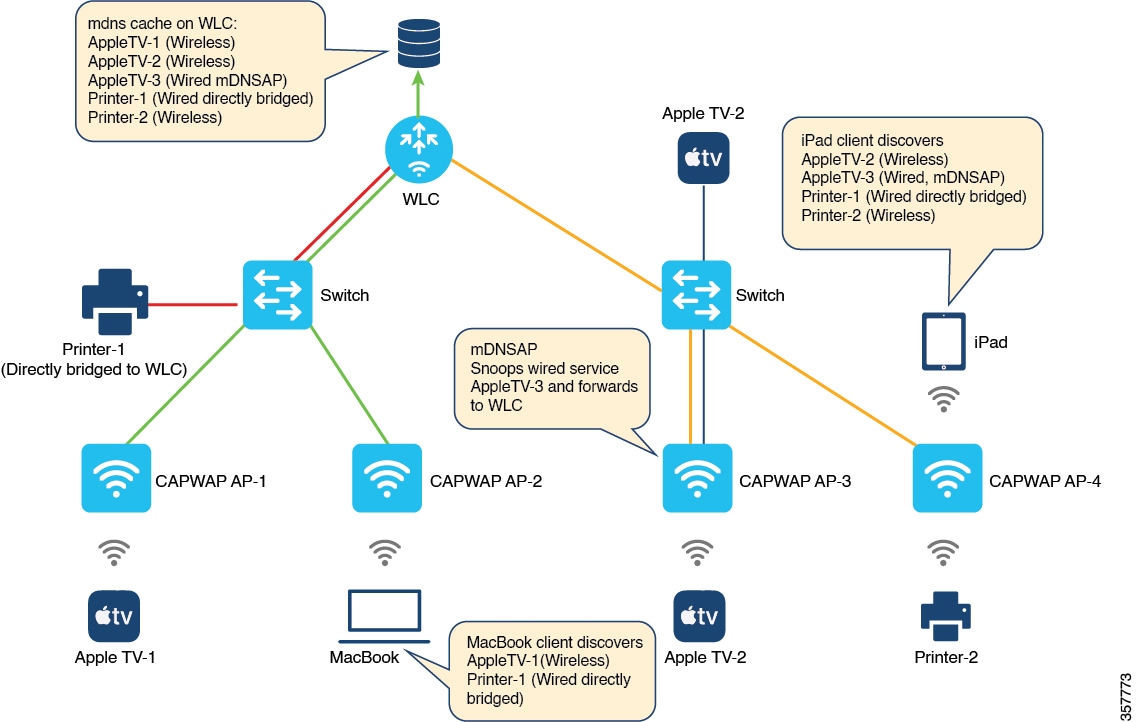
This figure illustrates the nearest wired service provider and discovery:

Figure 1. Nearest Wired Service Provider and Discovery

As per the figure, the controller is associated with these four APs:

  • CAPWAP AP-1

  • CAPWAP AP-2

  • CAPWAP AP-3

  • CAPWAP AP-4

The client connected to CAPWAP AP-1 is wireless and advertises the service Apple TV-1.

Similarly, the client connected to CAPWAP AP-2 is wireless and advertises the service MacBook query client.

The CAPWAP AP-3 is enabled as an mDNS-AP. This AP discovers wired services on VLANs and forwards them to the controller. In this case, the client advertising the service AppleTV-3 is a wired service, which is discovered by CAPWAP AP-3 and forwarded to the controller. You may also see another client connected to CAPWAP AP-3 that is wireless and advertises the service AppleTV-2.

The client connected to CAPWAP AP-4 is wireless and advertises the service Printer-2 and iPad query client.

Also, a client is connected directly to the controller, which advertises the Printer-1.

The controller covers cache populated from both wireless and wired service providers.

The controller creates a cache with these entries:

  • AppleTV-1 (Wireless service from CAPWAP AP-1)

  • AppleTV-2 (Wireless service from CAPWAP AP-3)

  • AppleTV-3 (Wired service from mDNS-AP enabled AP-3)

  • Printer-1 (Wired service from directly bridged service provider)

  • Printer-2 (Wireless service from AP-4)

When LSS is enabled, AP-1 and AP-2 discover each other as LSS neighbors. Similarly, AP-3 and AP-4 discover each other as LSS neighbors.

MacBook discovers these services:

  • AppleTV-1 (wireless service from AP-1)

  • Printer-1 (wired service from the directly bridged service provider)


Note


MacBook does not discover the wired service AppleTV-3 (forwarded by mDNS-AP AP-3). The AP-2 does not see AP-3 as the LSS neighbor. Thus, the controller does not classify the wired service AppleTV-3 as nearby.


iPad discovers these services:

  • AppleTV-2 (wireless service from AP-3)

  • AppleTV-3 (wired service from mDNS-AP enabled AP-3)

  • Printer-1 (wired service from directly bridged service provider)

  • Printer-2 (wireless service from AP-4)


Note


iPad discovers the wired service AppleTV-3 (forwarded by mDNS-AP AP-3). The AP-4 sees AP-3 as the LSS neighbor. Thus, the controller classifies the wired service AppleTV-3 as nearby.


Note


This feature supports only the wired services advertised by mDNS-AP in centrally switched local mode.


Feature history for nearest mDNS-based wired service filtering

This table provides release and related information for features explained in this module.

These features are available on all releases subsequent to the one they were introduced in, unless noted otherwise.

Table 3. Feature history for nearest mDNS-based wired service filtering

Release

Feature

Feature Information

Cisco IOS XE Cupertino 17.8.1

Nearest mDNS-based wired service filtering

This feature supports these functionalities:

  • Nearest mDNS based wired service filtering. (Supported in Central switched Local mode.)

  • Custom wired service policy support for FlexConnect mode.

  • VLAN and MAC based wired service filtering. (Supported in Central switched Local mode.)

Custom wired service policy support for FlexConnect mode

A custom wired service policy is a configuration feature that

  • allows users to apply mDNS service policies to wired networks in FlexConnect profiles, and

  • is available starting from Cisco IOS XE 17.8.1, providing extended policy support.

VLAN and MAC based wired service filtering

VLAN and MAC based wired service filterings are network control mechanisms that

  • allow filtering of wired services by VLAN and MAC address

  • enable OUT direction filter application for mDNS-AP and bridged wired services, and

  • support centrally switched local mode from Cisco IOS XE 17.8.1 onward.

Before Cisco IOS XE 17.8.1, service filtering was based on service type, location type, and location filter. These filters apply to wireless services but are not supported for wired services.

Prerequisite for nearest mDNS-based wired service filtering

  • Enable the mDNS gateway on the controller.

Use cases

These are the use cases:

  • Nearest mDNS-based wired service filtering.

  • Custom wired service policy support for FlexConnect mode.

  • VLAN and MAC based wired service filtering.

While migrating from AireOS wireless controllers to the Cisco Catalyst 9800 Series wireless controllers, these limitations occur:

  • Wireless clients discover all wired services, not just the nearby service from the wired service provider, when centrally switched local mode and LSS are enabled. The wired services belong to both the forwarded mDNS-AP and the directly bridged services.

  • TYou cannot apply the custom service policy for wired services when locally switched FlexConnect mode is enabled. The mDNS FlexConnect profile must include the custom wired service policy.

  • You cannot filter wired services by VLAN and MAC address in centrally switched local mode.

Configure wired service policy support in FlexConnect profile

Create service list (CLI)

Define service lists to filter mDNS traffic for both inbound and outbound directions using commands.
Procedure

Step 1

Enable the privileged EXEC mode.

Example:
Device> enable

Enter your password, if prompted.

Step 2

Enter the global configuration mode.

Example:
Device# configure terminal

Step 3

Configure mDNS service list for inbound filtering.

Example:
Device(config)# mdns-sd service-list service-list-name IN

Step 4

Match the service to the service definition name.

Example:
Device(config)# match service-definition-name

Here, service-definition-name refers to the names of services, such as, airplay, airserver, airtunes, and so on.

Note


To add a service, the service name must be part of the primary service list.

The same set of service list is used for both IN and OUT filters.

Step 5

Configure mDNS service list for outbound filtering.

Example:
Device(config)# mdns-sd service-list service-list-name OUT

Step 6

Match the service to the service definition name.

Example:
Device(config-mdns-sl-out)# match service-definition-name

Here, service-definition-name refers to the names of services, such as, airplay, airserver, airtunes, and so on.

Note


To add a service, the service name must be part of the primary service list.

The same set of service list is used for both IN and OUT filters.

Step 7

Exit mDNS service list configuration mode.

Example:
Device(config-mdns-sl-out)# exit

Create service policy (CLI)

Configure an mDNS service policy for traffic management and device discovery in your network using commands.
Procedure

Step 1

Enable the privileged EXEC mode.

Example:
Device> enable

Enter your password, if prompted.

Step 2

Enter the global configuration mode.

Example:
Device# configure terminal

Step 3

Configure mDNS service policy.

Example:
Device(config)# mdns-sd service-policy service-policy-name

Step 4

Configure service lists for IN and OUT directions.

Example:
Device(config-mdns-ser-pol)# service-list service-list-name {in | out}

Step 5

Enable Location Specific Services (LSS) for the mDNS service.

Example:
Device(config-mdns-ser-pol)# location lss

Step 6

Exit the mDNS service policy configuration mode.

Example:
Device(config-mdns-ser-pol)# exit

Configure an mDNS FlexConnect profile (GUI)

Set up and apply an mDNS FlexConnect profile to manage multicast DNS (mDNS) service discovery and VLAN filtering on your APs.
Procedure

Step 1

Choose Configuration > Services > mDNS.

Step 2

In the mDNS Flex Profile section, click Add.

Step 3

In the Add mDNS Flex Profile window that is displayed, enter the FlexConnect mDNS profile name in the Profile Name field.

Step 4

In the Service Cache Update Timer field, specify the service cache update time. The value range is between 1 and 100 minutes.

Step 5

In the Statistics Update Timer field, specify the statistics update timer. The value range is between 1 and 100 minutes.

Step 6

In the VLANs field, specify the VLAN ID. You can enter multiple VLAN IDs separated by commas or enter a range of VLAN IDs. The maximum number of VLANs allowed is 16.

Step 7

Select a Wired Service Policy from the drop-down list to associate a Wired filter to mDNS Flex-Profile. In addition to filtering mDNS service queries based on the static default service list, wired filter will support filtering based on custom service lists.

The new wired service-policy is added to flex-profile construct to support the custom wired service-policy. The AP applies this configuration for wired services and the respective IN and OUT filters are used for advertisements and queries only if the custom wired service-policy is configured in mDNS flex-profile.

In case a custom service-policy is removed from the mDNS flex-profile, the AP removes the custom service-policy and apply the default service-policy for wired services. This feature is supported only in locally switched FlexConnect mode.

Step 8

Click Apply to Device.


Configure an mDNS FlexConnect profile (CLI)

Set up an mDNS FlexConnect profile, define service and statistics timers, specify wired VLAN range, and associate a wired service policy for efficient mDNS operation using commands.
Procedure

Step 1

Enable the privileged EXEC mode.

Example:
Device> enable

Enter your password, if prompted.

Step 2

Enter the global configuration mode.

Example:
Device# configure terminal

Step 3

Configure an mDNS FlexConnect profile.

Example:
Device(config)# mdns-sd flex-profile mdns-flex-profile-name

Step 4

Configure the mDNS update service cache timer for the FlexConnect profile.

Example:
Device(config-mdns-flex-prof)# update-timer service-cache timer-value <1-100>

The default value is 1 minute. The value range is between 1 minute and 100 minutes.

Step 5

Configure the mDNS update statistics timer for the FlexConnect profile.

Example:
Device(config-mdns-flex-prof)# update-timer statistics statistics timer-value <1-100>

The default value is 1 minute. The valid range is from 1 to 100 minutes.

Step 6

Configure the mDNS wired VLAN range for the FlexConnect profile.

Example:
Device(config-mdns-flex-prof)# wired-vlan-range wired-vlan-range value

The default value is 1 minute. The valid range is from 1 minute to 100 minutes.

Step 7

Associate the wired service policy with mDNS FlexConnect profile.

Example:
Device(config-mdns-flex-prof)# wired-service-policy service-policy-name

Note


Here, service-policy-name refers to the mDNS service policy created earlier. For more information, refer to Creating Service Policy (CLI).

Step 8

Return to the privileged EXEC mode.

Example:
Device(config-mdns-flex-prof)# end

Alternatively, you can also press Ctrl-Z to exit global configuration mode.


Configure VLAN and MAC based wired service filtering (CLI)

Enable precise filtering of wired services by matching specific MAC addresses and VLANs, improving service visibility and security using commands.
Procedure

Step 1

Enable the privileged EXEC mode and enter the global configuration mode.

Example:
Device> enable
Device# configure terminal

Enter your password, if prompted.

Step 2

Configure an mDNS wired filter and match the wired filter with the MAC address of the wired service.

Example:
Device(config)# mdns-sd wired-filter wired-filter-name
Device(config-mdns-wired-filter)# match mac service-provider-mac-address1

Step 3

Match the wired filter with the VLAN of the wired service and exit the mDNS gateway configuration mode.

Example:
Device(config-mdns-wired-filter)# match vlan range
Device(config-mdns-wired-filter)# exit

Step 4

Enter the global configuration mode and configure mDNS service list for inbound filtering.

Example:
Device# configure terminal
Device(config)# mdns-sd service-list service-list-name IN

Step 5

Match the service to the names of the services and configure the mDNS service list for outbound filtering.

Example:
Device(config)# match service-definition-name
Device(config)# mdns-sd service-list service-list-name OUT

Here, service-definition-name refers to the names of services, such as, airplay, airserver, airtunes, and so on.

Step 6

Match the Apple TV related wired filter and enable mDNS service policy.

Example:
Device(config-mdns-sl-out)# match apple-tv wired-filter wired-filter-name
Device(config)# mdns-sd service-policy service-policy-name

Step 7

Configure various service-list names for IN and OUT directions.

Example:
Device(config-mdns-ser-pol)# service-list service-list-name {IN | OUT}

Note


If an administrator creates or uses a custom service policy, the policy must be configured with service-lists for both directions (IN and OUT). The mDNS Gateway will not work if there is no IN service-list, because it will not learn services. If there is no OUT service-list, the gateway will not reply to or announce services it has learned.

Step 8

Configure AP location based filtering.

Example:
Device(config-mdns-ser-pol)# location ap-group

Step 9

Return to the privileged EXEC mode.

Example:
Device(config-mdns-ser-pol)# end

Alternatively, you can also press Ctrl-Z to exit global configuration mode.


Verify mDNS-based wired service filtering

To view the wired service list IN and OUT details, use this command:

Device# show mdns status
Global mDNS gateway:Enabled
vap_id      ssid mdns_mode
     0  myFisaiC    Bridge
     1 rguestcpC    Bridge
     2   RK-FLEX    Bridge
     3   RK-MDNS   Gateway
     4 GUHOAsaiC    Bridge
     5         -    Bridge
     6         -    Bridge
     7         -    Bridge
     8         -    Bridge
     9         -    Bridge
    10         -    Bridge
    11         -    Bridge
    12         -    Bridge
    13         -    Bridge
    14         -    Bridge
    15         -    Bridge
Active query interval:30
vap              service_list_in              service_list_out location
  0 default-mdns-service-list_IN default-mdns-service-list_OUT        0
  1 default-mdns-service-list_IN default-mdns-service-list_OUT        0
  2 default-mdns-service-list_IN default-mdns-service-list_OUT        0
  3 default-mdns-service-list_IN default-mdns-service-list_OUT        0
  4 default-mdns-service-list_IN default-mdns-service-list_OUT        0
Wired vlan configuration: 
mdns stats timer: 1
mdns cache timer: 1
AP Sync VLAN: 1
Wired service list IN: RK-IN_IN
Wired service list OUT: RK-OUT_OUT

Note


Execute this command on the FlexConnect AP. This guidance also applies to the custom wired service policy support in FlexConnect mode.


To verify the VLAN and MAC based wired service filtering, use this command:

Device# show running-config mdns-sd wired-filter
mdns-sd wired-filter WIRED_FILTER_APPLE_TV
match mac a886.ddb2.05e9
match vlan 100
!

To verify the wired service policy support in FlexConnect Profile, use this command:

Device# show running-config mdns-sd flex-profile
                
                
                mdns-sd flex-profile custom_flex_profile
update-timer service-cache 15
update-timer statistics 10
wired-vlan-range 30
wired-service-policy custom_wired_policy
!

To verify whether LSS is configured or not, use this command:

Device# show running-config mdns-sd service-policy
mdns-sd service-policy custom_policy
service-list srvc_lst_in IN
service-list srvc_lst_out OUT
location lss
!
mdns-sd service-list srvc_lst_in IN
match apple-tv
!
mdns-sd service-list srvc_lst_out OUT
match apple-tv wired-filter WIRED_FILTER_APPLE_TV
!