Scheduling An Attending Appointment
Available Languages
Table of Contents
Making and Attending a Scheduled Appointment
Scheduling Your Appointment
To make an on-line appointment, call your provider office over the phone..
Attending Your Appointment
This section provides information on how to attend your appointments in Cisco Extended Care.

Warning
Cisco Extended Care is not intended for emergency use or real-time patient monitoring.

Note
To attend your appointment, perform the following procedure:
Step 1
Step 2
Step 3
Step 4
See Figure The Scheduled Appointment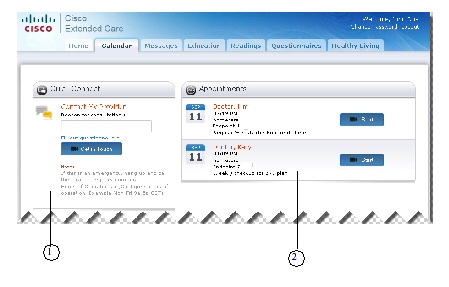
Step 5
Step 6
You will hear a ring or see the provider in your video window.Step 7
Step 8
Note
Step 9
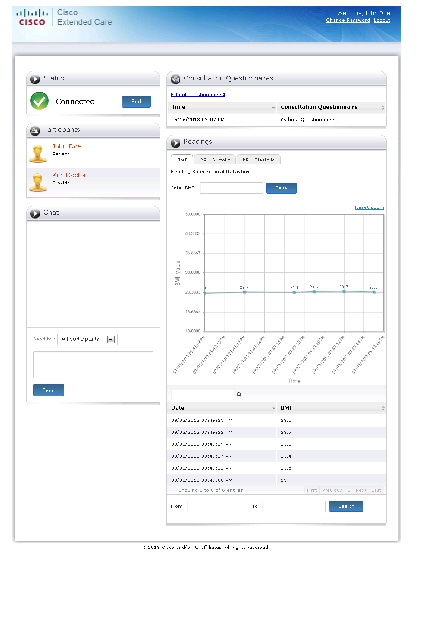
Screen Resources
The following table provides information on the various screens that you will be using, during your appointment.
 Feedback
Contact Cisco
- Open a Support Case

- (Requires a Cisco Service Contract)
This Document Applies to These Products
- Collaboration Endpoints - Retired Products
- Conferencing - Retired Products
- Contact Center - Retired Products
- Optical Networking - Retired Products
- Routers - Retired Products
- Security - Retired Products
- Servers - Unified Computing (UCS) Retired Products
- Storage Networking Retired Products
- Switches - Retired Products
- Video - Retired Products
- Wireless - Retired Products