Overview
Details how to add a physical disk for backup and restore operations.
Use this procedure to add a physical disk that can be used for only Catalyst Center on ESXi backup and restore operations.
Procedure
| 1. | Power off the Catalyst Center on ESXi virtual appliance by shutting it down from a console session with the sudo shutdown command. |
|
| 2. | Log in to VMware vSphere and verify that it is powered off. |
|
| 3. | From the vSphere client left pane, right-click the ESXi host and then choose Edit Settings. 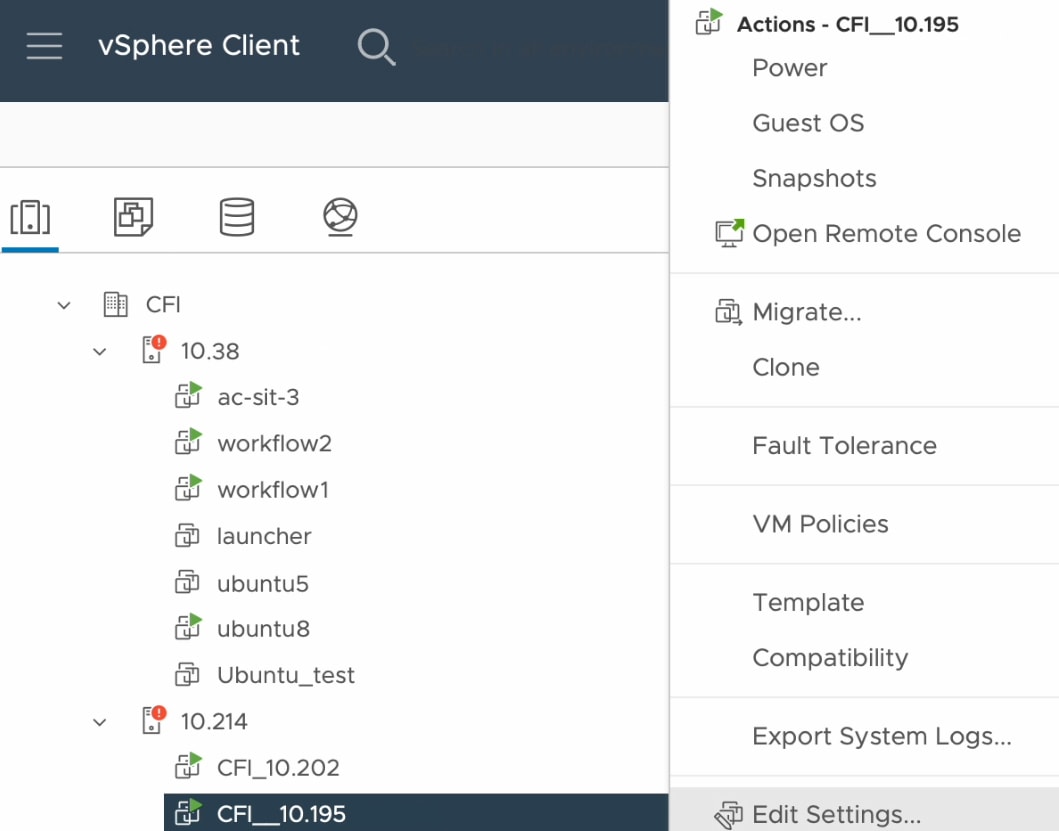
|
|
| 4. | In the Edit Settings dialog box, click Add New Device and then choose Hard Disk. 
|
|
| 5. | In the New Hard disk field, enter the desired storage size. 
|
|
| 6. | Click OK. |
|
| 7. | Power on the appliance's virtual machine. 
|
What to do next
You can now configure the added physical disk for backup. For information on how to configure the physical disk, see Configure the location to store backup files.