Cisco Catalyst Center Administrator Guide, Release 3.2.x

PDF

Configure Cisco AI Network Analytics

Want to summarize with AI?

Log in

Overview

Information about configuring Cisco AI Network Analytics. Cisco AI Network Analytics allows you to export network event data from network devices to Cisco AI Cloud.

Use this procedure to enable the Cisco AI Analytics features to export network event data from network devices and inventory, site hierarchy, and topology data to the Cisco AI Cloud.

Before you begin

  • Make sure that you have the Advantage software license for Catalyst Center. The AI Network Analytics application is part of the Advantage software license.

  • Make sure that the latest version of the AI Network Analytics application is installed. See Download and install applications.

  • Make sure that your network or HTTP proxy is configured to allow outbound HTTPS (TCP 443) access to these cloud hosts:

    • api.use1.prd.kairos.ciscolabs.com (US East Region)

    • api.euc1.prd.kairos.ciscolabs.com (EU Central Region)

Procedure

1.

From the main menu, choose System > Settings.

2.

Scroll down to External Services and select Cisco AI Analytics.

The AI Network Analytics window opens.
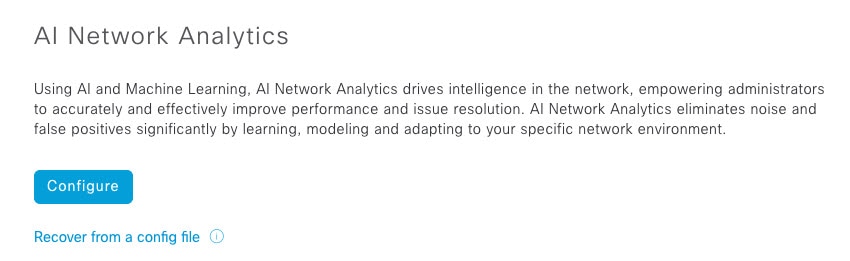
AI Network Analytics window in the Cisco DNA Center GUI
3.

Do one of these tasks:

  • If you have an earlier version of Cisco AI Network Analytics installed in your appliance, do these steps:
    1. Click Recover from a config file.

      The Restore AI Network Analytics window opens.

    2. Drag-and-drop the configuration files in the area provided or select the files from your file system.

    3. Click Restore.

      Cisco AI Network Analytics might take a few minutes to restore, and then the Success dialog box opens.

  • For the first-time configuration of Cisco AI Network Analytics, do these steps:
    1. Click Configure.

    2. In the Where should we securely store your data? area, select the location to store your data. Options are: Europe (Germany) or US East (North Virginia).

      The system starts testing cloud connectivity as indicated by the Testing cloud connectivity... tab. After cloud connectivity testing completes, the Testing cloud connectivity... tab changes to Cloud connection verified.

    3. Click Next.

      The terms and conditions window opens.

    4. Click the Accept Cisco Universal Cloud Agreement check box to agree to the terms and conditions, and then click Enable.

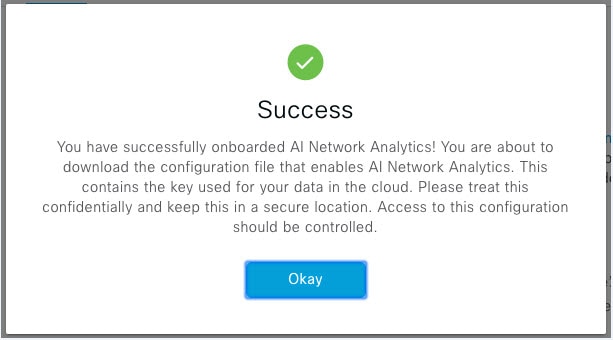
      Cisco AI Network Analytics might take a few minutes to enable, and then the Success dialog box opens.
      Success dialog box after the successful configuration of Cisco AI Network Analytics
4.

In the Success dialog box, click Okay.

The AI Network Analytics window opens, and the Enable AI Network Analytics toggle button displays Enable AI Network Analytics toggle button in the AI Network Analytics window.
5.

(Recommended) In the AI Network Analytics window, click Download Configuration file.


Client certificate renewal

AI agents use X.509 client certificates to authenticate to the AI Cloud. Certificates are created and signed by the AI Cloud CA upon tenant onboarding to the AI Cloud and remain valid for three years (reduced to one year in August 2021). Before their expiration, client certificates must be renewed to avoid losing cloud connectivity. An automatic certificate renewal mechanism is in place. This mechanism requires that you manually back up the certificate after renewal. The backup is required in case you restore or migrate to a new Catalyst Center.

After renewal, a notification is shown on every AI Analytics window (Peer Comparison, Heatmap, Network Comparison, Trends and Insights) to tell you to back up the new AI Network Analytics configuration.


Disable Cisco AI Network Analytics

To disable Cisco AI Network Analytics data collection, you must disable the AI Network Analytics feature:

Procedure

1.

From the main menu, choose System > Settings.

2.

Scroll down to External Services and choose Cisco AI Analytics.

For each feature, a check mark ( Check mark icon indicating that the feature is enabled in the Cisco AI Analytics window ) indicates that the feature is enabled. If the check box is unchecked ( Unchecked check box indicating that the feature is disabled in the Cisco AI Analytics window ), the feature is disabled.
3.

In the AI Network Analytics area, click the Enable AI Network Analytics toggle button so that it’s unchecked ( Enable AI Network Analytics toggle button that is uncheked ).

4.

Click Update.

5.

To delete your network data from the Cisco AI Network Analytics cloud, contact the Cisco Technical Response Center (TAC) and open a support request.

6.

If you have misplaced your previous configuration, click Download configuration file.