Frequency Scan

Frequency scan

A frequency scan is a diagnostic process used by URWB devices to identify and evaluate available wireless channels.

  • Fluidity frequency scan

  • Fluidmax frequency scan

Fluidity frequency scan

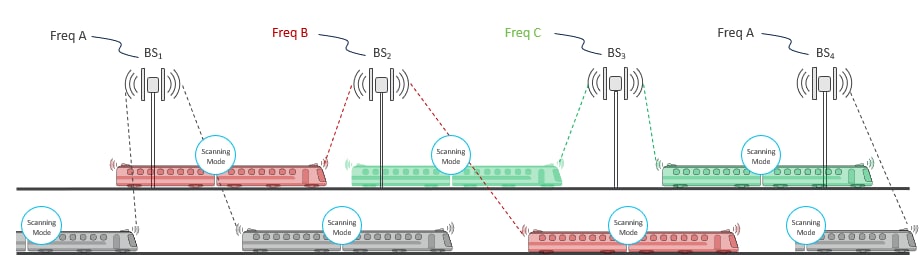
Fluidity frequency scan is designed for scenarios involving high-density mobility environments using multiple frequencies on the infrastructure side to reduce self-interference and improve wireless channel capacity and performance. It helps to ensure continuous and seamless connectivity as these devices move across different network areas, facilitating smooth transitions between APs. When the current signal strength is weak, the device starts searching for a frequency with a better signal to maintain a stable connection. This feature is applicable in all high-density mobility environments, such as train-to-ground, mining, and port terminals.

The image illustrates a dual-radio configuration for fluidity vehicle devices, highlighting the frequency scan feature and its parameters for optimizing connectivity and connection quality.

Fluidity frequency scan configurations

For effective frequency scanning, a mobile device typically requires at least two radios:

  • Radio 1: Maintains the current connection with the network.

  • Radio 2: Performs scanning for better available frequencies without disrupting the existing connection on Radio 1.

Scanning can be performed in two modes:

  • Periodic scan: Automatically conducted by the device at regular intervals to find the best available channel frequencies.

  • Signal-triggered (threshold) scan: When the current device's signal strength drops below a specified minimum Signal-to-Noise Ratio (SNR) threshold value, the mobile device begins searching for another device with a stronger signal.

This dual-radio configuration allows continuous connectivity while optimizing connection quality.


Note


  • Frequency scan is applicable only to fluidity vehicle devices, not to infrastructure devices.

  • If the scan-periodic and scan-isolation parameters are set to zero, the frequency scan feature is disabled.


Configure fluidity frequency scan using CLI

This task enables you to set up and manage Fluidity frequency scan functionality on the device to optimize wireless connectivity and performance.

Fluidity frequency scan allows the device to automatically monitor and switch between different wireless channels to maintain optimal connectivity. This functionality helps ensure consistent network performance by scanning for better connectivity options when signal strength falls below configured thresholds.

Procedure


Step 1

Use the configure fluidity scan list clear command to clear the Fluidity frequency scan list on the device.

Example:

Device# configure fluidity scan list clear

Step 2

Use the configure fluidity scan list channel-numbers bandwidth command to configure the list of channels and their bandwidths for Fluidity frequency scan.

Example:

Device#configure fluidity scan list 100 20 108 20

Step 3

Use the configure fluidity scan isolation value command to configure the isolation time for Fluidity frequency scan.

Example:

Device# configure fluidity scan isolation 3000
  • The isolation time valid range is from 0 to 65535.

  • When the signal strength falls below a certain SNR threshold value for a continuous period of 3000 milliseconds, the device initiates scanning for better connectivity options.

  • Use the configure fluidity scan isolation disabled command to disable the Fluidity frequency scan isolation mode on the device.

Step 4

Use the configure fluidity scan rssi-threshold threshold command to configure the SNR threshold for Fluidity frequency scan isolation mode.

Example:

Device# configure fluidity scan rssi-threshold 50
  • The device connects only to infrastructure devices that meet the specified minimum signal strength.

  • The SNR threshold value valid range is from 0 to 100.

  • Use the configure fluidity scan rssi-threshold disabled command to disable the SNR threshold.

Step 5

Use the configure fluidity scan periodic scan-time command to configure the periodic scan time on the device.

Example:

Device# configure fluidity scan periodic 5000
  • The specified time interval is in milliseconds.

  • The periodic scan time valid range is from 0 to 65535. For best results, the minimum recommended value is 1500. This value should consider the number of channels configured.

  • Use the configure fluidity scan periodic disabled command to disable the periodic frequency scan.

Step 6

Configure onboard radios Fluidity frequency allocation based on your requirements:

  • On the same channel: Use the configure fluidity scan vehicle-frequency locked command to lock the radio interfaces of onboard devices to operate on the same channel.

    Device#configure frequency scan vehicle-frequency locked
  • On the separate channels: Use the configure fluidity scan vehicle-frequency open command to allow radio interfaces of onboard devices to operate on the separate channels.

    Device#configure fluidity scan vehicle-frequency open

Verify fluidity frequency scan configuration using CLI

Use the show fluidity config command to verify the Fluidity frequency scan on the device.

Device#show fluidity config
Fluidity enabled
Fluidity interface: 1
Vehicle ID: automatic, current ID: 89235672 current role: mobile primary unit
Handoff logic: standard
Handoff hysteresis high threshold: 6
Handoff hysteresis low threshold: 3
Rssi low/high zones threshold: 35
Color: enabled, current: 0
Color min RSSI threshold: 20
Network type: flat (layer 2)
Warmup time: 30000 ms
Wireless timeout: 800 ms
Wireless fastdrop: disabled
Frequency scan list: 5200@20 5240@20
Scan isolation time: 300 ms
Current Frequency: 5180 MHz
Current Channel Width: 20 MHz
Critical RSSI threshold for autoscan: disabled
Periodic autoscan interval: disabled
Vehicle frequency: open
Large network optimization: enabled
Routes: backhaul
Primary-pseudowire enforcement: disabled
Max number of clients: unlimited
DoP settings: limit 0, client 10, bias 0
Quadro telemetry: enabled

Fluidmax frequency scan

A Fluidmax frequency scan is a scanning mechanism that is typically used for devices in static or semi-static network environments where maintaining a consistent and interference-free connection is crucial.

Device environments and applications

Devices that benefit from Fluidmax frequency scan are often devices that require stable and reliable connections in fixed locations or areas where the network environment doesn't change frequently. These environments include:

  • Industrial sites

  • Remote monitoring stations

  • Any setting where maintaining a consistent and interference-free connection is crucial

Verify fluidmax frequency scan status using GUI

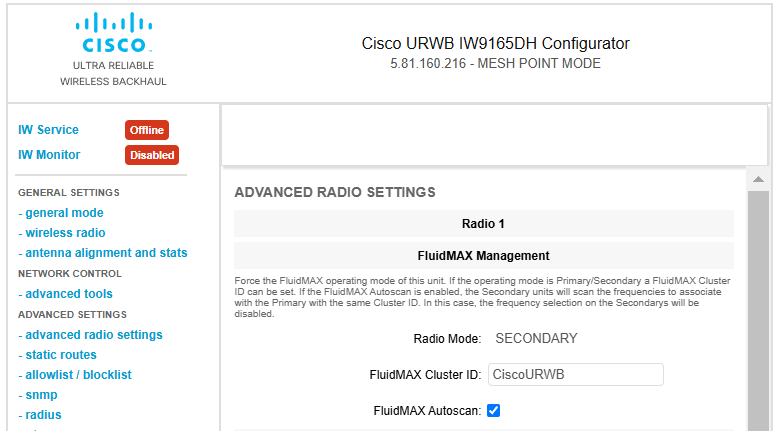
This task verifies whether the Fluidmax frequency scan is enabled or disabled by checking the FluidMAX Autoscan checkbox status in the ADVANCED RADIO SETTINGS.

Use this procedure to check the current configuration status of Fluidmax frequency scanning on your URWB device through the web-based GUI interface.

Before you begin


Note


In the wireless RADIO SETTINGS, you can select the Radio role as Fluidmax secondary either for Radio 1 or Radio 2.


Procedure


Step 1

Launch the computer's web browser and enter the URL to open the configurator login page.

Step 2

Enter the username and password in the respective fields.

Step 3

Click Login.

Once you successfully log into the GUI, the URWB configurator displays.

Step 4

In the ADVANCED SETTINGS, click ADVANCED RADIO SETTINGS to open the ADVANCED RADIO SETTINGS window.

Note


If the FluidMAX Autoscan checkbox is checked, the status is enabled; if unchecked, the status is disabled.

The FluidMAX Autoscan checkbox in the GUI indicates the status of the frequency scan, showing whether it is enabled or disabled based on the checkbox selection.


Configure fluidmax frequency scan using CLI

Configure Fluidmax frequency scan settings to enable automatic frequency scanning and to set appropriate threshold values. This ensures optimal wireless performance.

Fluidmax frequency scan allows the device to automatically scan for better frequencies when the signal quality falls below a specified threshold. This feature helps maintain optimal wireless connectivity in dynamic environments.

Procedure


Step 1

Use the configure dot11Radio slot numbermode fluidmax automatic-scan enable command to enable the Fluidmax frequency on the radio.

Example:

Device# configure dot11Radio 1 mode fluidmax automatic-scan enable

Note


Use the configure dot11Radio slot numbermode fluidmax automatic-scan disable command to disable the Fluidmax frequency on the radio.

Step 2

Use the configure dot11Radio slot numbermode fluidmax threshold value command to set the threshold value for Fluidmax frequency scan.

Example:

Device# configure dot11Radio 1 mode fluidmax threshold 90
  • he valid Fluidmax threshold values range from 0 to 100.

  • If auto-scan is enabled, the system triggers a scan when the signal from the master falls below the specified threshold value.


Verify fluidmax frequency scan configuration using CLI

Use the show dot11Radio 1 config command to verify the Fluidmax scan on the device.

Device #show dot11Radio 1 config

Interface: enabled

Mode: fluidmax secondary

Frequency: 5200 MHz
Channel: 40
Channel width: 20 MHz
Antenna number: 2
TX power level: 2
TX power: 14 dBm
Antenna gain: 15 dBi
Maximum tx mcs: 9
High-efficiency: disabled
Maximum tx nss: 2
RTS protection: 512
guard-interval: 800 ns
ampdu max length: 255
distance: 3000 m

The ampdu Tx
priority 0: enabled
priority 1: enabled
priority 2: enabled
priority 3: enabled
priority 4: enabled
priority 5: enabled
priority 6: disabled
priority 7: disabled

Fluidmax configuration
Tower ID: disabled
Cluster ID: CiscoURWB
Automatic scan: enabled
Automatic scan threshold: disabled

Enhanced Distributed Channel Access (EDCA) configuration
vo: aifs=1 cw_min=2 cw_max=3 txop=15
vi: aifs=1 cw_min=3 cw_max=4 txop=31
be: aifs=3 cw_min=4 cw_max=6 txop=31
bk: aifs=7 cw_min=3 cw_max=4 txop=0

Passphrase: 58ac1e597fda4e37bc0c2472d8c8c69f
AES encryption: disabled
AES key-control: disabled
Key rotation: disabled
Key rotation timeout: 0(second)

DFS region: B
DFS radar role: auto
Radar detected: 0
Indoor deployment: disable
Rx-SOP Threshold: 0 dBm(AUTO)
Max packet retries: 32
High throughput 4.9Ghz: disabled