Multicast

Multicast

Multicast is a method of communication that

  • sends data from one source to multiple destinations simultaneously

  • supports Layer 2 and Layer 3 networks on AP

  • enables point-to-multipoint or multipoint-to-multipoint transmissions.

Reserved IP address ranges for multicast protocols

By default, multicast is enabled for these protocols within the specified IP address ranges:


Note


  • By default, only the multicast IP addresses specified below are forwarded across the URWB network.

  • Multicast configuration is required only on mesh end devices.

  • The multicast reserved IP address range is 224.0.0.0 to 239.255.255.255.


Table 1. Reserved multicast IP address ranges by protocol

Protocol

Reserved multicast IP address range

Universal plug and play (UPnP)

239.255.255.250

Open Shortest Path First (OSPF)

224.0.0.5 and 224.0.0.6

Internet Group Management Protocol (IGMP)

N/A

Advantages of multicast configuration

Multicast configuration provides these advantages:

  • It reduces the amount of bandwidth used by sending a single stream of data from one source to multiple destinations.

  • It supports many devices without significantly increasing network load.

  • It optimizes network performance for applications that require real-time data distribution.

  • It maintains consistent quality by reducing the number of duplicate streams. This helps to maintain consistent Quality of Service (QoS) for all recipient APs.
Configure Multicast using GUI

This task allows you to set up Multicast routing to efficiently distribute data across mesh networks by defining Multicast groups, netmasks, and destination addresses.

Multicast routing enables efficient data distribution in mesh networks by sending data to multiple destinations simultaneously. This configuration is essential for optimizing network traffic and bandwidth usage in mesh topologies.

Before you begin

  • You can configure Multicast only on the mesh end device.

  • Ensure that you have a valid Multicast group, netmask, and destination IP addresses.

  • Ensure that you have a supported mesh end device to configure Multicast.

Follow these steps to configure Multicast using GUI:

Procedure


Step 1

Launch your computer's web browser and enter the URL to open the configurator login page.

Step 2

Enter your username and password in the respective Username and Enable Password fields.

Step 3

Click Login.

Once you have successfully logged into the GUI, the URWB configurator appears.

Step 4

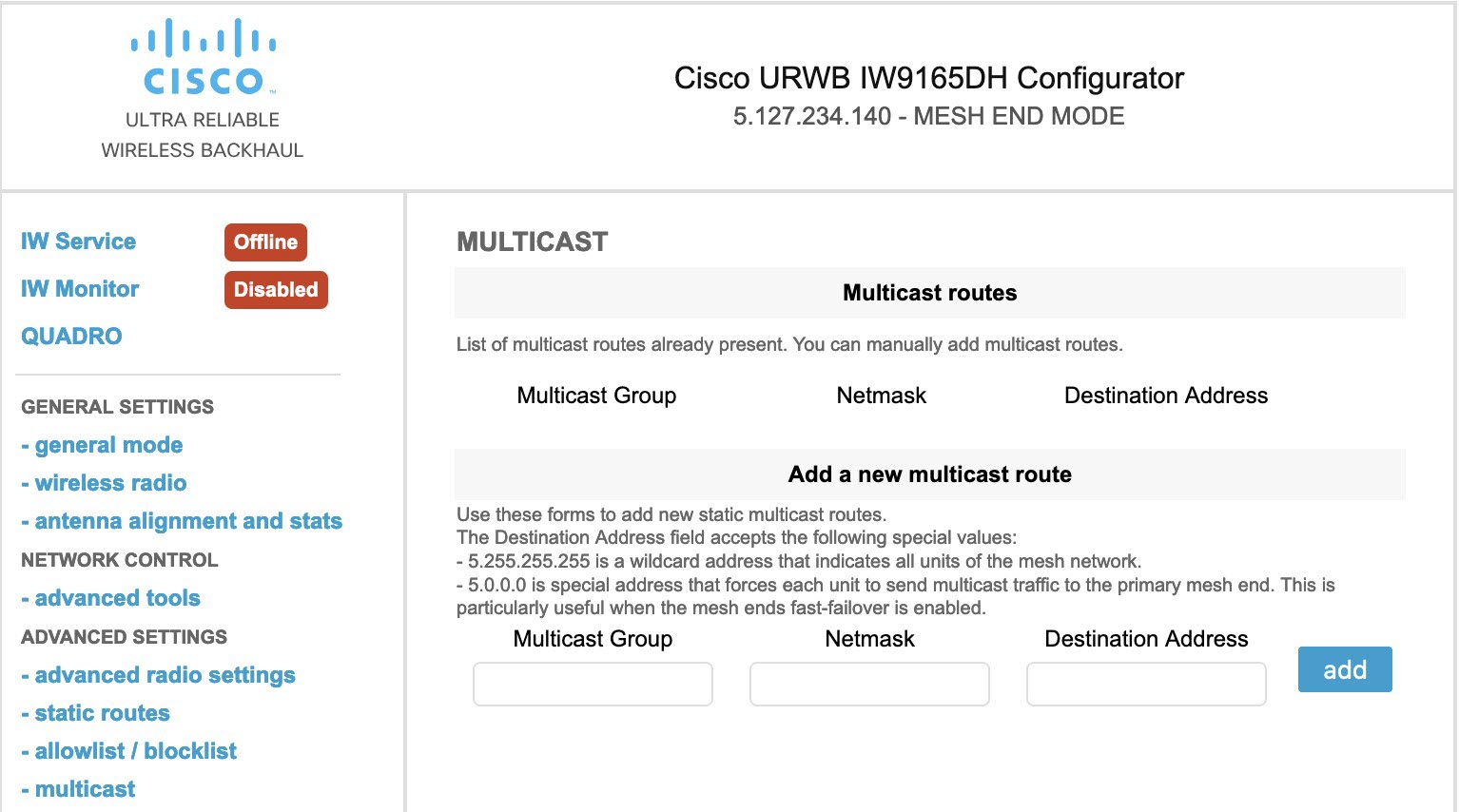
In the ADVANCED SETTINGS, click MULTICAST to open the MULTICAST window.

Step 5

In the Add a new MULTICAST route section, enter these details:

  • Multicast IP address in the MULTICAST Group field.

  • Netmask IP address in the Netmask field.

  • Destination IP address in the Destination Address field.

Note


The Destination Address field accepts the following special values:

  • 5.255.255.255 IP address in the Destination Address field sends the data to all the mesh point devices over the mesh network. This is applicable only for the downstream data flow.

  • 5.0.0.0 IP address in the Destination Address field sends the data to the current primary mesh end device. This is useful, especially when the mesh end's fast failover is enabled. This is applicable only for the upstream data flow.

Tip


The netmask field allows you to specify a block of Multicast addresses. When you specify multiple Multicast groups, the Multicast IP address should represent the network address for each group.

Step 6

Click add.

Once you have successfully added a rule, the new Multicast route appears in the MULTICAST routes section.

The configuration interface for MULTICAST settings displays the netmask field and options for specifying MULTICAST addresses, indicating successful application of the routing configuration.

Step 7

Click Apply to update the configuration.

AP reboots to apply the changes.

Configure multicast using CLI

This task allows you to configure multicast groups to manage traffic flow in mesh networks, enabling proper data routing to mesh end devices and global gateways.

In Layer 3 mode, multicast rules must be configured on all mesh end devices and the global gateway. Different multicast IP addresses are used for upstream and downstream traffic to ensure proper data flow direction and failover capabilities.

Procedure


Use the configure multicast group add multicast-IP-address netmask destination-IP-address command to add the destination IP address.

Example:

Device# configure multicast group add 224.5.5.5 255.255.255.255 5.255.255.255

Note


This configuration takes effect only after the reboot.

Use these different multicast IP addresses for upstream and downstream traffic:

  • 224.5.5.5/5.0.0.0: sends the data to the current primary mesh end device. This is especially useful when the mesh end's fast failover is enabled. This address applies only to the upstream data flow.

  • 224.5.5.6/5.255.255.255: sends the data to all mesh point devices over the mesh network. This address applies only to the downstream data flow..


Delete multicast using CLI

This task removes a specific meshID IP address from a multicast group configuration using the command line interface.

Use this procedure when you need to remove a meshID IP address from an existing multicast group configuration. This is typically done during network reconfiguration or when decommissioning specific network segments.

Procedure


Use the configure multicast group delete multicast IP-address netmask meshID IP-address command to delete the meshID IP address from the multicast group.

Example:

Device# configure multicast group delete 224.5.5.5 255.255.255.255 5.255.255.255

Note


This configuration takes effect only after the reboot.


Verify multicast configuration using CLI

Use the show multicast configuration command to view the status of multicast configuration.

Device# show multicast configuration 
Multicast Group 224.5.5.5/255.255.255.255	
Destination Address 5.255.255.255