Layer 2 Mesh Transparency

Layer 2 mesh transparency

Layer 2 mesh transparency is a feature that allows selective forwarding of specific ether-types across URWB networks in MPLS Layer 2 mode.

Reserved ether-types

This list of reserved ether-types cannot be configured:

Table 1. List of reserved ether-types

Ether-type range

Forwardable

Additional information

0x0000 – 0x05FF

User-configurable

Ethernet-I frames. STP and CDP are subject to other configuration options.

0x0800

Yes

IPv4

0x0806

Yes

ARP (IPv4)

0x0900 – 0x09FF

No

URWB signaling protocols

0x8100

Yes

IEEE 802.1Q VLAN encapsulation

0x8847 – 0x8848

No

MPLS

0xFFFF

No

IANA reserved

These functionalities are supported using the URWB data plane mesh network when used in MPLS Layer 2 mode:

  • Ether-types present in URWB network are detected and reported automatically.

  • You can add and remove ether-types from the allowlist.

  • You can configure full transparency to enable all Layer 2 protocols easily.

  • The feature supports both CLI and GUI.
Configure and verify Layer-2 protocols forwarding using CLI

This task allows you to manage Layer 2 protocol forwarding by adding, deleting, or clearing ethernet types from allowlists and configuring Ethernet-I protocol behavior.

Use this procedure to control which ethernet types are allowed for Layer 2 protocol forwarding in your MPLS configuration. After you clear the detected ethernet types, the detection process operates in the background.

Procedure


Step 1

Use the configure mpls ether-filter allow-list add ether-type-value command to add an ethernet type to allowlist.

Example:

Device# configure mpls ether-filter allow-list add 0x86DD

Step 2

(Optional) Use the configure mpls ether-filter allow-list delete ether-type-value command to delete an ethernet type from allowlist.

Example:

Device# configure mpls ether-filter allow-list delete 0x86DD

Step 3

(Optional) Use the configure mpls ether-filter allow-list clear command to clear all ethernet types from allowlist.

Example:

Device# configure mpls ether-filter allow-list clear

Step 4

(Optional) Use the configure mpls ether-filter allow-list add all command to add all ethernet types to allowlist.

Example:

Device# configure mpls ether-filter allow-list add all

Note


The all keyword sets the ether filter to all-pass mode by filling the allowlist with a single entry, 0x0000.

Step 5

(Optional) Use the configure mpls ether-filter table clear command to clear list of detected ether-types.

Example:

Device# configure mpls ether-filter table clear

Note


The detection process works in the background after clearing the detected ethernet types.

Step 6

(Optional) Use the configure mpls ether-filter ethernet-I forward command to configure Ethernet – I protocol to forward.

Example:

Device# configure mpls ether-filter ethernet-I forward

Step 7

(Optional) Use the configure mpls ether-filter ethernet-I block command to configure Ethernet – I protocol to block.

Example:

Device# configure mpls ether-filter ethernet-I block

Step 8

(Optional) Use the show mpls config command to verify list of allowed ether-types.

Example:

Device# show mpls config
...
Ethernet Filter allow-list: 0x8892 0x8204 0x86dd, ethernet-I block
...

Step 9

(Optional) Use the show mpls ether-filter table command to verify list of detected ether-types.

Example:


Device# show mpls ether-filter table
Ether-type   Direction   Description
0x8899        INGRESS       ---
0x86DD        INGRESS       IPv6

Configure Layer-2 protocol forwarding using GUI

This task allows you to manage ethernet filter configurations including adding specific and detected ether types to the allowlist, clearing ethernet types, and configuring ethernet protocol settings.

Use the ethernet filter functionality to control which ethernet types and protocols are permitted. This configuration helps manage network traffic filtering at the Layer-2 level.

Procedure


Step 1

In the ADVANCED SETTINGS, click ethernet filter.

The Ethernet Filter window appears.

Step 2

Add an ether type to the allowlist.

  1. Click Add in the Detected ethernet types section.

  2. In the Allowed ethernet types section, enter the Ethertype name in the text box and click Add.

    You can view the added ether types reflected in the Allowed Ethernet type section.

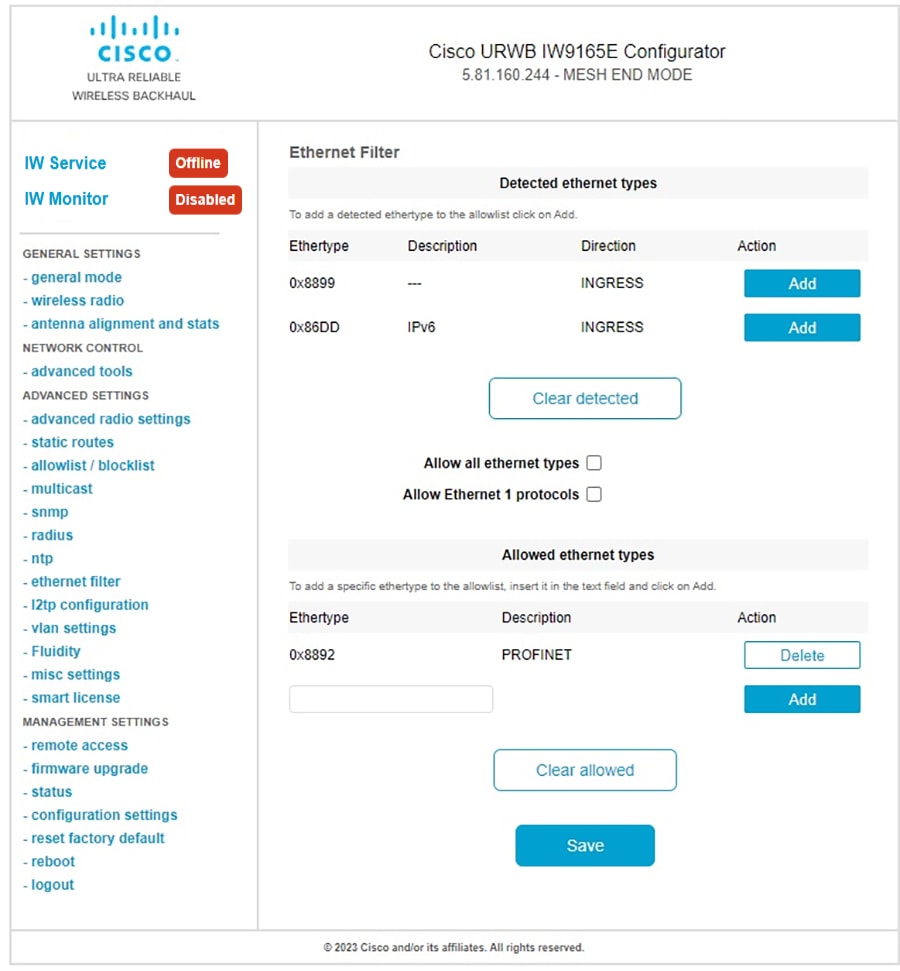
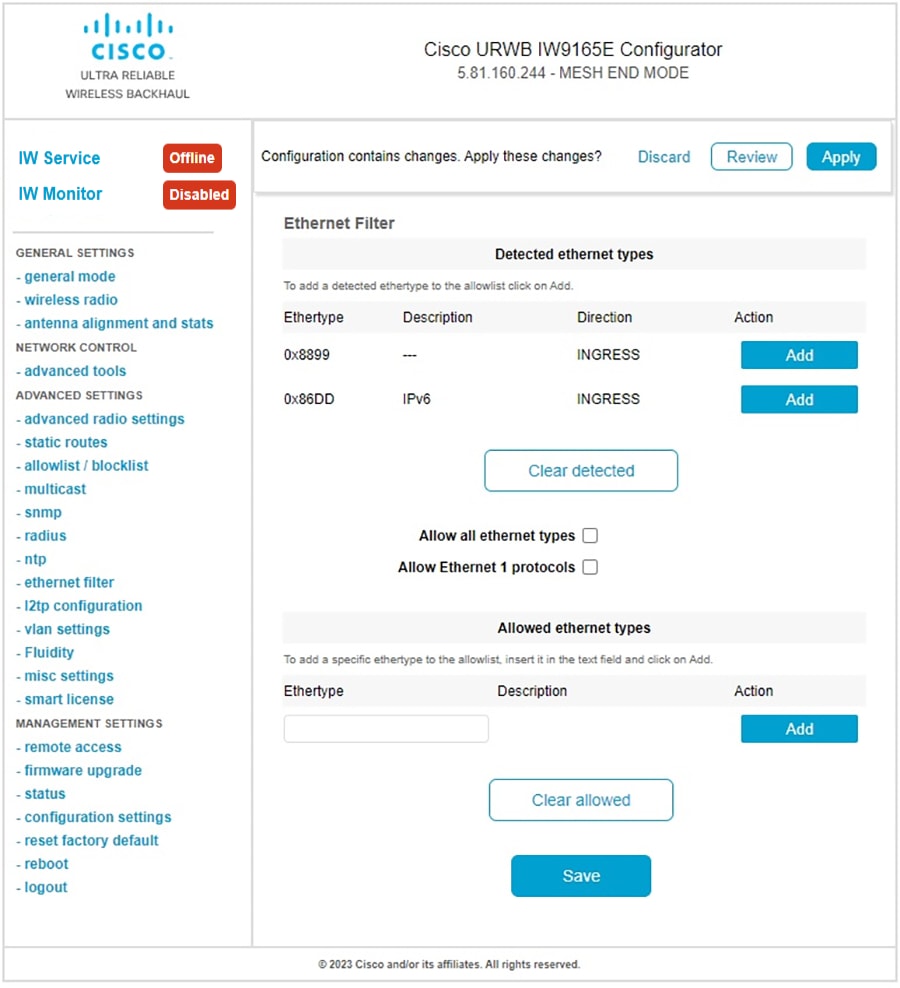
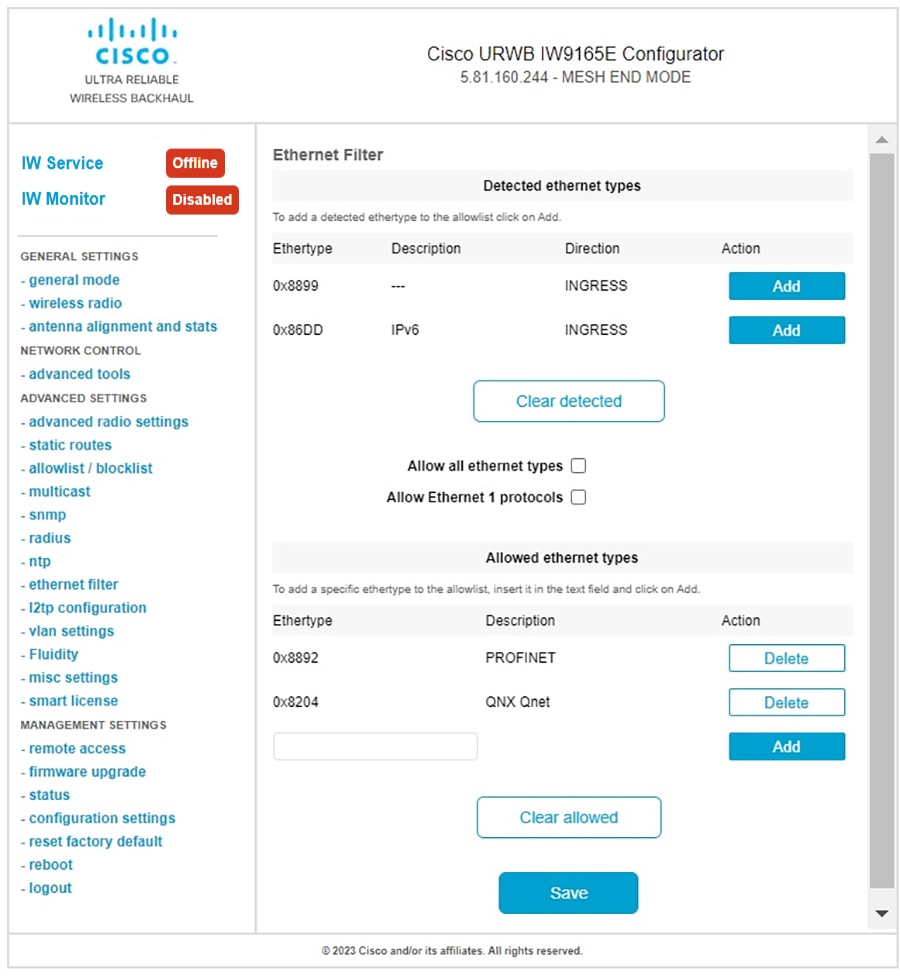
    The following images show the specific and detected ether types added to the allowlist:

    The image displays the specific and detected ether types that have been added to the allowlist in the Layer-2 protocol forwarding configuration.

    The Ethernet Filter window displays the specific and detected ether types that have been added to the allowlist.

Step 3

Clear all allowed ethernet types from the allowlist.

  1. In the ADVANCED SETTINGS, click ethernet filter.

    The Ethernet Filter window appears.

  2. Click Clear allowed in the Allowed ethernet types section to remove all ethernet types from the allowlist.

    All ethernet types are removed from the allowlist.

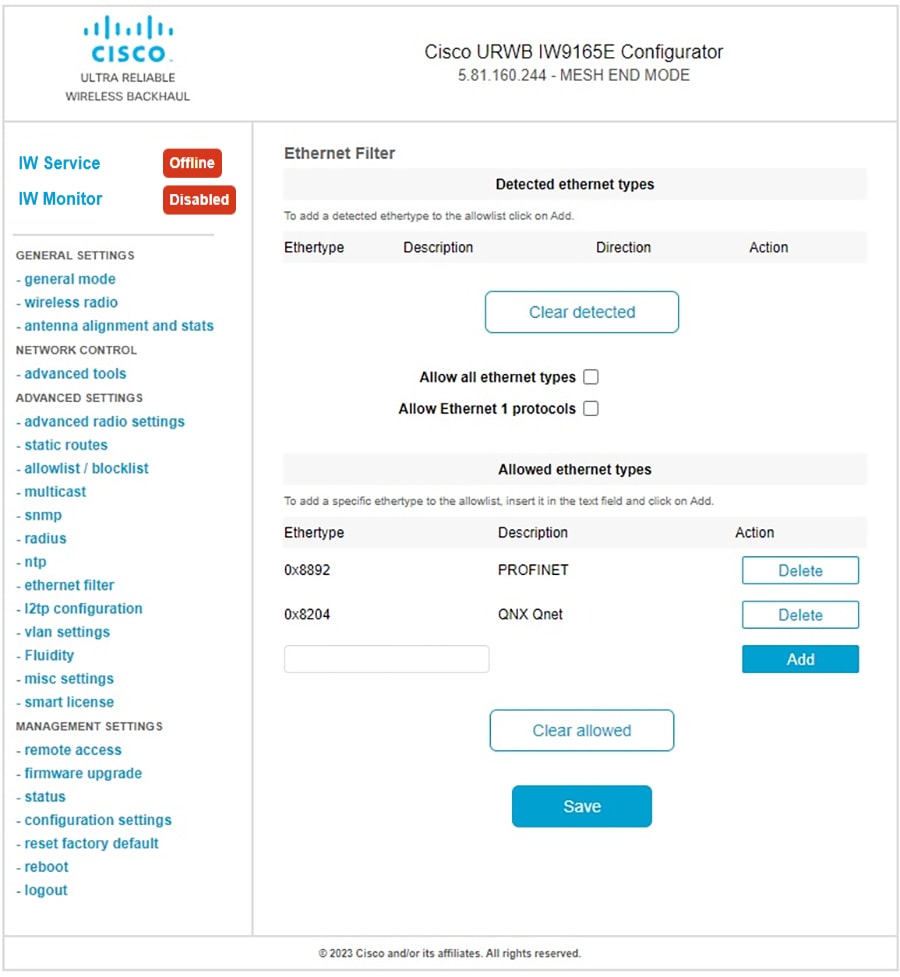
    The following image shows all allowed ethernet types cleared from the allowlist:

    The Ethernet Filter window displays all Ethernet types cleared from the allowlist after clicking the Clear allowed button.

Step 4

Clear all detected ethernet types from the allowlist.

  1. In the ADVANCED SETTINGS, click ethernet filter.

    The Ethernet Filter window appears.

  2. Click Clear detected in the Detected ethernet types section to remove the detected ethernet types from the allowlist.

    All detected ethernet types are removed from the Detected ethernet types section.

    The following image shows all detected ethernet types cleared from the allowlist:

    The Ethernet Filter window displays the cleared detected ethernet types in the allowlist after clicking the Clear detected button.

Step 5

Add or allow all ethernet types to the allowlist.

  1. In the ADVANCED SETTINGS, click ethernet filter.

    The Ethernet Filter window appears.

  2. Check the Allow all ethernet types check box in the Ethernet Filter section to allow all ethernet type to allowlist.

  3. Click Save and then Apply to change the configuration.

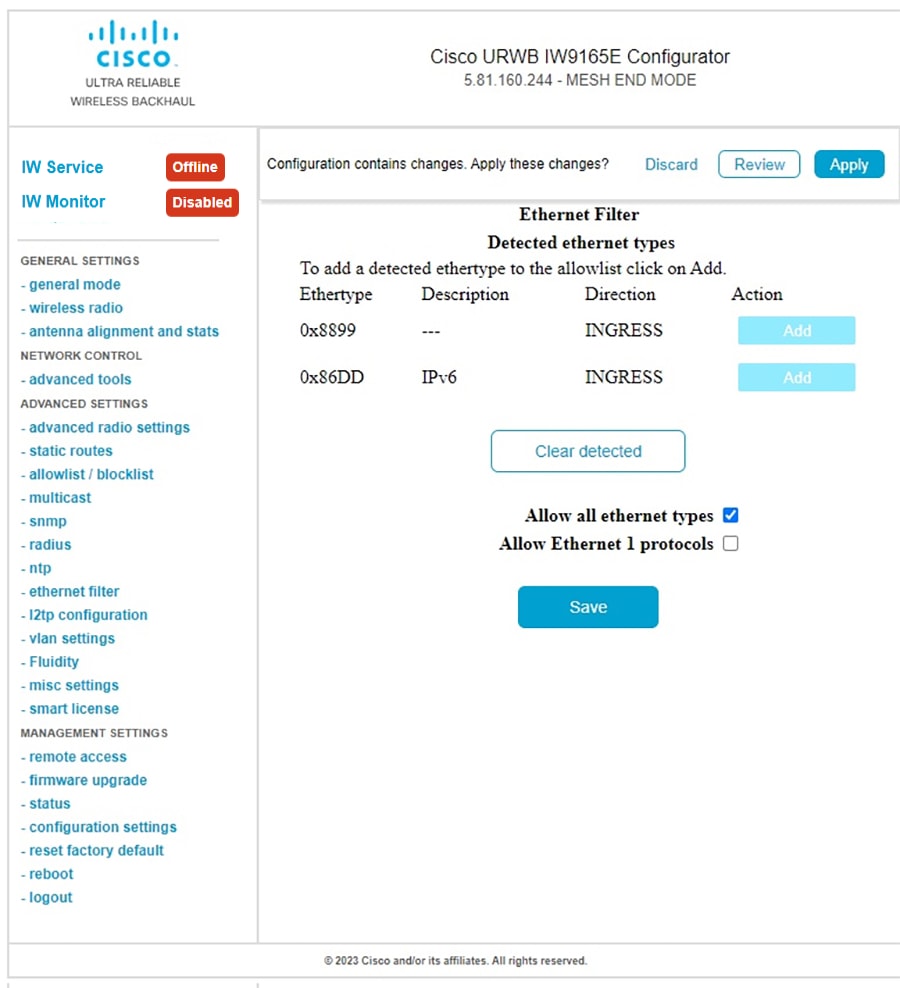
    The following image shows adding of all ethernet types to the allowlist:

    The Ethernet Filter window displays options for adding various Ethernet types to the allowlist.

Step 6

Configure an Ethernet 1 protocol.

  1. In the ADVANCED SETTINGS, click ethernet filter.

    The Ethernet Filter window appears.

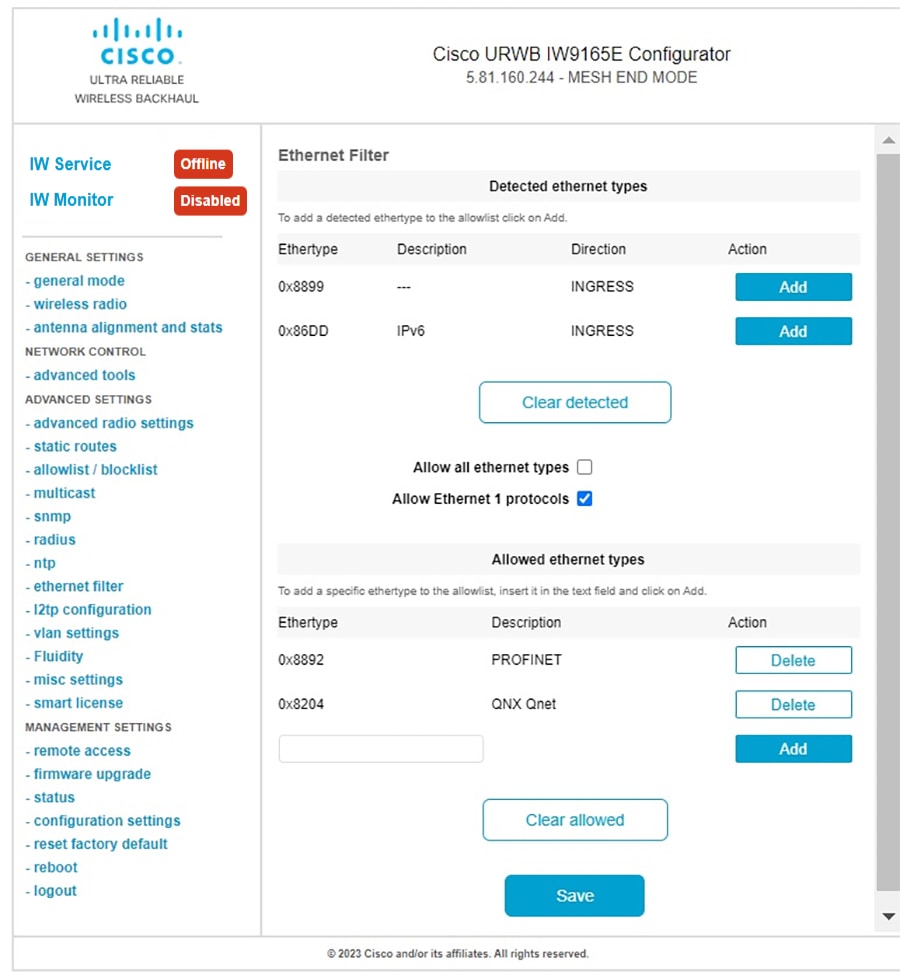
  2. Check the Allow Ethernet 1 protocols check box in the Ethernet Filter section to enable ethernet 1 protocol mode.

  3. Click Save and then Apply to change the configuration.

    The following image shows the configuration of allowing an ethernet 1 protocol:

    The configuration interface displays the successful application of the Ethernet filter settings, including specified Ethernet types and protocol allowlists.