IPv6 Support
From UIW Release 17.15.1, APs support IPv6 addresses. By default, the IPv6 service is disabled on the AP. You can enable and configure the IPv6 address on the AP using either the CLI or GUI.
The documentation set for this product strives to use bias-free language. For the purposes of this documentation set, bias-free is defined as language that does not imply discrimination based on age, disability, gender, racial identity, ethnic identity, sexual orientation, socioeconomic status, and intersectionality. Exceptions may be present in the documentation due to language that is hardcoded in the user interfaces of the product software, language used based on RFP documentation, or language that is used by a referenced third-party product. Learn more about how Cisco is using Inclusive Language.
From UIW Release 17.15.1, APs support IPv6 addresses. By default, the IPv6 service is disabled on the AP. You can enable and configure the IPv6 address on the AP using either the CLI or GUI.
You can configure the AP with these IPv6 address types:
Link-Local: Used within the scope of a single link and cannot be routed. These addresses refer specifically to a particular physical link and are used for addresses on a single link for purposes such as automatic address configuration and the neighbor discovery protocol. Link-local addresses can be used to reach the neighboring nodes attached to the same link.
Unique-Local: Can be routed within a private organization, but not through the public internet. It is not expected to be routable on the global Internet. However, it is routable inside a limited area, such as a site, and it may route between a limited set of sites.
Global Unicast: A routable address in the IPv6 Internet, similar to the public IPv4 address space.
The IPv6 support is limited only to host functionality.
The Fluidity Layer 3 network does not support IPv6.
This task enables or disables IPv6 support on the access point (AP) to control IPv6 addressing functionality.
By default, IPv6 support is disabled on the AP. When IPv6 is enabled, a link-local address is automatically assigned to the AP.
|
Use the configure ipv6 {enable | disable} command to enable or disable the IPv6 address on the AP. Example: |
This task enables or disables IPv6 Router Advertisement (RA) autoconfiguration on the access point to control automatic IPv6 address assignment from router advertisements.
IPv6 RA autoconfig allows access points to automatically configure IPv6 addresses based on router advertisements received from the network. You may need to enable or disable this feature depending on your network's IPv6 configuration requirements.
Follow these steps to enable or disable IPv6 RA autoconfig on the access point:
|
Use the configure ipv6 enable autoconfig-ra {enable | disable} command to enable or disable the IPv6 RA Autoconfig on the AP. Example:
|
Configure a static IPv6 address with eui-64, gateway, and DNS server address on the AP.
Static IPv6 configuration allows you to manually assign network parameters to an access point, providing predictable addressing while using EUI-64 for automatic interface identifier generation.
|
Configure the static IPv6 address with eui-64, gateway, and DNS server address on the AP. Example: |
To verify the static IPv6 address with eui-64, gateway, and DNS server address on the AP, use this show command:
Device#show ipv6
IPv6: Enabled
Router Advertisment auto-configuration: Disabled
Static IPv6 config:
Address: fc00::4236:5aff:xxxx:168/64
Gateway: fc00::1
DNS1: 2001:4860:4860::xxxx
DNS2: 2001:4860:4860::xxxx
Currently assigned addresses:
fc00::4236:5aff:xxxx:168/64 global
fe80::4236:5aff:xxxx:168/64 link
This task configures a static IPv6 address without eui-64, gateway, and DNS server address on the access point.
Use this configuration when you need to manually assign IPv6 network settings to an access point without using the eui-64 interface identifier format.
|
Use the configure ap address ipv6 static ip command to configure the static IPv6 address without eui-64, gateway, and DNS server address on the AP. Example: |
To verify the static IPv6 address without eui-64, gateway, and DNS server address on the AP, use the show command.
Device#show ipv6
IPv6: Enabled
Router Advertisment auto-configuration: Disabled
Static IPv6 config:
Address: fc00::1234:5678:xxxx:def/64
Gateway: fc00::1
DNS1: 2001:4860:4860::xxxx
DNS2: 2001:4860:4860::xxxx
Currently assigned addresses:
fc00::1234:5678:xxxx:def/64 global
fe80::4236:5aff:xxxx:168/64 link
Configure the static IPv6 address with EUI-64 on the access point.
|
Use the configure ap address ipv6 static ip command to configure the static IPv6 address with eui-64 on the AP. Example: |
To verify the static IPv6 address with eui-64 on the AP, use the show command.
Device#show ipv6
IPv6: Enabled
Router Advertisment auto-configuration: Disabled
Static IPv6 config:
Address: fc00::4236:5aff:xxxx:168/64
Currently assigned addresses:
fc00::4236:5aff:xxxx:168/64 global
fe80::4236:5aff:xxxx:168/64 link
Configure the static IPv6 address on the access point.
|
Use the configure ap address ipv6 static ip command to configure the static IPv6 address without eui-64 on the AP. Example: |
To verify the static IPv6 address without eui-64 on the AP, use this show command:
Device#show ipv6
IPv6: Enabled
Router Advertisement auto-configuration: Disabled
Static IPv6 config:
Address: fc00::1234:5678:xxxx:def/128
Currently assigned addresses:
fc00::1234:5678:xxxx:def/128 global
fe80::4236:5aff:xxxx:168/64 link
Clear the IPv6 gateway and DNS servers addresses configuration on the AP.
This task removes existing IPv6 gateway and DNS server configurations from an access point.
|
Use the configure ap address ipv6 static ip command to clear the IPv6 gateway and DNS servers addresses configuration on the AP. Example: |
Verify the cleared IPv6 gateway and DNS server addresses configuration on the AP using the show command.
To verify the cleared IPv6 gateway and DNS server addresses configuration on the AP, use this show command:
Device#show ipv6
IPv6: Enabled
Router Advertisment auto-configuration: Disabled
Static IPv6 config:
Address: fc00::1234:5678:xxxx:def/64
Currently assigned addresses:
fc00::1234:5678:xxxx:def/64 global
fe80::4236:5aff:xxxx:168/64 link
 Note |
While adapting services to work with IPv6, such as TFTP, you must consider that link-local IP addresses might require network interface specifications. |
Enable and configure static IPv6 addressing to provide manual control over the device's IPv6 network configuration instead of relying on automatic configuration methods.
Static IPv6 configuration allows you to manually set the device's IPv6 address, gateway, and DNS servers. This is useful when you need specific network SETTINGS that differ from automatically assigned addresses.
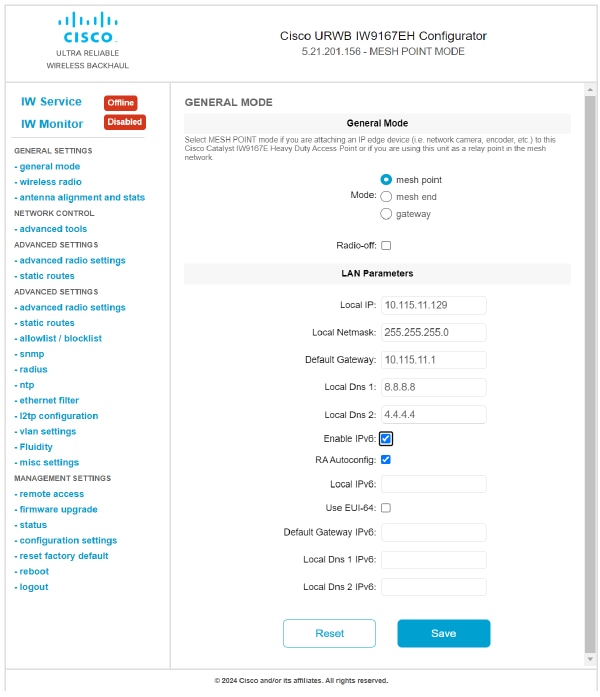
Follow these steps to enable and configure static IPv6 using the GUI:
|
Step 1 |
Log in to the configurator by entering your credentials on the web login page. |
||
|
Step 2 |
In the GENERAL SETTINGS, click GENERAL mode to open the GENERAL Mode window.
|
||
|
Step 3 |
Check the Enable IPv6 check box. |
||
|
Step 4 |
Enter IPv6 address in the Local IPv6 field. |
||
|
Step 5 |
(Optional) Check the Use EUI-64 check box.
|
||
|
Step 6 |
(Optional) Enter the gateway IP address in the Default Gateway IPv6 field. |
||
|
Step 7 |
(Optional) Enter the DNS server 1 IP address in the Local DNS 1 IPv6 field. |
||
|
Step 8 |
(Optional) Enter the DNS server 2 IP address in the Local DNS 2 IPv6 field. |
||
|
Step 9 |
Click Save. |
|
Step 1 |
In the MANAGEMENT SETTINGS , click STATUS . |
|
Step 2 |
On the STATUS page, in the DEVICE SETTINGS section, view the IPv6 details. |
 Feedback