URWB Operation Mode

URWB operation mode

URWB operation mode is a wireless technology configuration that enables Catalyst Industrial Wireless access points to operate in Ultra-Reliable Wireless Backhaul mode.

URWB operation mode characteristics

Catalyst Industrial Wireless access points support multiple wireless technologies, such as Catalyst Wi-Fi (AP), Cisco Ultra-Reliable Wireless Backhaul (URWB), and Workgroup Bridge (WGB). The modes supported vary by specific access point.

The access point OS supports two different software images: Catalyst Wi-Fi (AP) and Unified Industrial Wireless (UIW). Both URWB and WGB are part of the UIW software. The access point mode is determined at boot time based on the mode the access point is configured to operate in.
Identify Software Images from CLI

The access point OS supports two different software images: Catalyst Wi-Fi (AP) and UIW. Use CLI commands to determine which software is running and verify the operating mode.

Use the show version command to determine which software is running and look for the indicated platform code:

Device# show version
Cisco AP Software, (ap1g6j), C9167, RELEASE SOFTWARE
Technical Support: http://www.cisco.com/techsupport
Copyright (c) 1986-2022 by Cisco Systems, Inc.
Compiled Thu Aug 18 01:01:29 PDT 2022
ROM: Bootstrap program is U-Boot boot loader
BOOTLDR: U-Boot boot loader Version 2022010100
APFC58. 9A16.E464 uptime is 1 days, 3 hours, 58 minutes
Last reload time : Wed Sep 7 11:17:00 UTC 2022
Last reload reason: reload command

If the show version command displays ap1g6a or ap1g6b , it means that the access point OS is running. If the show version displays ap1g6j or ap1g6m , it means the UIW software is running.

To check if the access point is running in URWB mode, use this CLI command:

Device#show iw-service status

If the command exists, then the access point is running in URWB mode, otherwise the access point is running in WGB mode.

Reset button settings

Reset actions are performed in the URWB mode when the LED turns to blinking red (after the boot loader gets the reset signal). Ensure you to press the device's reset button before the device is powering on.

  • If you press the reset button for < 20 seconds, it clears the existing configuration.

  • If you press the reset button for > 20 seconds and < 60 seconds, it triggers the factory reset.

  • If you press the reset button for > 60 seconds, it does not clear the configuration.

Configure image conversion

Configure image conversion to change the operational mode of a Catalyst IW9167E access point to meet different network requirements.

Use image conversion when you need to change the operational mode of a Catalyst IW9167E access point between Wi-Fi mode (CAPWAP AP), URWB mode, and WGB/uWGB mode based on your network deployment needs.

Procedure


Step 1

To convert from CAPWAP to URWB mode or from WGB/uWGB to URWB mode, use this CLI command:

Example:

Device# configure boot mode urwb

The access point reboots and starts up in URWB mode.

Step 2

To convert from URWB to CAPWAP mode or from WGB/uWGB to CAPWAP mode, use this CLI command:

Example:

Device# configure boot mode capwap

The access point reboots and starts up in CAPWAP mode.

Step 3

To convert from CAPWAP to WGB/uWGB mode or from URWB to WGB/uWGB mode, use this CLI command:

Example:

Device# configure boot mode wgb

Note


Image conversion performs a full factory reset which completely erases the configuration and data.


Access the GUI

This task allows you to access the Web UI configuration interface for your device.

Use this procedure when you need to configure or manage your IW9167E or IW9165 device through the web-based interface.

Procedure


Step 1

Open the web browser and enter the following URL: https://<IP address of unit>/

The IW9167E or IW9165 Configurator window appears.

Step 2

Enter the credentials using the Username and Enable password.

Step 3

Log into the GUI.

Once you successfully log into the GUI, the URWB configurator displays:

The URWB configurator interface displays a successful login message, indicating that the user can now configure their device through the Web UI.

Verify URWB Catalyst IW9167E configuration using GUI

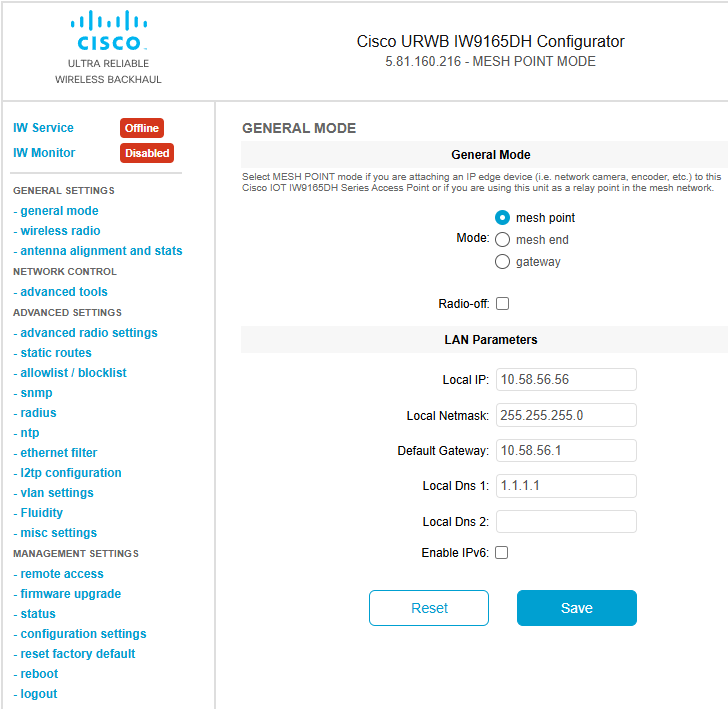
This figure displays the graphical user interface configuration for the Catalyst IW9167E access point to ensure correct URWB setup.

Figure 1. Catalyst IW9167E configurator
The image illustrates the graphical user interface for configuring the URWB Catalyst IW9167E access point, highlighting key settings and options available in the configurator tool.

Commit CLI configuration

Save the current or running configuration settings to local storage or memory and make the configuration effective on the device.

The modified configuration values are stored in the cache configuration file. After entering the write command, you must reboot the device for the current configuration to take effect.

Procedure


Step 1

Save the current configuration settings to memory.

Example:

Device# write

You can also use the abbreviated command:

Device# wr

The write or wr command commits the current configuration settings to memory.

Step 2

Reload the device.

Example:

Device# reload

The reload command reloads the device.


The configuration settings are saved to memory and the device reloads with the new configuration settings in effect.

Example:

Device# write
!!! Please reboot to take effect
Device# reload

Proceed with reload? [confirm]

(enter to confirm)

Configure IW Service Cloud-Managed and Offline Mode using CLI

This task sets up the device management mode to either connect to cloud services for centralized management or configure it locally for offline operation.

IW Service is the cloud management portal, and the device is connected to the Cloud-Managed through the cloud network. In offline mode the device is configured in local mode using CLI and GUI, and it is not connected to the cloud.

When the device is configured in offline mode, choose following options:

  • Configure the device manually using CLI and GUI.

  • Configure the device on IW Service cloud service and select the configuration file exported from IW Service and upload the configuration file using upload configuration button at the end of IW Service management page.

Procedure


To activate or deactivate IW Service configuration capability, use this CLI command:

Example:

Device#configure iw-service {offline | cloud-managed}

Cloud-Managed - To set up IW Service mode to Cloud-Managed. The device can be managed from IW Service cloud server (if it is connected to the network).

Offline - To set up IW Service mode to offline. The device is disconnected from IW Service and must be manually configured using the CLI, or offline configurator interface.


Configure password after first login using CLI

Set up new login credentials after the device switches to offline mode to ensure secure access to the device.

Once the device switches to offline mode after the initial login, you need to set up new login credentials. The login credentials must follow specific criteria for security purposes.

Before you begin

Ensure the login credentials meet these criteria:

  • The username length must be between 3 to 32 characters long.

  • The password length must be between 8 to 32 characters long.

  • The password must include the following:

    • At least one uppercase letter

    • At least one lowercase character,

    • At least one digit

    • At least one special character

  • The password can contain alphanumeric characters and special characters (ASCII decimal code from 33 to 126), but the following special characters are not allowed:

    " [double quote]

    ' [single quote]

    ? [question mark]

  • The password must not contain:

    • Three sequential characters or digits (ABC/ CBA)

    • The same three characters or digits consecutively (AAA) or (666)

    • Same as the current or existing password

    • Same as or the reverse of the username

Before you begin

Follow these steps to configure password after first login using CLI:

Procedure


Step 1

Switch the device to offline mode.

Example:

Device#configure iw-service offline
Switching to IW Service  Offline mode...
Will switch from Provisioning Mode to IW Service  offline Mode, device need to reboot:Y/N? 
Y

The device reboots and switches to offline mode.

Step 2

Log in using the default credentials.

Example:

User Access Verification:
Username: Cisco
Password: Cisco

Default credentials:

username: Cisco
password: Cisco
enable password: Cisco

Step 3

Reset the credentials when prompted after first login.

Example:

Current Password:Cisco
Current Enable Password:Cisco
New User Name:demouser
New Password:DemoP@ssw0rd
Confirm New Password:DemoP@ssw0rd
New Enable Password:DemoE^aP@ssw0rd
Confirm New Enable Password:DemoE^aP@ssw0rd

Sample new credentials:

username: demouser
password: DemoP@ssw0rd
enable password: DemoE^aP@ssw0rd

Step 4

Re-login using the new credentials.

Example:

User access verification
Username: demouser
Password: DemoP@ssw0rd
Device> enable
Password:DemoE^aP@ssw0rd
Device#

Note


In the above example, all passwords are in plain text. This is for demo purposes (sample credential). In the real scenario, they are hidden behind asterisks (*).


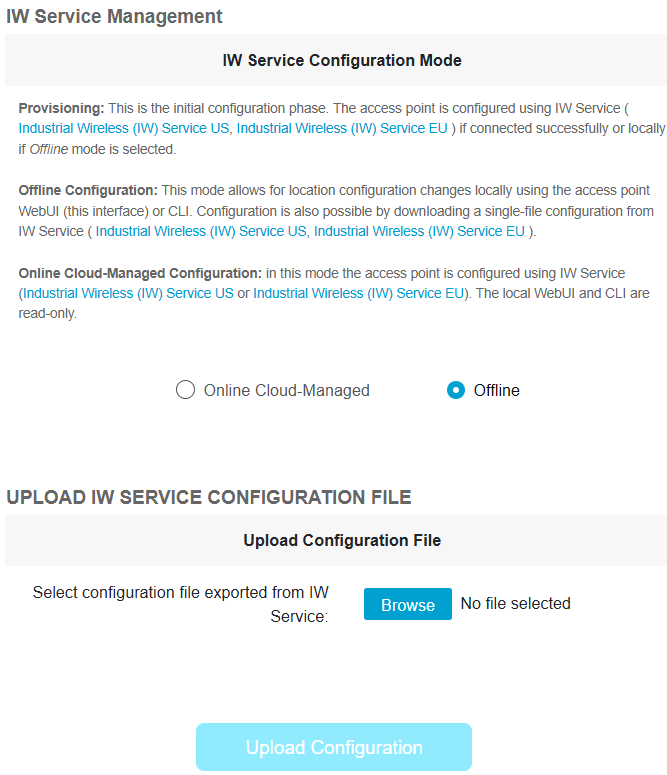
Configure IW Service using GUI

This topic provides the visual configuration steps for IW Service using the GUI.