Policy Builder Overview

Overview

Converged Policy and Charging (CPC) provides a framework for building rules that can be used to enforce business logic against policy enforcement points such as network routers and packet data gateways. For example, a prepaid customer (one who pays as they go) might be denied service or prompted to top-up when their quota has expired, whereas a postpaid customer (one who has an ongoing billing relationship with the service provider) might only have their service downgraded or be automatically billed for additional data when their particular quota has expired.

CPC allows service providers to create policies that are customized to their particular business requirements through the use of the CPC Policy Builder, a web-based tool with a graphical user interface (GUI) that allows for rapid development of innovative new services.

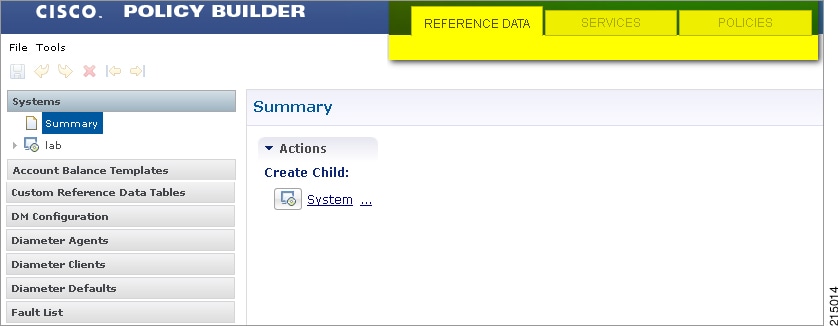
The Policy Builder GUI supports both configuration of the overall CPC cluster of virtual machines (VMs) as well as the configuration of services and advanced policy rules. The following sections introduces the main aspects of the PB GUI as laid out in three tabs on the upper right of the interface: Reference Data, Services and Policies.

Figure 1. Cisco Policy Guilder GUI

Reference Data

The Reference Data tab of the PB GUI provides access for configuring various aspects of the system in order to make the system ready for operation. Reference Data are used to not only configure the system, but are also used to provide settings and parameters that are referenced by policy rules across various services; for example, Account Balances and Notifications are configured as Reference Data but are then referenced and reused by multiple services as needed. Details of the various Reference Data configuration options are described in more detail in other chapters of this guide.

The Reference Data tab contains static system, network, and template definition. It is not directly related to policy, services, or use cases, but does define the reference points for the following types of information:

  • Systems, cluster, and instance data

  • Jdbc query string definitions

  • Balance and quota definitions

  • RADIUS agents, clients, and defaults information

  • Query strings

  • Custom reference data tables (custom look up tables such as apn names)

  • Notification addresses and text templates

  • Policy reporting criteria

  • Subscriber data repositories

  • Tariff switch times

  • Fault list

Services

Feature Summary and Revision History

Summary Data

Table 1. Summary Data

Applicable Product(s) or Functional Area

CPC

Applicable Platform(s)

SMI

Default Setting

Enabled – Always-on

Related Documentation

Not Applicable

Feature History

Table 2. Feature History
Feature Details Release
First introduced. 2025.01.0

Important


Due to non-backward compatible changes in cnAAA operations center configuration model, a direct cnAAA upgrade is not possible. You must perform a fresh cnAAA installation after un-deploying the previous installation and clearing out the cnAAA configmaps from CNEE.

Feature Description

A service dictates the capabilities that are assigned to a subscriber (in USuM). An administrator assigns a service to a user through the service configurations. Depending on the service provider's requirements, cnAAA lets you flexibly map the service configuration with the policies.

For instance, a user with the GOLD account might get a high upload/download speed in comparison to a BRONZE user.

In a tier-based classification, if the quota is "y" then the users from the first tier are redirected to a portal and users belonging the second tier would only experience a downgrade in the speed.

Service

A service is effectively a "code" to label the service and a collection of Service Options which contain the definition of what a service is. Multiple services can be assigned to a single subscriber. If multiple services are assigned to a subscriber, the service options are combined between all assigned services.

Adding a Service

Before adding a service, ensure that you have created the corresponding Use Case template for the service that you intend to add.

Use the following steps to add a service through Policy Builder.

  1. Log in to Policy Builder.

  2. Click the Use Case Templates from the left pane and select the template that you have created.

  3. In the right pane, click Add to include a new service.

  4. In the Select Service Configuration dialog box, click the appropriate entry to view the associated services.

  5. Select the service and click OK. The selected service is added as a new service.

  6. In the left pane, choose Services > Service Options to view the options.

  7. Expand the service that you have created and select the child.


    Note


    The service name resembles the name that you specified for the use case template.


  8. In the Service Option pane, click the service under Service Configurations and specify the parameters referring to the relevant configuration.

Service configuration

cnAAA uses the low-level configuration objects to drive a feature in the system. You can configure the Service Configuration objects from the Service > Service Option > Use Case Template.

Types of service configurations:

  • PriorityConfiguration: Only one configuration is allowed to be active at a time. If multiples priority configurations are added, the configuration of the highest priority is used. These are used in cases where only a single value makes sense. For example, when sending an Accept message, only one template is required. Objects of this type always have a priority field. If multiple priority configurations are added, the highest priority object is used. For example, AccessAcceptConfiguration and RegisterMacAddress.

  • GroupConfiguration (most common): Only 1 configuration per 'Group Name' is allowed to be active. If multiple configurations are added, the highest priority per Group Name is used. These configurations are used in cases where a configuration only makes sense for a single "group" (key). For example, to control the upload/download speed based on the network type (cell, Wi-Fi, and so on). A service configuration to control network speed with a group set for cell/Wi-Fi would allow multiple service configurations to be added. These objects always have a group field and a priority field. For each unique group value, the highest priority is used. For example, ServiceConfiguration, All RADIUS Configurations, and OneTimeUsageCharge.

  • ServiceConfiguration: Multiple configurations are allowed. If multiple configurations are added, all are used. For example, AutoChargeUpAccounts, AutoProvisionQuota, and BalanceRateConfiguration.


    Note


    The Modify feature in PB for Use Case Options/Service Options can override the values conditionally.

Use Case Templates

Use case templates are the essential elements of the CPC architecture. The values that you define in the templates allow you to design and configure one or more services once and reuse them.

Only advanced users such as administrators are authorized to create a use case template.

On a higher-level, the use case template lets you:

  • Define the Service Configuration objects to be set by a Service Option.

  • Provide default values and hide values which the use case must not configure.

  • Optionally, contains Initiators (Conditions) which define when the template is active.

  • Makes Service Option and Service creation easier. For example, a use case template setup to create different upload or download speeds includes a DefaultBearer QoS Service Configuration object. The user creating a use case template can set default and hide the values for ARP and other values that are not directly related to upload or download speed. This allows the creation of the Service Option to be much simpler.

  • A copy of the Use Case Options is created while copying a use case template.

Configure the Use Case Template

This section describes how to configure the use case template.

Use the following steps to configure the use case template through Policy Builder.

  1. Log in to Policy Builder.

  2. Select the Services tab, and from the left pane click Use Case Templates to create a new service.

  3. On the left pane, click Summary to open the Summary pane.

  4. Under Actions, click Use Case Template.

  5. In the Use Case Template pane, specify the name for the template.

  6. Click the Actions tab and select Add.

  7. In the Select Service Configuration dialog box, select the service and click OK. The Use Case template with the specified name is created.

  8. In the left pane, click Services > Service Options to view the options. The newly created service appears in the Service Options.

  9. Select the service that you have created.

  10. Under Service Configurations, click Add to open the Select Service Configuration dialog box.

  11. Under Service Configurations, select the service, then click OK.

Generic service configuration

This section describes the parameters for the Generic Service Configuration service configuration object.

Table 3. Generic Service Configuration Parameters

Parameters

Description

Priority

Denotes the priority of the message for processing. The higher the number, the higher the priority.

Default for most settings: 0

Group Name

Specifies a group name. Only 1 per Group Name is allowed to be active. If multiple configurations are added highest priority per Group Name is used.

Code

Specifies a code for the AVP.

Value

Specifies a value for the AVP.

String Value

Specifies the string value.

Int Value

Indicates the integer value.

Long Value

Indicates the long value.

Boolean Value

Specifies the boolean value.

String Value to Override

Indicates whether overriding is required.

For virtual services, if the value of “String Value” field matches exactly with the value of “String Value To Override”, then the value of “String Value” is over written with the “New String Value".

New String Value

The new string value that is used to overwrite the “String Value” if the value of “String Value” field matches exactly with the value of “String Value To Override”.

Precedence

Defines the second-level priority when the highest priority matches among the multiple generic service configurations.

Common Parameters

These parameters are common between many service configuration objects.

Table 4. Common Service Configuration Object Parameters

Parameter

Description

Apn Agg Max Bit Rate DL

Defines the total bandwidth usage for the downlink direction of non-GBR QCIs at the APN.

Apn Agg Max Bit Rate UL

Defines the total bandwidth usage for the uplink direction of non-GBR QCIs at the APN.

Arp

AllocationRetentionPriority

  • Priority Level – Priority-Level AVP value.

  • Preemption Capability – Preemption-Capability AVP value.

  • Preemption Vulnerability – Preemption-Vulnerability AVP value.

Balance Code

Indicates with which balance the quota is associated. You can subscribe to multiple balances, but the monitoring key is associated with one balance.

Dosage

How much quota to initially give the client (in bytes).

Default: 0

Dual Stack Session

Set to enable or disable the parameter.

Default: disabled

Enable Resource Allocation

Notification

Can be set to enabled or disabled.

Default: disabled

Encoding Format

Can be set to true or false. If the Monitoring Key parameter is numeric, set this parameter to true.

Default: false

Event Trigger

Used primarily to notify the starting and stopping of applications or to report usage. It is not used to rerequest rules.

Flow Status

Defines whether the service data flow is enabled or disabled.

Framed I P Type

Can be set to one of the following options:

  • ANY_ONE

  • BOTH

  • IPv4_ADDRESS

  • IPv6_ADDRESS

Default: ANY_ONE

Guaranteed Bit Rate DL

Defines the guaranteed bit rate allowed for the downlink direction.

Guaranteed Bit Rate UL

Defines the guaranteed bit rate allowed for the uplink direction.

List of Input Column Avp Pairs (List)

Defines the mapping between the AVP Names and the key columns defined in the selected STG. These AVPs are used as inputs while evaluating the CRD table in STG.

  • Avp Name – The name of the RADIUS AVP that is used as input for CRD table evaluation. For example: Flow-Number, Media-Component-Number, and so on.

  • Column – The key column in STG that corresponds to the specified AVP.

List Of Output Column Avp

Pairs (List)

Defines the mapping between the AVP Names and the output columns defined in the selected STG. These mappings indicate how the output columns values are mapped to AVPs after the CRD is evaluated.

  • Avp Name – The name of the RADIUS AVP to which the value of the output column is mapped while setting the charging parameters on the dynamic rule (for the Dedicated Bearer). For example: Rating-Group Service-Identifier.

  • Column – The output column defined in the selected STG.

Max Req Bandwidth DL

Defines the maximum bit rate allowed for the downlink direction.

Max Req Bandwidth UL

Defines the maximum bit rate allowed for the uplink direction.

Monitoring Key

Identifies a usage monitoring control instance. You can specify any value.

Monitoring Level

Can be set to one of the following values:

  • SESSION_LEVEL (0)

  • PCC_RULE_LEVEL (1)

  • ADC_RULE_LEVEL (2)

Mute Notification

Indicates whether notifications for application starts and stops are muted for ADC Rule by the TDF.

New String Value

The new string value that is used to overwrite the “String Value” if the value of “String Value” field matches exactly with the value of “String Value To Override”.

Online

Defines whether the online charging interface from cnAAA for the associated PCC rule is enabled. The default charging method provided by cnAAA takes precedence over any preconfigured default charging method at cnAAA.

  • Enable: Indicates that the online charging interface for the associated PCC rule is enabled.

  • Disable: Indicates that the online charging interface for the associated PCC rule is disabled.

Offline

Defines whether the offline charging interface from cnAAA for the associated PCC rule is enabled. The default charging method provided by cnAAA takes precedence over any preconfigured default charging method at cnAAA.

  • Enable: Indicates that the offline charging interface for the associated PCC rule is enabled.

  • Disable: Indicates that the offline charging interface for the associated PCC rule is disabled.

Precedence

Defines the second-level priority when the highest priority matches among the multiple generic service configurations.

Preemption Capability

When provided within the QoS-Information AVP, the AVP defines whether a service data flow can get resources that were already assigned to another service data flow that has a lower priority level. If it is provided within the Default-EPS-Bearer-QoS AVP, the AVP defines whether the Default Bearer can get resources that were already assigned to another bearer with a lower priority level.

  • 0: Indicates that the service data flow or bearer is allowed to get resources that were already assigned to another service data flow or bearer with a lower priority level.

  • 1: Indicates that the service data flow or bearer is not allowed to get resources that were already assigned to another service data flow or bearer with a lower priority level. This is the default value applicable if this AVP is not supplied.

Preemption Vulnerability

When provided within the QoS-Information AVP, the AVP defines whether a service data flow can lose the resources assigned to it in order to admit a service data flow that has a higher priority level. If it is provided within the Default-EPS-Bearer-QoS AVP, the AVP defines whether the Default Bearer can lose the resources assigned to it in order to admit a pre-emption capable bearer with a higher priority level.

  • 0: Indicates that the resources assigned to the service data flow or bearer can be pre-empted and allocated to a service data flow or bearer with a higher priority level. This is the default value applicable if this AVP is not supplied.

  • 1: Indicates that the resources assigned to the service data flow or bearer cannot be pre-empted and allocated to a service data flow or bearer with a higher priority level.

Priority

The priority of the message for processing. The higher the number, the higher the priority.

Default for most settings: 0

Priority Levels

Used to decide whether a bearer establishment or modification request can be accepted, or rejected due to resource limitations (typically used for admission control of GBR traffic). The AVP can also be used to decide which existing bearers to pre-empt during resource limitations. The priority level defines the relative importance of a resource request.

Values 1–15 are defined, with value 1 as the highest level of priority.

  • Values: 1–8 – Assigned for services that are authorized to receive

    Prioritized treatment within an operator domain.

  • Values: 9–15 – Assigned to resources that are authorized by the Home network and thus applicable when a UE is roaming.

Provision Default Bearer QoS

Must be bound to the appropriate column in the STG. The data contained in the STG column is of type True/False.

If the value is True, the Default Bearer QoS information from the session is applied to the rule, while QoS information derived from the prior parameters in this STG is ignored.

Qci

The Quality of Service (QoS) Class Identifier.

The QoS class identifier identifies a set of IP-CAN specific QoS parameters that define QoS, excluding the applicable bitrates and ARP. It is applicable both for uplink and downlink direction. The QCI values 0, 10–255 are divided for usage as follows:

  • 0: Reserved

  • 10-127: Reserved

  • 128-254: Operator specific

  • 255: Reserved

Rating Group

The charging key for the PCC rule used for rating purposes.

Realm

The destination realm where the message is sent from cnAAA.

Redirect Address

Indicates the target for redirected application traffic.

Redirect Address Type

Defines the address type of the address given in the Redirect-Server-Address AVP.

Default: IPV4_ADDRESS

Redirect Server Address

Indicates the target for redirected application traffic.

Redirect Support

This value indicates that Redirection is enabled for a detected application's traffic.

Retry Profile

Indicates the Rule Retry Profile to be used. When cnAAA receives a Charging-Rule-Report indicating failure to install or to activate one or more rules, it evaluates the failed rules and takes further action.

Rule Group

Used to classify rules at cnAAA to change set of predefined rules based on policy.

This parameter is optional.

Rule Name

A partial name configured in Policy Builder (as derived using AF-Application-Identifier and Media-Type values from the Custom dynamic rule name table in Gx Client).

Default: AF

Scheduled Hour

Can be set to one of the following values:

  • Default: Turns off the Hour Boundary RAR enhancement feature for look-ahead rules installation at hour boundary. This causes rules to be installed at hour boundary as applicable.

  • CurrentHour: Rule activation time will be current time, deactivation time will be the next hour.

  • NextHour: Rule activation time will be the next hour, and deactivation time will be next-next hour.

Search Column

Must be bound to the Key column in the STG. The data contained in the STG column is of type Text.

Search Group

A constant value that cnAAA uses to search within the Search Table Group indicated by the Search Table parameter.

Search Table

The name of the table from which to perform a lookup.

String Value to Override

Indicates whether overriding is required.

For virtual services, if the value of “String Value” field matches exactly with the value of “String Value To Override”, then the value of “String Value” is over written with the “New String Value".

Tdf Application Identifier

References the application detection filter (for example, its value may represent an application such as a list of URLs) to which the PCC rule for application detection and control in cnAAA applies.

ToD Schedule

Identifies the schedule for rule activation and deactivation.

Policies

While the Services tab, through Use Case Templates and Service Options, makes it easy to create reusable and extensible services, the Policies tab allows direct access to the underlying policy engine. The Policies tab holds the cnAAA core system Blueprint, which is composed of various Extension Points that break the policy engine flow into sections that occur within the execution of the policy. For example, the point in the policy flow where a Gx connection is received, parsed, and processed before the point in the policy flow where the related subscriber data is evaluated.

Within the various Extension Points are Policies that define Conditions (events and data from the policy flow and external systems) that can then trigger Actions (manipulation of data and communication back to external systems).

Note that the configuration of services for most deployments will be handled through use of the Reference Data and Services tabs; advanced policies as defined on the Policies tab and discussed above are only required for complex deployments. It is recommended that only experienced users access the Policies tab as errors in custom policies can have negative impact on the operation of the system. Detailed discussion of custom policies is outside of the scope of this document.


Important


The Policy Builder offers the Blueprint section under Policies tab to enable Cisco recommended changes to the Policy Engine. Changes made without Cisco guidance are not supported and can result in poor performance, platform instability, or reduced capacity.


Summary of Policy Tab Capabilities

  • Conditional rules within specified Extension Points (Condition/Action)

  • Trigger specific actions from an extensive catalog of Use Case Initiators

  • Evaluate and manipulate session data as part of making policy decisions and returning services data to downstream systems

Advantages

  • Allows for handling complex policy situations without writing custom code

  • Support for custom or unusual business rules

Considerations

  • Building custom policies requires a deep understanding of the call flow and underlying cnAAA platform

  • Due to the flexibility of the Policy Builder, it is possible to create conflicting policies that can have a negative impact on system performance

Add a System

This section describes how to add a system.

After installation, use this procedure to set up your Policy Builder by using an example populated with default data. You can change anything that does not apply to your deployment.

  1. Click the Reference Data tab, and then click the Systems node to display the Systems tree.

  2. Click System... under Create Child: to open the System pane on the right side.

  3. Fill in the Name field, and provide a description of this system. Enter the rest of the parameters based on your network requirements.

    Table 5. System Parameters

    Parameter

    Description

    Name

    The name of the cnAAA system.

    Description

    Describes the system using which you can uniquely identify the system.

    Session Expiration Hours

    An event occurs whenever a session is updated, which in turn increments the session expiry duration.

    If no session update event occurs in the specified session expiration duration (combination of Session Expiration Hours and Session Expiration Minutes), then the session will be removed.

    Note


    The combined value of Session Expiration Hours multiplied by 60 plus Session Expiration Minutes should not exceed 35,400 minutes.

    Default value is 8.

    Session Expiration Minutes

    An event occurs whenever a session is updated, which in turn increments the session expiry duration.

    If no session update event occurs in the specified session expiration duration (combination of Session Expiration Hours and Session Expiration Minutes), then the session will be removed.

    Note


    The combined value of Session Expiration Hours multiplied by 60 plus Session Expiration Minutes should not exceed 35,400 minutes.

    Default value is 0.

Access the Policy Builder

The Policy Builder is the web-based client interface for the configuration of policies to the Converged Policy & Charging. Initial accounts are created during the software installation with the default cnAAA install username qns-svn and password cisco123.

The Policy Builder provides a PAM based and SVN based authentication mechanism to support the authentication of Linux user credentials. The disablePamAuthentication flag is used to enable or disable user login and to perform PAM based authentication.

The following tables describes the user roles and credentials supported:

Table 6. Supported User Roles and Credentials

Linux access

SVN access

User access to Policy Builder

User Roles

Authentication Mechanism

Read/Write

Not an SVN user

Yes

Read only

PAM (Linux Systems) (set disablePamAuthentication = false)

Read only

Not an SVN user

Yes

Read only

PAM (Linux Systems) (set disablePamAuthentication = false)

Read/Write

Read/Write

Yes

Admin

PAM (Linux Systems) (set disablePamAuthentication = false)

Read/Write

Read only

Yes

Read only

PAM (Linux Systems) (set disablePamAuthentication = false)

Read only

Read/Write

Yes

Admin

PAM (Linux Systems) (set disablePamAuthentication = false)

Read only

Read only

Yes

Read only

PAM (Linux Systems) (set disablePamAuthentication = false)

Not a Linux user

Read only

Yes

Read only

SVN (set disablePamAuthentication = true)

Not a Linux user

Read/Write

Yes

Admin

SVN (set disablePamAuthentication = true)

Not a Linux user

Not an SVN user

No

Invalid username or password error

PAM/SVN

cnAAA enables users to be aware of its current privileges while accessing Policy Builder as described below:

If a user has read-write privilege then ADMIN is displayed adjacent to user name in the GUI.

If a user has read-only privilege then READONLY is displayed adjacent to user name in the GUI.

URL to Access Interface

Follow these steps to get to the PB URL:

  1. Execute the following commands :
    kubectl get ing -n <pcf namespace> | grep pb

    Executing this command would give output as follows:

    policy-builder-ingress-pcf-beta-cncps-pcf-engine-app-production-rjio nginx pb.<namespace>-pcf-engine-app-production-rjio.<ip>.nip.io <ip>
    
  2. Build the PB URL:

    https://<ing's URL given in above command output>/pb
    
    https://pb.<namespace>-pcf-engine-app-production-rjio.<ip>.nip.io/pb

Policy Builder add and update the Services, Validation prior to publish

Policy Builder in the Cloud Native Authentication, Authorization, and Accounting (cnAAA) is a web-based interface that allows service providers to manage and configure policy settings through HTTPS. This GUI facilitates the configuration of various components such as Radius Configuration, Radius Service Template, Policy Enforcement Points, Subscriber Data Sources, and Tariff Times. This helps in managing and updating services without disrupting the active subscriber sessions and supports multi-user collaboration.

RADIUS

Remote Authentication Dial-In User Service (RADIUS), is a networking protocol that provides centralized management for Authentication, Authorization, and Accounting (AAA) for users connecting to and using a network service. This protocol is essential for ensuring secure and efficient access control within network environments.

In a converged network environment, configuring RADIUS settings involves managing policies across different network elements, a task that can be complex and time-consuming. Network administrators often encounter challenges in ensuring consistent policy configurations and maintenance across various systems and devices. RADIUS simplifies policy management by providing a central framework, improving efficiency and security in network access.

Radius Configuration

Click RADIUS Configuration in the right pane to add the configuration in the system.

The following parameters can be configured under RADIUS Configuration:

Table 7. RADIUS Configuration Parameters

Parameter

Description

Accounting Port

Port used for incoming radius accounting.

Authorization Port

Port used for incoming radius authorization.

Coa Port

Port used for Change of Authority between cnAAA and Radius Device.

Date Time Format

Time stamping format for radius transactions.

Location Db Host1

Mongo location for Primary Radius database.

Location Db Host2

Mongo location for Secondary Radius database.

Location Db Port

Port number for the Radius database.

Accounting Enabled

Enables cnAAA to receive incoming Radius Accounting.

Default value is True (checked).

Authorization Enabled

Enables cnAAA to receive incoming Radius Authorization.

Default value is True (checked).

Coa Enabled

Enables cnAAA to send and receive CoAs.

Disable Location Db

Will not record WLC locations in the Radius mongo DB.

Default value is False (unchecked).

RADIUS AAA Proxy Settings

Click RADIUS AAA Proxy Settings to add the configuration in the system. These proxy settings are used for domain-based subscriber authorization.

Table 8. RADIUS AAA Proxy Settings

Parameter

Description

RADIUS Server

Server Identification which will be mapped between Proxy Settings and Domain/Service.

Accounting Port

AAA Server Accounting Port which will receive and process accounting requests.

Authorization Port

AAA Server Authorization Port which will receive and process authentication requests.

Primary IP Address

Primary AAA Server IP address.

Secondary IP Address

Secondary AAA Server IP address.

RADIUS NAS IP Address

NAS IP address which will be sent in the proxied requests.

RADIUS Auth Protocol

RADIUS authentication protocol used. Default: PAP

RADIUS Password

RADIUS authentication password.

Retries

Number of times the requests will be retried in a failure scenario.

Shared Secret

Shared Secret of the AAA Server.

Test User Id

RADIUS username used for testing between cnAAA and AAA Server.

Test Password

RADIUS password used for testing between cnAAA and AAA Server.

Thread Pool Size

Number of threads to handle proxying of requests.

Max Proxy Queue Size

Maximum number of requests that can be queued before being proxied.

Send Test Message

Select this option to send a test message to the AAA server when cnAAA comes up.

Radius Service Template

cnAAA provides reusable and extensible templates for initiating and replying to Radius requests. When the RADIUS plug-in is installed, the Policy Builder includes a section for RADIUS Service Templates within the Reference Data tab. By default, cnAAA includes multiple folders with templates for different access methods.

Create a new RADIUS Service Template

Creating a new RADIUS Service Template called TIMEOUT_ACCESS_ACCEPT based on the existing ISG_ACCESS_ACCEPT template.

Procedure


Step 1

In the RADIUS Service Templates panel, click on Summary. Then, click Create Child: RADIUS Service Template Group and name the group "Custom."

Step 2

Select the new, blank Custom group and click Create Child: RadiusService Template. Name the new template TIMEOUT_ACCESS_ACCEPT.

Step 3

Click the “Select” button next to the Base Template field. Navigate to and select the ISG_ACCESS_ACCEPT template.

Step 4

Expand the “> Show...” dialog under Show Available AV Pair Attributes to Add. Type “Cisco” in the Vendors text box, select Cisco, and view available Cisco AVPs. Type <Radius> in the Vendors text box, select the <Radius> vendor, and type IDLE-TIMEOUT in the Attributes text box. Click the Add button to include the IDLE-TIMEOUT attribute. Repeat to add the SESSION-TIMEOUT attribute.

Step 5

Enter 600 seconds for IDLE-TIMEOUT to instruct the ISG on idle session disconnection. Enter 3600 seconds for SESSION-TIMEOUT to set the disconnection time for any session.

The Tag field in the Radius Service Template AV Pair section is deprecated. Do not enter any value.

Step 6

Once the template is created, assign it to a service option using the pick list for the Access Accept template in the Value field.


Policy Enforcement Points

A Policy Enforcement Point (PEP) manages policy-based access and acts as a network access system (NAS), though it is not restricted to NAS devices. When a user attempts to access a resource on a network using policy-based access management, the PEP provides the user's attributes to other system components. The PEP delegates decision-making to the Policy Decision Point (PDP), which analyzes applicable policies based on the user's attributes. The PDP decides and returns the result, informing the PEP whether the user is authorized to access the requested resource.

Policy Enforcement Point Tree

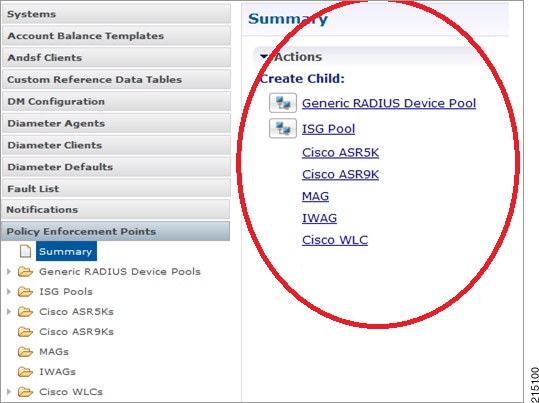
Upon installation of Cisco Policy Suite, the Policy Enforcement Points tree under Reference Data tab resembles this.

Figure 2. Policy Enforcement Point Tree


At install time, you need to determine what policy enforcement points your installation use and what features you need to install. PEPS might be:
  • Generic RADIUS Device Pool

  • ISG pool

  • Cisco ASR 5K

  • Cisco ASR9K

  • MAG

  • IWAG

  • Cisco WLC

Consult your Cisco Technical Representative for configuring a custom site.

ASR9K PEP Configuration

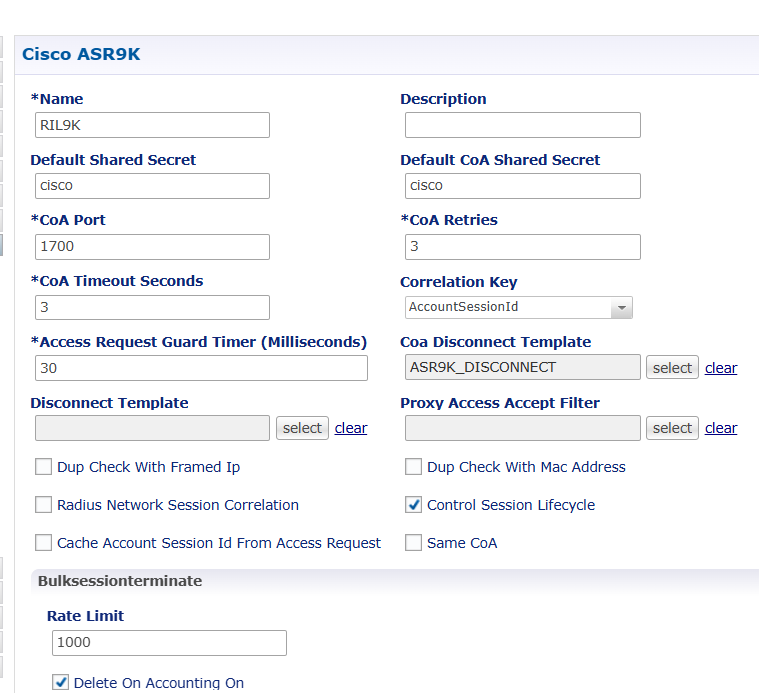
ASR9K Policy Enforcement Point (PEP) is used for interfacing CPC with ASR9K devices. PEP configuration for ASR9K is same as Generic Radius device but there is one more additional parameter “Cache Account Session Id from Access Request”. This option stores the value from the Account-Session-Id AVP in the session database during a session.

Figure 3. ASR9K PEP Configuration

To configure ASR9K PEP, follow these steps:

Procedure


Step 1

In the Policy Builder GUI, navigate to Reference Data > System > Policy Enforecement Points > ASR9K.

Step 2

To configure the PEP for ASR9K, refer the parameters specified in the ASR9K PEP Configuration image.

Step 3

Click Saveto submit the parameters.


BNG addition in Policy Builder through external API

The BNG addition feature in the Policy Builder enables you to automatically add devices under the Policy Enforcement Points section. The system provides a REST HTTP interface (GET and POST) to manage BNG IP addresses.

You must publish the Policy Builder before you execute any API requests.

API details and auditing

  1. The system logs bng-device-audit.log for the source IP address and the complete request for all addition, modification, and deletion.

  2. PB to be published prior hitting the APIs.

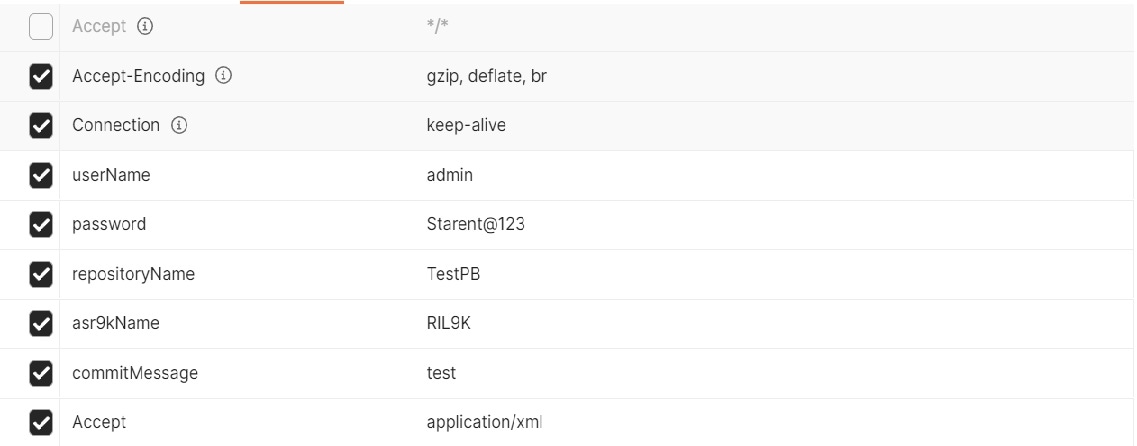
  3. The headers are uniform for all the functions of the API.

  4. Accept header can either be application/xml or text/csv.

  5. It is auto-published.

Sample log entry for BNG creation:
[rid8749724-smodini-1-worker1/policy-builder/policy-builder-pcf-pcf-engine-app-pcf-green-5dcf45476c-65sb9] 2026-02-23 08:07:12,158 Source IP: 192.0.2.71, Request Type: CREATE, Repository Name: anu_import, ASR9K Name: RIL9K, Newly Created BNG Detail: [IP address: 2001:db8:1::77, Shared Secret: cisco, CoaSharedSecret: cisco]
Configure BNG in PB from external API interface

To perform various actions, follow these steps:

Procedure

Step 1

Use the HTTP headers for executing automation.

Step 2

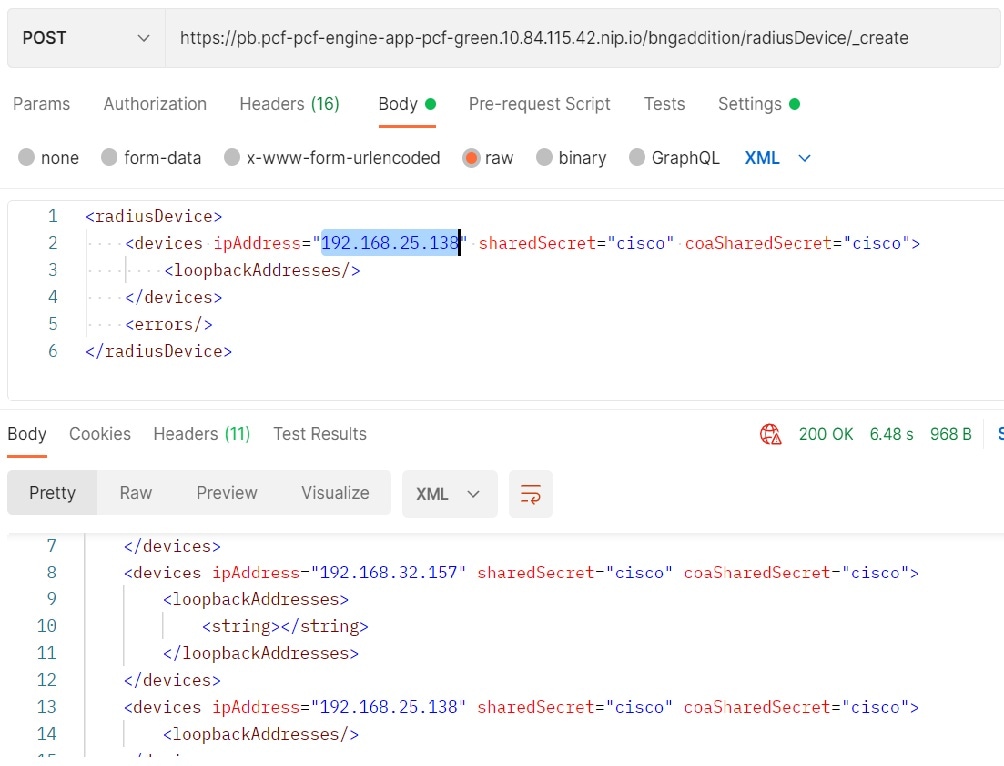
Add BNG IP.

URL: https://pb.pcf-pcf-engine-app-pcf-green.10.127.34.151.nip.io/bngaddition/radiusDevice/_create

Output:

Step 3

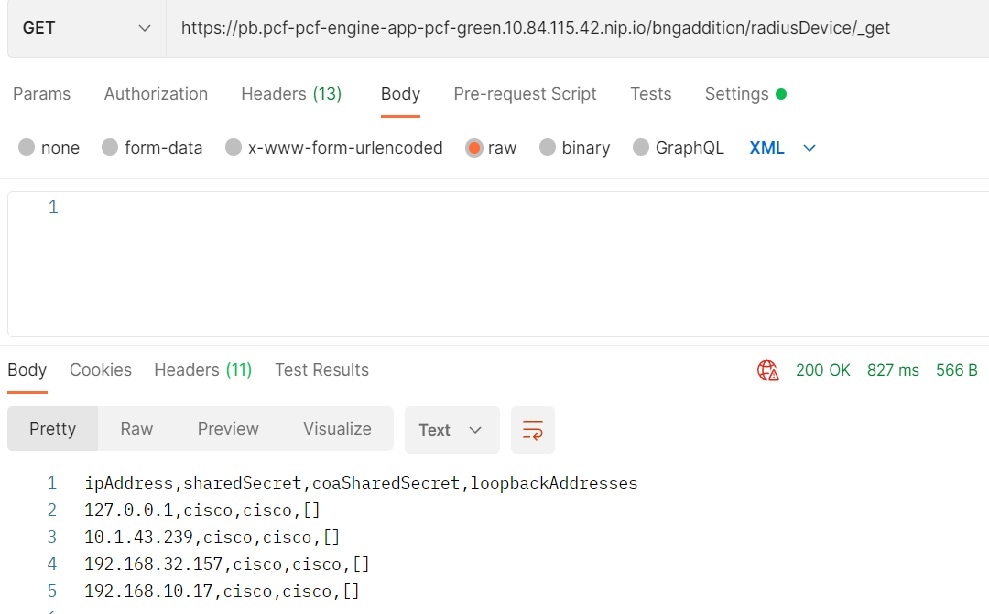
Retrieve BNG IP

URL: https://pb.pcf-pcf-engine-app-pcf-green.10.127.34.151.nip.io/bngaddition/radiusDevice/_get

Output:

Step 4

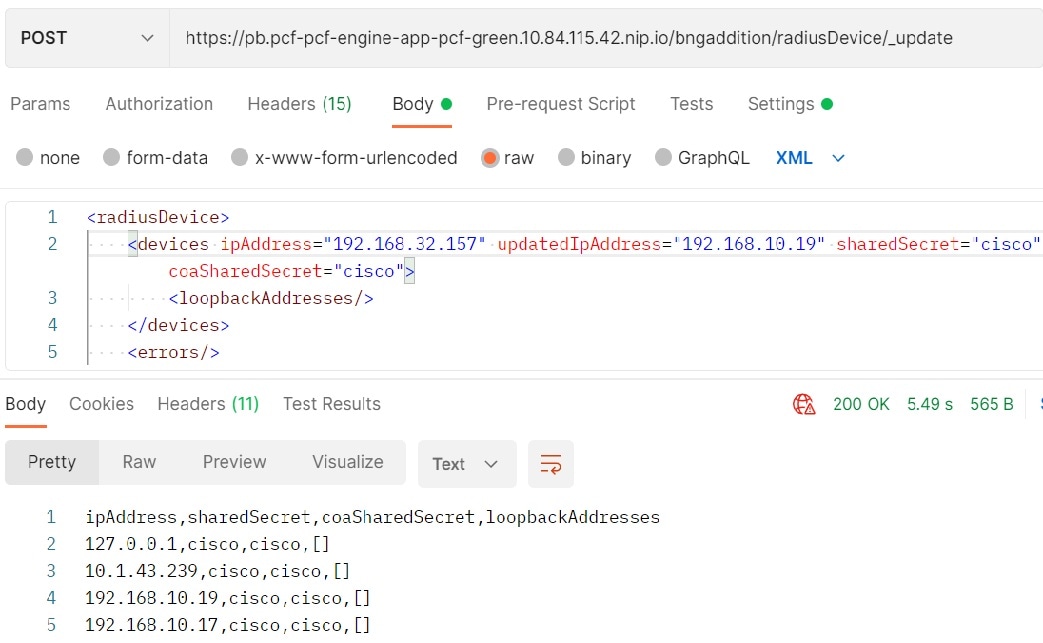
Update BNG IP.

URL: https://pb.pcf-pcf-engine-app-pcf-green.10.84.115.42.nip.io/bngaddition/radiusDevice/_update

Output:

Step 5

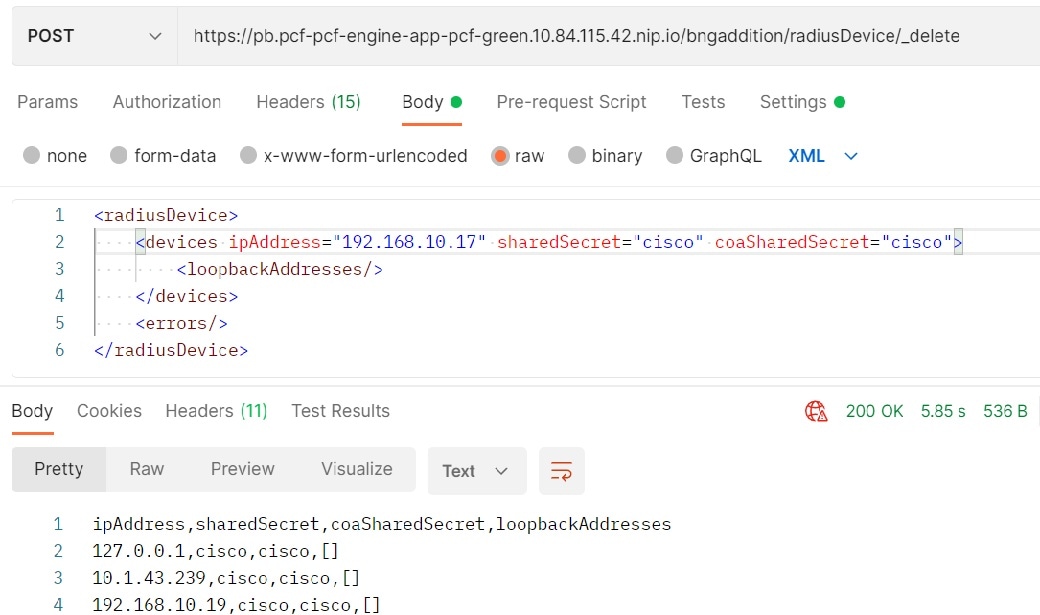
Delete BNG IP.

URL: https://pb.pcf-pcf-engine-app-pcf-green.10.84.115.42.nip.io/bngaddition/radiusDevice/_delete

Output:


Configure BNG in Ops-Center using the RESTCONF API

Use this procedure to manage BNG IP addresses through the RESTCONF API. This allows for automated addition, retrieval, update, and deletion of BNG configurations.

Before you begin

  • To obtain the RESTCONF URL from the ingress output, use this command:

    kubectl get ingress -n <namespace> | grep restconf
  • While executing the commands, enter the password when prompted or include it in the command using the -u "admin:password" format.

Complete these steps to manage BNG IP addresses:

Procedure

Step 1

Use the curl -X PATCH command with the device-group URL to add a new BNG.

Example:
curl -X PATCH -H "Accept: application/yang-data+xml" -H "Content-Type: application/yang-data+xml" -k https://restconf.ops-center.192.0.2.1.example.com/restconf/data/radius/device-group=ASR9K -u "admin:password" -d '
<device-group xmlns="http://cisco.com/cisco-mobile-policy-radius">
  <device>
    <name>BNG2</name>
    <ip>192.0.2.138</ip>
    <shared-secret>cisco</shared-secret>
    <coa-shared-secret>cisco</coa-shared-secret>
    <loopback-addresses>192.0.2.2</loopback-addresses>
  </device>
</device-group>'

Step 2

Use the curl -X GET command to retrieve BNG configurations for the ASR9K device group.

curl -X GET -H "Accept: application/yang-data+xml" -H "Content-Length: 0" -k https://restconf.ops-center.192.0.2.1.example.com/restconf/data/radius/device-group=ASR9K/ -u admin
Example:
<device-group xmlns="http://cisco.com/cisco-mobile-policy-radius"  xmlns:radius="http://cisco.com/cisco-mobile-policy-radius">
  <name>ASR9K</name>
  <default-shared-secret>$8$a8KhMdDQM7AZzx9jQ51v8aO56QT888AyFQGDNjf5Fqw=</default-shared-secret>
  <default-coa-shared-secret>$8$jjyJ7GsKfao9a0J56JV3VFHXnNsLmgxvTVfaXO9DBPM=</default-coa-shared-secret>
  <coa-port>1700</coa-port>
  <coa-retries>1</coa-retries>
  <coa-timeout-seconds>15</coa-timeout-seconds>
  <device>
    <name>BNG1</name>
    <ip>192.0.2.137</ip>
    <shared-secret>$8$At394wRcyX4qn/BNcqChAzAajOgWwn/Spxdz/Jvsl+E=</shared-secret>
    <coa-shared-secret>$8$RGoJB4uTlQY+4cduTuEBO2qxCS9VNLuQ9ejtWrYXI48=</coa-shared-secret>
    <loopback-addresses>192.0.2.2</loopback-addresses>
  </device>
  <device>
    <name>BNG2</name>
    <ip>192.0.2.138</ip>
    <shared-secret>$8$bYIe6rFZ0CGeyjBuxfyxiprakN6pQ0eK8RLjzSEndIo=</shared-secret>
    <coa-shared-secret>$8$l2bL94SXm3tKQYbyXIuUDmzOVt+kb7QhLN0mRRBUA/8=</coa-shared-secret>
    <loopback-addresses>192.0.2.2</loopback-addresses>
  </device>
</device-group>

Step 3

Use the curl -X PATCH command to update the IP address for a specific BNG (for example, BNG2).

curl -X PATCH \
  -H "Accept: application/yang-data+xml" \
  -H "Content-Type: application/yang-data+xml" \
  -k https://restconf.ops-center.192.0.2.1.example.com/restconf/data/radius/device-group=ASR9K/device=BNG2/ip \
  -u admin \
  -d '<ip xmlns="http://cisco.com/cisco-mobile-policy-radius">192.0.2.139</ip>'

Step 4

Use the curl -X DELETE command to remove a BNG IP address from the configuration.

curl -X DELETE -H "Accept: application/yang-data+json" -k https://restconf.ops-center.192.0.2.1.example.com/restconf/data/radius/device-group=ASR9K/device=BNG2 -u admin

Sort and search BNG IPs in Policy Builder

Feature history

Feature Name

Release Information

Description

Sort and search BNG IPs in Policy Builder

2026.01.0

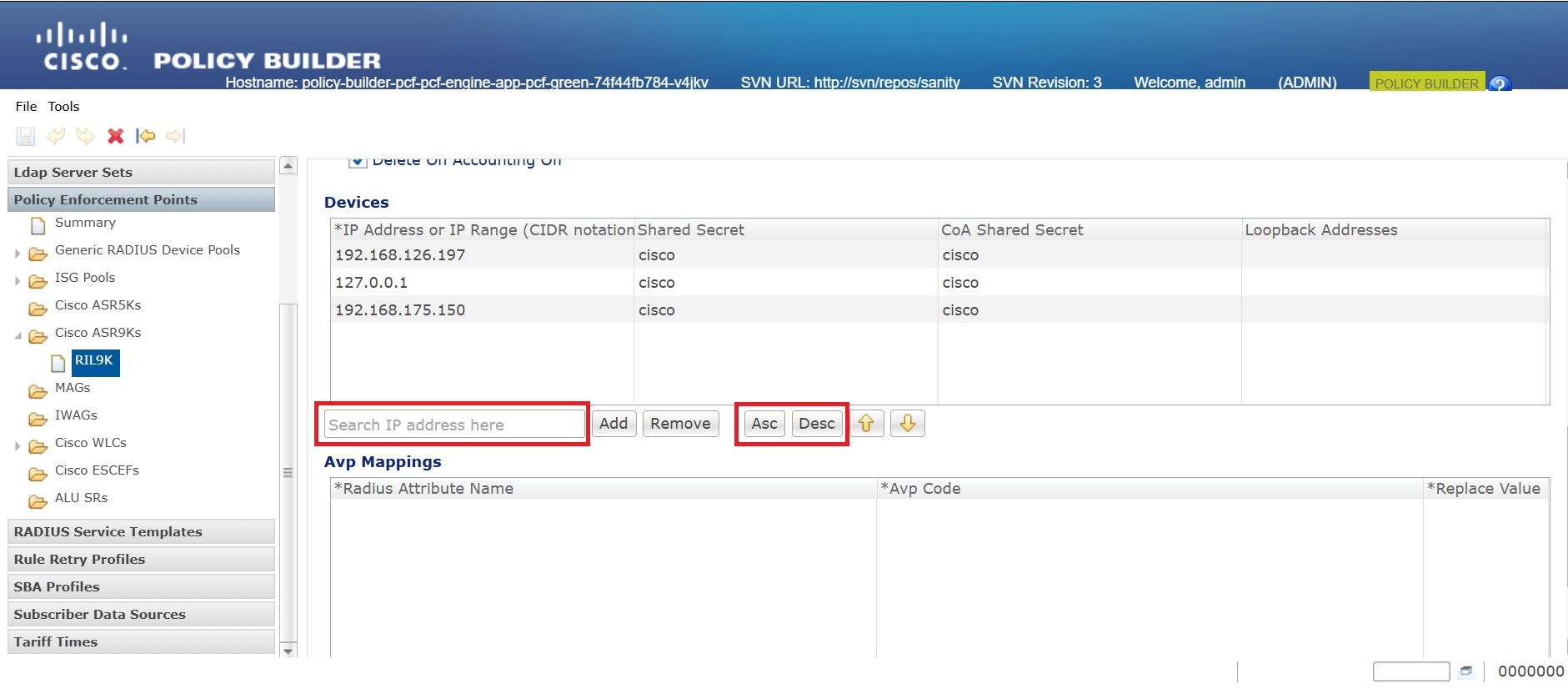
This enhancement provides efficient sort and search for BNG IP addresses in Policy Builder (PB). It addresses the challenge of managing large device list. The UI now includes new buttons, a search box, and enhanced REST APIs that provide real-time filtering and sorting for both IPv4 and IPv6 BNG devices.

This enhancement introduces sorting and searching for BNG IP addresses within the Policy Builder UI. It simplifies the identification of specific IP addresses in large BNG device lists.

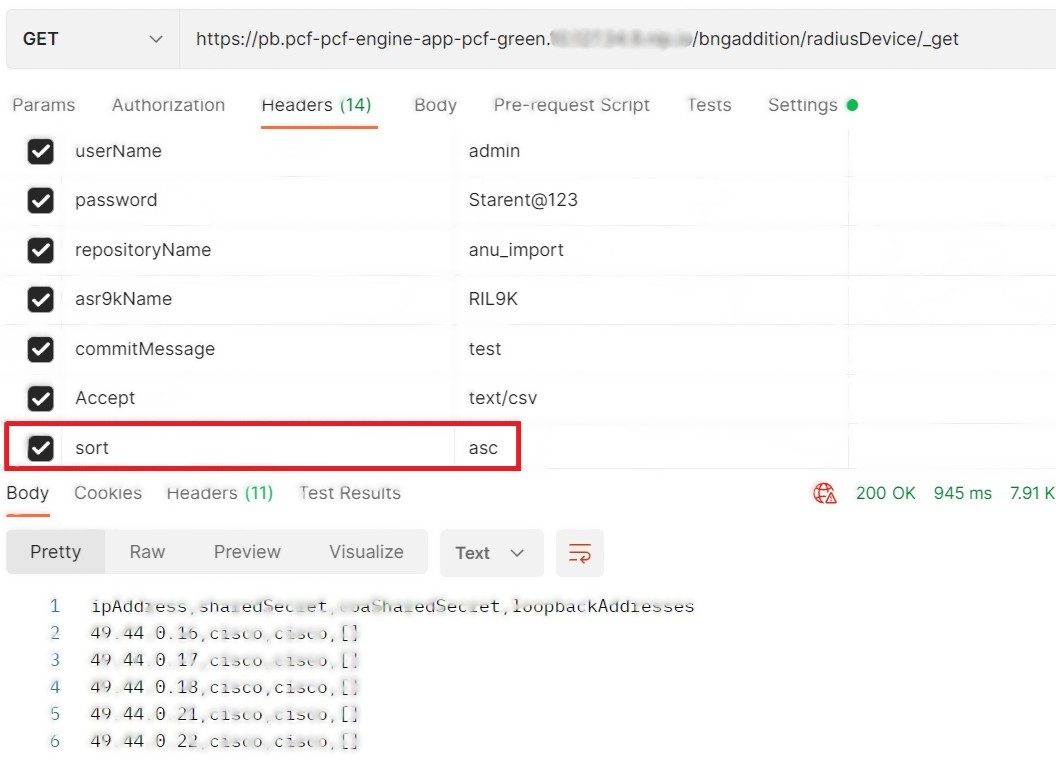
Ascending and Descending buttons and a search box enable real-time filtering and ordering of IPv4 and IPv6 addresses in the RADIUS devices table. Additionally, enhanced REST APIs provide sorted device lists to simplify the management of RADIUS policy enforcement points.

Key features and functionality

This feature provides key functionalities to manage BNG IP addresses:

Figure 4. BNG IP address sorting and searching options

Note


Use asc for ascending order and desc for descending order


Known limitations or restrictions

  • Only IP addresses can be searched and sorted; other fields, such as shared secrets, are not included.

  • If the device list contains more than 1,000 devices, UI-based sorting and searching may experience delays.

Advantages

Validation Prior to Publish in Policy Builder

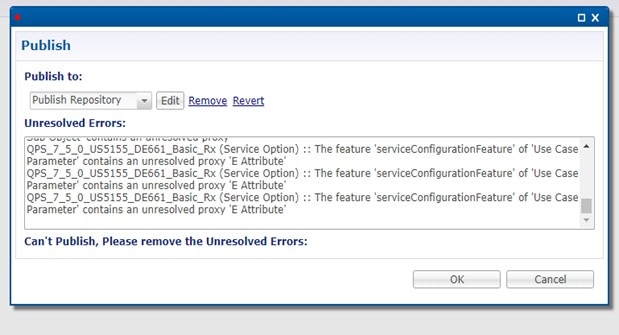
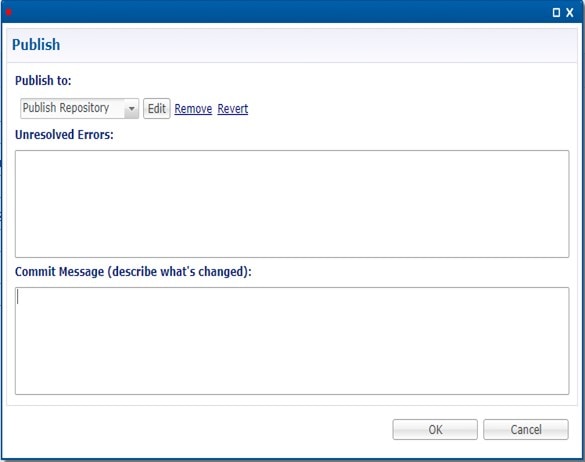
Validation in the Policy Builder ensures that configuration settings adhere to allowed values before changes are published. During the publishing process, the system automatically identifies unresolved errors, which are configuration issues in the Reference Data, Services, or Policies sections that prevent the Policy Builder from being published. These errors are displayed in a designated section within the Publish window, providing a for network administrators to review.

Although error detection is automated, administrators have the option to manually mask certain acceptable, non-critical errors by creating a "maskPublishErrors.txt" file. This allows them to hide specific errors that do not impact critical operations, facilitating a smoother publishing process.

This validation process ensures that only configurations meeting the required standards are published, maintaining system integrity and functionality.

Multi-User Support

The Policy Builder in the Converged Converged Policy & Charginge supports multi-user functionality, enabling multiple users to work simultaneously on different repositories without interference.

Users can individually update configurations such as Reference Data, Services, or Policies within a repository and save these changes locally. These updates remain private until the user decides to publish them. When another user updates and publishes a separate repository, those changes immediately impact the shared environment, becoming accessible to all users. Thus, changes that are unpublished remain private, while published modifications are shared, facilitating collaborative workflows and ensuring that the shared environment reflects the latest updates. This multi-user support enhances collaboration and efficiency within the network management process.

Support for Export/Import

The Policy Builder in the Converged Converged Policy & Charginge provides support for export and import functionalities, allowing users to efficiently transfer configuration data and maintain consistency across different deployments.

To export a repository from one system, users initiate the export process through the Policy Builder interface, where the system packages the repository data into a ZIP file, ensuring all configurations and settings are included.

This exported repository can then be imported into another Converged Converged Policy & Charginge system. During the import process, users select the exported file and initiate the import through the Policy Builder interface. The system integrates the repository data into the new environment, preserving all configuration details. This functionality facilitates seamless transitions and consistency in configuration management across multiple deployments.

UI changes

Feature history

Feature Name

Release Information

Description

Removal of unused Balance module configurations from Control Center and Policy Builder

2026.01.0

This solution removes unused Balance module configurations and options from the Control Center (CC) and Policy Builder (PB) GUI. It addresses complexity and errors caused by an unused Balance module, providing a cleaner, more intuitive interface and preventing errors during subscriber management.

This solution simplifies the CPC product by hiding the unused Balance module configurations and its internal modules such as child tabs, system, services menu items from the CC and PB GUIs.

  • The presence of Balance-related user interface elements that are irrelevant to operational needs creates a cluttered interface, leading incorrect data entry.

  • Removing these non-essential Balance module, provides a cleaner, and intuitive interface. This is achieved by hiding both UI components and underlying technical definitions from the CPC product, which involves:

    • Policy Builder: Modifying the internal models to eliminate Balance-related options. For example, the system hides child tabs under

    • Control Center: Removing specific user interface components, such as the Balance tab under the subscriber profile, that supported the Balance module.

Known Limitations or Restrictions

Irreversibility: The removal of the Balance module is permanent and restoring it requires a software downgrade or merging code from a different branch, followed by redeployment.

Maintenance Overhead: This approach may lead to a code fork, increasing the complexity of maintaining the CPC-specific version and merging updates from the mainline product in the future.

Unresolved errors display during publish

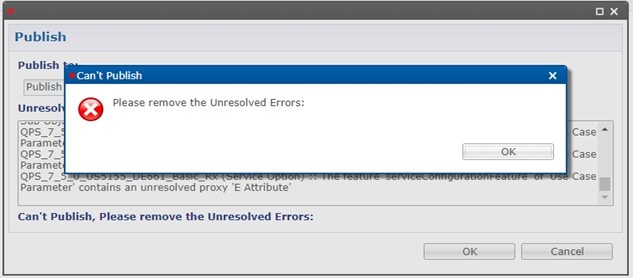
This feature provides a summary of configuration errors in the Publish window of the Policy Builder. When you attempt to publish with configuration errors, an error window appears to notify you of the issues. If there are no unresolved errors, the Publish window opens normally.

Enable or disable unresolved error display

Use this Ops-Center configuration command to enable unresolved errors window.

  • In the engine <engine group name> policy-builder properties com.broadhop.unresolvedError.featurevalue true exit

Disable unresolved error display

Use this Ops-Center configuration command to disable the unresolved error window during the publishing process.

  • In the engine <engine group name> policy-builder properties com.broadhop.unresolvedError.featurevalue false exit