Meetings Screen
Available Languages
Table Of Contents
Meetings Screen
Revised: September, 2010, OL-21702-01The Meetings Screen shows upcoming meetings that have been scheduled on the current Cisco TelePresence System (CTS) endpoint.
Figure 3-1 Meetings Screen
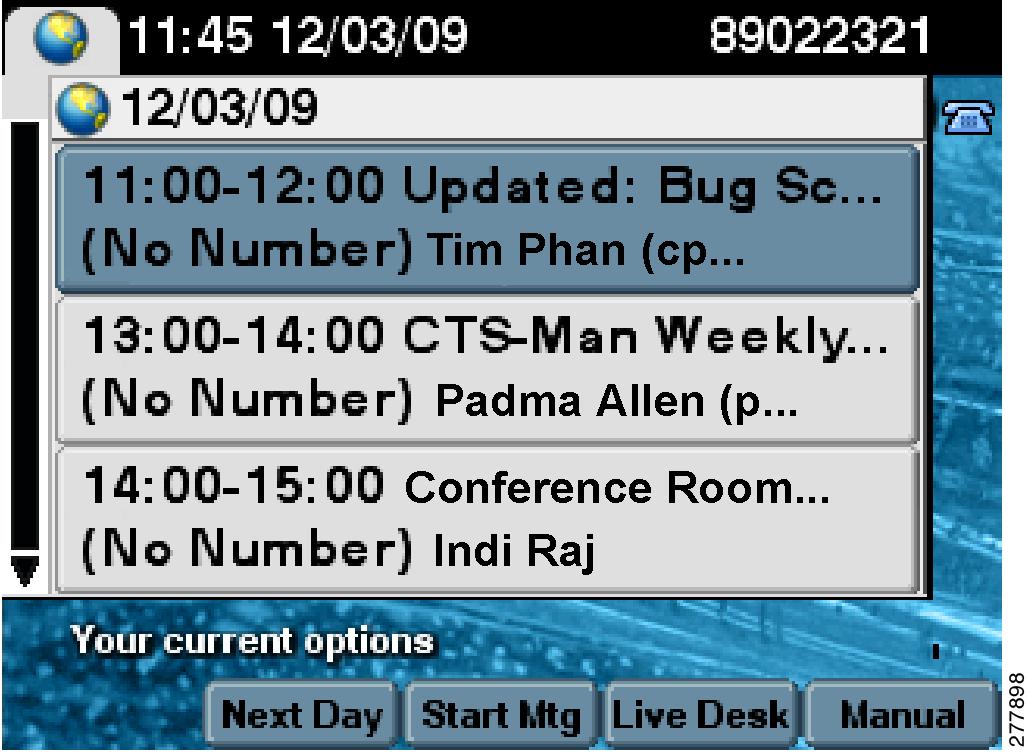
Table 3-1 shows available Meetings Screen buttons and softkeys.
Table 3-1 Meetings Screen Buttons and Softkeys
Touch a meeting row to see meeting details.
Next Day
Shows meetings scheduled for the next day.
Start Mtg
Starts the meeting.
Live Desk
Dials the Live Desk.
Manual
Takes you to the Manual Idle Screen where you have options to manually dial a call or to initiate a call using the directory.
Exit
Returns you to the previous screen.
Meeting Controls
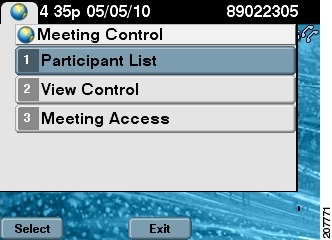
Manage Cisco TelePresence meetings by using the Meeting Controls function. The Meeting Control screen displays several options:
Meeting Access - Mtng Ctrl
Use the Meeting Access control (Mtng Ctrl softkey) to control additional Cisco TelePresence endpoints that join a Cisco TelePresence meeting, as shown in Figure 3-2.
Figure 3-2 Meeting Access Controls
Participant List
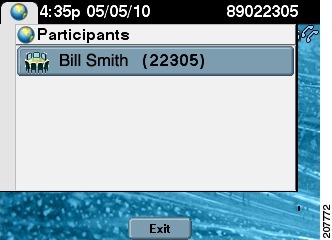
Participant List (conference roster list and roster list with audio add-in), as shown in Figure 3-3—Provides users with a list of participants in a meeting. For scheduled meetings, the list also includes invited but yet to attend participants. The participant list is read-only and can be found on the control device of the CTS endpoint only in multipoint calls.
Figure 3-3 Participant List
Participant List Features and Functions
The Participant List is read only; you can view the following:
•
Lists all endpoints that have been invited to the multi-point meeting, including rooms that have joined the call and rooms that have not yet joined the call.
•
•
•
•
Lists all endpoints that have joined the call.
View Control
During Cisco TelePresence meetings, you can select the way you see speaking participants by choosing one of the following options:
•
•
Figure 3-4 View Control
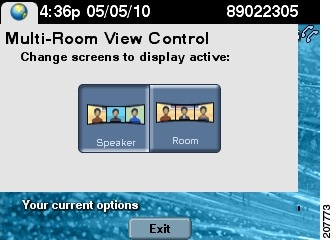
To change the way you view participants during a Cisco TelePresence conference, follow these steps:
Step 1
Step 2
Step 3
Related Information
See the Cisco TelePresence System User Guide for more information about using the Cisco TelePresence System and the CTS Cisco Unified IP Phone.
 Feedback
Contact Cisco
- Open a Support Case

- (Requires a Cisco Service Contract)
This Document Applies to These Products
- Collaboration Endpoints - Retired Products
- Conferencing - Retired Products
- Contact Center - Retired Products
- Optical Networking - Retired Products
- Routers - Retired Products
- Security - Retired Products
- Servers - Unified Computing (UCS) Retired Products
- Storage Networking Retired Products
- Switches - Retired Products
- Video - Retired Products
- Wireless - Retired Products