Troubleshooting Cisco TelePresence Manager
Available Languages
Table Of Contents
Troubleshooting Cisco TelePresence Manager
Troubleshooting Cisco TelePresence Manager
First Published: November 27, 2006Revised: November 27, 2006, OL-11324-01Contents
Introduction
Gathering troubleshooting information is one of the more important responsibilities of the Cisco TelePresence concierge. When a problem is detected, you must quickly collect log files so problems can be analyzed for prompt resolution. Figure 3-1 shows the tools available to assist you with the troubleshooting tasks.
Figure 3-1 Troubleshooting Window
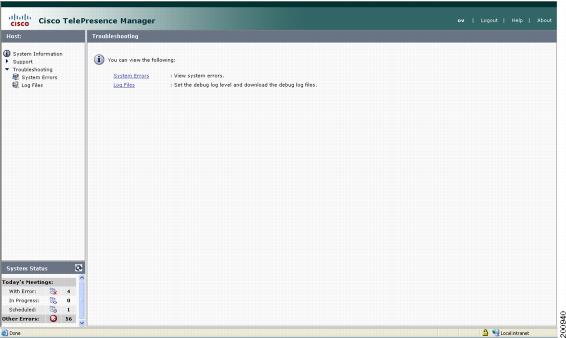
Troubleshooting Tasks
System Errors
Choose the System Errors window to see a list of system messages. You can filter the list by starting and ending dates and message type All, Fatal, Severe, Moderate, Warning, and Info, as follows:
•
Use the Calendar icon to choose dates, or type the dates in the Start On and End On fields using the MM/DD/YYYY date format.
•
Table 3-2 lists information provided.
Log Files
At the Log Files window, you can set the level for logging system errors from the following services that contribute messages:
•
•
•
•
You can set the message types from these services to the following levels:
•
•
•

Note
Once you have made your logging level choices for each service:
•
You can generate a list of specific error types.
•
–
–
–
–
–
•
Log files are named with a .log extension. The log filename provides a link to the contents of the error log file. This window also shows the date the file was last modified and the size of the log file. The lists can be sorted by filename and time last modified.
•
Download All Files
Use the Download All button to collect all log data for Cisco technical support personnel when submitting a case for problem solution. The data is automatically compressed in a file that can be e-mailed.
 Feedback
Contact Cisco
- Open a Support Case

- (Requires a Cisco Service Contract)
This Document Applies to These Products
- Collaboration Endpoints - Retired Products
- Conferencing - Retired Products
- Contact Center - Retired Products
- Optical Networking - Retired Products
- Routers - Retired Products
- Security - Retired Products
- Servers - Unified Computing (UCS) Retired Products
- Storage Networking Retired Products
- Switches - Retired Products
- Video - Retired Products
- Wireless - Retired Products