Cisco 8600 Series Secure Routers Hardware Installation Guide

PDF

Cisco 8600 Series Secure Routers Hardware Installation Guide

Install the router

Want to summarize with AI?

Log in

Details procedures for installing the router on a standalone shelf or rack, guiding attachment of front and rear brackets, mounting methods, recommended tools, and proper chassis grounding with step-by-step instructions and supporting tasks.


After unpacking, based on your requirements, you can set up the Cisco 8600 Series Secure Router.

Attach the front rack-mount brackets

Before you begin

Before installing the chassis in the rack, you must install the rack-mount brackets on each side of the chassis.

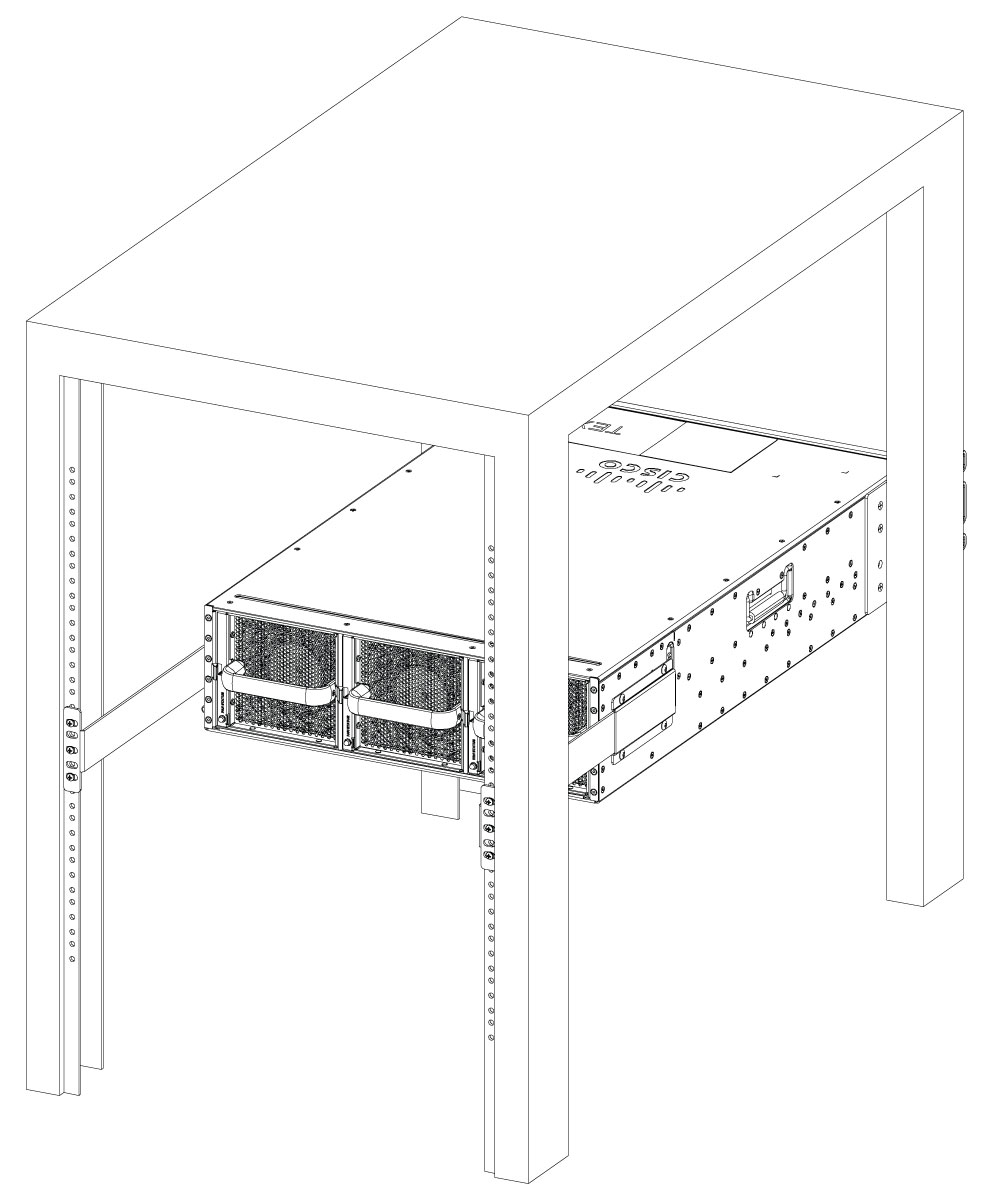
Determine where in the rack you want the chassis to be mounted. If you are mounting more than one chassis in the rack, then start from the bottom up or the center of the rack. The below listed figure shows the brackets attached to the chassis. Depending on the bracket holes you use, the chassis may protrude in the rack.

Note

The cable-management brackets are attached to the chassis after you install the chassis rack-mount brackets on the chassis and mount the chassis in the rack.

Procedure

  1. Locate the threaded holes on the side of the chassis. Ensure that you hold the front rack-mount bracket with the ear and holes facing outward and towards the front of the chassis.

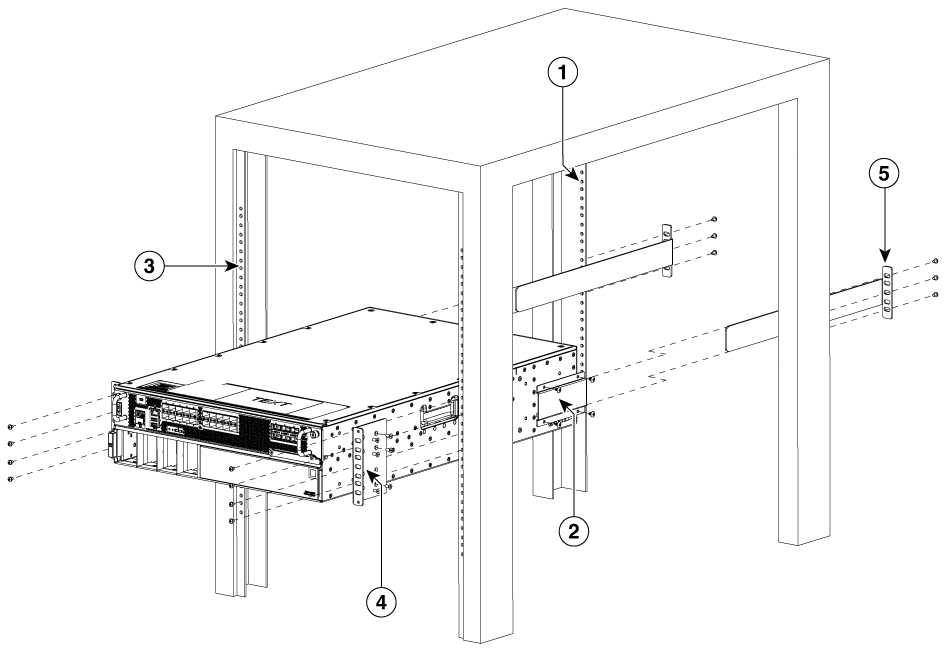
    Figure 1. Attaching the Front and Rear Rack-Mount Brackets to the Cisco 8600 Series Secure Routers

    1

    Rear rack equipment rail

    2

    Rear rack mount bracket and screws

    3

    Front rack equipment rail

    4

    Front rack mount bracket and screws

    5

    Rear extension brackets

  2. Position the front rack-mount bracket top hole with the chassis, first top hole behind the side vent holes.

  3. Insert and tighten the black screws on one side.

  4. Repeat Step 1 through Step 3 on the other side of the chassis. Use screws to secure the rack-mount brackets to the chassis.

    Note

    Use the screw specified in the Bill of Materials (BOM).


Attach the rear rack-mount brackets

Before you begin

Before installing the chassis in a four-post rack, you must install the rear rack-mount brackets on each side of the chassis.

Determine where in the rack you want the chassis to be mounted. If you are mounting more than one chassis in the rack, then start from the bottom up or the center of the rack. The figure below shows the brackets attached to the chassis.

Procedure

  1. Locate the threaded holes on the side of the chassis. Ensure that you hold the rear rack-mount bracket with the ear and holes facing outward and towards the rear of the chassis.

    Figure 2. Rear Rack-Mount Brackets attached to the chassis
  2. Position the rear rack-mount bracket with the chassis.

  3. Insert the black screws on one side. Do not fully tighten the screws.

    The rear bracket holes are slotted to allow for adjustment. Do not fully tighten the screws until the chassis is installed in the four-post rack.

  4. Repeat Step 1 through Step 3 on the other side of the chassis. Use black screws to secure the rack-mount brackets to the chassis.


Mount the router in the rack

After installing the rack-mount brackets on the chassis, mount the chassis by securing the rack-mount brackets to mounting strips in the rack using the screws provided. Because the rack-mount brackets support the weight of the entire chassis, ensure that you use all the screws to fasten the rack-mount brackets to the rack posts.


Four-post rack installation

Procedure

  1. (Optional) Install a shelf in the rack to support Cisco 8600 Series Secure Routers . If you use a shelf, it helps support the chassis while you secure it to the rack.

    Note

    If you are using a shelf, place the chassis on the shelf and slightly raise the front of the chassis to align the mounting bracket holes with the rack post holes while allowing the bottom of the chassis to rest on the shelf.

  2. With two people, lift the chassis into position between the rack posts.

  3. Position the chassis until the rack-mounting flanges are flush against the mounting rails on the rack.

    Note

    Use the second hole up from the bottom of the rack-mount bracket and the second hole down from the top of the rack-mount bracket. This will make it easier to attach the cable-management bracket to the chassis in the equipment rack.

  4. Hold the chassis in position against the mounting rails while the second person finger-tightens a screw to the rack rails on each side of the chassis.

  5. Finger-tighten screws to the rack rails on each side of the chassis.

  6. Tighten all the screws on each side to secure the chassis to the equipment rack.

  7. Use a level to verify that the tops of the two brackets are level, or use a measuring tape to verify that both brackets are the same distance from the top of the rack rails.


Attach the cable management bracket

The cable management brackets should be mounted to each rack-mount bracket on the chassis to provide cable management to both sides of the chassis (parallel with card orientation). These brackets are screw-mounted to the rack-mount brackets to allow easy installation and removal of cables.

The cable-management brackets for the Cisco 8600 Series Secure Routers contain one independent cable-management U-type feature with two screws for each bracket.

Note

Make certain that the cable-management bracket "U" feature is facing upwards when you attach it to the Cisco 8600 Series Secure Routers.

Procedure

  1. Align the cable-management bracket to the rack-mount bracket on one side of the Cisco 8600 Series Secure Routers. The cable-management bracket aligns to the top hole of the chassis rack-mount bracket.

  2. Using a Phillips screwdriver, insert one screw through the top screw hole of the cable-management bracket and into the chassis rack-mount bracket and tighten the screw.

    Note

    Use the package of screws that came with your chassis containing four screws.

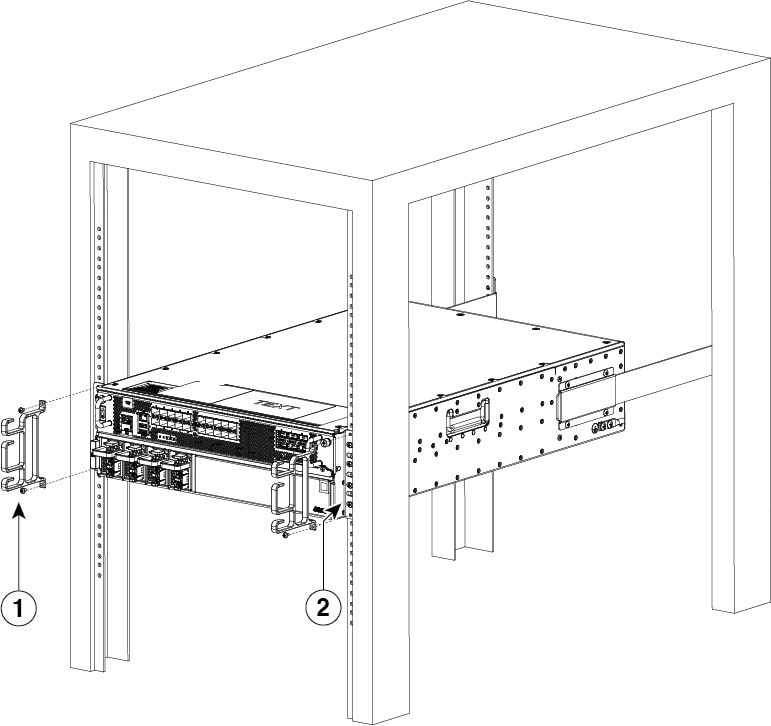
    This figure shows where to attach the cable-management brackets to the Cisco 8600 Series Secure Routers.

    Figure 3. Attaching the Cable-Management Brackets to C8650-G2

    1

    Front cable-management bracket.

    2

    Front-rack mount bracket.

  3. Insert a screw through the hole in the cable management bracket and tighten using a Phillips screwdriver.

  4. Repeat Step 1 through Step 3 for the other side of the chassis.


Chassis ground connection

Connecting the Cisco 8600 Series Secure Routers chassis to ground is required for all DC powered installations and any AC powered installation where compliance with Telcordia grounding requirements is necessary.

Note

This equipment must be grounded. To reduce the risk of electric shock, never defeat the ground conductor or operate the equipment in the absence of a suitably installed ground conductor. Contact the appropriate electrical inspection authority or an electrician if you are uncertain that suitable grounding is available.

Before you connect power or turn on power to your chassis, you must provide an adequate chassis ground (earth) connection for the chassis. A chassis ground connector is provided on Cisco 8600 Series Secure Routers. There is a stud on the rear left side of the chassis.

When customer properly install the chassis in a grounded rack, the switch is grounded because it has a metal-to-metal connection to the rack. Alternatively, customer can ground the chassis by using a customer-supplied grounding cable that meets your local and national installation requirements.

For U.S. installations, 6-AWG wire is recommended. Connect the grounding cable to the chassis with a grounding lug and to the facility ground.

Caution

The grounding wire should always be the first to be installed or connected and the last to be removed or disconnected.

Note

An electrical conducting path shall exist between the product chassis and the metal surface of the enclosure or rack in which it is mounted, or to a grounding conductor. Electrical continuity shall be provided by using thread-forming type mounting screws that remove any paint or non-conductive coatings, and establish a metal-to-metal contact. Any paint or non-conductive coatings shall be removed on the surfaces between the mounting hardware and the enclosure or rack. The surfaces shall be cleaned and an antioxidant applied before installation.

Have the recommended tools and supplies available before you begin this procedure.


These tools, equipment, and supplies are necessary to connect the system ground to the chassis:

  • Phillips screwdriver

  • 3.5-mm flat blade screwdriver (Phoenix # 1205053 or equivalent 3.5-mm flat blade)

  • Dual-lug chassis ground component

  • Grounding wire


Attach a chassis ground connection

Procedure

  1. Use the wire stripper to strip one end of the AWG #6 wire approximately 0.75 inches (19.05 mm).

  2. Insert the AWG #6 wire into the open end of the grounding lug.

  3. Use the crimping tool to carefully crimp the wire receptacle around the wire. This step is required to ensure a proper mechanical connection.

  4. Locate the chassis ground connector on the side of your chassis.

  5. Insert the two screws through the holes in the grounding lug.

    Note

    Use the screw specified in the Bill of Materials (BOM).

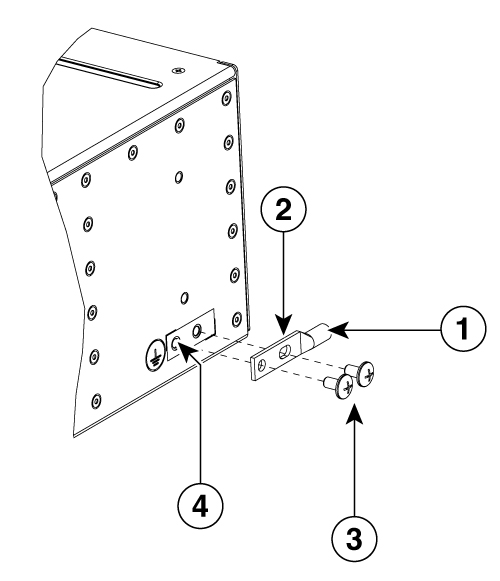
    This figure shows how to attach a grounding lug to the chassis ground connector.

    Figure 4. Attaching a Grounding Lug to the C8650-G2 Chassis Ground Connector

    1

    Chassis ground connector holes

    3

    Ground screws

    2

    Grounding lug

    4

    Chassis ground connector holes

  6. Use the Number 2 Phillips screwdriver to carefully tighten the screws until the grounding lug is held firmly to the chassis. Do not over tighten the screws.

  7. Connect the opposite end of the grounding wire to the appropriate ground location on the rack grounding point at your site to ensure an adequate chassis ground.