Wireless Overview
Available Languages
Table Of Contents
Network Configuration Examples
Central Unit in an All-Wireless Network
Wireless Device Overview
Wireless devices(commonly configured as access points) provide a secure, affordable, and easy-to-use wireless LAN solution that combines mobility and flexibility with the enterprise-class features required by networking professionals. When configured as a access point, the wireless device serves as the connection point between wireless and wired networks or as the center point of a stand-alone wireless network. In large installations, wireless users within radio range of a can roam throughout a facility while maintaining seamless, uninterrupted access to the network.
With a management system based on Cisco IOS software, wireless devices are Wi-Fi CERTIFIED™, 802.11a-compliant, 802.11b-compliant, 802.11g-compliant, and 802.11n-compliant wireless LAN transceivers.
Software Modes
The access point is shipped with an autonomous image and recovery image on the access point's flash. The default mode is autonomous, however the access point can be upgraded to operate in Cisco Unified Wireless mode.
Each mode is described below:
–
Autonomous mode— supports standalone network configurations, where all configuration settings are maintained locally on the wireless device. Each autonomous device can load its starting configuration independently, and still operate in a cohesive fashion on the network.
–
See Why Migrate to a Cisco Unified Wireless Network? on Cisco.com for more about this network architecture design, http://www.cisco.com/en/US/prod/collateral/wireless/ps5679/ps6548/prod_white_paper0900aecd804f19e3_ps6305_Products_White_Paper.html
Management Options
The wireless device runs its own version of Cisco IOS software that is separate from the Cisco IOS software operating on the router. You can configure and monitor the access point with several different tools:
•
•
•
http://cisco.com/en/US/docs/wireless/access_point/12.4_10b_JA/configuration/guide/scg12410b-chap2-gui.html
Note
Note
Use the interface dot11radio global configuration CLI command to place the wireless device into the radio configuration mode.
Network Configuration Examples
Setup the access point role in any of these common wireless network configurations. The access point default configuration is as a root unit connected to a wired LAN or as the central unit in an all-wireless network. Access points can also be configured as bridges and workgroup bridges. These roles require specific configurations, as defined in the following examples.
Root Access Point
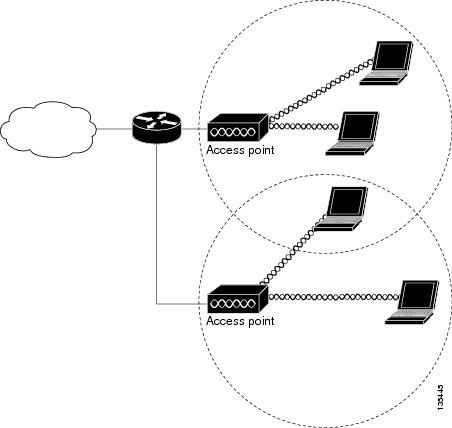
An access point connected directly to a wired LAN provides a connection point for wireless users. If more than one access point is connected to the LAN, users can roam from one area of a facility to another without losing their connection to the network. As users move out of range of one access point, they automatically connect to the network (associate) through another access point. The roaming process is seamless and transparent to the user. Figure 1 shows access points acting as root units on a wired LAN.
Figure 1 Access Points as Root Units on a Wired LAN
Central Unit in an All-Wireless Network
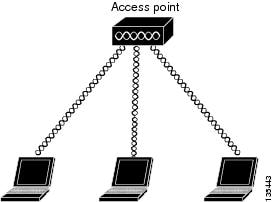
In an all-wireless network, an access point acts as a stand-alone root unit. The access point is not attached to a wired LAN; it functions as a hub linking all stations together. The access point serves as the focal point for communications, increasing the communication range of wireless users. Figure 2 shows an access point in an all-wireless network.
Figure 2 Access Point as Central Unit in All-Wireless Network
CCDE, CCENT, Cisco Eos, Cisco HealthPresence, the Cisco logo, Cisco Lumin, Cisco Nexus, Cisco StadiumVision, Cisco TelePresence, Cisco WebEx, DCE, and Welcome to the Human Network are trademarks; Changing the Way We Work, Live, Play, and Learn and Cisco Store are service marks; and Access Registrar, Aironet, AsyncOS, Bringing the Meeting To You, Catalyst, CCDA, CCDP, CCIE, CCIP, CCNA, CCNP, CCSP, CCVP, Cisco, the Cisco Certified Internetwork Expert logo, Cisco IOS, Cisco Press, Cisco Systems, Cisco Systems Capital, the Cisco Systems logo, Cisco Unity, Collaboration Without Limitation, EtherFast, EtherSwitch, Event Center, Fast Step, Follow Me Browsing, FormShare, GigaDrive, HomeLink, Internet Quotient, IOS, iPhone, iQuick Study, IronPort, the IronPort logo, LightStream, Linksys, MediaTone, MeetingPlace, MeetingPlace Chime Sound, MGX, Networkers, Networking Academy, Network Registrar, PCNow, PIX, PowerPanels, ProConnect, ScriptShare, SenderBase, SMARTnet, Spectrum Expert, StackWise, The Fastest Way to Increase Your Internet Quotient, TransPath, WebEx, and the WebEx logo are registered trademarks of Cisco Systems, Inc. and/or its affiliates in the United States and certain other countries.
All other trademarks mentioned in this document or website are the property of their respective owners. The use of the word partner does not imply a partnership relationship between Cisco and any other company. (0812R)
Any Internet Protocol (IP) addresses used in this document are not intended to be actual addresses. Any examples, command display output, and figures included in the document are shown for illustrative purposes only. Any use of actual IP addresses in illustrative content is unintentional and coincidental.
© 2009 Cisco Systems, Inc. All rights reserved.
 Feedback
Contact Cisco
- Open a Support Case

- (Requires a Cisco Service Contract)
This Document Applies to These Products
- Collaboration Endpoints - Retired Products
- Conferencing - Retired Products
- Contact Center - Retired Products
- Optical Networking - Retired Products
- Routers - Retired Products
- Security - Retired Products
- Servers - Unified Computing (UCS) Retired Products
- Storage Networking Retired Products
- Switches - Retired Products
- Video - Retired Products
- Wireless - Retired Products