System Setup and Software Installation Guide for Cisco NCS 1001

PDF

System Setup and Software Installation Guide for Cisco NCS 1001

Zero Touch Provisioning boot for Cisco NCS 1001

Want to summarize with AI?

Log in

This section explains how Zero Touch Provisioning automates day-zero device setup on Cisco NCS 1001 through DHCP, configuration files, scripts, and CLI-triggered workflows.


A Zero Touch Provisioning method is an automated network provisioning workflow that

  • applies day-zero configurations to Cisco NCS 1001 devices at scale,

  • downloads and installs Cisco IOS XR images, application packages, or third-party applications automatically, and

  • deploys containers and enables flexible software upgrades or downgrades across large numbers of network devices without manual intervention.

ZTP allows you to provision the network device with day 0 configurations and supports both management ports and data ports.

Benefits of zero touch provisioning

ZTP facilitates effortless management of large-scale service provider infrastructures. Its principal benefits include:

  • Remote provisioning of routers anywhere in the network, eliminating the need for onsite experts and reducing IT costs.

  • Automated provisioning using ZTP that removes delays, increases accuracy, improves cost-effectiveness, and provides better customer experience. By automating repeated tasks, ZTP enables network administrators to focus on higher-priority activities.

    By automating repeated tasks, ZTP allows network administrators to concentrate on more important stuff.

  • ZTP process helps you to quickly restore service. Rather than troubleshooting an issue by hand, you can reset a system to well-known working status.

Prerequisites

ZTP does not execute if a username is already configured on the system.

Note

For details about IPv6 support for ZTP, see IPv6 support for Zero Touch Provisioning.

ZTP initiation methods

ZTP can be initiated by one of these methods:

  • Automated fresh boot:

    Fresh boot: On device boot, ZTP initiates automatically if there is no prior configuration. The router receives configuration file details from the DHCP server. Use this method for devices lacking preloaded configuration. The configuration file or bootscript is downloaded as specified by the DHCP server.

    You must define the configuration file or the bootscript that is downloaded from the DHCP server:

  • Configuration file: The first line of every configuration file must contain !! IOS XR configuration", to be processed correctly. If bringing up multiple nodes, define a configuration file for each.

  • Manual invocation using CLI: Use this method when you want to forcefully initiate ZTP on a fully configured device, using CLI.


How fresh boot with DHCP works for Zero Touch Provisioning

When you boot the device, the ZTP process initiates automatically if the device does not have a prior configuration.

Summary

During the process, the router receives the details of the configuration file from the DHCP server.

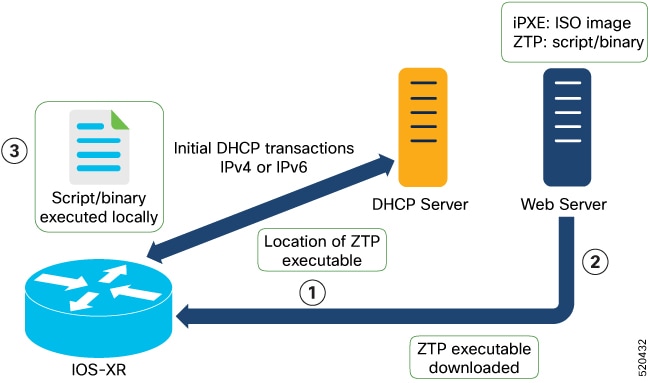
This image depicts the high-level work flow of the ZTP process:

Workflow

Figure 1. Fresh boot workflow for Zero Touch Provisioning

These stages describe fresh boot with DHCP for ZTP:

  1. ZTP sends DHCP request to fetch the ZTP configuration file or user script. To help the Bootstrap server uniquely identify the device, ZTP sends below DHCP option
    • DHCP(v4/v6) client-id=Serial Number
    • DHCPv4 option 124: Vendor, Platform, Serial-Number
    • DHCPv6 option 16: Vendor, Platform, Serial-Number
    The following is the default sequential flow of the ZTP process:
    • ZTP sends IPv4 DHCP request first on all the management port. In case there is a failure, then ZTP sends IPv6 DHCP request on all the management port.
    • ZTP sends IPv4 DHCP request first on all the data port. In case there is a failure, then ZTP sends IPv6 DHCP request on all the data port. The default sequential flow is defined in configuration file and you can modify the sequence using the configuration file.
  2. DHCP server identifies the device and responds with DHCP response using one of the following options: DHCP server should be configured to respond with the DHCP options. DHCP server should be configured to respond with the DHCP options.
    • DHCPv4 using BOOTP filename to supply script/config location.
    • DHCPv4 using Option 67 (bootfile-name) to supply script/config location.
    • DHCPv6 using Option 59 (OPT_BOOTFILE_URL) to supply script/config location
    • For example, for IPv4:
      host mys-p1b-209-Ztp {
      option dhcp-client-identifier 00:02:00:00:00:09:43:41:54:32:31:30:37:42:30:4d:44:00;
        filename "http://192.0.2.10/ncs1000/mys-p1b-209-Ztp/-mini-x.iso";
       
      }
      For example, for IPv6:
      host mys-p1b-209-Ztp {
                      # PID: NCS1001-K9        , VID: V01, SN: CAT2107B0MD
                      # needed for ztp 
                      host-identifier option dhcp6.client-id 00:02:00:00:00:09:43:41:54:32:31:30:37:42:30:4d:44:00;
      
                     
                      if exists dhcp6.user-class and substring(option dhcp6.user-class, 2, 4) = "iPXE" {
                              option dhcp6.bootfile-url "http://[2001:DB8::4491:2005::227:11]/ncs1001/mys-p1b-209/ncs1001-mini-mod.iso";
                      }
                      else {
                              option dhcp6.bootfile-url "http://[2001:DB8::4491:2005::227:11]/ncs1001/mys-p1b-209/ztp.ipv6.sh";
                      }
              }
  3. The network device downloads the file from the web server using the URI location that is provided in the DHCP response.
  4. The device receives a configuration file or script file from the HTTP server.
    Note
    • If the downloaded file content starts with "!! IOS XR" it is considered as a configuration file.
    • If the downloaded file content starts with #! /bin/bash, #! /bin/sh or #!/usr/bin/python it is considered as a script file.
  5. The device applies the configuration file or executes the script or binary in the default bash shell.
  6. The Network device is now up and running.

Result

The network device is successfully provisioned and starts operating with the automatically applied configuration or script, completing Zero Touch Provisioning without manual intervention.


Zero Touch Provisioning configuration files

Use a configuration file or script file to initiate ZTP based on your deployment requirement. A configuration file must start with !! IOS XR .

Based on the business need, you can use a configuration or script file to initiate the ZTP process.

The configuration file content starts with !! IOS XR .

Sample configuration file for IPv4

This is the sample configuration file for IPv4. You can automate all the configurations.


!! IOS XR Configuration version = 6.3.2
!
telnet vrf default ipv4 server max-servers 20
!
vty-pool default 0 20 line-template default
!
interface MgmtEth0/RP0/CPU0/0
 ipv4 address dhcp
 no shutdown
!
router static
 address-family ipv4 unicast
  0.0.0.0/0 10.77.132.1
!
end

Sample configuration file for IPv6

This is the sample configuration file for IPv6.


!! IOS XR Configuration version = 7.10.1
!
telnet vrf default ipv6 server max-servers 20
!
vty-pool default 0 20 line-template default
!
interface MgmtEth0/RP0/CPU0/0
 ipv6 address dhcp6
 no shutdown
!
router static
 address-family ipv6 unicast
  2001:db8:1000::/36 2001:db8:2000:2::1
!
end

Invoke Zero Touch Provisioning manually through the CLI

Use manual ZTP commands to provision your router in stages and test ZTP configuration without rebooting the device.

Manual ZTP can be executed using CLI commands, allowing you to provision the router in stages—ideal for testing ZTP configuration without restarting. You can initiate ZTP on any interface (data ports or management port) without configuring or activating the interface first; even if the interface is down, the ZTP script brings it up and invokes DHCP client as needed.

Use the ztp initiate, ztp terminate, and ztp clean commands to control ZTP sessions over multiple interfaces.

  • ztp initiate—Invokes a new ZTP DHCP session. Logs can be found in /disk0:/ztp/ztp.log.

  • ztp terminate—Terminates any ZTP session in progress.

  • ztp clean—Removes only the ZTP state files.

The log file ztp.log is saved in /var/log/ztp.log folder, and a copy of log file is available at /disk0:/ztp/ztp.log location using a soft link. However, executing ztp clean clears files saved on disk and not on /var/logztp.log folder where current ZTP logs are saved. In order to have a log from current ZTP run, you must manually clear the ZTP log file from /var/log/ztp.log folder.

Follow these steps to manually invoke Zero Touch Provisioning (ZTP) through the CLI:

Procedure

1.

(Optional) Run the ztp clean command to removes all the ZTP logs and saved settings.

Example:


RP/0/RP0/CPU0:ios#ztp clean 
Fri Apr 29 06:49:29.760 UTC
This would remove all ZTP temporary files.
Would you like to proceed? [no]: yes
All ZTP operation files have been removed.
ZTP logs are present in /var/log/ztp*.log for logrotate.
Please remove manually if needed.
If you now wish ZTP to run again from boot, do 'conf t/commit replace' followed by reload.
2.

Run the ztp initiate command to start a new ZTP DHCP session.

Example:


RP/0/RP0/CPU0:ios#ztp initiate
Fri Jun 17 11:44:08.791 UTC
Initiating ZTP may change your configuration.
Interfaces might be brought up if they are in shutdown state
Would you like to proceed? [no]: yes
ZTP will now run in the background.
Please use "show logging" or look at /var/log/ztp.log to check progress.
RP/0/RP0/CPU0:ios#

Use the show logging command or review /var/log/ztp.log to check progress.

3.

(Optional) Run the ztp terminate command to stop the active ZTP session.

Example:


RP/0/RP0/CPU0:ios#ztp terminate
Fri Apr 29 06:38:59.238 UTC
This would terminate active ZTP session if any (this may leave your system in a partially configured state)
Would you like to proceed? [no]: yes
Terminating ZTP
No ZTP process running

This command terminates any ZTP session in progress.

Note

For IPv6 configuration, see Configure a DHCP server for iPXE boot.

ZTP is started, stopped, or reset based on the commands you issue, allowing for flexible provisioning and testing of your router without rebooting.


Invoke Zero Touch Provisioning through reload

Trigger ZTP by reloading the system after replacing the running configuration and cleaning ZTP operation files.

The ZTP process can start automatically after a reload when the device has no configured username or retained running configuration.

Procedure

1.

Run configure command to enter configuration mode.

Example:

RP/0/RP0/CPU0:ios# configure
2.

Run commit replace command to removes the entire running configuration.

Example:


Fri Apr 29 06:48:46.236 UTC
RP/0/RP0/CPU0:ios(config)#commit replace 
Fri Apr 29 06:48:53.199 UTC

This commit will replace or remove the entire running configuration. This
operation can be service affecting.
Do you wish to proceed? [no]: yes 
RP/0/RP0/CPU0:ios(config)#
RP/0/RP0/CPU0:ios(config)#end
3.

Run the ztp clean command to removes all the ZTP logs and saved settings.

Example:


RP/0/RP0/CPU0:ios#ztp clean 
Fri Apr 29 06:49:29.760 UTC
This would remove all ZTP temporary files.
Would you like to proceed? [no]: yes
All ZTP operation files have been removed.
ZTP logs are present in /var/log/ztp*.log for logrotate.
Please remove manually if needed.
If you now wish ZTP to run again from boot, do 'conf t/commit replace' followed by reload.
4.

Run the reload command to reload the node or hardware module.

Example:


RP/0/RP0/CPU0:ios#admin reload location 0/RP0 all                   
Fri Apr 29 06:50:29.760 UTC
Reload node ? [no,yes] yes

RP/0/RP0/CPU0:ios#admin hw-module location 0/RP0 reload
Fri Apr 29 06:52:29.760 UTC
Reload hardware module ? [no,yes] yes

After the node comes up, you can check that the ZTP is initiated and the configuration has been restored successfully.

Example:


RP/0/RP0/CPU0:Apr 29 06:55:33.242 UTC: pyztp2[377]: %INFRA-ZTP-4-CONFIG_INITIATED : ZTP has initiated config load and commit operations 
RP/0/RP0/CPU0:Apr 29 06:55:39.263 UTC: ifmgr[381]: %PKT_INFRA-LINK-3-UPDOWN : Interface GigabitEthernet0/0/0/0, changed state to Down 
RP/0/RP0/CPU0:Apr 29 06:55:39.287 UTC: osa_driver[183]: %PKT_INFRA-FM-4-FAULT_MINOR : ALARM_MINOR :PROV-INPROGRESS :DECLARE :GigabitEthernet0/0/0/0:  
RP/0/RP0/CPU0:Apr 29 06:55:39.287 UTC: osa_driver[183]: %PKT_INFRA-FM-4-FAULT_MINOR : ALARM_MINOR :PROV-INPROGRESS :DECLARE :Osc0/0/0/0:  
RP/0/RP0/CPU0:Apr 29 06:55:39.287 UTC: ifmgr[381]: %PKT_INFRA-LINK-3-UPDOWN : Interface GigabitEthernet0/0/0/0, changed state to Up 
RP/0/RP0/CPU0:Apr 29 06:55:39.716 UTC: osa_driver[183]: %PKT_INFRA-FM-4-FAULT_MINOR : ALARM_MINOR :PROV-INPROGRESS :CLEAR :Osc0/0/0/0:  
RP/0/RP0/CPU0:Apr 29 06:55:39.728 UTC: osa_driver[183]: %PKT_INFRA-FM-4-FAULT_MINOR : ALARM_MINOR :PROV-INPROGRESS :CLEAR :GigabitEthernet0/0/0/0:  
RP/0/RP0/CPU0:Apr 29 06:55:47.904 UTC: osa_driver[183]: %PKT_INFRA-FM-4-FAULT_MINOR : ALARM_MINOR :PROV-INPROGRESS :DECLARE :Ots0/0/0/1:  

User Access Verification

Username: cisco
Password: 
ios con0/RP0/CPU0 is now available

Cisco NCS 1001 reloads and initiates Zero Touch Provisioning automatically.


Zero Touch Provisioning logs

ZTP logs operations on the flash file system in the /disk0:/ztp/ directory. The logs include DHCP server transactions and ZTP state transitions.

Management interface log example

This example shows selected log entries from a simple configuration script downloaded through a management interface.


2023-05-12 14:43:18,406   5845 [Env          ] INF: MgmtDhcp4Fetcher fetcher created.
2023-05-12 14:43:18,482   5845 [Engine       ] DEB: MgmtDhcp4Fetcher, current state:idle. Processing work: [privileged] start an engine. done = False
2023-05-12 14:43:18,484   5845 [Engine       ] INF: MgmtDhcp4Fetcher, current state:active: state changed to active
2023-05-12 14:43:18,508   5845 [Engine       ] DEB: ZAdmin, current state:active. Processing work: Monitor fetcher work for ZAdmin. done = False
2023-05-12 14:43:18,585   5845 [Engine       ] DEB: MgmtDhcp4Fetcher, current state:active. Processing work: epoch work. done = False
2023-05-12 14:43:18,586   5845 [Engine       ] DEB: MgmtDhcp4Fetcher, current state:active. Processing work: [privileged] getting engine status. done = False
2023-05-12 14:43:18,587   5845 [Engine       ] DEB: MgmtDhcp4Fetcher, current state:active. Processing work: Bringing up interfaces before next retry. done = False
2023-05-12 14:43:18,589   5845 [Port         ] DEB: <Port count=1>: bringing interface(s) up "MgmtEth0/RP0/CPU0/0"
2023-05-12 14:43:18,624   5845 [Port         ] DEB: Saving 1 interfaces to /disk0:/ztp/xr_config/interface_list
2023-05-12 14:43:18,626   5845 [Engine       ] DEB: MgmtDhcp4Fetcher, current state:active. Processing work: Filtering up interfaces for MgmtDhcp4Fetcher. done = False
2023-05-12 14:43:18,627   5845 [Management   ] DEB: Determining operstate of interface: brXRmgmt1
2023-05-12 14:43:18,666   5845 [Port         ] DEB: Filtered up interfaces: [Name: MgmtEth0/RP0/CPU0/0 (Type: Management) (Up: False)]
2023-05-12 14:43:18,670   5845 [Engine       ] DEB: MgmtDhcp4Fetcher, current state:active. Processing work: Setup interfaces for MgmtDhcp4Fetcher. done = False
2023-05-12 14:43:18,671   5845 [Env          ] INF: Env::getVlanIDs: vlan.mode:2
2023-05-12 14:43:18,672   5845 [Engine       ] DEB: MgmtDhcp4Fetcher, current state:active. Processing work: Start Dhclient for MgmtDhcp4Fetcher. done = False
2023-05-12 14:43:18,687   5845 [Port         ] DEB: <Dhclient count=1>: started dhclient using "ip netns exec xrnns /sbin/dhclient -4 -cf /etc/dhcp/dhclient.conf.ztp -lf /var/lib/dhcp/dhclient.leases.ztp -sf /etc/dhcp/dhclient-script.ztp2 brXRmgmt1"
2023-05-12 14:43:19,090   5845 [Engine       ] DEB: ZAdmin, current state:active. Processing work: Checking for username configuration. done = False
2023-05-12 14:43:19,630   5845 [Engine       ] DEB: ZAdmin, current state:active. Processing work: Monitor fetcher work for ZAdmin. done = False
2023-05-12 14:43:19,692   5845 [Engine       ] DEB: MgmtDhcp4Fetcher, current state:active. Processing work: [privileged] getting engine status. done = False
2023-05-12 14:43:20,696   5845 [Engine       ] DEB: ZAdmin, current state:active. Processing work: Monitor fetcher work for ZAdmin. done = False
2023-05-12 14:43:20,797   5845 [Engine       ] DEB: MgmtDhcp4Fetcher, current state:active. Processing work: [privileged] getting engine status. done = False
2023-05-12 14:43:21,099   5845 [Engine       ] DEB: ZAdmin, current state:active. Processing work: Sending standby sync message. done = False
2023-05-12 14:43:21,212   5845 [Engine       ] DEB: ZAdmin, current state:active. Processing work: [privileged] getting engine status. done = False
2023-05-12 14:43:21,700   5845 [Engine       ] DEB: MgmtDhcp4Fetcher, current state:active. Processing work: Monitor dhclient for MgmtDhcp4Fetcher on interface ['brXRmgmt1']. done = False
2023-05-12 14:43:21,704   5845 [MgmtDhcp4Fetcher] DEB: Received DHCP4 response
2023-05-12 14:43:21,705   5845 [MgmtDhcp4Fetcher] INF: (dhclient env) reason=BOUND
2023-05-12 14:43:21,706   5845 [MgmtDhcp4Fetcher] INF: (dhclient env) interface=brXRmgmt1
2023-05-12 14:43:21,706   5845 [MgmtDhcp4Fetcher] INF: (dhclient env) new_ip_address=10.58.227.177
2023-05-12 14:43:21,707   5845 [MgmtDhcp4Fetcher] INF: (dhclient env) new_network_number=10.58.227.0
2023-05-12 14:43:21,708   5845 [MgmtDhcp4Fetcher] INF: (dhclient env) new_subnet_mask=255.255.255.0
2023-05-12 14:43:21,708   5845 [MgmtDhcp4Fetcher] INF: (dhclient env) new_broadcast_address=10.58.227.255
2023-05-12 14:43:21,709   5845 [MgmtDhcp4Fetcher] INF: (dhclient env) new_routers=10.58.227.1
2023-05-12 14:43:21,710   5845 [MgmtDhcp4Fetcher] INF: (dhclient env) new_dhcp_server_identifier=10.58.227.11
2023-05-12 14:43:21,711   5845 [MgmtDhcp4Fetcher] INF: (dhclient env) new_domain_name=cisco.com
2023-05-12 14:43:21,711   5845 [MgmtDhcp4Fetcher] INF: (dhclient env) new_domain_name_servers=198.51.100.3 198.51.100.1
2023-05-12 14:43:21,712   5845 [MgmtDhcp4Fetcher] INF: (dhclient env) new_filename=http://10.58.227.11/rosco/mys-p1b-212/ztp.sh
2023-05-12 14:43:21,713   5845 [MgmtDhcp4Fetcher] INF: (dhclient env) new_ip6_prefixlen=64
2023-05-12 14:43:21,714   5845 [Engine       ] INF: MgmtDhcp4Fetcher, current state:active, exit code:success
2023-05-12 14:43:21,815   5845 [Engine       ] DEB: ZAdmin, current state:active. Processing work: Monitor fetcher work for ZAdmin. done = False
2023-05-12 14:43:21,828   5845 [Port         ] DEB: Dhclient processes:
root      7033  0.0  0.0  31096  7312 ?        Ss   14:46   0:00 /sbin/dhclient -4 -cf /etc/dhcp/dhclient.conf.ztp -lf /var/lib/dhcp/dhclient.leases.ztp -sf /etc/dhcp/dhclient-script.ztp2 brXRmgmt1
root      7052  0.0  0.0  20316  1592 ?        S    14:46   0:00 /bin/sh -c ps aux | grep dhclient
root      7054  0.0  0.0  16248   948 ?        Sl   14:46   0:00 grep dhclient
2023-05-12 14:43:21,830   5845 [Port         ] DEB: <Dhclient count=1>: dhclient 4 is stopped: keepIpAddress=True
2023-05-12 14:43:21,831   5845 [Engine       ] INF: MgmtDhcp4Fetcher, current state:final, exit code:success: state changed to final
2023-05-12 14:43:21,832   5845 [Engine       ] DEB: MgmtDhcp4Fetcher, current state:final, exit code:success. Processing work: [privileged] getting engine status. done = False
2023-05-12 14:43:21,834   5845 [MgmtDhcp4Fetcher] DEB: dhcp: shutdown : Entry
2023-05-12 14:43:21,933   5845 [Engine       ] DEB: MgmtDhcp4Fetcher, current state:final, exit code:success. Processing work: [privileged] prepare engine shutdown. done = False
2023-05-12 14:43:22,035   5845 [Engine       ] DEB: MgmtDhcp4Fetcher, current state:final, exit code:success. Processing work: [privileged] shutting down MgmtDhcp4Fetcher engine. done = False
2023-05-12 14:43:22,036   5845 [Engine       ] INF: MgmtDhcp4Fetcher, current state:final, exit code:shutdown
2023-05-12 14:43:22,037   5845 [Engine       ] INF: MgmtDhcp4Fetcher, exit code:shutdown: state changed to None
2023-05-12 14:43:22,038   5845 [Engine       ] DEB: MgmtDhcp4Fetcher, exit code:shutdown: breaking engine loop after shutdown
2023-05-12 14:43:22,039   5845 [Engine       ] DEB: ZAdmin, current state:active. Processing work: Setup fetching. done = False
2023-05-12 14:43:22,039   5845 [Engine       ] DEB: MgmtDhcp4Fetcher, exit code:shutdown: end of event loop
2023-05-12 14:43:22,052   5845 [Env          ] DEB: No authentication required for Mgmt Interface
2023-05-12 14:43:22,053   5845 [Env          ] DEB: No authentication required when initiated using CLI
2023-05-12 14:43:22,055   5845 [Xr           ] DEB: Writing to file /tmp/ztp2-fzwmlfid/sysdb_cfg_cmd.tmp
2023-05-12 14:43:22,181   5845 [Xr           ] DEB: No inconsistency found in config
2023-05-12 14:43:23,460   5845 [Xr           ] DEB: Applying TPA default route
2023-05-12 14:43:23,523   5845 [Xr           ] DEB: No IPv4 Address assigned to linux management interface
2023-05-12 14:43:23,524   5845 [Xr           ] DEB: Applying IPv4 configuration
2023-05-12 14:43:23,525   5845 [Xr           ] DEB: Validating IP Address: 10.58.227.177
2023-05-12 14:43:23,527   5845 [Xr           ] DEB: Applying IPv4 gateway route configuration
2023-05-12 14:43:23,527   5845 [Xr           ] DEB: Validating DHCP server identifier IP Address: 10.58.227.11
2023-05-12 14:43:23,528   5845 [Xr           ] DEB: Validating Gateway IP Address: 10.58.227.1
2023-05-12 14:43:23,530   5845 [Xr           ] DEB: Configuring domain name with domain-name-server 198.51.100.3 198.51.100.1
2023-05-12 14:43:23,532   5845 [Configuration] DEB: Config file type is IOS XR config. Replace False
2023-05-12 14:43:23,534   5845 [Configuration] DEB: Applying following config: 
tpa
 vrf default
  address-family ipv4
   default-route mgmt
  address-family ipv6
   default-route mgmt

interface MgmtEth0/RP0/CPU0/0
no ipv4 address
ipv4 address 10.58.227.177 255.255.255.0
no shutdown

tpa
 vrf default
  address-family ipv4
   default-route mgmt
router static
 address-family ipv4 unicast
  0.0.0.0/0 10.58.227.1

domain name cisco.com

domain name-server 198.51.100.3

domain name-server 198.51.100.1
Collect tech support information for Zero Touch Provisioning

Collect troubleshooting data that Cisco Technical Support can use to isolate and resolve Zero Touch Provisioning (ZTP).

When you have a problem in the ZTP process that you cannot resolve, the resource of last resort is your Cisco Systems technical support representative. To analyze a problem, your technical support representative needs certain information about the situation and the symptoms that you are experiencing. To speed up the problem isolation and resolution process, collect the necessary data before you contact your representative.

Follow these steps to collect tech support data for ZTP troubleshooting:

Procedure

Run the show tech-support ztp command to collect all debugging information of the ZTP process.

Example:


RP/0/RP0/CPU0:R1#show tech-support ztp
Thu Jun 15 08:33:27.531 UTC
++ Show tech start time: 2022-Jul-28.083327.UTC ++
Thu Jul 28 08:33:28 UTC 2022 Waiting for gathering to complete
..
Thu Jul 15 08:33:34 UTC 2022 Compressing show tech output
Show tech output available at 0/RP0/CPU0 : /harddisk:/showtech/showtech-R1-ZTP-2022-Jul-28.083327.UTC.tgz
++ Show tech end time: 2022-Jul-28.083334.UTC ++
RP/0/RP0/CPU0:R1#

In the above example, the tech support information is saved as .tgz file in the specified location. This information can be shared with the Cisco Technical Support representatives for troubleshooting the ZTP process.

The ZTP tech support file is prepared and ready to be shared with Cisco Technical Support, enabling efficient diagnosis and resolution of your issue.


IPv6 support for Zero Touch Provisioning

IPv6 support for Zero Touch Provisioning is a DHCP-based onboarding capability that

  • supports Cisco NCS 1001 nodes that use IPv6 addressing,

  • uses the DHCPv6 client ID to identify a node, and

  • uses an IPv6 address-based boot file URL to locate the ZTP file.

Feature history

Table 1. Feature History

Feature Name

Release Information

Description

IPv6 Support for ZTP

Cisco IOS XR Release 7.10.1

From this release, the DHCP server supports Zero Touch Provisioning (ZTP) to bring up the NCS 1001 nodes with IPv6 addressing. The DHCP configuration file must be updated with the dhcp6.client id and IPv6 address-based bootfile URL. IPv6 addressing ensures efficient and secure management of the devices.

From Release 7.10.1, you can bring up the NCS 1001 nodes that are enabled with IPv6, using the DHCP configuration file updated with dhcp6.client id and IPv6 address based bootfile URL. See How fresh boot with DHCP works for Zero Touch Provisioning.


DHCP relay agents

A DHCP relay agent is a network device that

  • forwards DHCP packets between clients and servers that are not on the same subnet,

  • enables DHCP support in networks where direct communication between clients and servers is not possible, and

  • uses profiles and helper addresses to direct DHCP messages appropriately.

The NCS 1001 device, connected to a Data Communications Network (DCN), can act as a DHCP relay agent through the OSC channel established between the client NCS 1001 device and the relay agent. Zero Touch Provisioning (ZTP) uses the DHCP relay agent to automate device onboarding and configuration for remote NCS 1001 devices in environments where direct management connectivity is not feasible. This method is essential for deploying NCS 1001 devices in distributed or constrained environments. When a client resides on a network segment without a DHCP server, a relay agent on that segment ensures DHCP packets reach servers across other segments.

Table 2. Feature History

Feature Name

Release

Description

ZTP of remote NCS 1001 devices through DHCP frame relay over OSC

Cisco IOS XR Release 25.4.1

This feature enables you to configure the NCS 1001 device, connected to the DCN, to function as a DHCP Frame Relay over the OSC channel. This supports zero touch provisioning for remote NCS 1001 devices. With this capability, you can provision NCS 1000 devices remotely, removing the need for onsite personnel or manual configuration. This saves time and effort, especially in locations that are difficult to access. It is particularly beneficial in RON architecture where all links are point to point.

Key features and advantages

  • DHCP relay agents extend DHCP communication across subnet boundaries over the OSC channel.

  • Enables remote configuration and centralized management of NCS 1001 devices not directly attached to the management network.

  • Accelerates deployment and reduces manual effort in hard-to-reach sites or Routed Optical Network (RON) environments.

Limitations for DHCP relay

  • Multicast addresses are not supported. The helper-address command in DHCP relay profile submode supports only valid unicast IP addresses as the helper address.

  • Configuring the helper-address command directly (not using profile) under an interface (such as a BVI interface) is not supported.

  • Only interface-id and remote-id DHCP option codes are added by the relay agent while forwarding packets to a DHCP server.

  • Configuring DHCP option codes is not supported in DHCP relay profile submode.


How DHCP relay works

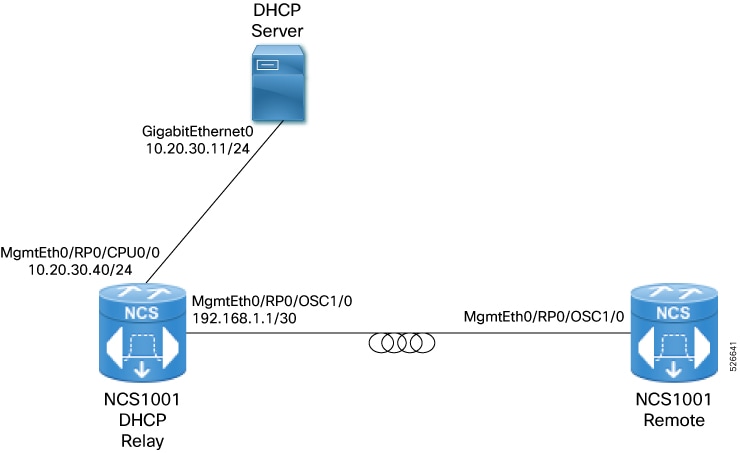
DHCP relays enable remote Cisco NCS 1001 devices to be configured automatically by forwarding DHCP requests over the OSC channel, using a DCN-connected NCS 1001 as the intermediary

Summary

The key components involved in the process are:

  • Remote Cisco NCS 1001 device: Starts and sends a DHCP request for ZTP.

  • Cisco NCS 1001 DHCP relay: Connects to the DCN and relays DHCP packets between the remote device and the DHCP server over the OSC channel.

  • DHCP server: Provides IP addressing and configuration to the remote device.

Workflow

Figure 2. DHCP relay workflow for remote Cisco NCS 1001 configuration

The process involves these stages:

  1. The remote Cisco NCS 1001 starts and sends a DHCP request over the OSC channel.
  2. The DCN-connected Cisco NCS 1001, configured as a DHCP relay, receives the request and forwards it to the DHCP server.
  3. The DHCP server responds with the required configuration, and the relay passes the response back to the remote device.
  4. The remote Cisco NCS 1001 receives its configuration and completes Zero Touch Provisioning.

Result

Remote NCS1001 devices are automatically configured and onboarded without manual intervention, streamlining deployment in distributed network environments.


Configure a DHCP relay agent

Configure a Cisco NCS 1001 device to relay DHCP requests from remote devices over the OSC channel, enabling remote devices to complete automated provisioning.

Before you begin

  • Ensure that you have administrative access to the Cisco NCS 1001 device connected to the DCN.

  • Confirm that the device supports DHCP relay functionality.

  • Verify the required IP addresses for the DHCP server and relay interface.

Procedure

1.

Enter configuration mode.

Example:

RP/0/RP0/CPU0:ios# config
2.

Enable DHCP IPv4 services.

Example:

RP/0/RP0/CPU0:ios(config)# dhcp ipv4
3.

Configure a relay profile for the DHCP IPv4 component.

Example:

RP/0/RP0/CPU0:ios(config-dhcpv4)# profile p1 relay
4.

Configure the DHCP IPv4 relay agent to relay DHCP packets to the DHCP server.

Example:

RP/0/RP0/CPU0:ios(config-dhcpv4-relay-profile)# helper-address vrf default 10.20.30.11 giaddr 192.168.1.1
5.

Configure the relay profile on the interface.

Example:

RP/0/RP0/CPU0:ios(config-dhcpv4-relay-profile)# interface MgmtEth0/RP0/OSC1/0 relay profile p1
6.

Commit the configuration.

Example:

RP/0/RP0/CPU0:ios(config-dhcpv4)# commit

The Cisco NCS 1001 device relays DHCP requests from remote devices over the OSC channel, allowing those devices to automatically complete Zero Touch Provisioning.